2014 LINCOLN NAVIGATOR phone
[x] Cancel search: phonePage 411 of 506
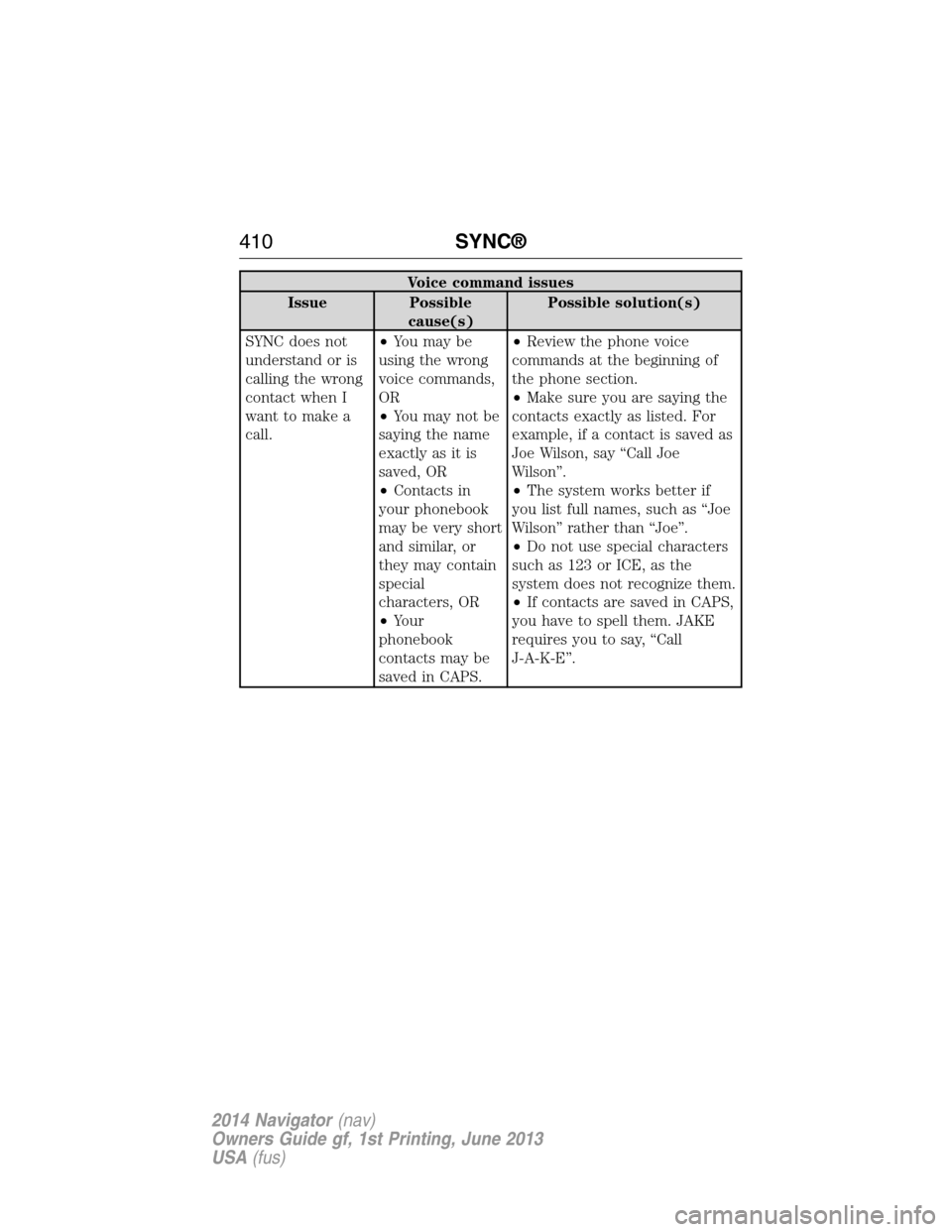
Voice command issues
Issue Possible
cause(s)Possible solution(s)
SYNC does not
understand or is
calling the wrong
contact when I
want to make a
call.•You may be
using the wrong
voice commands,
OR
•You may not be
saying the name
exactly as it is
saved, OR
•Contacts in
your phonebook
may be very short
and similar, or
they may contain
special
characters, OR
•Your
phonebook
contacts may be
saved in CAPS.•Review the phone voice
commands at the beginning of
the phone section.
•Make sure you are saying the
contacts exactly as listed. For
example, if a contact is saved as
Joe Wilson, say “Call Joe
Wilson”.
•The system works better if
you list full names, such as “Joe
Wilson” rather than “Joe”.
•Do not use special characters
such as 123 or ICE, as the
system does not recognize them.
•If contacts are saved in CAPS,
you have to spell them. JAKE
requires you to say, “Call
J-A-K-E”.
410SYNC®
2014 Navigator(nav)
Owners Guide gf, 1st Printing, June 2013
USA(fus)
Page 412 of 506
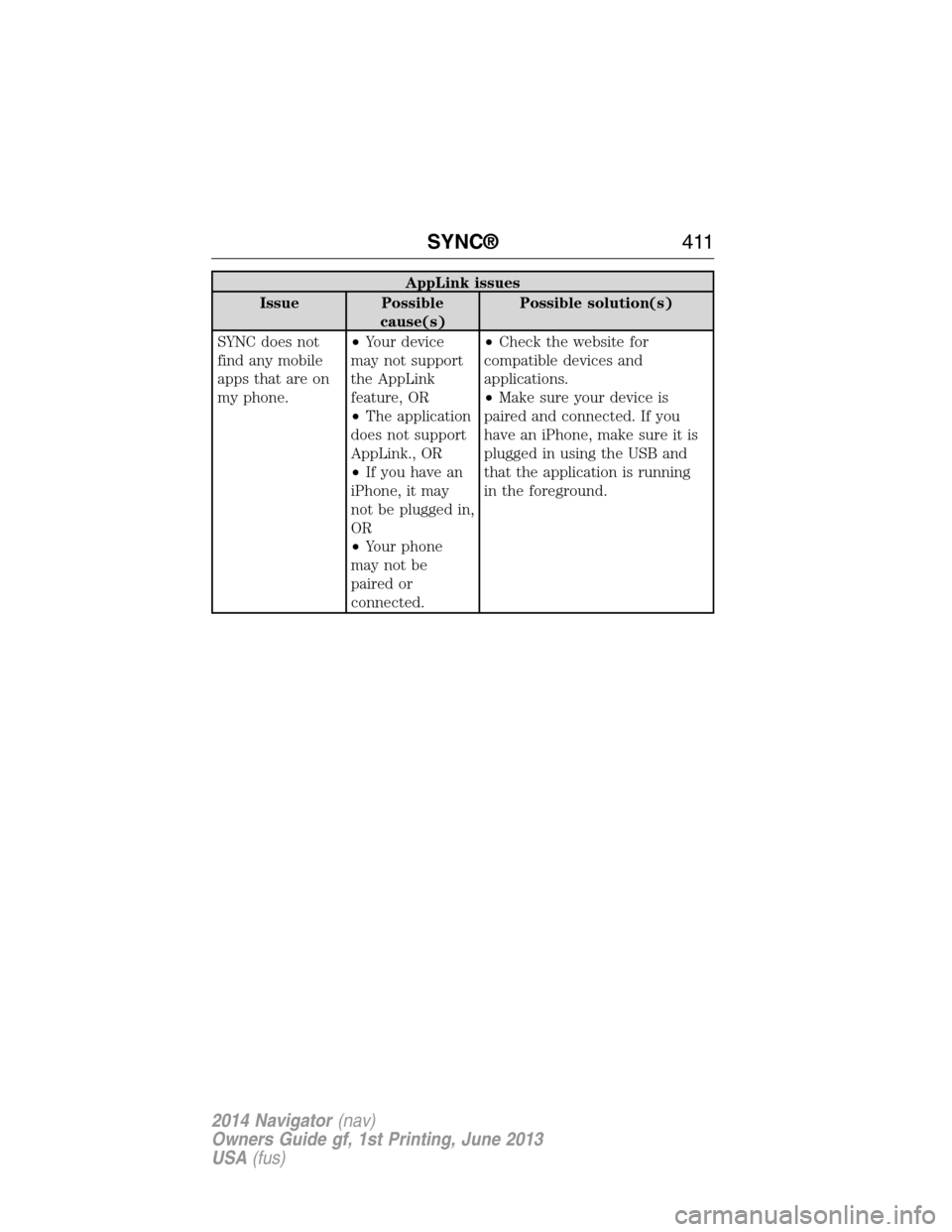
AppLink issues
Issue Possible
cause(s)Possible solution(s)
SYNC does not
find any mobile
apps that are on
my phone.•Your device
may not support
the AppLink
feature, OR
•The application
does not support
AppLink., OR
•If you have an
iPhone, it may
not be plugged in,
OR
•Your phone
may not be
paired or
connected.•Check the website for
compatible devices and
applications.
•Make sure your device is
paired and connected. If you
have an iPhone, make sure it is
plugged in using the USB and
that the application is running
in the foreground.
SYNC®411
2014 Navigator(nav)
Owners Guide gf, 1st Printing, June 2013
USA(fus)
Page 414 of 506

A.Memory presets:
•Store your favorite radio stations. To store a radio station, tune to the
station, then press and hold a preset button until sound returns.
•In radio and satellite radio mode, press a button to access your saved
presets or channels.
B.CD and DVD slot:Insert a CD or DVD, label side up.
C.Eject:Press this button to eject a CD or DVD from the system.
D.TUNE RPT:
•In radio or satellite radio mode, turn the control to advance in
individual increments up or down the frequency band to the desired
station.
•In MP3 mode, turn the control to advance to the next or previous
folder.
•In navigation mode, press this button to hear the last spoken
navigation guidance prompt.
E.MAP:
•Press this button to access the navigation map.
•Press while the map display is active to center the map on the
current vehicle position. Press while the map display and route are
active to see the different map guidance views.
F.DEST:
•Press this button to access the destination entry menu.
•Press while the destination entry menu is active to show additional
destination entry techniques.
G.N AV:
•Press this button to access the navigation menu.
•Press while the navigation menu is active to access the navigation
menu tabs.
H.I (Information):Press this button to access features such as Where
am I?, Sirius Travel Link, Calendar, System Info and Help.
I.PHONE:Press this button to access the SYNC phone menu.
J.DISP:Press this button to select a display mode: On, Status Bar Only,
and Off.
K.SEEK:
•In radio and satellite radio mode, press the arrow buttons to find
previous or next available stations or channels within the currently
selected Category or Genre.
•In CD and DVD modes, press the arrow buttons to select the previous
or next track or chapter.
Navigation System (If Equipped)413
2014 Navigator(nav)
Owners Guide gf, 1st Printing, June 2013
USA(fus)
Page 425 of 506

When you select: You can:
Show PresetsView the preset stations. Save a station by
pressing and holding one of the memory
preset areas. There is a brief mute while the
radio saves the station. Sound returns when
finished.
Set PTY/AllSelect a category of music you would like to
search for and then choose to either seek or
scan for the stations.
**
Note:The system scans the frequency band
three times for the chosen program type.
If the program type is unavailable in your
reception range, the system returns to the
previous station.
*This feature is only available in the United States.
**This feature is only available on the FM1 and FM2 radio tabs in the
United States.
Audio and Radio Voice Commands
If you are listening to the audio system, press the voice button
on the steering wheel control. When prompted, say any of the
commands in the following chart.
If you are not listening to the audio system, press the voice button and,
after the tone, say “Audio”, then any of the commands in the following
chart.
“AUDIO”
“CD” “Line in” “Sirius”
“Disc” “Off ” “SYNC”
“DVD” “On” “USB”
“Headphones” “Phone” “User Device”
“Headphones off” “Radio” “Video CD”
“Jukebox” “Read Message” “Help”
424Navigation System (If Equipped)
2014 Navigator(nav)
Owners Guide gf, 1st Printing, June 2013
USA(fus)
Page 448 of 506

System Information
Press the I (information) button, then select System
Information.
In this screen, you can view the following options:
•Phone number for your Customer Service Center
•Current system versions installed
•Current Sirius Radio ESN
•Sirius Travel Link ESN.
Note:Not all tab selections may be available in all markets. Check with
an authorized dealer for availability.
Help
The Help screen allows you to view basic information about controls and
driving restrictions as well as traffic legend information and basic voice
commands available in various modes.
If you select: You can:
Basic OperationView hard buttons on your navigation system.
Press the desired icon to view the button
description.
Driving RestrictionView the system’s driving restriction.
Traffic LegendView the color code for the Speed and Flow
of roads on the navigation system. You can
also select Traffic Incidents to help you
differentiate between viewed and unviewed
incidents.
Voice CommandsView a brief listing of possible voice
commands in a specific mode.
Navigation System (If Equipped)447
2014 Navigator(nav)
Owners Guide gf, 1st Printing, June 2013
USA(fus)
Page 451 of 506

Quick
Note:Items on this screen are selectable at any speed.
Find Nearest POISelect up to five different points of interest
(POI) favorites that you can search for while
your vehicle is moving. You can change these
categories at any time but the default categories
are:
•Gas Station
•AT M
•Restaurant
•Accommodations
•Parking Garage
When you select a category, the system displays
a list in order of distance from your vehicle’s
location. The Quick POI search range
automatically increases to a 50 mile (80 km)
radius if no point of interest is found within the
default 25 mile (40 km) radius.
You also have the option to select List All
Categories, which displays a list of all categories.
Previous DestinationTouch this button to select one of your previous
destinations.
Address BookTouch this button to set an entry in your address
book as your destination.
Standard
Note:Items on this screen are selectable only when your vehicle is
moving at speeds slower than 5 mph (8 km/h).
Address BookYou can store up to 25 entries, which you can
use as destinations, waypoints and areas to
avoid. You can sort the entries alphabetically,
by date or icon.
*
Previous
DestinationYou can store up to 20 recently used
destinations and waypoints. Duplicate entries
do not appear in the list. Adding a new entry
deletes the oldest one from the list.
*
Phone NumberTouch this button to search for a destination
using the phone number of a saved point of
interest or address book entry. Use the keypad
on the screen to enter the phone number.
450Navigation System (If Equipped)
2014 Navigator(nav)
Owners Guide gf, 1st Printing, June 2013
USA(fus)
Page 477 of 506

Terms and Conditions
Personal use only:You agree to use this Data together with your FLM
navigation system for solely personal, non commercial purposes for
which you were licensed, and not for service bureau, time-sharing or
other similar purposes. Accordingly, but subject to the restrictions set
forth in the following paragraphs, you may copy this Data only as
necessary for your personal use to (i) view it, and (ii) save it, provided
that you do not remove any copyright notices that appear and do not
modify the Data in any way. You agree not to otherwise reproduce copy,
modify, decompile, disassemble or reverse engineer any portion of this
Data, and may not transfer or distribute it in any form, for any purpose,
except to the extent permitted by mandatory laws.
Restrictions:
Except where you have been specifically licensed to do so by
(Licensee), and without limiting the preceding paragraph, you may not (a)
use this Data with any products, systems, or applications installed or
otherwise connected to or in communication with vehicles, capable of vehicle
navigation, positioning, dispatch, real time route guidance, fleet management
or similar applications; or (b) with or in communication with any positioning
devices or any mobile or wireless-connected electronic or computer devices,
including without limitation cellular phones, palmtop and handheld
computers, pagers, and personal digital assistants or PDAs.
No warranty:This Data is provided to you “as is,” and you agree to use
it at your own risk. (Licensee) and its licensors (and their licensors and
suppliers) make no guarantees, representations or warranties of any
kind, express or implied, arising by law or otherwise, including but not
limited to, content, quality, accuracy, completeness, effectiveness,
reliability, fitness for a particular purpose, usefulness, use or results to be
obtained from this Data, or that the Data or server will be uninterrupted
or error-free.
Disclaimer of warranty:(Licensee) and its licensors (including their
licensors and suppliers) disclaim any warranties, express or implied, of
quality, performance, merchantability, fitness for a particular purpose or
non infringement. Some States, Territories and Countries do not allow
certain warranty exclusions, so to that extent the above exclusion may
not apply to you.
476Appendices
2014 Navigator(nav)
Owners Guide gf, 1st Printing, June 2013
USA(fus)
Page 499 of 506

911 Assist™ ..............................384
A
ABS (see Brakes) .....................190
Accessing call history/phone
book during active call .............373
Accessing the help screen .......447
Accessing the music in your
jukebox ......................................441
Accessing your media menu
features ......................................396
Accessing your phone menu
features ......................................375
Accessory delay ..........................95
Active call menu options .........373
Advanced menu options ...382, 402
Advanced menu options
(prompts, languages, defaults,
master reset, installing
applications) ..............................382
Airbag supplemental restraint
system ..........................................51
and child safety seats ..............52
description ................................51
disposal ......................................57
driver airbag ..............................51
passenger airbag .......................51
side airbag ...........................51, 53
Air cleaner filter .......268–269, 324
Air filter .............................269, 324
All Wheel Drive (AWD),
driving off road .........................182
Ambulance packages ..................16
AM/FM .......................................423
Antifreeze (see Engine
coolant) .....................................259Anti-lock brake system
(see Brakes) ..............................190
Anti-theft system ..................80, 82
arming the system ..............80, 82
disarming a triggered system ..82
AppLink™ .................................392
Audio system
Single CD ................................334
Audio system (see Radio) .......334
Automatic transmission
driving an automatic
overdrive .................................176
fluid, adding ............................263
fluid, checking ........................263
fluid, refill capacities ..............320
fluid, specification ..................320
Auxiliary input jack (Line in) ..342
Auxiliary powerpoint ................155
Axle
lubricant specifications ..........320
refill capacities ........................320
B
Battery .......................................265
acid, treating emergencies .....265
jumping a disabled battery ....235
maintenance-free ....................265
replacement, specifications ...324
servicing ..................................265
Booster seats ...............................23
Brakes ........................................190
anti-lock ...................................190
anti-lock brake system (ABS)
warning light ...........................190
brake warning light ................190
fluid, checking and adding ....264
fluid, refill capacities ..............320
fluid, specifications .................320
498Index
2014 Navigator(nav)
Owners Guide gf, 1st Printing, June 2013
USA(fus)