2014 LINCOLN MKZ radio
[x] Cancel search: radioPage 302 of 468

• Only use the sealing compoundbefore the use by date. The use by
date is on the lower right hand
corner of the label located on the
sealant canister (bottle). Check
the use by date regularly and
replace the canister after four
years.
• Do not store the kit unsecured inside the passenger compartment
of the vehicle as it may cause injury
during a sudden stop or crash.
Always store the kit in its original
location.
• After sealant use, the tire pressure monitoring system sensor and
valve stem on the wheel must be
replaced by an authorized Ford
dealer.
• When inflating a tire or other objects, use the black air hose only.
Do not use the transparent hose
which is designed for sealant
application only.
• Operating the kit could cause an electrical disturbance in radio, CD,
and DVD player operation.
What to do when a Tire Is
Punctured
A tire puncture within the tire's tread
area can be repaired in two stages
with the kit. • In the first stage, the tire will be
reinflated with a sealing
compound and air. After the tire
has been reinflated, you will need
to drive the vehicle a short
distance (about 4 miles [6
kilometers]) to distribute the
sealant in the tire.
• In the second stage, you will need to check the tire pressure and
adjust, if necessary, to the vehicle's
tire inflation pressure.
First Stage: Reinflating the Tire
with Sealing Compound and Air
WARNINGS
Do not stand directly over the kit
while inflating the tire. If you
notice any unusual bulges or
deformations in the tire's sidewall
during inflation, stop and call roadside
assistance.
If the tire doesn't inflate to the
recommended tire pressure
within 15 minutes, stop and call
roadside assistance.
Preparation: Park the vehicle in a safe,
level and secure area, away from
moving traffic. Turn the hazard lights
on. Apply the parking brake and turn
the engine off. Inspect the flat tire for
visible damage.
Sealant compound contains latex. To
avoid any allergic reactions, use the
non-latex gloves located in the
accessory box on the underside of the
kit housing.
299
Wheels and Tires
Page 341 of 468

For maximum vehicle performance,
keep the following information in mind
when adding accessories or
equipment to your vehicle:
• When adding accessories,equipment, passengers and
luggage to your vehicle, do not
exceed the total weight capacity
of the vehicle or of the front or rear
axle (GVWR or GAWR as indicated
on the Safety Compliance
Certification label). Consult an
authorized dealer for specific
weight information.
• The Federal Communications Commission (FCC) and Canadian
Radio Telecommunications
Commission (CRTC) regulate the
use of mobile communications
systems that are equipped with
radio transmitters, for example,
two-way radios, telephones and
theft alarms. Any such equipment
installed in your vehicle should
comply with the Federal
Communications Commission
(FCC) and Canadian Radio
Telecommunications Commission
(CRTC) regulations and should be
installed only by an authorized
dealer.
• Mobile communications systems may harm the operation of your
vehicle, particularly if their
manufacturer did not design them
specifically for automotive use. • To avoid interference with other
vehicle functions, for example
anti-lock brake systems, do not
locate amateur radio antennas in
the area of the driver side hood.
• If you or an authorized Lincoln dealer add any non-Lincoln
custom electrical or electronic
accessories or components to your
vehicle, you may adversely affect
battery performance and
durability. In addition, you may also
adversely affect the performance
of other electrical systems in the
vehicle.
338
Accessories
Page 353 of 468
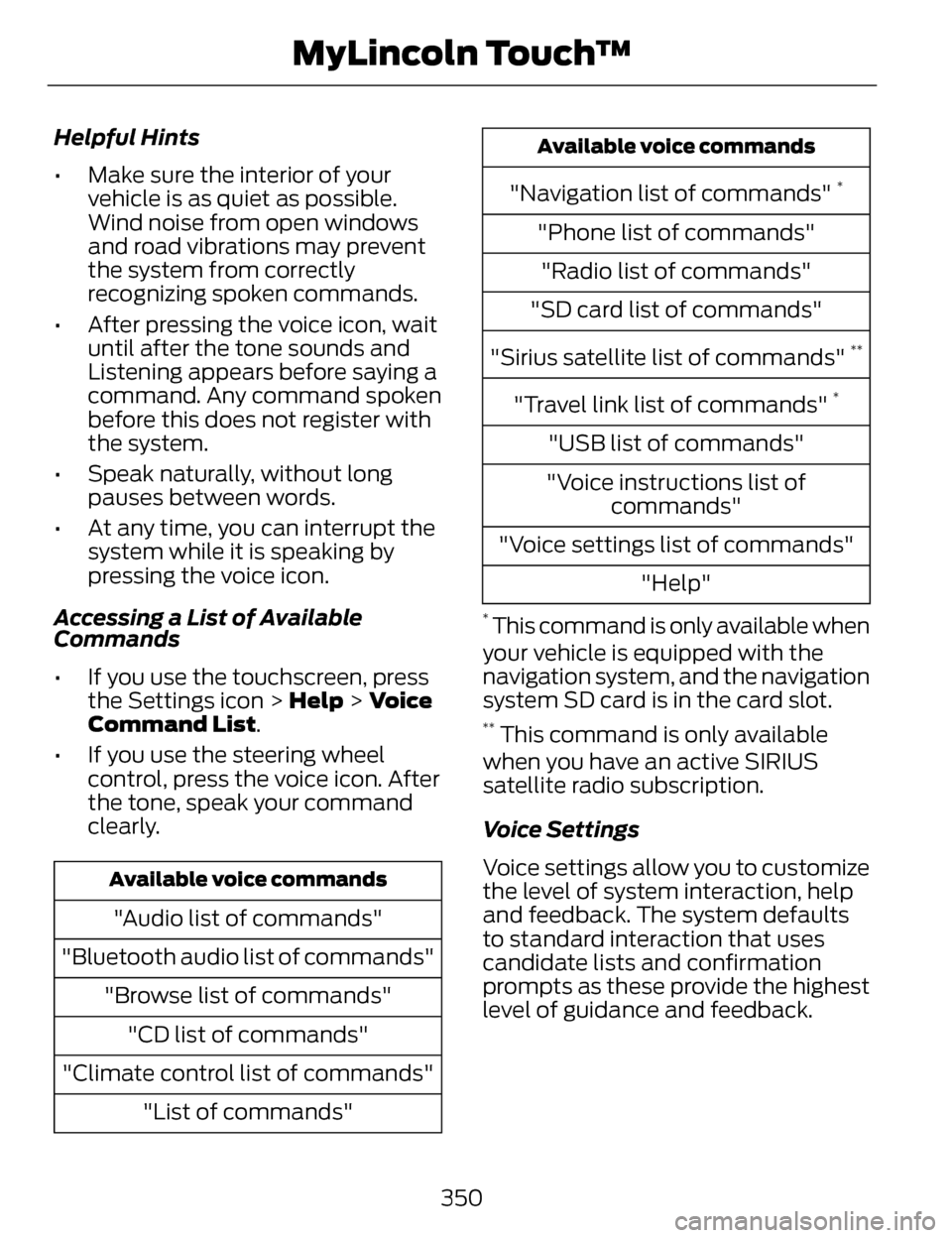
Helpful Hints
• Make sure the interior of yourvehicle is as quiet as possible.
Wind noise from open windows
and road vibrations may prevent
the system from correctly
recognizing spoken commands.
• After pressing the voice icon, wait until after the tone sounds and
Listening appears before saying a
command. Any command spoken
before this does not register with
the system.
• Speak naturally, without long pauses between words.
• At any time, you can interrupt the system while it is speaking by
pressing the voice icon.
Accessing a List of Available
Commands
• If you use the touchscreen, press the Settings icon > Help > Voice
Command List.
• If you use the steering wheel control, press the voice icon. After
the tone, speak your command
clearly.
Available voice commands
"Audio list of commands"
"Bluetooth audio list of commands" "Browse list of commands""CD list of commands"
"Climate control list of commands" "List of commands"
Available voice commands
"Navigation list of commands" *
"Phone list of commands""Radio list of commands"
"SD card list of commands"
"Sirius satellite list of commands"
**
"Travel link list of commands" *
"USB list of commands"
"Voice instructions list of commands"
"Voice settings list of commands" "Help"
* This command is only available when
your vehicle is equipped with the
navigation system, and the navigation
system SD card is in the card slot.
** This command is only available
when you have an active SIRIUS
satellite radio subscription.
Voice Settings
Voice settings allow you to customize
the level of system interaction, help
and feedback. The system defaults
to standard interaction that uses
candidate lists and confirmation
prompts as these provide the highest
level of guidance and feedback.
350
MyLincoln Touch™
Page 362 of 468

Navigation
Have the system display where there may be
reduced visibility.
Have the system turn on your radio for traffic
announcements.
Enter specific areas that you would like to avoid on
planned navigation routes.
Avoid Areas
Phone
E142607
Press the Settings icon >
Settings > Phone, then
select from the following:
Phone
Connect, disconnect, add or delete a device, as well
as save it as a favorite.
Bluetooth Devices
Turn Bluetooth on and off.
Bluetooth
Have all calls go directly to your voice mail and not
ring inside your vehicle. With this feature turned on,
text message notifications are also suppressed and
do not ring inside your vehicle.
Do Not Disturb
Turn on or turn off the 911 Assist feature. See
Information (page 392).
911 Assist
Select the type of notification for phone calls - ring
tone, beep, text to speech, or have it be silent.
Phone Ringer
Select the type of notification for text messages -
alert tone, beep, text to speech, or have it be silent.
Text Message Notifica-
tion
359
MyLincoln Touch™
Page 366 of 468

Help
View your vehicle's current location, if your vehicle
is equipped with navigation. If your vehicle is not
equipped with navigation, you do not see this
button.
Where Am I?
Touchscreen system serial number
System Information
Your vehicle identification number (VIN)
Touchscreen system software version
Navigation system version
Map database version
Sirius satellite radio ESN
Gracenote Database Information and Library version
View the licenses for any software and applications
installed on your system.
Software Licenses
Certain features are not accessible when your
vehicle is moving.
Driving Restrictions
Turn on and turn off the 911 Assist feature. See
Information (page 392).
911 Assist
In Case of Emergency (ICE) Quick Dial: allows
you to save up to two numbers as ICE contacts for
quick access if there is an emergency. Select Edit
to access your phonebook and then select the
desired contacts. The numbers then appear as
options on this screen for the ICE 1 and ICE 2 buttons.
The ICE contacts you select appear at the end of
the 911 Assist call process.
View categorized lists of voice commands.
Voice Command List
To access Help using the voice
commands, press the voice button,
then, after the tone, say "Help". The
system provides allowable voice
commands for the current mode.
363
MyLincoln Touch™
Page 367 of 468

ENTERTAINMENT
A
B
C
D
E
F
G
H
E161892
AM 1 and AM AST
A
FM 1, FM 2 and FM AST
B
SIRIUS
C
CDD
USB
E
Touch this button to scroll down for more options, such as SD Card,
BT Stereo and A/V In
F
These buttons change with the media mode you are in.
G
Radio memory presets and CD controls.
H
Note: Some features may not be
available in your area. Contact an
authorized dealer for more information.
You can access these options using
the touchscreen or voice commands.
Browsing Device Content
When listening to audio on a device,
you can browse through other devices
without having to change sources. For
example, if you are currently listening
to audio on an SD card, you can
browse all the artists that are stored
on your USB device.
364
MyLincoln Touch™
Page 368 of 468

E142599
Press the voice icon on the
steering wheel. When
prompted, you can say:
"BROWSE" within devices
"Browse"*
"Browse
"Browse
"Browse SD card"
"Browse Sirius channel guide"
**
"Browse USB" "Help"
* If you only say, "Browse", you can
then say any commands in the
following chart.
**This command is only usable if you
have an active subscription to Sirius
satellite radio.
"BROWSE"
"
"
"SD card"**
"Sirius Channel Guide"*
"BROWSE"
"USB"**
"Help"
* This command is only usable if you
have an active subscription to Sirius
satellite radio.
** For more commands in SD card or
USB mode, see the "SD Card and USB
Port" section of this chapter.
Your voice system allows you to
change audio sources with a simple
voice command. For example, if you
are listening to music on a USB device,
then want to switch to a satellite radio
channel, simply press the voice button
on the steering wheel controls and say
the name of the Sirius station (such
as, "the Highway"). The following
voice commands are available at the
top level of the voice session no
matter which current audio source you
are listening to (such as a USB device
or Sirius satellite radio).
Note: This is only available when your
MyFord Touch system language is set
to North American English.
Sample commands
"<87.7-107.9>"
"<530-1710>"
"
*
"AM <530-1710>"
"FM <87.7-107.9>"
365
MyLincoln Touch™
Page 369 of 468
![LINCOLN MKZ 2014 Owners Manual Sample commands
"Play [album] <name>"**
"Play [artist] <name>"**
"Play [genre] <name>"**
"Play [playlist] <name>"**
"Play [song] <name>"**
"Play <name>"
"Play <name (song or album)> by <artist name>"](/manual-img/15/6982/w960_6982-368.png "LINCOLN MKZ 2014 Owners Manual Sample commands
\"Play [album] <name>\"**
\"Play [artist] <name>\"**
\"Play [genre] <name>\"**
\"Play [playlist] <name>\"**
\"Play [song] <name>\"**
\"Play <name>\"
\"Play <name (song or album)> by <artist name>\"")
Sample commands
"Play [album]
"Play [artist]
"Play [genre]
"Play [playlist]
"Play [song]
"Play
"Play
"Sirius <0-223>"
*
"Sports games"*
*
This command is only usable if you
have an active subscription to Sirius
satellite radio.
** The commands that have [ ] around
the word means that the word is
optional. For example, if you say, "Play
Metallica", this is the same as the
voice command, "Play [artist]
AM/FM Radio
E142611
Touch the AM or FM tab to
listen to the radio.
To change between AM and FM
presets, just touch the AM or FM tab. Memory Presets
Save a station by pressing and holding
one of the memory preset areas.
There is a brief mute while the radio
saves the station. Sound returns when
finished.
HD Radio
Touch this button to turn HD Radio
on. The light on the button illuminates
when the feature is on. HD Radio
allows you to receive radio broadcasts
digitally, where available, providing
free, crystal-clear sound. See HD
Radio information later in this chapter.
Scan
Touch this button to go to the next
strong AM or FM radio station. The
light on the button illuminates when
the feature is on.
Options
Sound Settings
Touch this button to adjust settings
for:
•Bass
• Midrange
• Treble
• Balance and Fade
• THX Deep Note Demo
• DSP (Digital Signal processing)
• Occupancy Mode
• Speed Compensated Volume.
Note:
Your vehicle may not have all
these sound settings.
366
MyLincoln Touch™