Page 463 of 890
462
GS450h_OM_OM30D52U_(U)
5-3. Using the audio system
■Selecting a file
Select “<” or “>” on the screen to select the next/previous file.
Press “<” or “>” on the “PRST•TRACK” button or turn the “TUNE/
SCROLL” knob to select the desired file number.
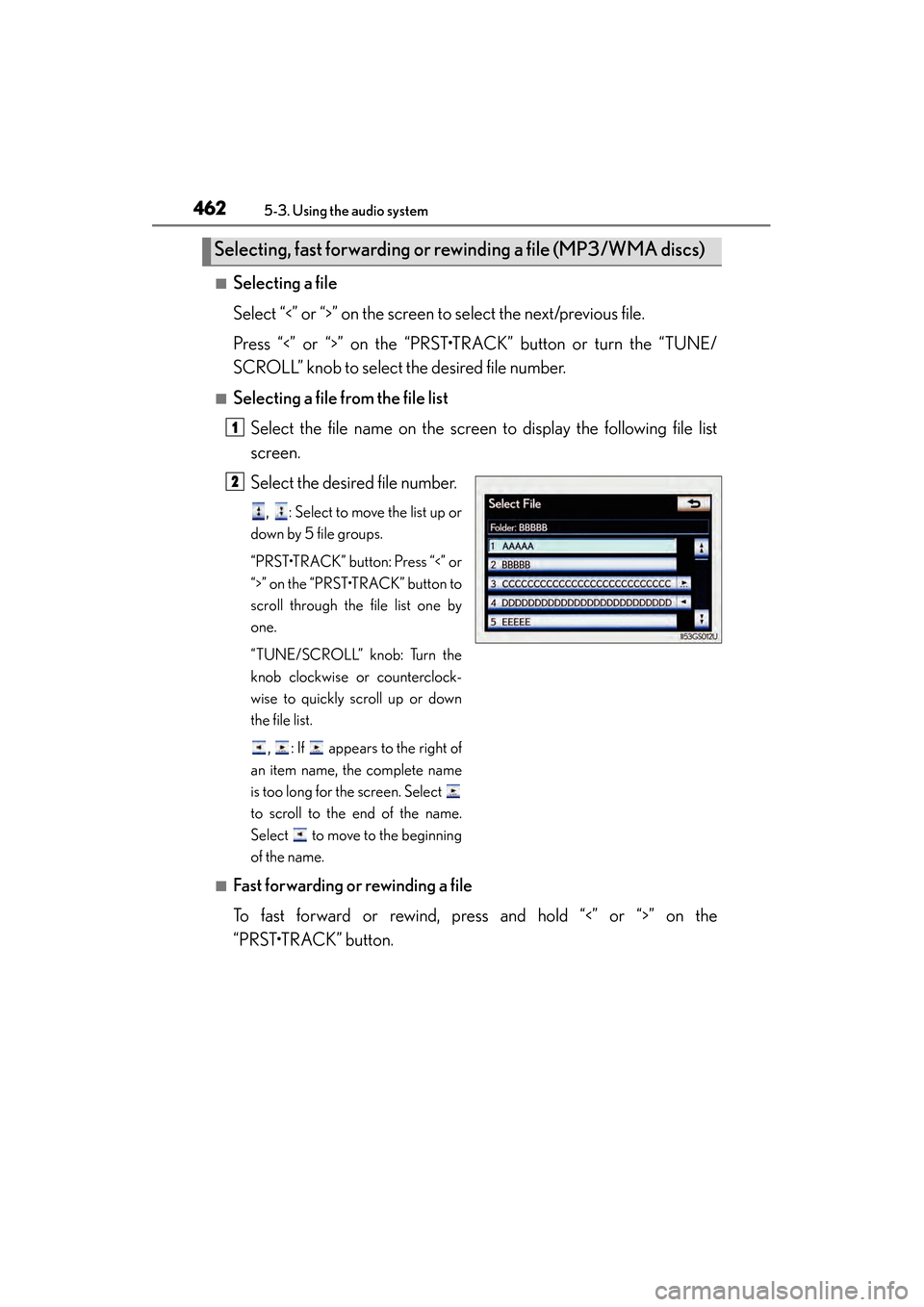
■Selecting a file from the file listSelect the file name on the screen to display the following file list
screen.
Select the desired file number.
, : Select to move the list up or
down by 5 file groups.
“PRST•TRACK” button: Press “<” or
“>” on the “PRST•TRACK” button to
scroll through the file list one by
one.
“TUNE/SCROLL” knob: Turn the
knob clockwise or counterclock-
wise to quickly scroll up or down
the file list.
, : If appears to the right of
an item name, the complete name
is too long for the screen. Select
to scroll to the end of the name.
Select to move to the beginning
of the name.
■Fast forwarding or rewinding a file
To fast forward or rewind, press and hold “<” or “>” on the
“PRST•TRACK” button.
Selecting, fast forwarding or rewinding a file (MP3/WMA discs)
1
2
GS450h_OM_OM30D52U_(U).book Page 462 Monday, July 29, 2013 12:07 PM
Page 474 of 890

GS450h_OM_OM30D52U_(U)
4735-3. Using the audio system
5
Interior features
■Setting menu languageSelect “Menu Language” on the “DVD Settings” screen.
Select the desired language to be read on the “Menu Language”
screen.
If you cannot find the desired language, select “Other” and input the desired
language code. ( →P. 4 74 )
■Setting angle mark
If the DVD has angle options, you can turn the angle mark on or off.
Select “Angle Mark” on the “DVD Settings” screen.
Select “On” or “Off”.
■Setting parental lock
Select “Parental Lock” on the “DVD Settings” screen.Input the 4-digit personal code on the “Key Code” screen.
If you enter wrong numbers, select to delete the numbers.
Select a parental level (1-8) on the “Select Restriction Level” screen.
(→P. 4 8 0 )
■Setting the auto start
Discs that are inserted while the vehicle is in motion will automatically
start playing.
Select “Auto Start Playback” on the “DVD Settings” screen.
Select “On” or “Off”.
■Setting sound dynamic range
The difference between the lowest volume and the highest volume can
be adjusted.Select “Sound Dynamic Range” on the “DVD Settings” screen.
Select “MAX”, “STD” or “MIN”.
1
2
1
2
1
2
3
1
2
1
2
GS450h_OM_OM30D52U_(U).book Page 473 Monday, July 29, 2013 12:07 PM
Page 495 of 890
494
GS450h_OM_OM30D52U_(U)
5-3. Using the audio system
■On the audio top screen
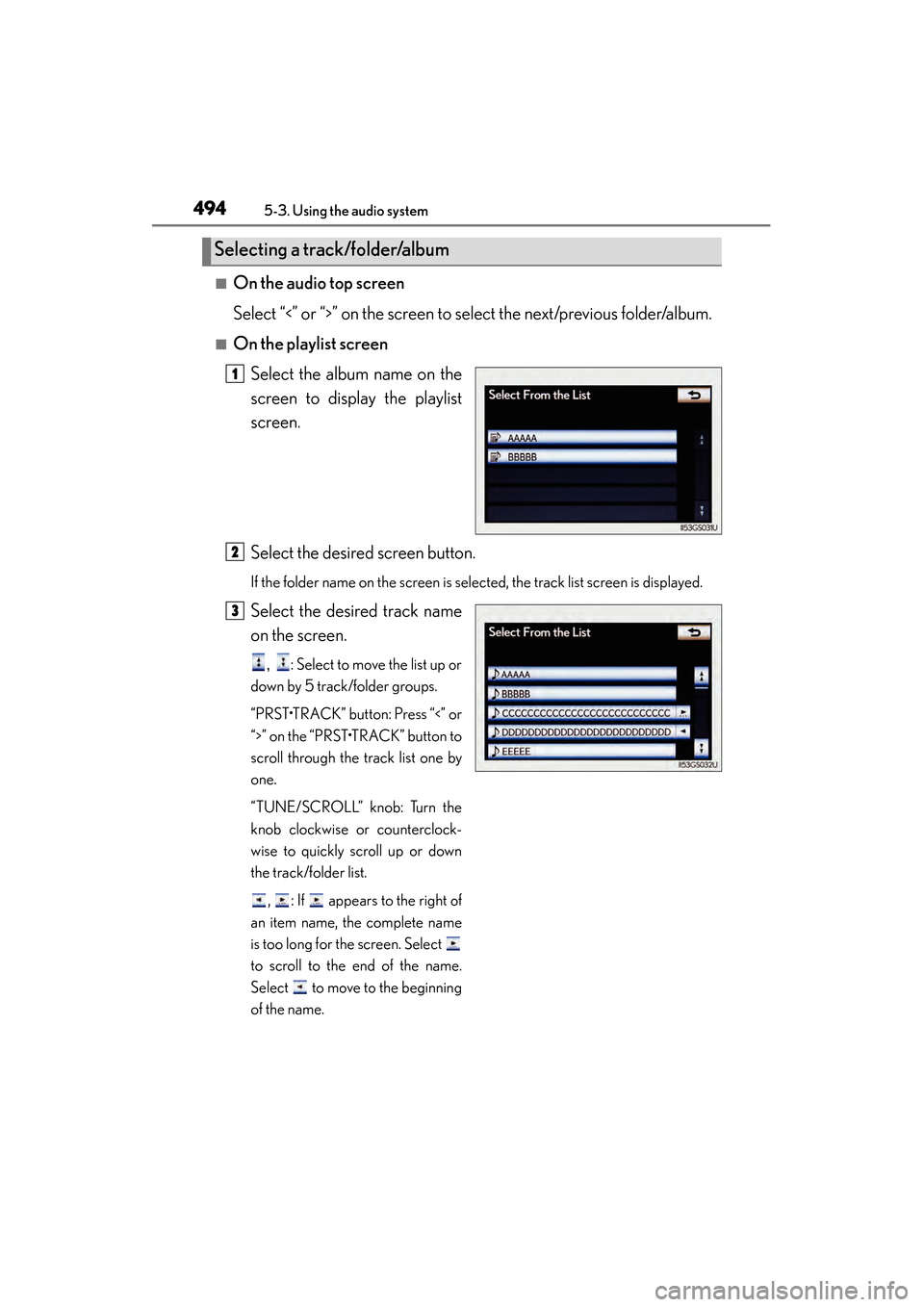
Select “<” or “>” on the screen to select the next/previous folder/album.
■On the playlist screenSelect the album name on the
screen to display the playlist
screen.
Select the desired screen button.
If the folder name on the screen is selected, the track list screen is displayed.
Select the desired track name
on the screen.
, : Select to move the list up or
down by 5 track/folder groups.
“PRST•TRACK” button: Press “<” or
“>” on the “PRST•TRACK” button to
scroll through the track list one by
one.
“TUNE/SCROLL” knob: Turn the
knob clockwise or counterclock-
wise to quickly scroll up or down
the track/folder list.
, : If appears to the right of
an item name, the complete name
is too long for the screen. Select
to scroll to the end of the name.
Select to move to the beginning
of the name.
Selecting a track/folder/album
1
2
3
GS450h_OM_OM30D52U_(U).book Page 494 Monday, July 29, 2013 12:07 PM
Page 496 of 890

GS450h_OM_OM30D52U_(U)
4955-3. Using the audio system
5
Interior features
■On the audio top screen
Turn the “TUNE/SCROLL” knob or press “<” or “>” on the
“PRST•TRACK” button to select the desired track number.
■On the track list screenSelect the track name on the screen to display the following track list
screen.
Select the desired track num-
ber.
, : Select to move the list up or
down by 5 track groups.
“PRST•TRACK” button: Press “<” or
“>” on the “PRST•TRACK” button to
scroll through the track list one by
one.
“TUNE/SCROLL” knob: Turn the
knob clockwise or counterclock-
wise to quickly scroll up or down
the track list.
, : If appears to the right of
an item name, the complete name
is too long for the screen. Select
to scroll to the end of the name.
Select to move to the beginning
of the name.
■Fast forwarding and rewinding a track
Press and hold “<” or “>” on the “PRST•TRACK” button to fast forward
or rewind.
Selecting, fast forwarding or rewinding a track
1
2
GS450h_OM_OM30D52U_(U).book Page 495 Monday, July 29, 2013 12:07 PM
Page 503 of 890
502
GS450h_OM_OM30D52U_(U)
5-3. Using the audio system
Select the folder/album name on
the screen.
Select the desired tab and select
the desired folder, artist or album.
Character screen buttons, “ABC”,
“DEF” etc., allow a direct jump to list
entries that begin with the same letter
as the character button.
Each time the same character screen
button is selected, the list starting with
the subsequent character is displayed., : Select to move the list up or
down by 5 folder/artist/album groups.
“TUNE/SCROLL” knob: Turn the
knob clockwise or counterclockwise
to quickly scroll up or down the folder/
artist/album list.
, : If appears to the right of an
item name, the complete name is too
long for the screen. Select to scroll
to the end of the name. Select to
move to the beginning of the name.
Selecting a folder, artist or album
1
2
GS450h_OM_OM30D52U_(U).book Page 502 Monday, July 29, 2013 12:07 PM
Page 504 of 890

GS450h_OM_OM30D52U_(U)
5035-3. Using the audio system
5
Interior features
■Selecting one file/track at a time
Select “<” or “>” on the screen to select the next/previous file/track.
Turn the “TUNE/SCROLL” knob or press “<” or “>” on the
“PRST•TRACK” button to select the desired file/track.
■Selecting a file/track from the listSelect the file/track name on the screen to display the following file/
track list screen.
Select the desired file/track
number.
, : Select to move the list up or
down by 5 file/track groups.
“PRST•TRACK” button: Press “<” or
“>” on the “PRST•TRACK” button to
scroll through the file/track list one
by one.
“TUNE/SCROLL” knob: Turn the
knob clockwise or counterclock-
wise to quickly scroll up or down
the file/track list.
, : If appears to the right of
an item name, the complete name
is too long for the screen. Select
to scroll to the end of the name.
Select to move to the beginning
of the name.
■Fast forwarding or rewinding a file/track
To fast forward or rewind, press and hold “<” or “>” on the
“PRST•TRACK” button.
Selecting, fast forwarding or rewinding a file/track
1
2
GS450h_OM_OM30D52U_(U).book Page 503 Monday, July 29, 2013 12:07 PM
Page 515 of 890

514
GS450h_OM_OM30D52U_(U)
5-3. Using the audio system
■Selecting one track at a time
Select “<” or “>” on the screen to select the next/previous track.
Turn the “TUNE/SCROLL” knob or press “<” or “>” on the
“PRST•TRACK” button to select the desired track.
■Selecting a track from the listSelect the track name on the screen to display the following track list
screen.
Select the desired track num-
ber.
, : Select to move the list up or
down by 5 track groups.
“PRST•TRACK” button: Press “<” or
“>” on the “PRST•TRACK” button to
scroll through the track list one by
one.
“TUNE/SCROLL” knob: Turn the
knob clockwise or counterclock-
wise to quickly scroll up or down
the track list.
, : If appears to the right of
an item name, the complete name
is too long for the screen. Select
to scroll to the end of the name.
Select to move to the beginning
of the name.
■Fast forwarding or rewinding a track
To fast forward or rewind, press and hold “<” or “>” on the
“PRST•TRACK” button.
Selecting, fast forwarding or rewinding a track
1
2
GS450h_OM_OM30D52U_(U).book Page 514 Monday, July 29, 2013 12:07 PM
Page 527 of 890

526
GS450h_OM_OM30D52U_(U)
5-3. Using the audio system
■MP3 disc or WMA discPress to select the DVD player.
Press “ ∧” or “ ∨” on to select a folder.
Press “ ∧” or “ ∨” on to select a file.
■USB memory
Press to select the USB memory.
Press “ ∧” or “ ∨” on to select a folder.
Press “ ∧” or “ ∨” on to select a file.
■Fast forwarding or rewinding a chapter or file
Press and hold “ ∧” or “ ∨” on .
■Button lock function
To prevent inadvertent operation, some buttons on the rear armrest can be locked.
(→ P. 4 0 8 )
■Rear control panel illumination off function
Control panel illumination on the rear armrest can be turned off. ( →P. 4 0 8 )
■When “ERROR”, “WAIT” or “NO MUSIC” is shown on the display
Refer to the following and take the appropriate measures. If the problem is not recti-
fied, take the vehicle to your Lexus dealer.
“ERROR”: This indicates a trouble either in the disc or inside the player. The disc
may be dirty, damaged, or inserted up-side down.
“WAIT”: Operation is stopped due to a high temperature inside the player. Eject the disc and allow the player to cool down.
“NO MUSIC”: This indicates that an MP3/WMA file is not included in the disc.
Selecting a file
1
2
3
1
2
3
GS450h_OM_OM30D52U_(U).book Page 526 Monday, July 29, 2013 12:07 PM