2014 KIA Sorento radio
[x] Cancel search: radioPage 266 of 508
4 175
Features of your vehicle
SYSTEM CONTROLLERS
AND FUNCTIONS❈Display and settings may differ
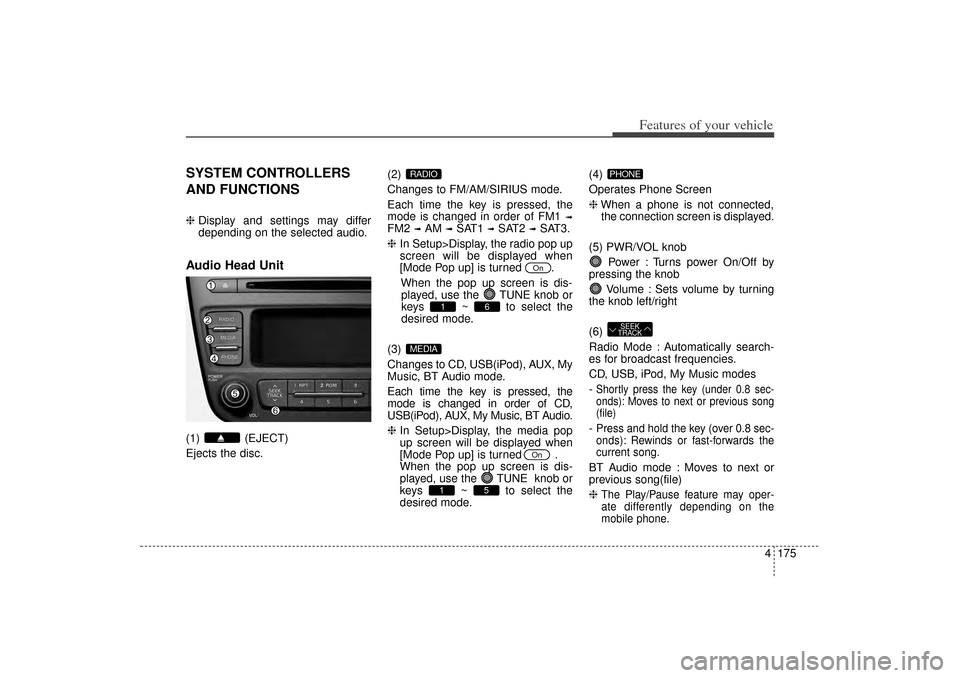
depending on the selected audio.Audio Head Unit(1) (EJECT)
Ejects the disc. (2)
Changes to FM/AM/SIRIUS mode.
Each time the key is pressed, the
mode is changed in order of FM1
➟
FM2
➟AM
➟SAT1
➟SAT2
➟SAT3.
❈ In Setup>Display, the radio pop up
screen will be displayed when
[Mode Pop up] is turned .
When the pop up screen is dis-played, use the TUNE knob or
keys ~ to select the
desired mode.
(3)
Changes to CD, USB(iPod), AUX, My
Music, BT Audio mode.
Each time the key is pressed, the
mode is changed in order of CD,
USB(iPod), AUX, My Music, BT Audio.
❈ In Setup>Display, the media pop
up screen will be displayed when
[Mode Pop up] is turned .
When the pop up screen is dis-
played, use the TUNE knob or
keys ~ to select the
desired mode. (4)
Operates Phone Screen
❈
When a phone is not connected,
the connection screen is displayed.
(5) PWR/VOL knob Power : Turns power On/Off by
pressing the knob
Volume : Sets volume by turning
the knob left/right
(6)
Radio Mode : Automatically search-
es for broadcast frequencies.
CD, USB, iPod, My Music modes
-
Shortly press the key (under 0.8 sec-
onds): Moves to next or previous song
(file)- Press and hold the key (over 0.8 sec-
onds): Rewinds or fast-forwards the
current song.BT Audio mode : Moves to next or
previous song(file)
❈
The Play/Pause feature may oper-
ate differently depending on the
mobile phone.
SEEK
TRACKPHONE
5
1
On
MEDIA
6
1
On
RADIO
XM(FL) CAN(ENG) 4b(AUDIO).qxp 1/23/2013 3:42 PM Page 175
Page 267 of 508
Features of your vehicle176
4(7)
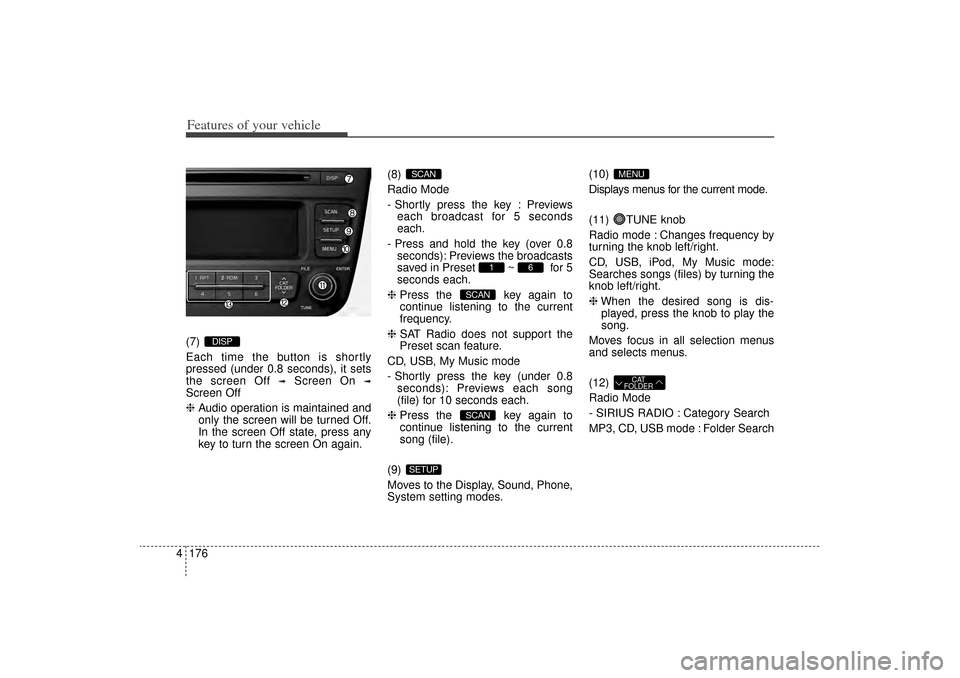
Each time the button is shortly
pressed (under 0.8 seconds), it sets
the screen Off
➟
Screen On
➟
Screen Off
❈ Audio operation is maintained and
only the screen will be turned Off.
In the screen Off state, press any
key to turn the screen On again. (8)
Radio Mode
- Shortly press the key : Previews
each broadcast for 5 seconds
each.
- Press and hold the key (over 0.8 seconds): Previews the broadcasts
saved in Preset ~ for 5
seconds each.
❈ Press the key again to
continue listening to the current
frequency.
❈ SAT Radio does not support the
Preset scan feature.
CD, USB, My Music mode
- Shortly press the key (under 0.8 seconds): Previews each song
(file) for 10 seconds each.
❈ Press the key again to
continue listening to the current
song (file).
(9)
Moves to the Display, Sound, Phone,
System setting modes. (10)
Displays menus for the current mode.
(11) TUNE knob
Radio mode : Changes frequency by
turning the knob left/right.
CD, USB, iPod, My Music mode:
Searches songs (files) by turning the
knob left/right.
❈
When the desired song is dis-
played, press the knob to play the
song.
Moves focus in all selection menus
and selects menus.
(12)
Radio Mode
- SIRIUS RADIO : Category Search
MP3, CD, USB mode : Folder Search
CAT
FOLDER
MENU
SETUP
SCANSCAN
6
1
SCAN
DISP
XM(FL) CAN(ENG) 4b(AUDIO).qxp 1/23/2013 3:42 PM Page 176
Page 268 of 508
4 177
Features of your vehicle
(13) ~ (Preset)
Radio Mode: Saves frequencies
(channels) or receives saved fre-
quencies (channels)
CD, USB, iPod, My Music mode
- : Repeat
- : Random
In the Radio, Media, Setup, and
Menu pop up screen, the number
menu is selected.
21
6
1
XM(FL) CAN(ENG) 4b(AUDIO).qxp 1/23/2013 3:42 PM Page 177
Page 269 of 508
![KIA Sorento 2014 3.G Owners Manual Features of your vehicle178
4SETUP
Display SettingsPress the key Select [Display]
through TUNE knob or key
Select menu through TUNE knob
Mode Pop up[Mode Pop up] Changes /
selection mode
During](/manual-img/2/2957/w960_2957-268.png "KIA Sorento 2014 3.G Owners Manual Features of your vehicle178
4SETUP
Display SettingsPress the key Select [Display]
through TUNE knob or key
Select menu through TUNE knob
Mode Pop up[Mode Pop up] Changes /
selection mode
During")
Features of your vehicle178
4SETUP
Display SettingsPress the key Select [Display]
through TUNE knob or key
Select menu through TUNE knob
Mode Pop up[Mode Pop up] Changes /
selection mode
During On state, press the
or key to display the mode
change pop up screen.Text Scroll[Text Scroll] Set /
: Maintains scroll
: Scrolls only one (1) time.Media DisplayWhen playing an MP3 file, select the
desired display info from ‘Folder/File’
or ‘Album/Artist/Song’.
OffOn
Off
On
MEDIA
RADIO
Off
On
1
SETUP
XM(FL) CAN(ENG) 4b(AUDIO).qxp 1/23/2013 3:42 PM Page 178
Page 272 of 508
4 181
Features of your vehicle
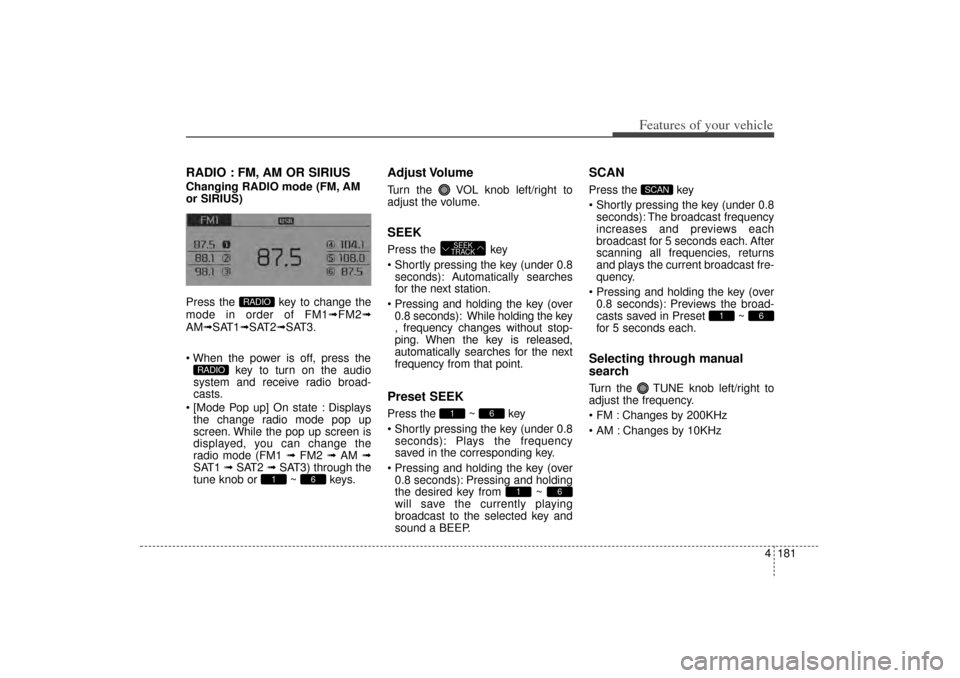
RADIO : FM, AM OR SIRIUSChanging RADIO mode (FM, AM
or SIRIUS)
Press the key to change the
mode in order of FM1➟FM2➟
AM➟SAT1➟SAT2➟SAT3.
When the power is off, press the key to turn on the audio
system and receive radio broad-
casts.
[Mode Pop up] On state : Displays the change radio mode pop up
screen. While the pop up screen is
displayed, you can change the
radio mode (FM1 ➟ FM2 ➟ AM ➟
SAT1 ➟ SAT2 ➟ SAT3) through the
tune knob or ~ keys.
Adjust VolumeTurn the VOL knob left/right to
adjust the volume.SEEKPress the key
Shortly pressing the key (under 0.8 seconds): A utomatically searches
for the next station.
Pressing and holding the key (over 0.8 seconds): While holding the key
, frequency changes without stop-
ping. When the key is released,
automatically searches for the next
frequency from that point.Preset SEEKPress the ~ key
Shortly pressing the key (under 0.8 seconds): Plays the frequency
saved in the corresponding key.
Pressing and holding the key (over 0.8 seconds): Pressing and holding
the desired key from ~
will save the currently playing
broadcast to the selected key and
sound a BEEP.
SCANPress the key
Shortly pressing the key (under 0.8seconds): The broadcast frequency
increases and previews each
broadcast for 5 seconds each. After
scanning all frequencies, returns
and plays the current broadcast fre-
quency.
Pressing and holding the key (over 0.8 seconds): Previews the broad-
casts saved in Preset ~
for 5 seconds each.Selecting through manual
searchTurn the TUNE knob left/right to
adjust the frequency.
FM : Changes by 200KHz
AM : Changes by 10KHz
6
1
SCAN
6
1
6
1 SEEK
TRACK
6
1
RADIO
RADIO
XM(FL) CAN(ENG) 4b(AUDIO).qxp 1/23/2013 3:42 PM Page 181
Page 274 of 508
4 183
Features of your vehicle
Satellite Radio channels:
SIRIUS Satellite Radio has over 130
channels, including 69 channels of
100% commercial-free music, plus
sports, news, talk and entertainment
available nationwide in your vehicle.
For more information and a complete
list of SIRIUS Satellite Radio chan-
nels, visit sirius.com in the United
States, sirius-canada.ca in Canada,
or call SIRIUS at 1-888-539-7474.
Satellite Radio reception factors:
To receive the satellite signal, your
vehicle has been equipped with a
satellite radio antenna located on the
roof of your vehicle. The vehicle roof
provides the best location for an
unobstructed, open view of the sky, a
requirement of a satellite radio sys-
tem. Like AM/FM, there are several
factors that can affect satellite radio
reception performance:
Antenna obstructions: For optimalreception performance, keep the
antenna clear of snow and ice
build-up and keep luggage and
other material as far away from the
antenna as possible.
Terrain: Hills, mountains, tall build- ings, bridges, tunnels, freeway over- passes, parking garages, dense
tree foliage and thunderstorms can
interfere with your reception.
SIRIUS Satellite Radio service:
SIRIUS Satellite Radio is a subscrip-
tion-based satellite radio service that
broadcasts music, sports, news and
entertainment programming to radio
receivers, which are available for instal-
lation in motor vehicles or factory
installed, as well as for the home,
portable and wireless devices, and
through an Internet connection on per-
sonal computer.
Vehicles that are equipped with a
factory installed SIRIUS Satellite
Radio system include:
Hardware and an introductory trial subscription term, which begins on
the date of sale or lease of the
vehicle.
For a small upgrade fee, access to SIRIUS music channels, and other
select channels over the Internet
using any computer connected to
the Internet (U.S. customers only).
For information on extended sub-
scription terms, contact SIRIUS at
1-888-539-7474. NOTE:
Satellite Radio requires SIRIUS®
compatible receiver and a sub-
scription service fee after trial
period.
Vehicles without a factory-installed
radio receiver require hardware
purchase and installation. Please
see your dealer for further details.
All fees and programming subject
to change.
Subscriptions governed by the
SIRIUS Terms & Conditions avail-
able at www.sirius.com / service
terms.
Available only in the 48 contiguous
United States and the District of
Columbia. Service available in
Canada; see www.siriuscanada.ca
KIA shall not be responsible for
any such programming changes.
Satellite Radio Electronic Serial
Number (ESN):
This 12-digit
Satellite Serial Number is needed to
re-activate, modify or track your
satellite radio account. You will need
this number when communicating
with SIRIUS.SIRIUS Satellite Radio information
XM(FL) CAN(ENG) 4b(AUDIO).qxp 1/23/2013 3:42 PM Page 183
Page 275 of 508
Features of your vehicle184
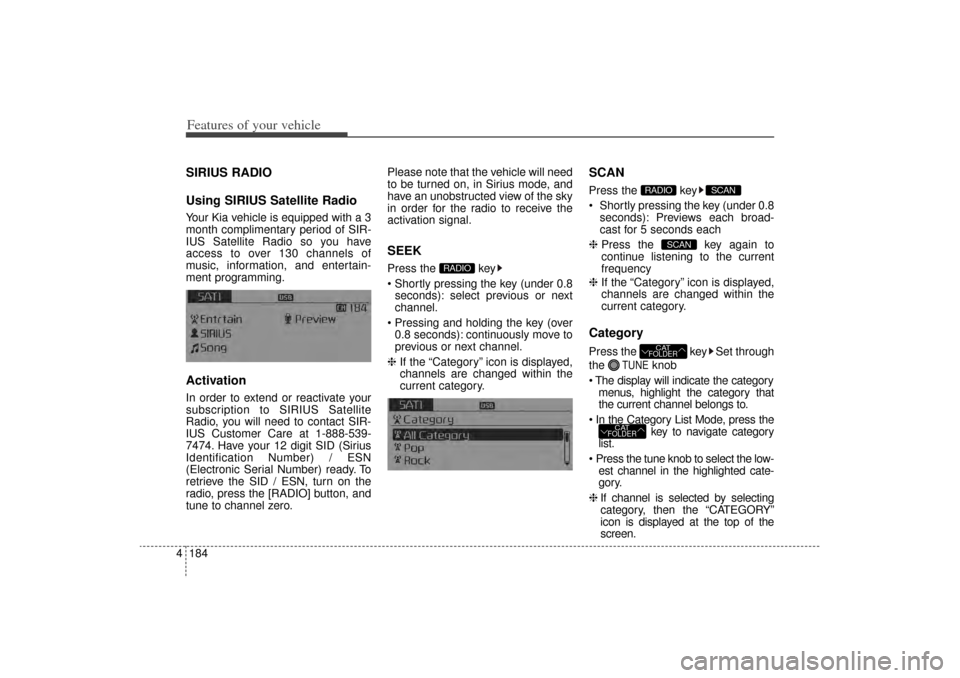
4SIRIUS RADIO
Using SIRIUS Satellite RadioYour Kia vehicle is equipped with a 3
month complimentary period of SIR-
IUS Satellite Radio so you have
access to over 130 channels of
music, information, and entertain-
ment programming.ActivationIn order to extend or reactivate your
subscription to SIRIUS Satellite
Radio, you will need to contact SIR-
IUS Customer Care at 1-888-539-
7474. Have your 12 digit SID (Sirius
Identification Number) / ESN
(Electronic Serial Number) ready. To
retrieve the SID / ESN, turn on the
radio, press the [RADIO] button, and
tune to channel zero. Please note that the vehicle will need
to be turned on, in Sirius mode, and
have an unobstructed view of the sky
in order for the radio to receive the
activation signal.
SEEKPress the key
Shortly pressing the key (under 0.8
seconds): select previous or next
channel.
Pressing and holding the key (over 0.8 seconds): continuously move to
previous or next channel.
❈ If the “Category” icon is displayed,
channels are changed within the
current category.
SCANPress the key
Shortly pressing the key (under 0.8
seconds): Previews each broad-
cast for 5 seconds each
❈ Press the key again to
continue listening to the current
frequency
❈ If the “Category” icon is displayed,
channels are changed within the
current category.CategoryPress the key Set through
the
TUNE
knob
The display will indicate the category menus, highlight the category that
the current channel belongs to.
In the Category List Mode, press the key to navigate category
list.
Press the tune knob to select the low- est channel in the highlighted cate-
gory.
❈ If channel is selected by selecting
category, then the “CATEGORY”
icon is displayed at the top of the
screen.
CATFOLDER
CATFOLDER
SCAN
SCAN
RADIO
RADIO
XM(FL) CAN(ENG) 4b(AUDIO).qxp 1/23/2013 3:42 PM Page 184
Page 276 of 508
4 185
Features of your vehicle
PresetPress the key ~
Shortly pressing the key (under 0.8seconds): Plays the frequency
saved in the corresponding key.
Pressing and holding the key (over 0.8 seconds): Pressing and holding
the desired key from ~
will save the current broadcast to
the selected key and sound a
BEEP.✽ ✽ Troubleshooting1. Antenna Error
If this message is displayed, the
antenna or antenna cable is bro-
ken or unplugged. Please consult
with your Kia dealership.
2. Acquiring Signal If this message is displayed, it
means that the antenna is covered
and that the SIRIUS Satellite
Radio signal is not available.
Ensure the antenna is uncovered
and has a clear view of the sky.
Tune Rotate TUNE knob : Changes
the channel number or scrolls cate-
gory list.
Press TUNE knob : Selects the menu.MenuSelect category menu through the
TUNE knob Press the
key Select [ Info] through the
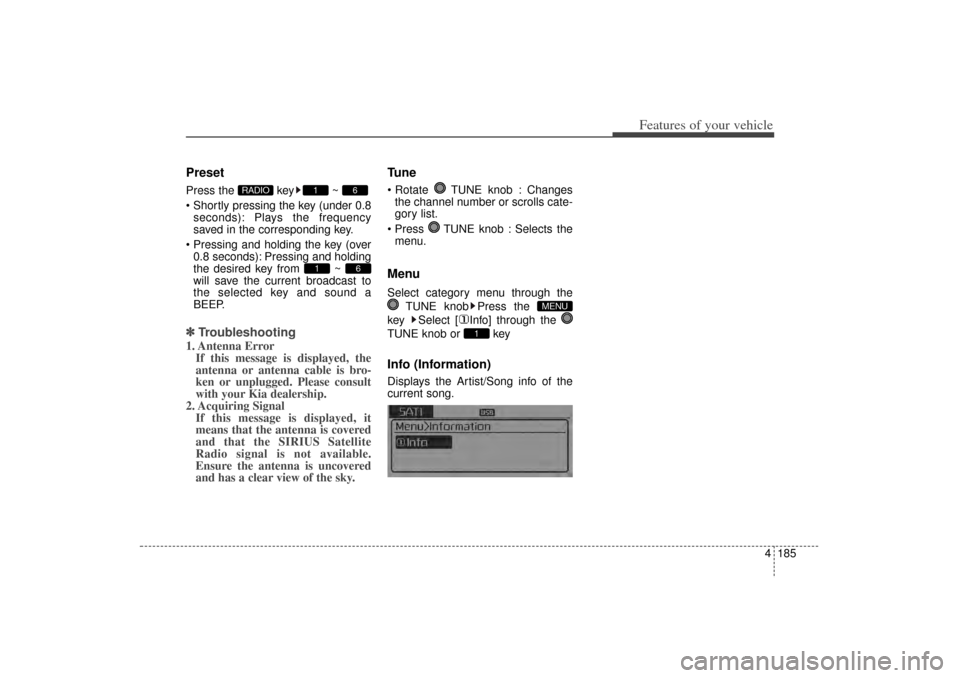
TUNE knob or keyInfo (Information)Displays the Artist/Song info of the
current song.
1
MENU
6
1
6
1
RADIO
XM(FL) CAN(ENG) 4b(AUDIO).qxp 1/23/2013 3:42 PM Page 185