2014 KIA MOHAVE lock
[x] Cancel search: lockPage 197 of 417

Features of your vehicle
120
4
Minute (2)
Press the M button to advance the time
displayed by one minute.
Hold the M button to advance the hour
reading more rapildy.
Reset (3)
To clear away minutes, press the R but-
ton. Then the clock will be set precisely
on the hour.
For example, if the R button is pressed
while the time is between 9:01 and 9:29,
the display will reset to 9:00.
9:01 ~ 9:29 display changed to 9:00
9:30 ~ 9:59 display changed to 10:00 D280604AHM
Display conversion
To change the 12 hour format to the 24
hour format, press the R button until the
display blinks.
For example, if the R button is pressed
while the time is 10:15 p.m., the displaywill change to 22:15. D281200AHM-EE Outside thermometer
The current outside temperature is dis-
played in 1°C (1°F) increments. The tem-
perature range is between -40°C ~ 60°C(-40°F~140°F). The outside temperature on the display
may not change immediately like a
general thermometer to prevent the
driver from being inattentive.
For details, refer to the "Climate control system" in section 4.
Temperature
Seconds
1. Turn the ignition switch to the ON posi- tion.
2. Press the H button at least 3 times within 3 seconds while pressing the R
button.
3. The temperature mode will change to the time mode. The time displays in
seconds.
4. If the M button is pressed, the clock’s minute will change and the counting
will start again from the beginning(00).
5. To return to the temperature mode, press the H button at least 3 timeswithin 3 seconds while pressing the R
button.
If the ignition switch turns OFF and ON
again, the temperature mode will be dis-
played.
OHM048138
OHM048139
■ Type A
■ Type B
Page 206 of 417
4129
Features of your vehicle
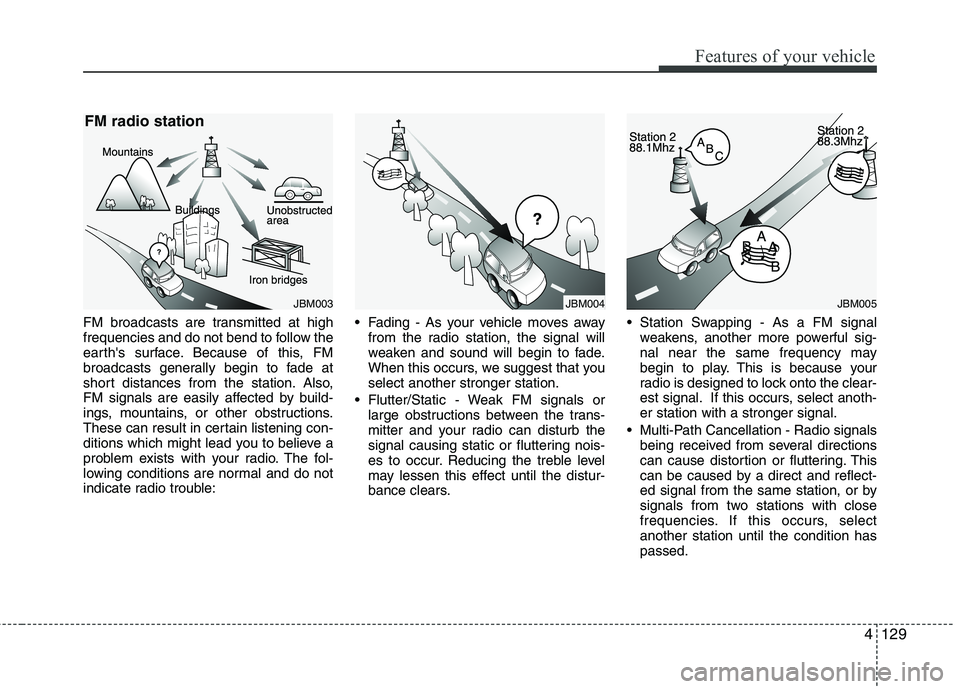
FM broadcasts are transmitted at high
frequencies and do not bend to follow the
earth's surface. Because of this, FM
broadcasts generally begin to fade at
short distances from the station. Also,
FM signals are easily affected by build-
ings, mountains, or other obstructions.
These can result in certain listening con-
ditions which might lead you to believe a
problem exists with your radio. The fol-
lowing conditions are normal and do not
indicate radio trouble: Fading - As your vehicle moves away
from the radio station, the signal will
weaken and sound will begin to fade.
When this occurs, we suggest that youselect another stronger station.
Flutter/Static - Weak FM signals or large obstructions between the trans-
mitter and your radio can disturb the
signal causing static or fluttering nois-
es to occur. Reducing the treble level
may lessen this effect until the distur-
bance clears. Station Swapping - As a FM signal
weakens, another more powerful sig-
nal near the same frequency may
begin to play. This is because your
radio is designed to lock onto the clear-
est signal. If this occurs, select anoth-er station with a stronger signal.
Multi-Path Cancellation - Radio signals being received from several directions
can cause distortion or fluttering. This
can be caused by a direct and reflect-
ed signal from the same station, or by
signals from two stations with close
frequencies. If this occurs, selectanother station until the condition haspassed.
JBM005JBM004JBM003
FM radio station
Page 215 of 417

Features of your vehicle
138
4
10. Track(File) Search Knob and
ENTER Button
Turn the knob clockwise to display the
Track NO(File name) after the current song.
Turn the knob counterclockwise to dis- play the Track NO(File Name) beforethe current song.
To select the displayed song, press the button.
11. FOLDER Search Button
Folder name/File name(the first song inthe folder) is moved up or down from
the currently playing folder.
To select the displayed folder, press ENTER(NO.10) button.
12. INFORMATION Button
Displays the information of the current CD
TRACK(FILE) as below when the button
is pressed each time.
CDDA : DISC TITLE ➟DISC ARTIST ➟
TRACK TITLE ➟TRACK ARTIST ➟TOTAL
TRACK...
MP3/WMA : FILE NAME ➟TITLE ➟
ARTIST ➟ALBUM ➟FOLDER NAME ➟
TOTAL FILE...
13. DISC UP/DOWN Button (CDC ONLY)
Disc is moved up or down from the cur-
rently playing disc.
14. CD Loading Button(CDC ONLY)
How to load a CD
Press [LOAD] for less than 0.8 second.
An empty slot is selected and the CD
number indicator(a) blinks on the LCD.
After "WAIT" is displayed for a moment, "INSERT DISC(1~6)" is diplayed and
the CD slot indicator(b) blinks.
Insert a CD while the slot indicator blinks.
How to load CDs(ALL Load)
Press [LOAD] for more than 0.8 sec- ond.
An empty slot is selected and the CD number indicator(a) blinks on the LCD.
After "WAIT" is displayed for a moment, "INSERT DISC(1~6)" is
diplayed and the CD slot indicator(b)
blinks.
Insert a CD while the slot indicator blinks. After the CD is inserted, the rest of the
empty CD slots' number blink.
Repeat step 2 and 3 until all of the slots are loaded.CAUTION
Insert a CD only while "Insert Disc(1~6)" is displayed and theslot indicator blinks.
Don't insert two CDs for one oper- ation.
Page 220 of 417

4143
Features of your vehicle
How to Activate USB MEMORY
1. RANDOM Play Button
Press this button for less than 0.8 second
to activate 'RDM' mode and more than
0.8 second to activate 'ALL RDM' mode.
RDM : Only files in a folder are playedback in random sequence.
ALL RDM : All files in a USB memory are played back in random sequence.
2. Automatic Track Selection Button
Press [TRACK ] to return to thebeginning of the current file.
Press again within 1 seconds to return
the previous file.
Press and hold [TRACK ] to initiate rewind search.
Press [SEEK ] for less than 0.8 sec- ond to advance the next file.
Press and hold [SEEK ] to initiate fast forward search.
3. REPEAT Play Button
Press this button for less than 0.8 second
to activate 'RPT' mode and more than
0.8 second to activate 'FLD RPT' mode.
RPT : Only a file is played repeatedly.
FLD RPT : Only files in a folder areplayed repeatedly.
4. SCROLL Play Button (if equipped)
File names are scrolled for 5 seconds on
the display.
5. USB/AUX Selection Button
If auxiliary device/USB/ is connected, itturns to USB/AUX mode and toggles
as below when the button is pressed
each time.
AUX/USB : AUX ➟USB ➟AUX.......
If no auxiliary device and USB is con- nected, it displays "No Media" for 5
seconds and returns to the previous
mode.
6. INFORMATION Button
Displays the information of the current
CD TRACK(FILE) as below when the
button is pressed each time. FILE NAME ➟
TITLE ➟ARTIST ➟ALBUM
➟ FOLDER NAME ➟TOTAL FILE...
7. File Search Knob and
ENTER Button
Turn this knob clockwise to display the
File name after the current song.
Turn this knob counterclockwise to dis- play the File name before the current song.
To select the displayed song, press the button.
8. FOLDER Search Button
Folder name/File name(the first songin the folder) is moved up or down from
currently playing folder.
To select the displayed folder, press ENTER(NO.6) button.
9. SCAN Selection Button
Plays back the first 10 seconds of eachsong in the USB memory.
Page 225 of 417

Features of your vehicle
148
4
Using RADIO, SETUP, VOLUME and
AUDIO CONTROL
1. FM/AM Button
FM Button
Turns to FM mode and switches
among FM1, FM2 when the button is
pressed each time.
AM Button Turns to AM mode when the button ispressed.
2. POWER Button & VOLUME Knob
Turns the Audio system on/off whenthe ignition switch is on ACC or ON.
If the knob is turned clockwise/counter- clockwise, the volume will increase
/decrease.
3. SEEK Button
When the [SEEK ] is pressed, it will automatically tune to the next lower station.
When the [SEEK ] is pressed, it will automatically tune to the next higherstation. 4. AST(AUTO STORE) Button
When AST is pressed, the frequency is
stored on the preset memory [1]~[6]
and automatically plays a channelstored on the Preset [1].
If nothing has been stored because there was no frequency received, it will
return to the previous frequency.
5. PRESET Buttons
Press [1]~[6] buttons less than 0.8 sec- ond to play the station saved in each
button.
Press [1]~[6] b uttons more than 0.8
second or longer to save the current
station to the respective button with a
beep. 6. TUNE Knob & ENTER Button
If the knob is turned clockwise/counter-
clockwise, the frequency will increase/
decrease.
Page 226 of 417

4149
Features of your vehicle
■■Sound Setup mode
Push the AUDIO CONTROL(TUNE knob) button to enter SETUP mode.
Select “SOUND” item by rotating the TUNE knob then push knob.
■
■ TYPE A
■
■ TYPE B
Hierarchy 1
Hierarchy 2 Rotate the knob clockwise by one notch to increase frequency from current fre-
quency. Rotate the knob counterclock-
wise by one notch to decrease frequency
from current frequency.
Pressing the button changes the BASS,
MIDDLE, TREBLE, FADER and BAL-
ANCE TUNE mode. The mode selected
is shown on the display. After selecting
each mode, rotate the Audio control knob
clockwise or counterclockwise.
To increase the BASS, rotate the knob
clockwise, while to decrease the BASS,
rotate the knob counterclockwise.
To increase the MIDDLE, rotate the knob
clockwise, while to decrease the MID-
DLE, rotate the knob counterclockwise.
Control
To increase the TREBLE, rotate the knob
clockwise, while to decrease the TRE-
BLE, rotate the knob counterclockwise.
Turn the control knob clockwise to
emphasize rear speaker sound (frontspeaker sound will be attenuated).
When the control knob is turned counter-
clockwise, front speaker sound will be
emphasized (rear speaker sound will be
attenuated).
Rotate the knob clockwise to emphasize
right speaker sound(left speaker sound
will be attenuated). When the control
knob is turned counter clockwise, left
speaker sound will be emphasized(right
speaker sound will be attenuated).
Selects whether long file names are
scrolled continuously(“ON”) or just once(“OFF”).
Select this item to turn the SDVC (Speed
Dependent Volume Control) feature ON or
OFF. If it is turned ON, volume level isadjusted automatically according to the
vehicle speed.
Page 230 of 417

4153
Features of your vehicle
10. TUNE Knob & ENTER Button
Turn the knob clockwise to display theTrack NO(File name) after the current song.
Turn the knob counterclockwise to dis- play the Track NO(File Name) beforethe current song.
To select the displayed song, press the button.
11. FOLDER Button
Folder name/File name(the first song in the folder) is moved up or down from
the currently playing folder.
To select the displayed folder, press ENTER(NO.10) button.
12. INFO(INFORMATION) Button
Displays the information of the current CD
TRACK(FILE) as below when the button
is pressed each time. CDDA : DISC TITLE ➟DISC ARTIST ➟
TRACK TITLE ➟TRACK ARTIST ➟TOTAL
TRACK...
MP3/WMA : FILE NAME ➟TITLE ➟
ARTIST ➟ALBUM ➟FOLDER NAME ➟
TOTAL FILE...13. DISC Button(CD Changer:PA 960)
Disc is moved up or down from the cur-
rently playing disc.
14. LOAD Button(CD Changer:PA 960)
How to load a CD
Press [LOAD] for less than 0.8 second.
An empty slot is selected and the CD
number indicator(a) blinks on the LCD.
After "WAIT" is displayed for a moment, "INSERT DISC(1~6)" is diplayed and
the CD slot indicator(b) blinks.
Insert a CD while the slot indicator blinks.
How to load CDs(ALL Load)
Press [LOAD] for more than 0.8 sec- ond.
An empty slot is selected and the CD number indicator(a) blinks on the LCD.
After "WAIT" is displayed for a moment, "INSERT DISC(1~6)" is
diplayed and the CD slot indicator(b)
blinks.
Insert a CD while the slot indicator blinks. After the CD is inserted, the rest of the
empty CD slots' number blink.
Repeat step 2 and 3 until all of the slots are loaded.CAUTION
Insert a CD only while "Insert Disc(1~6)" is displayed and theslot indicator blinks.
Don't insert two CDs for one oper- ation.
Page 235 of 417

Features of your vehicle
158
4
Using USB device
1. RANDOM Button
Press this button for less than 0.8 second
to activate 'RDM' mode and more than
0.8 second to activate 'ALL RDM' mode.
RDM : Only files in a folder are played
back in random sequence.
ALL RDM : All files in a USB memory are played back in random sequence.
2. TRACK Button
Press [TRACK ] to return to the beginning of the current file.
Press again within 1 seconds to return
the previous file.
Press and hold [TRACK ] to initiate rewind search.
Press [TRACK ] for less than 0.8 second to advance the next file.
Press and hold [TRACK ] to initiate fast forward search. 3. REPEAT Button
Press this button for less than 0.8 second
to activate 'RPT' mode and more than
0.8 second to activate 'FLD RPT' mode.
RPT : Only a file is played repeatedly.
FLD RPT : Only files in a folder are
played repeatedly.
4. SCROLL Button
File names are scrolled for 5 seconds on
the display.
5. AUX/USB Button
If auxiliary device/USB/ is connected, it turns to USB/AUX mode and toggles
as below when the button is pressed
each time.
AUX/USB : AUX ➟USB ➟AUX...
If no auxiliary device and USB is con- nected, it displays "No Media" for 5
seconds and returns to the previous
mode. 6. INFO(INFORMATION) Button
Displays the information of the current
CD TRACK(FILE) as below when the
button is pressed each time. FILE NAME
➟TITLE ➟ARTIST ➟ALBUM
➟ FOLDER NAME ➟TOTAL FILE...
7. TUNE Knob & ENTER Button
Turn this knob clockwise to display the File name after the current song.
Turn this knob counterclockwise to dis- play the File name before the current song.
To select the displayed song, press the button.
8. FOLDER Button
Folder name/File name(the first song in the folder) is moved up or down from
currently playing folder.
To select the displayed folder, press ENTER(NO.6) button.
9. SCAN Button
Plays back the first 10 seconds of each
song in the USB memory.