2014 KIA CEED USB
[x] Cancel search: USBPage 864 of 1206

Features of your vehicle
180
4
(Continued)
Charging through the USB may not
be supported in some mobile
devices.
USB HDD or USB types that liable to connection failures due to vehicle
vibrations are not supported. (i-sticktype)
Some non-standard USB devices (METAL COVER TYPE USB) can be
unrecognizable.
Some USB flash memory readers (such as CF, SD, micro SD, etc.) or
external-HDD type devices can be
unrecognizable.
Music files protected by DRM (DIGI- TAL RIGHTS MANAGEMENT) are
not recognizable.✽✽ NOTICE - USB Jack Damage
Page 866 of 1206

Features of your vehicle
182
4
SYSTEM CONTROLLERS AND FUNCTIONS ❈ Display and settings may differ
depending on the selected audio.
Audio Head Unit (1) (EJECT) Ejects the disc. (2)
Changes to FM/AM mode.
Each time the key is pressed,the mode is changed in order of FM1 ➟
FM2 ➟FMA
➟ AM ➟AMA.
❈ In Setup>Display, the radio pop up
screen will be displayed when [Mode
Pop up] is turned .When the pop up screen is displayed,
use the TUNE knob or keys
~ to select the desired mode.
(3)
Changes to CD, USB MP3, iPod, BT
MP3, AUX modes.
Each time the key is pressed, the mode
is changed in order of CD, USB, iPod,
AUX, My Music, BT Audio. ❈ In Setup>Display, the media pop up
screen will be displayed when [Mode
Pop up] is turned .
When the pop up screen is displayed,
use the TUNE knob or keys
~ to select the desired mode.
(4)
Operates Phone Screen❈ When a phone is not connected, the
connection screen is displayed.
(5) ,
Radio Mode : Automatically searches for
broadcast frequencies.
CD, USB, iPod, My Music modes
- Shortly press the key (under 0.8 seconds): Moves to next or previous song (file)
- Press and hold the key (over 0.8 seconds): Rewinds or fast-forwards the current song.
(6) / knob
Power Knob: Turns power On/Off by
pressing the knob
Volume Knob: Sets volume by turning
the knob left/right (7)
Changes to FM mode.
Each time the key is pressed, the mode is changed in order of FM1
➟ FM2➟ FMA.
(8)
Changes to AM mode.
Each time the key is pressed, the mode is changed in order of AM ➟
AMA.AM
FM
TRACKSEEK
PHONE
51
On
MEDIA
61
On
RADIO
JD RHD 4b(172~).QXP 4/29/2013 11:49 AM Page 182
Page 867 of 1206
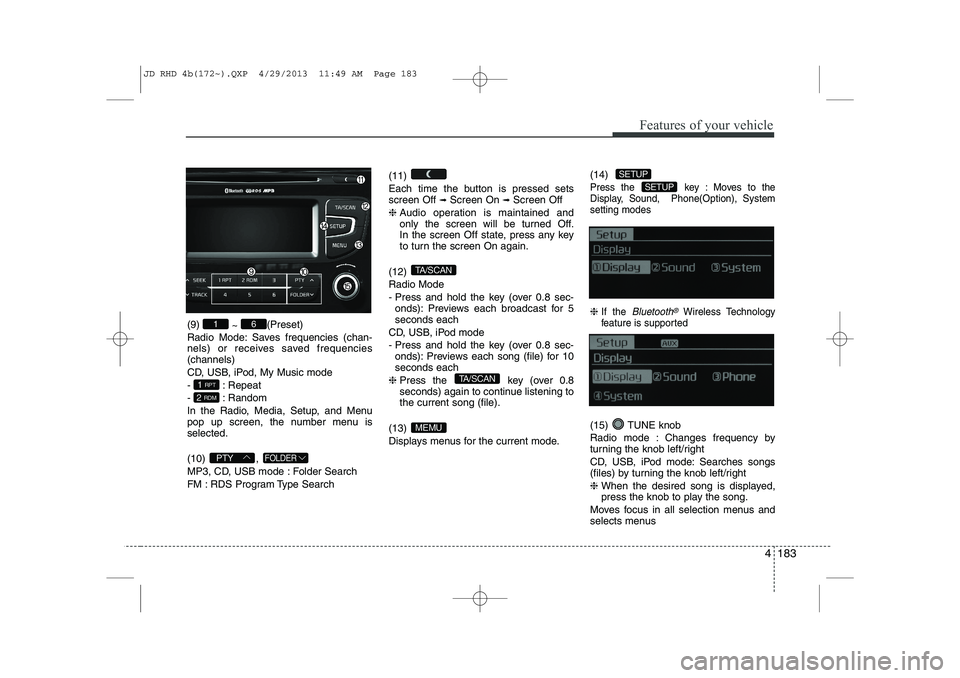
4 183
Features of your vehicle
(9) ~ (Preset)
Radio Mode: Saves frequencies (chan-
nels) or receives saved frequencies(channels)
CD, USB, iPod, My Music mode
- : Repeat
- : Random
In the Radio, Media, Setup, and Menu
pop up screen, the number menu isselected. (10) ,
MP3, CD, USB mode : Folder Search
FM : RDS Program Type Search (11)
Each time the button is pressed sets screen Off
➟
Screen On ➟Screen Off
❈ Audio operation is maintained and
only the screen will be turned Off.
In the screen Off state, press any key
to turn the screen On again.
(12) Radio Mode
- Press and hold the key (over 0.8 sec- onds): Previews each broadcast for 5 seconds each
CD, USB, iPod mode
- Press and hold the key (over 0.8 sec- onds): Previews each song (file) for 10 seconds each
❈ Press the key (over 0.8
seconds) again to continue listening tothe current song (file).
(13)
Displays menus for the current mode. (14)
Press the key : Moves to the
Display, Sound, Phone(Option), Systemsetting modes
❈
If the Bluetooth®Wireless Technology
feature is supported
(15) TUNE knob
Radio mode : Changes frequency by
turning the knob left/right
CD, USB, iPod mode: Searches songs
(files) by turning the knob left/right ❈ When the desired song is displayed,
press the knob to play the song.
Moves focus in all selection menus and
selects menus
SETUP
SETUP
MEMU
TA/SCAN
TA/SCAN
FOLDERPTY
2 RDM
1 RPT
61
JD RHD 4b(172~).QXP 4/29/2013 11:49 AM Page 183
Page 878 of 1206

Features of your vehicle
194
4
BASIC METHOD OF USE :
Audio CD / MP3 CD / USB /
iPod / My Music
Press the key to change the mode in order of CD ➟USB(iPod) ➟AUX
➟ My Music ➟BT Audio.
The folder/file name is displayed on thescreen. ❈ The CD is automatically played when
a CD is inserted.
❈ The USB music is automatically
played when a USB is connected.Song Infomation
Press the key Select [ Display]
through the TUNE knob or key
Select [Song Info] Media Display
[Song Info ] : The screen display info
can be changed to Album/Artist/Song
name.
Repeat
Whilst song (file) is playing
(RPT) key
Audio CD, MP3 CD, USB, iPod, My Music
mode: RPT on screen
To repeat one song (Shortly pressing the key (under 0.8 seconds)): Repeats the current song.
MP3 CD, USB mode: FLD.RPT onscreen
To repeat folder (Pressing and holding the key (over 0.8 seconds)): repeats all
files within the current folder.
❈ Press the key again to turn offrepeat. Random
Whilst song (file) is playing
(RDM) key
Audio CD, My Music mode: RDM on screen
Random (Shortly pressing the key
(under 0.8 seconds)): Plays all songs in
random order.
MP3 CD, USB mode: FLD.RDM onscreen
Folder Random (Shortly pressing the key (under 0.8 seconds)): Plays all files
within the current folder in random
order.
iPod mode: ALB RDM on screen
Album Random (Shortly pressing the key (under 0.8 seconds)): Plays all files
within albums of the current category in
random order.
MP3 CD, USB, iPod mode: ALL RDM onscreen
All Random (pressing and holding the key (over 0.8 seconds)): Plays all files in
random order.
❈ Press the key again to turn offrepeat.
2RDM
2 RDM
1 RPT
1 RPT
1 RPT
SETUP
MEDIA
JD RHD 4b(172~).QXP 4/29/2013 11:49 AM Page 194
Page 879 of 1206

4 195
Features of your vehicle
Changing Song/File
Whilst song (file) is playing key
Shortly pressing the key (under 0.8seconds): Plays the current song from the beginning.
❈ If the key is pressed again
within 1 second, the previous song is
played.
Pressing and holding the key (over 0.8 seconds): Rewinds the song.
Whilst song (file) is playing key
Shortly pressing the key (under 0.8seconds): Plays the next song.
Pressing and holding the key (over 0.8 seconds): Fast forwards the song. Scan
Whilst song (file) is playingkey
Pressing and holding the key (over 0.8
seconds) : Scans all songs for 10 sec-
onds starting from the next song.
❈ Press the key again to turn
off.
❈ The SCAN function is not supported in
iPod mode.
Folder Search : MP3 CD, USB Mode
Whilst file is playing (Folder
Up) key
Searches the next folder.
Whilst file is playing (Folder
Down) key
Searches the parent folder. ❈ If a folder is selected by pressing the
TUNE knob, the first file within the
selected folder will be played.
❈ In iPod mode, moves to the Parent
Folder. Searching Songs (File)
Turning
TUNEknob : Searches for
songs (files)
Pressing TUNE knob : Plays select- ed song (file).
FOLDER
PTY
TA/SCAN
TA/SCAN
SEEK
TRACK
TRACK
JD RHD 4b(172~).QXP 4/29/2013 11:50 AM Page 195
Page 880 of 1206
![KIA CEED 2014 Owners Manual Features of your vehicle
196
4
MENU : Audio CD
Press the CD MP3 mode key to
set the Repeat, Random, Information
features. Repeat
Press the key Set [ RPT] through the
TUNEknob or
key to repeat t](/manual-img/2/57942/w960_57942-879.png "KIA CEED 2014 Owners Manual Features of your vehicle
196
4
MENU : Audio CD
Press the CD MP3 mode key to
set the Repeat, Random, Information
features. Repeat
Press the key Set [ RPT] through the
TUNEknob or
key to repeat t")
Features of your vehicle
196
4
MENU : Audio CD
Press the CD MP3 mode key to
set the Repeat, Random, Information
features. Repeat
Press the key Set [ RPT] through the
TUNEknob or
key to repeat the current song. ❈ Press the key again to turn off.
Random
Press the key Set [ RDM] through the
TUNEknob or
key to randomly play songs within
the current folder. ❈ Press the key again to turn off. Information
Press the key Set [ Info] through the
TUNEknob or
key to display information of the cur-rent song. ❈ Press the key to turn off info
display. MENU : MP3 CD / USB
Press the CD MP3 mode key to
set the Repeat, Folder Random, Folder
Repeat, All Random, Information, and
Copy features. Repeat
Press the key Set [ RPT] through the
TUNEknob or
key to repeat the current song. Folder Random
Press the key Set [ F.RDM] through the
TUNEknob or
key to randomly play songs within the
current folder.2 RDM
MENU
1 RPT
MENU
MENU
MENU
3
MENU
2 RDM
2 RDM
MENU
1 RPT
1 RPT
MENU
MENU
JD RHD 4b(172~).QXP 4/29/2013 11:50 AM Page 196
Page 881 of 1206
![KIA CEED 2014 Owners Manual 4 197
Features of your vehicle
Folder Repeat
Press the key Set [ F.RPT] through the
TUNEknob or
key to repeat songs within the cur-
rent folder. All Random
Press the key Set [ A.RDM] through the](/manual-img/2/57942/w960_57942-880.png "KIA CEED 2014 Owners Manual 4 197
Features of your vehicle
Folder Repeat
Press the key Set [ F.RPT] through the
TUNEknob or
key to repeat songs within the cur-
rent folder. All Random
Press the key Set [ A.RDM] through the")
4 197
Features of your vehicle
Folder Repeat
Press the key Set [ F.RPT] through the
TUNEknob or
key to repeat songs within the cur-
rent folder. All Random
Press the key Set [ A.RDM] through the
TUNEknob or key
to randomly play all songs within the
CD.
Information
Press the key Set [ Info] through the
TUNEknob or
key to display information of the cur-rent song. ❈ Press the key to turn off info
display. Copy
Press the key Set [ Copy] through the
TUNEknob or
key.
This is used to copy the current song into My Music. You can play the copied
Music in My Music mode.
❈ If another key is pressed whilst copy-
ing is in progress, a pop up asking you
whether to cancel copying is dis-
played.
❈ If another media is connected or
inserted (USB, CD, iPod, AUX) whilst
copying is in progress, copying is can-celed.
❈ Music will not be played whilst copying
is in progress. MENU : iPod
In iPod mode, press the key to
set the Repeat, Album Random, All
Random, Information and Search fea-
tures. Repeat
Press the key Set [ RPT] through the
TUNEknob or
key to repeat the current song.
Album Random
Press the key Set [ AlbRDM] through the TUNEknob or key.
Plays albums within the currently playing
category in random order.
2 RDM
MENU
1 RPT
MENU
MENU
6
MENU
MENU
5
MENU
4
MENU
3
MENU
JD RHD 4b(172~).QXP 4/29/2013 11:50 AM Page 197
Page 882 of 1206
![KIA CEED 2014 Owners Manual Features of your vehicle
198
4
All Random
Press the key Set [ A.RDM] through the TUNEknob or
key.
Plays all songs within the currently play-
ing category in random order.
Information
Press the](/manual-img/2/57942/w960_57942-881.png "KIA CEED 2014 Owners Manual Features of your vehicle
198
4
All Random
Press the key Set [ A.RDM] through the TUNEknob or
key.
Plays all songs within the currently play-
ing category in random order.
Information
Press the")
Features of your vehicle
198
4
All Random
Press the key Set [ A.RDM] through the TUNEknob or
key.
Plays all songs within the currently play-
ing category in random order.
Information
Press the key Set [ Info] through the
TUNEknob or
key.
Displays information of the current song.
Search
Press the key Set [ Search] through the TUNEknob or
key.
Some iPod models may not support communication protocol and files may
not properly play.
Supported iPod models:
- iPod Mini ®
- iPod 4th(Photo) ~ 6th(Classic) genera- tion
- iPod Nano ®
1st~4th generation
- iPod Touch ®
1st~2nd generation The order of search or playback of
songs in the iPod can be different from the order searched in the audio system.
If the iPod is disabled due to its own malfunction, reset the iPod. (Reset:
Refer to iPod manual)
An iPod may not operate normally on low battery.
Some iPod devices, such as the iPhone, can be connected through the
-interface. The device must have audio
Bluetooth®Wireless Technology capa-
bility (such as for stereo headphone
Bluetooth®Wireless Technology ). The
device can play, but it will not be con-
trolled by the audio system.
To use iPod features within the audio, use the cable provided upon purchasing an
iPod device.
Skipping or improper operation may occur depending on the characteristics of your
iPod/Phone device.
If your iPhone is connected to both the
Bluetooth®Wireless Technology and
USB, the sound may not be properly
played. In your iPhone, select the Dockconnector or
Bluetooth®Wireless
Technology to change the sound output
(source). When connecting iPod with the iPod
Power Cable, insert the connector to the
multimedia socket completely. If not
inserted completely, communications
between iPod and audio may be inter-
rupted.
When adjusting the sound effects of the iPod and the audio system, the sound
effects of both devices will overlap and
might reduce or distort the quality of thesound.
Deactivate (turn off) the equalizer func- tion of an iPod when adjusting the audio
system’s volume, and turn off the
equalizer of the audio system whenusing the equaliz
er of an iPod.
When not using iPod with car audio, detach the iPod cable from iPod. Otherwise, iPod
may remain in accessory mode, and may
not work properly.
5
MENU
4
MENU
3
MENU
JD RHD 4b(172~).QXP 4/29/2013 11:50 AM Page 198