Page 153 of 678

To hear the first available Menu, press the Voice Com-
mand
button and say “Help” or “Main Menu.”
Commands
The Voice Command system understands two types of
commands, Universal commands and Local commands.
Universal commands are available at all times. Local
commands are available if the supported radio mode is
active.
Changing The Volume
1. Start a dialogue by pressing the Voice Command
button.
2. Say a command (e.g., “Help”).
3.
Use the ON/OFF VOLUME rotary knob to adjust the
volume to a comfortable level while the Voice Command
system is speaking. Please note the volume setting for
Voice Command is different than the audio system.
Main Menu
Start a dialogue by pressing the Voice Command
button. You may say “Main Menu” to switch to
the main menu.
In this mode, you can say the following commands:
• “Radio AM” (to switch to the radio AM mode)
• “Radio FM” (to switch to radio FM mode)
• “Sat” (to switch to Satellite radio mode)
• “Disc” (to switch to the disc mode)
• “USB” (to switch to USB mode)
• “Bluetooth Streaming” (to switch to Bluetooth®
Streaming mode)
• “Memo” (to switch to the memo recorder)
• “System Setup” (to switch to system setup)3
UNDERSTANDING THE FEATURES OF YOUR VEHICLE 151
Page 155 of 678
Disc Mode
To switch to the disc mode, say “Disc.” In this mode, you
may say the following commands:
•“Track” (#) (to change the track)
• “Next Track” (to play the next track)
• “Previous Track” (to play the previous track)
• “Main Menu” (to switch to the main menu)
USB Mode
To switch to USB mode, say “USB.” In this mode, you
may say the following commands:
•“Next Track” (to play the next track)
• “Previous Track” (to play the previous track)
• “Play” (to play an Artist Name, Playlist Name, Album
Name, Track Name, etc.)
Bluetooth® Streaming (BT) Mode
To switch to Bluetooth® Streaming (BT) mode, say
“Bluetooth Streaming.” In this mode, you may say the
following commands:
• “Play” (to play the current track)
• “Pause” (to pause the current track)
• “Next Track” (to play the next track)
• “Previous Track” (to play the previous track)
3
UNDERSTANDING THE FEATURES OF YOUR VEHICLE 153
Page 307 of 678

�Uconnect® 130 WITH SATELLITE RADIO .....373
▫ Operating Instructions — Radio Mode ......373
▫ Operation Instructions — CD MODE For CD And
MP3 Audio Play ..................... .379
▫ Notes On Playing MP3 Files .............381
▫ LIST Button — CD Mode For MP3 Play ......384
▫ INFO Button — CD Mode For MP3 Play .....384
▫ Uconnect® (Satellite Radio) — If Equipped . . .385
�
iPod®/USB/MP3 CONTROL — IF EQUIPPED . . .390
▫ Connecting The iPod® Or External USB
Device ............................ .390
▫ Using This Feature .....................391
▫ Controlling The iPod® Or External USB Device
Using Radio Buttons ...................391 ▫
Play Mode ......................... .392
▫ List Or Browse Mode ...................393
▫ Bluetooth® Streaming Audio (BTSA) .......395
� STEERING WHEEL AUDIO CONTROLS ......397
▫ Radio Operation ..................... .397
▫ CD Player .......................... .398
� CD/DVD DISC MAINTENANCE ...........398
� RADIO OPERATION AND MOBILE PHONES . .399
� CLIMATE CONTROLS ...................399
▫ Manual Heating And Air Conditioning ......400
▫ Automatic Temperature Control (ATC) — If
Equipped .......................... .404
▫ Operating Tips ...................... .410
4
UNDERSTANDING YOUR INSTRUMENT PANEL 305
Page 349 of 678
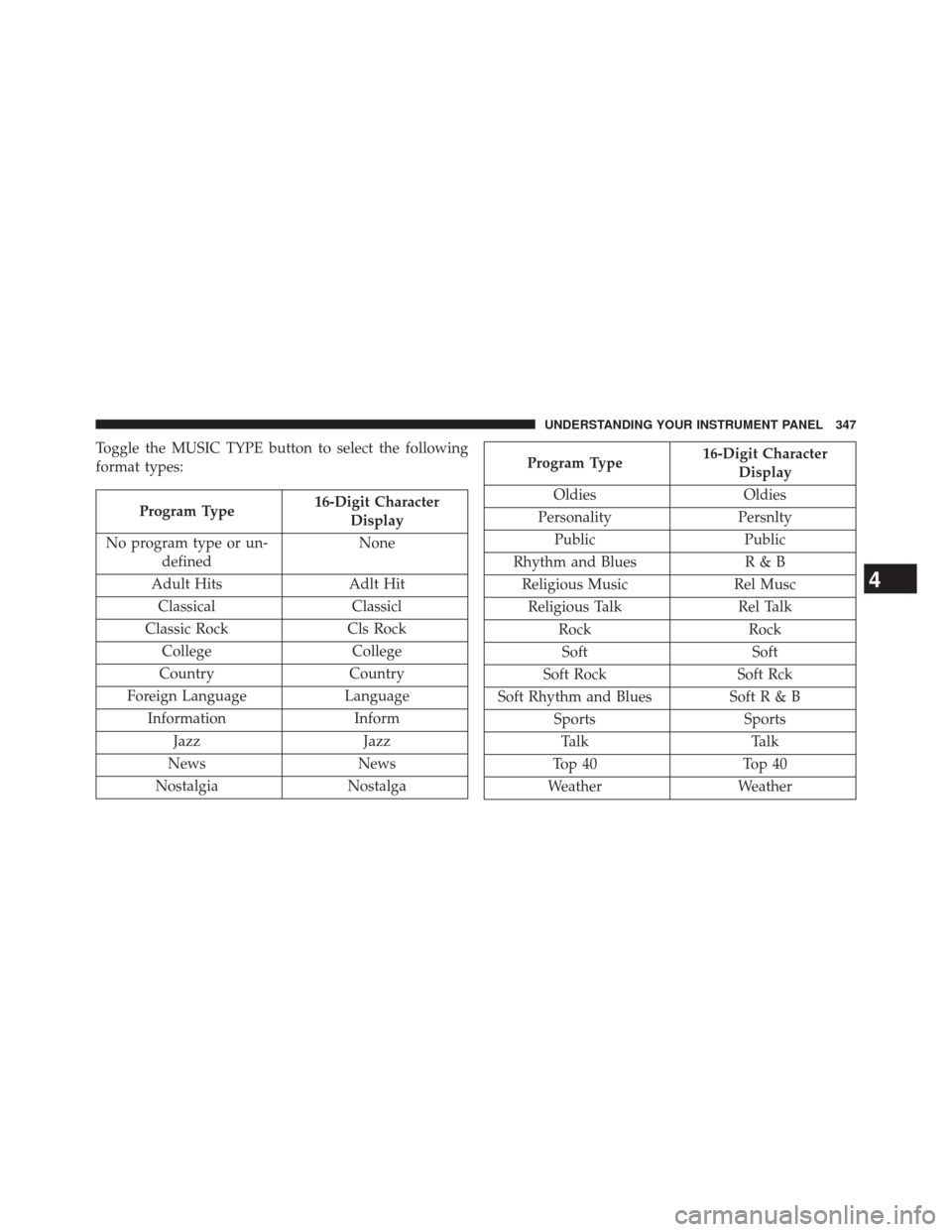
Toggle the MUSIC TYPE button to select the following
format types:
Program Type16-Digit Character
Display
No program type or un- defined None
Adult Hits Adlt Hit
Classical Classicl
Classic Rock Cls Rock
College College
Country Country
Foreign Language Language
Information Inform
Jazz Jazz
News News
Nostalgia Nostalga
Program Type16-Digit Character
Display
Oldies Oldies
Personality Persnlty
Public Public
Rhythm and Blues R & B
Religious Music Rel Musc
Religious Talk Rel Talk
Rock Rock
Soft Soft
Soft Rock Soft Rck
Soft Rhythm and Blues Soft R & B
Sports Sports
Talk Talk
Top 40 Top 40
Weather Weather
4
UNDERSTANDING YOUR INSTRUMENT PANEL 347
Page 379 of 678
Program Type16-Digit Character
Display
No program type or un- defined None
Adult Hits Adlt Hit
Classical Classicl
Classic Rock Cls Rock
College College
Country Country
Foreign Language Language
Information Inform
Jazz Jazz
News News
Nostalgia Nostalga
Oldies Oldies
Personality PersnltyProgram Type16-Digit Character
Display
Public Public
Rhythm and Blues R & B
Religious Music Rel Musc
Religious Talk Rel Talk
Rock Rock
Soft Soft
Soft Rock Soft Rck
Soft Rhythm and Blues Soft R&B
Sports Sports
Talk Talk
Top 40 Top 40
Weather Weather
4
UNDERSTANDING YOUR INSTRUMENT PANEL 377
Page 397 of 678

CAUTION!
•Leaving the iPod® or external USB device (or any
supported device) anywhere in the vehicle in ex-
treme heat or cold can alter the operation or dam-
age the device. Follow the device manufacturer ’s
guidelines.
• Placing items on the iPod® or external USB device,
or connections to the iPod® or external USB device
in the vehicle, can cause damage to the device
and/or to the connectors.
WARNING!
Do not plug in or remove the iPod® or external USB
device while driving. Failure to follow this warning
could result in an accident.
Bluetooth® Streaming Audio (BTSA)
Music can be streamed from your cellular phone to the
Uconnect® phone system.
Controlling BTSA Using Radio Buttons
To enter BTSA mode, press either “AUX” button on the
radio or press the VR button and say “Bluetooth Stream-
ing Audio.”
Play Mode
When switched to BTSA mode, some audio devices can
start playing music over the vehicle’s audio system, but
some devices require the music to be initiated on the
device first, then it will get streamed to the Uconnect®
phone system. Seven devices can be paired to the
Uconnect® phone system, but just one can be selected
and played.
4
UNDERSTANDING YOUR INSTRUMENT PANEL 395
Page 398 of 678
Selecting A Different Audio Device
1. Press the PHONE button to begin.
2. After the�Ready�prompt and following the beep, say
�Setup�, then say �Select Audio Devices.�
3. Say the name of the audio device or ask the Uconnect® phone system to list the audio devices.
Next Track
Use the SEEK UP button, or press the VR button on the
radio and say “Next Track,” to jump to the next music
track on your cellular phone.
Previous Track
Use the SEEK DOWN button, or press the VR button on
the radio and say “Previous Track,” to jump to the
previous music track on your cellular phone.
Browse
Browsing is not available on a Bluetooth® Streaming
Audio (BTSA) device. Only the current song that is
playing will display info.
396 UNDERSTANDING YOUR INSTRUMENT PANEL
Page 403 of 678

Temperature Control
Rotate this control to regulate the tem-
perature of the air inside the passenger
compartment. Rotating the dial left
into the blue area of the scale indicates
cooler temperatures, while rotating
right into the red area indicates
warmer temperatures.
NOTE: If your air conditioning performance seems lower
than expected, check the front of the A/C condenser
located in front of the radiator for an accumulation of dirt
or insects. Clean with a gentle water spray from behind
the radiator and through the condenser. Fabric front
fascia protectors may reduce airflow to the condenser,
reducing air conditioning performance.
Mode Control (Air Direction)
Rotate this control to choose from sev-
eral patterns of air distribution. You
can select either a primary mode as
identified by the symbols on the con-
trol, or a blend of two of these modes.
The closer the setting is to a particular
symbol, the more air distribution you
receive from that mode.
Panel
Air is directed through the outlets in the instru-
ment panel. These outlets can be adjusted to direct
airflow.
NOTE: The center instrument panel outlets can be aimed
so that they are directed toward the rear seat passengers
for maximum airflow to the rear.
4
UNDERSTANDING YOUR INSTRUMENT PANEL 401