Page 253 of 572

Phone Button Uconnect® Phone — If Equipped
Press this button to operate the Uconnect® Phone feature
(if equipped). Refer to “Uconnect® Phone” for further
details.
If your vehicle is not equipped with or this feature is not
available on your vehicle, a “Not Equipped With
Uconnect Phone” message will display on the radio
screen.
TIME Button
Press the TIME button to alternate locations of the time
and frequency display.
Clock Setting Procedure
1. Press and hold the TIME button until the hours blink.
2. Adjust the hours by turning the right side TUNE/SCROLL control knob. 3. After adjusting the hours, press the right side TUNE/
SCROLL control knob to set the minutes. The minutes
will begin to blink.
4. Adjust the minutes using the right side TUNE/ SCROLL control knob. Press the TUNE/SCROLL con-
trol knob to save the time change.
5. To exit, press any button/knob or wait five seconds.
The clock can also be set by pressing the SETUP button and
selecting the “SET HOME CLOCK” entry. Once in this
display follow the above procedure, starting at step 2.
INFO Button
Press the INFO button for an RDS station (one with call
letters displayed). The radio will return a Radio Text
message broadcast from an FM station (FM mode only).
4
UNDERSTANDING YOUR INSTRUMENT PANEL 251
Page 255 of 572
or turning the TUNE/SCROLL control knob within five
seconds will allow the program format type to be se-
lected. Many radio stations do not currently broadcast
Music Type information.
Toggle the MUSIC TYPE button to select the following
format types:
Program Type16-Digit Character Dis-
play
No program type or un- defined None
Adult Hits Adlt Hit
Classical Classicl
Classic Rock Cls Rock
College College
Country Country
Foreign Language Language
Program Type16-Digit Character Dis-
play
Information Inform
Jazz Jazz
News News
Nostalgia Nostalga
Oldies Oldies
Personality Persnlty
Public Public
Rhythm and Blues R & B
Religious Music Rel Musc
Religious Talk Rel Talk
Rock Rock
Soft Soft
Soft Rock Soft Rck
Soft Rhythm and Blues Soft R & B
4
UNDERSTANDING YOUR INSTRUMENT PANEL 253
Page 256 of 572

Program Type16-Digit Character Dis-
play
Sports Sports
Talk Talk
Top 40 Top 40
Weather Weather
By pressing the SEEK button when the Music Type icon
is displayed, the radio will be tuned to the next frequency
station with the same selected Music Type name. The
Music Type function only operates when in the FM
mode.
If a preset button is activated while in the Music Type
(Program Type) mode, the Music Type mode will be
exited and the radio will tune to the preset station.SETUP Button
Pressing the SETUP button allows you to select between
the following items:
NOTE: Turn the TUNE/SCROLL control knob to scroll
through the entries. Push the AUDIO/SELECT button to
select an entry and make changes.
• DVD Enter — When the disc is in DVD Menu mode,
selecting DVD Enter will allow you to play the current
highlighted selection. Use the remote control to scroll
up and down the menu (if equipped).
• DISC Play/Pause —
You can toggle between playing the DVD and
pausing the DVD by pushing the SELECT
button (if equipped).
254 UNDERSTANDING YOUR INSTRUMENT PANEL
Page 260 of 572

Every time a preset button is used, a corresponding
button number will display.
Buttons1-6
These buttons tune the radio to the stations that you
commit to pushbutton memory {12 AM, 12 FM, and 12
Satellite (if equipped) stations}.
DISC Button
Pressing the DISC button will allow you to switch from
AM/FM modes to Disc modes.
Operation Instructions — DISC Mode For CD And
MP3/WMA Audio Play, DVD – Video
The radio DVD player and many DVD discs are coded by
geographic region. These region codes must match for
the disc to play. If the region code for the DVD disc does
not match the region code for the radio DVD player, it
will not play the disc. Customers may take their vehicleto an authorized dealer to change the region code of the
player a maximum of five times.
CAUTION!
The radio may shut down during extremely hot
conditions. When this occurs, the radio will indicate
“Disc Hot” and shut off until a safe temperature is
reached. This shutdown is necessary to protect the
optics of the DVD player and other radio internal
components.
NOTE: The ignition switch must be in the ON or ACC
position to operate the radio.
LOAD Button — Loading Compact Disc(s)
Press the LOAD button and the pushbutton with the
corresponding number (1-6) where the CD is being
loaded. The radio will display PLEASE WAIT and
258 UNDERSTANDING YOUR INSTRUMENT PANEL
Page 261 of 572

prompt when to INSERT DISC. After the radio displays
�INSERT DISC,�insert the CD into the player.
Radio display will show �LOADING DISC�when the disc
is loading and “READING DISC” when the radio is
reading the disc.
CAUTION!
This CD player will accept 4–3/4 in (12 cm) discs only.
The use of other sized discs may damage the CD
player mechanism.
Eject Button — Ejecting Compact Disc(s)
Press the EJECT button and the pushbutton
with the corresponding number (1-6) where the
CD was loaded and the disc will unload and
move to the entrance for easy removal. Radio display will show
�EJECTING DISC�when the disc is
being ejected and prompt the user to remove the disc.
Press and hold the EJECT button for five seconds and all
CDs will be ejected from the radio.
The disc can be ejected with the radio and ignition OFF.
SEEK Button (CD MODE)
Press the right SEEK button for the next selection on the
CD. Press the left SEEK button to return to the beginning
of the current selection, or return to the beginning of the
previous selection if the CD is within the first second of
the current selection. Pressing and holding the SEEK
button will allow you to scroll through the tracks faster in
CD and MP3/MWA modes.
SCAN Button (CD MODE)
Press the SCAN button to scan through each track on the
CD currently playing.
4
UNDERSTANDING YOUR INSTRUMENT PANEL 259
Page 262 of 572
TIME Button (CD MODE)
Press this button to change the display from a large CD
playing time display to a small CD playing time display.
RW/FF (CD MODE)
Press and hold FF (Fast Forward) and the CD player will
begin to fast forward until FF is released, or RW or
another CD button is pressed. The RW (Rewind) button
works in a similar manner.
AM Or FM Button (CD MODE)
Switches the radio into the AM or FM radio mode.
Notes On Playing MP3/WMA Files
The radio can play MP3/WMA files; however, acceptable
MP3/WMA file recording media and formats are limited.
When writing MP3/WMA files, pay attention to the
following restrictions.Supported Media (Disc Types)
The MP3/WMA file recording media supported by the
radio are CDDA, CD-R, CD-RW, MP3,WMA, DVD Video,
DVD-R, DVD-RW, DVD+R, DVD+RW, and CDDA+MP3.
Supported Medium Formats (File Systems)
The medium formats supported by the radio are ISO 9660
Level 1 and Level 2 and includes the Joliet extension.
When reading discs recorded using formats other than
ISO 9660 Level 1 and Level 2, the radio may fail to read
files properly and may be unable to play the file nor-
mally. UDF and Apple HFS formats are not supported.
The radio uses the following limits for file systems:
•
Maximum number of directory levels: 8
• Maximum number of files: 255
• Maximum number of folders: 100
260 UNDERSTANDING YOUR INSTRUMENT PANEL
Page 263 of 572

•Maximum number of characters in file/folder names:
• Level 1: 12 (including a separator �.�and a three-
character extension)
• Level 2: 31 (including a separator �.�and a three-
character extension)
Multisession disc formats are supported by the radio.
Multisession discs may contain combinations of normal
CD audio tracks and computer files (including MP3/
WMA files). Discs created with an option such as �keep
disc open after writing� are most likely multisession
discs. The use of multisession for CD audio or MP3/
WMA playback may result in longer disc loading times.
If a disc contains multi-formats, such as CD audio and
MP3/WMA tracks, the radio will only play the MP3/
WMA tracks on that disc. Supported MP3/WMA File Formats
The radio will recognize only files with the *.MP3/WMA
extension as MP3/WMA files. Non-MP3/WMA files
named with the *.MP3/WMA extension may cause play-
back problems. The radio is designed to recognize the file
as an invalid MP3/WMA and will not play the file.
When using the MP3/WMA encoder to compress audio
data to an MP3/WMA file, the bit rate and sampling
frequencies in the following table are supported. In
addition, variable bit rates (VBR) are also supported. The
majority of MP3/WMA files use a 44.1 kHz sampling rate
and a 192, 160, 128, 96 or VBR bit rates.
4
UNDERSTANDING YOUR INSTRUMENT PANEL 261
Page 264 of 572
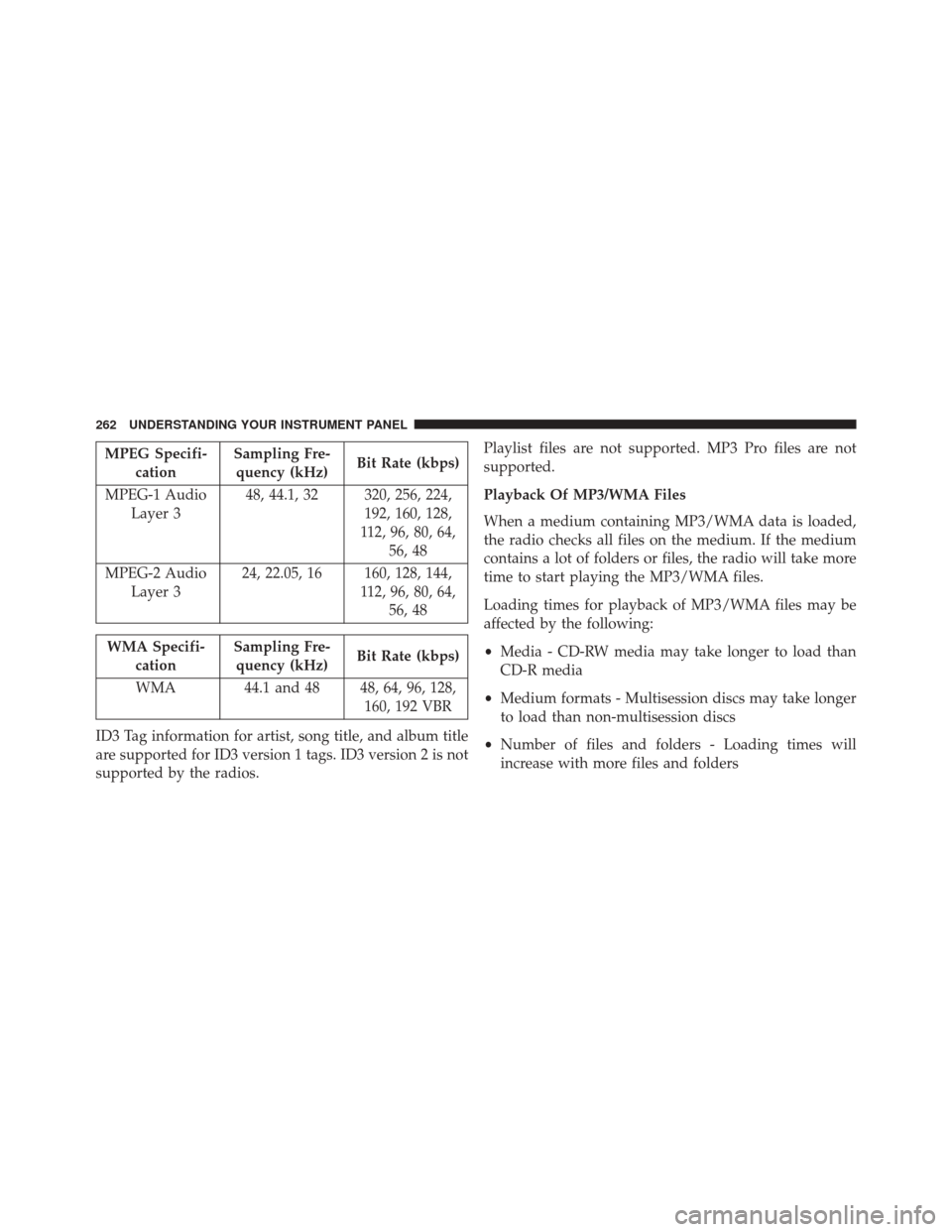
MPEG Specifi-cation Sampling Fre-
quency (kHz) Bit Rate (kbps)
MPEG-1 Audio Layer 3 48, 44.1, 32 320, 256, 224,
192, 160, 128,
112, 96, 80, 64, 56, 48
MPEG-2 Audio Layer 3 24, 22.05, 16 160, 128, 144,
112, 96, 80, 64,56, 48
WMA Specifi- cation Sampling Fre-
quency (kHz) Bit Rate (kbps)
WMA 44.1 and 48 48, 64, 96, 128, 160, 192 VBR
ID3 Tag information for artist, song title, and album title
are supported for ID3 version 1 tags. ID3 version 2 is not
supported by the radios. Playlist files are not supported. MP3 Pro files are not
supported.
Playback Of MP3/WMA Files
When a medium containing MP3/WMA data is loaded,
the radio checks all files on the medium. If the medium
contains a lot of folders or files, the radio will take more
time to start playing the MP3/WMA files.
Loading times for playback of MP3/WMA files may be
affected by the following:
•
Media - CD-RW media may take longer to load than
CD-R media
• Medium formats - Multisession discs may take longer
to load than non-multisession discs
• Number of files and folders - Loading times will
increase with more files and folders
262 UNDERSTANDING YOUR INSTRUMENT PANEL
