Page 257 of 572

•DVD Play Options — Selecting the DVD Play Options
will display the following:
• Subtitle — Repeatedly pressing SELECT will switch
subtitles to different subtitle languages that are avail-
able on the disc (if equipped).
• Audio Stream — Repeatedly pressing SELECT will
switch to different audio languages (if supported on
the disc) (if equipped).
• Angle — Repeatedly pressing SELECT will change
the viewing angle if supported by the DVD disc (if
equipped).
NOTE:
• The available selections for each of the above entries
varies depending upon the disc.
• These selections can only be made while playing a
DVD. •
VES™ Power — Allows you to turn VES™ ON and
OFF (if equipped).
• VES™ Lock — Locks out rear VES™ remote controls
(if equipped).
• VES™ CH1/CH2 — Allows the user to change the
mode of either the IR1 or IR2 wireless headphones by
pressing the AUDIO/SELECT button (if equipped).
• Set Home Clock — Pressing the SELECT button
allows you to set the clock. Turn the TUNE/SCROLL
control knob to adjust the hours and then press and
turn the TUNE/SCROLL control knob to adjust the
minutes. Press the TUNE/SCROLL control knob again
to save changes.
• Player Defaults — Selecting this item will allow the
user to scroll through the following items and set
defaults according to customer preference.
4
UNDERSTANDING YOUR INSTRUMENT PANEL 255
Page 258 of 572

Menu Language — If Equipped
Selecting this item will allow the user to choose the
default startup DVD menu language (effective only if
language supported by disc). If you want to select a
language not listed, then scroll down and select�other.�
Enter the four-digit country code using the TUNE/
SCROLL control knob to scroll up and down to select the
number and then push to select.
Audio Language — If Equipped
Selecting this item allows you to choose a default audio
language (effective only if the language is supported by
the disc). You can select a language not listed by scrolling
down and selecting �other.�Enter the country code using
the TUNE/SCROLL control knob to scroll up and down
to select the number and then push to select. Subtitle Language — If Equipped
Selecting this item allows you to choose a default subtitle
language (effective only if the language is supported by
the disc). You can select a language not listed by scrolling
down and selecting
�other.�Enter the country code using
the TUNE/SCROLL control knob to scroll up and down
to select the number and then push to select.
Subtitles — If Equipped
Selecting this item allows you to choose between subtitle
Off or On.
Audio DRC — If Equipped
Selecting this item allows you to limit maximum audio
dynamic range. The default is set to �High,�and under
this setting, dialogues will play at 11 db higher than if the
setting is �Normal.�
256 UNDERSTANDING YOUR INSTRUMENT PANEL
Page 260 of 572

Every time a preset button is used, a corresponding
button number will display.
Buttons1-6
These buttons tune the radio to the stations that you
commit to pushbutton memory {12 AM, 12 FM, and 12
Satellite (if equipped) stations}.
DISC Button
Pressing the DISC button will allow you to switch from
AM/FM modes to Disc modes.
Operation Instructions — DISC Mode For CD And
MP3/WMA Audio Play, DVD – Video
The radio DVD player and many DVD discs are coded by
geographic region. These region codes must match for
the disc to play. If the region code for the DVD disc does
not match the region code for the radio DVD player, it
will not play the disc. Customers may take their vehicleto an authorized dealer to change the region code of the
player a maximum of five times.
CAUTION!
The radio may shut down during extremely hot
conditions. When this occurs, the radio will indicate
“Disc Hot” and shut off until a safe temperature is
reached. This shutdown is necessary to protect the
optics of the DVD player and other radio internal
components.
NOTE: The ignition switch must be in the ON or ACC
position to operate the radio.
LOAD Button — Loading Compact Disc(s)
Press the LOAD button and the pushbutton with the
corresponding number (1-6) where the CD is being
loaded. The radio will display PLEASE WAIT and
258 UNDERSTANDING YOUR INSTRUMENT PANEL
Page 263 of 572

•Maximum number of characters in file/folder names:
• Level 1: 12 (including a separator �.�and a three-
character extension)
• Level 2: 31 (including a separator �.�and a three-
character extension)
Multisession disc formats are supported by the radio.
Multisession discs may contain combinations of normal
CD audio tracks and computer files (including MP3/
WMA files). Discs created with an option such as �keep
disc open after writing� are most likely multisession
discs. The use of multisession for CD audio or MP3/
WMA playback may result in longer disc loading times.
If a disc contains multi-formats, such as CD audio and
MP3/WMA tracks, the radio will only play the MP3/
WMA tracks on that disc. Supported MP3/WMA File Formats
The radio will recognize only files with the *.MP3/WMA
extension as MP3/WMA files. Non-MP3/WMA files
named with the *.MP3/WMA extension may cause play-
back problems. The radio is designed to recognize the file
as an invalid MP3/WMA and will not play the file.
When using the MP3/WMA encoder to compress audio
data to an MP3/WMA file, the bit rate and sampling
frequencies in the following table are supported. In
addition, variable bit rates (VBR) are also supported. The
majority of MP3/WMA files use a 44.1 kHz sampling rate
and a 192, 160, 128, 96 or VBR bit rates.
4
UNDERSTANDING YOUR INSTRUMENT PANEL 261
Page 264 of 572
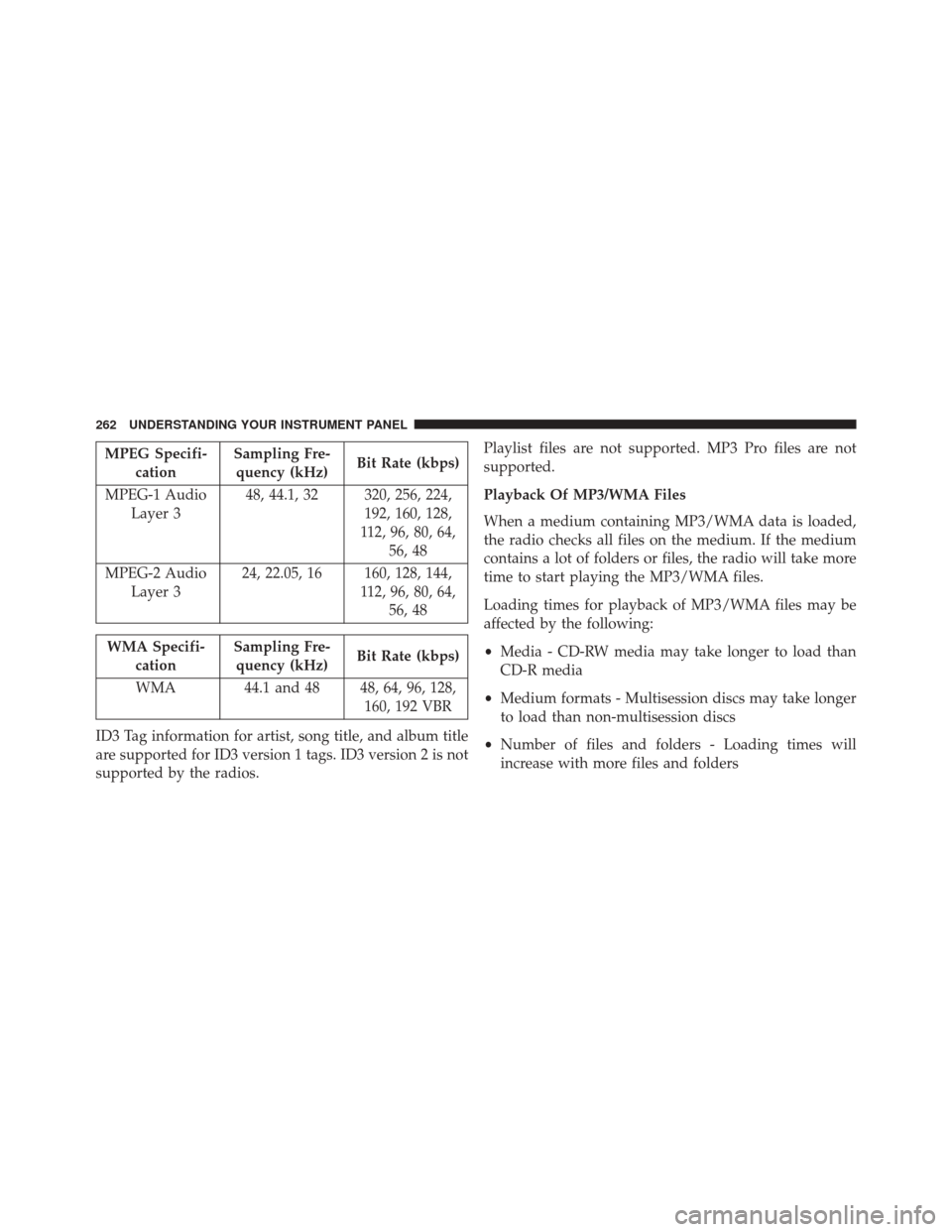
MPEG Specifi-cation Sampling Fre-
quency (kHz) Bit Rate (kbps)
MPEG-1 Audio Layer 3 48, 44.1, 32 320, 256, 224,
192, 160, 128,
112, 96, 80, 64, 56, 48
MPEG-2 Audio Layer 3 24, 22.05, 16 160, 128, 144,
112, 96, 80, 64,56, 48
WMA Specifi- cation Sampling Fre-
quency (kHz) Bit Rate (kbps)
WMA 44.1 and 48 48, 64, 96, 128, 160, 192 VBR
ID3 Tag information for artist, song title, and album title
are supported for ID3 version 1 tags. ID3 version 2 is not
supported by the radios. Playlist files are not supported. MP3 Pro files are not
supported.
Playback Of MP3/WMA Files
When a medium containing MP3/WMA data is loaded,
the radio checks all files on the medium. If the medium
contains a lot of folders or files, the radio will take more
time to start playing the MP3/WMA files.
Loading times for playback of MP3/WMA files may be
affected by the following:
•
Media - CD-RW media may take longer to load than
CD-R media
• Medium formats - Multisession discs may take longer
to load than non-multisession discs
• Number of files and folders - Loading times will
increase with more files and folders
262 UNDERSTANDING YOUR INSTRUMENT PANEL
Page 265 of 572

To increase the speed of disc loading, it is recommended
to use CD-R media and single-session discs. To create a
single-session disc, enable the “Disc at Once” option
before writing to the disc.
LIST Button — DISC Mode For MP3/WMA Play
Pressing the LIST button will bring up a list of all folders
on the disc. Scrolling up or down the list is done by
turning the TUNE/SCROLL control knob. Selecting a
folder by pressing the TUNE/SCROLL control knob will
begin playing the files contained in that folder (or the
next folder in sequence if the selection does not contain
playable files).
The folder list will time out after five seconds.
INFO Button — DISC Mode For MP3/WMA Play
Pressing the INFO button repeatedly will scroll through
the following TAG information: Song Title, Artist, File
Name, and Folder Name (if available).Press the INFO button once more to return to
�elapsed
time� priority mode.
Press and hold the INFO button for three seconds or
more and radio will display song titles for each file.
Press and hold the INFO button again for three seconds
to return to �elapsed time� display.
Operation Instructions — Auxiliary Mode
The auxiliary (AUX) jack is an audio input jack which
allows the user to plug in a portable device such as an
MP3/WMA player, an ipod®, or a microphone and
utilize the vehicles audio system to amplify the source
and play through the vehicle speakers.
Pressing the AUX button will change the mode to auxil-
iary device if the AUX jack is connected.
4
UNDERSTANDING YOUR INSTRUMENT PANEL 263
Page 266 of 572
NOTE:The AUX device must be turned on and the
device’s volume set to the proper level. If the AUX audio
is not loud enough, turn the device’s volume up. If the
AUX audio sounds distorted, turn the device’s volume
down.
SEEK Button (Auxiliary Mode)
No function.
SCAN Button (Auxiliary Mode)
No function.
EJECT Button (Auxiliary Mode)
No function.
TIME Button (Auxiliary Mode)
Press the TIME button to change the display from
elapsed playing time to time of day. The time of day will
display for five seconds.
RW/FF (Auxiliary Mode)
No function.
SET Button (Auxiliary Mode)
No function.
Operating Instructions (Voice Command System)
— If Equipped
Refer to “Voice Command” for further details.
Operating Instructions (Uconnect® Phone) — If
Equipped
Refer to “Uconnect® Phone” for further details.
264 UNDERSTANDING YOUR INSTRUMENT PANEL
Page 267 of 572

Operating Instructions — Video Entertainment
System (VES™) (If Equipped)
Refer to “Video Entertainment System (VES™)” for fur-
ther details.
Dolby®
Manufactured under license from Dolby® Laboratories.
Dolby® and the double-D symbol are trademarks of
Dolby® Laboratories.
Macrovision
This product incorporates copyright protection technol-
ogy that is protected by U.S. patents and other intellec-
tual property rights. Use of this copyright protection
technology must be authorized by Macrovision, and is
intended for home and other limited viewing uses only,
unless otherwise authorized by Macrovision. Reverse
engineering or disassembly is prohibited.
DTS™
“DTS™ and “DTS™ 2.0” are trademarks of Digital The-
ater Systems, Inc.
Uconnect® (Satellite Radio) — If Equipped
Satellite radio uses direct satellite-to-receiver broadcast-
ing technology to provide clear digital sound, coast to
coast. The subscription service provider is Sirius Satellite
Radio. This service offers over 130 channels of music,
sports, news, entertainment, and programming for chil-
dren, directly from its satellites and broadcasting studios.
NOTE:Sirius service is not available in Hawaii and has
limited coverage in Alaska.
System Activation
Sirius Satellite Radio service is pre-activated, and you
may begin listening immediately to the one year of audio
service that is included with the factory-installed satellite
4
UNDERSTANDING YOUR INSTRUMENT PANEL 265
