Page 2 of 274

Table of Contents
1Introduction
How to use this manual ................... 1-2
Safety information ........................... 1-3
Laser product .................................. 1-4
2Getting Started
Control buttons and functions .......... 2-2
Starting system ............................... 2-7
Touch panel operation .................... 2-8
Menu screen and
operation method ........................... 2-9
How to operate dual display .......... 2-10
Items to be set initially .................. 2-16
3Heater and air conditioner
Heater and air conditioner
operation precautions ...................... 3-2
Heater and air
conditioner controls ......................... 3-3
Automatic climate control system ..... 3-6Heated seats (if so equipped) .......... 3-9
Heated steering-wheel (if
so equipped) ................................. 3-10
Rear window and outside
mirror defroster ............................. 3-11
Heater and air
conditioner settings ....................... 3-11
4Audio system
Audio operation precautions ............ 4-2
Names and functions of audio
control buttons .............................. 4-10
Audio operations ........................... 4-11
Audio settings ............................... 4-31
CD/USB memory device care
and cleaning .................................. 4-33
Gracenote
®End User
License Agreement ......................... 4-33
5Hands-Free Phone
Bluetooth®Hands-Free
Phone System .................................. 5-2
6Infiniti InTouch Apps
Infiniti InTouch Apps Overview ......... 6-2
Using applications ........................... 6-3
Vehicle Apps .................................... 6-3
Mobile Apps ................................... 6-8
7Monitor system
RearView Monitor (if so equipped) ... 7-2
Around View®Monitor (AVM) (if
so equipped) ................................... 7-6
Difference between predictive and
actual distances ............................. 7-19
8Information and settings
Information screen ........................... 8-2
SiriusXM Travel Link®..................... 8-4
Infiniti Connection
TM..................... 8-10
Settings screen .............................. 8-22
Fully customizable
digital environment ........................ 8-28
Page 3 of 274

Driver Assistance settings .............. 8-31
9Navigation (if so equipped)
Safety information ........................... 9-3
Map data authentication .................. 9-3
Map operation ................................. 9-4
Setting destination ........................ 9-14
Route guidance .............................. 9-29
Viewing traffic information ............. 9-43
Viewing available
traffic information .......................... 9-44
Storing a location/route ................. 9-48
Navigation settings ........................ 9-56
General information for
navigation sysytem ........................ 9-59
10Voice recognition
INFINITI voice recognition ............... 10-2
11Troubleshooting guide
Customer assistance ...................... 11-2
System unit ................................... 11-3
Audio system ................................. 11-4
Bluetooth
®Hands-Free
Phone System .............................. 11-13
Monitor system (if so equipped) ... 11-16
Navigation (if so equipped) .......... 11-17
Voice recognition ......................... 11-25
Page 8 of 274

The Bluetooth®word mark and logos are
registered trademarks owned by Bluetooth
SIG, Inc. and any use of such marks by
DENSO CORPORATION is under license.
Other trademarks and trade names are
those of their respective owners.
Required SiriusXM Satellite Radio and
SiriusXM Traffic monthly subscriptions are
sold separately. SiriusXM Traffic are only
available in select markets. For more
information,
see www.siriusxm.com/siriusxmtraffic
Required SiriusXM Satellite Radio and
SiriusXM Travel Link monthly subscriptions
are sold separately. SiriusXM Travel Link is
only available in select markets. For more information,
see www.siriusxm.com/travellink
App Store
SM
Apple and the Apple logo are trademarks
of Apple Inc., registered in the U.S. and
other countries. App Store is a service
mark of Apple Inc.
Google Play
TM
Google Play is a trademark of Google Inc.
Google
*
C2012 Google Inc. All rights reserved.
Google CalendarTMcalendaring application
is a trademark of Google Inc.
1. Introduction
1-5
Page 10 of 274

2 Getting Started
Control buttons and functions ............................. 2-2Dual Display.................................................... 2-2
INFINITI controller ............................................ 2-5
Steering-wheel switches .................................. 2-5
Media Hub ...................................................... 2-6
Starting system ................................................... 2-7 Start-up screen................................................ 2-7
Log-in screen................................................... 2-7
Touch panel operation ......................................... 2-8
Menu screen and operation method .................... 2-9 Scrolling menu icon screen ............................. 2-9
Scrolling message or list ................................. 2-9
Selecting item ................................................. 2-9
Adjusting volume and settings ........................ 2-9 How to input letters and numbers ............... 2-10
How to operate dual display ............................. 2-10
Upper touch screen display
(upper display) ............................................ 2-10
Lower touch screen display (lower
display) ...................................................... 2-13
Functions disabled while driving .................. 2-15
Items to be set initially ..................................... 2-16 Screen Settings ........................................... 2-16
Volume settings ........................................... 2-18
Language and unit settings.......................... 2-19
Clock settings .............................................. 2-20
Connecting Bluetooth
®device...................... 2-21
Page 11 of 274
2. Getting Started
2-2
CONTROL BUTTONS AND FUNCTIONS
Infiniti InTouch controls the heater and air
conditioner, audio, RearView/Around
View
®Monitor, navigation system (if so
equipped), InTouch Apps, Bluetooth®
Hands-free phone etc., by using the upper
and lower display, INFINITI controller,
menu button and steering-wheel switch.
Designs and button layout may vary
depending on the specifications and the
model.
*1Steering-wheel switch“Steering-wheel switches”
(page 2-5)
*2Media Hub“Media Hub” (page 2-6)
*3Dual display“Dual Display” (page 2-2)
*4INFINITI controller“INFINITI controller” (page 2-5)
DUAL DISPLAY
Both displays can be operated with the
touch panel.
The upper touch screen display (upper
display) can display various information.
The lower touch screen display (lower
display) can be used for various opera-
tions.
Page 25 of 274
2. Getting Started
2-16
.Registering cellular phones
. Making a call by dial number and
handset phonebook
. Setting phone, Infiniti Connection
TM
and Bluetooth®functions
These functions will become available
again when the vehicle speed is reduced
to 5 mph (8 km/h) or less.
Destination functions available while driv-
ing include: . Home
. Stored Location
. Previous Destinations
. Stored Routes
. Map input
ITEMS TO BE SET INITIALLY
The settings included in this section
should be performed before using the
system for the first time.
SCREEN SETTINGS
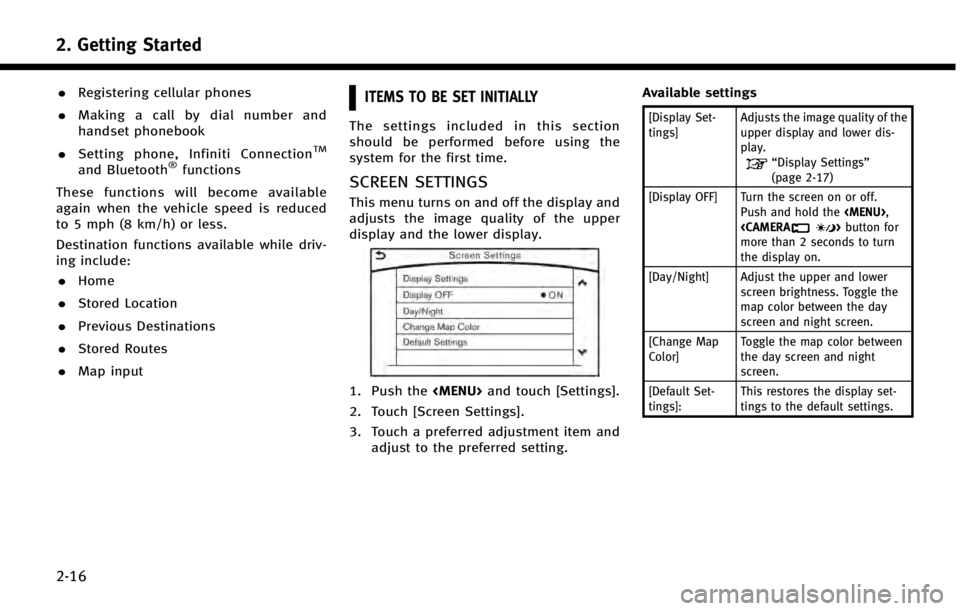
This menu turns on and off the display and
adjusts the image quality of the upper
display and the lower display.
1. Push the
Page 30 of 274

CONNECTING BLUETOOTH®DEVICE
Your vehicle is equipped with the Blue-
tooth®Hands-Free Phone System and
Bluetooth®audio device. If you are the
owner of a compatible Bluetooth®enabled
cellular phone or Bluetooth®audio device,
you can set up the wireless connection
between your cellular phone and the in-
vehicle phone module or Bluetooth
®audio
and in-vehicle audio module. With Blue-
tooth
®wireless technology, you can make
or receive a telephone call with your
cellular phone in your pocket and listen
to Bluetooth
®audio.
Connecting cellular phone/audio
device
1. Push
Page 31 of 274
2. Getting Started
2-22
.[Connect Device ]
Touch this item to connect to the
Bluetooth
®device. Also, you can delete
a registered device and display infor-
mation of registered device.
. [Select Phone]
Registered Bluetooth
®Hands-Free
Phones are shown on the list. Select a
device from the list to disconnect or
connect a Bluetooth
®device.
. [Select Audio Device]
Registered Bluetooth
®audio players
are shown on the list. Select a device
from the list to disconnect or connect a
Bluetooth
®device.
. [Vehicle Bluetooth Device Info.]
The registered device name and the PIN
code can be changed.

![INFINITI Q50 HYBRID 2014 Infiniti Intouch 2. Getting Started
2-22
.[Connect Device ]
Touch this item to connect to the
Bluetooth
®device. Also, you can delete
a registered device and display infor-
mation of registered device.
. [Select Phon](/manual-img/42/34966/w960_34966-30.png "INFINITI Q50 HYBRID 2014 Infiniti Intouch 2. Getting Started
2-22
.[Connect Device ]
Touch this item to connect to the
Bluetooth
®device. Also, you can delete
a registered device and display infor-
mation of registered device.
. [Select Phon")