4-18
Multimedia System
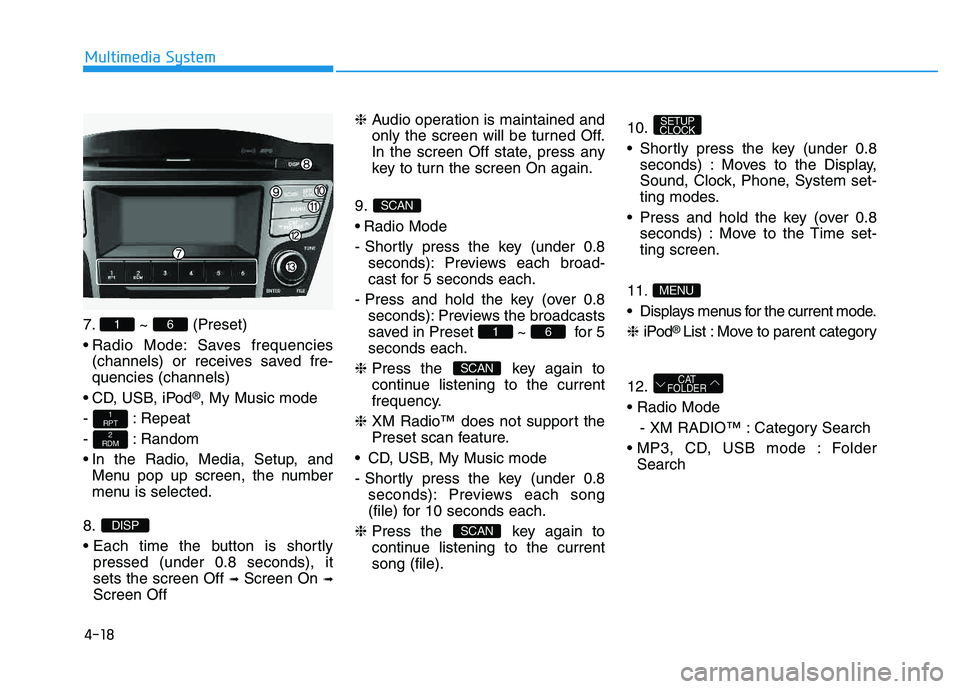
7. ~ (Preset)
Radio Mode: Saves frequencies(channels) or receives saved fre- quencies (channels)
CD, USB, iPod
®, My Music mode
- : Repeat
- : Random
In the Radio, Media, Setup, and Menu pop up screen, the number
menu is selected.
8.
pressed (under 0.8 seconds), it sets the screen Off ➟Screen On ➟
Screen Off ❈
Audio operation is maintained and
only the screen will be turned Off.
In the screen Off state, press any
key to turn the screen On again.
9.
Radio Mode
- Shortly press the key (under 0.8 seconds): Previews each broad-
cast for 5 seconds each.
- Press and hold the key (over 0.8 seconds): Previews the broadcasts
saved in Preset ~ for 5seconds each.
❈ Press the key again to
continue listening to the current
frequency.
❈ XM Radio™ does not support the
Preset scan feature.
CD, USB, My Music mode
- Shortly press the key (under 0.8 seconds): Previews each song
(file) for 10 seconds each.
❈ Press the key again to
continue listening to the currentsong (file). 10.
Shortly press the key (under 0.8
seconds) : Moves to the Display,
Sound, Clock, Phone, System set-
ting modes.
Press and hold the key (over 0.8 seconds) : Move to the Time set-ting screen.
11
.
Displays menus for the current mode. ❈ iPod
® List : Move to parent category
12.
- XM RADIO™ : Category Search
Folder Search
CAT
FOLDER
MENU
SETUP
CLOCK
SCAN
SCAN
61
SCAN
DISP
2
RDM
1
RPT
61
Page 230 of 542
4-19
Multimedia System
4
13. TUNE knob
Radio mode : Changes frequencyby turning the knob left/right.
CD, USB, iPod
®, My Music mode:
Searches songs (files) by turning
the knob left/right.
❈ When the desired song is dis-
played, press the knob to play thesong.
Moves focus in all selection menus and selects menus.
14. DISC-IN LED
LED that indicates whether a disc is inserted 15.
Changes to FM/AM mode.
Each time the key is pressed, the
mode is changed in order of FM1 ➟
FM2. 16.
CD MP3, USB mode : Folder
Search
FOLDERRADIO
Page 238 of 542
4-27
Multimedia System
4
BBAA SSIICC MM EETT HH OO DD OO FF UU SSEE ::
A
A uuddiioo CC DD // MM PP33 CC DD // UU SSBB //
i
i PP oodd ®®
// MM yy MM uussiicc
Press the key to change the mod mode in order of CD ➟ USB(iPod®)
➟ AUX ➟ My Music ➟ BT Audio.
The folder/file name is displayed on the screen.
Page 239 of 542
4-28
Multimedia System
MP3 CD, USB mode: FLD.RDM on screen
Plays all files within the current fold-
er in random order.
iPod
®mode: ALB RDM on screen
Plays all files within albums of the
current category in random order.
MP3 CD, USB, iPod mode: ALL RDMon screen
Plays all files in random order.
❈ Press the key again to turn off repeat.
Changing Song/File
While song (file) is playing key
Plays the
current song from the beginning.
❈ If the key is pressed
again within 3 second, the previ-
ous song is played.
0.8 seconds): Rewinds the song.
While song (file) is playing key
Plays the next song.
0.8 seconds): Fast forwards the song.
Scan
While song (file) is playing key
Scans all
songs from the next song for 10seconds each.
❈ Press the key again to turn
off.
❈ The SCAN function is not support-
ed in iPod
®mode.
Folder Search : MP3 CD, USB Mode
While file is playing / (Folder Up) key
While file is playing / (Folder Down) key
❈
If a folder is selected by pressing
the TUNE knob, the first file
within the selected folder will be
played.
❈ In iPod
®mode, moves to the
Parent Folder.
Searching Songs (File)
TUNEknob : Searches
for songs (files)
TUNE knob : Plays selected song (file).
FOLDER
CAT
FOLDER
FOLDER
CAT
FOLDER
SCAN
SCAN
SEEK
TRACK
SEEK
TRACK
SEEK
TRACK
2
RDM
Page 240 of 542
4-29
Multimedia System
4
MENU : Audio CD
Press the CD MP3 mode key to set the Repeat, Random,
Information features.
Repeat
Press the key Set [ RPT] through the TUNEknob or
key to repeat the current song. ❈ Press RPT again to turn off.
Random
Press the key Set [ RDM] through the
TUNEknob or
key to randomly play songs within
the current folder. ❈ Press RDM again to turn off.
Information
Press the key Set [ Info] through the
TUNEknob or
key to display information of the cur-rent song. ❈ Press the key to turn off
info display
.
MENU : MP3 CD / USB
Press the CD MP3 mode key
to set the Repeat, Folder Random,
Folder Repeat, All Random,
Information, and Copy features.
Repeat
Press the key Set [ RPT] through the
TUNEknob or
key to repeat the current song. ❈ Press RPT again to turn off.1
RPTMENU
MENU
MENU
3
MENU
2 RDM
MENU
1 RPT
MENU
MENU
Page 241 of 542
4-30
Multimedia System
Folder Random
Press the key Set [ F.RDM] through the
TUNEknob or
key to randomly play songs within the
current folder. ❈ Press F.RDM again to turn off.
Folder Repeat
Press the key Set [ F.RPT] through the
TUNEknob or
key to repeat songs within the cur-
rent folder. ❈ Press F.RPT again to turn off.
All Random
Press the key Set [ A.RDM] through the
TUNEknob or key
to randomly play all songs within the
CD. ❈ Press A.RDM again to turn off.
Information
Press the key Set [ Info] through the
TUNEknob or
key to display information of the cur-rent song. ❈ Press the key to turn off
info display.
Copy
Press the key Set [ Copy] through the
TUNEknob or
key.
song into My Music. You can play the copied Music in My Music
mode.
❈ If another key is pressed while
copying is in progress, a pop up
asking you whether to cancel
copying is displayed.
❈ If another media is connected or
inserted (USB, CD, iPod
®, AUX)
while copying is in progress, copy- ing is canceled.
❈ Music will not be played while
copying is in progress.
MENU : iPod®
In iPod®mode, press the key
to set the Repeat, Album Random, All
Random, Information and Search fea-
tures.
Repeat
Press the key Set [ RPT] through the
TUNEknob or
key to repeat the current song. ❈ Press RPT again to turn repeat off.
Album Random
Press the key Set [ Alb.RDM] through the TUNEknob or key.
Plays albums within the currently
playing category in random order. ❈ Press Alb.RDM again to turn off.
2
RDMMENU
1
RPTMENU
MENU
6
MENU
MENU
5
MENU
4
MENU
3
MENU
2
RDMMENU
Page 246 of 542
4-35
Multimedia System
4
Starting Bluetooth®Wireless
Technology Audio
key to change the mode in order of CD ➟ USB ➟ AUX
➟ My Music ➟ BT Audio.
Bluetooth®
Wireless Technology audio will start
playing.
❈ Audio may not automatically start
playing in some mobile phones.
Using the Bluetooth®Wireless
Technology audio features
Press the TUNE knob to play and pause the current song. ❈ The play / pause functions may
not be supported in some mobile
phones.MEDIA
Page 263 of 542
4-52
Multimedia System
Illustration on using voice commands
Shortly pressing the key (under 0.8 seconds):
Shortly pressing the key (under 0.8 seconds):
Shortly pressing the key (under 0.8 seconds):
while guidance message is being stated
More Help
Contacts
Cancel
More Help
Please say a command after the beep (BEEP)
Please say a...
Contacts.
Please say the name of the contact you want to call.
(BEEP)
(BEEP)
Beep Beep.. (end beep)
Shortly pressing the
key (under 0.8 seconds)
Beep~
More Help
Here are some examples of mode commands.
You can say a radio type like 'FM', 'AM', or 'Satellite'.
You can also say a media source like 'USB', 'My
Music', or 'iPod'.
Additionally, there are phone commands like
"Contacts', 'Call History', or 'Dial Number".
You can find more detailed commands in the user's
manual.
Please say a command after the beep.
More Help
Here are some examples of mode commands.
You can say a radio type like 'FM', 'AM', or 'Satellite'.
You can also say a media source like 'USB', 'My
Music', or 'iPod'.
Additionally, there are phone commands like
"Contacts', 'Call History', or 'Dial Number".
You can find more detailed commands in the user's
manual.
Please say a command after the beep.


![HYUNDAI TUCSON 2014 Owners Manual 4-29
Multimedia System
4
MENU : Audio CD
Press the CD MP3 mode key to set the Repeat, Random,
Information features.
Repeat
Press the key Set [ RPT] through the TUNEknob or
key to repeat the current](/manual-img/35/56203/w960_56203-239.png "HYUNDAI TUCSON 2014 Owners Manual 4-29
Multimedia System
4
MENU : Audio CD
Press the CD MP3 mode key to set the Repeat, Random,
Information features.
Repeat
Press the key Set [ RPT] through the TUNEknob or
key to repeat the current")
![HYUNDAI TUCSON 2014 Owners Manual 4-30
Multimedia System
Folder Random
Press the key Set [ F.RDM] through the
TUNEknob or
key to randomly play songs within the
current folder. ❈ Press F.RDM again to turn off.
Folder Repeat
Press](/manual-img/35/56203/w960_56203-240.png "HYUNDAI TUCSON 2014 Owners Manual 4-30
Multimedia System
Folder Random
Press the key Set [ F.RDM] through the
TUNEknob or
key to randomly play songs within the
current folder. ❈ Press F.RDM again to turn off.
Folder Repeat
Press")

