Page 362 of 711
4261
Features of your vehicle
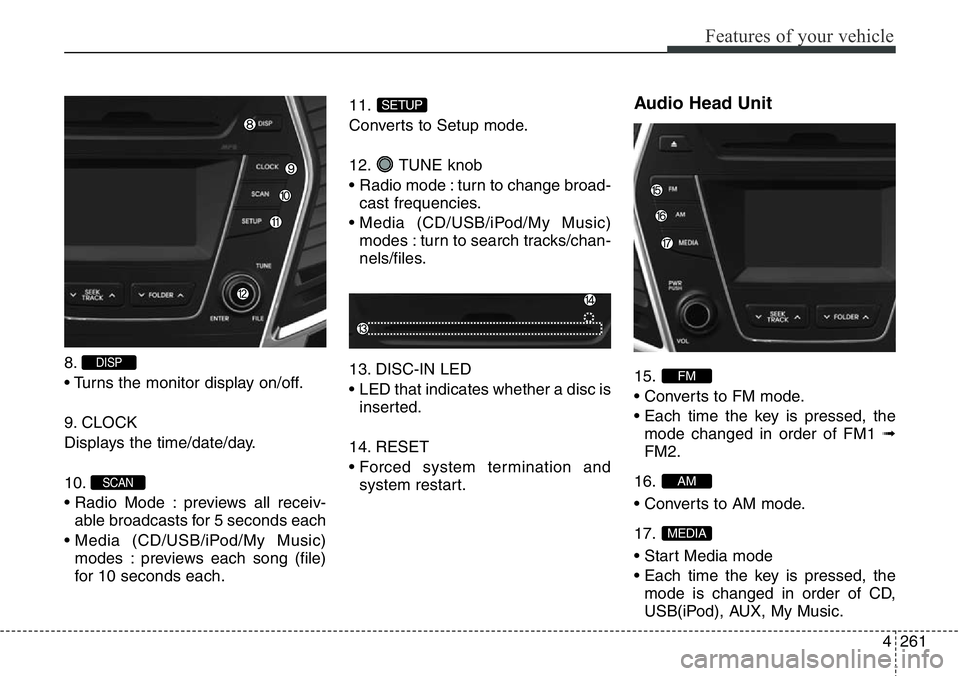
8.
• Turns the monitor display on/off.
9. CLOCK
Displays the time/date/day.
10.
• Radio Mode : previews all receiv-
able broadcasts for 5 seconds each
• Media (CD/USB/iPod/My Music)
modes : previews each song (file)
for 10 seconds each.11.
Converts to Setup mode.
12. TUNE knob
• Radio mode : turn to change broad-
cast frequencies.
• Media (CD/USB/iPod/My Music)
modes : turn to search tracks/chan-
nels/files.
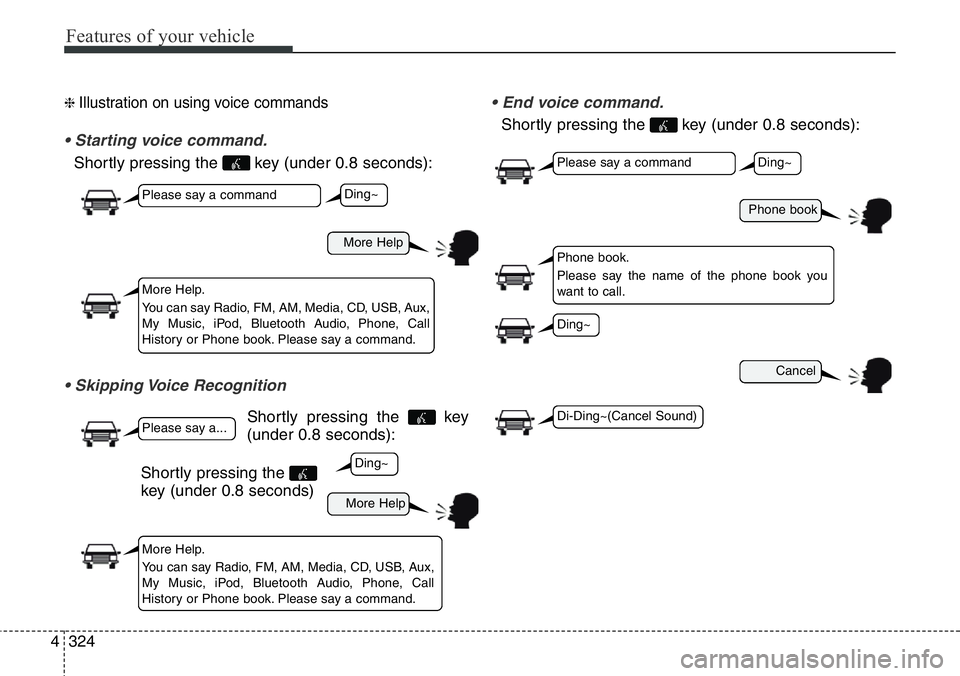
13. DISC-IN LED
• LED that indicates whether a disc is
inserted.
14. RESET
• Forced system termination and
system restart.
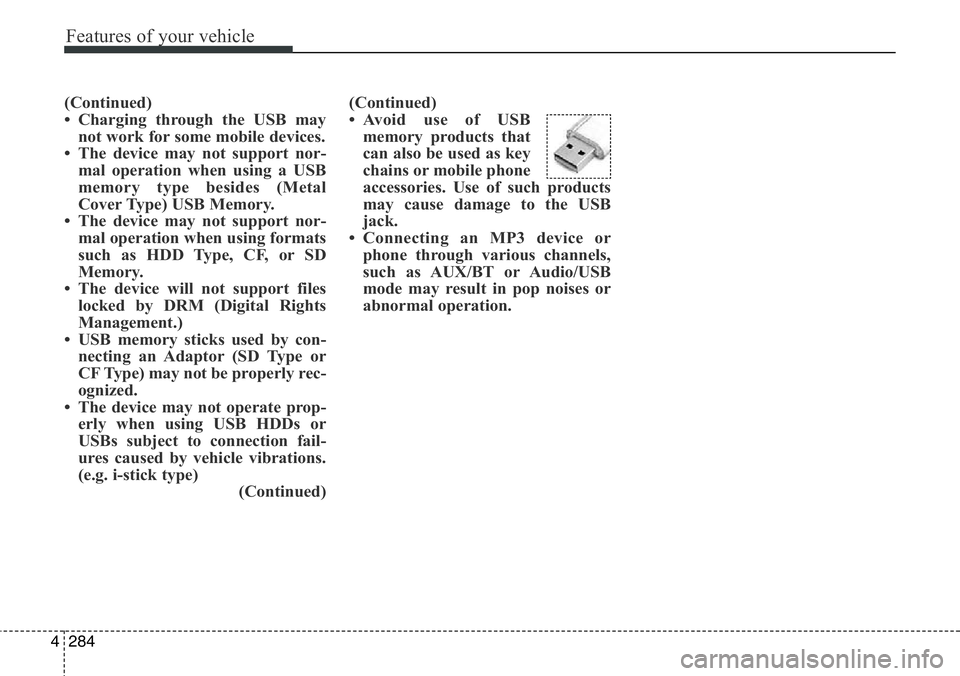
Audio Head Unit
15.
• Converts to FM mode.
• Each time the key is pressed, the
mode changed in order of FM1 ➟
FM2.
16.
• Converts to AM mode.
17.
• Start Media mode
• Each time the key is pressed, the
mode is changed in order of CD,
USB(iPod), AUX, My Music.
MEDIA
AM
FM
SETUP
SCAN
DISP
Page 363 of 711
Features of your vehicle
262 4
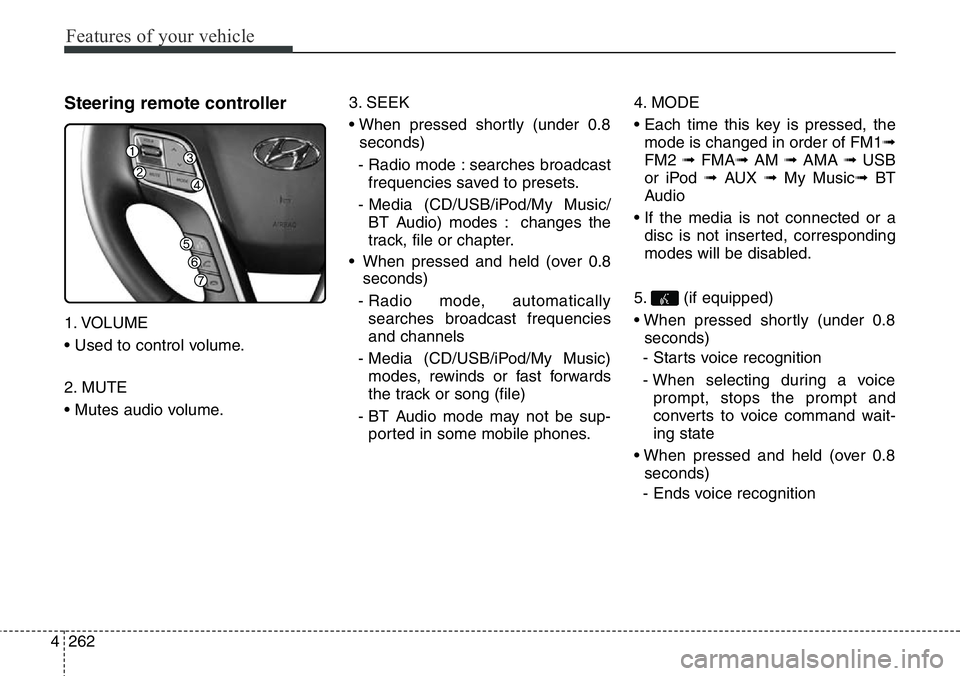
Steering remote controller
1. VOLUME
• Used to control volume.
2. MUTE
• Mutes audio volume.3. SEEK
• When pressed shortly (under 0.8
seconds)
- Radio mode : searches broadcast
frequencies saved to presets.
- Media (CD/USB/iPod/My Music/
BT Audio) modes : changes the
track, file or chapter.
• When pressed and held (over 0.8
seconds)
- Radio mode, automatically
searches broadcast frequencies
and channels
- Media (CD/USB/iPod/My Music)
modes, rewinds or fast forwards
the track or song (file)
- BT Audio mode may not be sup-
ported in some mobile phones.4. MODE
• Each time this key is pressed, the
mode is changed in order of FM1➟
FM2 ➟ FMA➟AM ➟ AMA ➟ USB
or iPod ➟ AUX ➟ My Music➟ BT
Audio
• If the media is not connected or a
disc is not inserted, corresponding
modes will be disabled.
5. (if equipped)
• When pressed shortly (under 0.8
seconds)
- Starts voice recognition
- When selecting during a voice
prompt, stops the prompt and
converts to voice command wait-
ing state
• When pressed and held (over 0.8
seconds)
- Ends voice recognition
Page 375 of 711
Features of your vehicle
274 4
MEDIA MODE
- AM910DMMG, AM911DMMG,
AM912DMEE, AM913DMEE,
AM914DMEE, AM910DMMN,
AM911DMGL
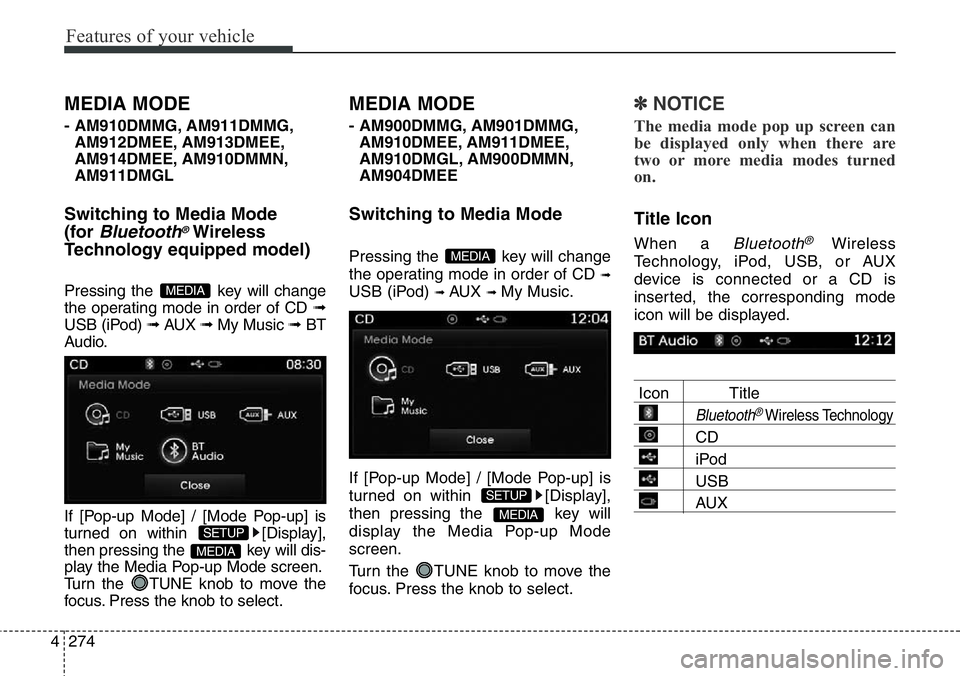
Switching to Media Mode
(for
Bluetooth®Wireless
Technology equipped model)
Pressing the key will change
the operating mode in order of CD ➟
USB (iPod) ➟ AUX ➟ My Music ➟BT
Audio.
If [Pop-up Mode] / [Mode Pop-up] is
turned on within [Display],
then pressing the key will dis-
play the Media Pop-up Mode screen.
Turn the TUNE knob to move the
focus. Press the knob to select.
MEDIA MODE
- AM900DMMG, AM901DMMG,
AM910DMEE, AM911DMEE,
AM910DMGL, AM900DMMN,
AM904DMEE
Switching to Media Mode
Pressing the key will change
the operating mode in order of CD
➟
USB (iPod) ➟ AUX ➟ My Music.
If [Pop-up Mode] / [Mode Pop-up] is
turned on within [Display],
then pressing the key will
display the Media Pop-up Mode
screen.
Turn the TUNE knob to move the
focus. Press the knob to select.
✽NOTICE
The media mode pop up screen can
be displayed only when there are
two or more media modes turned
on.
Title Icon
When a Bluetooth®Wireless
Technology, iPod, USB, or AUX
device is connected or a CD is
inserted, the corresponding mode
icon will be displayed.
Icon Title
Bluetooth®Wireless Technology
CD
iPod
USB
AUXMEDIA
SETUP
MEDIA
MEDIA
SETUP
MEDIA
Page 385 of 711
Features of your vehicle
284 4
(Continued)
• Charging through the USB may
not work for some mobile devices.
• The device may not support nor-
mal operation when using a USB
memory type besides (Metal
Cover Type) USB Memory.
• The device may not support nor-
mal operation when using formats
such as HDD Type, CF, or SD
Memory.
• The device will not support files
locked by DRM (Digital Rights
Management.)
• USB memory sticks used by con-
necting an Adaptor (SD Type or
CF Type) may not be properly rec-
ognized.
• The device may not operate prop-
erly when using USB HDDs or
USBs subject to connection fail-
ures caused by vehicle vibrations.
(e.g. i-stick type)
(Continued)(Continued)
• Avoid use of USB
memory products that
can also be used as key
chains or mobile phone
accessories. Use of such products
may cause damage to the USB
jack.
• Connecting an MP3 device or
phone through various channels,
such as AUX/BT or Audio/USB
mode may result in pop noises or
abnormal operation.
Page 391 of 711
Features of your vehicle
290 4
✽NOTICE - USING THE
iPod®DEVICE
•iPod®is a registered trademark of
Apple Inc.
• In order to use the iPod while
operating the keys, you must use a
dedicated iPod cable. (the cable
that is supplied when purchasing
iPod/iPhone products)
• If the iPod is connected to the
vehicle while it is playing, a high
pitch sound could occur for
approximately 1-2 seconds imme-
diately after connecting. If possi-
ble, connect the iPod to the vehicle
with the iPod stopped/paused.
• During ACC ON state, connecting
the iPod through the iPod cable
will charge the iPod through the
car audio system.
• When connecting with the iPod
cable, make sure to fully insert the
jack to prevent communication
interference.
(Continued)(Continued)
• When the EQ features of an exter-
nal device, such as the iPod, and the
audio system are both active, EQ
effects could overlap and cause
sound deterioration and distortion.
Whenever possible, turn off the EQ
feature within the external device
upon use by connecting with the
audio system.
• Noise may occur when an iPod or
AUX device is connected. When
such devices are not being used, dis-
connect the device for storage.
• When the iPod or AUX device
power is connected to the power
jack, playing the external device
may result in noise. In such cases,
disconnect the power connection
before use.
• Skipping or improper operation
may occur depending on the charac-
teristics of your iPod/Phone device.
• If your iPhone is connected to both
the Bluetooth
®Wireless Technology
and USB, the sound may not be
properly played. In your iPhone,
select the Dock connector or
Bluetooth
®Wireless Technology to
change the sound output (source).
(Continued)(Continued)
• iPod mode cannot be operated
when the iPod cannot be recog-
nized due to the playing of ver-
sions that do not support commu-
nication protocols, cases of iPod
abnormalities and defects.
• For fifth generation iPod Nano
devices, the iPod may not be rec-
ognized when the battery level is
low. Please charge the iPod for
use.
• Search/play orders shown within
the iPod device may differ with the
orders shown within the audio sys-
tem.
• If the iPod malfunctions due to an
iPod device defect, reset the iPod
and try again. (To learn more,
refer to your iPod manual)
• Some iPods may not sync with the
System depending on its version.
If the Media is removed before the
Media is recognized, then the sys-
tem may not properly restore the
previously operated mode. (iPad
charging is not supported.)
Page 396 of 711
4295
Features of your vehicle
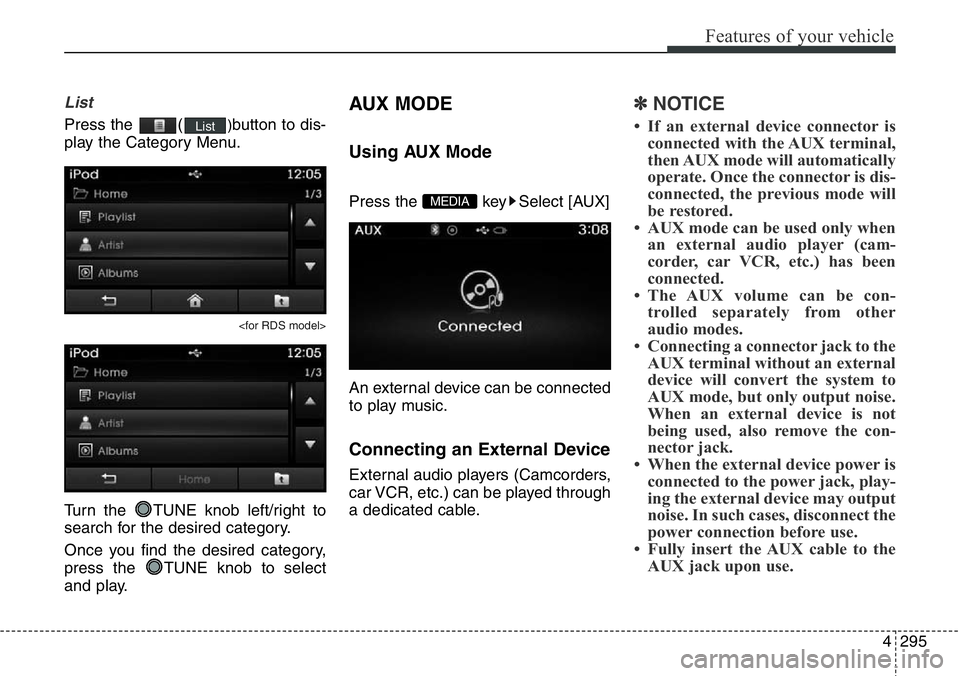
List
Press the ()button to dis-
play the Category Menu.
Turn the TUNE knob left/right to
search for the desired category.
Once you find the desired category,
press the TUNE knob to select
and play.
AUX MODE
Using AUX Mode
Press the key Select [AUX]
An external device can be connected
to play music.
Connecting an External Device
External audio players (Camcorders,
car VCR, etc.) can be played through
a dedicated cable.
✽NOTICE
• If an external device connector is
connected with the AUX terminal,
then AUX mode will automatically
operate. Once the connector is dis-
connected, the previous mode will
be restored.
• AUX mode can be used only when
an external audio player (cam-
corder, car VCR, etc.) has been
connected.
• The AUX volume can be con-
trolled separately from other
audio modes.
• Connecting a connector jack to the
AUX terminal without an external
device will convert the system to
AUX mode, but only output noise.
When an external device is not
being used, also remove the con-
nector jack.
• When the external device power is
connected to the power jack, play-
ing the external device may output
noise. In such cases, disconnect the
power connection before use.
• Fully insert the AUX cable to the
AUX jack upon use.
MEDIA
List
Page 425 of 711
Features of your vehicle
324 4
❈ Illustration on using voice commands
• Starting voice command.
Shortly pressing the key (under 0.8 seconds):
• Skipping Voice Recognition
Shortly pressing the key
(under 0.8 seconds):
• End voice command.
Shortly pressing the key (under 0.8 seconds):
More Help
More Help
Please say a command
Please say a...
More Help.
You can say Radio, FM, AM, Media, CD, USB, Aux,
My Music, iPod, Bluetooth Audio, Phone, Call
History or Phone book. Please say a command.
More Help.
You can say Radio, FM, AM, Media, CD, USB, Aux,
My Music, iPod, Bluetooth Audio, Phone, Call
History or Phone book. Please say a command.
Ding~
Ding~Shortly pressing the
key (under 0.8 seconds)
Phone book
Cancel
Please say a command
Phone book.
Please say the name of the phone book you
want to call.
Ding~
Di-Ding~(Cancel Sound)
Ding~
Page 427 of 711
Features of your vehicle
326 4
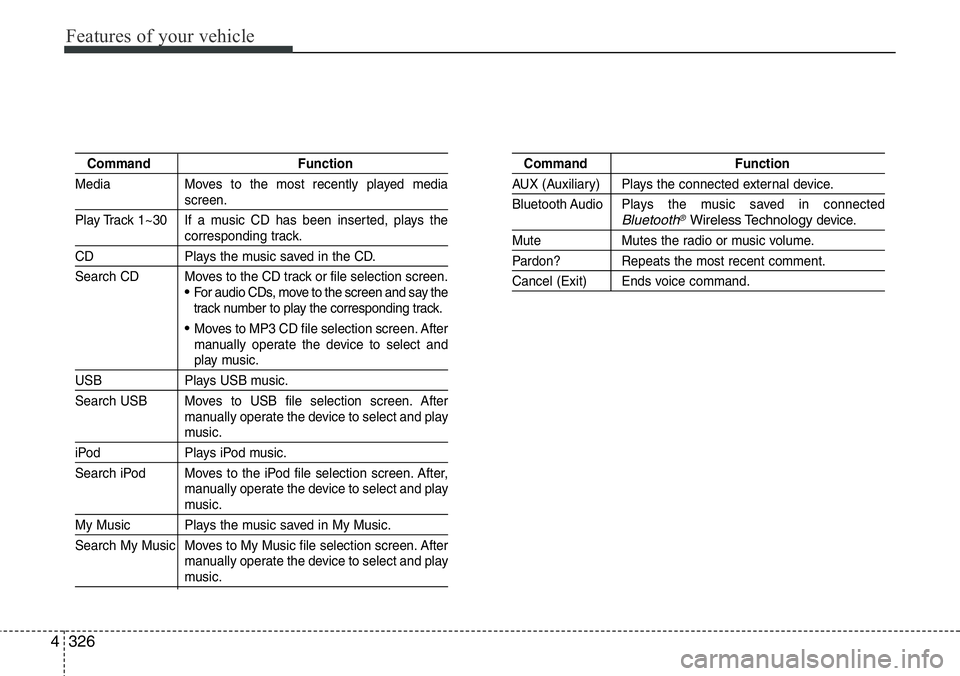
Command Function
Media Moves to the most recently played media
screen.
Play Track 1~30 If a music CD has been inserted, plays the
corresponding track.
CD Plays the music saved in the CD.
Search CD Moves to the CD track or file selection screen.
•For audio CDs, move to the screen and say the
track number to play the corresponding track.
• Moves to MP3 CD file selection screen. After
manually operate the device to select and
play music.
USB Plays USB music.
Search USB Moves to USB file selection screen. After
manually operate the device to select and play
music.
iPod Plays iPod music.
Search iPod Moves to the iPod file selection screen. After,
manually operate the device to select and play
music.
My Music Plays the music saved in My Music.
Search My Music Moves to My Music file selection screen. After
manually operate the device to select and play
music.
Command Function
AUX (Auxiliary) Plays the connected external device.
Bluetooth Audio Plays the music saved in connected
Bluetooth®Wireless Technologydevice.
Mute Mutes the radio or music volume.
Pardon? Repeats the most recent comment.
Cancel (Exit) Ends voice command.