Page 100 of 327
99
Entering a Destination
Place Phone Number
Navigation
Place Phone NumberHMENU button
More Search Methods
Place Phone Number
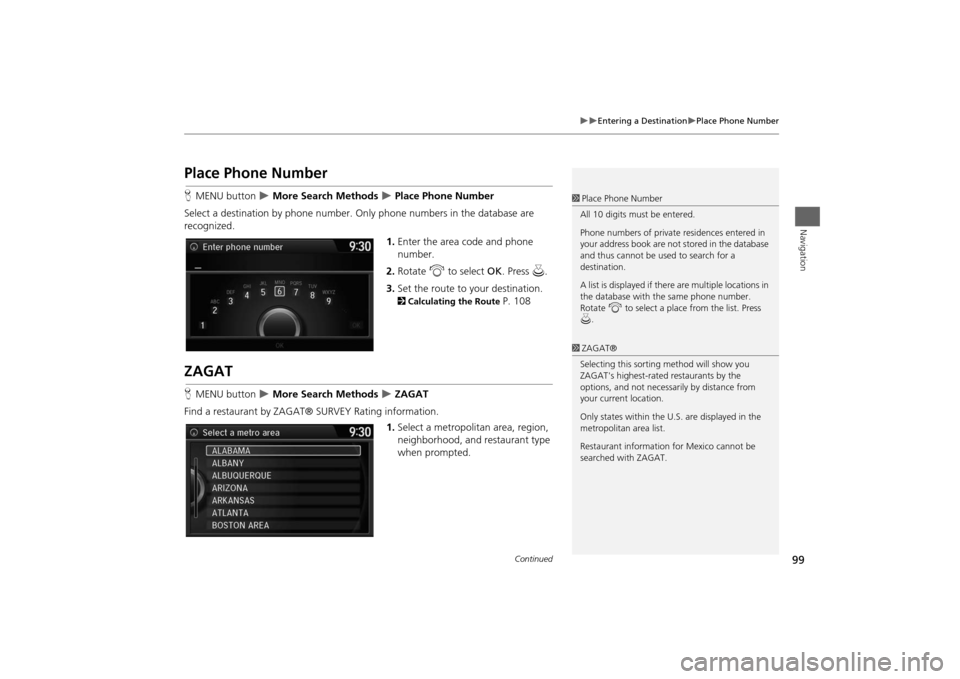
Select a destination by phone number. Only phone numbers in the database are
recognized.
1.Enter the area code and phone
number.
2.Rotate i to select OK. Press u.
3.Set the route to your destination. 2Calculating the Route
P. 108
ZAGATHMENU button
More Search Methods
ZAGAT
Find a restaurant by ZAGAT® SURVEY Rating information.
1.Select a metropolitan area, region,
neighborhood, and restaurant type
when prompted.
1Place Phone Number
All 10 digits must be entered.
Phone numbers of private residences entered in
your address book are not stored in the database
and thus cannot be used to search for a
destination.
A list is displayed if there are multiple locations in
the database with the same phone number.
Rotate i to select a place from the list. Press
u.1ZAGAT®
Selecting this sorting method will show you
ZAGAT's highest-rated restaurants by the
options, and not necessarily by distance from
your current location.
Only states within the U.S. are displayed in the
metropolitan area list.
Restaurant information for Mexico cannot be
searched with ZAGAT.
Continued
Page 109 of 327
108Navigation
Calculating the RouteThis section describes how to calculate your route.
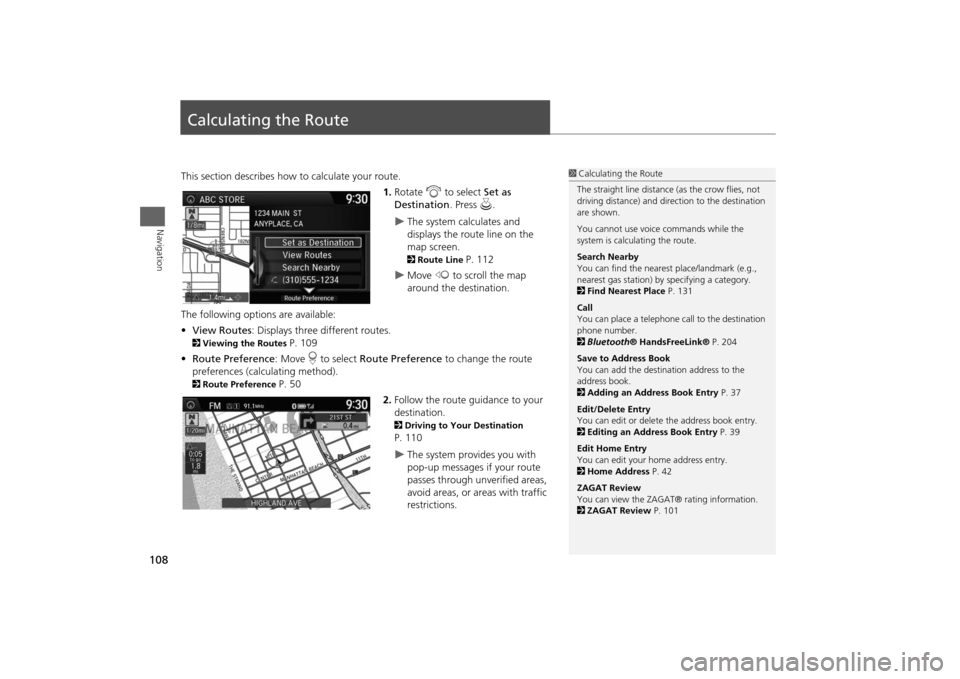
1.Rotate i to select Set as
Destination. Press u.
The system calculates and
displays the route line on the
map screen. 2Route Line
P. 112
Move w to scroll the map
around the destination.
The following options are available:
•View Routes: Displays three different routes.
2Viewing the Routes
P. 109
•Route Preference: Move r to select Route Preference to change the route
preferences (calculating method).
2Route Preference
P. 50
2.Follow the route guidance to your
destination.
2Driving to Your Destination P. 110
The system provides you with
pop-up messages if your route
passes through unverified areas,
avoid areas, or areas with traffic
restrictions.
1Calculating the Route
The straight line distance (as the crow flies, not
driving distance) and direction to the destination
are shown.
You cannot use voice commands while the
system is calculating the route.
Search Nearby
You can find the nearest place/landmark (e.g.,
nearest gas station) by specifying a category.
2Find Nearest Place P. 131
Call
You can place a telephone call to the destination
phone number.
2Bluetooth® HandsFreeLink® P. 204
Save to Address Book
You can add the destination address to the
address book.
2Adding an Address Book Entry P. 37
Edit/Delete Entry
You can edit or delete the address book entry.
2Editing an Address Book Entry P. 39
Edit Home Entry
You can edit your home address entry.
2Home Address P. 42
ZAGAT Review
You can view the ZAGAT® rating information.
2ZAGAT Review P. 101
Page 135 of 327
134Navigation
Resuming Your TripStop your vehicle en route (e.g., to rest, stop for gas, etc.), and then continue on
your route.
If you did not complete your route, the Continue Trip screen is displayed when you
restart your vehicle.
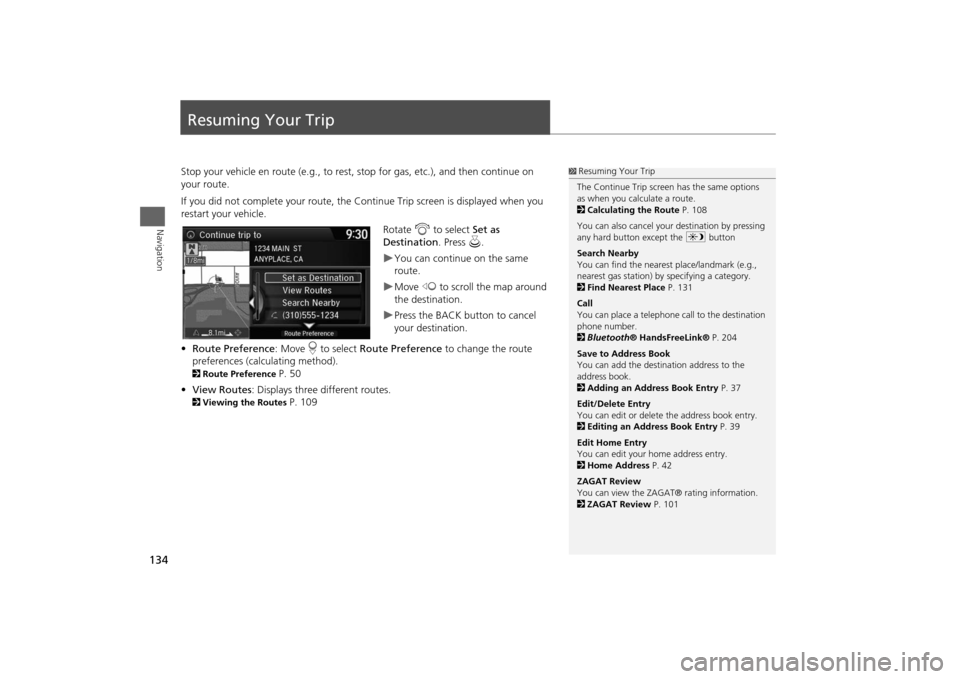
Rotate i to select Set as
Destination. Press u.
You can continue on the same
route.Move w to scroll the map around
the destination.Press the BACK button to cancel
your destination.
•Route Preference: Move r to select Route Preference to change the route
preferences (calculating method).
2Route Preference
P. 50
•View Routes: Displays three different routes.
2Viewing the Routes
P. 109
1Resuming Your Trip
The Continue Trip screen has the same options
as when you calculate a route.
2Calculating the Route P. 108
You can also cancel your destination by pressing
any hard button except the a button
Search Nearby
You can find the nearest place/landmark (e.g.,
nearest gas station) by specifying a category.
2Find Nearest Place P. 131
Call
You can place a telephone call to the destination
phone number.
2Bluetooth® HandsFreeLink® P. 204
Save to Address Book
You can add the destination address to the
address book.
2Adding an Address Book Entry P. 37
Edit/Delete Entry
You can edit or delete the address book entry.
2Editing an Address Book Entry P. 39
Edit Home Entry
You can edit your home address entry.
2Home Address P. 42
ZAGAT Review
You can view the ZAGAT® rating information.
2ZAGAT Review P. 101
Page 137 of 327
136Audio
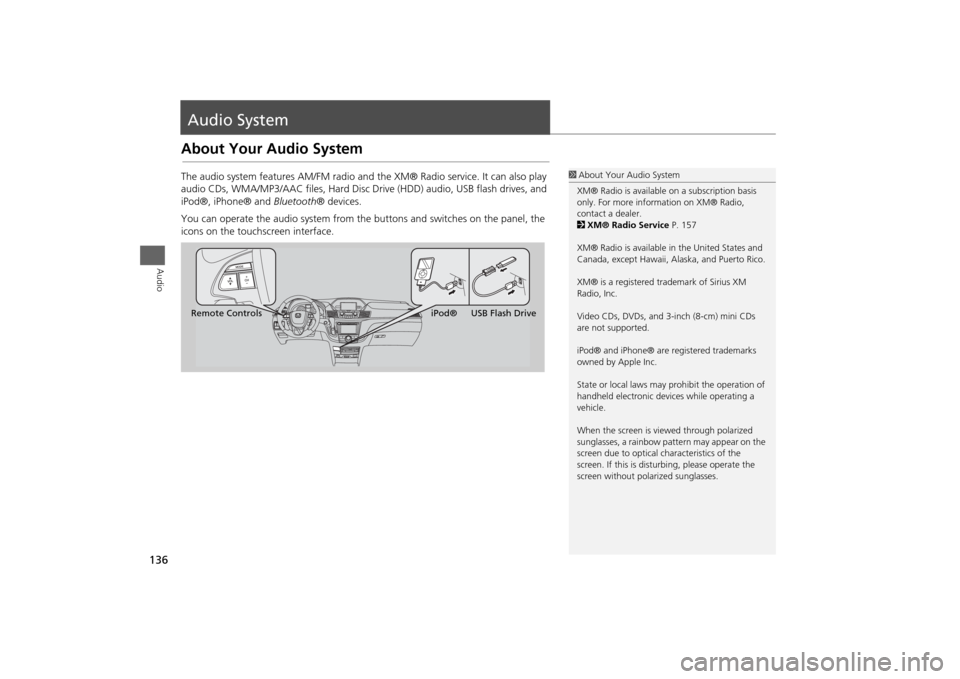
Audio SystemAbout Your Audio SystemThe audio system features AM/FM radio and the XM® Radio service. It can also play
audio CDs, WMA/MP3/AAC files, Hard Disc Drive (HDD) audio, USB flash drives, and
iPod®, iPhone® and Bluetooth® devices.
You can operate the audio system from the buttons and switches on the panel, the
icons on the touchscreen interface.
1About Your Audio System
XM® Radio is available on a subscription basis
only. For more information on XM® Radio,
contact a dealer.
2XM® Radio Service P. 157
XM® Radio is available in the United States and
Canada, except Hawaii, Alaska, and Puerto Rico.
XM® is a registered trademark of Sirius XM
Radio, Inc.
Video CDs, DVDs, and 3-inch (8-cm) mini CDs
are not supported.
iPod® and iPhone® are registered trademarks
owned by Apple Inc.
State or local laws may prohibit the operation of
handheld electronic devices while operating a
vehicle.
When the screen is viewed through polarized
sunglasses, a rainbow pattern may appear on the
screen due to optical characteristics of the
screen. If this is disturbing, please operate the
screen without polarized sunglasses.
Remote ControlsiPod® USB Flash Drive
Page 138 of 327
137
Audio System
USB Port
Audio
USB Port
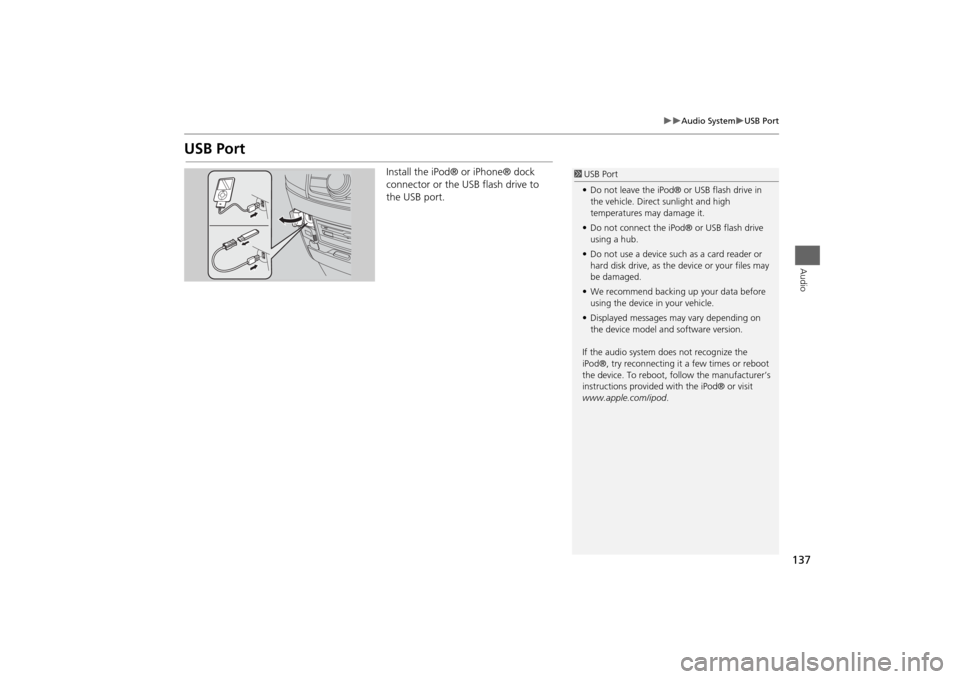
Install the iPod® or iPhone® dock
connector or the USB flash drive to
the USB port.
1USB Port
•Do not leave the iPod® or USB flash drive in
the vehicle. Direct sunlight and high
temperatures may damage it.
•Do not connect the iPod® or USB flash drive
using a hub.
•Do not use a device such as a card reader or
hard disk drive, as the device or your files may
be damaged.
•We recommend backing up your data before
using the device in your vehicle.
•Displayed messages may vary depending on
the device model and software version.
If the audio system does not recognize the
iPod®, try reconnecting it a few times or reboot
the device. To reboot, follow the manufacturer’s
instructions provided with the iPod® or visit
www.apple.com/ipod.
Page 149 of 327
148
Playing FM/AM Radio
Audio Screen Control
Audio
Select b or n to tune the radio
frequency.
Select c or x to search up and
down the selected band for a station
with a strong signal.Select Presets to listen a preset
station.
Select and hold the preset number
you want to store that station.Select More to display the menu
item.2Audio Menu P. 149Select TAG to tag the song if it is
played on an HD Radio
TM station*.
The iPod®/ iPhone® should be
connected to the audio system to
store the tagged song information
on your device.
Touchscreen
*: Not available on all models
Page 151 of 327
150
Playing FM/AM Radio
Audio Menu
Audio
•Radio Text: Displays the text information broadcast by the current RDS station.
•Tag Song*: Displays the TAG information saved to the audio system when an HD
Radio
TM station is selected.
•Tagged Song List*: You can store the TAG information in the connected iPod®/
iPhone®. If the iPod®/iPhone® is not connected to the audio system, the
information is stored in the audio unit temporarily, then once the device is
connected to the system, data is transferred to the iPod®/iPhone®.
•Tune/Seek: Tunes the radio to the frequency you select. Rotate i to select a
frequency, then Move u.
•HD subchannel*: Displays the subchannel list when an HD Radio
TM station is
selected.
1Audio Menu
iTunes Tagging*
“iTunes” in “iTunes Tagging” is a trademark of
Apple Inc.
When an HD Radio
TM station is selected, the HD
indicator appears on the navigation screen and
touchscreen.
If you want to have the information on the song
played from the HD Radio
TM station, select TAG
in touchscreen or select Tag Song in the menu
with Interface dial.
If iPod®/iPhone® is connected, the tag is
transferred to the connected device immediately,
otherwise the tag will be transferred when the
device will be connected and select Tag Song in
the menu with Interface dial.
*: Not available on all models
Page 178 of 327
177Audio
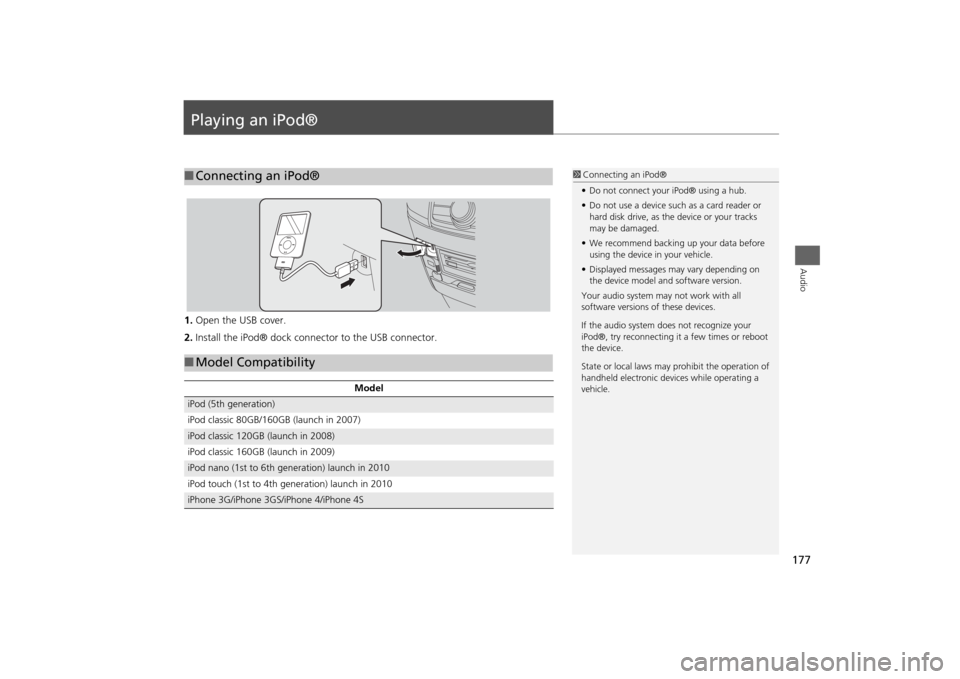
Playing an iPod®1.Open the USB cover.
2.Install the iPod® dock connector to the USB connector.■Connecting an iPod®
1Connecting an iPod®
•Do not connect your iPod® using a hub.
•Do not use a device such as a card reader or
hard disk drive, as the device or your tracks
may be damaged.
•We recommend backing up your data before
using the device in your vehicle.
•Displayed messages may vary depending on
the device model and software version.
Your audio system may not work with all
software versions of these devices.
If the audio system does not recognize your
iPod®, try reconnecting it a few times or reboot
the device.
State or local laws may prohibit the operation of
handheld electronic devices while operating a
vehicle.
■Model Compatibility
Model
iPod (5th generation)
iPod classic 80GB/160GB (launch in 2007)iPod classic 120GB (launch in 2008)
iPod classic 160GB (launch in 2009)iPod nano (1st to 6th generation) launch in 2010
iPod touch (1st to 4th generation) launch in 2010iPhone 3G/iPhone 3GS/iPhone 4/iPhone 4S