Page 384 of 573
Continued
383
uuBluetooth® HandsFreeLink®uHFL Menus
Features
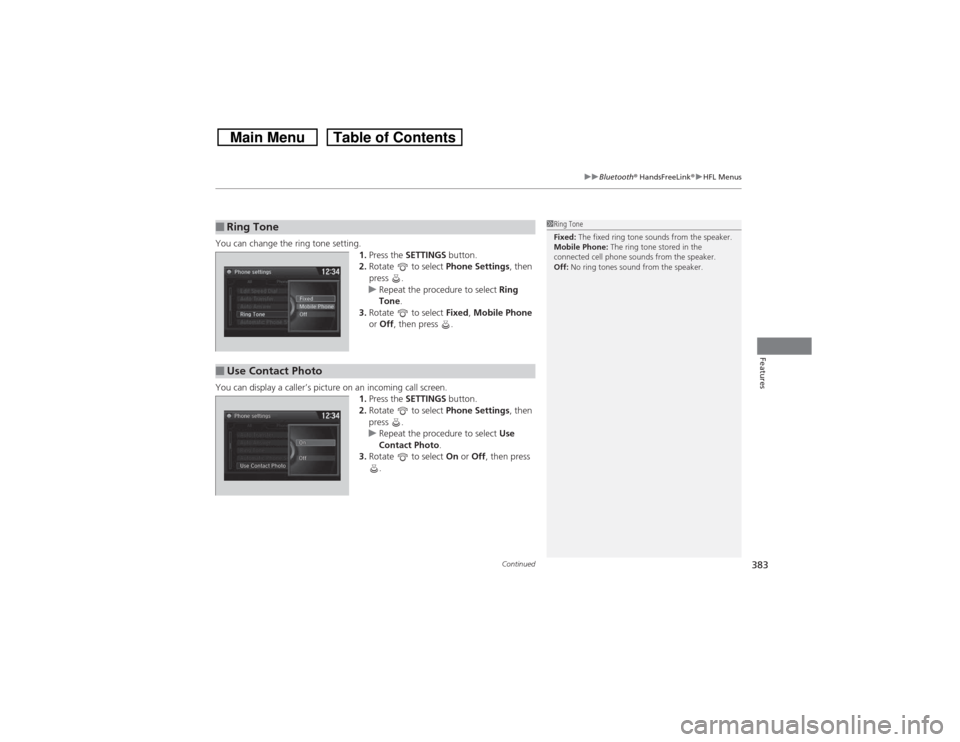
You can change the ring tone setting.
1.Press the SETTINGS button.
2.Rotate to select Phone Settings, then
press .
uRepeat the procedure to select Ring
Tone.
3.Rotate to select Fixed, Mobile Phone
or Off, then press .
You can display a caller’s picture on an incoming call screen.
1.Press the SETTINGS button.
2.Rotate to select Phone Settings, then
press .
uRepeat the procedure to select Use
Contact Photo.
3.Rotate to select On or Off, then press
.■Ring Tone
1Ring Tone
Fixed: The fixed ring tone sounds from the speaker.
Mobile Phone: The ring tone stored in the
connected cell phone sounds from the speaker.
Off: No ring tones sound from the speaker.
■Use Contact Photo
Page 397 of 573
uuBluetooth® HandsFreeLink®uHFL Menus
396Features
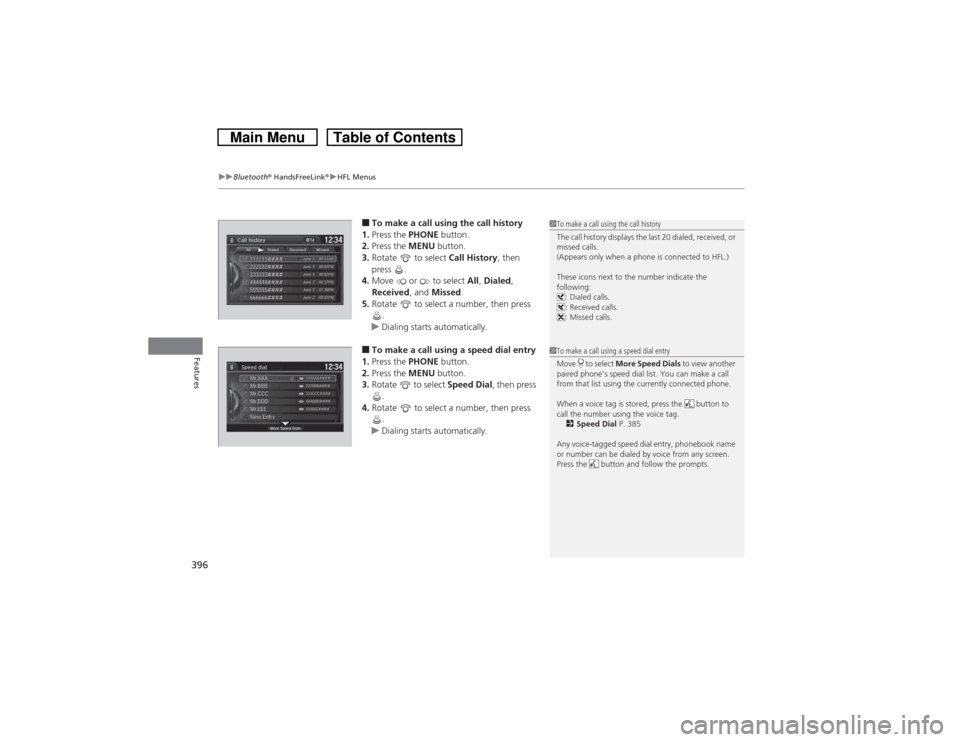
■To make a call using the call history
1.Press the PHONE button.
2.Press the MENU button.
3.Rotate to select Call History, then
press .
4.Move or to select All, Dialed,
Received, and Missed.
5.Rotate to select a number, then press
.
uDialing starts automatically.■To make a call using a speed dial entry
1.Press the PHONE button.
2.Press the MENU button.
3.Rotate to select Speed Dial, then press
.
4.Rotate to select a number, then press
.
uDialing starts automatically.
1To make a call using the call history
The call history displays the last 20 dialed, received, or
missed calls.
(Appears only when a phone is connected to HFL.)
These icons next to the number indicate the
following:
: Dialed calls.
: Received calls.
: Missed calls.1To make a call using a speed dial entry
Move to select More Speed Dials to view another
paired phone’s speed dial list. You can make a call
from that list using the currently connected phone.
When a voice tag is stored, press the button to
call the number using the voice tag.
2Speed Dial P. 385
Any voice-tagged speed dial entry, phonebook name
or number can be dialed by voice from any screen.
Press the button and follow the prompts.
Page 400 of 573
Continued
399
uuBluetooth® HandsFreeLink®uHFL Menus
Features
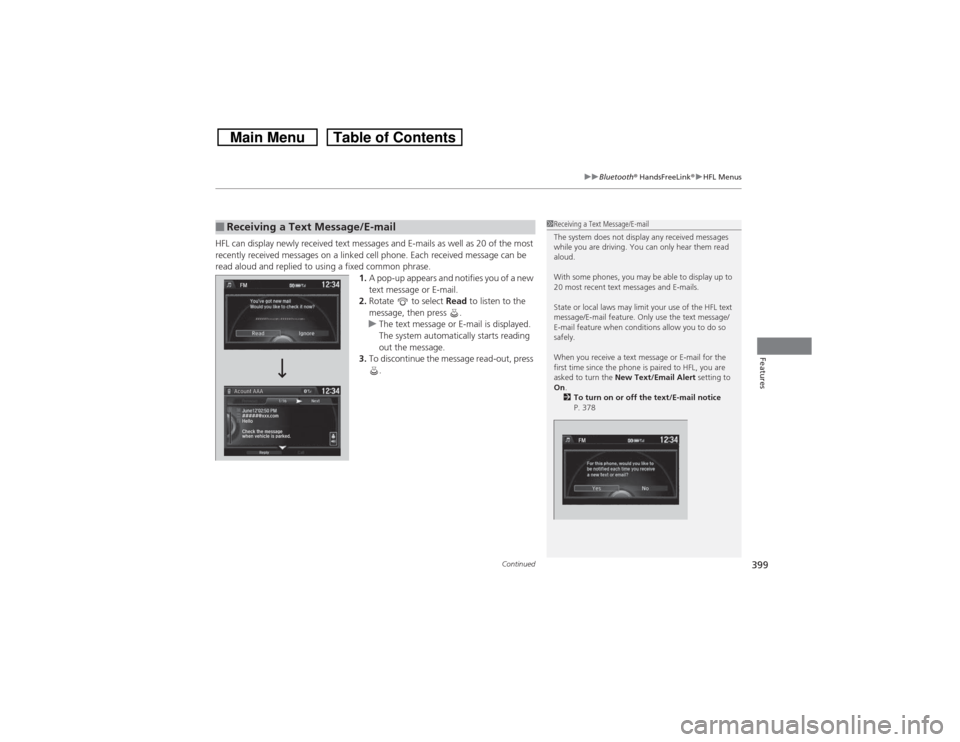
HFL can display newly received text messages and E-mails as well as 20 of the most
recently received messages on a linked cell phone. Each received message can be
read aloud and replied to using a fixed common phrase.
1.A pop-up appears and notifies you of a new
text message or E-mail.
2.Rotate to select Read to listen to the
message, then press .
uThe text message or E-mail is displayed.
The system automatically starts reading
out the message.
3.To discontinue the message read-out, press
.■Receiving a Text Message/E-mail
1Receiving a Text Message/E-mail
The system does not display any received messages
while you are driving. You can only hear them read
aloud.
With some phones, you may be able to display up to
20 most recent text messages and E-mails.
State or local laws may limit your use of the HFL text
message/E-mail feature. Only use the text message/
E-mail feature when conditions allow you to do so
safely.
When you receive a text message or E-mail for the
first time since the phone is paired to HFL, you are
asked to turn the New Text/Email Alert setting to
On.
2To turn on or off the text/E-mail notice
P. 378
Page 402 of 573
Continued
401
uuBluetooth® HandsFreeLink®uHFL Menus
Features
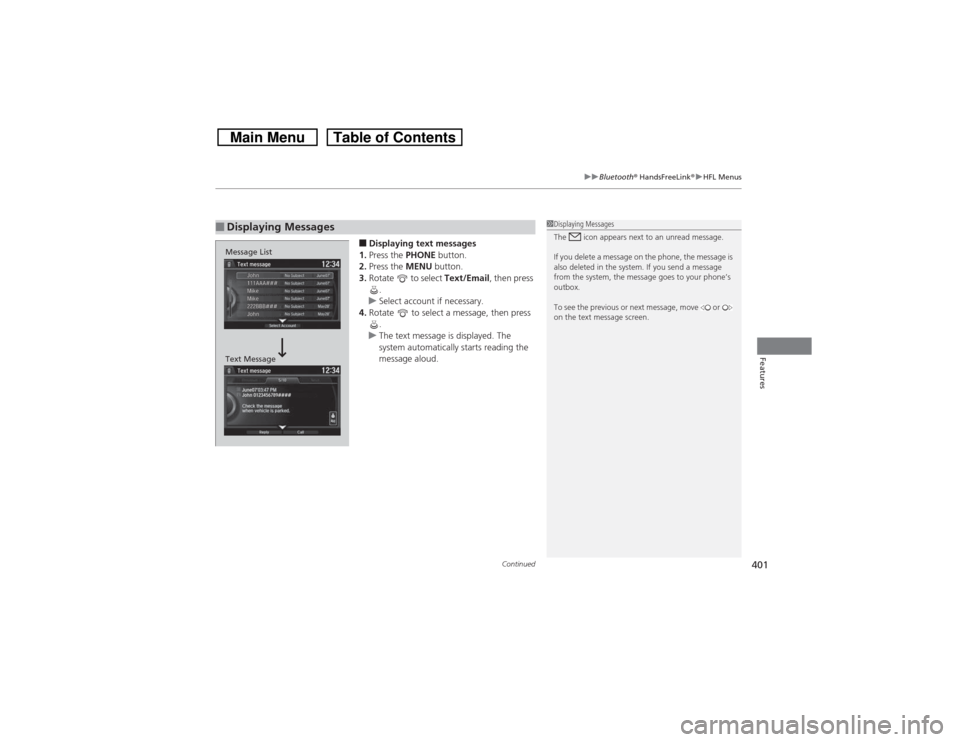
■Displaying text messages
1.Press the PHONE button.
2.Press the MENU button.
3.Rotate to select Text/Email, then press
.
uSelect account if necessary.
4.Rotate to select a message, then press
.
uThe text message is displayed. The
system automatically starts reading the
message aloud.
■Displaying Messages
1Displaying Messages
The icon appears next to an unread message.
If you delete a message on the phone, the message is
also deleted in the system. If you send a message
from the system, the message goes to your phone’s
outbox.
To see the previous or next message, move or
on the text message screen.
Message List
Text Message
Page 403 of 573
uuBluetooth® HandsFreeLink®uHFL Menus
402Features
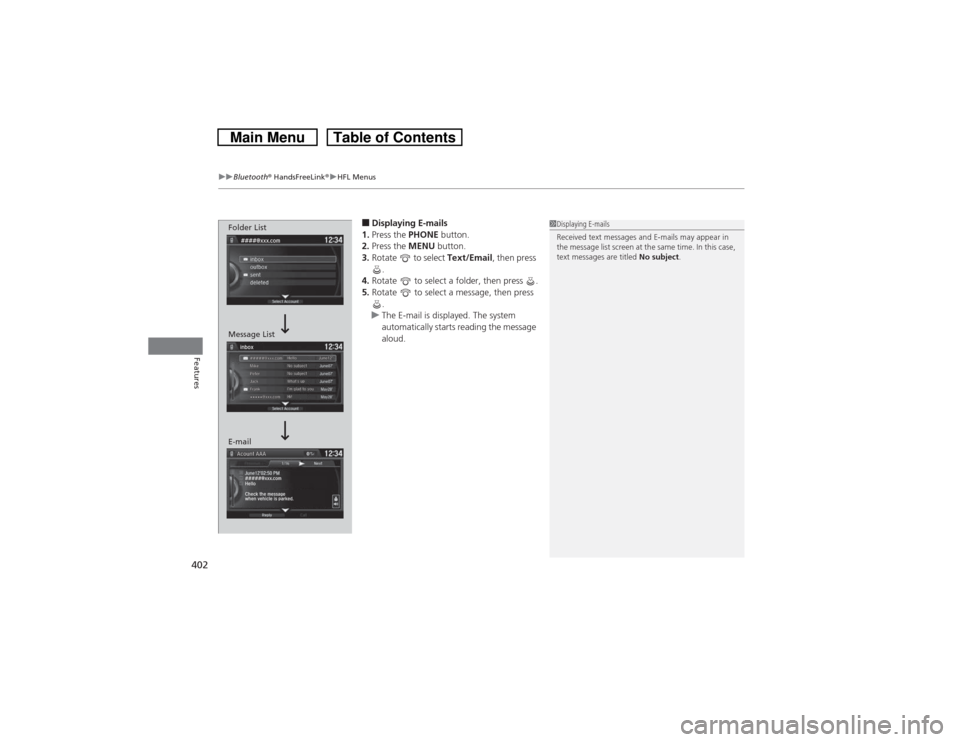
■Displaying E-mails
1.Press the PHONE button.
2.Press the MENU button.
3.Rotate to select Text/Email, then press
.
4.Rotate to select a folder, then press .
5.Rotate to select a message, then press
.
uThe E-mail is displayed. The system
automatically starts reading the message
aloud.
1Displaying E-mails
Received text messages and E-mails may appear in
the message list screen at the same time. In this case,
text messages are titled No subject.
Folder List
Message List
E-mail
Page 404 of 573
Continued
403
uuBluetooth® HandsFreeLink®uHFL Menus
Features
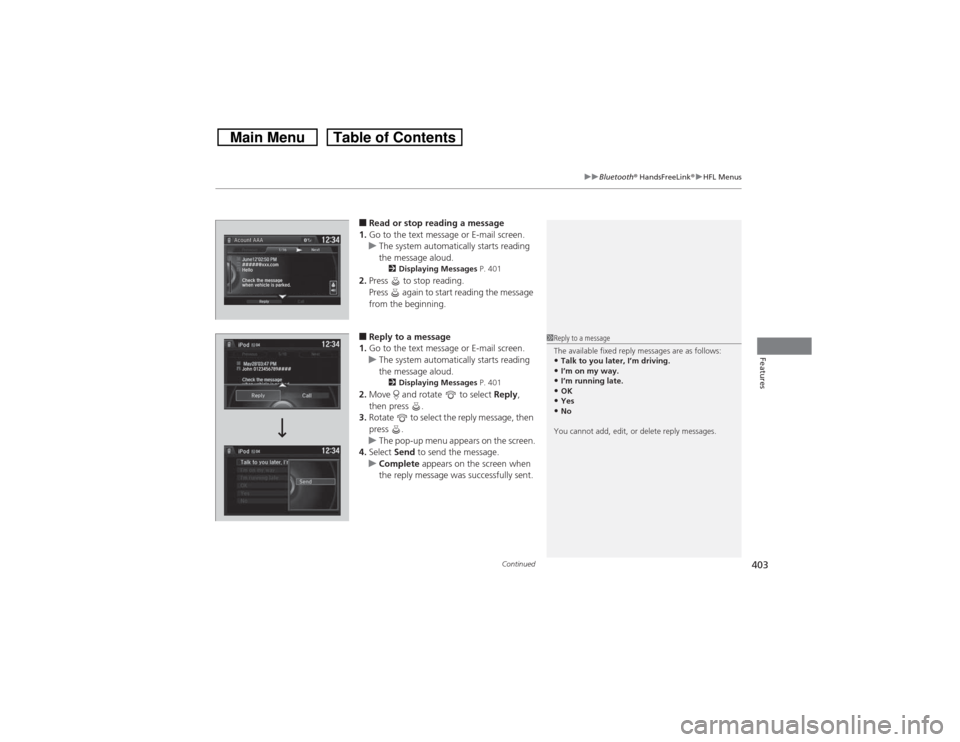
■Read or stop reading a message
1.Go to the text message or E-mail screen.
uThe system automatically starts reading
the message aloud.
2Displaying Messages P. 401
2.Press to stop reading.
Press again to start reading the message
from the beginning.■Reply to a message
1.Go to the text message or E-mail screen.
uThe system automatically starts reading
the message aloud.
2Displaying Messages P. 401
2.Move and rotate to select Reply,
then press .
3.Rotate to select the reply message, then
press .
uThe pop-up menu appears on the screen.
4.Select Send to send the message.
uComplete appears on the screen when
the reply message was successfully sent.
1Reply to a message
The available fixed reply messages are as follows:•Talk to you later, I’m driving.•I’m on my way.•I’m running late.•OK•Yes•No
You cannot add, edit, or delete reply messages.
Page 405 of 573
404
uuBluetooth® HandsFreeLink®uHFL Menus
Features
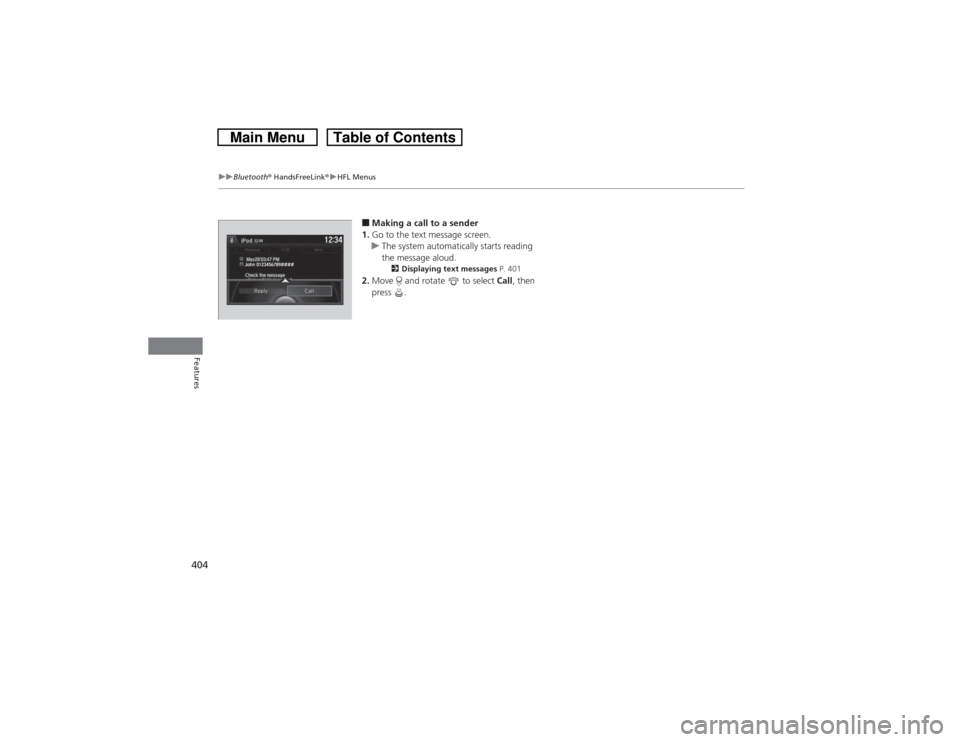
■Making a call to a sender
1.Go to the text message screen.
uThe system automatically starts reading
the message aloud.
2Displaying text messages P. 401
2.Move and rotate to select Call, then
press .
John 0123456789####Reply Call
Page 406 of 573
405Features
Compass
*
When you turn the ignition switch to ON
(w, the compass self-calibrates, and the
compass display appears.
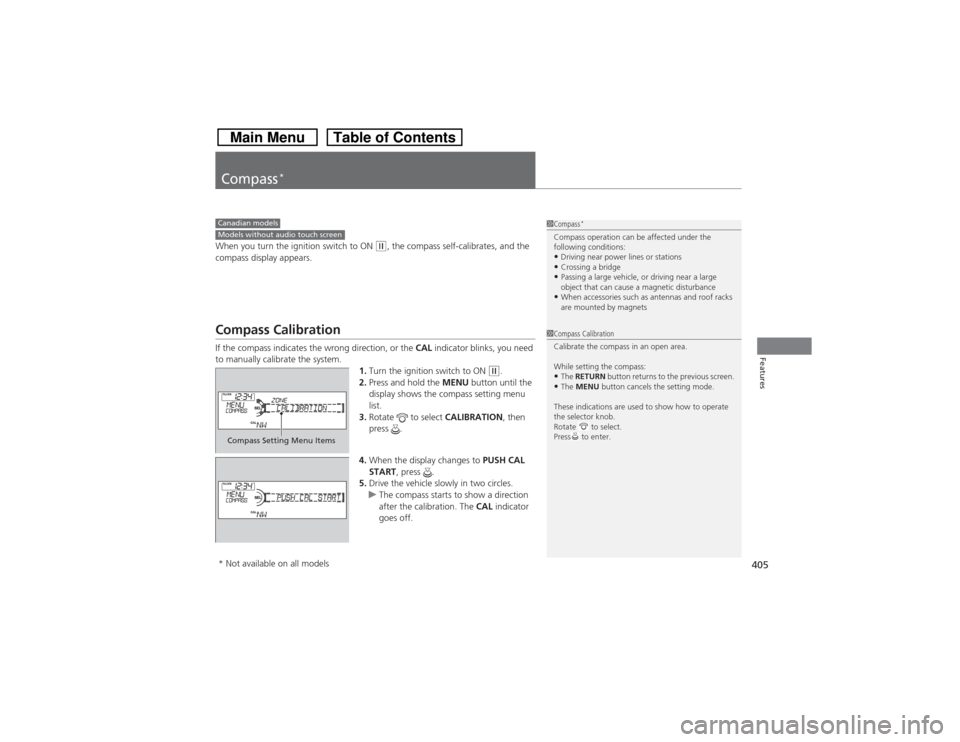
Compass CalibrationIf the compass indicates the wrong direction, or the CAL indicator blinks, you need
to manually calibrate the system.
1.Turn the ignition switch to ON
(w.
2.Press and hold the MENU button until the
display shows the compass setting menu
list.
3.Rotate to select CALIBRATION, then
press .
4.When the display changes to PUSH CAL
START, press .
5.Drive the vehicle slowly in two circles.
uThe compass starts to show a direction
after the calibration. The CAL indicator
goes off.
1Compass
*
Compass operation can be affected under the
following conditions:•Driving near power lines or stations•Crossing a bridge•Passing a large vehicle, or driving near a large
object that can cause a magnetic disturbance•When accessories such as antennas and roof racks
are mounted by magnets
Canadian modelsModels without audio touch screen
1Compass Calibration
Calibrate the compass in an open area.
While setting the compass:•The RETURN button returns to the previous screen.•The MENU button cancels the setting mode.
These indications are used to show how to operate
the selector knob.
Rotate to select.
Press to enter.
Compass Setting Menu Items* Not available on all models