Page 175 of 595

174Features
Audio SystemAbout Your Audio SystemSee the Navigation System Manual for information on the navigation system.
The audio system features AM/FM radio and XM® Radio service
*. It can also play
audio CDs, WMA/MP3/AAC files, Hard Disc Drive (HDD) audio*, USB flash drives,
and iPod®, iPhone ® and Bluetooth ® devices.
You can operate the audio system from the buttons and switches on the panel, the
icons on the touchscreen interface
*.
1 About Your Audio System
XM ® Radio is available on a subscription basis only.
For more information on XM® Radio, contact a
dealer.
2 General Information on the Audio System
P. 295
XM ® Radio is available in the United States and
Canada, except Hawaii, Alaska, and Puerto Rico.
XM ® is a registered trademark of Sirius XM Radio, Inc.
Video CDs, DVDs, and 3-inch (8-cm) mini CDs are not
supported.
iPod ® and iPhone ® are registered trademarks owned
by Apple Inc.
State or local laws may prohibit the operation of
handheld electronic devices while operating a
vehicle.
Models with navigation system
Remote Controls iPod
®
USB Flash
Drive
* Not available on all models
Page 176 of 595
175
uuAudio System uUSB Port
Features
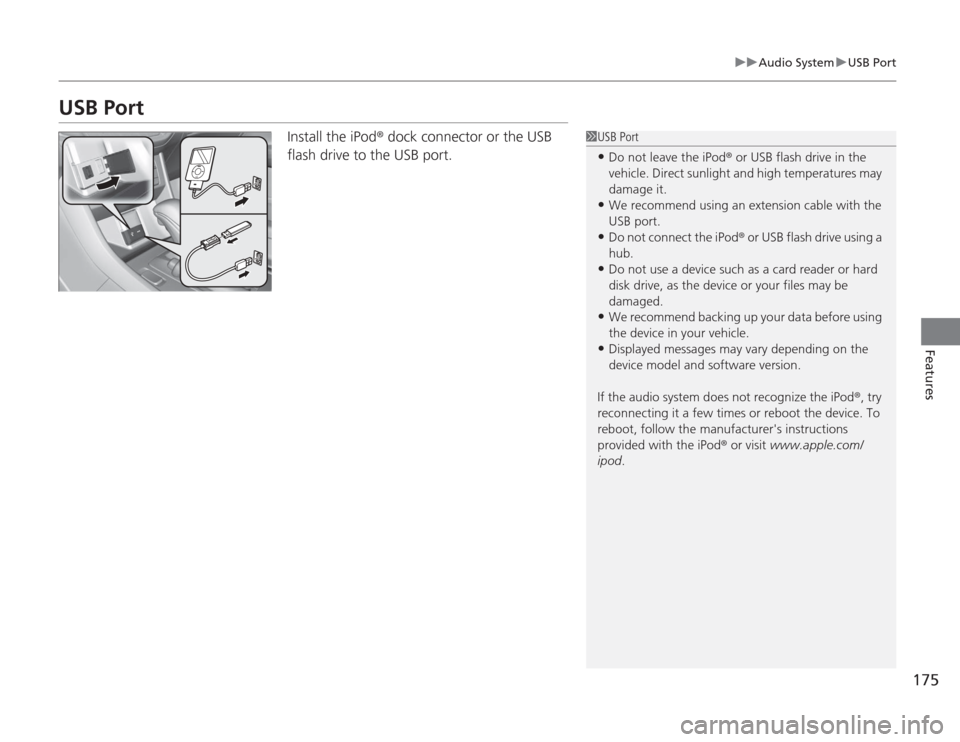
USB Port
Install the iPod ® dock connector or the USB
flash drive to the USB port.
1 USB Port•Do not leave the iPod ® or USB flash drive in the
vehicle. Direct sunlight and high temperatures may
damage it.•We recommend using an extension cable with the
USB port.•Do not connect the iPod ® or USB flash drive using a
hub.•Do not use a device such as a card reader or hard
disk drive, as the device or your files may be
damaged.•We recommend backing up your data before using
the device in your vehicle.•Displayed messages may vary depending on the
device model and software version.
If the audio system does not recognize the iPod ®, try
reconnecting it a few times or reboot the device. To
reboot, follow the manufacturer's instructions
provided with the iPod ® or visit www.apple.com/
ipod .
Page 177 of 595
176
uuAudio System uAuxiliary Input Jack
Features
Auxiliary Input JackUse the jack to connect standard audio devices.
1.Open the AUX cover.
2. Connect a standard audio device to the
input jack using a 1/8 inch (3.5 mm) stereo
miniplug.
u The audio system automatically switches
to the AUX mode.
1Auxiliary Input Jack
You can return to AUX mode by pressing the AUX
button.
You can return to AUX mode by selecting Change
Source on the Audio menu screen or Source on the
touchscreen.
You cannot use the auxiliary input jack if you replace
the audio system.
Models with one displayModels with two displaysModels with navigation system
Models with one displayModels with two
displaysModels with
navigation system
Page 178 of 595

177
uuAudio System uAudio System Theft Protection
*
Features
Audio System Theft Protection
*
The audio system is disabled when it is disconnected from the power source, such as
when the battery is disconnected or goes dead.■
Reactivating the audio system
1. Set the power mode to ON, and turn on the audio system.
u If you set the power mode to ACCESSORY, you will be requested to enter the
audio security code. See step 3.
2. Press and hold the power button again for more than two seconds.
u The audio system is reactivated when the system’s control unit recognizes that
the system is in your vehicle.
If the control unit fails to recognize, Enter PIN Code appears on the audio/
information screen.
3. If the two steps do not work, you can enter the audio security code using the
touch screen. If you enter an incorrect digit, continue to the last digit, then try
again. If you do not enter code correctly after 10 tries, leave the system for one
hour before trying again, or visit a dealer to have the system reset.
1Audio System Theft Protection
*
Find the audio system's security code and serial
number label in your owner’s manual kit.
We recommend that you write down the serial
number in this owner’s manual.
Do not store the label in your vehicle. If you lose the
label, you must first retrieve the serial number, and
then obtain the code.
You can find out about your serial number and
security code from a dealer.
You can register the security code at Owner Link
(owners.honda.com. ), and find information on how
to retrieve the serial number and obtain the code at
radio-navicode.honda.com .U.S. models
* Not available on all models
Page 179 of 595
178
uuAudio System uRegion Setting
Features
Region SettingThe audio system’s region setting will be lost when the battery is disconnected or
goes dead.
If the Region Select screen appears, you need to set the region for the audio
system. Follow the steps below:
1. Press to select OK.
2. Rotate to select the region you live in, then press .
3. You will receive a confirmation message on the screen. Rotate to select Yes,
then press .Models with two displays
1 Region Setting
The region setting is required only when the battery
power is temporarily disconnected. It is set to your
vehicle’s region type by the factory.
You cannot change the setting once you have
completed the setting procedure. Contact a dealer if
you selected an incorrect region.
Page 180 of 595

179
uuAudio System uAudio Remote Controls
Features
Audio Remote ControlsAllows you to operate the audio system while driving.
SOURCE Button
Cycles through the audio modes as follows:
FM AM XM
*
CD HDD
*
USB iPod®
Bluetooth ® Audio Pandora ®
*
Aha
TM *
AUX
(+
(-
(Volume) Buttons
Press (+
: To increase the volume.
Press
(-
: To decrease the volume.
Buttons
• When listening to the radio
Press : To select the next preset radio station.
Press : To select the previous preset radio station.
Press and hold : To select the next strong station.
Press and hold : To select the previous strong station.
• When listening to a CD, HDD
*, iPod ®, USB flash drive, or Bluetooth® Audio
Press : To skip to the next song.
Press : To go back to the beginning of the current or previous song.
• When listening to a CD, HDD* or USB flash drive
Press and hold : To skip to the next folder.
Press and hold : To go back to the previous folder.
• When listening to Pandora®
* or Aha
TM *
Press : To skip to the next song.
Press and hold : To select the next station.
Press and hold : To select the previous station.
1Audio Remote Controls
The CD mode appears only when a CD is loaded.
Pandora ®
*, Bluetooth ® Audio, and Aha
TM *
appear
when a connection ( Bluetooth® or USB) is established
with a device.
Button
SOURCE Button
Button
(+
Button
(-
Button
* Not available on all models
Page 181 of 595

180Features
Audio System Basic OperationTo use the audio system function, the ignition switch must be in ACCESSORY
(q
or
ON
(w
*1.
Use the selector knob or MENU button to
access some audio functions.
Press to switch between the normal and
extended display for some functions.
Selector knob: Rotate left or right to scroll
through the available choices. Press to set
your selection.
MENU button: Press to select any mode.
The available mode includes Change Source ,
Station List , Save Preset , Radio Text,
Music Search, and play modes. Play modes
can be also selected from Scan, Random/
Repeat , and so on.
BACK button: Press to go back to the
previous display. button: Press to change the audio/
information screen brightness.
Press once and make an adjustment.
u Each time you press , the mode
switches between the daytime mode,
nighttime mode and OFF mode.
*1: Models with the smart entry system have an ENGINE START/STOP button instead of an
ignition switch.Models with one display
1 Audio System Basic Operation
These indications are used to show how to operate
the selector knob.
Rotate to select.
Press to enter.
Audio Menu Items
2 Station List P. 188
2 Radio text P. 189
2 Music Search P. 191, 194, 199
2 Scan P. 192, 200
2 Random/Repeat P. 192, 195, 200
Button
Selector Knob
MENU Button
BACK Button
Page 182 of 595
181
uuAudio System Basic Operation uAudio/Information Screen
Continued
Features
Audio/Information ScreenDisplays the audio status and wallpaper. From this screen, you can go to various
setup options.
Press the (display) button to change the display.■
Switching the Display
(Display) Button
Audio Trip Computer
(Current Drive)
Clock/Wallpaper Trip Computer
(History of Trip A)
Audio/Information Screen