Page 115 of 595
uuLocking and Unlocking the Doors uLocking/Unlocking the Doors from the Outside
114Controls
■
Unlocking the doors and the trunk
Grab the driver’s door handle:u The driver’s door unlocks.
u Some exterior lights flash twice and the
beeper sounds twice.
Grab the front passen ger’s door handle:
u All the doors unlock.
u Some exterior lights flash twice and the
beeper sounds twice.
Press the trunk release button: u The trunk unlocks and opens.
2 Using the Trunk Release Button
* P. 121
Trunk Release Button
1Using the Smart Entry with Push Button Start System
*
If you do not open a door within 30 seconds of
unlocking the vehicle, the doors will automatically
relock.
The light flash, beep and unlock settings can be
customized.
2 Customized Features P. 97, 299
* Not available on all models
Page 125 of 595

124Controls
Security SystemImmobilizer SystemThe immobilizer system prevents a key that has not been pre-registered from
starting the engine. Each key contains electronic transmitters that use electronic
signals to verify the key.
Pay attention to the following when inserting the key into the ignition switch or
pressing the ENGINE START/STOP button:
• Do not allow objects that emit strong radio waves near the ignition switch or the
ENGINE START/STOP button.
• Make sure the key is not covered by or touching a metal object.
• Do not bring a key from another vehicle's immobilizer system near the ignition
switch.Security System AlarmThe security system alarm activates when the doors, trunk, or hood are opened
without the key, remote transmitter, or smart entry system.■
When the security system alarm activates
The horn sounds intermittently and all of the exterior lights flash.
■
To deactivate the security system alarm
Unlock the vehicle using the key, remote transmitter, or smart entry system. The
system, along with the horn and flashing lights, is deactivated.
1 Immobilizer System
NOTICELeaving the ignition key in the vehicle can result in
theft or accidental movement of the vehicle.
Always take the ignition key with you whenever you
leave the vehicle unattended.
Do not alter the system or add other devices to it.
Doing so may damage the system and make your
vehicle inoperable.1Security System Alarm
The security alarm continues for a maximum of two
minutes until the security system deactivates.
Page 127 of 595
126
uuSecurity System uSecurity System Alarm
Controls
■
The panic button on the remote
transmitter
If you press the panic button for
approximately one second, the following will
occur for about 30 seconds:
• The horn sounds.
• Some exterior lights flash.
■
Canceling panic mode
Press any button on the remote transmitter, or turn the ignition switch to ON
(w
*1.
*1: Models with the smart entry system have an ENGINE START/STOP button instead of an
ignition switch.■
Panic Mode
Panic Button
Page 137 of 595

136
uuOperating the Switches Around the Steering Wheel uTurn Signals
Controls
Turn Signals
The turn signals can be used when the ignition
switch is in ON
(w
*1.
■
One-touch turn signal
When you lightly push up or down and release
the turn signal lever, the exterior turn signals
and turn signal indicator blink three times.
This feature can be used when signaling for a
lane change.
Light Switches
Rotating the light switch turns the lights on
and off, regardless of the position of the
ignition switch
*1.
■
High beams
Push the lever forward until you hear a click.
■
Low beams
When in high beams, pull the lever back to
return to low beams.
■
Flashing the high beams
Pull the lever back, and release it.
*1: Models with the smart entry system have an ENGINE START/STOP button instead of an
ignition switch.
Right Turn
Left Turn
■
Manual Operation
1 Light Switches
If you remove the key from the ignition switch while
the lights are on, a chime sounds when the driver’s
door is opened.
When the lights are on, the lights on indicator in the
instrument panel will be on. 2 Lights On Indicator P. 76
If you sense that the level of the headlights is
abnormal, have the vehicle inspected by a dealer.
Do not leave the lights on when the engine is off
because it will cause the battery to discharge.
High Beams
Flashing the high beams
Low Beams
Turns on parking, side marker,
tail, and rear license plate lights
Turns on headlights, parking, side
marker, tail, and rear license plate
lights
Page 152 of 595

Continued
151
uuAdjusting the Seats uAdjusting the Seat Positions
Controls
Your vehicle is equipped with head restraints
in all seating positions.
Head restraints are most effective for
protection against whiplash and other rear-
impact crash injuries when the center of the
back of the occupant's head rests against the
center of the restraint. The tops of the
occupant's ears should be level with the
center height of the restraint.
■
Adjusting the front head restraint positions To raise the head restraint: Pull it upward.
To lower the head restraint: Push it down
while pressing the release button.
■
Adjusting the Head Restraints
1 Adjusting the Head Restraints
For a head restraint system to work properly:•Do not hang any items on the head restraints, or
from the restraint legs.•Do not place any object between an occupant and
the seat-back.•Install each restraint in its proper location.
3
WARNING
Improperly positioning head restraints
reduces their effectiveness and increases
the likelihood of serious injury in a crash.
Make sure head restraints are in place and
positioned properly before driving.
Position head in the center
of the head restraint.
Page 174 of 595

173
Features
This chapter describes how to operate technology features.
Audio SystemUSB Port .......................................... 175
Auxiliary Input Jack .......................... 176
Audio System Theft Protection
*....... 177
Region Setting ................................. 178
Audio Remote Controls .................... 179
Audio System Basic Operation ...... 180
Audio/Information Screen ................ 181
Display Setup ................................... 186
Playing AM/FM Radio ....................... 187
Playing a CD .................................... 190
Playing an iPod ®............................... 193
Playing Internet Radio ...................... 196
Playing a USB Flash Drive ................. 198
Playing Bluetooth ® Audio ................. 201
Models with one display
Audio System Basic Operation ...... 203
Audio with Touch Screen ................. 204
Audio/Information Screen ................ 207
Display Setup ................................... 213
Playing AM/FM Radio ....................... 214
Playing XM ® Radio ........................... 218
Playing a CD .................................... 221
Playing an iPod® ............................... 224
Playing Internet Radio ...................... 228
Playing a USB Flash Drive ................. 231
Playing Bluetooth ® Audio................. 234
Audio System Basic Operation ...... 236
Audio with Touch Screen ................. 237
Audio/Information Screen ................ 239Models with two displaysModels with navigation system
Display Setup ................................... 244
Voice Control Operation .................. 245
Playing AM/FM Radio....................... 253
Playing XM ® Radio ........................... 257
Playing a CD .................................... 260Playing Hard Disc Drive (HDD) Audio..... 263Playing an iPod ®.............................. 273
Playing Internet Radio ...................... 281
Playing a USB Flash Drive ................. 284
Playing Bluetooth ® Audio ................ 287
Audio Error Messages ...................... 289
General Information on the Audio System
.....295
Customized Features........................ 299
HomeLink ® Universal Transceiver
*.. 337
Bluetooth® HandsFreeLink ®..... 339 , 376
Compass
*.......................................... 414
* Not available on all models
Page 175 of 595

174Features
Audio SystemAbout Your Audio SystemSee the Navigation System Manual for information on the navigation system.
The audio system features AM/FM radio and XM® Radio service
*. It can also play
audio CDs, WMA/MP3/AAC files, Hard Disc Drive (HDD) audio*, USB flash drives,
and iPod®, iPhone ® and Bluetooth ® devices.
You can operate the audio system from the buttons and switches on the panel, the
icons on the touchscreen interface
*.
1 About Your Audio System
XM ® Radio is available on a subscription basis only.
For more information on XM® Radio, contact a
dealer.
2 General Information on the Audio System
P. 295
XM ® Radio is available in the United States and
Canada, except Hawaii, Alaska, and Puerto Rico.
XM ® is a registered trademark of Sirius XM Radio, Inc.
Video CDs, DVDs, and 3-inch (8-cm) mini CDs are not
supported.
iPod ® and iPhone ® are registered trademarks owned
by Apple Inc.
State or local laws may prohibit the operation of
handheld electronic devices while operating a
vehicle.
Models with navigation system
Remote Controls iPod
®
USB Flash
Drive
* Not available on all models
Page 176 of 595
175
uuAudio System uUSB Port
Features
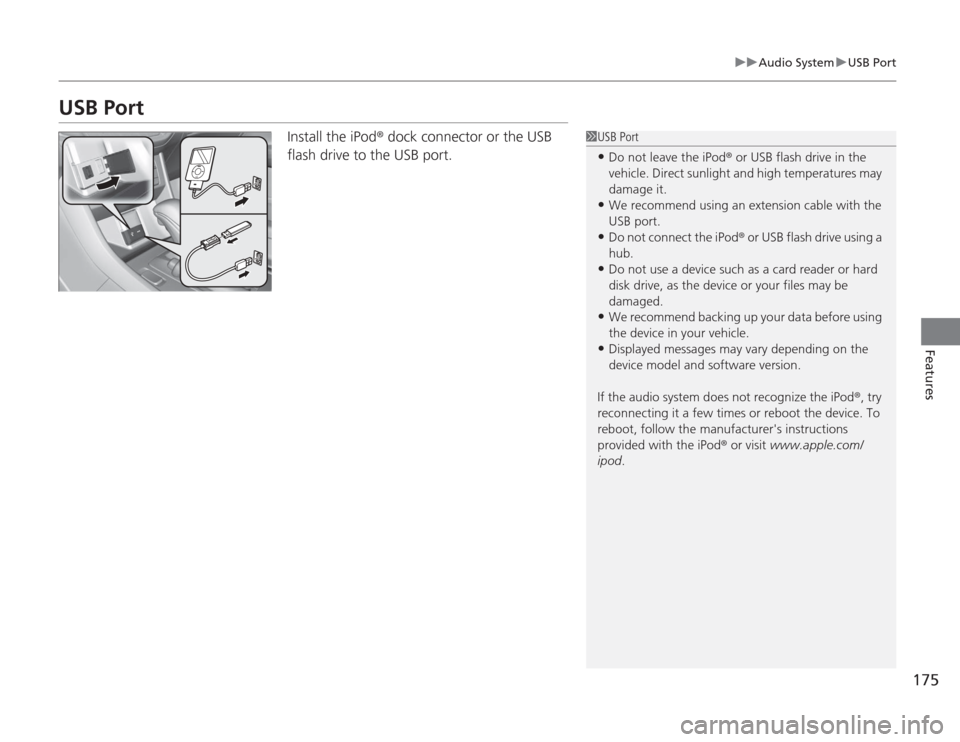
USB Port
Install the iPod ® dock connector or the USB
flash drive to the USB port.
1 USB Port•Do not leave the iPod ® or USB flash drive in the
vehicle. Direct sunlight and high temperatures may
damage it.•We recommend using an extension cable with the
USB port.•Do not connect the iPod ® or USB flash drive using a
hub.•Do not use a device such as a card reader or hard
disk drive, as the device or your files may be
damaged.•We recommend backing up your data before using
the device in your vehicle.•Displayed messages may vary depending on the
device model and software version.
If the audio system does not recognize the iPod ®, try
reconnecting it a few times or reboot the device. To
reboot, follow the manufacturer's instructions
provided with the iPod ® or visit www.apple.com/
ipod .