Page 107 of 593

106
Controls
Clock
Adjusting the Clock
You can adjust the time in the clock display with the ignition switch is in ON (w *1.
■Using the Settings menu on the audio/information screen1.Press the SETTINGS button.
1. Press and hold the DISP button.
2. Rotate to select System Settings, then
press .
u Repeat the procedure to select Clock,
then Clock Adjustment .
3. Rotate to change hour, then press .
4. Rotate to change minute, then press .
*1: Models with the smart entry system have an ENGINE START/STOP button instead of an
ignition switch.
■Adjusting the Time
1 Adjusting the Clock
The clock is automatica lly updated through the
navigation system, so the ti me does not need to be
adjusted.
These indications are used to show how to operate
the selector knob.
Rotate to select.
Press to enter.
You can customize the clock display to show the 12
hour clock or 24 hour clock. 2 Customized Features P. 298
You can turn the clock display on and off. 2 Customized Features P. 298
Models with navigation system
Models without navigation system
Models without navigation system
Models with one display
Models with two displays
All models
Page 108 of 593
107
uuClock uAdjusting the Clock
Controls
■Using the SETTINGS button
1.Press and hold the CLOCK (SETTINGS)
button until the clock display blinks.
2. Press Preset
(4 (Hour) or (5 (Minute) to
adjust the time.
3. Press the CLOCK button again to set the
time.
■Using the audio wi th touch screen
1.Select .
2. Select Clock.
3. Adjust the hours and minutes by selecting
/.
4. Select 12H or 24H .
5. Press Set to set the time.
1Using the SETTINGS button
To set the time to the nearest hour: Press and hold
the CLOCK button until the clock display blinks, then
press the
( 6 (Reset) button.
Depending on the displayed time, the clock sets
forward or backward.
Example:
1:06 will reset to 1:00
1:53 will reset to 2:00
Models with one display
CLOCK (SETTINGS)
Button
( 6 (Reset) Button
(4 (Hour) Button
(5 (Minute) Button
Models with two displays
34
Page 118 of 593
Continued117
uuLocking and Unlocking the Doors uLocking/Unlocking the Doors from the Inside
Controls
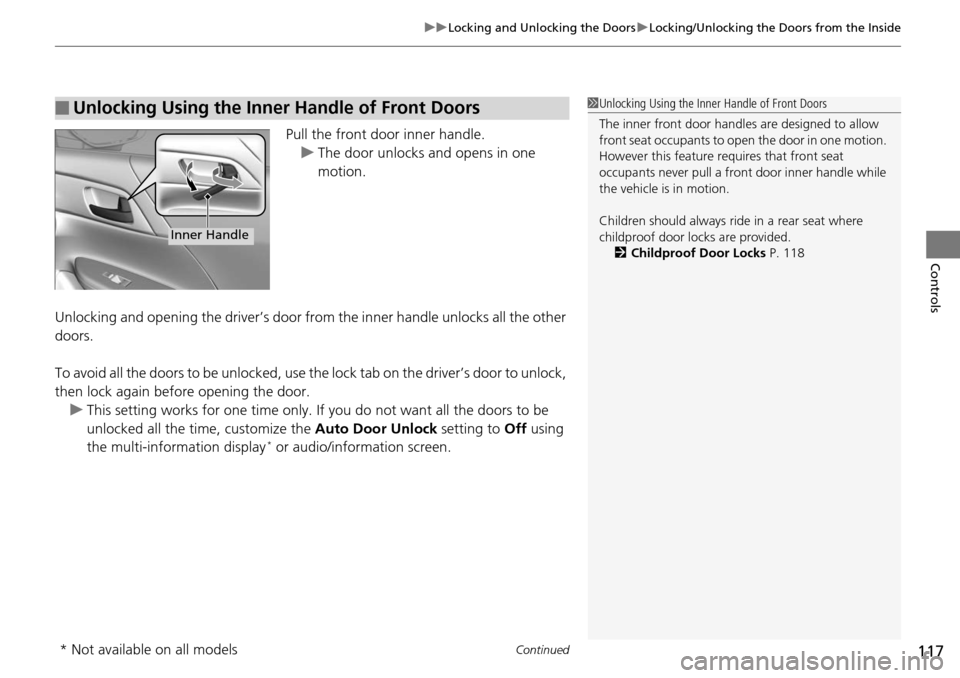
Pull the front door inner handle.
u The door unlocks and opens in one
motion.
Unlocking and opening the driver’s door from the inner handle unlocks all the other
doors.
To avoid all the doors to be unlocked, use the lock tab on the driver’s door to unlock,
then lock again before opening the door. u This setting works for one time only. If you do not want all the doors to be
unlocked all the time, customize the Auto Door Unlock setting to Off using
the multi-information display
* or audio/information screen.
■Unlocking Using the Inner Handle of Front Doors1 Unlocking Using the Inner Handle of Front Doors
The inner front door handl es are designed to allow
front seat occupants to open the door in one motion.
However this feature requires that front seat
occupants never pull a front door inner handle while
the vehicle is in motion.
Children should always ride in a rear seat where
childproof door locks are provided.
2 Childproof Door Locks P. 118
Inner Handle
* Not available on all models
Page 120 of 593
119
uuLocking and Unlocking the Doors uAuto Door Locking/Unlocking
Controls
Auto Door Locking/Unlocking
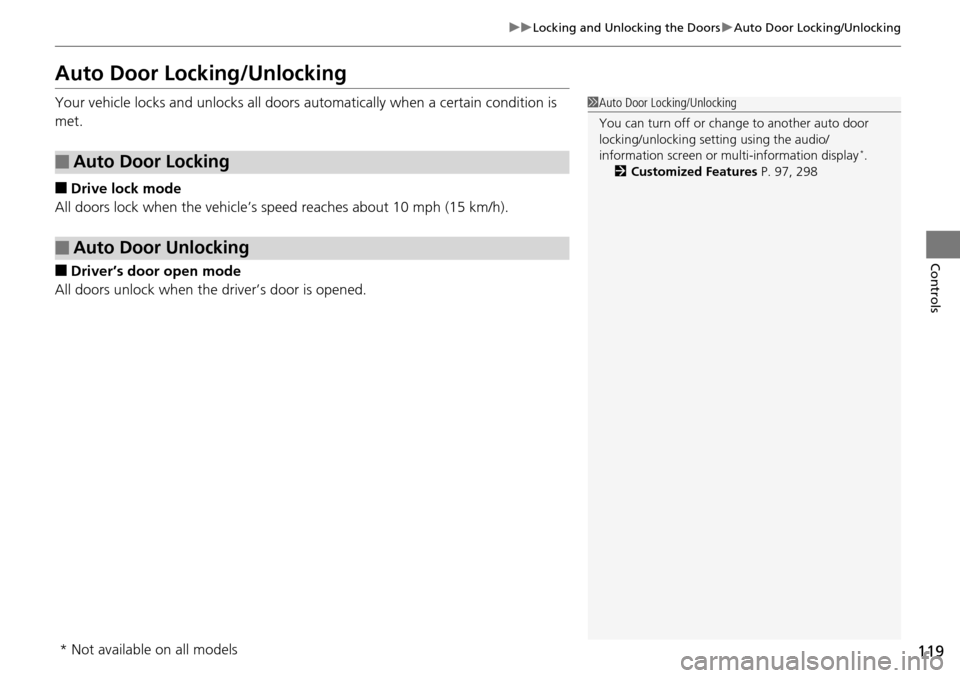
Your vehicle locks and unlocks all doors automatically when a certain condition is
met.
■Drive lock mode
All doors lock when the vehicle’s sp eed reaches about 10 mph (15 km/h).
■Driver’s door open mode
All doors unlock when the driver’s door is opened.
■Auto Door Locking
■Auto Door Unlocking
1 Auto Door Locking/Unlocking
You can turn off or cha nge to another auto door
locking/unlocking sett ing using the audio/
information screen or mu lti-information display
*.
2 Customized Features P. 97, 298
* Not available on all models
Page 133 of 593

132
uuOperating the Switches Around the Steering Wheel uENGINE START/STOP Button*
Controls
ENGINE START/STOP Button*
■Changing the Power Mode1ENGINE START/STOP Button*
ENGINE START/STOP Button Operating Range
You can start the engine when the smart entry
remote is inside the vehicle.
The engine may also run if the smart entry remote is
close to the door or window, ev en if it is outside the
vehicle.
ON mode:
Indicator in the button is of f, if the engine is running.
If the smart entry remote battery is weak, beeper
sounds and the To Start, Hold Remote Near Start
Button message appears on the multi-information
display
*.
2 If the Smart Entry Remote Battery is Weak
P. 550
Do not leave the power mode in ACCESSORY or ON
when you get out.
Operating RangeAutomatic Transmission Manual Transmission
VEHICLE OFF (LOCK)
Indicator in th e button is off.
The steering wheel is locked. The
power to all electrical
components is turned off.
Press the button without the shift
lever in
( P.
Shift to
( P then press the button. Press the button.Without pressing
the clutch pedal
Without pressing
the brake pedal ACCESSORY
Indicator in the button is on.
Indicator in th
e button blinks
(from ON to ACCESSORY).
Operate the audio system and
other accessories in this position.
ON
Indicator in the button is on.
All electrical components can be
used.
Indicator
Indicator
* Not available on all models
Page 135 of 593

uuOperating the Switches Around the Steering Wheel uENGINE START/STOP Button*
134
Controls
If you open the driver’s doo r when the power mode is set to ACCESSORY, a warning
buzzer sounds.
Warning buzzers may sound from inside or/
and outside the vehicle to remind you that the
smart entry remote is out of the vehicle. If the
buzzer continues even after the remote is put
back inside, place it to be within its
operational range.
■When the power mode is in ON
If the smart entry remote is taken out of the
vehicle, and the driver’s door is closed,
warning buzzers sound from both inside and
outside the vehicle. A warning message on
the information display or multi-information
display notifies the driver inside that the
remote is out.
■When the power mode is in
ACCESSORY
If the smart entry remote is taken out of the
vehicle, and all the doors are closed, a
warning buzzer sounds from outside the
vehicle.
■Power Mode Reminder
■Smart Entry Remote Reminder1 Smart Entry Remote Reminder
When the smart entry remote is within the system’s
operational range, and the driv er’s door is closed, the
warning function cancels.
If the smart entry remote is taken out of the vehicle
after the engine has been started, you can no longer
change the ENGINE START/STOP button mode or
restart the engine. Always make sure if the remote is
in your vehicle when you operate the ENGINE
START/STOP button.
Removing the smart entry remote from the vehicle
through a window does not activate the warning
buzzer.
Do not put the smart entr y remote on the dashboard
or in the glove box. It may cause the warning buzzer
to go off. Under some other conditions that can
prevent the vehicle from locating the remote, the
warning buzzer may al so go off even if the remote is
within the system’s operational range.
Models with information display
Models with multi-information display
Page 142 of 593

141
uuOperating the Switches Around the Steering Wheel uBrightness Control
Controls
Brightness Control
When the parking lights are turned on and the
ignition switch is in ON
(w*1, you can use the
brightness control knob to adjust instrument
panel brightness.
Brighten: Turn the knob to the right.
Dim: Turn the knob to the left.
You will hear a beep when the brightness
reaches minimum or maximum. The
information display
*/multi-information
display* will return to its original state several
seconds after you adjust the brightness.
■Brightness level indicator
The brightness level is shown on the
information display
*/multi-information
display* while you are adjusting it.
*1: Models with the smart entry system have an ENGINE START/STOP button instead of an
ignition switch.
1 Brightness Control
Instrument panel brightne ss varies, depending on
whether the exterior lights are on or off. The
instrument panel dims to reduce glare when they are
on.
Pressing the (Select/Reset) knob switches the
display.
If you turn the knob to the right until the brightness
display is up to max, the beeper sounds. This cancels
the reduced instrument panel brightness when the
parking lights are on.
The brightness can be set differently for when the
exterior lights are on, and when they are off.
Control Knob
On multi-information display
On information display
* Not available on all models
Page 144 of 593
143
uuOperating the Switches Around the Steering Wheel uDriving Position Memory System*
Continued
Controls
Driving Position Memory System*
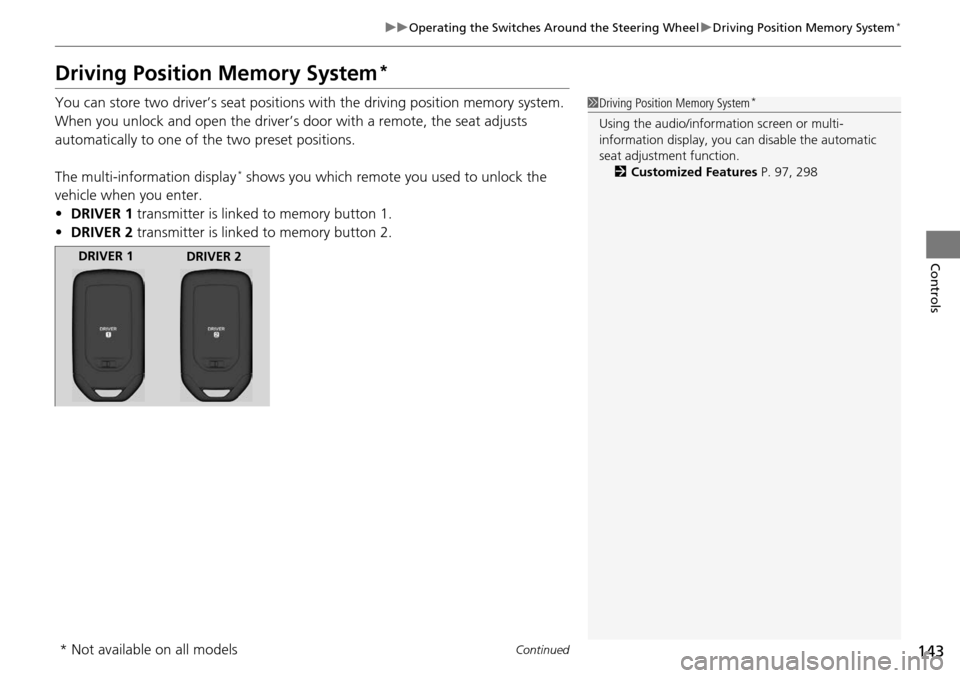
You can store two driver’s seat positions with the driving position memory system.
When you unlock and open the driver’s door with a remote, the seat adjusts
automatically to one of the two preset positions.
The multi-information display
* shows you which remote you used to unlock the
vehicle when you enter.
• DRIVER 1 transmitter is linked to memory button 1.
• DRIVER 2 transmitter is linked to memory button 2.
1Driving Position Memory System*
Using the audio/information screen or multi-
information display, you can disable the automatic
seat adjustment function. 2 Customized Features P. 97, 298
DRIVER 1
DRIVER 2
* Not available on all models