2014 FORD TRANSIT CONNECT lock
[x] Cancel search: lockPage 253 of 411
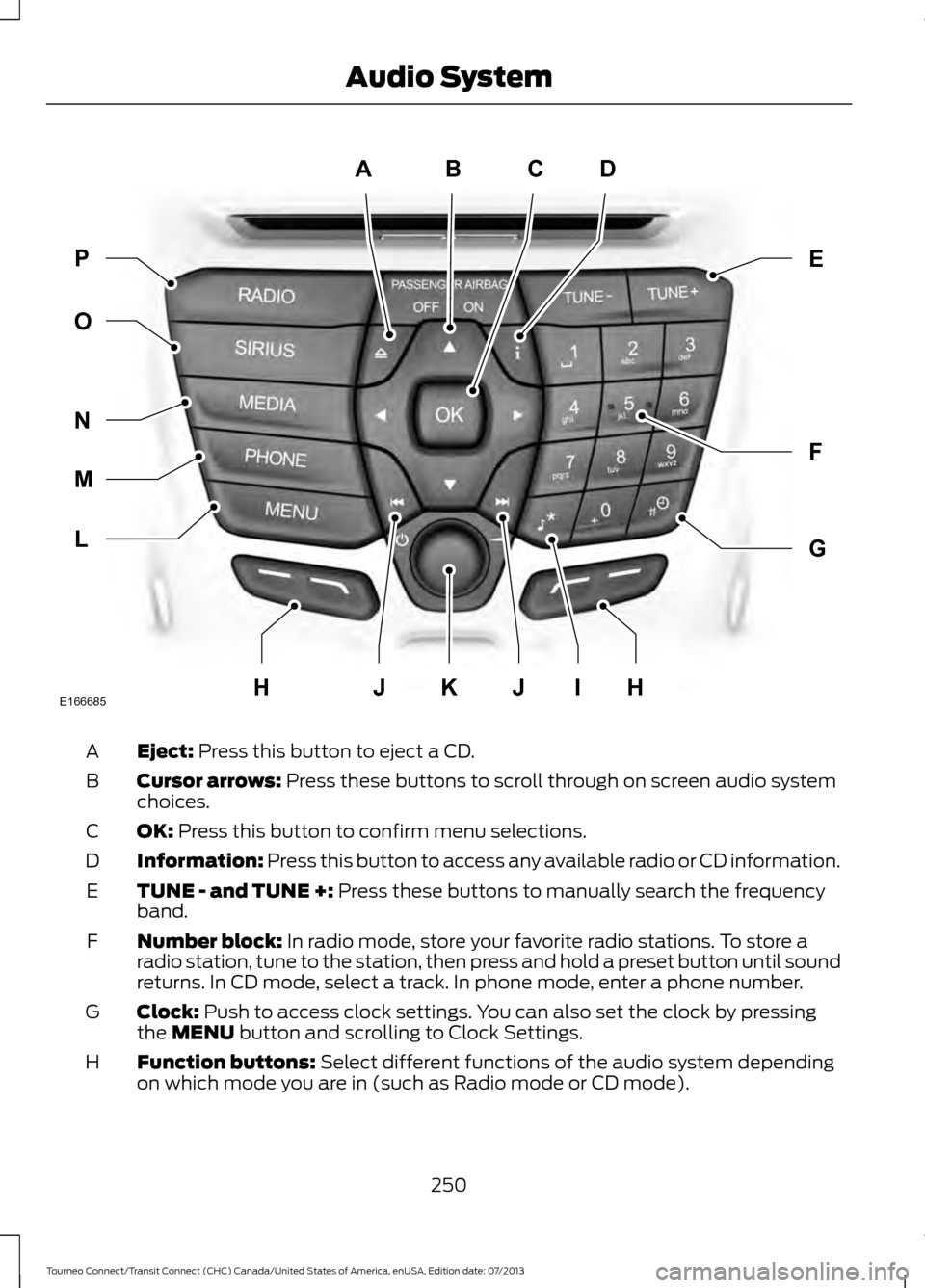
Eject: Press this button to eject a CD.
A
Cursor arrows:
Press these buttons to scroll through on screen audio system
choices.
B
OK:
Press this button to confirm menu selections.
C
Information:
Press this button to access any available radio or CD information.
D
TUNE - and TUNE +:
Press these buttons to manually search the frequency
band.
E
Number block:
In radio mode, store your favorite radio stations. To store a
radio station, tune to the station, then press and hold a preset button until sound
returns. In CD mode, select a track. In phone mode, enter a phone number.
F
Clock:
Push to access clock settings. You can also set the clock by pressing
the MENU button and scrolling to Clock Settings.
G
Function buttons:
Select different functions of the audio system depending
on which mode you are in (such as Radio mode or CD mode).
H
250
Tourneo Connect/Transit Connect (CHC) Canada/United States of America, enUSA, Edition date: 07/2013 Audio SystemABCD
F
G
E
L
M
N
O P
JIJKE166685HH
Page 258 of 411

Troubleshooting
Action
Condition
Message
No action required. This
message should disappear
shortly.
Radio requires more than
two seconds to produce
audio for the selected
channel.
Acquiring…
If this message does not
clear shortly, or with an igni-
tion key cycle, your receiver
may have a fault. See an
authorized dealer for service.
There is an internal module
or system failure present.
Satellite antenna fault
SIRIUS system failure
Tune to another channel or
choose another preset.
The channel is no longer
available.
Invalid Channel
Contact SIRIUS at 1-888-
539-7474 to subscribe to
the channel, or tune to
another channel.
Your subscription does not
include this channel.
Unsubscribed Channel
The signal is blocked. When
you move into an open area,
the signal should return.
The signal is lost from the
SIRIUS satellite or SIRIUS
tower to your vehicle
antenna.
No Signal
No action required. The
process may take up to
three minutes.
Update of channel
programming in progress.
Updating…
Contact SIRIUS at 1-888-
539-7474 to resolve
subscription issues.
Your satellite service is no
longer available.
Questions? Call
1-888-539-7474
Use the channel guide to
turn off the Lock or Skip
function on that station.
All the channels in the
selected category are either
skipped or locked.
None found
Check Channel Guide
No action required.
SIRIUS has updated the
channels available for your
vehicle.
Subscription Updated
255
Tourneo Connect/Transit Connect (CHC) Canada/United States of America, enUSA, Edition date: 07/2013 Audio System
Page 284 of 411

Note:
Your Vehicle Health Report feature
requires activation before use. Visit
www.SYNCMyRide.com to register. There
is no fee or subscription associated with
Vehicle Health Report, but you must register
to use this feature.
Note: This feature may not function
properly if you have enabled caller ID
blocking on your cellular phone. Before
running a report, review the Vehicle Health
Report Privacy Notice.
Note: In order to allow a break-in period for
your vehicle, you may not be able to create
a Vehicle Health Report until your vehicle
odometer has reached 200 miles.
Note: Cellular phone and SMS charges may
apply when making a report.
Register for Vehicle Health Report and set
your report preferences at
www.SYNCMyRide.com. After registering,
you can request a Vehicle Health Report
(inside your vehicle). Return to your
account at www.SYNCMyRide.com to view
your report. You can also choose for SYNC
to remind you automatically to run reports
at specific mileage intervals. The system allows you to check your
vehicle's overall health in the form of a
diagnostic report card. The Vehicle Health
Report contains valuable information such
as:
•
Vehicle diagnostic information
• Scheduled maintenance
• Open recalls and Field Service Actions
• Items noted during vehicle inspections
by an authorized dealer that still need
servicing.
You can run a report (after your vehicle has
been running a minimum of 60 seconds)
by pressing the voice button and saying
"Vehicle Health Report", or pressing the
phone button.
To run a report using the phone button:
1. Press the phone button to enter phone
menu.
2. Scroll to select Vehicle Health, and then press OK.
3. Scroll to select from the following options: Vehicle Health Report options
Automatic Reports:
Press OK to and select On or Off.
Select On to have SYNC automatically prompt you to run
a health report at certain mileage intervals. *
User Preferences: Press OK
to select and enter the
menu. Scroll to select from:
Mileage Intervals:
Press OK. Scroll to select between
5000, 7500 or 10000-mile intervals and press OK to make
your selection.
Return:
Press OK to exit the menu.
Press OK for SYNC to run a health report of your vehicle's
diagnostic systems and send the results to Ford where it
combines with scheduled maintenance information, open
recalls and other field service actions and vehicle inspec-
tion items that still need servicing from an authorized
dealer.
281
Tourneo Connect/Transit Connect (CHC) Canada/United States of America, enUSA, Edition date: 07/2013 SYNC™
(If Equipped)
Page 285 of 411

Vehicle Health Report options
Run Report? Exit the current menu.
Return
* You must first turn this feature on before you can select the desired mileage interval.
Vehicle Health Report Privacy Notice
When you create a Vehicle Health Report,
Ford Motor Company may collect your
cellular phone number (to process your
report request) and diagnostic information
about your vehicle. Certain versions or
updates to Vehicle Health Report may also
collect more vehicle information. Ford may
use your vehicle information it collects for
any purpose. If you do not want to disclose
your cellular phone number or vehicle
information, do not run the feature or set
up your Vehicle Health Report profile at
www.SYNCMyRide.com. See
www.SYNCMyRide.com (Vehicle Health
Report Terms and Conditions, and Privacy
Statement) for more information.
SYNC Services: Traffic, Directions
& Information (TDI) (If Equipped,
Unites States Only)
Note: SYNC Services varies by trim level
and model year and may require a
subscription. Traffic alerts and turn-by-turn
directions available in select markets.
Message and data rates may apply. Ford
Motor Company reserves the right to change
or discontinue this product service at any
time without prior notification or incurring
any future obligation. Note:
SYNC Services requires activation
before use. Visit www.SYNCMyRide.com to
register and check your eligibility for
complimentary services. Standard phone
and message rates may apply. Subscription
may be required. You must also have the
active SYNC Services Bluetooth-enabled
cellular phone paired and connected to the
system in order to connect to, and use,
SYNC Services. See Using SYNC™ With
Your Phone (page 263).
Note: This feature does not function
properly if you have enabled caller ID
blocking on your cellular phone. Make sure
your cellular phone is not blocking caller ID
before using SYNC Services.
Note: The driver is ultimately responsible
for the safe operation of the vehicle, and
therefore, must evaluate whether it is safe
to follow the suggested directions. Any
navigation features provided are only an aid.
Make your driving decisions based on your
observations of local conditions and existing
traffic regulations. Do not follow the route
suggestions if doing so would result in an
unsafe or illegal maneuver, place you in an
unsafe situation, or if you would be directed
into an area that you consider unsafe. Maps
used by this system may be inaccurate
because of errors, changes in roads, traffic
conditions or driving conditions.
282
Tourneo Connect/Transit Connect (CHC) Canada/United States of America, enUSA, Edition date: 07/2013 SYNC™
(If Equipped)
Page 288 of 411

Note:
iPhone users need to connect the
phone to the USB port in order to start the
application. We recommend you lock your
iPhone after starting an application.
Note: The AppLink feature is not available
if your vehicle is equipped with the MyFord
Touch or MyLincoln Touch system.
Note: Depending on your display type, you
can access AppLink from the media menu,
the phone menu, or by using voice
commands. Once an app is running through
AppLink, you can control main features of
the app through voice commands and
steering wheel controls.
To Access Using the Phone Menu
1. Press the phone button to access the SYNC phone menu on-screen.
2. Scroll to Mobile Apps and press OK to access a list of available applications.
3. Scroll through the list of available applications and press OK to select a
particular app.
4. Once an app is running through SYNC,
you can access an app ’s menu by
pressing the MENU button to first
access the SYNC menu.
5. Select "SYNC-Media" by pressing
OK.
6. Scroll until "
then press
OK. From here, you can
access an application's features, such
as Thumbs up and Thumbs down. For
more information, please visit
www.SYNCMyRide.com.
To Access Using the Media Menu
1. Press the
AUX button on the center
console.
2. Press
MENU to access the SYNC
menu.
3. Select "SYNC-Media" by pressing
OK. 4.
Scroll to Mobile Apps and press OK to
access a list of available applications.
5. Scroll through the list of available applications and press
OK to select a
particular app.
6. Once an app is running through SYNC,
you can access an app ’s menu by
pressing the
MENU button to first
access the SYNC menu.
7. Select "SYNC-Media" by pressing
OK.
8. Scroll until "
then press
OK. From here, you can
access an application's features, such
as Thumbs up and Thumbs down. For
more information, please visit
www.SYNCMyRide.com.
To Access Using Voice Commands
1. Press the voice icon.
2. When prompted, say "Mobile Apps".
3. Say the name of the application after the tone.
4. The app should start. While an app is running through SYNC, you can press
the voice button and speak commands
specific to the app, such as "Play
Station Quickmix". Say "Help" to
discover available voice commands.
USING SYNC™ WITH YOUR
MEDIA PLAYER
You can access and play music from your
digital music player over your vehicle's
speaker system using the system's media
menu or voice commands. You can also
sort and play your music by specific
categories, for example artist and album.
Note: The system is capable of indexing up
to 6,000 songs.
285
Tourneo Connect/Transit Connect (CHC) Canada/United States of America, enUSA, Edition date: 07/2013 SYNC™
(If Equipped)
Page 303 of 411

Vehicle Health Report and Services (Traffic, Directions and Information) issues
Possible solution(s)
Possible cause(s)
Issue
Make sure that your VIN is
correctly listed in your
account.
When you register your
account, you must choose a
preferred dealer. If it already
lists a dealer, try selecting
another dealer and logging
out. Log back in, change it
back to your preferred
dealer, and retrieve the
report.
The preferred dealer
information did not load
correctly.
I am unable to retrieve the
report on the website, or I
receive a system error.
Update your cellular number
in your account on the
website.
This could be due to your
phone's compatibility.
Bad signal strength.
I am unable to submit a
report.
Make sure you have full
signal strength and that your
Bluetooth volume level has
been turned up.
You did not register your
phone correctly on the
website.
Make sure the currently
connected phone is
registered on your
SYNCMyRide account.
Try deleting your phone and
performing a clean pairing.
This is a free feature, but you
must first register online to
use it.
You did not activate this
phone for this service.
Your phone has ID blocker
active.
I heard a commercial when
I tried to use Traffic, Direc-
tions and Information.
Turn off ID blocker on your
phone as the system recog-
nizes you by your phone
number.
Make sure the currently
connected phone is the
same one that is registered
on your SYNCMyRide
account.
300
Tourneo Connect/Transit Connect (CHC) Canada/United States of America, enUSA, Edition date: 07/2013 SYNC™ (If Equipped)
Page 307 of 411

PHONE
Press to select any of the following:
Message
Phone
Quick Dial
Phonebook
History
Messaging
Settings
NAVIGATION
Press to select any of the following: Message
My Home
Favorites
Previous Destinations
Point of Interest
Emergency
Street Address
Intersection
City Center
Map
Edit Route
Cancel Route
SETTINGS Press to select any of the following:
Message
Clock
Display
Sound
Vehicle
Settings
Help
HOME Press to access the home
screen.
Note: Depending on your vehicle ’s option
package and software, the screens may vary
in appearance from the descriptions in this
section. The features may also be limited
depending on the market. Check with an
authorized dealer for availability.
INFORMATION Press to select any of the following:
Message
Services
Travel Link
Alerts
Calendar
Apps
304
Tourneo Connect/Transit Connect (CHC) Canada/United States of America, enUSA, Edition date: 07/2013 MyFord Touch
™ (If Equipped)E142607 E142613 E142608
Page 314 of 411

Using the steering wheel control, press
the voice button and when prompted
say one of the following:
Voice command
interaction mode novice
interaction mode advanced
confirmation prompts on
confirmation prompts off
phone candidate lists on
phone candidate lists off Voice command
media candidate lists on
media candidate lists off
voice settings help
Using Voice Commands with the
Touchscreen Options
The voice command system has a dual
mode feature which allows you to switch
between using voice commands and
making on-screen selections. This is
available only when the system displays a
list of candidates generated during a voice
command session. For example, when
entering a street address or trying to call a
contact from a cell phone paired to the
system.
SETTINGS Clock.
A
Display.
B
Sound.
C
311
Tourneo Connect/Transit Connect (CHC) Canada/United States of America, enUSA, Edition date: 07/2013 MyFord Touch
™ (If Equipped)A
B
C
D
E
F
E161968