2014 FORD TAURUS USB
[x] Cancel search: USBPage 456 of 550

Optionsallows you to view and adjust various media settings.
•Sound Settingsallows you to adjust settings for:
•Bass
•Midrange
•Treble
•Balance and Fade
•DSP (Digital Signal Processing)
•Occupancy Mode
•Speed Compensated Volume.
Note:Your vehicle may not have all these sound settings.
•Media Player Settingsallows you to select more settings, which is
underMedia Player.SeeSettings.
•Device Informationdisplays software and firmware information
about the currently connected media device.
•Update Media Indexindexes your device each time you connect it
to make sure you have the latest voice commands available for all
media on the device.
Browseallows you to view the contents of the device. It also allows you
to search by categories, such as genre, artist or album.
If you want to view song information such as Title, Artist, File, Folder,
Album, and Genre, touch the on-screen album art.
You can also touchWhat’s Playingto hear how the system pronounces
the current band and song. This can be helpful when using voice
commands to make sure the system correctly plays your request.
SD Card and USB Voice Commands
If you are listening to a USB device or an SD card, press the
voice button on the steering wheel control. When prompted, say
any of the commands in the following chart.
MyFord Touch® (If Equipped)455
2014 Taurus
Owners Guide gf, 1st Printing, April 2013
USA(fus)
Page 457 of 550
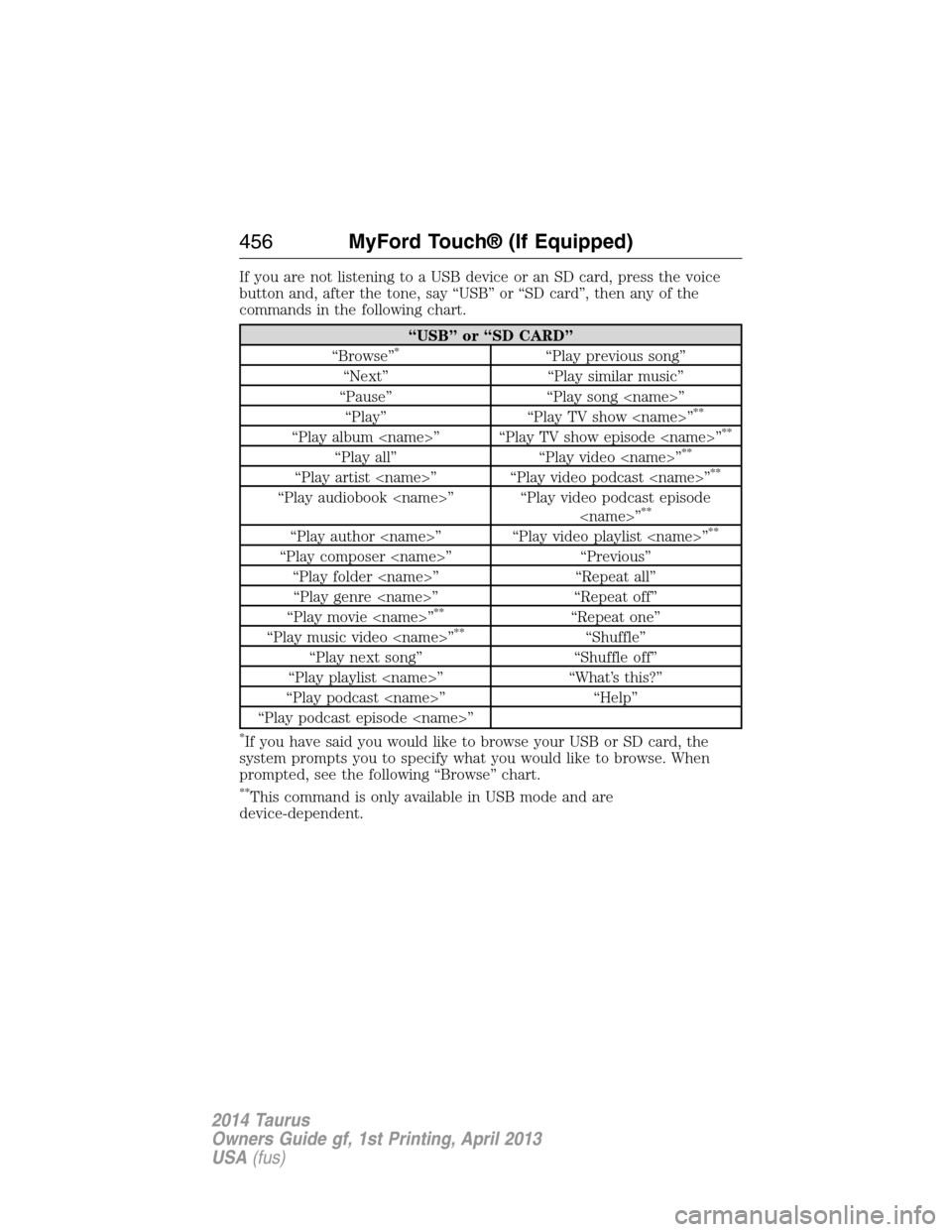
If you are not listening to a USB device or an SD card, press the voice
button and, after the tone, say “USB” or “SD card”, then any of the
commands in the following chart.
“USB” or “SD CARD”
“Browse”*“Play previous song”
“Next” “Play similar music”
“Pause” “Play song
“Play” “Play TV show
**
“Play album
“Play all” “Play video
“Play artist
“Play audiobook
“Play author
“Play composer
“Play folder
“Play genre
“Play movie
**“Repeat one”
“Play music video
“Play next song” “Shuffle off”
“Play playlist
“Play podcast
“Play podcast episode
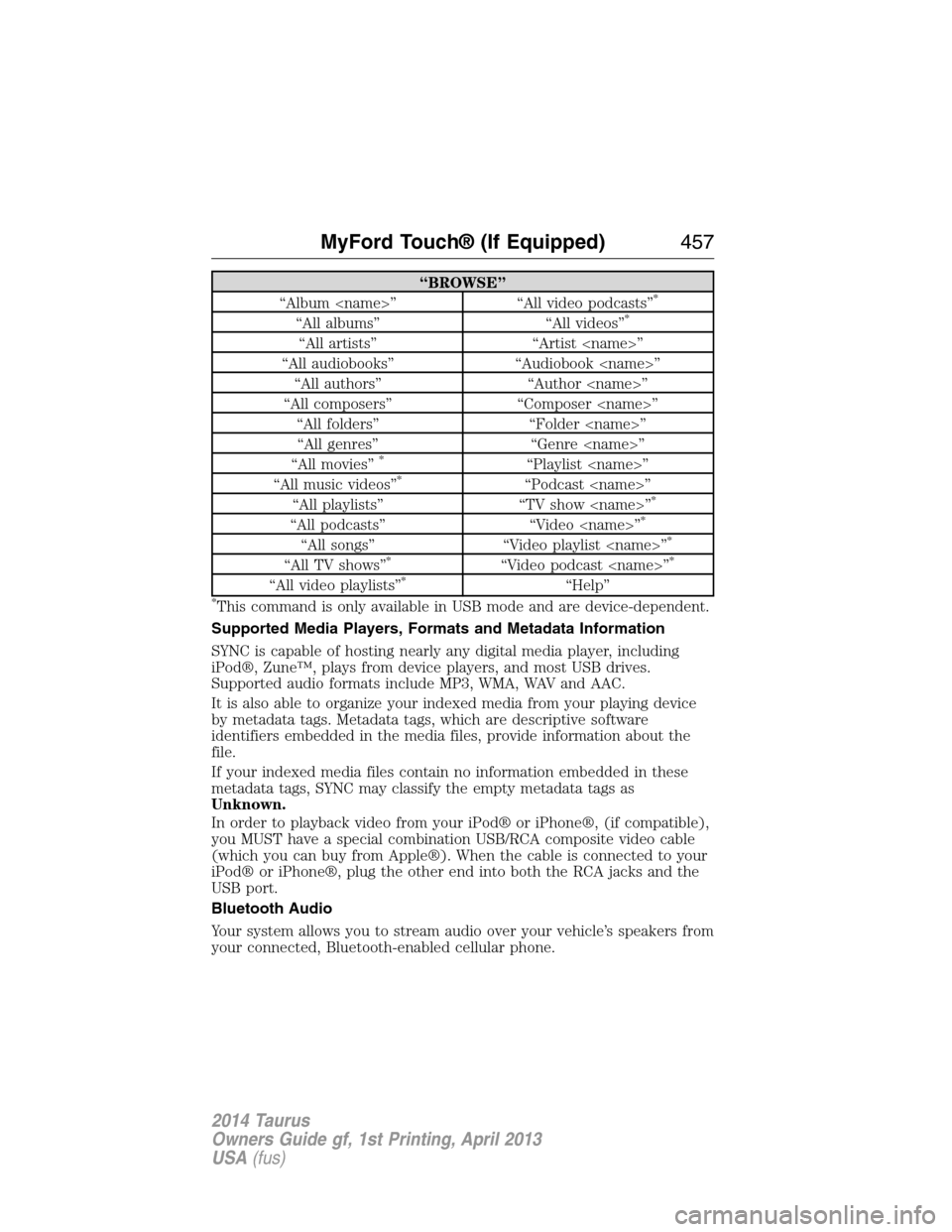
*If you have said you would like to browse your USB or SD card, the
system prompts you to specify what you would like to browse. When
prompted, see the following “Browse” chart.
**This command is only available in USB mode and are
device-dependent.
456MyFord Touch® (If Equipped)
2014 Taurus
Owners Guide gf, 1st Printing, April 2013
USA(fus)
Page 458 of 550
“BROWSE”
“Album
“All albums” “All videos”*
“All artists” “Artist
“All audiobooks” “Audiobook
“All authors” “Author
“All composers” “Composer
“All folders” “Folder
“All genres” “Genre
“All movies”
*“Playlist
“All music videos”*“Podcast
“All playlists” “TV show
“All podcasts” “Video
“All songs” “Video playlist
“All TV shows”*“Video podcast
“All video playlists”*“Help”*This command is only available in USB mode and are device-dependent.
Supported Media Players, Formats and Metadata Information
SYNC is capable of hosting nearly any digital media player, including
iPod®, Zune™, plays from device players, and most USB drives.
Supported audio formats include MP3, WMA, WAV and AAC.
It is also able to organize your indexed media from your playing device
by metadata tags. Metadata tags, which are descriptive software
identifiers embedded in the media files, provide information about the
file.
If your indexed media files contain no information embedded in these
metadata tags, SYNC may classify the empty metadata tags as
Unknown.
In order to playback video from your iPod® or iPhone®, (if compatible),
you MUST have a special combination USB/RCA composite video cable
(which you can buy from Apple®). When the cable is connected to your
iPod® or iPhone®, plug the other end into both the RCA jacks and the
USB port.
Bluetooth Audio
Your system allows you to stream audio over your vehicle’s speakers from
your connected, Bluetooth-enabled cellular phone.
MyFord Touch® (If Equipped)457
2014 Taurus
Owners Guide gf, 1st Printing, April 2013
USA(fus)
Page 460 of 550
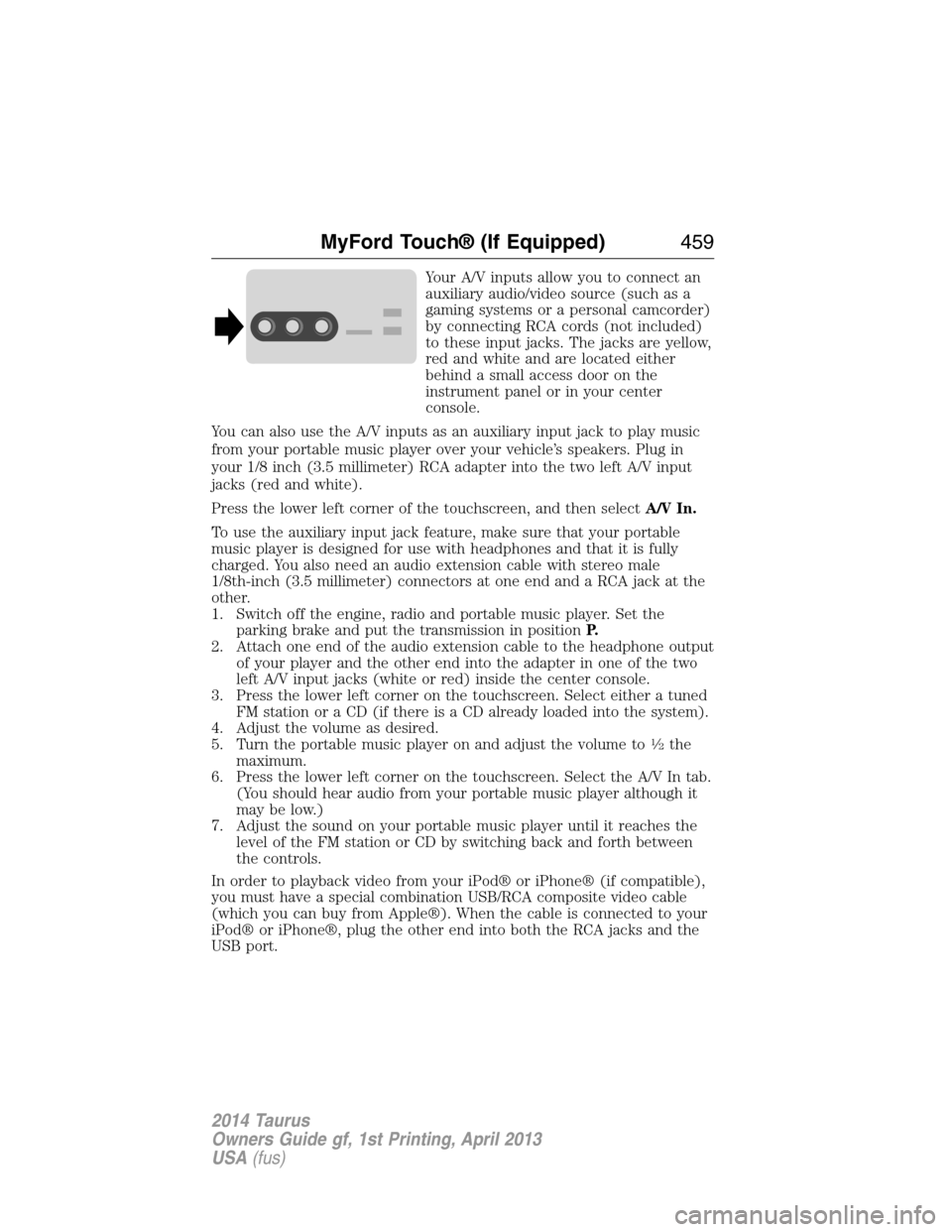
Your A/V inputs allow you to connect an
auxiliary audio/video source (such as a
gaming systems or a personal camcorder)
by connecting RCA cords (not included)
to these input jacks. The jacks are yellow,
red and white and are located either
behind a small access door on the
instrument panel or in your center
console.
You can also use the A/V inputs as an auxiliary input jack to play music
from your portable music player over your vehicle’s speakers. Plug in
your 1/8 inch (3.5 millimeter) RCA adapter into the two left A/V input
jacks (red and white).
Press the lower left corner of the touchscreen, and then selectA/V In.
To use the auxiliary input jack feature, make sure that your portable
music player is designed for use with headphones and that it is fully
charged. You also need an audio extension cable with stereo male
1/8th-inch (3.5 millimeter) connectors at one end and a RCA jack at the
other.
1. Switch off the engine, radio and portable music player. Set the
parking brake and put the transmission in positionP.
2. Attach one end of the audio extension cable to the headphone output
of your player and the other end into the adapter in one of the two
left A/V input jacks (white or red) inside the center console.
3. Press the lower left corner on the touchscreen. Select either a tuned
FM station or a CD (if there is a CD already loaded into the system).
4. Adjust the volume as desired.
5. Turn the portable music player on and adjust the volume to
12the
maximum.
6. Press the lower left corner on the touchscreen. Select the A/V In tab.
(You should hear audio from your portable music player although it
may be low.)
7. Adjust the sound on your portable music player until it reaches the
level of the FM station or CD by switching back and forth between
the controls.
In order to playback video from your iPod® or iPhone® (if compatible),
you must have a special combination USB/RCA composite video cable
(which you can buy from Apple®). When the cable is connected to your
iPod® or iPhone®, plug the other end into both the RCA jacks and the
USB port.
MyFord Touch® (If Equipped)459
2014 Taurus
Owners Guide gf, 1st Printing, April 2013
USA(fus)
Page 466 of 550
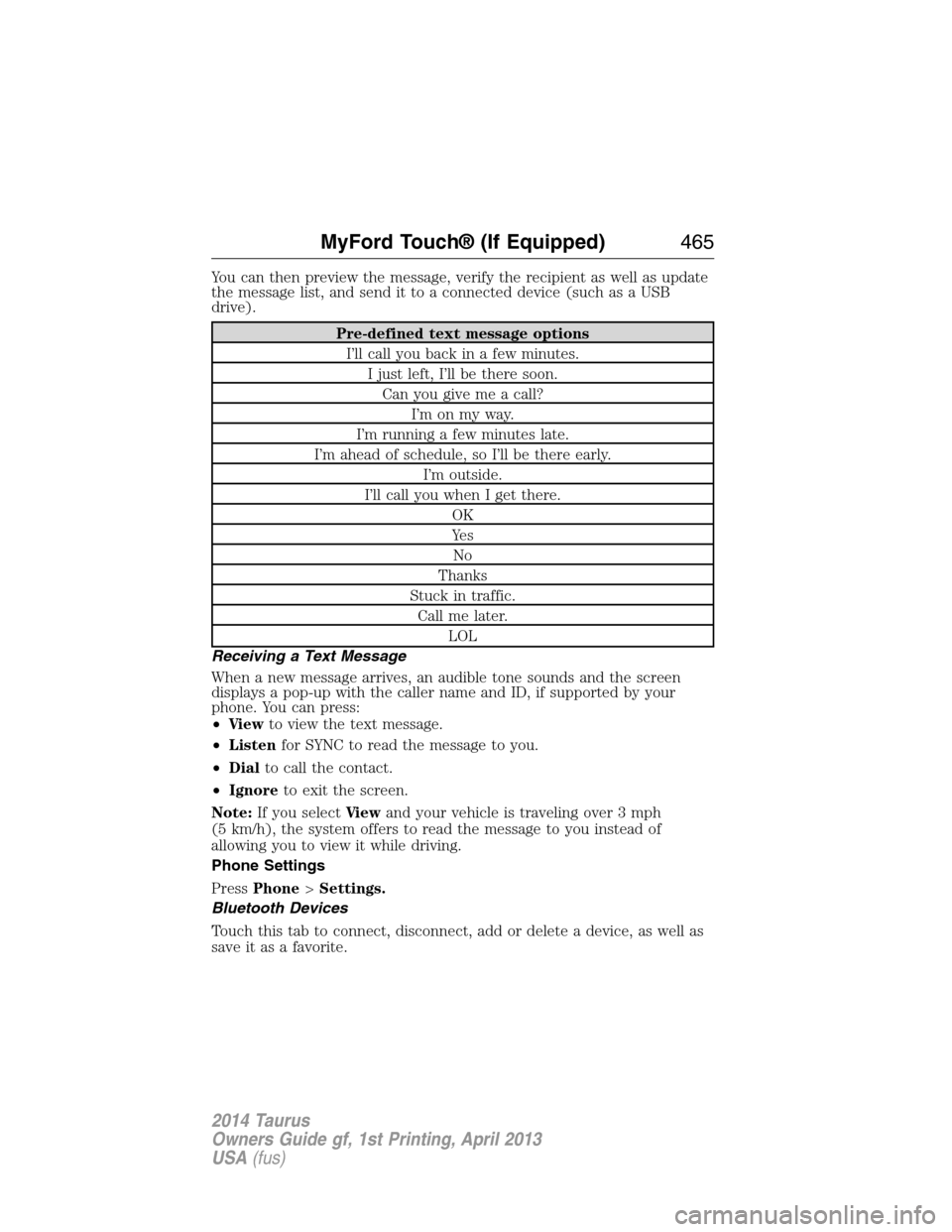
You can then preview the message, verify the recipient as well as update
the message list, and send it to a connected device (such as a USB
drive).
Pre-defined text message options
I’ll call you back in a few minutes.
I just left, I’ll be there soon.
Can you give me a call?
I’m on my way.
I’m running a few minutes late.
I’m ahead of schedule, so I’ll be there early.
I’m outside.
I’ll call you when I get there.
OK
Ye s
No
Thanks
Stuck in traffic.
Call me later.
LOL
Receiving a Text Message
When a new message arrives, an audible tone sounds and the screen
displays a pop-up with the caller name and ID, if supported by your
phone. You can press:
•Vi e wto view the text message.
•Listenfor SYNC to read the message to you.
•Dialto call the contact.
•Ignoreto exit the screen.
Note:If you selectVi e wand your vehicle is traveling over 3 mph
(5 km/h), the system offers to read the message to you instead of
allowing you to view it while driving.
Phone Settings
PressPhone>Settings.
Bluetooth Devices
Touch this tab to connect, disconnect, add or delete a device, as well as
save it as a favorite.
MyFord Touch® (If Equipped)465
2014 Taurus
Owners Guide gf, 1st Printing, April 2013
USA(fus)
Page 482 of 550

From this screen, you can also make other adjustments, such as 12– or
24–hour mode, activate GPS time synchronization and have the system
automatically update for new time zones.
You can also turn the outside air temperature display on and off. It
appears at the top center of the touchscreen, next to the time and date.
The system automatically saves any updates you make to the settings.
Display
You can adjust the touchscreen display through the touchscreen or by
pressing the voice button on your steering wheel controls and when
prompted, say, “Display settings”.
Press the Settings icon >Display,then select from the
following:
Brightnessallows you to make the screen display brighter or dimmer.
Modeallows you to set the screen to a certain brightness or have the
system automatically change based on the outside light level, or turn the
display off.
•If you selectAUTOorNIGHT,you have the options of turning the
display’s Auto Dim feature on or off and changing the Auto Dim
Manual Offset feature.
Edit Wallpaper
•You can have your touchscreen display the default photo or upload
your own.
Uploading Photos for Your Home Screen Wallpaper
Note:You cannot load photos directly from your camera. You must
access the photos either from your USB mass storage device or from an
SD card.
Note:Photographs with extremely large dimensions (such as 2048 x
1536) may not be compatible and appear as a blank (black) image on the
display.
Your system allows you to upload and view up to 32 photos.
To access, press theSettings icon >Display>Edit Wallpaper,and then
follow the system prompts to upload your photographs.
Only the photograph(s), which meets the following conditions, display:
•Compatible file formats are as follows: .jpg, .gif, .png, .bmp.
•Each file must be 1.5 MB or less.
•Recommended dimensions: 800 x 384.
MyFord Touch® (If Equipped)481
2014 Taurus
Owners Guide gf, 1st Printing, April 2013
USA(fus)
Page 489 of 550

Wireless & Internet
Your system has a Wi-Fi feature that creates a wireless network within
your vehicle, thereby allowing other devices (such as personal computers
or phones) in your vehicle to speak to each other, share files or play
games. Using this Wi-Fi feature, everyone in your vehicle can also gain
access the internet if you have a USB mobile broadband connection
inside your vehicle, your phone supports personal area networking and if
you park outside a wireless hotspot.
Press the Settings icon >Settings>Wireless & Internet,
then select from the following:
Wireless & Internet
Wi-Fi Settings Wi-Fi Network (Client) Modeturns the
Wi-Fi feature on and off in your vehicle. Make
sure you turn it on for connectivity purposes.
Choose a Wireless Networkallows you to
use a previously stored wireless network. You
can categorize by alphabetical listing, priority
and signal strength. You can also choose to
search for a network, connect to a network,
disconnect from a network, receive more
information, prioritize a network or delete a
network.
Gateway (Access Point) Modemakes
SYNC an access point for a phone or a
computer when turned on. This forms the
local area network within your vehicle for
things, such as game playing, file transfer and
internet browsing. Press?for more
information.
Gateway (Access Point) Settingsallows
you to view and change settings for using
SYNC as the internet gateway.
Gateway (Access Point) Device List
allows you to view recent connections to your
Wi-Fi system.
488MyFord Touch® (If Equipped)
2014 Taurus
Owners Guide gf, 1st Printing, April 2013
USA(fus)
Page 490 of 550

Wireless & Internet
USB Mobile
BroadbandInstead of using Wi-Fi, your system can also
use a USB mobile broadband connection to
access the internet. (You must turn on your
mobile broadband device on your personal
computer before connecting it to the system.)
This screen allows you to set up what is your
typical area for your USB mobile broadband
connection. (USB mobile broadband settings
may not display if the device is already on.)
You can select the following: Country, Carrier,
Phone Number, User Name and Password.
Bluetooth SettingsShows you the currently paired devices as
well as giving you your typical Bluetooth
options to connect, disconnect, set as favorite,
delete and add device. Bluetooth is a
registered trademark of the Bluetooth SIG.
Prioritize
Connection MethodsChoose your connection methods and change
them as needed. You can select to Change
Order and have the system either always
attempt to connect using a USB mobile
broadband or using Wi-Fi.
The Wi-Fi CERTIFIED Logo is a
certification mark of the Wi-Fi Alliance.
MyFord Touch® (If Equipped)489
2014 Taurus
Owners Guide gf, 1st Printing, April 2013
USA(fus)