Page 441 of 550

Press the voice icon on the steering wheel. When prompted,
you can say:
“BROWSE” within devices
“Browse”*
“Browse games”**
“Browse channels”**
“Browse Sirius channel guide”**
“Browse SD card”
“Browse USB”
“Help”
*If you have said “Browse”, you can then say any commands in the
following chart.
**This command is only usable if you have an active subscription to
Sirius satellite radio.
“BROWSE”
“ games”*
” channels”*
“SD card”**
“Sirius channel guide”*
“USB”**
“Help”
*This command is only usable if you have an active subscription to Sirius
satellite radio.
**For more commands in SD card or USB mode, see the “SD card and
USB Port” section of this chapter.
For a complete list of “Browse” voice commands, seeUSB and SD card
voice commandsandBluetooth audio voice commandsin the
following sections.
Your voice system allows you to change audio sources with a simple
voice command. For example, if you are listening to music on a USB
device, then want to switch to a satellite radio channel, simply press the
voice button on the steering wheel controls and say the name of the
Sirius station (such as, “the Highway”). The following voice commands
are available at the top level of the voice session no matter which
current audio source you are listening to (such as a USB device or Sirius
satellite radio).Note:This is only available when your MyFord Touch
system language is set to North American English.
440MyFord Touch® (If Equipped)
2014 Taurus
Owners Guide gf, 1st Printing, April 2013
USA(fus)
Page 460 of 550
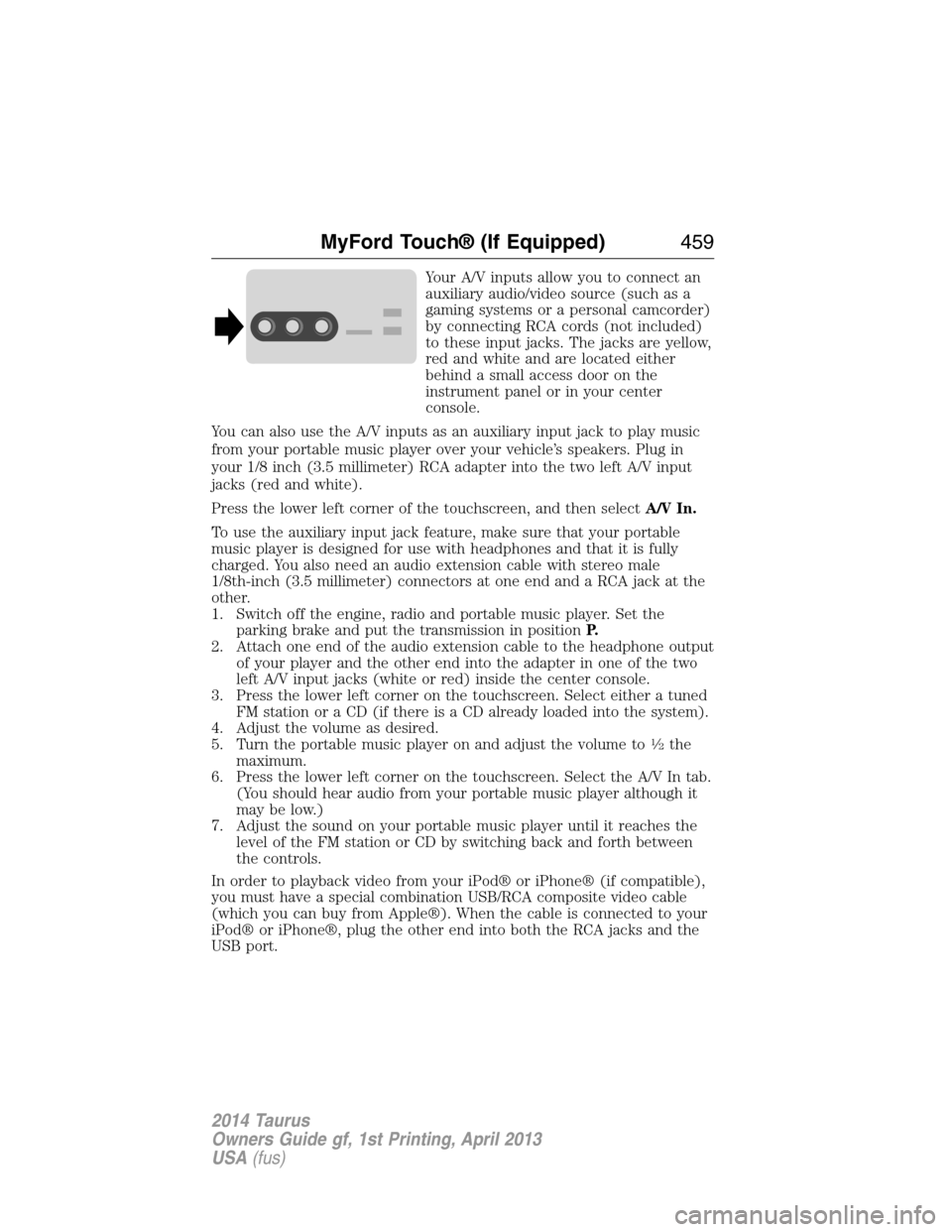
Your A/V inputs allow you to connect an
auxiliary audio/video source (such as a
gaming systems or a personal camcorder)
by connecting RCA cords (not included)
to these input jacks. The jacks are yellow,
red and white and are located either
behind a small access door on the
instrument panel or in your center
console.
You can also use the A/V inputs as an auxiliary input jack to play music
from your portable music player over your vehicle’s speakers. Plug in
your 1/8 inch (3.5 millimeter) RCA adapter into the two left A/V input
jacks (red and white).
Press the lower left corner of the touchscreen, and then selectA/V In.
To use the auxiliary input jack feature, make sure that your portable
music player is designed for use with headphones and that it is fully
charged. You also need an audio extension cable with stereo male
1/8th-inch (3.5 millimeter) connectors at one end and a RCA jack at the
other.
1. Switch off the engine, radio and portable music player. Set the
parking brake and put the transmission in positionP.
2. Attach one end of the audio extension cable to the headphone output
of your player and the other end into the adapter in one of the two
left A/V input jacks (white or red) inside the center console.
3. Press the lower left corner on the touchscreen. Select either a tuned
FM station or a CD (if there is a CD already loaded into the system).
4. Adjust the volume as desired.
5. Turn the portable music player on and adjust the volume to
12the
maximum.
6. Press the lower left corner on the touchscreen. Select the A/V In tab.
(You should hear audio from your portable music player although it
may be low.)
7. Adjust the sound on your portable music player until it reaches the
level of the FM station or CD by switching back and forth between
the controls.
In order to playback video from your iPod® or iPhone® (if compatible),
you must have a special combination USB/RCA composite video cable
(which you can buy from Apple®). When the cable is connected to your
iPod® or iPhone®, plug the other end into both the RCA jacks and the
USB port.
MyFord Touch® (If Equipped)459
2014 Taurus
Owners Guide gf, 1st Printing, April 2013
USA(fus)
Page 463 of 550
3. If you are prompted to enter a PIN on your device, it does not
support Secure Simple Pairing. To pair, enter the PIN displayed on
the touchscreen. Skip the next step.
4. When prompted on your phone’s display, confirm that the PIN
provided by SYNC matches the PIN displayed on your cellular phone.
5. The display indicates when the pairing is successful.
SYNC may prompt you with more phone options. For more information
on your phone’s capability, see your phone’s manual and visit the
website.
Pairing Subsequent Phones
Note:Put the transmission in positionP.Turn on your vehicle ignition
and the radio.
1. Press thePhonecorner of the touchscreen >Settings>BT
Devices>Add Device.
2. Make sure that Bluetooth is set toOnand that your cellular phone is
in the proper mode. See your phone’s manual if necessary.
•SelectSYNC,and a six-digit PIN appears on your device.
3. If you are prompted to enter a PIN on your device, it does not
support Secure Simple Pairing. To pair, enter the PIN displayed on
the touchscreen. Skip the next step.
4. When prompted on your phone’s display, confirm that the PIN
provided by SYNC matches the PIN displayed on your cellular phone.
5. The display indicates when the pairing is successful.
SYNC may prompt you with more phone options. For more information
on your phone’s capability, see your phone’s user guide and visit the
website.
Making Calls
Press the voice button on your steering wheel controls. When
prompted, say, “Call ” or say “Dial”, then the desired
number.
To end the call or exit phone mode, press this phone button.
462MyFord Touch® (If Equipped)
2014 Taurus
Owners Guide gf, 1st Printing, April 2013
USA(fus)
Page 549 of 550

Setting the clock ...............366, 480
Side air curtain ...........................52
Side-curtain airbags system .......52
SIRIUS® satellite radio ....366, 447
SIRIUS satellite radio voice
commands .................................448
SIRIUS Travel Link ...................472
SIRIUS Travel Link voice
commands .................................474
SOS Post Crash Alert .................44
Spark plugs,
specifications .....................350, 356
Specification chart,
lubricants ...................................352
Stability system .........................197
Starting your vehicle ................165
jump starting ..........................256
push button start system .......164
Steering wheel ............................81
controls ......................................83
tilting .........................................81
Sunshade ...................................101
Supplemental Restraint System
(SRS) (see airbags) ....................45
Supported media file types ......457
Supported player, media
formats and metadata
information ................................457
SYNC® customer
support ..............................383, 431
SYNC® Services ................406, 468
System settings .........................483T
Temperature control
(see Climate control) .....130–131,
133, 135, 491
Temporary mobility kit .............341
Text messaging .................394, 464
Text messaging (sending,
downloading, deleting) .....394, 396
Tilt steering wheel ......................81
Tires ...........................314–315, 335
alignment ................................328
care ..........................................314
changing ..........................335, 337
checking the pressure ............324
inflating ...................................322
label .........................................321
replacing ..................................326
rotating ....................................328
safety practices .......................327
sidewall information ...............316
snow tires and chains ............329
spare tire .................................335
Temporary mobility kit ..........341
terminology .............................315
tire grades ...............................315
treadwear ........................314, 324
Touchscreen features
(climate) ....................................491
Towing .......................243, 247–248
recreational towing .................248
trailer towing ..........................243
wrecker ....................................247
Traction control ........................195
Traffic, Directions and
Information ................................406
Traffic preferences ...................498
548Index
2014 Taurus
Owners Guide gf, 1st Printing, April 2013
USA(fus)