2014 FORD SUPER DUTY air condition
[x] Cancel search: air conditionPage 335 of 458
Directions or Business search to speak
with a live operator. The system may
prompt you to speak with an operator
when it has difficulty matching your
voice request. The live operator can
assist you by searching for businesses
by name or by category, residential
addresses by street address or by
name or specific street intersections.
Operator Assist is a feature of your
SYNC Services subscription. For more
information on Operator Assist, visit
www.SYNCMyRide.com/support.
2. Follow the voice prompts to select your
destination. Once you select your
destination, the system uploads your
current vehicle location, calculates a
route based on current traffic
conditions and sends it back to your
vehicle. After the route download is
complete, the phone call automatically
ends. You then receive audible and
visual driving instructions as you travel
toward your destination. 3.
While on an active route, you can select
or say "Route summary" or "Route
status" to view the Route Summary
turn list or the Route Status ETA. You
can also turn voice guidance on or off,
cancel the route or update the route.
If you miss a turn, SYNC automatically asks
if you want the route updated. Just say,
"Yes" when prompted and the system
sends a new route to your vehicle.
Disconnecting from SYNC Services
1. Press and hold the phone button on the steering wheel.
2. Say "Goodbye" from the SYNC Services main menu. SYNC Services quick tips
You can personalize your Services feature to provide
quicker access to your most used or favorite information.
You can save address points such as work or home. You
can also save favorite information like sports teams or a
news category. You can learn more about personalization
by logging onto www.SYNCMyRide.com.
Personalizing
Press the voice button at any time (while connected to
SYNC Services) to interrupt a voice prompt or an audio
clip (such as a sports report) and say your voice command.
Push to interrupt
Your subscription is associated with your Bluetooth-
enabled cellular phone number, not your VIN (Vehicle
Identification Number). You can pair and connect your
phone to any vehicle equipped with SYNC Services and
continue enjoying your personalized services.
Portable
You can even access your account outside your vehicle.
Just use the number on your phone's call history. Traffic
and Directions features do not function properly but
information services and the 411 connect and text message
features are available.332
Super Duty (TFA) SYNC™
Page 354 of 458
Safety Information
WARNING
Driving while distracted can result in
loss of vehicle control, crash and
injury. We strongly recommend that
you use extreme caution when using any
device that may take your focus off the
road. Your primary responsibility is the safe
operation of your vehicle. We recommend
against the use of any hand-held device
while driving and encourage the use of
voice-operated systems when possible.
Make sure you are aware of all applicable
local laws that may affect the use of
electronic devices while driving. •
Do not attempt to service or repair the
system. See an authorized dealer.
• Do not operate playing devices if the
power cords or cables are broken, split
or damaged. Place cords and cables
out of the way, so they do not interfere
with the operation of pedals, seats,
compartments or safe driving abilities. •
Do not leave playing devices in your
vehicle during extreme conditions as it
could cause them damage. See your
device's user guide for further
information.
• For your safety, some SYNC functions
are speed-dependent. Their use is
limited to when your vehicle is traveling
at speeds under 3 mph (5 km/h).
Make sure that you review your device's
manual before using it with SYNC.
Speed-restricted Features
Some features of this system may be too
difficult to use while your vehicle is moving
so they are restricted from use unless your
vehicle is stationary.
• Screens crowded with information,
such as Point of Interest reviews and
ratings, SIRIUS Travel Link sports
scores, movie times or ski conditions.
• Any action that requires you to use a
keyboard is restricted, such as entering
a navigation destination or editing
information.
• All lists are limited so the user can view
fewer entries (such as phone contacts
or recent phone call entries).
See the following chart for more specific
examples. Restricted features
Pairing a Bluetooth phone
Cellular Phone
Adding phonebook contacts or uploading phonebook
contacts (from a USB)
List entries are limited for phone contacts and recent
phone call entries
Editing the keypad code
System Functionality
Enabling Valet Mode
351
Super Duty (TFA) MyFord Touch
™ (If Equipped)
Page 359 of 458
Under this menu, you can set
your clock, access and adjust the
display, sound and vehicle
settings as well as access settings for
specific modes or the help feature.
Clock
Note: You cannot manually set the date.
Your vehicle ’s GPS does this for you.
Note: If the battery has been disconnected,
your vehicle needs to acquire a GPS signal
to update the clock. Once your vehicle
acquires the signal, it may take a few
minutes for the update to display the correct
time. 1. Press the Settings icon > Clock.
2. Press
+ and - to adjust the time.
From this screen, you can also make other
adjustments such as 12-hour or 24-hour
mode, activate GPS time synchronization
and have the system automatically update
new time zones.
You can also turn the outside air
temperature display off and on. It appears
at the top center of the touchscreen, next
to the time and date.
The system automatically saves any
updates you make to the settings.
Display
You can adjust the touchscreen display
through the touchscreen or by pressing the
voice button on your steering wheel
controls and when prompted, say, "Display
settings". Press the Settings icon >
Display
, to access and make
adjustments using the
touchscreen. •
Brightness
allows you to make the
screen display brighter or dimmer.
• Auto DIM
, when set to On, lets you use
the Auto Dim Manual Offset feature.
• Mode
allows you to set the screen to
a certain brightness or have the system
automatically change based on the
outside light level, or turn the display
off.
• If you select
AUTO or NIGHT, you
have the options of turning the
display's Auto Dim feature on or off
and changing the Auto Dim Manual
Offset feature.
• Auto Dim Manual Offset
allows you
to adjust screen dimming as the
outside lighting conditions change from
day to night.
• Edit Wallpaper
•You can have your touchscreen
display the default photo or upload
your own.
Uploading Photos for Your Home
Screen Wallpaper
Note: You cannot load photos directly from
your camera. You must access the photos
either from your USB mass storage device
or from an SD card.
Note: Photographs with extremely large
dimensions (such as 2048 x 1536) may not
be compatible and appear as a blank
(black) image on the display.
Your system allows you to upload and view
up to 32 photos. To access, press the Settings
icon >
Display > Edit
Wallpaper, and then follow the
system prompts to upload your
photographs.
356
Super Duty (TFA) MyFord Touch
™
(If Equipped)E142607 E142607 E142607 E142607
Page 391 of 458

Under the Information menu, you can
access features such as:
•
SYNC Services
• SIRIUS Travel Link
• Alerts
• Calendar
• SYNC Applications If your vehicle is equipped with
Navigation, press the
Information button to access
these features. If your vehicle is not
equipped with Navigation, press the corner
of the touchscreen with the green tab.
SYNC Services (If Equipped,
United States Only)
Note: SYNC Services requires activation
before use. Visit www.SYNCMyRide.com to
register and check your eligibility for
complimentary services. Standard phone
and message rates may apply. Subscription
may be required. You must also have the
active SYNC Services Bluetooth-enabled
cellular phone paired and connected to the
system in order to connect to, and use,
SYNC Services. See
Phone (page 381).
Note: This feature does not function
properly if you have enabled caller ID
blocking on your cellular phone. Make sure
your cellular phone is not blocking caller ID
before using SYNC Services. Note:
The driver is ultimately responsible
for the safe operation of the vehicle, and
therefore, must evaluate whether it is safe
to follow the suggested directions. Any
navigation features provided are only an aid.
Make your driving decisions based on your
observations of local conditions and existing
traffic regulations. Do not follow the route
suggestions if doing so would result in an
unsafe or illegal maneuver, if you would be
placed in an unsafe situation, or if you would
be directed into an area that you consider
unsafe. Maps used by this system may be
inaccurate because of errors, changes in
roads, traffic conditions or driving
conditions.
Note: When you connect, the service uses
GPS technology and advanced vehicle
sensors to collect your vehicle's current
location, travel direction and speed to help
provide you with the directions, traffic
reports, or business searches you request.
Further, to provide the services you request,
for continuous improvement, the service
may collect and record call details and voice
communications. For more information, see
SYNC Services Terms and Conditions at
www.SYNCMyRide.com. If you do not want
Ford or its service providers to collect your
vehicle travel information or other
information identified in the Terms and
Conditions, do not subscribe or use the
service.
SYNC Services uses advanced vehicle
sensors, integrated GPS technology and
comprehensive map and traffic data, to
give you personalized traffic reports,
precise turn-by-turn directions, business
search, news, sports, weather and more.
For a complete list of services, or to learn
more, please visit www.SYNCMyRide.com.
Connecting to SYNC Services Using
Voice Commands 388
Super Duty (TFA) MyFord Touch
™
(If Equipped)E142608 E142599
Page 399 of 458
To run a report by voice
command, press the voice
button on the steering wheel
and, when prompted, say "Vehicle health
report".
Vehicle Health Report Privacy Notice
When you create a Vehicle Health Report,
Ford Motor Company may collect your
cellular phone number (to process your
report request) and diagnostic information
about your vehicle. Certain versions or
updates to Vehicle Health Report may also
collect more vehicle information. Ford may
use your vehicle information it collects for
any purpose. If you do not want to disclose your cellular phone number or vehicle
information, do not run the feature or set
up your Vehicle Health Report profile at
www.SYNCMyRide.com. See
www.SYNCMyRide.com (Vehicle Health
Report Terms and Conditions, and Privacy
Statement) for more information.
CLIMATE Press the lower right corner on
the touchscreen to access your
climate control features.
Depending on your vehicle line and option
package, your climate screen may look
different from the screen shown here. Power: Touch to switch the system off and on. Outside air cannot enter your
vehicle when you switch off the system.
A
Passenger settings:
Touch + or – to adjust the temperature. Touch the heated
seat icon to control the heated seat. Touch the cooled seat icon to control the
cooled seat. See
Seats (page 107).
B
Fan speed:
Touch + or – to adjust fan speed.
C
396
Super Duty (TFA) MyFord Touch
™
(If Equipped)E142599 E142612 E166138
A
KB
JC
IHGFED
Page 400 of 458
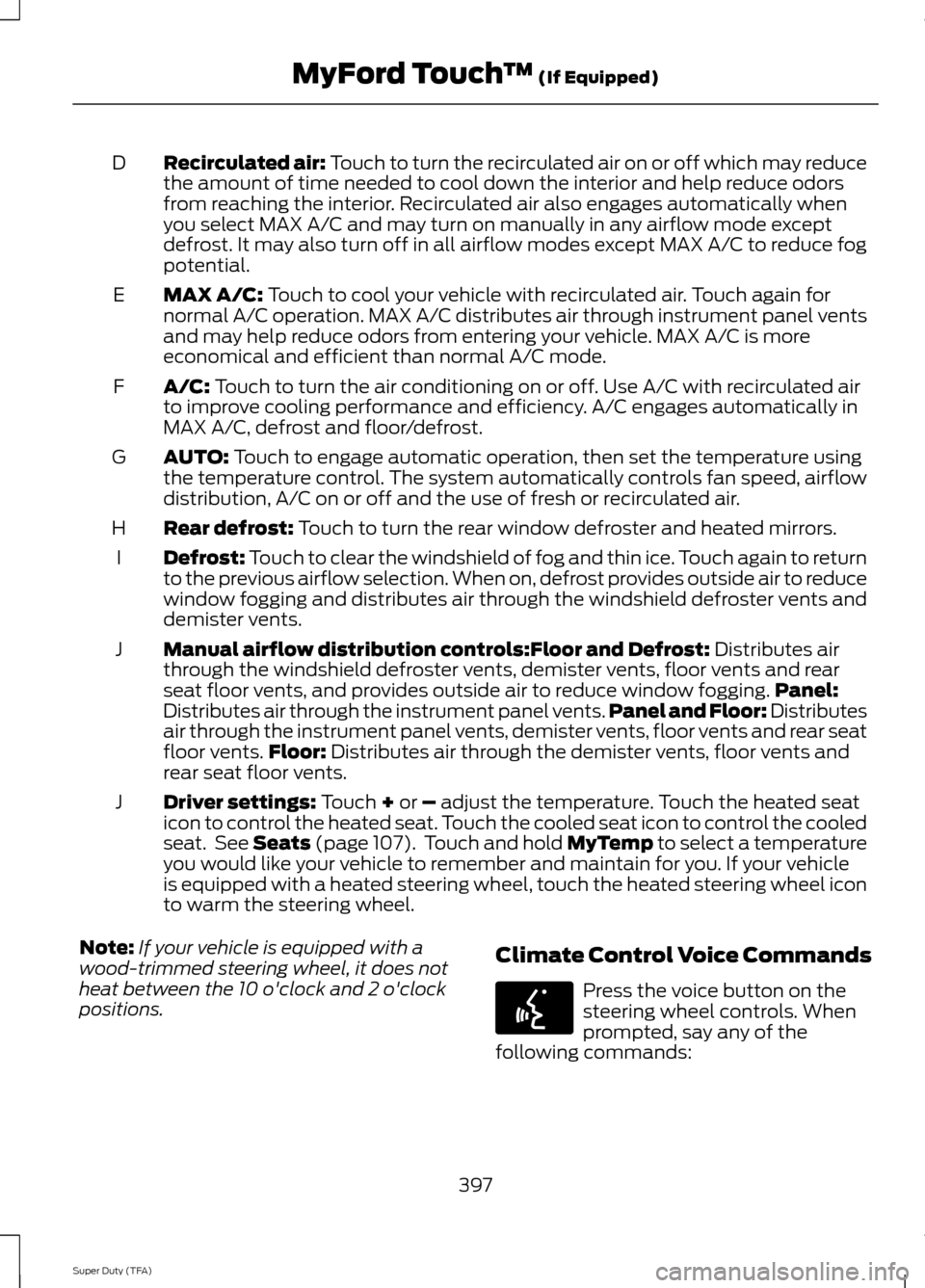
Recirculated air: Touch to turn the recirculated air on or off which may reduce
the amount of time needed to cool down the interior and help reduce odors
from reaching the interior. Recirculated air also engages automatically when
you select MAX A/C and may turn on manually in any airflow mode except
defrost. It may also turn off in all airflow modes except MAX A/C to reduce fog
potential.
D
MAX A/C: Touch to cool your vehicle with recirculated air. Touch again for
normal A/C operation. MAX A/C distributes air through instrument panel vents
and may help reduce odors from entering your vehicle. MAX A/C is more
economical and efficient than normal A/C mode.
E
A/C:
Touch to turn the air conditioning on or off. Use A/C with recirculated air
to improve cooling performance and efficiency. A/C engages automatically in
MAX A/C, defrost and floor/defrost.
F
AUTO:
Touch to engage automatic operation, then set the temperature using
the temperature control. The system automatically controls fan speed, airflow
distribution, A/C on or off and the use of fresh or recirculated air.
G
Rear defrost:
Touch to turn the rear window defroster and heated mirrors.
H
Defrost:
Touch to clear the windshield of fog and thin ice. Touch again to return
to the previous airflow selection. When on, defrost provides outside air to reduce
window fogging and distributes air through the windshield defroster vents and
demister vents.
I
Manual airflow distribution controls:
Floor and Defrost: Distributes air
through the windshield defroster vents, demister vents, floor vents and rear
seat floor vents, and provides outside air to reduce window fogging. Panel:
Distributes air through the instrument panel vents. Panel and Floor: Distributes
air through the instrument panel vents, demister vents, floor vents and rear seat
floor vents. Floor:
Distributes air through the demister vents, floor vents and
rear seat floor vents.
J
Driver settings:
Touch + or – adjust the temperature. Touch the heated seat
icon to control the heated seat. Touch the cooled seat icon to control the cooled
seat. See Seats (page 107). Touch and hold MyTemp to select a temperature
you would like your vehicle to remember and maintain for you. If your vehicle
is equipped with a heated steering wheel, touch the heated steering wheel icon
to warm the steering wheel.
J
Note: If your vehicle is equipped with a
wood-trimmed steering wheel, it does not
heat between the 10 o'clock and 2 o'clock
positions. Climate Control Voice Commands Press the voice button on the
steering wheel controls. When
prompted, say any of the
following commands:
397
Super Duty (TFA) MyFord Touch
™
(If Equipped)E142599
Page 419 of 458
Potential Map Inaccuracy: Maps used
by this system may be inaccurate because
of changes in roads, traffic controls or
driving conditions. Always use good
judgment and common sense when
following the suggested routes.
Emergency Services:
Do not rely on any
navigation features included in the system
to route you to emergency services. Ask
local authorities or an emergency services
operator for these locations. Not all
emergency services such as police, fire
stations, hospitals and clinics are likely to
be contained in the map database for such
navigation features.
TeleNav Software End User License
Agreement
Please read these terms and conditions
carefully before you use the TeleNav
Software. Your use of the TeleNav
Software indicates that you accept these
terms and conditions. If you do not accept
these terms and conditions, do not break
the seal of the package, launch, or
otherwise use the TeleNav Software.
TeleNav may revise this Agreement and
the privacy policy at any time, with or
without notice to you. You agree to visit
http://www.telenav.com from time to time
to review the then current version of this
Agreement and of the privacy policy.
1. Safe and Lawful Use
You acknowledge that devoting attention
to the TeleNav Software may pose a risk
of injury or death to you and others in
situations that otherwise require your
undivided attention, and you therefore
agree to comply with the following when
using the TeleNav Software: (a) observe
all traffic laws and otherwise drive safely;
(b) use your own personal judgment while
driving. If you feel that a route suggested
by the TeleNav Software instructs you to
perform an unsafe or illegal maneuver, places you in an unsafe situation, or directs
you into an area that you consider to be
unsafe, do not follow such instructions; (c)
do not input destinations, or otherwise
manipulate the TeleNav Software, unless
your vehicle is stationary and parked; (d)
do not use the TeleNav Software for any
illegal, unauthorized, unintended, unsafe,
hazardous, or unlawful purposes, or in any
manner inconsistent with this Agreement;
(e) arrange all GPS and wireless devices
and cables necessary for use of the
TeleNav Software in a secure manner in
your vehicle so that they will not interfere
with your driving and will not prevent the
operation of any safety device (such as an
airbag).
You agree to indemnify and hold TeleNav
harmless against all claims resulting from
any dangerous or otherwise inappropriate
use of the TeleNav Software in any moving
vehicle, including as a result of your failure
to comply with the directions above.
2. Account Information
You agree: (a) when registering the
TeleNav Software, to provide TeleNav with
true, accurate, current, and complete
information about yourself, and (b) to
inform TeleNav promptly of any changes
to such information, and to keep it true,
accurate, current and complete.
3. Software License
Subject to your compliance with the terms
of this Agreement, TeleNav hereby grants
to you a personal, non-exclusive,
non-transferable license (except as
expressly permitted below in connection
with your permanent transfer of the
TeleNav Software license), without the
right to sublicense, to use the TeleNav
Software (in object code form only) in
order to access and use the TeleNav
Software. This license shall terminate upon
416
Super Duty (TFA) Appendices
Page 434 of 458
Be sure to ask your dealership service
advisor or technician about the multi-point
vehicle inspection. It is a comprehensive
way to perform a thorough inspection of
your vehicle. Your checklist gives you
immediate feedback on the overall
condition of your vehicle.
NORMAL SCHEDULED MAINTENANCE
6.2L and 6.8L Gasoline Engines Every 7500 miles (12000 km) or six months (whichever comes first)
Change engine oil and filter.
Rotate tires *
, inspect tire wear and measure tread depth.
Inspect wheels and related components for abnormal noise, wear, looseness or drag.
Perform multi-point inspection (recommended).
* Vehicles with dual rear wheels should rotate the front wheels when specified; rear wheels
only if unusual wear is noted. Every 15000 miles (24000 km) or 12 months (whichever comes first)
Inspect automatic transmission fluid level. Consult dealer for requirements.
Inspect brake pads, shoes, rotors, drums, brake linings, hoses and parking brake.
Inspect engine cooling system strength and hoses.
Inspect exhaust system and heat shields.
Inspect front axle and U-joints. Lubricate if equipped with grease fittings (Four-wheel
drive vehicles).
Inspect steering linkage, ball joints, suspension, tie-rod ends, driveshaft and U-joints.
Lubricate if equipped with grease fittings. Other maintenance items
Replace climate-controlled (heated and cooled) seat
filter. *
Every 30000 miles (48000
km)
Replace engine air filter.
Change automatic transmission fluid and filter on 5-speed
transmission. Consult dealer for requirements.
Every 60000 miles (96000
km)
431
Super Duty (TFA) Scheduled Maintenance