2014 FORD MONDEO warning
[x] Cancel search: warningPage 375 of 446

Downloaded from www.Manualslib.com manuals search engine Voice command
Browse
Next Track
Pause
Say the name of what you would like to listen to such asa band, song, album or playlist.Play
Similar Music
Help
Supported Media Players, Formatsand Metadata Information
SYNC is capable of hosting nearly anydigital media player, including iPod,Zune™, plays from device players, andmost USB drives. Supported audio formatsinclude MP3, WMA, WAV and AAC.
It is also able to organize your indexedmedia from your playing device bymetadata tags. Metadata tags, which aredescriptive software identifiers embeddedin the media files, provide informationabout the file.
If your indexed media files contain noinformation embedded in these metadatatags, SYNC may classify the emptymetadata tags as unknown.
In order to playback video from your iPodor iPhone, you must have a specialcombination USB/RCA composite videocable (which you can buy from Apple).When you connect the cable to your iPodor iPhone, plug the other end into both theRCA jacks and the USB port.
Bluetooth Audio
The system allows you to stream audioover your vehicle's speakers from yourconnected, Bluetooth-enabled cell phone.
To access, press the lower left corneron the touchscreen, then select:
Message
BT Stereo
Bluetooth Audio Voice Commands
The voice system allows you to controlyour media with a simple voice command.For example to change songs, press thevoice button and follow the systemprompts.
A/V Inputs
WARNINGS
Driving while distracted can result inloss of vehicle control, crash andinjury. We strongly recommend thatyou use extreme caution when using anydevice that may take your focus off theroad. Your primary responsibility is the safeoperation of your vehicle. We recommend
373Mondeo (CNG) Vehicles Built From: 08-09-2014 Vehicles Built Up To: 19-04-2015, CG3633en enGBR, Edition date: 10/2014, First PrintingSYNC™ 2
Page 376 of 446

Downloaded from www.Manualslib.com manuals search engine WARNINGS
against the use of any handheld devicewhile driving and encourage the use ofvoice-operated systems when possible.Make sure you are aware of all applicablelocal laws that may affect the use ofelectronic devices while driving.
For safety reasons, do not connector adjust the settings on yourportable music player while yourvehicle is moving.
Store the portable music player in asecure location, such as the centerconsole or the glove box, when yourvehicle is moving. Hard objects maybecome projectiles in a crash or suddenstop, which may increase the risk of seriousinjury. The audio extension cable must belong enough to allow the portable musicplayer to be safely stored while yourvehicle is moving.
The A/V inputs allow you to connect anauxiliary audio/video source (for examplegaming systems or a personal camcorder)by connecting RCA cords (not included)to these input jacks. The jacks are yellow,red and white and are located eitherbehind a small access door on theinstrument panel or in your center console.
You can also use the A/V inputs as anauxiliary input jack to play music from yourportable music player over your vehicle'sspeakers. Plug in your 1/8 inch (3.5millimeter) RCA adapter into the two leftA/V input jacks (red and white).
To use the auxiliary input jack feature,make sure that your portable music playeris designed for use with headphones andthat it is fully charged. You also need anaudio extension cable with stereo male1/8-inch (3.5 millimeter) connectors at oneend and a RCA jack at the other.
1.Switch off the engine, radio andportable music player. Set the parkingbrake and put the transmission inposition P.
2.Attach one end of the audio extensioncable to the headphone output of yourplayer and the other end into theadapter in one of the two left A/V inputjacks (white or red) inside the centerconsole.
3.Press the lower left corner on thetouchscreen. Select a tuned FM station.
4.Adjust the volume as desired.
5.Switch the portable music player onand adjust the volume to ½ themaximum.
6.Press the lower left corner on thetouchscreen, then select:
Menu Item
You should hear audiofrom your portable musicplayer although it may below.
A/V In
374Mondeo (CNG) Vehicles Built From: 08-09-2014 Vehicles Built Up To: 19-04-2015, CG3633en enGBR, Edition date: 10/2014, First PrintingSYNC™ 2
Page 378 of 446

Downloaded from www.Manualslib.com manuals search engine Menu ItemItem
PhoneA
Quick DialB
PhonebookC
Call HistoryD
MessagingE
SettingsF
Hands-free calling is one of the mainfeatures of SYNC. Once you pair your cellphone, you can access many options usingthe touchscreen or voice commands. Whilethe system supports a variety of features,many are dependent on your cell phone’sfunctionality.
At a minimum, most cell phones withBluetooth wireless technology support thefollowing functions:
•Answering an incoming call.
•Ending a call.
•Dialing a number.
•Call waiting notification.
•Caller ID.
Other features, such as text messagingusing Bluetooth and automatic phonebookdownload, are phone-dependent features.To check your phone’s compatibility, seeyour phone’s user manual or the local Fordwebsite.
Pairing Your Cell Phone for theFirst Time
WARNING
Driving while distracted can result inloss of vehicle control, crash andinjury. We strongly recommend thatyou use extreme caution when using anydevice that may take your focus off theroad. Your primary responsibility is the safeoperation of your vehicle. We recommendagainst the use of any handheld devicewhile driving and encourage the use ofvoice-operated systems when possible.Make sure you are aware of all applicablelocal laws that may affect the use ofelectronic devices while driving.
The first thing you must do to use thephone features of SYNC is to pair yourBluetooth-enabled cell phone with SYNC.This allows you to use your cell phone in ahands-free manner.
Touch the upper left corner of the touchscreen:
Action and DescriptionMenu Item
Add phone
Follow the on-screen instructions.Find SYNC
376Mondeo (CNG) Vehicles Built From: 08-09-2014 Vehicles Built Up To: 19-04-2015, CG3633en enGBR, Edition date: 10/2014, First PrintingSYNC™ 2
Page 384 of 446
Downloaded from www.Manualslib.com manuals search engine Action and DescriptionMenu Item
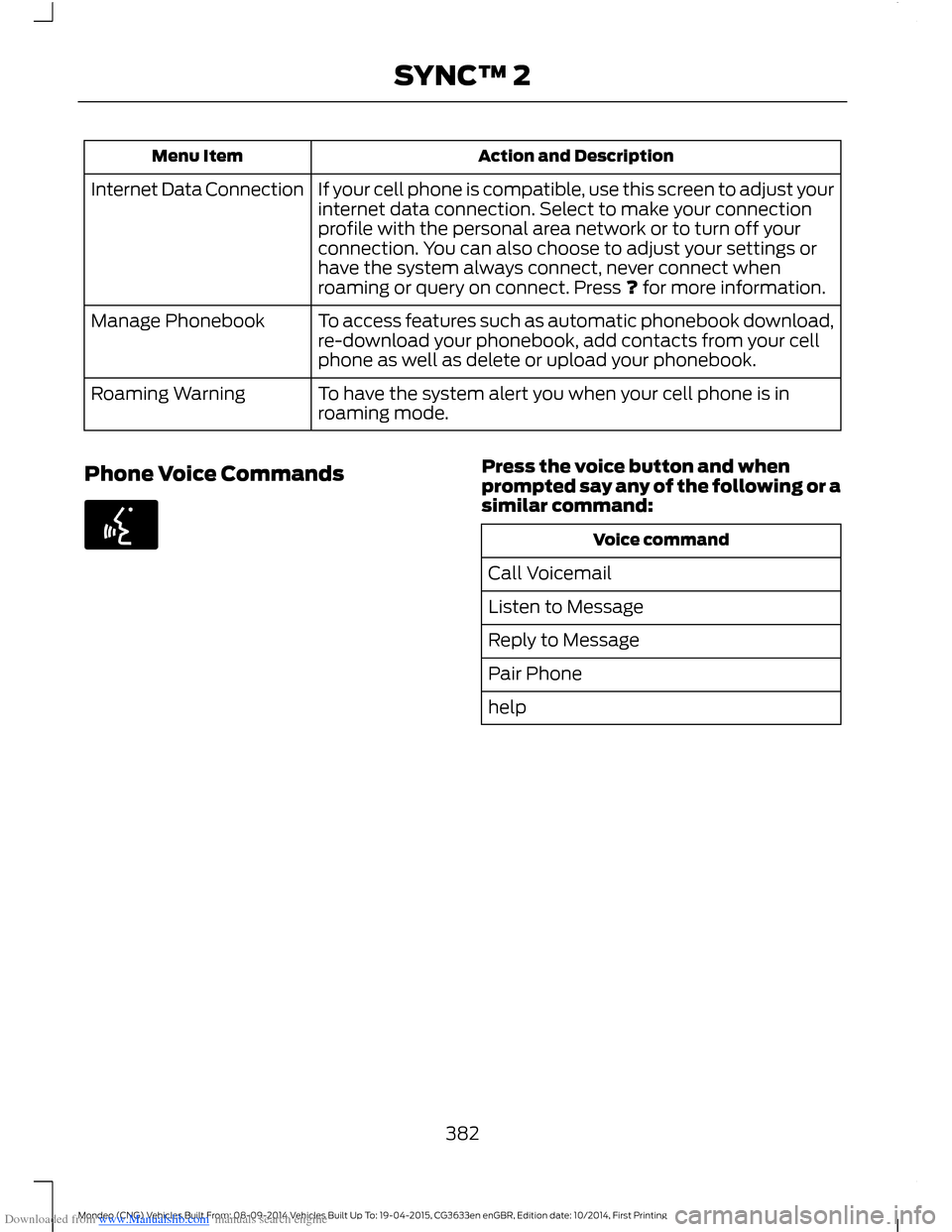
If your cell phone is compatible, use this screen to adjust yourinternet data connection. Select to make your connectionprofile with the personal area network or to turn off yourconnection. You can also choose to adjust your settings orhave the system always connect, never connect whenroaming or query on connect. Press ? for more information.
Internet Data Connection
To access features such as automatic phonebook download,re-download your phonebook, add contacts from your cellphone as well as delete or upload your phonebook.
Manage Phonebook
To have the system alert you when your cell phone is inroaming mode.Roaming Warning
Phone Voice CommandsPress the voice button and whenprompted say any of the following or asimilar command:
Voice command
Call Voicemail
Listen to Message
Reply to Message
Pair Phone
help
382Mondeo (CNG) Vehicles Built From: 08-09-2014 Vehicles Built Up To: 19-04-2015, CG3633en enGBR, Edition date: 10/2014, First PrintingSYNC™ 2
Page 386 of 446
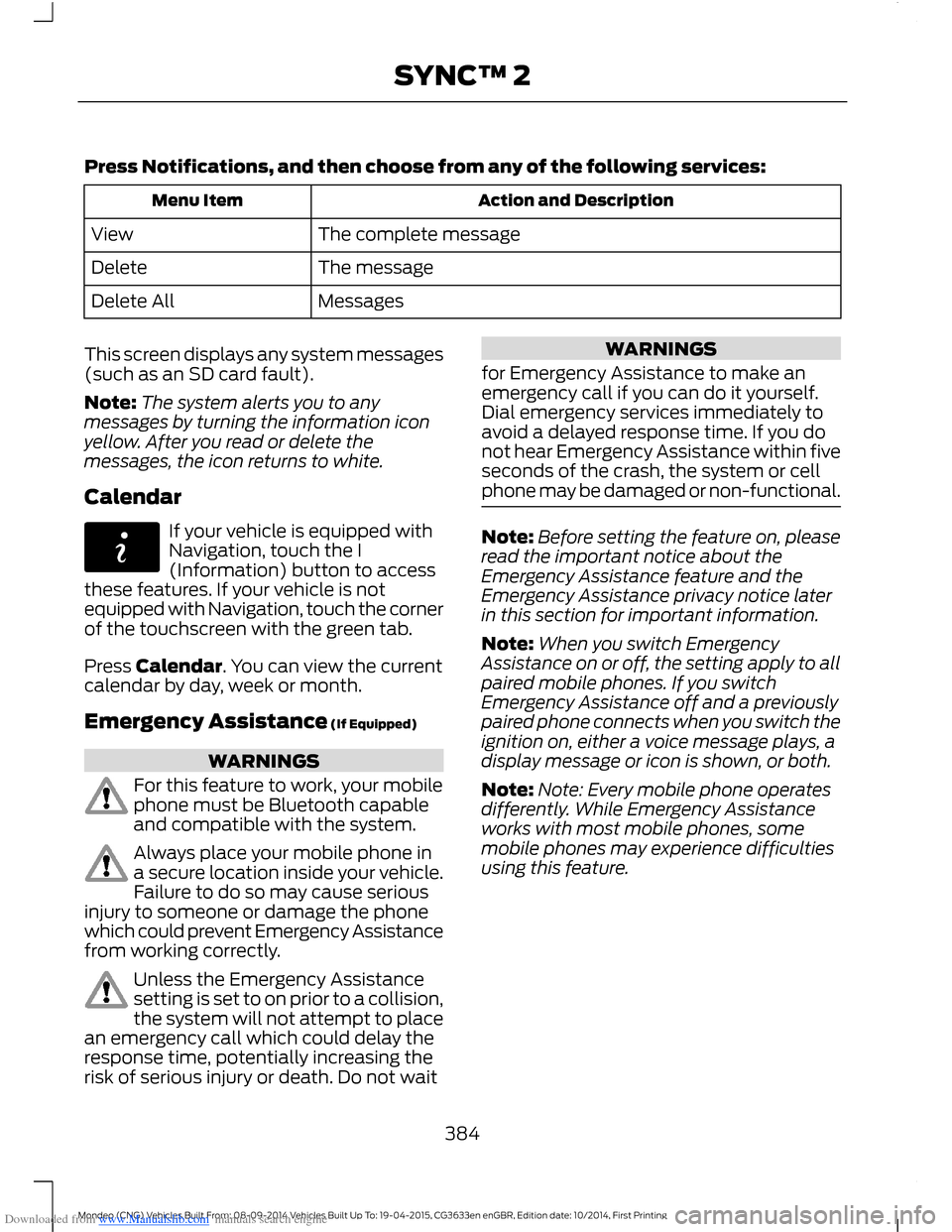
Downloaded from www.Manualslib.com manuals search engine Press Notifications, and then choose from any of the following services:
Action and DescriptionMenu Item
The complete messageView
The messageDelete
MessagesDelete All
This screen displays any system messages(such as an SD card fault).
Note:The system alerts you to anymessages by turning the information iconyellow. After you read or delete themessages, the icon returns to white.
Calendar
If your vehicle is equipped withNavigation, touch the I(Information) button to accessthese features. If your vehicle is notequipped with Navigation, touch the cornerof the touchscreen with the green tab.
Press Calendar. You can view the currentcalendar by day, week or month.
Emergency Assistance (If Equipped)
WARNINGS
For this feature to work, your mobilephone must be Bluetooth capableand compatible with the system.
Always place your mobile phone ina secure location inside your vehicle.Failure to do so may cause seriousinjury to someone or damage the phonewhich could prevent Emergency Assistancefrom working correctly.
Unless the Emergency Assistancesetting is set to on prior to a collision,the system will not attempt to placean emergency call which could delay theresponse time, potentially increasing therisk of serious injury or death. Do not wait
WARNINGS
for Emergency Assistance to make anemergency call if you can do it yourself.Dial emergency services immediately toavoid a delayed response time. If you donot hear Emergency Assistance within fiveseconds of the crash, the system or cellphone may be damaged or non-functional.
Note:Before setting the feature on, pleaseread the important notice about theEmergency Assistance feature and theEmergency Assistance privacy notice laterin this section for important information.
Note:When you switch EmergencyAssistance on or off, the setting apply to allpaired mobile phones. If you switchEmergency Assistance off and a previouslypaired phone connects when you switch theignition on, either a voice message plays, adisplay message or icon is shown, or both.
Note:Note: Every mobile phone operatesdifferently. While Emergency Assistanceworks with most mobile phones, somemobile phones may experience difficultiesusing this feature.
384Mondeo (CNG) Vehicles Built From: 08-09-2014 Vehicles Built Up To: 19-04-2015, CG3633en enGBR, Edition date: 10/2014, First PrintingSYNC™ 2
Page 396 of 446

Downloaded from www.Manualslib.com manuals search engine Route Preferences
Second Level Messages, Actions and DescriptionsMenu Item
Route Preferences
Then select any of the following:
Set the automatic parking point of interest notification. Whenparking point of interest notification is on, the icons display onthe map when you get close to your destination. This may notbe very useful in dense areas, and may clutter the map whenother points of interest display. Switch this feature:
Preferred Route
OffOn
Bypass route selection in destination programming. The systemonly calculates one route based on preferred route setting.Always use PreferredRoute
Select a low, medium or high cost for the calculated Eco Route.The higher the setting, the longer the time allotment is for theroute.
Eco Time Penalty
These features allow you to choose to have the system avoidmotorways, toll roads, ferries, car trains and tunnels whenplanning your route. Switch these features:
Avoid
OffOn
Navigation Preferences
Second Level Messages, Actions and DescriptionsMenu Item
Navigation Preferences
Then select any of the following:
Have the system activate hazard spot warning in countrieswhere legally allowed.Hazard Spot Warning
Select the type of prompts the system uses.Guidance Prompts
Have the system automatically fill in the state and provincebased on the information already entered into the system.You can switch this feature:
Auto - Fill State/Province
OffOn
394Mondeo (CNG) Vehicles Built From: 08-09-2014 Vehicles Built Up To: 19-04-2015, CG3633en enGBR, Edition date: 10/2014, First PrintingSYNC™ 2
Page 398 of 446

Downloaded from www.Manualslib.com manuals search engine Second Level Messages, Actions and DescriptionsMenu Item
Have the system display weather warning icons.
Have the system display where there may be reduced visibility.
Have the system display icons to recommend switching onyour radio for traffic announcements.
Avoid Area
Second Level Messages, Actions and DescriptionsMenu Item
Choose areas which you want the system to avoid whencalculating a route for youAvoid Areas
Then select any of the following:
Once you make a selection, the system tries to avoid thearea(s) if possible for all routes. To program an entry, press:Add
To delete a section choose the listing on the screen. The screenwill change, then press:Delete
Map Mode
Press the green bar in the upper right areaof the touchscreen to view map mode. Mapmode shows advanced viewing comprisedof both 2D city maps as well as 3Dlandmarks (when available).
2D city maps show detailed outlines ofbuildings, visible land use and landelements and detailed railwayinfrastructure for the most essential citiesaround the globe. These maps also containfeatures, such as town blocks, buildingfootprints and railways.
3D landmarks appear as clear, visibleobjects that are typically recognizable andhave a certain tourist value. The 3Dlandmarks appear in 3D map mode only.Coverage varies and improves withupdated map releases.
Change the appearance of the map displayby repeatedly pressing the arrow button inthe upper left corner of the screen. Ittoggles between three different mapmodes:
Heading up (2D map) Thisalways shows the direction offorward travel to be upward on thescreen. This view is available formap scales up to 3 mph (5 km/h).
396Mondeo (CNG) Vehicles Built From: 08-09-2014 Vehicles Built Up To: 19-04-2015, CG3633en enGBR, Edition date: 10/2014, First PrintingSYNC™ 2
Page 410 of 446

Downloaded from www.Manualslib.com manuals search engine ELECTROMAGNETIC
COMPATIBILITY
WARNINGS
Your vehicle has been tested andcertified to legislations relating toelectromagnetic compatibility(72/245/EEC, UN ECE Regulation 10 orother applicable local requirements). It isyour responsibility to make sure that anyequipment you have fitted complies withapplicable local legislations. Have anyequipment fitted by an authorized dealer.
WARNINGS
The radio frequency transmitterequipment, for example cellulartelephones and amateur radiotransmitters, may only be fitted to yourvehicle if they keep to the parametersshown in the table below. There are nospecial provisions or conditions forinstallations or use.
Do not mount any transceiver,microphones, speakers, or any otheritem in the deployment path of theairbag system.
Do not fasten antenna cables tooriginal vehicle wiring, fuel pipes andbrake pipes.
Keep antenna and power cables atleast 3.9 in (10 cm) from anyelectronic modules and airbags.
408Mondeo (CNG) Vehicles Built From: 08-09-2014 Vehicles Built Up To: 19-04-2015, CG3633en enGBR, Edition date: 10/2014, First PrintingAppendices