2014 FORD FOCUS ELECTRIC radio
[x] Cancel search: radioPage 277 of 403
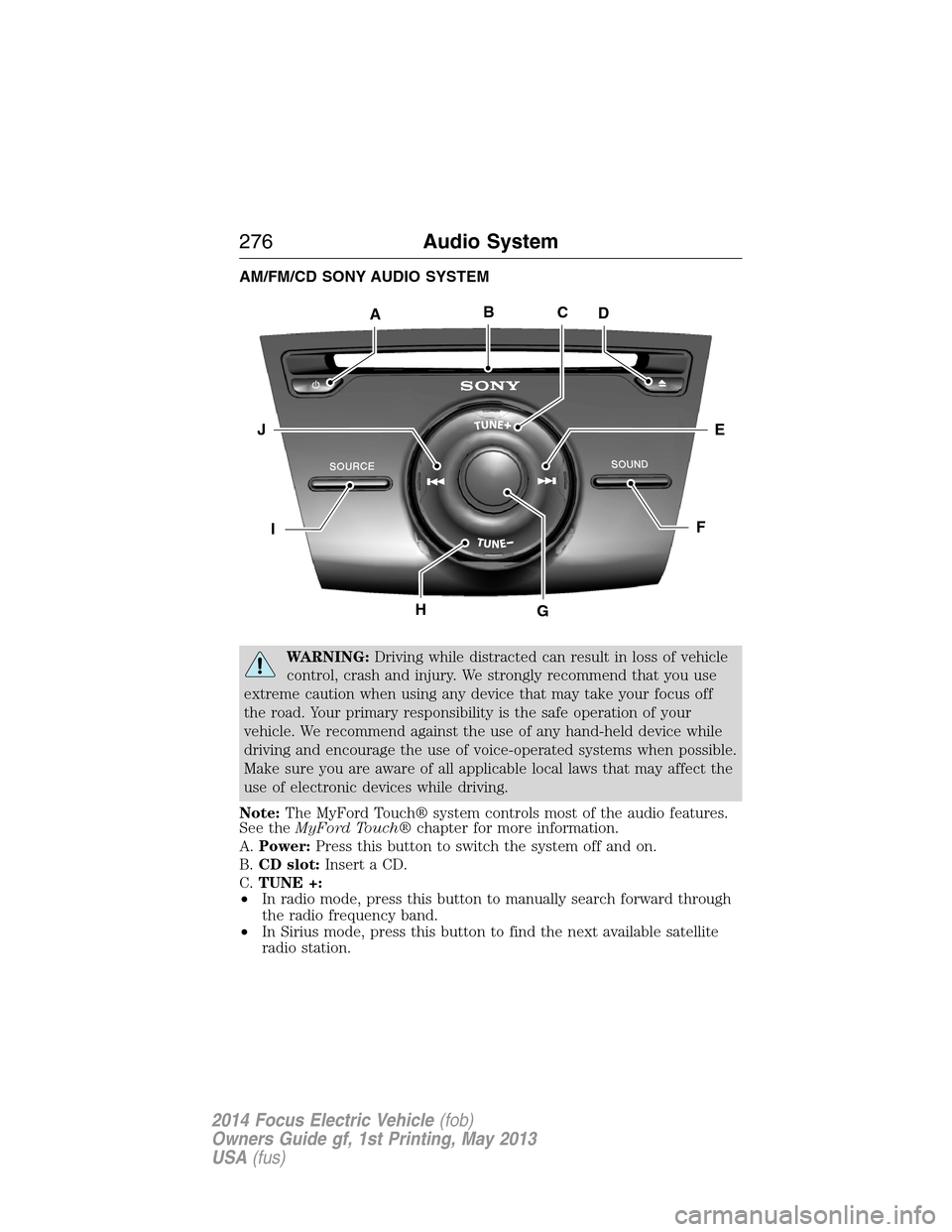
AM/FM/CD SONY AUDIO SYSTEM
WARNING:Driving while distracted can result in loss of vehicle
control, crash and injury. We strongly recommend that you use
extreme caution when using any device that may take your focus off
the road. Your primary responsibility is the safe operation of your
vehicle. We recommend against the use of any hand-held device while
driving and encourage the use of voice-operated systems when possible.
Make sure you are aware of all applicable local laws that may affect the
use of electronic devices while driving.
Note:The MyFord Touch® system controls most of the audio features.
See theMyFord Touch®chapter for more information.
A.Power:Press this button to switch the system off and on.
B.CD slot:Insert a CD.
C.TUNE +:
•In radio mode, press this button to manually search forward through
the radio frequency band.
•In Sirius mode, press this button to find the next available satellite
radio station.
ABCD
EJ
FI
HG
276Audio System
2014 Focus Electric Vehicle(fob)
Owners Guide gf, 1st Printing, May 2013
USA(fus)
Page 278 of 403
D.Eject:Press this button to eject a CD.
E.Seek (Forward):
•In radio mode, press this button to go to the next radio station up the
frequency band.
•In Sirius mode, press this button to select the next channel. If a
specific category is selected (such as Jazz, Rock or News), use this
button to find the next channel in the selected category.
•In CD mode, press this button to go to the next track.
F.SOUND:Press this button to access settings for Treble, Middle, Bass,
Balance and Fade.
G.Volume:Turn this control to adjust the volume.
H.TUNE -:
•In radio mode, press this button to manually search backward
through the radio frequency band.
•In Sirius mode, press this button to find the previous available
satellite radio station.
I.SOURCE:Press this button to access different audio modes, such as
AM, FM and A/V Input or SYNC sources such as USB, iPod and
Bluetooth audio.
J.Seek (Reverse):
•In radio mode, press this button to go to the previous radio station
down the frequency band.
•In Sirius mode, press this button to select the previous channel. If a
specific category is selected (such as Jazz, Rock or News), use this
button to find the previous channel in the selected category.
•In CD mode, press this button to go to the previous track.
Audio System277
2014 Focus Electric Vehicle(fob)
Owners Guide gf, 1st Printing, May 2013
USA(fus)
Page 290 of 403
•Speak naturally, without long pauses between words.
•At any time, you can interrupt the system while it is speaking by
pressing the voice icon.
Accessing a List of Available Commands
•If you use the touchscreen, press the Settings icon >Help>Voice
Command List.
•If you use the steering wheel control, press the voice icon. After the
tone, speak your command clearly.
Voice command list
“Audio list of commands”
“Bluetooth audio list of commands”
“Browse list of commands”
“CD list of commands”
“Climate control list of commands”
“List of commands”
“Navigation list of commands”
*
“Phone list of commands”
“Radio list of commands”
“SD card list of commands”
“Sirius satellite list of commands”
**
“Travel link list of commands”*
“USB list of commands”
“Voice instructions list of commands”
“Voice settings list of commands”
“Help”
*This command is only available when your vehicle is equipped with the
navigation system, and the navigation system SD card is in the card slot.
**This command is only available when you have an active Sirius satellite
radio subscription.
MyFord Touch®289
2014 Focus Electric Vehicle(fob)
Owners Guide gf, 1st Printing, May 2013
USA(fus)
Page 292 of 403
Using Voice Commands with the Touchscreen Options
Your voice system has a dual mode feature which allows you to switch
between using voice commands and making on-screen selections. This is
available only when the system displays a list of candidates generated
during a voice session. For example, when entering in a street address
or trying to call a contact from the phone you paired to the system.
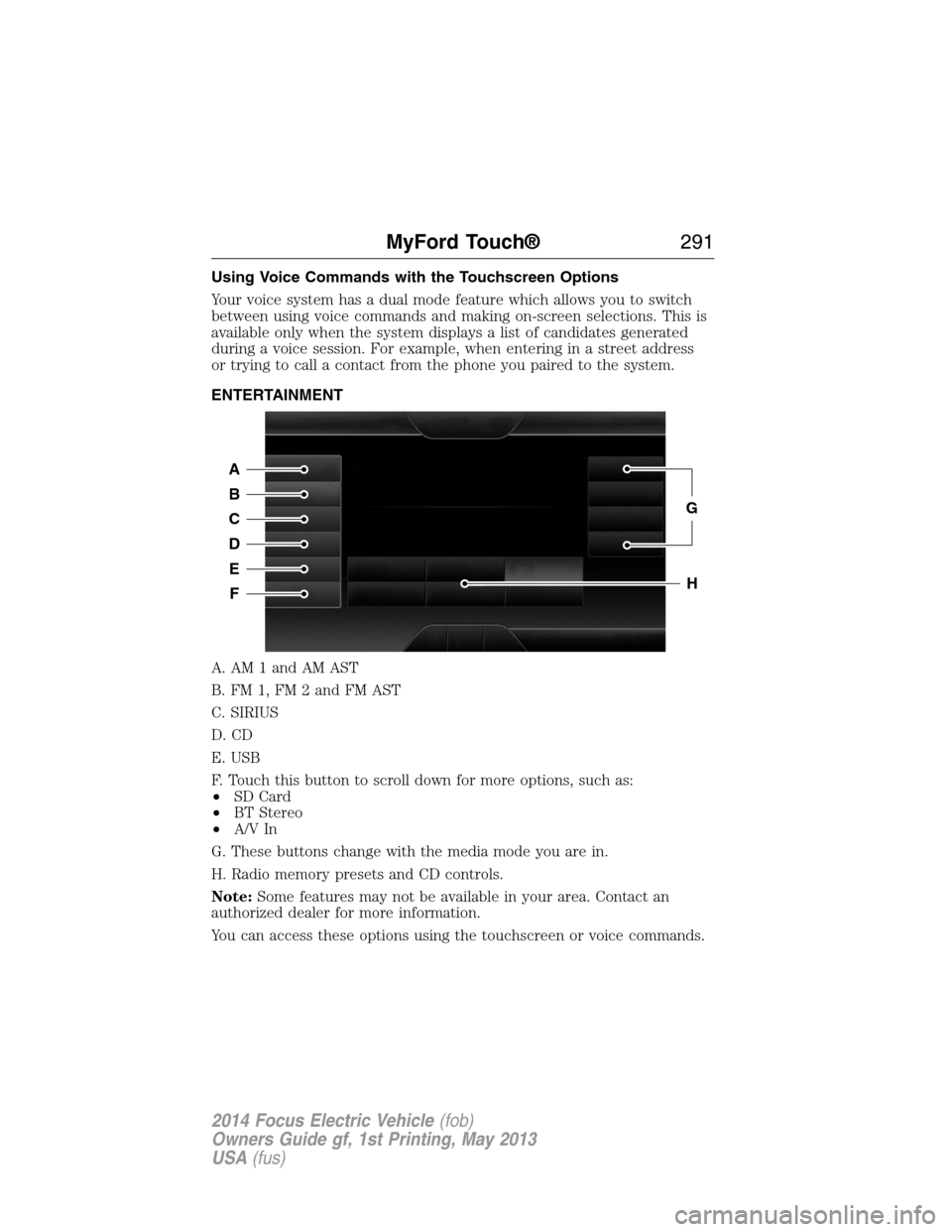
ENTERTAINMENT
A. AM 1 and AM AST
B. FM 1, FM 2 and FM AST
C. SIRIUS
D. CD
E. USB
F. Touch this button to scroll down for more options, such as:
•SD Card
•BT Stereo
•A/V In
G. These buttons change with the media mode you are in.
H. Radio memory presets and CD controls.
Note:Some features may not be available in your area. Contact an
authorized dealer for more information.
You can access these options using the touchscreen or voice commands.
A
B
C
D
E
F
G
H
MyFord Touch®291
2014 Focus Electric Vehicle(fob)
Owners Guide gf, 1st Printing, May 2013
USA(fus)
Page 293 of 403
Browsing Device Content
When listening to audio on a device, you can browse through other
devices without having to change sources. For example, if you are
currently listening to audio on an SD card, you can browse all the artists
that are stored on your USB device.
Press the voice icon on the steering wheel. When prompted,
you can say:
“BROWSE” within devices
“Browse”*
“Browse
“Browse
“Browse Sirius channel guide”**
“Browse SD card”
“Browse USB”
“Help”
*If you have said “Browse”, you can then say any commands in the
following chart.
**This command is only usable if you have an active subscription to
Sirius satellite radio.
“BROWSE”
“
”
“SD card”**
“Sirius channel guide”*
“USB”**
“Help”
*This command is only usable if you have an active subscription to Sirius
satellite radio.
**For more commands in SD card or USB mode, see the “SD card and
USB Port” section of this chapter.
For a complete list of “Browse” voice commands, seeUSB and SD card
voice commandsandBluetooth audio voice commandsin the
following sections.
292MyFord Touch®
2014 Focus Electric Vehicle(fob)
Owners Guide gf, 1st Printing, May 2013
USA(fus)
Page 294 of 403
Your voice system allows you to change audio sources with a simple
voice command. For example, if you are listening to music on a USB
device, then want to switch to a satellite radio channel, simply press the
voice button on the steering wheel controls and say the name of the
Sirius station (such as, “the Highway”). The following voice commands
are available at the top level of the voice session no matter which
current audio source you are listening to (such as a USB device or Sirius
satellite radio).Note:This is only available when your MyFord Touch
system language is set to North American English.
“AM <530 - 1710>” “FM <87.7 – 107.9>”
“<530 - 1710>” “<87.7 – 107.9>”
“Sirius <0-223>”
*“
“Play [genre]
“Play [artist]
“Play [album]
“Play
*
*
This command is only usable if you have an active subscription to Sirius
satellite radio.
**The commands that have[]around the word means that the word is
optional. For example, if you say, “Play Metallica”, this is the same as the
voice command, “Play [artist]
AM and FM
Touch theAMorFMtab to listen to the radio.
To change between AM and FM presets, just touch theAMor
FMtab.
Memory Presets
Save a station by pressing and holding one of the memory preset areas.
There is a brief mute while the radio saves the station. Sound returns
when finished.
HD Radio
Touch this button to turn HD Radio on. The light on the button
illuminates when the feature is on. HD Radio allows you to receive radio
broadcasts digitally, where available, providing free, crystal-clear sound.
SeeHD Radio informationlater in this chapter.
MyFord Touch®293
2014 Focus Electric Vehicle(fob)
Owners Guide gf, 1st Printing, May 2013
USA(fus)
Page 295 of 403
Scan
Touch this button to go to the next strong AM or FM radio station.
The light on the button illuminates when the feature is on.
Options
Sound Settingsallows you to adjust settings for:
•Bass
•Midrange
•Treble
•Balance and Fade
•DSP (Digital Signal Processing)
•Occupancy Mode
•Speed Compensated Volume.
Note:Your vehicle may not have all these sound settings.
Set PTY for Seek/Scanallows you to select a category of music you
would like to search for. You can then choose to either seek or scan for
the stations playing that category.
RDS Text Displayallows you to view the information broadcast by FM
stations.
ASTallows you to have the system automatically store the six strongest
stations in your current location.
TAG Buttonis available when HD Radio is on, and allows you to tag a
song to download later. When you selectOn,TAG appears on-screen
when HD Radio is active. You can touchTA Gto save the information of
the song that is playing. When you plug in your portable music player,
the information transfers, if supported by your device. When you are
connected to iTunes, the tags appear to remind you of the songs you
would like to download. SeeHD Radio informationlater in this chapter.
Direct Tune
Touch this button to manually enter the desired station number. Touch
Enterwhen you are done.
294MyFord Touch®
2014 Focus Electric Vehicle(fob)
Owners Guide gf, 1st Printing, May 2013
USA(fus)
Page 296 of 403
HD Radio™ Information (If Available)
Note:HD Radio broadcasts are not available in all markets.
HD Radio technology is the digital evolution of analog AM/FM radio.
Your system has a special receiver that allows it to receive digital
broadcasts (where available) in addition to the analog broadcasts,
it already receives. Digital broadcasts provide a better sound quality
than analog broadcasts with free, crystal-clear audio and no static or
distortion. For more information, and a guide to available stations and
programming, please visit www.hdradio.com.
When HD Radio is on and you tune to a station broadcasting HD Radio
technology, you may notice the following indicators on your screen:
HD) logoblinks when acquiring a digital station and stays solid
when digital audio is playing. When this logo is available, you
may also see Title and Artist fields on-screen.
Multicast indicatorappears in FM mode (only) if the current station is
broadcasting multiple digital broadcasts. The highlighted numbers signify
available digital channels where new or different content is available.
HD1 signifies the main programming status and is available in analog and
digital broadcasts. Other multicast stations (HD2 through HD7) are only
available digitally.
TA Gallows you to save a song to download later when you are on an
acquired HD Radio station and the feature is on. To turn the feature on
and use it:
1. PressAMorFM>Options>TA Gbutton >On.
2. When you hear a song you like, touchTAG.
3. The system automatically saves the song’s information and transfers
it to your portable music player (if supported) when you connect it
to the system. The system automatically transfers the tag to your
player (if already connected) and a pop-up confirms the transfer.
4. When you access iTunes with your portable music player, the tags
appear to you as a reminder. The system allows you to tag up to
approximately 100 songs. For a list of devices that support tagging,
see www.SYNCMyRide.com, www.SYNCMyRide.ca or
www.syncmaroute.ca.
When HD Radio broadcasts are active, you can access the following
functions:
•Scanallows you to hear a brief sampling of all available stations. This
feature still works when HD Radio reception is on, although it does
not scan for HD2-HD7 channels. You may see the HD logo appear if
the station has a digital broadcast.
MyFord Touch®295
2014 Focus Electric Vehicle(fob)
Owners Guide gf, 1st Printing, May 2013
USA(fus)