2014 FORD FIESTA steering
[x] Cancel search: steeringPage 280 of 396
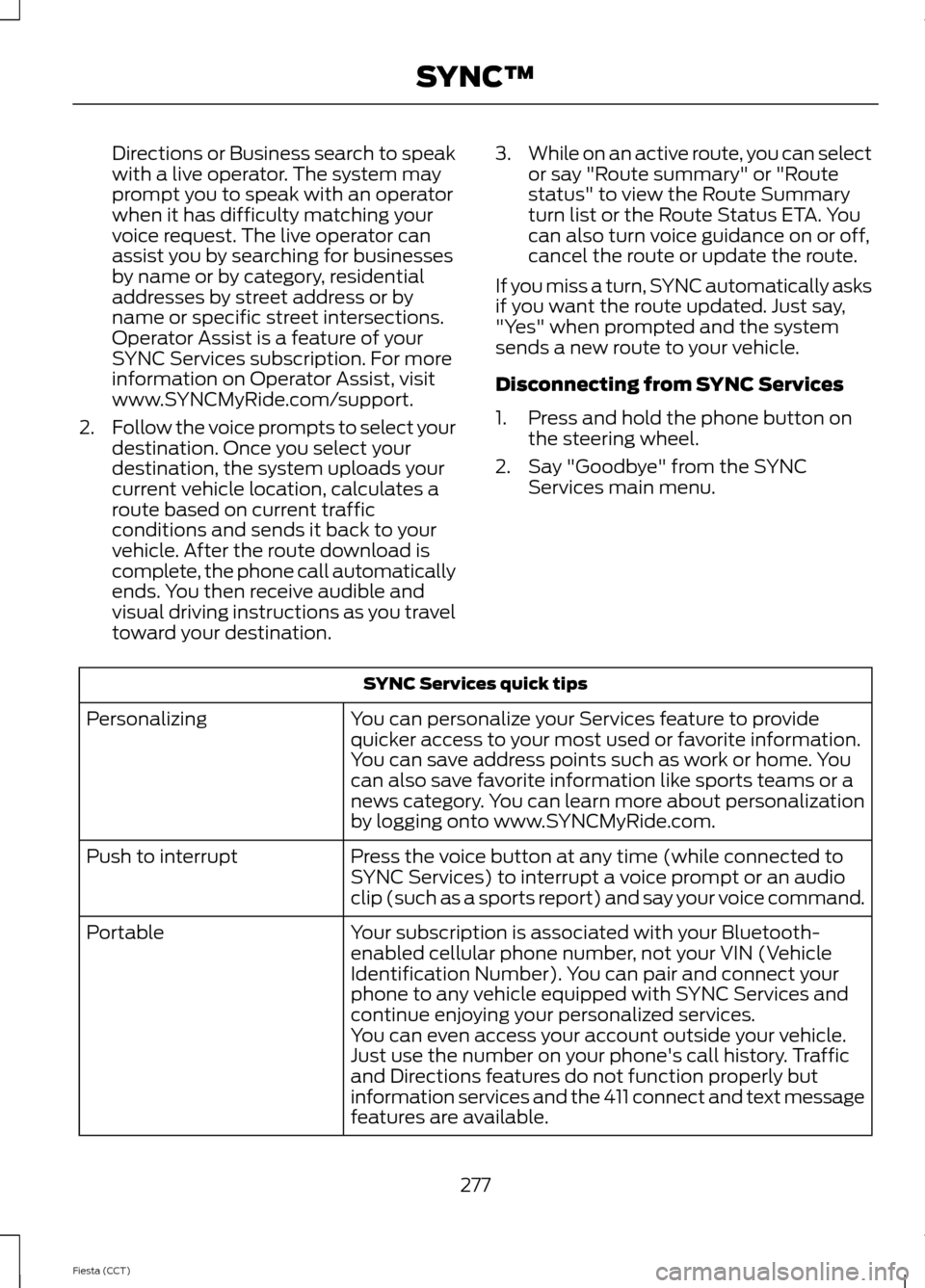
Directions or Business search to speak
with a live operator. The system may
prompt you to speak with an operator
when it has difficulty matching your
voice request. The live operator can
assist you by searching for businesses
by name or by category, residential
addresses by street address or by
name or specific street intersections.
Operator Assist is a feature of your
SYNC Services subscription. For more
information on Operator Assist, visit
www.SYNCMyRide.com/support.
2. Follow the voice prompts to select your
destination. Once you select your
destination, the system uploads your
current vehicle location, calculates a
route based on current traffic
conditions and sends it back to your
vehicle. After the route download is
complete, the phone call automatically
ends. You then receive audible and
visual driving instructions as you travel
toward your destination. 3.
While on an active route, you can select
or say "Route summary" or "Route
status" to view the Route Summary
turn list or the Route Status ETA. You
can also turn voice guidance on or off,
cancel the route or update the route.
If you miss a turn, SYNC automatically asks
if you want the route updated. Just say,
"Yes" when prompted and the system
sends a new route to your vehicle.
Disconnecting from SYNC Services
1. Press and hold the phone button on the steering wheel.
2. Say "Goodbye" from the SYNC Services main menu. SYNC Services quick tips
You can personalize your Services feature to provide
quicker access to your most used or favorite information.
You can save address points such as work or home. You
can also save favorite information like sports teams or a
news category. You can learn more about personalization
by logging onto www.SYNCMyRide.com.
Personalizing
Press the voice button at any time (while connected to
SYNC Services) to interrupt a voice prompt or an audio
clip (such as a sports report) and say your voice command.
Push to interrupt
Your subscription is associated with your Bluetooth-
enabled cellular phone number, not your VIN (Vehicle
Identification Number). You can pair and connect your
phone to any vehicle equipped with SYNC Services and
continue enjoying your personalized services.
Portable
You can even access your account outside your vehicle.
Just use the number on your phone's call history. Traffic
and Directions features do not function properly but
information services and the 411 connect and text message
features are available.277
Fiesta (CCT) SYNC™
Page 281 of 396

SYNC AppLink
Note:
This feature is only available in the
United States.
Note: You must pair and connect your
smartphone to SYNC to access AppLink.
Note: iPhone users need to connect the
phone to the USB port in order to start the
application. We recommend you lock your
iPhone after starting an application.
Note: The AppLink feature is not available
if your vehicle is equipped with the MyFord
Touch or MyLincoln Touch system.
Note: Depending on your display type, you
can access AppLink from the media menu,
the phone menu, or by using voice
commands. Once an app is running through
AppLink, you can control main features of
the app through voice commands and
steering wheel controls.
To Access Using the Phone Menu
1. Press the phone button to access the SYNC phone menu on-screen.
2. Scroll to Mobile Apps and press OK to access a list of available applications.
3. Scroll through the list of available applications and press OK to select a
particular app.
4. Once an app is running through SYNC,
you can access an app ’s menu by
pressing the MENU button to first
access the SYNC menu.
5. Select "SYNC-Media" by pressing
OK.
6. Scroll until "
then press
OK. From here, you can
access an application's features, such
as Thumbs up and Thumbs down. For
more information, please visit
www.SYNCMyRide.com. To Access Using the Media Menu
1. Press the
AUX button on the center
console.
2. Press
MENU to access the SYNC
menu.
3. Select "SYNC-Media" by pressing
OK.
4. Scroll to Mobile Apps and press OK to
access a list of available applications.
5. Scroll through the list of available applications and press
OK to select a
particular app.
6. Once an app is running through SYNC,
you can access an app ’s menu by
pressing the
MENU button to first
access the SYNC menu.
7. Select "SYNC-Media" by pressing
OK.
8. Scroll until "
then press
OK. From here, you can
access an application's features, such
as Thumbs up and Thumbs down. For
more information, please visit
www.SYNCMyRide.com.
To Access Using Voice Commands
1. Press the voice icon.
2. When prompted, say "Mobile Apps".
3. Say the name of the application after the tone.
4. The app should start. While an app is running through SYNC, you can press
the voice button and speak commands
specific to the app, such as "Play
Station Quickmix". Say "Help" to
discover available voice commands.
278
Fiesta (CCT) SYNC™
Page 297 of 396
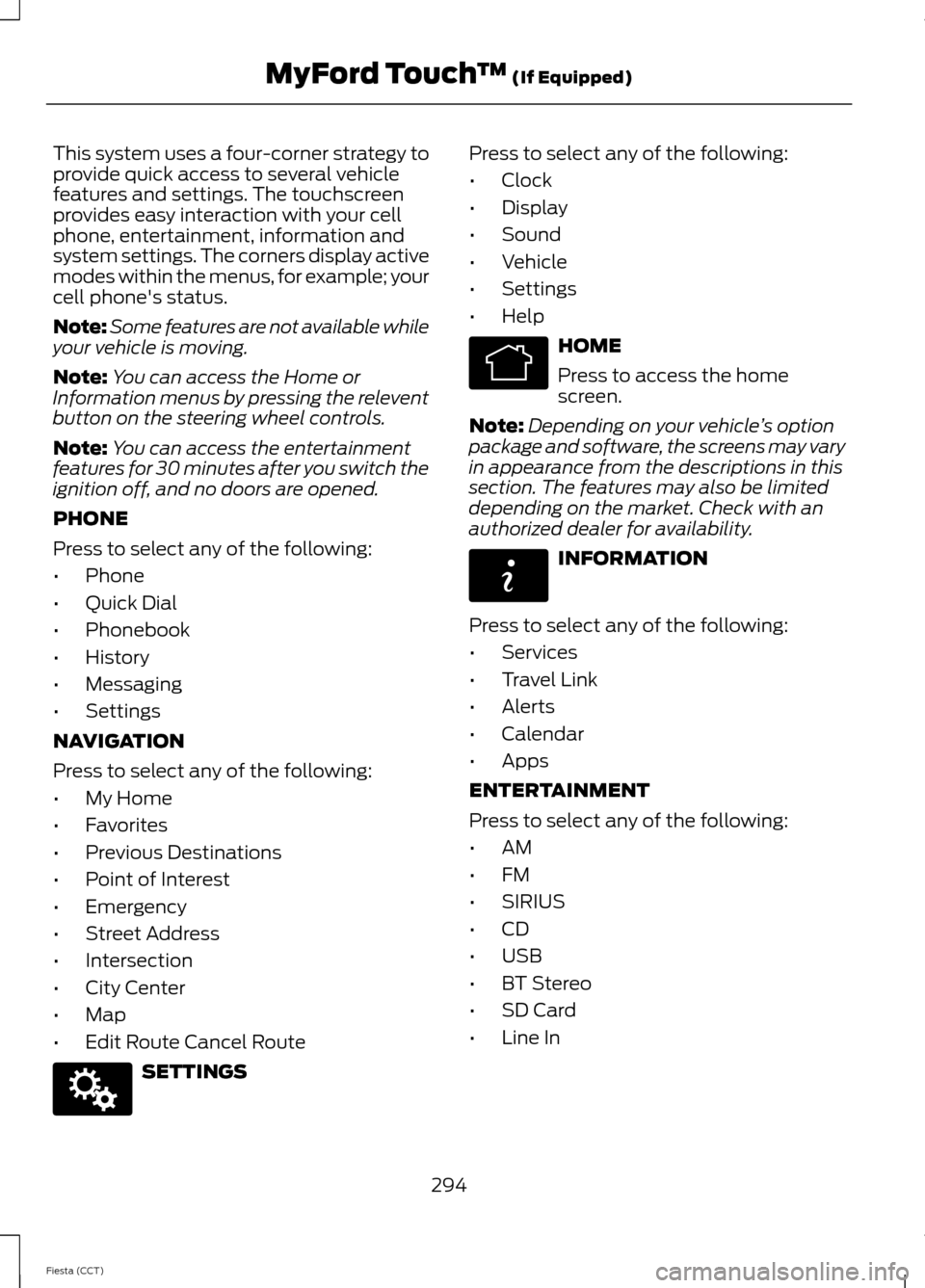
This system uses a four-corner strategy to
provide quick access to several vehicle
features and settings. The touchscreen
provides easy interaction with your cell
phone, entertainment, information and
system settings. The corners display active
modes within the menus, for example; your
cell phone's status.
Note:
Some features are not available while
your vehicle is moving.
Note: You can access the Home or
Information menus by pressing the relevent
button on the steering wheel controls.
Note: You can access the entertainment
features for 30 minutes after you switch the
ignition off, and no doors are opened.
PHONE
Press to select any of the following:
• Phone
• Quick Dial
• Phonebook
• History
• Messaging
• Settings
NAVIGATION
Press to select any of the following:
• My Home
• Favorites
• Previous Destinations
• Point of Interest
• Emergency
• Street Address
• Intersection
• City Center
• Map
• Edit Route Cancel Route SETTINGS Press to select any of the following:
•
Clock
• Display
• Sound
• Vehicle
• Settings
• Help HOME
Press to access the home
screen.
Note: Depending on your vehicle ’s option
package and software, the screens may vary
in appearance from the descriptions in this
section. The features may also be limited
depending on the market. Check with an
authorized dealer for availability. INFORMATION
Press to select any of the following:
• Services
• Travel Link
• Alerts
• Calendar
• Apps
ENTERTAINMENT
Press to select any of the following:
• AM
• FM
• SIRIUS
• CD
• USB
• BT Stereo
• SD Card
• Line In
294
Fiesta (CCT) MyFord Touch
™ (If Equipped)E142607 E142613 E142608
Page 301 of 396
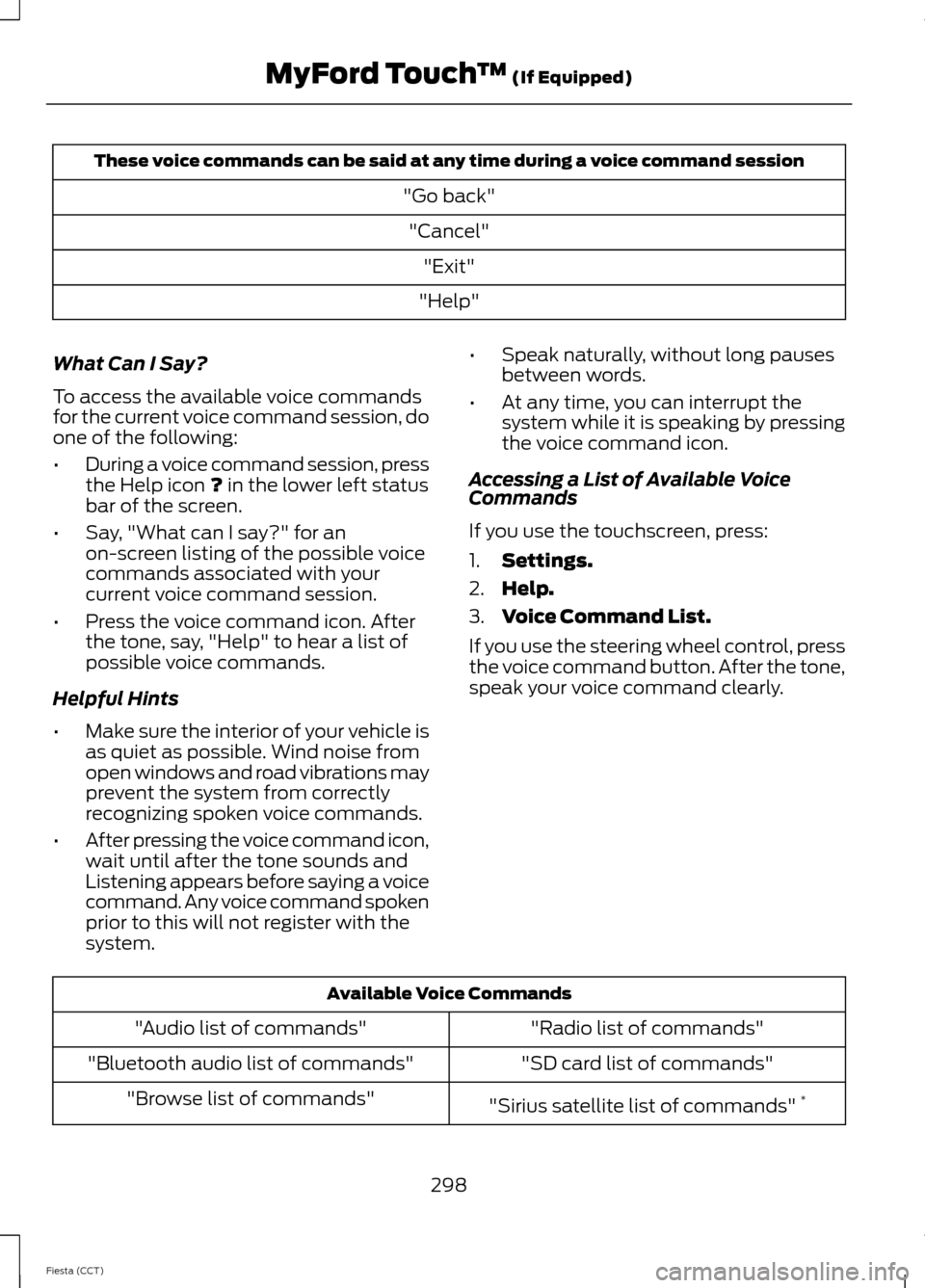
These voice commands can be said at any time during a voice command session
"Go back""Cancel" "Exit"
"Help"
What Can I Say?
To access the available voice commands
for the current voice command session, do
one of the following:
• During a voice command session, press
the Help icon ? in the lower left status
bar of the screen.
• Say, "What can I say?" for an
on-screen listing of the possible voice
commands associated with your
current voice command session.
• Press the voice command icon. After
the tone, say, "Help" to hear a list of
possible voice commands.
Helpful Hints
• Make sure the interior of your vehicle is
as quiet as possible. Wind noise from
open windows and road vibrations may
prevent the system from correctly
recognizing spoken voice commands.
• After pressing the voice command icon,
wait until after the tone sounds and
Listening appears before saying a voice
command. Any voice command spoken
prior to this will not register with the
system. •
Speak naturally, without long pauses
between words.
• At any time, you can interrupt the
system while it is speaking by pressing
the voice command icon.
Accessing a List of Available Voice
Commands
If you use the touchscreen, press:
1. Settings.
2. Help.
3. Voice Command List.
If you use the steering wheel control, press
the voice command button. After the tone,
speak your voice command clearly. Available Voice Commands
"Radio list of commands"
"Audio list of commands"
"SD card list of commands"
"Bluetooth audio list of commands"
"Sirius satellite list of commands" *
"Browse list of commands"
298
Fiesta (CCT) MyFord Touch
™
(If Equipped)
Page 305 of 396
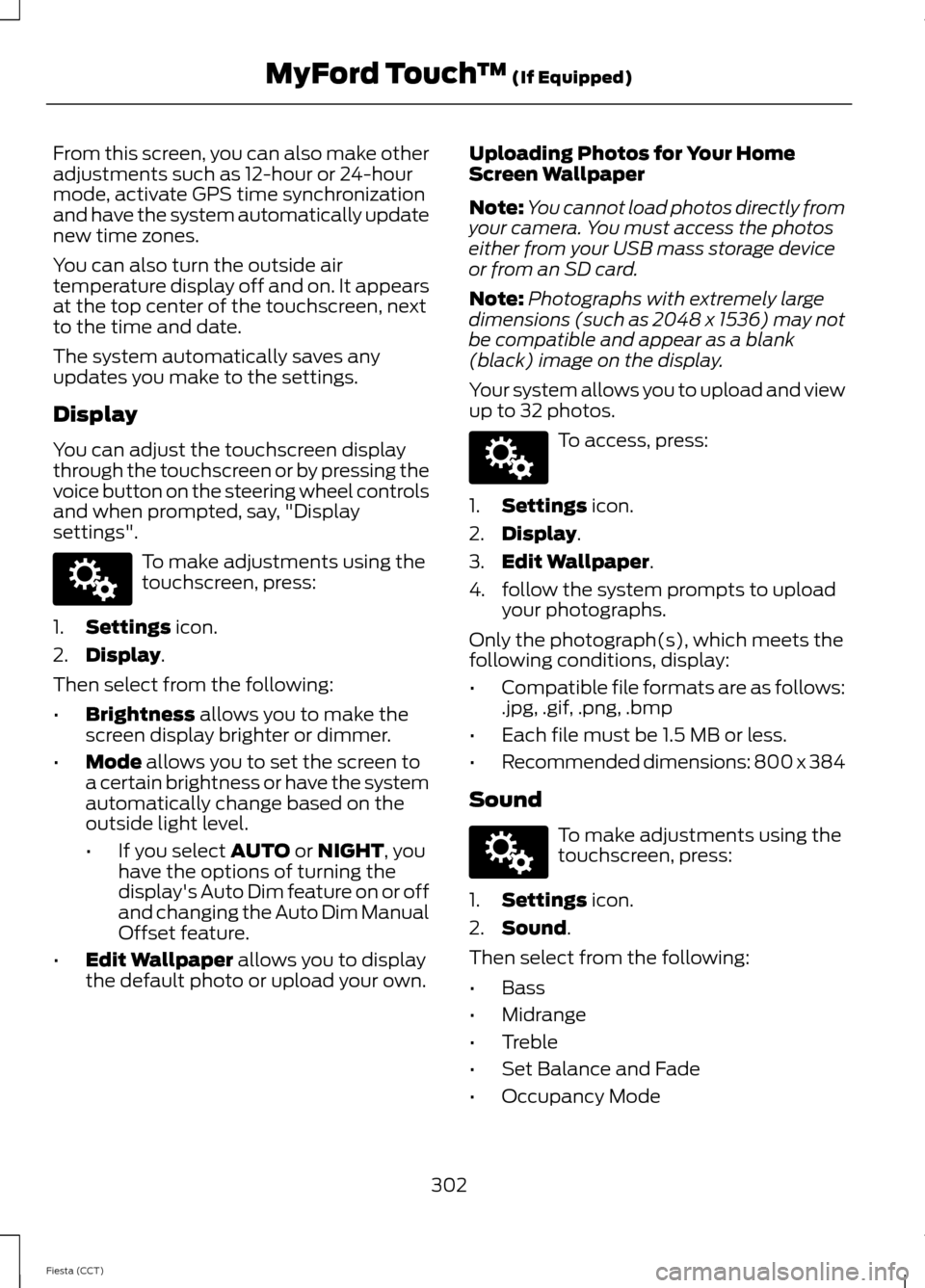
From this screen, you can also make other
adjustments such as 12-hour or 24-hour
mode, activate GPS time synchronization
and have the system automatically update
new time zones.
You can also turn the outside air
temperature display off and on. It appears
at the top center of the touchscreen, next
to the time and date.
The system automatically saves any
updates you make to the settings.
Display
You can adjust the touchscreen display
through the touchscreen or by pressing the
voice button on the steering wheel controls
and when prompted, say, "Display
settings".
To make adjustments using the
touchscreen, press:
1. Settings icon.
2. Display
.
Then select from the following:
• Brightness
allows you to make the
screen display brighter or dimmer.
• Mode
allows you to set the screen to
a certain brightness or have the system
automatically change based on the
outside light level.
• If you select
AUTO or NIGHT, you
have the options of turning the
display's Auto Dim feature on or off
and changing the Auto Dim Manual
Offset feature.
• Edit Wallpaper
allows you to display
the default photo or upload your own. Uploading Photos for Your Home
Screen Wallpaper
Note:
You cannot load photos directly from
your camera. You must access the photos
either from your USB mass storage device
or from an SD card.
Note: Photographs with extremely large
dimensions (such as 2048 x 1536) may not
be compatible and appear as a blank
(black) image on the display.
Your system allows you to upload and view
up to 32 photos. To access, press:
1. Settings
icon.
2. Display
.
3. Edit Wallpaper
.
4. follow the system prompts to upload your photographs.
Only the photograph(s), which meets the
following conditions, display:
• Compatible file formats are as follows:
.jpg, .gif, .png, .bmp
• Each file must be 1.5 MB or less.
• Recommended dimensions: 800 x 384
Sound To make adjustments using the
touchscreen, press:
1. Settings
icon.
2. Sound
.
Then select from the following:
• Bass
• Midrange
• Treble
• Set Balance and Fade
• Occupancy Mode
302
Fiesta (CCT) MyFord Touch
™
(If Equipped)E142607 E142607 E142607
Page 314 of 396
ENTERTAINMENT
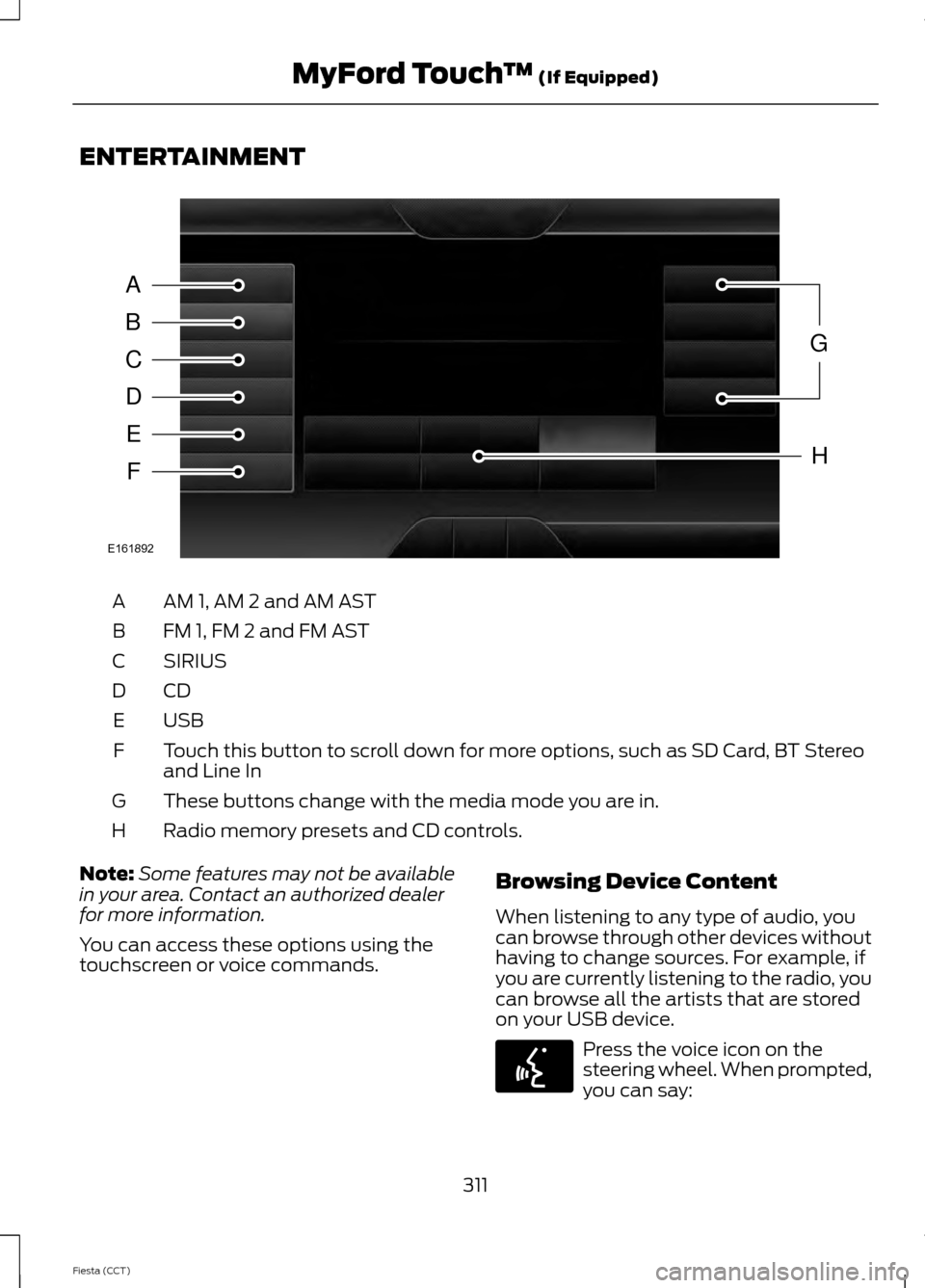
AM 1, AM 2 and AM AST
A
FM 1, FM 2 and FM AST
B
SIRIUS
C
CDD
USBE
Touch this button to scroll down for more options, such as SD Card, BT Stereo
and Line In
F
These buttons change with the media mode you are in.
G
Radio memory presets and CD controls.
H
Note: Some features may not be available
in your area. Contact an authorized dealer
for more information.
You can access these options using the
touchscreen or voice commands. Browsing Device Content
When listening to any type of audio, you
can browse through other devices without
having to change sources. For example, if
you are currently listening to the radio, you
can browse all the artists that are stored
on your USB device. Press the voice icon on the
steering wheel. When prompted,
you can say:
311
Fiesta (CCT) MyFord Touch
™ (If Equipped)A
B
C
D
E
F
G
H
E161892 E142599
Page 319 of 396
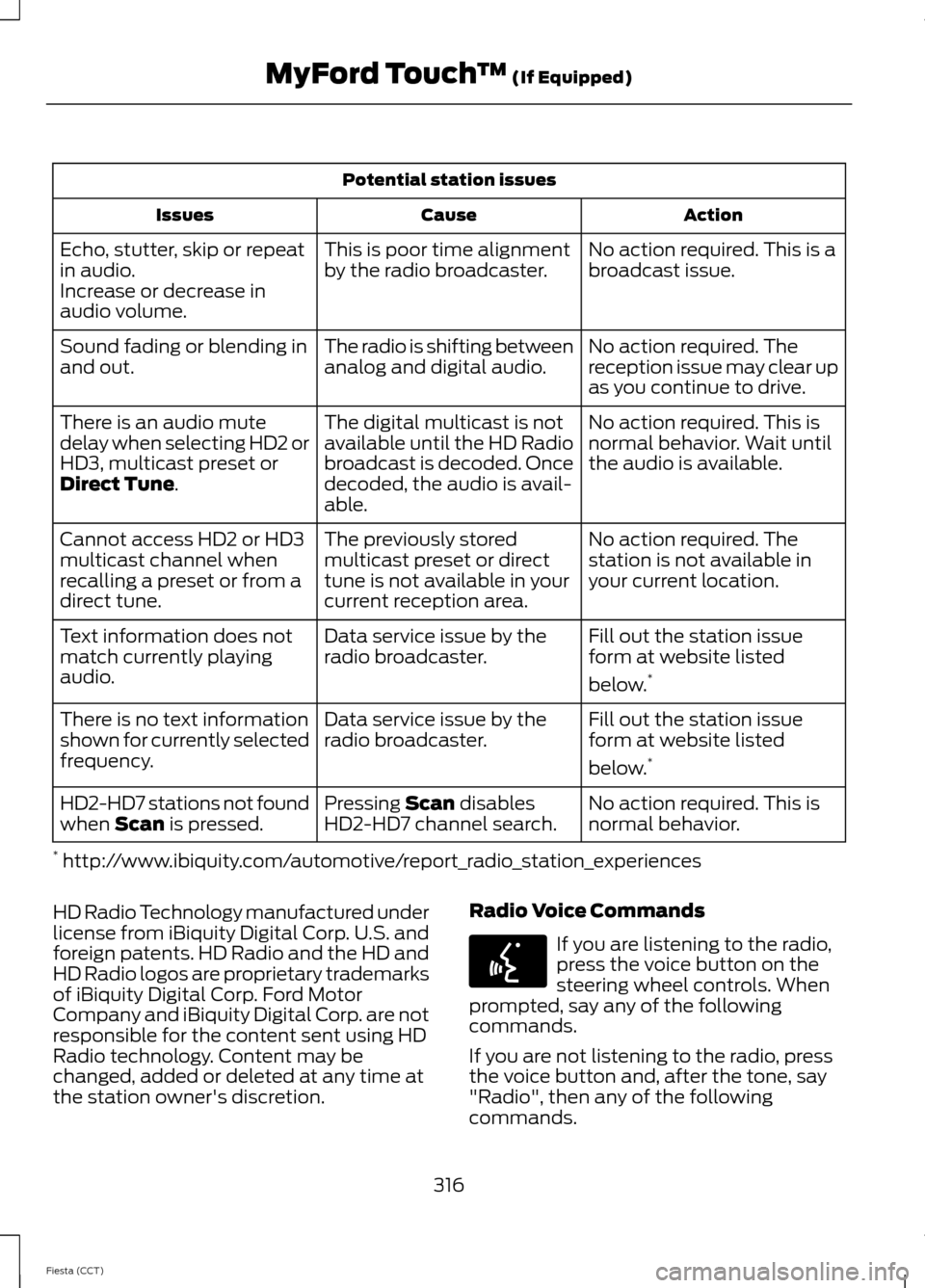
Potential station issues
Action
Cause
Issues
No action required. This is a
broadcast issue.
This is poor time alignment
by the radio broadcaster.
Echo, stutter, skip or repeat
in audio.
Increase or decrease in
audio volume.
No action required. The
reception issue may clear up
as you continue to drive.
The radio is shifting between
analog and digital audio.
Sound fading or blending in
and out.
No action required. This is
normal behavior. Wait until
the audio is available.
The digital multicast is not
available until the HD Radio
broadcast is decoded. Once
decoded, the audio is avail-
able.
There is an audio mute
delay when selecting HD2 or
HD3, multicast preset or
Direct Tune.
No action required. The
station is not available in
your current location.
The previously stored
multicast preset or direct
tune is not available in your
current reception area.
Cannot access HD2 or HD3
multicast channel when
recalling a preset or from a
direct tune.
Fill out the station issue
form at website listed
below.*
Data service issue by the
radio broadcaster.
Text information does not
match currently playing
audio.
Fill out the station issue
form at website listed
below.*
Data service issue by the
radio broadcaster.
There is no text information
shown for currently selected
frequency.
No action required. This is
normal behavior.
Pressing
Scan disables
HD2-HD7 channel search.
HD2-HD7 stations not found
when Scan is pressed.
* http://www.ibiquity.com/automotive/report_radio_station_experiences
HD Radio Technology manufactured under
license from iBiquity Digital Corp. U.S. and
foreign patents. HD Radio and the HD and
HD Radio logos are proprietary trademarks
of iBiquity Digital Corp. Ford Motor
Company and iBiquity Digital Corp. are not
responsible for the content sent using HD
Radio technology. Content may be
changed, added or deleted at any time at
the station owner's discretion. Radio Voice Commands If you are listening to the radio,
press the voice button on the
steering wheel controls. When
prompted, say any of the following
commands.
If you are not listening to the radio, press
the voice button and, after the tone, say
"Radio", then any of the following
commands.
316
Fiesta (CCT) MyFord Touch
™
(If Equipped)E142599
Page 324 of 396
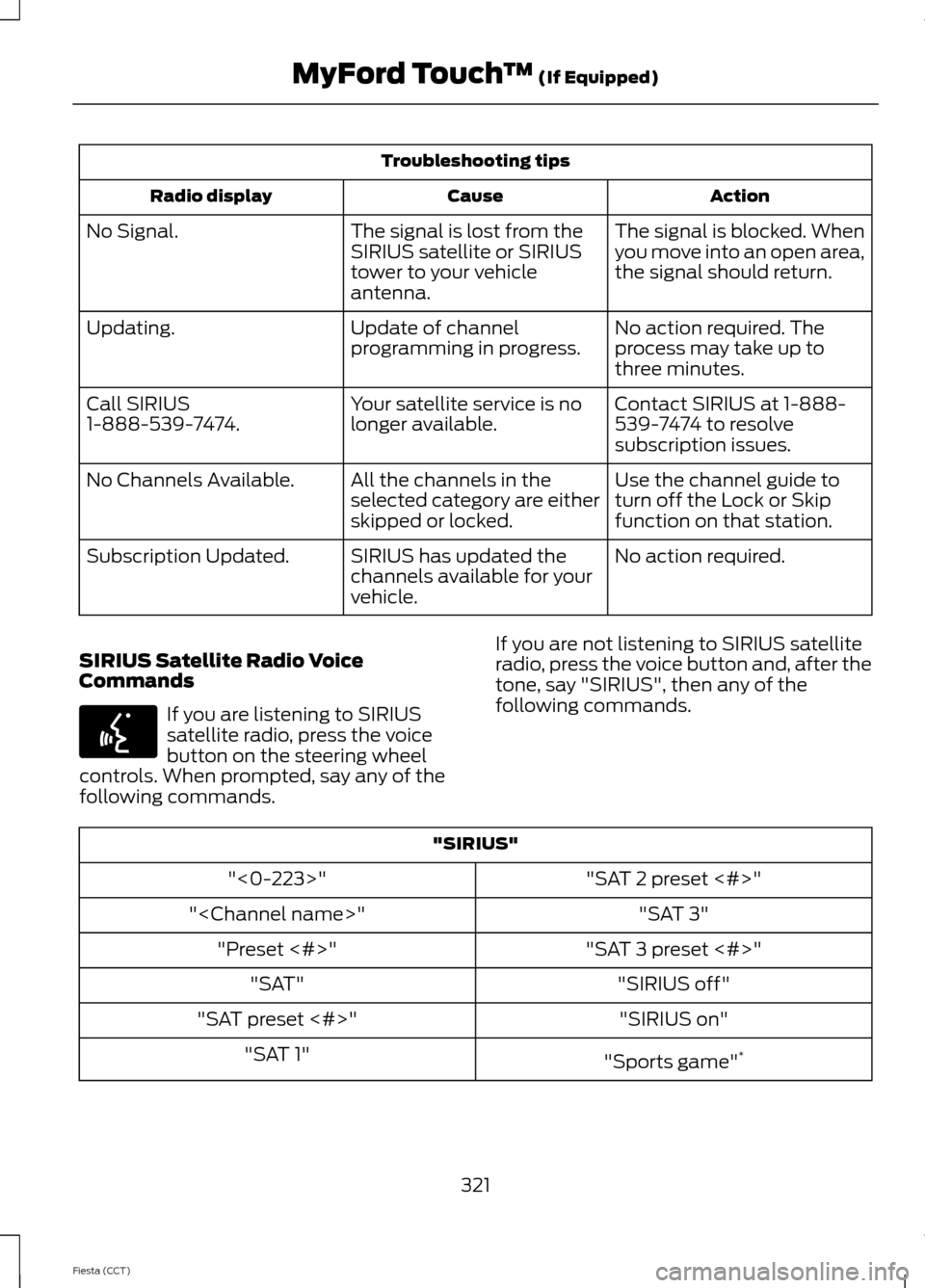
Troubleshooting tips
Action
Cause
Radio display
The signal is blocked. When
you move into an open area,
the signal should return.
The signal is lost from the
SIRIUS satellite or SIRIUS
tower to your vehicle
antenna.
No Signal.
No action required. The
process may take up to
three minutes.
Update of channel
programming in progress.
Updating.
Contact SIRIUS at 1-888-
539-7474 to resolve
subscription issues.
Your satellite service is no
longer available.
Call SIRIUS
1-888-539-7474.
Use the channel guide to
turn off the Lock or Skip
function on that station.
All the channels in the
selected category are either
skipped or locked.
No Channels Available.
No action required.
SIRIUS has updated the
channels available for your
vehicle.
Subscription Updated.
SIRIUS Satellite Radio Voice
Commands If you are listening to SIRIUS
satellite radio, press the voice
button on the steering wheel
controls. When prompted, say any of the
following commands. If you are not listening to SIRIUS satellite
radio, press the voice button and, after the
tone, say "SIRIUS", then any of the
following commands."SIRIUS"
"SAT 2 preset <#>"
"<0-223>"
"SAT 3"
"
"SAT 3 preset <#>"
"Preset <#>"
"SIRIUS off"
"SAT"
"SIRIUS on"
"SAT preset <#>"
"Sports game"*
"SAT 1"
321
Fiesta (CCT) MyFord Touch
™ (If Equipped)E142599