2014 FORD FIESTA reset
[x] Cancel search: resetPage 292 of 396
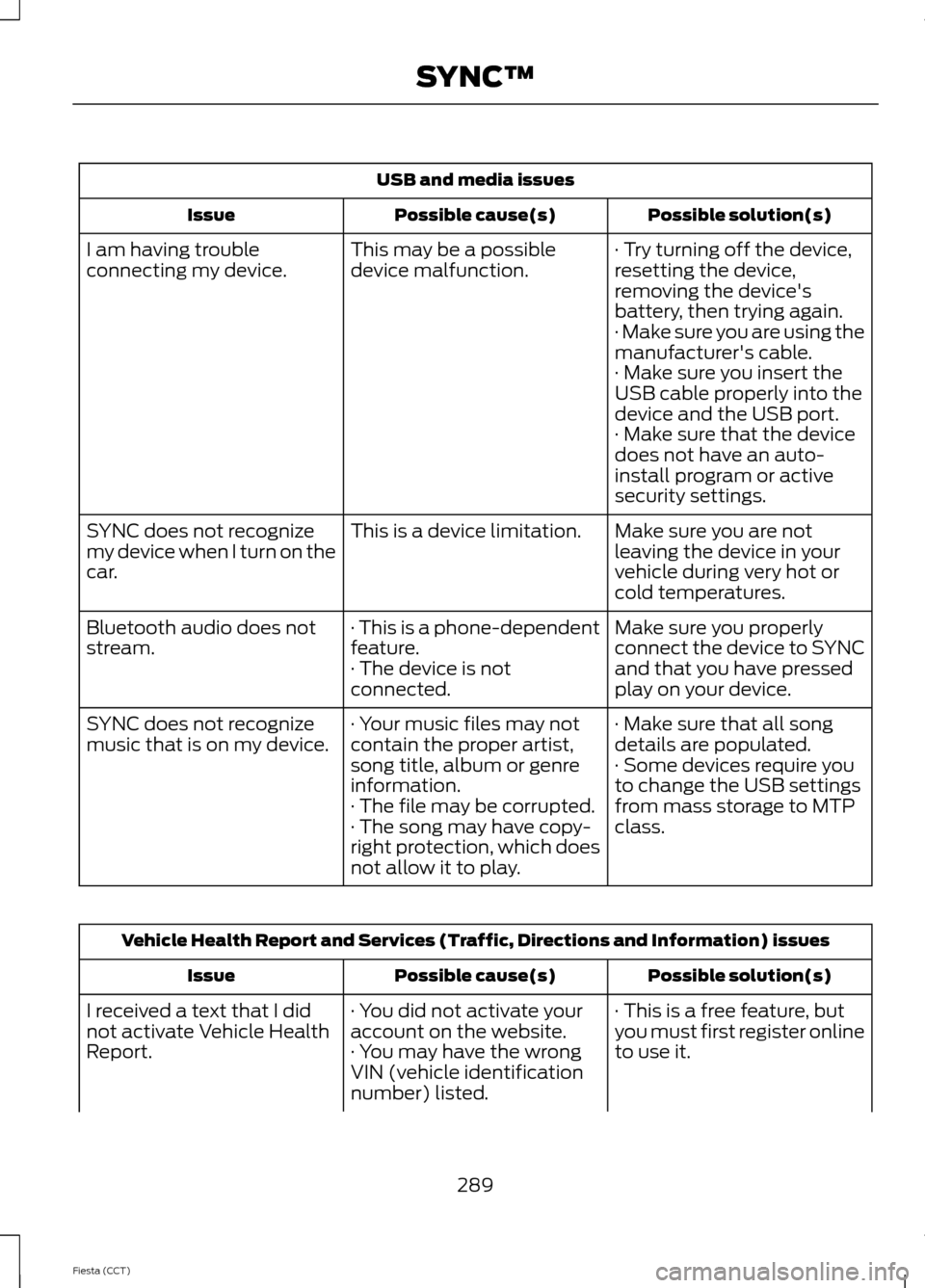
USB and media issues
Possible solution(s)
Possible cause(s)
Issue
· Try turning off the device,
resetting the device,
removing the device's
battery, then trying again.
This may be a possible
device malfunction.
I am having trouble
connecting my device.
· Make sure you are using the
manufacturer's cable.
· Make sure you insert the
USB cable properly into the
device and the USB port.
· Make sure that the device
does not have an auto-
install program or active
security settings.
Make sure you are not
leaving the device in your
vehicle during very hot or
cold temperatures.
This is a device limitation.
SYNC does not recognize
my device when I turn on the
car.
Make sure you properly
connect the device to SYNC
and that you have pressed
play on your device.
· This is a phone-dependent
feature.
· The device is not
connected.
Bluetooth audio does not
stream.
· Make sure that all song
details are populated.
· Your music files may not
contain the proper artist,
song title, album or genre
information.
SYNC does not recognize
music that is on my device.
· Some devices require you
to change the USB settings
from mass storage to MTP
class.
· The file may be corrupted.
· The song may have copy-
right protection, which does
not allow it to play. Vehicle Health Report and Services (Traffic, Directions and Information) issues
Possible solution(s)
Possible cause(s)
Issue
· This is a free feature, but
you must first register online
to use it.
· You did not activate your
account on the website.
· You may have the wrong
VIN (vehicle identification
number) listed.
I received a text that I did
not activate Vehicle Health
Report.
289
Fiesta (CCT) SYNC™
Page 299 of 396
•
Make sure the power cables do not
interfere with the safe operation of your
vehicle's controls or affect your safe
driving abilities.
• Some SYNC functions are
speed-dependent. Their use is limited
to when your vehicle is travelling at
speeds below 3 mph (5 km/h).
Make sure that you review your device's
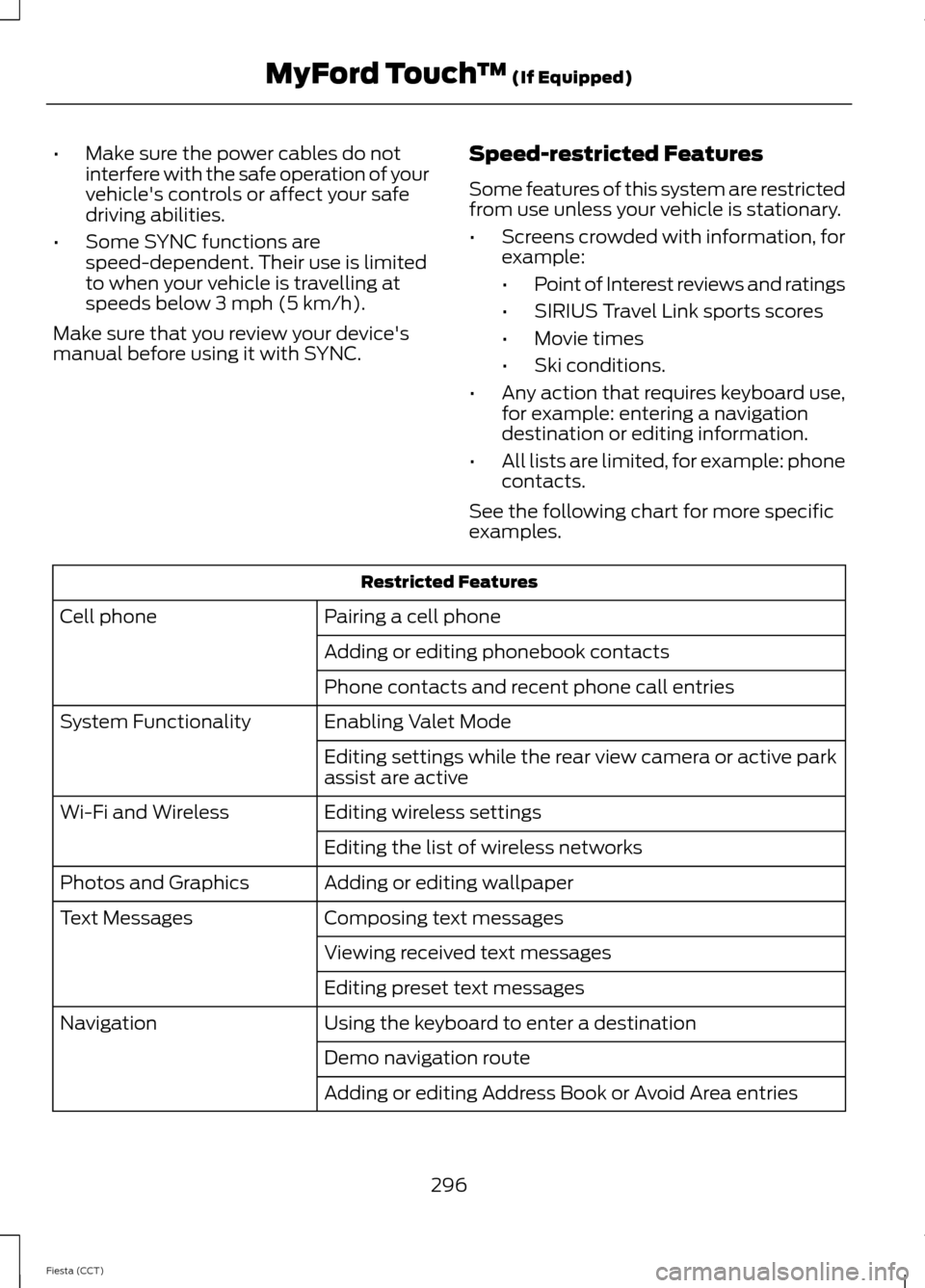
manual before using it with SYNC. Speed-restricted Features
Some features of this system are restricted
from use unless your vehicle is stationary.
•
Screens crowded with information, for
example:
•Point of Interest reviews and ratings
• SIRIUS Travel Link sports scores
• Movie times
• Ski conditions.
• Any action that requires keyboard use,
for example: entering a navigation
destination or editing information.
• All lists are limited, for example: phone
contacts.
See the following chart for more specific
examples. Restricted Features
Pairing a cell phone
Cell phone
Adding or editing phonebook contacts
Phone contacts and recent phone call entries
Enabling Valet Mode
System Functionality
Editing settings while the rear view camera or active park
assist are active
Editing wireless settings
Wi-Fi and Wireless
Editing the list of wireless networks
Adding or editing wallpaper
Photos and Graphics
Composing text messages
Text Messages
Viewing received text messages
Editing preset text messages
Using the keyboard to enter a destination
Navigation
Demo navigation route
Adding or editing Address Book or Avoid Area entries
296
Fiesta (CCT) MyFord Touch
™ (If Equipped)
Page 300 of 396
Privacy Information
When you connect a cell phone to SYNC,
the system creates a profile within your
vehicle that links to that cell phone. This
profile helps in offering you more cellular
features and operating more efficiently.
Among other things, this profile may
contain data about your cell phone book,
text messages (read and unread), and call
history, including history of calls when your
cell phone was not connected to the
system. In addition, if you connect a media
device, the system creates and retains an
index of supported media content. The
system also records a short development
log of approximately 10 minutes of all
recent system activity. The log profile and
other system data may be used to improve
the system and help diagnose any
problems that may occur.
The cellular profile, media device index,
and development log remain in your
vehicle unless you delete them, and are
generally accessible only in your vehicle
when your cell phone or media player is
connected. If you no longer plan to use the
system or your vehicle, we recommend you
carry out a Master Reset to erase all stored
information.
System data cannot be accessed without
special equipment and access to your
vehicle's SYNC module. Ford Motor
Company and Ford of Canada do not
access the system data for any purpose
other than as described without consent,
a court order, or where required by law
enforcement, other government
authorities, or other third parties acting
with lawful authority. Other parties may
seek to access the information
independently of Ford Motor Company and
Ford of Canada. For further privacy
information, see the sections on 911
Assist®, Vehicle Health Report, and Traffic,
Directions and Information.
Using Voice Commands
This system helps you control many
features using voice commands. This
allows you to keep your hands on the
wheel and focus on what is in front of you.
The system provides feedback through
audible tones, prompts, questions and
spoken confirmations depending on the
situation and the chosen level of
interaction (voice settings).
The system also asks short questions
(confirmation prompts) when it is not sure
of your request or when there are multiple
possible responses to your request.
When using voice commands, words and
icons may appear in the lower left status
bar indicating the status of the voice
command session (such as Listening,
Success, Failed, Paused or Try Again).
How to Use Voice Commands
Press the voice command icon.
After the tone, speak your voice
command clearly.
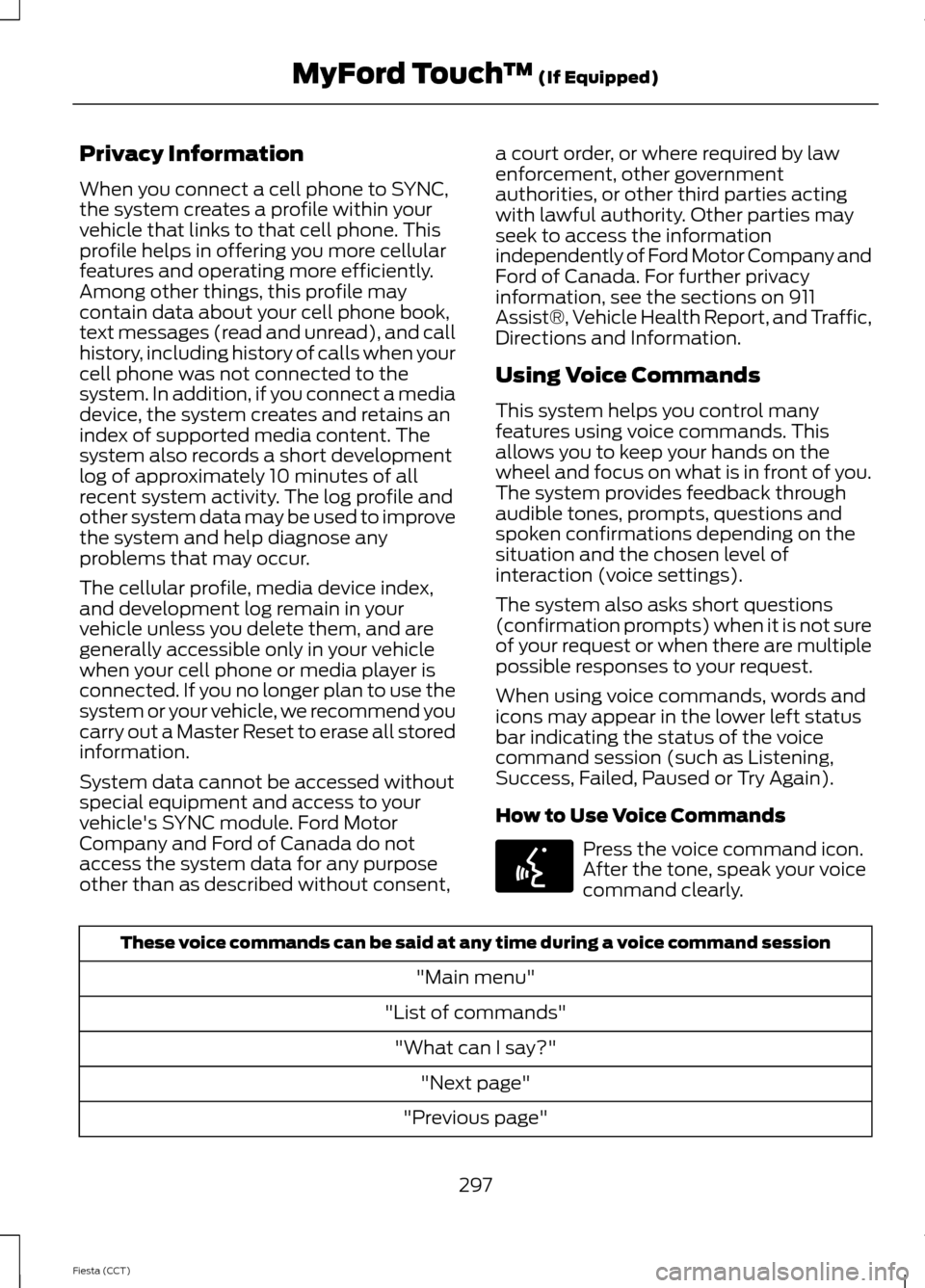
These voice commands can be said at any time during a voice command session
"Main menu"
"List of commands" "What can I say?" "Next page"
"Previous page"
297
Fiesta (CCT) MyFord Touch
™ (If Equipped)E142599
Page 306 of 396
•
Speed Compensated Volume
• DSP. *
Note: *
Your vehicle may not have these
sound settings.
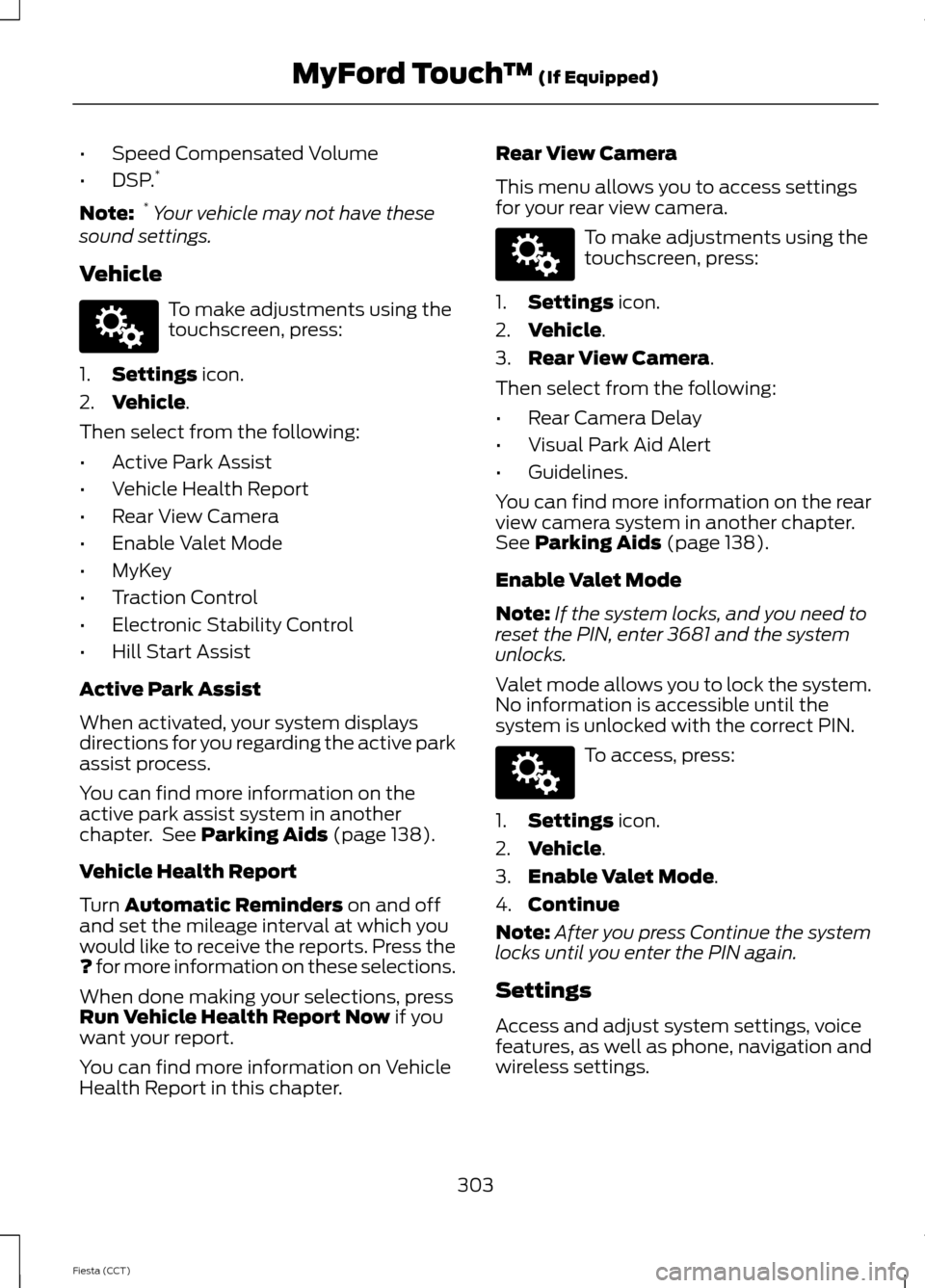
Vehicle To make adjustments using the
touchscreen, press:
1. Settings icon.
2. Vehicle
.
Then select from the following:
• Active Park Assist
• Vehicle Health Report
• Rear View Camera
• Enable Valet Mode
• MyKey
• Traction Control
• Electronic Stability Control
• Hill Start Assist
Active Park Assist
When activated, your system displays
directions for you regarding the active park
assist process.
You can find more information on the
active park assist system in another
chapter. See
Parking Aids (page 138).
Vehicle Health Report
Turn
Automatic Reminders on and off
and set the mileage interval at which you
would like to receive the reports. Press the
?
for more information on these selections.
When done making your selections, press
Run Vehicle Health Report Now
if you
want your report.
You can find more information on Vehicle
Health Report in this chapter. Rear View Camera
This menu allows you to access settings
for your rear view camera. To make adjustments using the
touchscreen, press:
1. Settings
icon.
2. Vehicle
.
3. Rear View Camera
.
Then select from the following:
• Rear Camera Delay
• Visual Park Aid Alert
• Guidelines.
You can find more information on the rear
view camera system in another chapter.
See
Parking Aids (page 138).
Enable Valet Mode
Note: If the system locks, and you need to
reset the PIN, enter 3681 and the system
unlocks.
Valet mode allows you to lock the system.
No information is accessible until the
system is unlocked with the correct PIN. To access, press:
1. Settings
icon.
2. Vehicle
.
3. Enable Valet Mode
.
4. Continue
Note: After you press Continue the system
locks until you enter the PIN again.
Settings
Access and adjust system settings, voice
features, as well as phone, navigation and
wireless settings.
303
Fiesta (CCT) MyFord Touch
™
(If Equipped)E142607 E142607 E142607
Page 307 of 396
System
To access, press:
1.
Settings icon.
2. Settings
.
3. System
.
Then select from the following: System
Select to have the touchscreen display in English, Spanish
or French.
Language
Select to display units in kilometers or miles.
Distance
Select to display units in Celsius or Fahrenheit.
Temperature
Adjust the volume of voice prompts from the system.
System Prompt Volume
Select to have the system beep to confirm choices made
through the touchscreen.
Touch Screen Button Beep
Select to have the system beep to confirm button choices
made through the climate or audio system.
Touch Panel Button Beep
Have the touchscreen keyboard display in QWERTY or
ABC format.
Keyboard Layout
Install any downloaded applications or view the current
software licenses.
Install Applications
Select to restore factory defaults. This erases all personal
settings and personal data.
Master Reset
Voice Control To access, press:
1.
Settings
icon.
2. Settings
.
3. Voice Control
.
Then select from the following: Voice Control
Standard interaction mode provides more detailed inter-
action and guidance. Advanced mode has less audible
interaction and more tone prompts.
Interaction Mode
Have the system ask you short questions if it has not
clearly heard or understood your request.
Confirmation Prompts
304
Fiesta (CCT) MyFord Touch
™
(If Equipped)E142607 E142607
Page 314 of 396
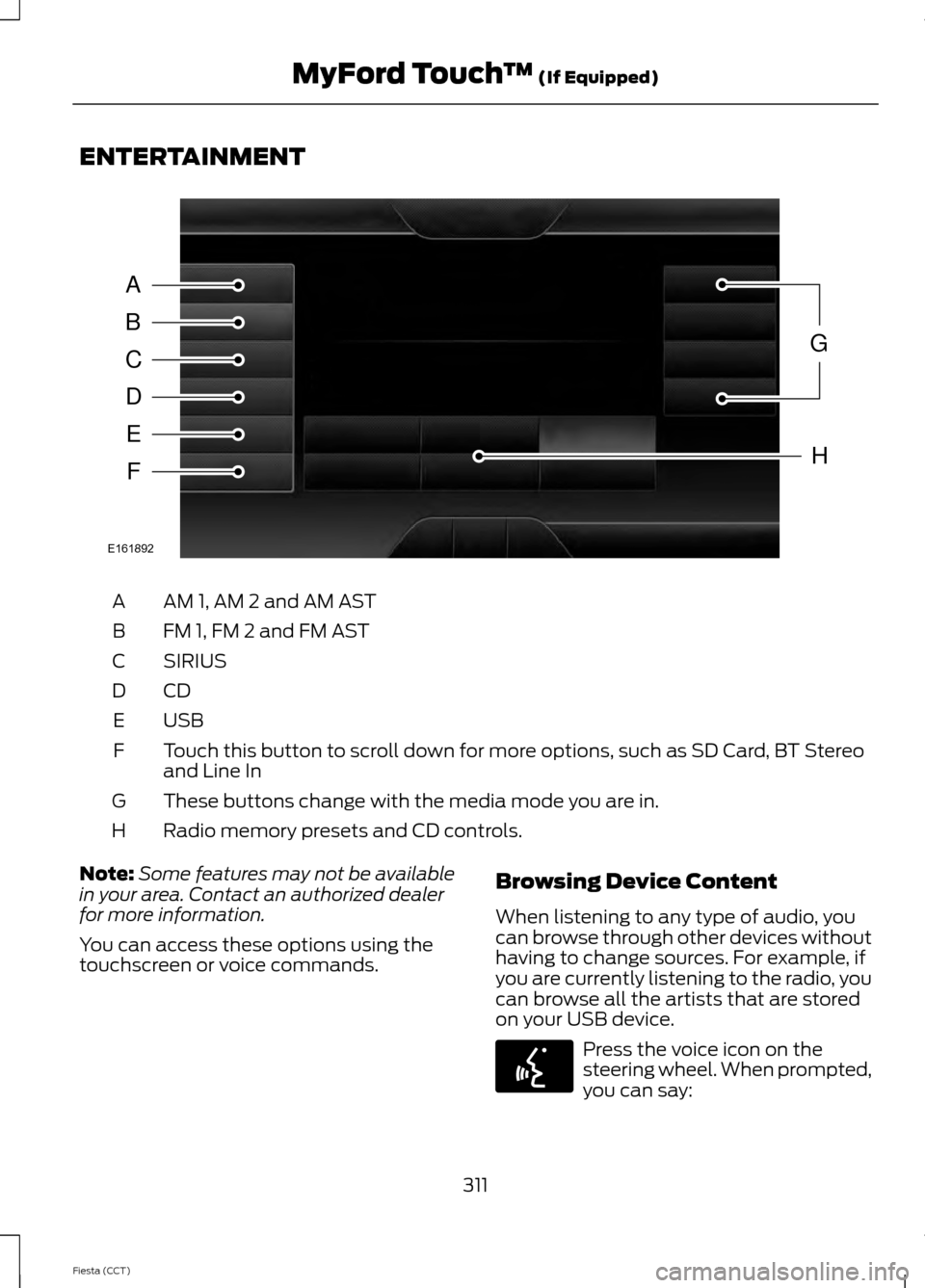
ENTERTAINMENT
AM 1, AM 2 and AM AST
A
FM 1, FM 2 and FM AST
B
SIRIUS
C
CDD
USBE
Touch this button to scroll down for more options, such as SD Card, BT Stereo
and Line In
F
These buttons change with the media mode you are in.
G
Radio memory presets and CD controls.
H
Note: Some features may not be available
in your area. Contact an authorized dealer
for more information.
You can access these options using the
touchscreen or voice commands. Browsing Device Content
When listening to any type of audio, you
can browse through other devices without
having to change sources. For example, if
you are currently listening to the radio, you
can browse all the artists that are stored
on your USB device. Press the voice icon on the
steering wheel. When prompted,
you can say:
311
Fiesta (CCT) MyFord Touch
™ (If Equipped)A
B
C
D
E
F
G
H
E161892 E142599
Page 315 of 396
"BROWSE" within devices
"Browse" *
"Browse
"Browse
"Browse SD card"
"Browse Sirius channel guide" **
"Browse USB" "Help"
* If you only say, "Browse", you can then say any commands in the following chart.
** This command is only usable if you have an active subscription to SIRIUS® satellite
radio. "BROWSE"
"
"
"SD card" *
"Sirius Channel Guide" *
"USB" **
"Help"
* This command is only usable if you have an active subscription to SIRIUS® satellite
radio.
** For more commands in SD card or USB mode, see the "SD Card and USB Port" section
of this chapter.
AM/FM Radio Touch the AM or FM tab to listen
to the radio.
To change between AM and FM presets,
just touch the AM or FM tab.
312
Fiesta (CCT) MyFord Touch
™
(If Equipped)E142611
Page 316 of 396
Memory Presets
Save a station by pressing and holding one
of the memory preset areas. There is a brief
mute while the radio saves the station.
Sound returns when finished.
HD Radio
Touch this button to turn HD Radio on. The
light on the button illuminates when the
feature is on. HD Radio allows you to
receive radio broadcasts digitally, where
available, providing free, crystal-clear
sound. See HD Radio information later in
this chapter.
Scan
Touch this button to go to the next strong
AM or FM radio station. The light on the
button illuminates when the feature is on.
Options
Sound Settings
Touch this button to adjust settings for:
•
Bass
• Midrange
• Treble
• Balance and Fade
• DSP (Digital Signal processing)
• Occupancy Mode
• Speed Compensated Volume.
Note: Your vehicle may not have all these
sound settings.
Set PTY for Seek/Scan
This allows you to select a category of
music you would like to search for. You can
then choose to either seek or scan for the
stations playing that category.
RDS Text Display
This allows you to view the information
broadcast by FM stations. AST
AST (Autostore) allows you to have the
system automatically store the six
strongest stations in your current location.
TAG Button
This feature is available when HD Radio is
on, and allows you to tag a song to
download later. When you select On,
TAG
appears on-screen when HD Radio is
active. You can touch TAG to save the
information of the song that is playing.
When you plug in your portable music
player, the information transfers, if
supported by your device. When you are
connected to iTunes®, the tags appear to
remind you of the songs you would like to
download. See HD Radio information later
in this chapter.
Direct Tune
Touch this button to enter the desired
station number when prompted. Touch
Enter
when you are done.
HD Radio ™ Information (If Available)
Note: HD Radio broadcasts are not
available in all markets.
HD Radio technology is the digital
evolution of analog AM/FM radio. Your
system has a special receiver that allows
it to receive digital broadcasts (where
available) in addition to the analog
broadcasts, it already receives. Digital
broadcasts provide a better sound quality
than analog broadcasts with free,
crystal-clear audio and no static or
distortion. For more information, and a
guide to available stations and
programming, please visit
www.hdradio.com.
When HD Radio is on and you tune to a
station broadcasting HD Radio technology,
you may notice the following indicators on
your screen:
313
Fiesta (CCT) MyFord Touch
™
(If Equipped)