2014 FORD FIESTA key
[x] Cancel search: keyPage 52 of 396
•
Audio system maximum volume of
45%. A message will be shown in the
display when you attempt to exceed
the limited volume. Also, speed
sensitive compensated (automatic
volume control) feature will be
disabled.
• Always on setting. When this is
selected you will not be able to disable
Advance Trac, Emergency Assist or the
do not disturb feature (if your vehicle
is equipped with these features).
CREATING A MYKEY
Use the information display to create a
MyKey: 1.
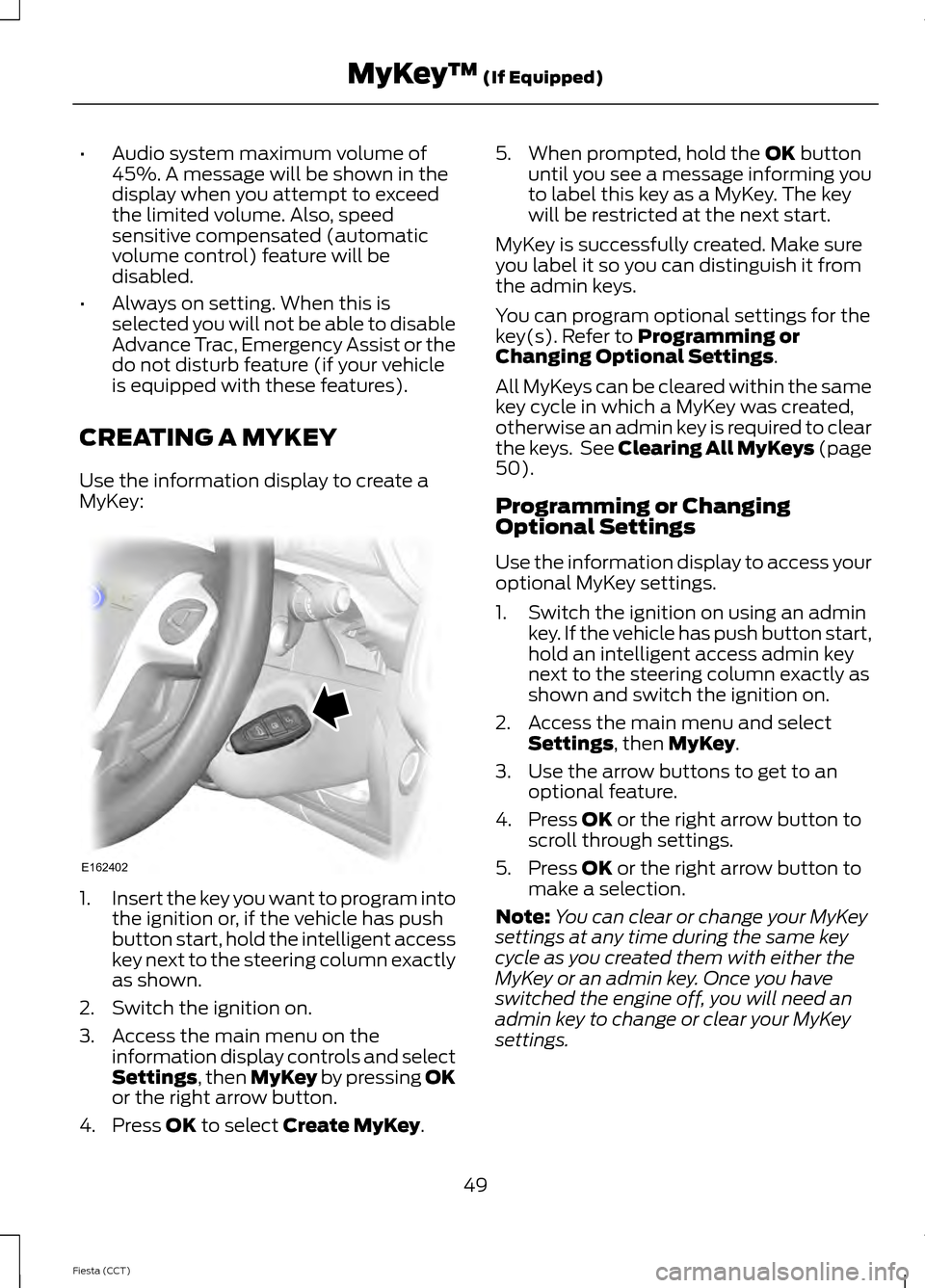
Insert the key you want to program into
the ignition or, if the vehicle has push
button start, hold the intelligent access
key next to the steering column exactly
as shown.
2. Switch the ignition on.
3. Access the main menu on the information display controls and select
Settings, then MyKey by pressing OK
or the right arrow button.
4. Press
OK to select Create MyKey. 5. When prompted, hold the
OK button
until you see a message informing you
to label this key as a MyKey. The key
will be restricted at the next start.
MyKey is successfully created. Make sure
you label it so you can distinguish it from
the admin keys.
You can program optional settings for the
key(s). Refer to
Programming or
Changing Optional Settings.
All MyKeys can be cleared within the same
key cycle in which a MyKey was created,
otherwise an admin key is required to clear
the keys. See Clearing All MyKeys (page
50
).
Programming or Changing
Optional Settings
Use the information display to access your
optional MyKey settings.
1. Switch the ignition on using an admin key. If the vehicle has push button start,
hold an intelligent access admin key
next to the steering column exactly as
shown and switch the ignition on.
2. Access the main menu and select Settings
, then MyKey.
3. Use the arrow buttons to get to an optional feature.
4. Press
OK or the right arrow button to
scroll through settings.
5. Press
OK or the right arrow button to
make a selection.
Note: You can clear or change your MyKey
settings at any time during the same key
cycle as you created them with either the
MyKey or an admin key. Once you have
switched the engine off, you will need an
admin key to change or clear your MyKey
settings.
49
Fiesta (CCT) MyKey
™
(If Equipped)E162402
Page 53 of 396
CLEARING ALL MYKEYS
You can clear all MyKeys within the same
key cycle as you created the MyKey. If you
switch your ignition off, however, you will
need to use an admin key to clear your
MyKeys.
Note:
When you clear your MyKeys, you
remove all restrictions and return all MyKeys
to their original admin key status at once.
To clear all MyKeys of all MyKey settings,
use the information display to do the
following:
1. Access the main menu and select Settings, then MyKey.
2. Scroll to
Clear All and press the OK
button.
3. Hold the
OK button until ALL
MYKEYS CLEARED displays.
CHECKING MYKEY SYSTEM
STATUS
You can find information about your
programmed MyKeys by using the
information display.
MyKey Distance
Tracks the distance when drivers use a
MyKey. The only way to delete the
accumulated distance is by using an admin
key to reset the MyKey distance to zero. If
the distance does not accumulate as
expected, then the intended user is not
using the MyKey, or an admin key user
recently reset the distance.
Number of MyKeys
Indicates the number of MyKeys
programmed to your vehicle. Use this
feature to detect how many MyKeys you
have for your vehicle and determine when
a MyKey has been deleted. Number of Admin Keys
Indicates how many admin keys are
programmed to your vehicle. Use this
feature to determine how many
unrestricted keys you have for your vehicle,
and detect if an additional MyKey has been
programmed.
USING MYKEY WITH REMOTE
START SYSTEMS
MyKey is not compatible with
non-Ford-approved aftermarket remote
start systems. If you choose to install a
remote start system, please see your Ford
authorized dealer for a Ford-approved
remote start system.
The following information MAY help
customers who choose to use a
non-Ford-approved remote start system.
The actions provided below do NOT make
MyKey compatible with
non-Ford-approved remote start system,
but it may help you retain some MyKey
functions.
Vehicles With Ford-approved
Aftermarket Remote Start Systems
When using a Ford-approved aftermarket
remote start system, the vehicle recognizes
the remote start system as an additional
admin key. It is the vehicle
’s default setting.
You can also program the remote start as
a MyKey. As a result, the MyKey system
status menu display includes the remote
start system as an additional key in the
total count of MYKEY(S) PROGRAMMED
or ADMIN KEYS PROGRAMMED. See
Checking MyKey System Status
(page
50).
50
Fiesta (CCT) MyKey
™
(If Equipped)
Page 54 of 396
When you start your vehicle with a
Ford-approved aftermarket remote start
system, the system stalls the engine after
you open the door or shift the vehicle into
gear. This is intentional. When you restart
your vehicle, it reads your real key
(traditional key or intelligent key fob)
status instead of the remote start system
’s
status.
As an added precaution, owners of vehicles
equipped with traditional keys may want
to program the remote start system as a
MyKey, if the MyKey driver uses the remote
start fob. That way, when the MyKey driver
starts the vehicle with the remote start
system, the MyKey restrictions remain
active.
With a Ford-approved aftermarket remote
start system, it is possible to program all
real keys as MyKeys unintentionally. If this
happens, then the remote start fob is the
admin key. If you want to have only one
real key as a MyKey, or do not want to have
any MyKeys, then you need to use your
remote start to clear all MyKeys. In that
case, follow these steps:
• Enter the vehicle and close all doors.
• Remote start the vehicle using your
remote start fob.
• See Clearing All MyKeys (page 50).
Follow Steps 1-3.
After clearing your MyKeys, you can create
a new MyKey. See
Creating a MyKey
(page 49).
Note: For vehicles with Intelligent Access
Keys (Push-button Start), you cannot
program the remote start system as a
MyKey. Always treat the remote start fob
as you would any other admin key.
Vehicles With Non-Ford-approved
Aftermarket Remote Start Systems MyKey is not compatible with
non-Ford-approved aftermarket remote
start systems. If you choose to install a
remote start system, please see a Ford
authorized dealer for a Ford-approved
system.
The following information
may help
customers who choose to install a
non-Ford-approved remote start system.
The actions provided below do not make
MyKey compatible with
non-Ford-approved remote start systems,
but may help you retain some MyKey
functions.
When using a non-Ford-approved remote
start system, the vehicle may recognize
the remote start system as an additional
admin key with its associated privileges. If
you restart the engine by inserting a key
into the ignition cylinder and recycling the
ignition completely, then you may retain
some MyKey functions. This action forces
your vehicle to read the traditional key
instead of the remote start fob and then
uses the key's associated privileges.
Note: The MyKey system status menu
display may include the remote start system
as an additional key in the total count of
MYKEY(S) PROGRAMMED or ADMIN KEYS
PROGRAMMED. See
Checking MyKey
System Status (page 50).
As an added precaution, owners of vehicles
equipped with traditional keys may want
to program the remote start system as a
MyKey, if the MyKey driver uses the remote
start fob. That way, when the MyKey driver
starts the vehicle with the remote start
system, the MyKey restrictions will be
remain active.
51
Fiesta (CCT) MyKey
™
(If Equipped)
Page 55 of 396
With a non-Ford-approved aftermarket
remote start system, it is possible to
program all real keys as MyKeys
unintentionally. If this happens, then the
remote start fob is the admin key. If you
want to have only one real key as a MyKey,
or do not want to have any MyKeys, then
you need to use your remote start to clear
all MyKeys. In that case, follow these steps:
•
Enter the vehicle and close all doors.
• Remote start the vehicle using your
non-Ford-approved remote start fob.
• See Clearing All MyKeys (page 50).
Follow Steps 1-3.
After clearing your MyKeys, you can create
a new MyKey. See
Creating a MyKey
(page 49).
Note: For vehicles with Intelligent Access
Keys (Push-button Start), you cannot
program the remote start system as a
MyKey. Always treat the remote start fob
as you would any other admin key.
MYKEY TROUBLESHOOTING Potential Causes
Condition
The key in the ignition does not have admin
privileges.
I cannot program a key.
The key in the ignition is the only admin key
(there always has to be at least one admin
key).
The intelligent access key is not in the
correct position (vehicles with push-button
start).
SecuriLock passive anti-theft system is
disabled or in unlimited mode.
The vehicle has been started using a
remote start system that is not
programmed with admin privileges. See
Using MyKey With Remote Start
Systems
(page 50).
The key in the ignition does not have admin
privileges.
I cannot program the optional settings.
MyKeys have been created. See
Creating
a MyKey (page 49).
The vehicle has been started using a
remote start system that is not
programmed with admin privileges. See
Using MyKey With Remote Start
Systems
(page 50).
The key in the ignition does not have admin
privileges.
I cannot clear the restricted keys.
52
Fiesta (CCT) MyKey
™
(If Equipped)
Page 56 of 396
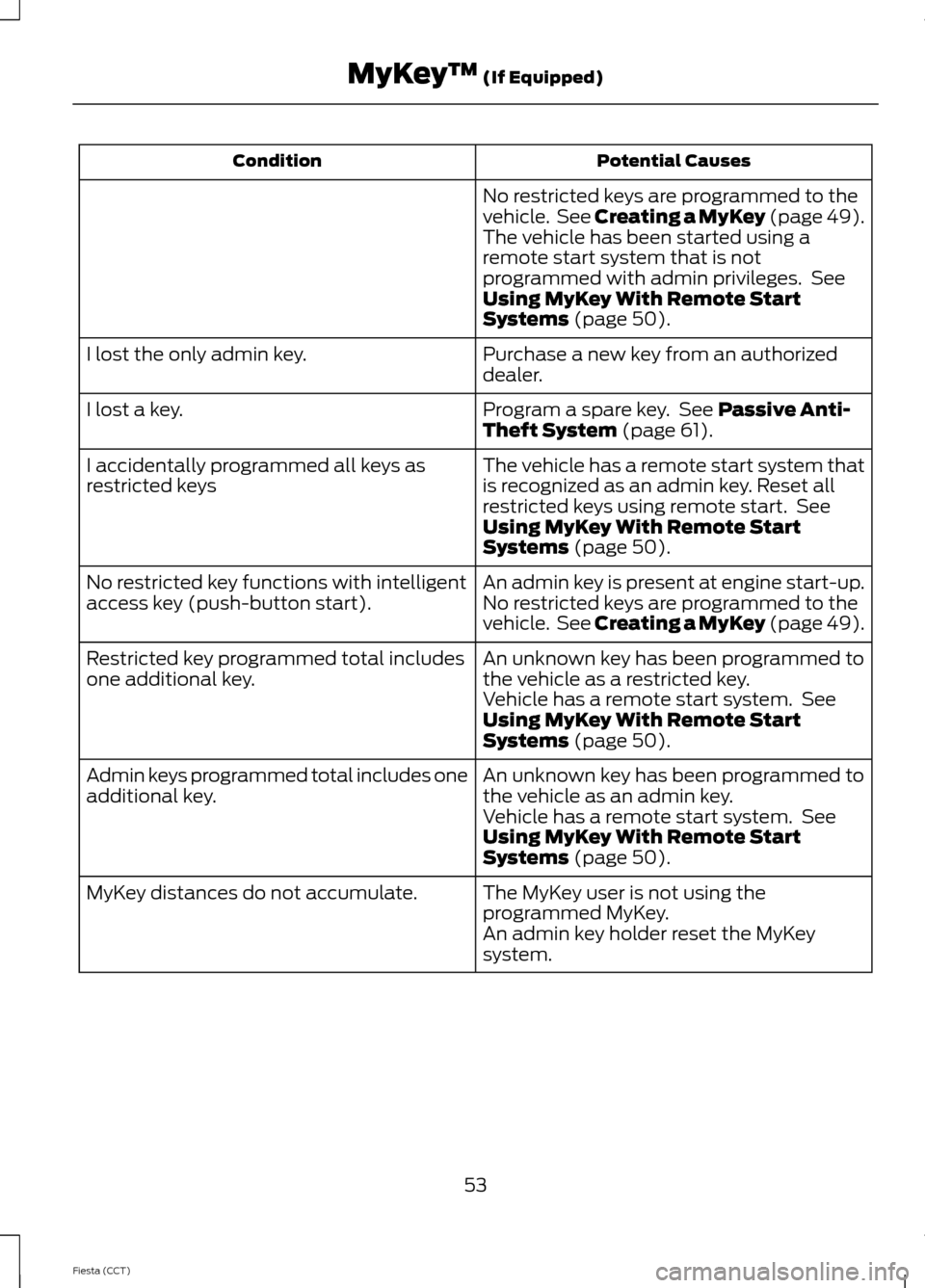
Potential Causes
Condition
No restricted keys are programmed to the
vehicle. See Creating a MyKey (page 49).
The vehicle has been started using a
remote start system that is not
programmed with admin privileges. See
Using MyKey With Remote Start
Systems (page 50).
Purchase a new key from an authorized
dealer.
I lost the only admin key.
Program a spare key. See
Passive Anti-
Theft System (page 61).
I lost a key.
The vehicle has a remote start system that
is recognized as an admin key. Reset all
restricted keys using remote start. See
Using MyKey With Remote Start
Systems
(page 50).
I accidentally programmed all keys as
restricted keys
An admin key is present at engine start-up.
No restricted key functions with intelligent
access key (push-button start). No restricted keys are programmed to the
vehicle. See Creating a MyKey (page 49).
An unknown key has been programmed to
the vehicle as a restricted key.
Restricted key programmed total includes
one additional key.
Vehicle has a remote start system. See
Using MyKey With Remote Start
Systems
(page 50).
An unknown key has been programmed to
the vehicle as an admin key.
Admin keys programmed total includes one
additional key.
Vehicle has a remote start system. See
Using MyKey With Remote Start
Systems
(page 50).
The MyKey user is not using the
programmed MyKey.
MyKey distances do not accumulate.
An admin key holder reset the MyKey
system.
53
Fiesta (CCT) MyKey
™
(If Equipped)
Page 57 of 396
LOCKING AND UNLOCKING
Remote Control
The remote control can be used any time
your vehicle is not running.
Unlocking the Doors
Note:
You can unlock the driver's door with
the key. Use the key when the remote
control is not functioning.
Note: When you lock your vehicle for
several weeks, the remote control will be
switched off. Your vehicle must be unlocked
and the engine started using the key.
Unlocking and starting your vehicle once will
enable the remote control.
One-Stage Unlocking Press the button to unlock all the
doors.
The direction indicators will flash.
Two-Stage Unlocking Press the button to unlock the
driver
’s door.
Press the button again within three
seconds to unlock all doors.
The direction indicators will flash.
Reprogramming the Unlocking
Function
You can reprogram the unlocking function
using the remote control to change
between one-stage and two-stage
unlocking. See Remote Control (page
43).
Locking the Doors Press the button to lock all the
doors. The direction indicators
will flash twice. Press the button again within three
seconds to confirm that all the doors are
closed. The doors will lock again, and the
direction indicators will flash twice if all
the doors and the luggage compartment
are closed.
Note:
If any door or the luggage
compartment is not closed, or if the hood is
not closed on vehicles that have an
anti-theft alarm or remote start, the
direction indicators will not flash.
Automatic Re-locking
The doors will relock automatically if you
do not open a door within 45 seconds of
unlocking the doors with the remote
control. The door locks and the alarm will
return to their previous state.
Locking and Unlocking the Doors
From Inside
The power door lock control is located on
the instrument panel near the radio. Press the button to lock and
unlock all the doors. The lamp
illuminates with the doors
locked.
Locking and Unlocking the Doors
with the Key
Note: Do not leave your keys in your vehicle.
Locking with the Key
Turn the top of the key toward the front of
your vehicle.
Unlocking with the Key
Turn the top of the key toward the rear of
your vehicle.
54
Fiesta (CCT) Locks E102566
Page 58 of 396
Unlocking the Doors with the
Interior Door Handles
You can unlock individual doors by pulling
the relevant interior door handle. Pulling
the driver's interior door handle will unlock
all the doors, if auto unlock has been
enabled.
Rear Door Unlocking and Opening
Pull the interior door release handle twice
to unlock and open the rear door. The first
pull unlocks the door and the second pull
will unlatch the door.
Smart Unlocks For Integrated
Keyhead Transmitter
This feature helps to prevent you from
locking yourself out of your vehicle if your
key is still in the ignition.
When you open one of the front doors and
lock your vehicle with the power door lock
control, all the doors will lock then unlock
if your key is still in the ignition.
You can still lock your vehicle with the key
in the ignition by pressing the lock button
on the transmitter even if the doors are not
closed.
If both front doors are closed, you can lock
your vehicle by any method, regardless of
whether the key is in the ignition or not.
Smart Unlocks For Intelligent
Access Keys (If Equipped)
This feature helps to prevent you from
unintentionally locking your intelligent
access key inside your vehicle ’s passenger
compartment or rear cargo area. When you lock your vehicle using the
power door lock control (with the door
open, vehicle in park and ignition off), your
vehicle will search for an intelligent access
key in the passenger compartment after
you close the door. If your vehicle finds a
key, all of the doors will immediately
unlock and the horn will chirp, indicating
that a key is inside.
In order to override the smart unlock
feature and intentionally lock the
intelligent access key inside your vehicle,
you can lock your vehicle after all doors
are closed by pressing the lock button on
another intelligent access key or touching
the locking area on the handle with another
intelligent access key in your hand.
When you open one of the front doors and
lock your vehicle using the power door lock
control, all doors will lock then unlock if:
•
the ignition is on, or
• the ignition is off and the transmission
is not in
P.
Auto lock and Auto unlock Feature
Auto lock
The Auto lock feature will lock the doors
and liftgate when all of the following
conditions have been met:
• All doors are closed.
• The ignition is on.
• Your vehicle is moving at a speed
greater than 12 mph (20 km/h) for
more than two seconds.
55
Fiesta (CCT) Locks
Page 59 of 396
Auto unlock
The auto unlock feature will unlock all the
doors when all of the following conditions
have been met:
•
The ignition is on, all doors are closed,
and your vehicle is moving at a speed
greater than 12 mph (20 km/h) for
more than two seconds.
• Your vehicle has come to a stop and
you switch the ignition off or to the
accessory position.
• The driver's door is opened within 10
minutes of you switching the ignition
off or to the accessory position.
Note: The doors will not auto unlock if your
vehicle has been electronically locked after
the ignition is turned off and before the
driver's door is opened.
Enabling or Disabling Auto lock and
Auto unlock
Note: An authorized dealer can perform this
procedure, or you can perform the procedure
yourself.
To enable or disable these features, do the
following:
Note: You will have 30 seconds to
complete the procedure.
1. Switch the ignition on.
2. Press the power door lock button three
times.
3. Switch the ignition off.
4. Press the power door lock button three
times.
5. Switch the ignition on. The horn will chirp indicating your vehicle is in
programming mode.
Auto lock: Press the power door lock
button for less than one second and
release. The horn will chirp once if disabled
or twice (one short and one long chirp) if
enabled. Auto unlock:
Press the power door lock
button for longer than two seconds and
release. The horn will chirp once if disabled
or twice (one short and one long chirp) if
enabled.
After programming the feature, switch the
ignition off. The horn will chirp once
indicating programming is complete.
Note: You can enable or disable the auto
unlock feature independently of the auto
lock feature.
Emergency Locking with the Key
Note: If the child safety locks are on and
you pull the interior handle, you will only
turn off the emergency locking, not the child
safety lock. You can only open the doors
using the external door handle.
Note: If the doors have been unlocked using
this method, the doors must be locked
individually until the central locking function
has been repaired.
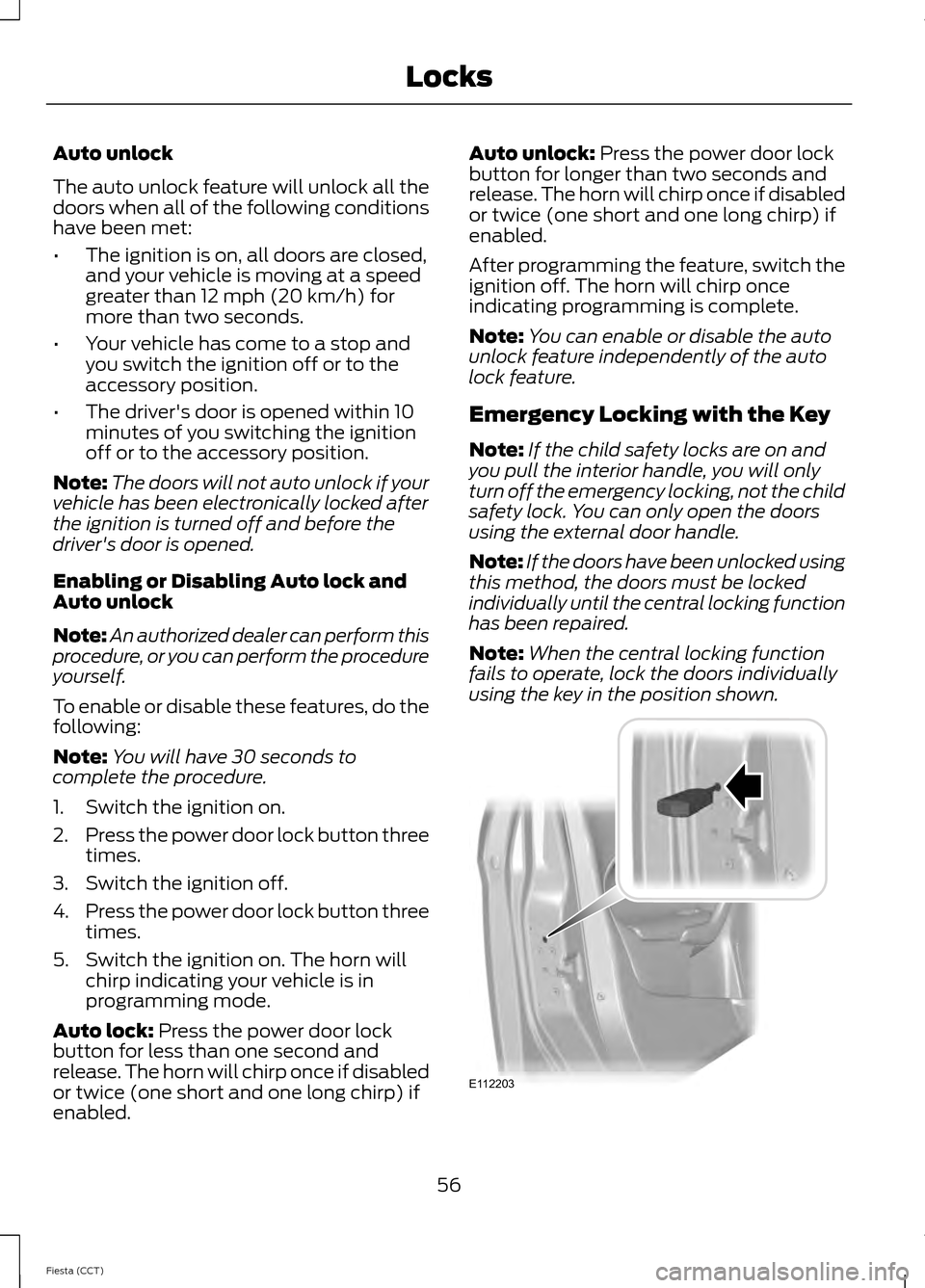
Note: When the central locking function
fails to operate, lock the doors individually
using the key in the position shown. 56
Fiesta (CCT) LocksE112203