2014 FORD EDGE audio
[x] Cancel search: audioPage 367 of 540

USB PORT (IF EQUIPPED)
WARNING:Driving while distracted can result in loss of vehicle
control, crash and injury. We strongly recommend that you use
extreme caution when using any device that may take your focus off
the road. Your primary responsibility is the safe operation of your
vehicle. We recommend against the use of any hand-held device while
driving and encourage the use of voice-operated systems when possible.
Make sure you are aware of all applicable local laws that may affect the
use of electronic devices while driving.
The USB port is located in the center console. It allows you to plug in
media playing devices, memory sticks and charge devices (if supported).
See theSYNCchapter for more information.
MEDIA HUB (IF EQUIPPED)
The media hub is located in the center console and has the following
features:
A. A/V inputs
B. SD card slot
C. USB ports
For more information, see theMyFord Touchchapter.
C
BA
366Audio System
2014 Edge(edg)
Owners Guide gf, 2nd Printing, March 2014
USA(fus)
Page 371 of 540

USING VOICE RECOGNITION
This system helps you control many features using voice commands.
This allows you to keep your hands on the wheel and focus on what is in
front of you.
Initiating a Voice Session
Push the voice icon; a tone sounds and Listening appears in the
display. Say any of the following:
Say: If you want to:
“Phone” Make calls.
“USB” Access the device connected to your USB
port.
“Bluetooth Audio” Stream audio from your phone.
“Line in” Access the device connected to the auxiliary
input jack.
“Cancel” Cancel the requested action.
“SYNC” Return to the main menu.
“Voice settings” Adjust the level of voice interaction and
feedback.
“Vehicle Health Report” Run a vehicle health report.
*
“Services” Access the SYNC Services portal.*
“Mobile apps” Access mobile applications.*
“Help” Hear a list of voice commands available in the
current mode.
*If equipped, U.S. only.
System Interaction and Feedback
The system provides feedback through audible tones, prompts, questions
and spoken confirmations depending on the situation and the chosen
level of interaction (voice settings). You can customize the voice
recognition system to provide more or less instruction and feedback.
The default setting is to a higher level of interaction in order to help you
learn to use the system. You can change these settings at any time.
370SYNC®
2014 Edge(edg)
Owners Guide gf, 2nd Printing, March 2014
USA(fus)
Page 373 of 540

Helpful Hints
•Make sure the interior of the vehicle is as quiet as possible. Wind
noise from open windows and road vibrations may prevent the system
from correctly recognizing spoken commands.
•After pressing the voice icon, wait until after the tone sounds and
Listening appears before saying a command. Any command spoken
prior to this does not register with the system.
•Speak naturally, without long pauses between words.
•At any time you can interrupt the system while it is speaking by
pressing the voice icon.
USING SYNC WITH YOUR PHONE
Hands-free calling is one of the main features of SYNC. While the system
supports a variety of features, many are dependent on your cellular
phone’s functionality. At a minimum, most cellular phones with Bluetooth
wireless technology support the following functions:
•Answering an incoming call
•Ending a call
•Using privacy mode
•Dialing a number
•Redialing
•Call waiting notification
•Caller ID.
Other features, such as text messaging using Bluetooth and automatic
phonebook download, are phone-dependent features. To check your
phone’s compatibility, see your phone’s user manual and visit
www.SYNCMyRide.com, www.SYNCMyRide.ca or www.syncmaroute.ca.
Pairing a Phone for the First Time
Note:SYNC can support downloading up to approximately 1000 entries
per Bluetooth-enabled cellular phone.
Note:Make sure the vehicle ignition and radio are turned on and the
transmission is in positionP.
Note:To scroll through the menus, press the up and down arrows on
your audio system.
372SYNC®
2014 Edge(edg)
Owners Guide gf, 2nd Printing, March 2014
USA(fus)
Page 374 of 540

Wirelessly pairing your phone with SYNC allows you to make and receive
hands-free calls.
1. Press the phone button; when the display indicates no phone is
paired, pressOK.
2. WhenFind SYNCappears in the display, pressOK.
3. Put your phone into Bluetooth discovery mode. See your phone’s
user guide if necessary.
4. When prompted on your phone’s display, enter the six-digit PIN
provided by SYNC in the radio display.
5. The display indicates when the pairing is successful.
Depending on your phone’s capability and your market, the system may
prompt you with questions such as setting the current phone as the
primary phone (the phone SYNC automatically tries to connect with first
upon vehicle start-up), downloading your phone book, etc.
Pairing Subsequent Phones
Note:To scroll through the menus, press the up and down arrows on
your audio system.
Note:Make sure the vehicle ignition and radio are turned on and that
the transmission is in positionP.
1. Press the phone button and scroll until System Settings is selected.
2. Press OK and scroll until Bluetooth Devices is selected and press OK.
3. Scroll until Add Bluetooth Device is selected and press OK.
4. When Find SYNC appears in the display, press OK.
5. Put your phone into Bluetooth discovery mode. See your phone’s
user guide if necessary.
6. When prompted on your phone’s display, enter the six-digit PIN
provided by SYNC in the radio display. The display indicates when
the pairing is successful.
7. The system then prompts with questions such as if you would like to
set the current phone as the primary phone (the phone SYNC
automatically tries to connect with first upon vehicle start-up),
download your phone book, etc.
SYNC®373
2014 Edge(edg)
Owners Guide gf, 2nd Printing, March 2014
USA(fus)
Page 396 of 540

3. While on an active route, you can select or say “Route summary” or
“Route status” to view the Route Summary turn list or the Route
Status ETA. You can also turn voice guidance on or off, cancel the
route or update the route.
If you miss a turn, SYNC automatically asks if you want the route
updated. Just say, “Yes” when prompted and a new route will be
delivered to your vehicle.
Disconnecting from SYNC Services
1. Press and hold the phone button on the steering wheel.
2. Say “Good-bye” from the SYNC Services main menu.
SYNC Services quick tips
PersonalizingYou can personalize your Services feature to
provide quicker access to your most used or
favorite information. You can save address
points such as work or home. You can also
save favorite information like sports teams or
a news category. To learn more, log onto
www.SYNCMyRide.com.
Push to interruptPress the voice button at any time (while you
are connected to SYNC Services) to interrupt
a voice prompt or an audio clip (such as a
sports report), wait for the listening tone, and
say your voice command.
PortableYour subscription is associated with your
Bluetooth-enabled cellular phone number,
not your VIN (Vehicle Identification Number).
You can pair and connect your phone to any
vehicle equipped with SYNC Services and
continue enjoying your personalized services.
You can even access your account outside the
vehicle. Just use the number on your phone’s
call history. Traffic and Directions features do
not function properly but information services
and the 411 connect and text message
features are available.
SYNC®395
2014 Edge(edg)
Owners Guide gf, 2nd Printing, March 2014
USA(fus)
Page 398 of 540

7. Select “SYNC-Media” by pressingOK.
8. Scroll until “
Menu), then pressOK.From here, you can access an application’s
features, such as Thumbs up, Thumbs down, etc. For more
information, please visit www.SYNCMyRide.com.
To Access Using Voice Commands
1. Press the voice icon.
2. When prompted, say “Mobile Apps”.
3. Say the name of the application after the tone.
4. The app should start. While an app is running through SYNC, you can
press the voice button and speak commands specific to the app, such
as “Play Station Quickmix”. Say, “Help” to discover available voice
commands.
USING SYNC WITH YOUR MEDIA PLAYER
You can access and play music from your digital music player over the
vehicle’s speaker system using the system’s media menu or voice
commands. You can also sort and play your music by specific categories,
such as artists or albums.
Note:The system is capable of indexing up to 30,000 songs.
SYNC is capable of hosting nearly any digital media player including:
iPod, Zune™, Plays from device players, and most USB drives. SYNC also
supports audio formats such as MP3, WMA, WAV and ACC.
Connecting Your Digital Media Player via the USB Port
Note:If your digital media player has a power switch, ensure that the
device is turned on.
To connect using voice commands:
1. Plug the device into the vehicle’s USB port.
2. Press the voice icon and when prompted, say “USB”.
3. You can now play music by saying any of the appropriate voice
commands. See the media voice commands.
To connect using the system menu:
1. Plug the device into the vehicle’s USB port.
2. Press AUX and then MENU to enter the Media Menu.
3. Scroll until Select Source appears and press OK.
4. Scroll to select USB and press OK.
SYNC®397
2014 Edge(edg)
Owners Guide gf, 2nd Printing, March 2014
USA(fus)
Page 402 of 540

Press the voice icon and when prompted say “Bluetooth Audio” and then
any of the following:
“BLUETOOTH AUDIO”
“(Phone) (Media) (Bluetooth) Connections”
“Pause”
“Play”
“Play next track ”
“Play previous track ”
Media Menu Features
The media menu allows you to select your media source, how to play
your music (by artist, genre, shuffle, repeat, etc.), and also to add,
connect or delete devices.
1. Press AUX and then MENU to enter the Media Menu.
2. Scroll to cycle through:
When you select: You can:
Play MenuPlay your music by artist, album, genre,
playlists, tracks, similar music or to simply,
play all. You can also choose to Explore USB
to view the supported digital music files on
your playing device.
See Play Menu later in this section for more
information.
SYNC®401
2014 Edge(edg)
Owners Guide gf, 2nd Printing, March 2014
USA(fus)
Page 403 of 540
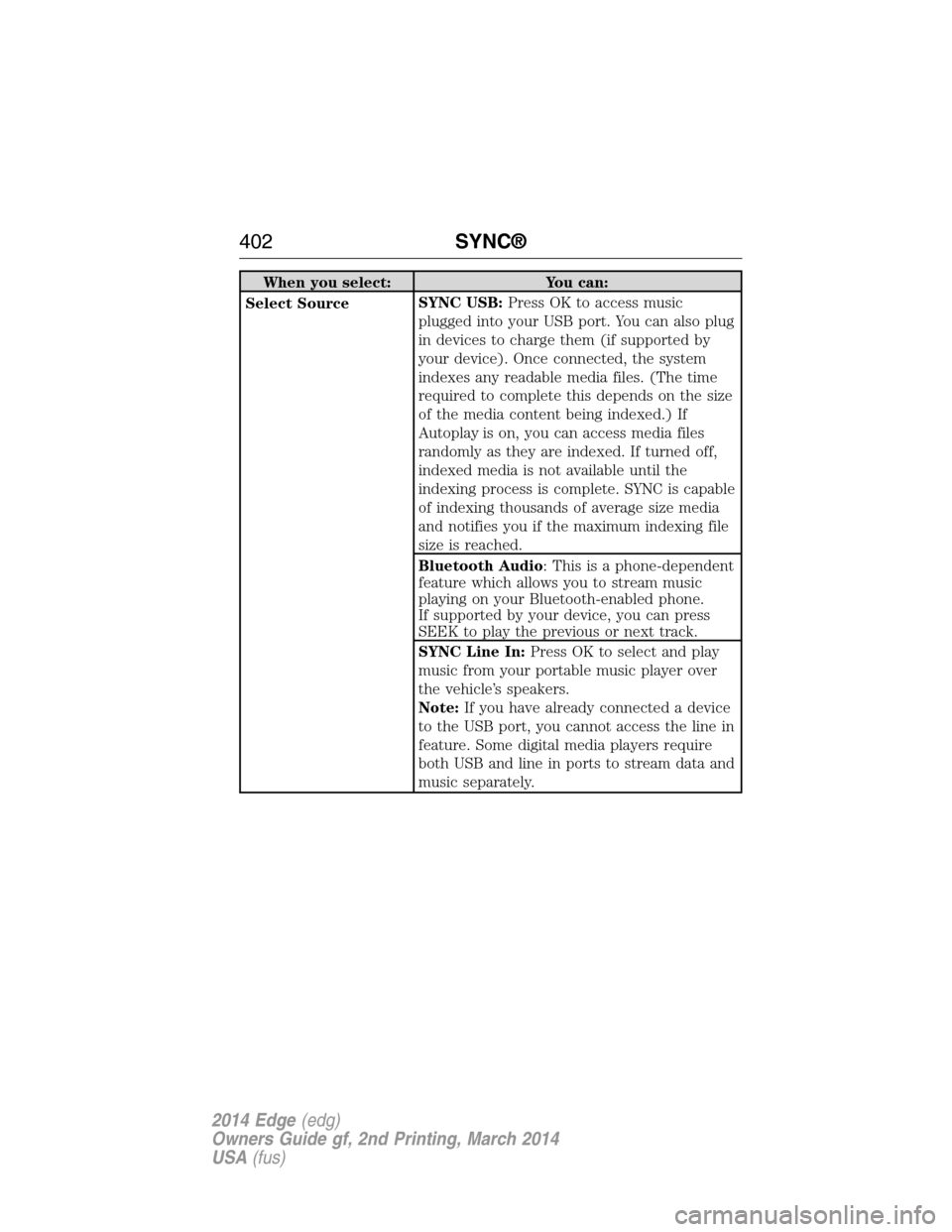
When you select: You can:
Select SourceSYNC USB:Press OK to access music
plugged into your USB port. You can also plug
in devices to charge them (if supported by
your device). Once connected, the system
indexes any readable media files. (The time
required to complete this depends on the size
of the media content being indexed.) If
Autoplay is on, you can access media files
randomly as they are indexed. If turned off,
indexed media is not available until the
indexing process is complete. SYNC is capable
of indexing thousands of average size media
and notifies you if the maximum indexing file
size is reached.
Bluetooth Audio: This is a phone-dependent
feature which allows you to stream music
playing on your Bluetooth-enabled phone.
If supported by your device, you can press
SEEK to play the previous or next track.
SYNC Line In:Press OK to select and play
music from your portable music player over
the vehicle’s speakers.
Note:If you have already connected a device
to the USB port, you cannot access the line in
feature. Some digital media players require
both USB and line in ports to stream data and
music separately.
402SYNC®
2014 Edge(edg)
Owners Guide gf, 2nd Printing, March 2014
USA(fus)