2014 FORD E SERIES audio
[x] Cancel search: audioPage 360 of 438

HD Radio™ Information (If Available)
Note:HD Radio broadcasts are not available in all markets.
HD Radio technology is the digital evolution of analog AM/FM radio. Your
system has a special receiver that allows it to receive digital broadcasts
(where available) in addition to the analog broadcasts, it already
receives. Digital broadcasts provide a better sound quality than analog
broadcasts with free, crystal-clear audio and no static or distortion. For
more information, and a guide to available stations and programming,
please visit www.hdradio.com.
When HD Radio is on and you tune to a station broadcasting HD Radio
technology, you may notice the following indicators on your screen:
HD) logoblinks when acquiring a digital station and stays solid
when digital audio is playing. When this logo is available, you
may also see Title and Artist fields on-screen.
Multicast indicatorappears in FM mode (only) if the current station is
broadcasting multiple digital broadcasts. The highlighted numbers signify
available digital channels where new or different content is available.
HD1 signifies the main programming status and is available in analog and
digital broadcasts. Other multicast stations (HD2 through HD7) are only
available digitally.
When HD Radio broadcasts are active, you can access the following
functions:
When you select: You can:
ScanHear a brief sampling of all available stations.
This feature still works when HD Radio
reception is on, although it does not scan for
HD2-HD7 channels. You may see the HD logo
appear if the station has a digital broadcast.
SeekHear the next strong radio station.
If the current station has multiple digital
broadcasts, the multicast indicator appears.
Press Seek repeatedly to advance through all
available broadcasts. If you are on the last
multicast channel, press Seek to advance to
the next strong station.
Navigation System (If Equipped)359
2014 Econoline(eco)
Owners Guide gf, 1st Printing, November 2012
USA(fus)
Page 361 of 438

When you select: You can:
TuneGo up and down the frequency in individual
increments.
If the current station has multiple digital
broadcasts, the multicast indicator appears.
Press Tune repeatedly to advance through all
available broadcasts. If you are on the last
broadcast channel, press to advance to the
next frequency on the band.
Set PTY/AllSelect a category of music you would like to
search for and then choose to either seek or
scan for the stations.
Note:The system scans the frequency band
three times for the chosen program type. If
the program type is unavailable in your
reception range, the system returns to the
previous station.
MulticastAllows you to choose which HD radio
broadcast you would like to receive. When HD
Radio broadcasts are available, this button
appears if the selected station has more than
one digital broadcast. HD1 signifies the main
programming status and is available in analog
and digital broadcasts. Any additional
multicast stations (HD2 through HD8)
broadcast digitally. You can access these by
pressing Multicast.
To save a multicast
station as a presetWhen the channel is active on-screen, press
and hold a memory preset slot until the sound
returns. There is a brief mute while the radio
saves the station. Sound returns when
finished. When recalling a HD2 or HD3
memory preset, there is a mute before the
digital audio plays, as the system must once
again acquire the digital signal.
As with any saved radio station, you cannot
access the saved station if your vehicle is
outside the station’s reception area.
360Navigation System (If Equipped)
2014 Econoline(eco)
Owners Guide gf, 1st Printing, November 2012
USA(fus)
Page 362 of 438

HD Radio Reception and Station Troubleshooting
Potential Reception Issues
Reception areaIf you are listening to a multicast station and
you are on the fringe of the reception area,
the station may mute due to weak signal
strength.
If you are listening to HD1, the system
switches back to the analog broadcast until
the digital broadcast is available again.
However, if you are listening to any of the
possible HD2-HD7 multicast channels, the
station mutes and stay muted unless it is able
to connect to the digital signal again.
Station blendingWhen the system first receives a station
(aside from HD2-HD7 multicast stations), it
first plays the station in the analog version.
Once the receiver verifies the station is an HD
Radio station, it shifts to the digital version.
Depending on the station quality, you may
hear a slight sound change when the station
changes from analog to digital. Blending is the
shift from analog to digital sound or digital
back to analog sound.
In order to provide the best possible experience, use the contact form to
report any station issues found while listening to a station broadcasting
with HD Radio technology. Independent entities own and operate each
station. These stations are responsible for ensuring all audio streams and
data fields are accurate.
Potential Station Issues
Issue Cause Action
Echo, stutter, skip or
repeat in audio.
Increase or decrease
in audio volume.This is poor time
alignment by the radio
broadcaster.No action required.
This is a broadcast
issue.
Navigation System (If Equipped)361
2014 Econoline(eco)
Owners Guide gf, 1st Printing, November 2012
USA(fus)
Page 363 of 438
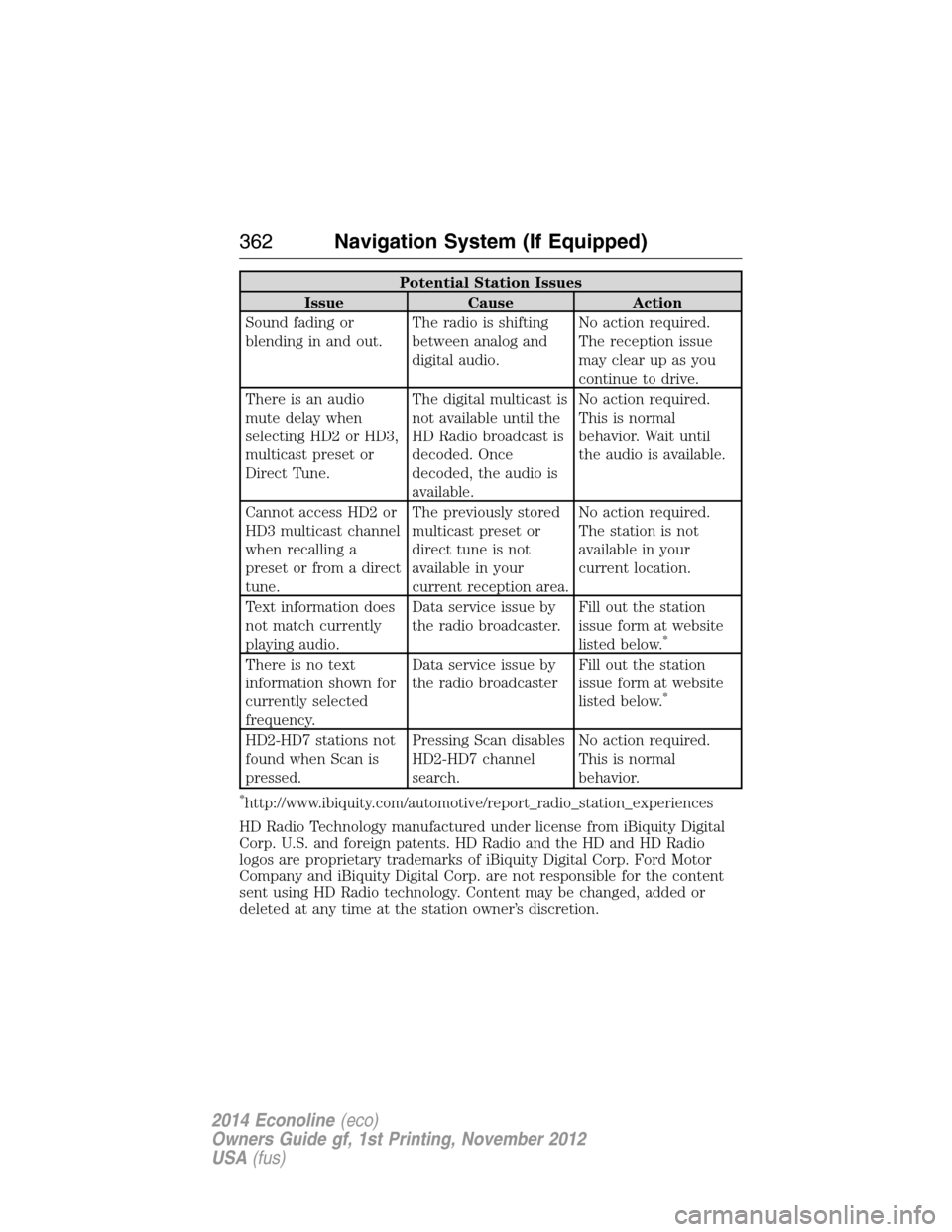
Potential Station Issues
Issue Cause Action
Sound fading or
blending in and out.The radio is shifting
between analog and
digital audio.No action required.
The reception issue
may clear up as you
continue to drive.
There is an audio
mute delay when
selecting HD2 or HD3,
multicast preset or
Direct Tune.The digital multicast is
not available until the
HD Radio broadcast is
decoded. Once
decoded, the audio is
available.No action required.
This is normal
behavior. Wait until
the audio is available.
Cannot access HD2 or
HD3 multicast channel
when recalling a
preset or from a direct
tune.The previously stored
multicast preset or
direct tune is not
available in your
current reception area.No action required.
The station is not
available in your
current location.
Text information does
not match currently
playing audio.Data service issue by
the radio broadcaster.Fill out the station
issue form at website
listed below.
*
There is no text
information shown for
currently selected
frequency.Data service issue by
the radio broadcasterFill out the station
issue form at website
listed below.
*
HD2-HD7 stations not
found when Scan is
pressed.Pressing Scan disables
HD2-HD7 channel
search.No action required.
This is normal
behavior.
*http://www.ibiquity.com/automotive/report_radio_station_experiences
HD Radio Technology manufactured under license from iBiquity Digital
Corp. U.S. and foreign patents. HD Radio and the HD and HD Radio
logos are proprietary trademarks of iBiquity Digital Corp. Ford Motor
Company and iBiquity Digital Corp. are not responsible for the content
sent using HD Radio technology. Content may be changed, added or
deleted at any time at the station owner’s discretion.
362Navigation System (If Equipped)
2014 Econoline(eco)
Owners Guide gf, 1st Printing, November 2012
USA(fus)
Page 366 of 438

When you select: You can:
MemoPress this button to save a song title and
artist to the system. When the saved song is
playing on any satellite radio channel, the
system alerts you with a pop-up in the lower
status bar. You can either tune to the station
or ignore the pop-up. When you are in the
Memo screen, the following options are
available:
Refreshallows you to refresh the current
artist and title information.
Song Alertallows you to store the song
information displayed in the Title Field. The
next time the stored song plays, the system
displays an audio and visual notification.
Artist Alertallows you to store the artist
information currently displayed in the Artist
Field. The next time the artist plays, the
system alerts you with a pop-up.
Alert On/Offallows you to select Artists and
Titles that you would like the system to alert
you to when they are playing on other
channels.
Note:Sirius® does not support the Alert
feature on all channels. Ford Motor Company
shall not be responsible for Alert feature
variation.
Show PresetsDisplay presets at the bottom of the screen.
Navigation System (If Equipped)365
2014 Econoline(eco)
Owners Guide gf, 1st Printing, November 2012
USA(fus)
Page 369 of 438

Potential reception issues
Station overloadWhen you pass a ground-based
broadcast-repeating tower, a stronger signal
may overtake a weaker one and the audio
system may mute.
Satellite radio signal
interferenceYour display may show ACQUIRING... to
indicate the interference and the audio
system may mute.
Troubleshooting tips
Radio Display Condition Possible Action
Acquiring... Radio requires more
than two seconds to
produce audio for the
selected channel.No action required.
This message should
disappear shortly.
Sat Fault/Sirius
System FailureThere is an internal
module or system
failure present.If this message does
not clear shortly, or
with an ignition key
cycle, your receiver
may have a fault. See
an authorized dealer
for service.
Invalid Channel. The channel is no
longer available.Tune to another
channel or choose
another preset.
Unsubscribed Channel. Your subscription does
not include this
channel.Contact Sirius at
1-888-539-7474 to
subscribe to the
channel, or tune to
another channel.
No Signal. The signal is lost from
the Sirius satellite or
Sirius tower to your
vehicle antenna.The signal is blocked.
When you move into
an open area, the
signal should return.
368Navigation System (If Equipped)
2014 Econoline(eco)
Owners Guide gf, 1st Printing, November 2012
USA(fus)
Page 372 of 438

DVD
Note:Your system only plays NTSC formatted discs. The system does
not support PAL format.
Your system allows you to play DVD audio and video discs. Make sure
your vehicle is in positionP(vehicles equipped with an automatic
transmission) or the parking brake is engaged (vehicles equipped with a
manual transmission). This allows you to be able to view and hear the
DVD. If your vehicle is moving, the video does not play.
When you select: You can:
Ti t l eGo to the disc’s main title screen.
MenuGo to the disc’s main menu.
Cursor ControlsNavigate to the desired menu selections.
Settings Video Display Settingsallows you to adjust
the brightness and contrast. You can also
choose to return to the default settings by
pressing Restore Default.
Audio Languageallows you to choose which
language you would like the DVD audio track
to play in.
Subtitle Displayallows you to turn subtitles
off and on.
Subtitle Languageallows you to choose the
subtitle language.
Aspect Ratioallows you to choose wide, full,
normal or cinema display.
Angle Mark Notificationallows you to have
more viewing angles from which to select.
Once you have made your selection, press
ENTER to confirm.
SearchGo to a specific title or chapter using the
keypad.
Note:Some of the above settings are disc-dependent and availability and
operation may vary.
Navigation System (If Equipped)371
2014 Econoline(eco)
Owners Guide gf, 1st Printing, November 2012
USA(fus)
Page 378 of 438

Line In (Auxiliary Input Jack)
Your vehicle is equipped with an audio input jack, which allows you to
plug a portable audio device into your vehicle’s audio system. To turn
this feature on, press the MEDIA hard button on the system.
For more information on the auxiliary input jack, seeAuxiliary input
jackin theAudio Systemschapter.
INFORMATION
Under the Information menu, you can access features such as Where Am
I? and Sirius Travel Link, view your calendar, see system information and
get basic system help.
Press the I (Information) hard button to access these features.
Where Am I?
Press the I button and select the Where Am I? tab. The system gives you
your current GPS location (latitude and longitude), the current street
you are on as well as the street in front and behind your vehicle position
along with distance information.
Note:Not all tab selections shown here are available in all markets.
Check with an authorized dealer for availability.
Sirius® Travel Link™
WARNING:Driving while distracted can result in loss of vehicle
control, crash and injury. We strongly recommend that you use
extreme caution when using any device that may take your focus off
the road. Your primary responsibility is the safe operation of your
vehicle. We recommend against the use of any hand-held device while
driving and encourage the use of voice-operated systems when possible.
Make sure you are aware of all applicable local laws that may affect the
use of electronic devices while driving.
Note:A paid subscription is required to access and use these features.
Go to www.siriusxm.com/travellink for more information.
Sirius Travel Link can help you locate the best gas prices, find movie
listings, get current traffic alerts, access the current weather map, get
accurate ski conditions and scores to current sports games.
Navigation System (If Equipped)377
2014 Econoline(eco)
Owners Guide gf, 1st Printing, November 2012
USA(fus)