Page 287 of 376
03
285
DS3_en_Chap13b_RT6-2-8_ed01-2014
For the details of the menus, refer to the "Screen menu map" section.
For
cleaning
the
screen,
the
use
of
a
soft,
non-abrasive
cloth
(spectacles
cloth)
is
recommended,
with
no
additional
product.
"RA
d
IO"
"TELEPHONE"
(If
conversation
in
progress)
SETUP:
PARAMETERS
date
and
time,
display
configuration,
sound,
vehicle
settings.
Changing the audio source:
RA d IO: RADIO broadcasts.
MUSI c : playing MUSIC.
Press the MO
d
E
button
several
times
in
succession
for
access
to
the following displays:
"FULL S c REEN MAP"
"MAP IN WIN d OW
"
(If navigation guidance in
progress)
GENERAL
OPERATION
Page 288 of 376
03
DS3_en_Chap13b_RT6-2-8_ed01-2014
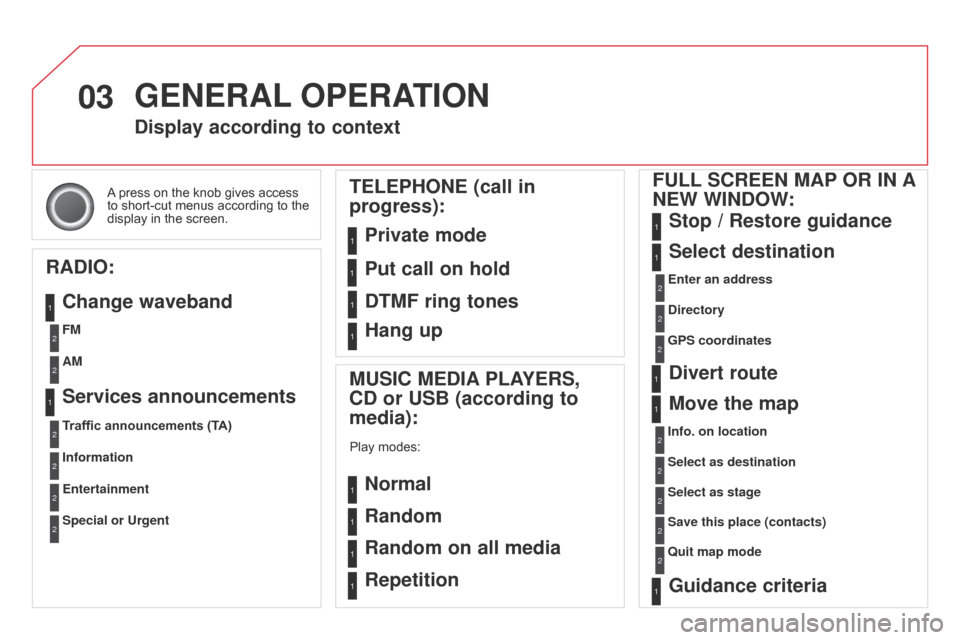
A press on the knob gives access to
short-cut menus according to the
display
in the screen.
display according to context
RA
d
IO:
c
hange waveband MUSI
c ME d IA PLAYERS,
cd
or USB (according to
media):
Play modes:
Normal
Random
Random on all media
Repetition
TELEPHONE (call in
progress):
Private mode FULL S c REEN MAP OR IN A
NEW WIN d OW:
Stop / Restore guidance
Select destination
Enter an address
d
irectory
GPS coordinates
divert route
Move the map
Info. on location
Select as destination
Select as stage
Save this place (contacts)
Quit map mode
Guidance criteria
Put call on hold
d
TMF ring tones
Hang up
1
1
1
1
1
1
1
2
2
2
2
2
1
2
2
2
1
1
1
1
1
1FM
Traffic announcements (TA) AM
Information
Entertainment
Special or Urgent2
2
2
2
2
2
Services announcements1
GENERAL OPERATION
Page 305 of 376
06
303
DS3_en_Chap13b_RT6-2-8_ed01-2014
Access to the "TELEPHONE" menu
"Telephone"" d ial"
"
d irectory of contacts"
"
c ontacts management "
"Phone functions "
"Bluetooth functions "
"Hang up "
Go
from the list to the menu (left/right).
or
List of recent calls sent and
received with the telephone
connected
to
the
system.
Press
this
button.
To
make
a
call,
select
a
number
in
the
list
and
confirm
" OK"
to
start
the
call.
Connecting
a
different
telephone
deletes
the
list
of
recent
calls. No
telephone connected.
Telephone
connected.
Incoming
call.
Outgoing
call.
Synchronisation of
contacts
in progress.
Telephone call in
progress.
In the top bar of the permanent
display
USING THE TELEPHONE
Page 306 of 376
06
DS3_en_Chap13b_RT6-2-8_ed01-2014
USING THE TELEPHONE
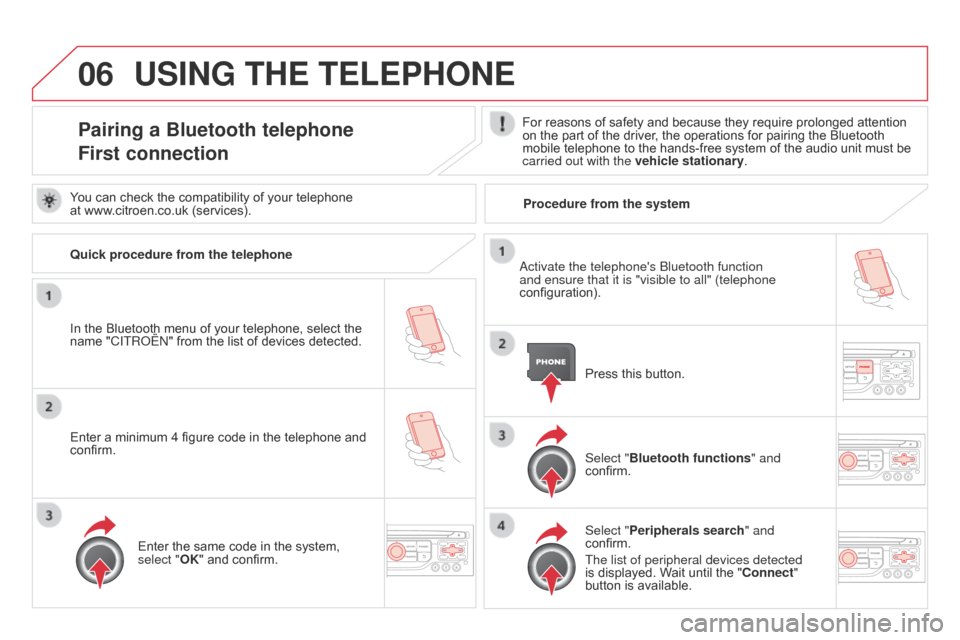
Pairing a Bluetooth telephone
First connectionFor reasons of safety and because they require prolonged attention on the part of the driver, the operations for pairing the Bluetooth
mobile
telephone to the hands-free system of the audio unit must be
carried out with the vehicle stationary
.
In
the
Bluetooth
menu
of
your
telephone,
select
the
name
"C
ITR
o
ËN
"
from
the
list
of
devices
detected. Press
this button.
Select "Bluetooth functions " and
confirm.
Select "Peripherals search " and
confirm.
The list of peripheral devices detected
is
displayed. Wait until the " c onnect"
button
is available.
You
can
check
the
compatibility
of
your
telephone
at
www.citroen.co.uk
(services).
a
ctivate the telephone's b luetooth function
and ensure that it is "visible to all" (telephone
configuration).
Quick procedure from the telephone
Enter
a
minimum
4
figure
code
in
the
telephone
and
confirm. Enter
the
same
code
in
the
system,
select "
OK"
and
confirm. Procedure from the system
Page 307 of 376
06
305
DS3_en_Chap13b_RT6-2-8_ed01-2014
USING THE TELEPHONE
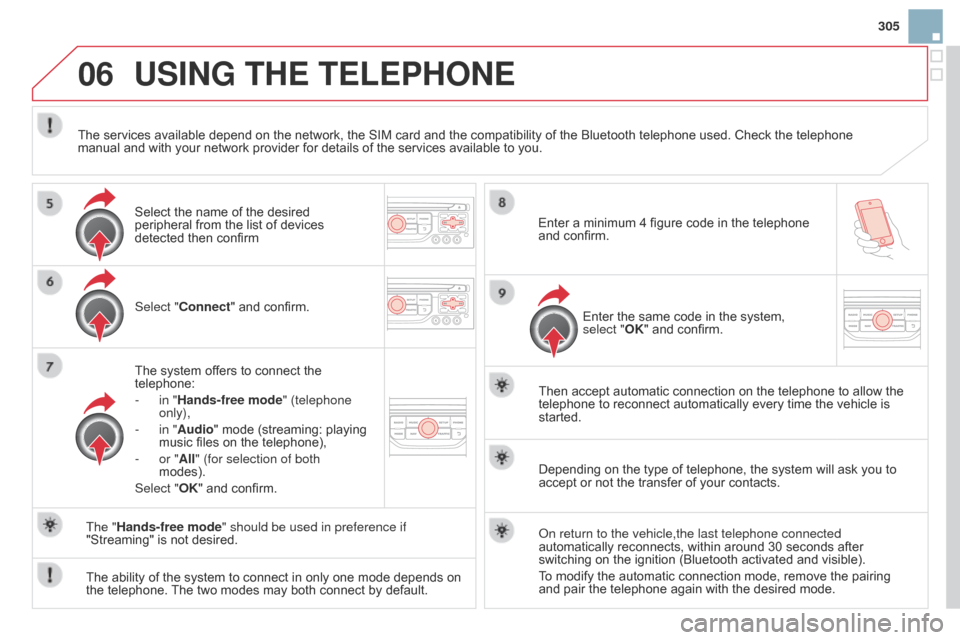
Select "connect" and confirm.
The system offers to connect the
telephone:
-
in "
Hands-free mode" (telephone
only),
-
in "
Audio" mode (streaming: playing
music
files on the telephone),
-
or "
All" (for selection of both
modes).
Select "OK"
and confirm. Then
accept automatic connection on the telephone to allow the
telephone
to reconnect automatically every time the vehicle is
started.
The
ability of the system to connect in only one mode depends on
the
telephone.
The
two modes may both connect by default.
The "Hands-free mode" should be used in preference if
"Streaming"
is not desired.
The
services available depend on the network, the SIM card and the compatibility of the Bluetooth telephone used. Check the telephone
manual
and with your network provider for details of the services available to you.
Depending on the type of telephone, the system will ask you to
accept
or not the transfer of your contacts.
o
n return to the vehicle,the last telephone connected
automatically
reconnects, within around 30 seconds after
switching
on the ignition (Bluetooth activated and visible).
To
modify the automatic connection mode, remove the pairing
and
pair the telephone again with the desired mode.
Enter
a minimum 4 figure code in the telephone
and
confirm.
Enter the same code in the system,
select "
OK" and confirm.
Select
the name of the desired
peripheral
from the list of devices
detected
then confirm
Page 308 of 376

06
DS3_en_Chap13b_RT6-2-8_ed01-2014
USING THE TELEPHONE
directory configuration / Synchronisation with the telephone
Press PHONE then select "contacts
management " and confirm.
Select "New contact" to enter a new
contact.
Select "Sort by Name/First name" or
"Sort by First name/Name" to choose
the
order in which they appear.
Select "
d elete all contacts" to delete
the
contacts saved in the system. Select "Synchronization options
":
-
No
synchronization: only the
contacts
saved in the system
(always
present).
-
Display
telephone contacts: only the
contacts
saved in the telephone.
-
Display
SIM card contacts: only the
contacts
saved on the SIM card.
-
Display
all phone contacts:
contacts on the SIM card and in the
telephone.
Select "
Import all the entries" to import all the contacts in the telephone and
save
them in the system.
Once
imported, a contact remains visible
whatever
telephone is connected.
Select "
c ontact mem. status" to see the
number
of contacts saved in the system
or
imported, and the free memory.
Page 309 of 376
06
307
DS3_en_Chap13b_RT6-2-8_ed01-2014
Editing, importing or deleting a contact
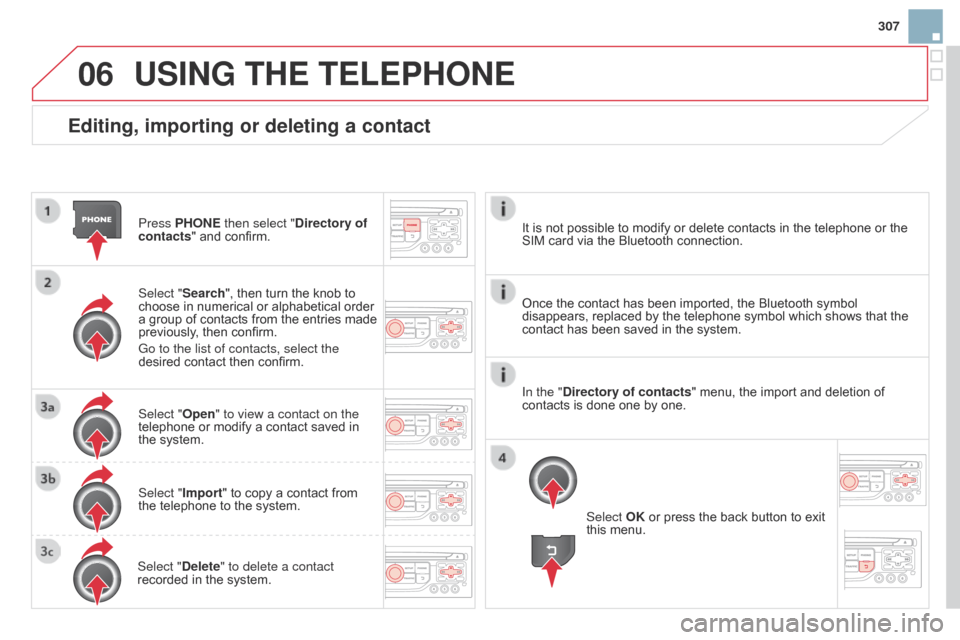
Press PHONE then select "directory of
contacts " and confirm.
Select "Search",
then turn the knob to
choose
in numerical or alphabetical order
a
group of contacts from the entries made
previously
, then confirm.
Go to the list of contacts, select the
desired
contact then confirm.
Select "Open" to view a contact on the
telephone
or modify a contact saved in
the
system.
Select "Import"
to copy a contact from
the
telephone to the system.
Select "
d elete" to delete a contact
recorded
in the system.
USING THE TELEPHONE
Select OK or press the back button to exit this menu.
Once
the
contact has been imported, the Bluetooth symbol
disappears,
replaced by the telephone symbol which shows that the
contact
has been saved in the system.
It
is
not
possible to modify or delete contacts in the telephone or the
SIM
card
via the Bluetooth connection.
In the "
d
irectory of contacts" menu, the import and deletion of
contacts
is
done one by one.
Page 310 of 376
06
DS3_en_Chap13b_RT6-2-8_ed01-2014
USING THE TELEPHONE
Press PHONE twice.
Select " d ial" then confirm. Select "
d irectory of contacts" then
confirm.
Dial
the telephone number using the
virtual
keypad selecting each number
in
turn.
Confirm
"OK" to make the call. Press TEL or twice on PHONE.
c
alling a new number
c
alling a contact
Select the desired contact and confirm.
If access was via the PHONE button,
select "
c all" and confirm.
Select
the number and confirm to start
the
call.
Making a callUse of the telephone is not recommended while driving. We recommended that you park safely or make use of the steering
mounted
controls.