2014 Citroen C3 service
[x] Cancel search: servicePage 207 of 284

04
205
C3_en_Chap13b_RT6-2-8_ed01-2014
Towards points of interest (POI)The points of interest (P o I) indicate all of the service locations in the vicinity
(hotels, various businesses, airports...).
Select the "Enter an address" function
and confirm, then select Select
destination and confirm.
To select a P
o I close to your current
location, Select " POI" and confirm, then
Select "Around the current place" and
confirm.
To select a P
o I as a stage on the route,
Select "POI" and confirm, then Select
"On the route " and confirm.
To select a P
o I as a destination,
first enter the country and town (see
"Towards a new destination"), Select
"POI" and confirm, finally Select "Near "
and confirm. Search for P
o Is in the categories
suggested in the following pages.
Select "Search by Name
" to search for P
o Is by name and not by
proximity.
Select the POI and confirm "OK" to start
the guidance.
Press N AV
to display the
"Navigation - guidance " menu.
NAVIGATION - GUIDANCE
Page 208 of 284

04
206
C3_en_Chap13b_RT6-2-8_ed01-2014
NAVIGATION - GUIDANCE
This icon appears when several POIs are grouped
together in the same area. Zooming in on this icon
shows details of the POIs.
Service station
Garage
CITR
o
Ë
n
Covered car park
Car park
Rest area
Hotel
Restaurant
Cafeteria
b
ed and breakfast Railway station
b
us station
Port
Industrial estate
Supermarket
Vending machine
Sports complex, sports centre,
sports ground
Swimming pool
Winter sports resort
a
irport Theme parks
Hospital, Chemist, Vet
Police station
Town hall
Post office
Museum, Culture, Theatre,
Historic monument
Tourist information, Tourist
attraction
Risk areas /
d anger areas*
List of principal points of interest (POI)
* according to availability in the
country.
School
An annual mapping update allows new points of interest to be presented to you.
You can also update the Risk areas /
d
anger areas every month.
The detailed procedure is available on:
http://citroen.navigation.com. Cinema
Page 218 of 284

05
216
C3_en_Chap13b_RT6-2-8_ed01-2014
Principal TMC symbols
Red and yellow triangle: traffic information, for example:
b
lack and blue triangle: general information, for example:
Weather reports
Modified signage
Risk of explosion Traffic reports
Narrow carriageway
Road closed
Wind
Slippery surface
d
emonstration Fog
a
ccident
d
anger
Parking
d
elay
n
o entry Snow / ice
Roadworks
Traffic jam
Receiving TA messages
The TA (Traffic Announcement) function gives priority to TA alert
messages. To operate, this function needs good reception of a
radio station transmitting this type of message. When a traffic report
is transmitted, the current audio source (Radio, C
d , US b , ...) is
interrupted automatically to play the T
a message.
n ormal playback
of the audio source resumes at the end of the transmission of
the
message. Press RADIO to display the menu.
Select "Service announcements" then
confirm.
a
ctivate or deactivate "TA " then confirm.
The volume setting for T
a messages can be adjusted only during the
transmission of this type of alert.
a
ctivate or deactivate the function at any time by pressing
the button.
d
uring a message, press the button to interrupt it.
TRAFFIC INFORMATION
Page 220 of 284

06
218
C3_en_Chap13b_RT6-2-8_ed01-2014
USING THE TELEPHONE
Pairing a Bluetooth telephone
First connectionFor reasons of safety and because they require prolonged attention
on the part of the driver, the operations for pairing the b luetooth
mobile telephone to the hands-free system of the audio unit must be
carried out with the vehicle stationary.
In the
b
luetooth menu of your telephone, select the
name "C
ITR
o
Ë
n" from the list of devices detected. Press this button.
Select "Bluetooth functions" and
confirm.
Select "Peripherals search " and
confirm.
The list of peripheral devices detected
is displayed. Wait until the "Connect"
button is available.
You can check the compatibility of your telephone at
www.citroen.co.uk (services).
a
ctivate the telephone's b luetooth function
and ensure that it is "visible to all" (telephone
configuration).
Quick procedure from the telephone
Enter a minimum 4 figure code in the telephone and
confirm.
Enter the same code in the system,
select "OK" and confirm. Procedure from the system
Page 221 of 284

06
219
C3_en_Chap13b_RT6-2-8_ed01-2014
USING THE TELEPHONE
Select "Connect" and confirm.
The system offers to connect the
telephone:
-
in "
Hands-free mode" (telephone
only),
-
in "
Audio" mode (streaming: playing
music files on the telephone),
-
or "
All" (for selection of both
modes).
Select "OK" and confirm. Then accept automatic connection on the telephone to allow the
telephone to reconnect automatically every time the vehicle is
started.
The ability of the system to connect in only one mode depends on
the telephone. The two modes may both connect by default. The "Hands-free mode" should be used in preference if
"Streaming" is not desired.
The services available depend on the network, the SIM card and the compatibility of the Bluetooth telephone used. Check the telephone
manual and with your network provider for details of the services available to you.
Depending on the type of telephone, the system will ask you to
accept or not the transfer of your contacts.
o
n return to the vehicle,the last telephone connected
automatically reconnects, within around 30 seconds after
switching on the ignition (Bluetooth activated and visible).
To modify the automatic connection mode, remove the pairing
and pair the telephone again with the desired mode.
Enter a minimum 4 figure code in the telephone
and confirm.
Enter the same code in the system,
select "OK" and confirm.
Select the name of the desired
peripheral from the list of devices
detected then confirm
Page 227 of 284

06
225
C3_en_Chap13b_RT6-2-8_ed01-2014
Options during a call*
during a call, press the MODE button
several times to select display of the
telephone screen, then press " OK" to
open the contextual menu.
Select "Private mode" and confirm to
take the call on the handset.
o
r Select "Hands-free mode" and
confirm to take the call via the vehicle's
speakers.
Select "Put call on hold " and confirm to
put the current call on hold.
o
r Select "Resume the call" and
confirm to resume the call on hold. Select "DTMF ring tones
" to use the
numerical keypad, so as to navigate
through the menu of an interactive vocal
server.
Select "Hang up" to end the call.
*
d epending on the compatibility of the phone and your service plan.it is possible to hold a 3-way conference
call by making 2 calls in succession*.
Select "Conference mode call" in the
contextual menu accessible using this
button.
o
r make a short press on this button.
USING THE TELEPHONE
Page 245 of 284

243
C3_en_Chap13b_RT6-2-8_ed01-2014
FREQUENTLY ASKED QUESTIONS
QUESTION ANSWER SOLUTION
Certain traffic jams
along the route are not
indicated in real time.
o
n starting, it is several minutes before the system begins to receive th\
e
traffic information. Wait until the traffic information is being received
correctly (display of the traffic information icons on
the map).
The filters are too restrictive. Modify the "Geographic filter" settings.
In certain countries, only major routes (motorways...) are listed for the
traffic information. This phenomenon is normal. The system is
dependent on the traffic information available.
The altitude is not
displayed.
o
n starting, the initialisation of the GPS may take up to 3 minutes to
receive more than 4 satellites correctly. Wait until the system has started up completely.
Check that there is a GPS coverage of at least
4
satellites (long press on the SETUP button, then
select "GPS coverage").
Depending on the geographical environment (tunnel...) or the weather ,
the conditions of reception of the GPS signal may vary. This phenomenon is normal. The system
is dependent on the GPS signal reception
conditions.
I am unable to connect
my
b
luetooth telephone. The telephone's Bluetooth function may be switched off or the telephone
may not be visible. -
Check that your telephone's
b luetooth
function is switched on.
-
Check in the telephone settings that it is
"visible to all".
The Bluetooth telephone is not compatible with the system. Y
ou can check the compatibility of your telephone
on www.citroen.co.uk (services)
The volume of the
telephone connected
in
b
luetooth mode is
inaudible. The volume depends both on the system and on the telephone.
Increase the volume of the audio system, to
maximum if required, and increase the volume of
the telephone if necessary.
The ambient noise level has an influence on the quality of telephone
communication. Reduce the ambient noise level (close the windows,
reduce the booster fan speed, slow down,
...).
Page 261 of 284
06
259
C3_en_Chap13c_Rd45_ed01_2014
BLUETOOTH FUNCTIONS
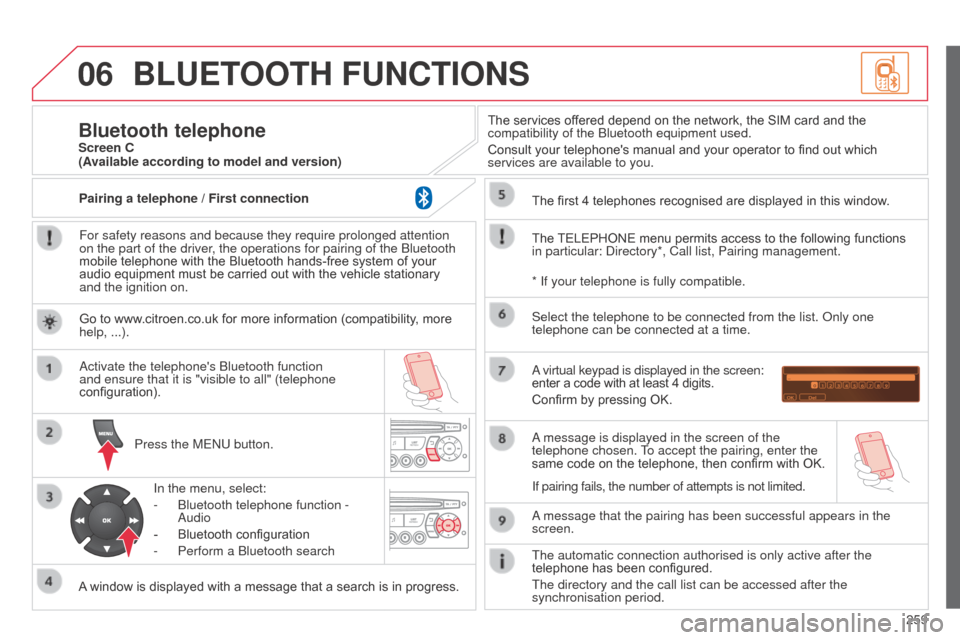
For safety reasons and because they require prolonged attention
on the part of the driver, the operations for pairing of the b luetooth
mobile telephone with the Bluetooth hands-free system of your
audio equipment must be carried out with the vehicle stationary
and the ignition on.
Press the ME
n U button.
A window is displayed with a message that a search is in progress.
a
ctivate the telephone's b luetooth function
and ensure that it is "visible to all" (telephone
configuration).
In the menu, select:
-
b luetooth telephone function -
a
udio
-
Bluetooth configuration
-
Perform a
b luetooth search The services offered depend on the network, the SIM card and the
compatibility of the
b luetooth equipment used.
Consult your telephone's manual and your operator to find out which
services are available to you.
Bluetooth telephoneScreen C
The TELEPHONE menu permits access to the following functions
in particular:
d irectory*, Call list, Pairing management.
The first 4 telephones recognised are displayed in this window.
a virtual keypad is displayed in the screen:
enter a code with at least 4 digits.
Confirm by pressing OK.
a message that the pairing has been successful appears in the
screen. Select the telephone to be connected from the list.
o nly one
telephone can be connected at a time.
a message is displayed in the screen of the
telephone chosen.
To accept the pairing, enter the
same code on the telephone, then confirm with OK.
The automatic connection authorised is only active after the
telephone has been configured.
The directory and the call list can be accessed after the
synchronisation period.
(Available according to model and version)
* If your telephone is fully compatible.
If pairing fails, the number of attempts is not limited.
Go to www.citroen.co.uk for more information (compatibility, more
help, ...).
Pairing a telephone / First connection