Page 45 of 615
NOTE:The transmission must be in PARK before the
button will operate.
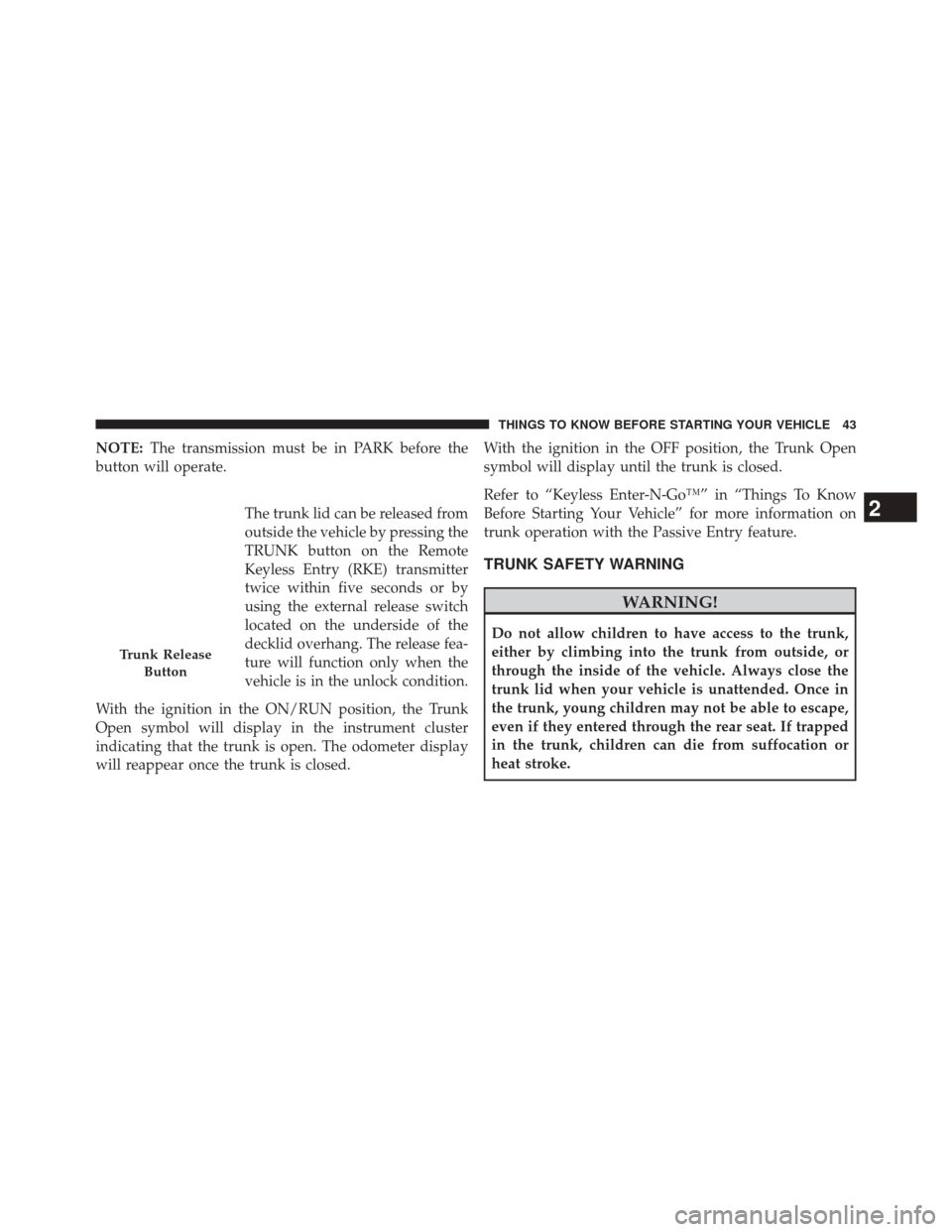
The trunk lid can be released from
outside the vehicle by pressing the
TRUNK button on the Remote
Keyless Entry (RKE) transmitter
twice within five seconds or by
using the external release switch
located on the underside of the
decklid overhang. The release fea-
ture will function only when the
vehicle is in the unlock condition.
With the ignition in the ON/RUN position, the Trunk
Open symbol will display in the instrument cluster
indicating that the trunk is open. The odometer display
will reappear once the trunk is closed. With the ignition in the OFF position, the Trunk Open
symbol will display until the trunk is closed.
Refer to “Keyless Enter-N-Go™” in “Things To Know
Before Starting Your Vehicle” for more information on
trunk operation with the Passive Entry feature.
TRUNK SAFETY WARNING
WARNING!
Do not allow children to have access to the trunk,
either by climbing into the trunk from outside, or
through the inside of the vehicle. Always close the
trunk lid when your vehicle is unattended. Once in
the trunk, young children may not be able to escape,
even if they entered through the rear seat. If trapped
in the trunk, children can die from suffocation or
heat stroke.
Trunk Release
Button
2
THINGS TO KNOW BEFORE STARTING YOUR VEHICLE 43
Page 72 of 615
positioned in the area where the side curtain air bag
inflates. This especially applies to children. The side
curtain air bag is only about 3-1/2 in (9 cm) thick when
it is inflated.
Because air bag sensors estimate deceleration over time,
vehicle speed and damage are not good indicators of
whether or not an air bag should have deployed.
Front And Side Impact Sensors
In front and side impacts, impact sensors can aid the
ORC in determining appropriate response to impact
events.
Enhanced Accident Response System
In the event of an impact causing air bag deployment, if
the communication network remains intact, and the
power remains intact, depending on the nature of theevent the ORC will determine whether to have the
Enhanced Accident Response System perform the follow-
ing functions:
•
Cut off fuel to the engine.
• Flash hazard lights as long as the battery has power or
until the ignition key is turned off.
• Turn on the interior lights, which remain on as long as
the battery has power, until the ignition key is re-
moved or the ignition switch is changed to OFF using
the Keyless Go START/STOP button.
• Unlock the doors automatically.
In order to reset the Enhanced Accident Response System
functions after an event, the ignition switch must be
changed from IGN ON to IGN OFF.
70 THINGS TO KNOW BEFORE STARTING YOUR VEHICLE
Page 108 of 615
�Uconnect® PHONE (8.4/8.4N) .............127
▫ Uconnect® 8.4/8.4Nav ..................127
▫ Operation ......................... .130
▫ Phone Call Features ...................142
▫ Uconnect® Phone Features ..............147
▫ Advanced Phone Connectivity ............151
▫ Things You Should Know About Your
Uconnect® Phone .....................152
▫ General Information ...................163
� VOICE COMMAND ....................163
▫ Uconnect® 8.4/8.4 Nav .................163
▫ Uconnect® Voice Commands .............166
� SEATS ............................. .177▫
Power Seats ........................ .177
▫ Power Lumbar — If Equipped ............180
▫ Heated Seats — If Equipped .............181
▫ Front Ventilated Seats — If Equipped .......183
▫ Head Restraints ..................... .184
▫ Folding Rear Seat .....................186
� DRIVER MEMORY SEAT — IF EQUIPPED . . . .188
▫ Programming The Memory Feature .........189
▫ Linking And Unlinking The Remote Keyless
Entry Transmitter To Memory .............189
▫ Memory Position Recall .................190
▫ Easy Entry/Exit Seat ...................191
� TO OPEN AND CLOSE THE HOOD .........192
106 UNDERSTANDING THE FEATURES OF YOUR VEHICLE
Page 116 of 615
Three of the LEDs are turn signal indicators, which flash
with the corresponding turn signal lights in the front and
rear of the vehicle. Turning on the Hazard Warning
flashers will also activate these LEDs.
The fourth LED supplies illuminated entry lighting,
which turns on in both mirrors when you use the Remote
Keyless Entry (RKE) transmitter or open any door. This
LED shines outward to illuminate the front and rear door
handles. It also shines downward to illuminate the area
in front of the doors.
The Illuminated Entry lighting fades to off after about 30
seconds or it will fade to off immediately once the
ignition is placed into the RUN position.
NOTE:The approach lighting will not function when the
shift lever is moved out of the PARK position.Tilt Mirrors In Reverse — If Equipped
Tilt Mirrors in Reverse provides automatic outside mirror
positioning which will aid the driver ’s view of the
ground rearward of the front doors. The outside mirrors
will move slightly downward from the present position
when the vehicle is shifted into REVERSE. The outside
mirrors will then return to the original position when the
vehicle is shifted out of the REVERSE position. Each
stored memory setting will have an associated Tilt Mir-
rors in Reverse position.
NOTE: The Tilt Mirrors in Reverse feature is not turned
on when delivered from the factory. The Tilt Mirrors in
Reverse feature can be turned on and off using the
Uconnect® System. Refer to “Uconnect® Settings” in
“Understanding Your Instrument Panel” for further in-
formation.
114 UNDERSTANDING THE FEATURES OF YOUR VEHICLE
Page 130 of 615
•Hands Free text to speech listening of your incoming
SMS messages.
• Hands Free text messaging (“Send a message to John
Smith Mobile”).
• Redialing last dialed numbers (“Redial”).
• Calling Back the last incoming call number (“Call
Back”).
• View Call logs on screen (“Show incoming calls,”
“Show Outgoing calls,” “Show missed Calls,” “Show
Recent Calls”).
• Searching Contacts phone number (“Search for John
Smith Mobile”). Screen Activated Features
•
Dialing via Keypad using touchscreen.
• Viewing and Calling contacts from Phonebooks dis-
played on the touchscreen.
• Setting Favorite Contact Phone numbers so they are
easily accessible on the Main Phone screen.
• Viewing and Calling contacts from Recent Call logs.
• Reviewing your recent Incoming SMS.
• Sending a text message via the touchscreen.
• Listen to Music on your Bluetooth® Device via the
touchscreen.
• Pairing up to 10 phones/audio devices for easy access
to connect to them quickly.
128 UNDERSTANDING THE FEATURES OF YOUR VEHICLE
Page 135 of 615
NOTE:
•You must have Bluetooth® enabled on your mobile
phone to complete this procedure.
• The vehicle must be in PARK.
To complete the pairing process, you will need to refer-
ence your mobile phone Owner’s Manual. The
Uconnect® website may also provide detailed instruc-
tions for pairing.
1. Touch the “Phone” soft-key on the screen to begin.
2. If there is no phone currently connected with the system, a pop-up will appear. 3. Select “Yes” to begin the pairing process. Then, search
for available devices on your Bluetooth® enabled
mobile phone. When prompted on the phone, enter
the name and PIN shown on the Uconnect® screen.
• If “No” is selected, touch the “Settings” soft-key
from the Uconnect® Phone main screen.
Mobile Phone Pairing
3
UNDERSTANDING THE FEATURES OF YOUR VEHICLE 133
Page 136 of 615
•Touch the “Add Device” soft-key.
• Search for available devices on your Bluetooth®
enabled mobile phone. When prompted on the
phone, enter the name and PIN shown on the
Uconnect® screen.
• See step 4 to complete the process.
4. Uconnect® Phone will display an in progress screen while the system is connecting.
5. When the pairing process has successfully completed,the system will prompt you to choose whether or not
this is your favorite phone. Selecting “Yes” will make
this phone the highest priority. This phone will take
precedence over other paired phones within range.
Mobile Phone Pairing Progress
134 UNDERSTANDING THE FEATURES OF YOUR VEHICLE
Page 137 of 615
Pair Additional Mobile Phones
1. Touch the “Settings” soft-key from the Phone mainscreen.
2. Touch the “Add Device” soft-key.
3. Search for available devices on your Bluetooth® en- abled mobile phone. When prompted on the phone,
enter the name and PIN shown on the Uconnect®
screen.
4. Uconnect® Phone will display an in process screen while the system is connecting.
5. When the pairing process has successfully completed, the system will prompt you to choose whether or not
this is your favorite phone. Selecting “Yes” will make
this phone the highest priority. This phone will take
precedence over other paired phones within range. NOTE:
For phones which are not made a favorite, the
phone priority is determined by the order in which it was
paired. The latest phone paired will have the higher
priority.
You can also use the following VR commands to bring up
the Paired Phone screen from any screen on the radio:
• “Show Paired Phones”
• “Connect My Phone”
Pair A Bluetooth® Streaming Audio Device
1. Touch the “Player” soft-key to begin.
2. Change the Source to Bluetooth®.
3. Touch the “Bluetooth®” soft-key to display the Paired
Audio Devices screen.
4. Touch the “Add Device” soft-key.
3
UNDERSTANDING THE FEATURES OF YOUR VEHICLE 135