Page 207 of 615
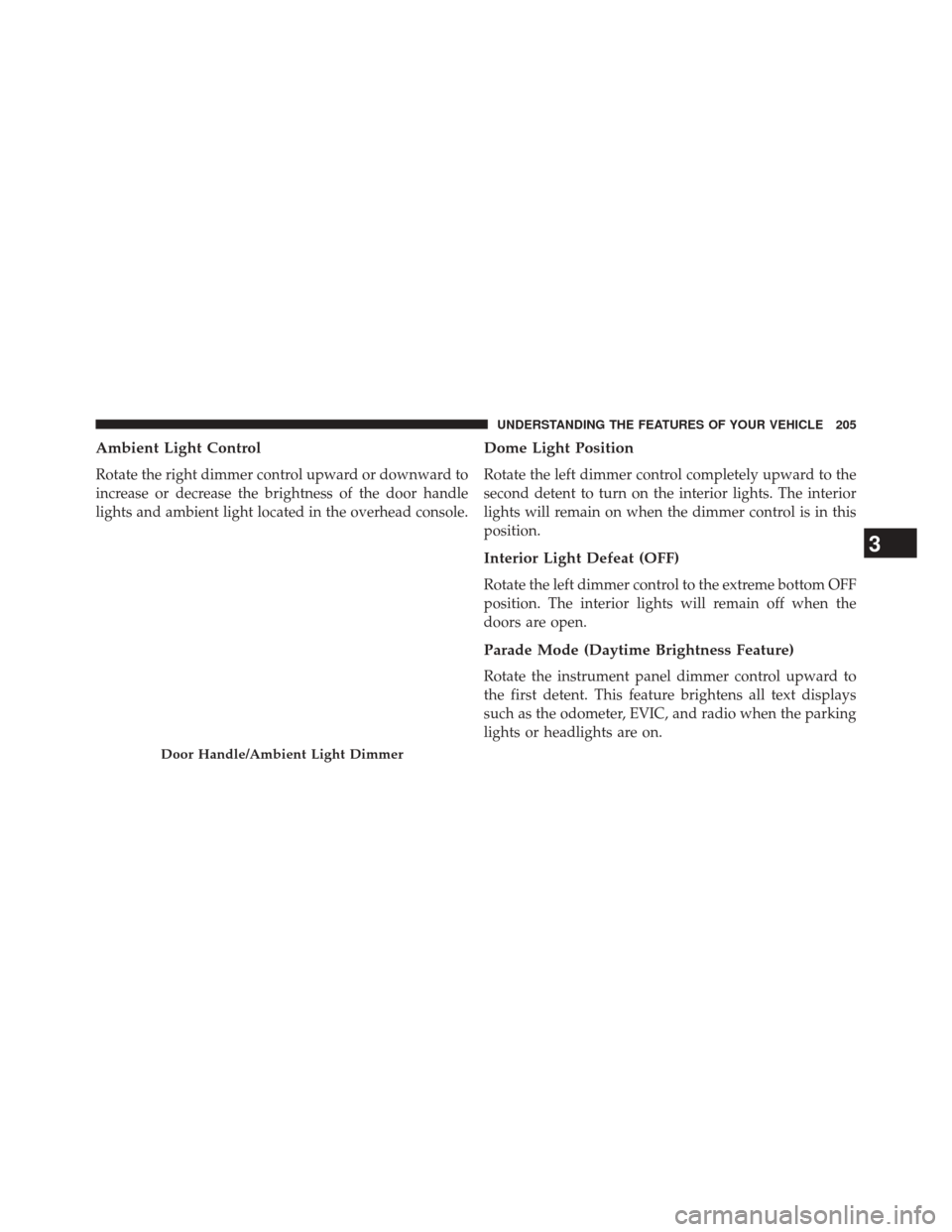
Ambient Light Control
Rotate the right dimmer control upward or downward to
increase or decrease the brightness of the door handle
lights and ambient light located in the overhead console.
Dome Light Position
Rotate the left dimmer control completely upward to the
second detent to turn on the interior lights. The interior
lights will remain on when the dimmer control is in this
position.
Interior Light Defeat (OFF)
Rotate the left dimmer control to the extreme bottom OFF
position. The interior lights will remain off when the
doors are open.
Parade Mode (Daytime Brightness Feature)
Rotate the instrument panel dimmer control upward to
the first detent. This feature brightens all text displays
such as the odometer, EVIC, and radio when the parking
lights or headlights are on.
Door Handle/Ambient Light Dimmer
3
UNDERSTANDING THE FEATURES OF YOUR VEHICLE 205
Page 210 of 615
two wipe cycles after releasing the lever and then resume
the intermittent interval previously selected.
If you activate the washer while the windshield wiper is
turned off, the wipers will operate for three wipe cycles
and then turn off.
WARNING!
Sudden loss of visibility through the windshield
could lead to a collision. You might not see other
vehicles or other obstacles. To avoid sudden icing of
the windshield during freezing weather, warm the
windshield with the defroster before and during
windshield washer use.
Headlights On With Wipers (Available With
Automatic Headlights Only)
When this feature is active, the headlights will turn on
approximately 10 seconds after the wipers are turned onif the headlight switch is placed in the AUTO position. In
addition, the headlights will turn off when the wipers are
turned off if they were turned on by this feature.
NOTE:
The Headlights On with Wipers feature can be
turned on or off using the Uconnect® System. Refer to
“Uconnect® Settings/Customer Programmable Fea-
tures” in “Understanding Your Instrument Panel” for
further information.
Rain Sensing Wipers — If Equipped
This feature senses moisture on the windshield and
automatically activates the wipers for the driver. The
feature is especially useful for road splash or over spray
from the windshield washers of the vehicle ahead. Rotate
the end of the multifunction lever to one of four settings
to activate this feature.
The sensitivity of the system can be adjusted with the
multifunction lever. Wiper delay position 1 is the least
208 UNDERSTANDING THE FEATURES OF YOUR VEHICLE
Page 234 of 615
If there is no vehicle ahead, the vehicle will maintain the set
speed. If a slower moving vehicle is detected in the same
lane, the EVIC displays the “Sensed Vehicle Indicator”
icon, and the system adjusts vehicle speed automatically to
maintain the distance setting, regardless of the set speed.
The vehicle will then maintain the set distance until:
•The vehicle ahead accelerates to a speed above the set
speed.
• The vehicle ahead moves out of your lane or view of
the sensor.
• The vehicle ahead slows to a speed below 15 mph
(25 km/h) and the system automatically disengages
itself.
• The distance setting is changed.
• The system disengages. (Refer to the information on
ACC Activation). The maximum braking applied by ACC is limited; how-
ever, the driver can always apply the brakes manually, if
necessary.
NOTE:
The brake lights will illuminate whenever the
ACC system applies the brakes.
A Proximity Warning will alert the driver if ACC predicts
that its maximum braking level is not sufficient to
maintain the set distance. If this occurs, a visual alert
“BRAKE” will flash in the EVIC and a chime will sound
while ACC continues to apply its maximum braking
capacity. When this occurs, you should immediately
apply the brakes as needed to maintain a safe distance
from the vehicle ahead.
232 UNDERSTANDING THE FEATURES OF YOUR VEHICLE
Page 261 of 615
WARNING!
Drivers must be careful when backing up even when
using the ParkView® Rear Back Up Camera. Always
check carefully behind your vehicle, and be sure to
check for pedestrians, animals, other vehicles, ob-
structions, or blind spots before backing up. You are
responsible for the safety of your surroundings and
must continue to pay attention while backing up.
Failure to do so can result in serious injury or death.
CAUTION!
•To avoid vehicle damage, ParkView® should only
be used as a parking aid. The ParkView® camera is
unable to view every obstacle or object in your
drive path.
(Continued)
CAUTION! (Continued)
•To avoid vehicle damage, the vehicle must be
driven slowly when using ParkView® to be able to
stop in time when an obstacle is seen. It is recom-
mended that the driver look frequently over his/her
shoulder when using ParkView®.
NOTE: If snow, ice, mud, or any foreign substance
builds up on the camera lens, clean the lens, rinse with
water, and dry with a soft cloth. Do not cover the lens.
OVERHEAD CONSOLE
The overhead console contains courtesy/reading lights
and storage for sunglasses. Universal Garage Door
Opener (HomeLink®) and power sunroof switches may
also be included, if equipped.
3
UNDERSTANDING THE FEATURES OF YOUR VEHICLE 259
Page 262 of 615
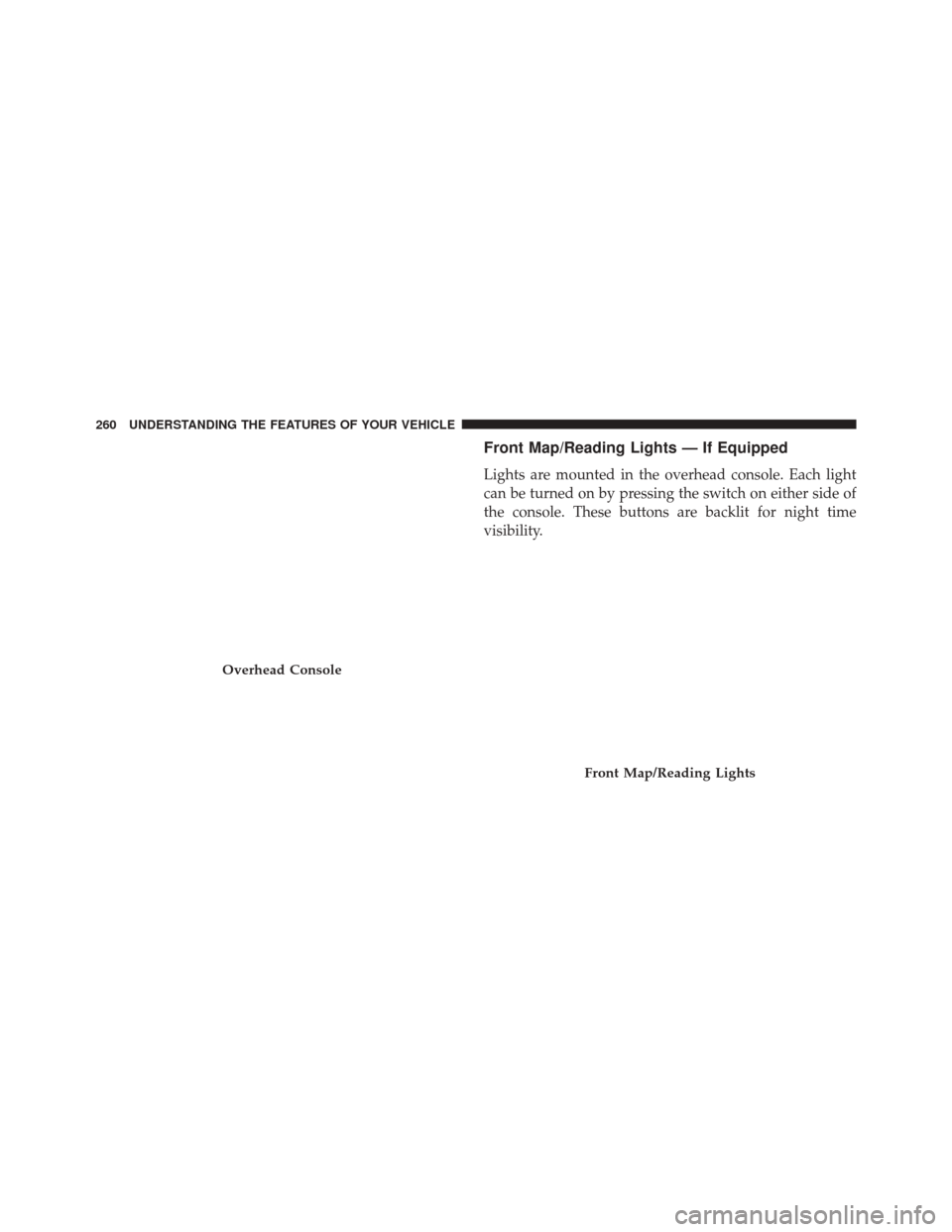
Front Map/Reading Lights — If Equipped
Lights are mounted in the overhead console. Each light
can be turned on by pressing the switch on either side of
the console. These buttons are backlit for night time
visibility.
Overhead Console
Front Map/Reading Lights
260 UNDERSTANDING THE FEATURES OF YOUR VEHICLE
Page 306 of 615

INSTRUMENT CLUSTER DESCRIPTIONS
1. Tachometer
This gauge measures engine revolutions-per-minute
(RPM x 1000).
2. Park/Headlight ON Indicator — If EquippedThis indicator will illuminate when the park
lights or headlights are turned on.
3. Turn Signal Indicators The arrow will flash with the exterior turn
signal when the turn signal lever is operated.
If the vehicle electronics sense that the vehicle
is driven more than 1 mile (1.6 km) with either
turn signal on, a continuous chime will sound to alert
you to turn the signals off. If either indicator flashes at a
rapid rate, check for a defective outside light bulb. 4. Front Fog Light Indicator — If Equipped
This indicator will illuminate when the front
fog lights are on.
5. High Beam Indicator This indicator shows that the high beam head-
lights are on. Push the multifunction lever for-
ward to switch the headlights to high beam, and pull
toward yourself (normal position) to return to low beam.
6. Odometer Display/Electronic Vehicle Information
Center (EVIC) Display
•Odometer Display
The odometer display shows the total distance the
vehicle has been driven.
U.S. Federal regulations require that upon transfer of
vehicle ownership, the seller certify to the purchaser
the correct mileage that the vehicle has been driven. If
304 UNDERSTANDING YOUR INSTRUMENT PANEL
Page 333 of 615
When making a selection, press the soft-key to enter the
desired mode. Once in the desired mode press and release
the preferred setting until a check-mark appears next to the
setting, showing that setting has been selected.
Once the setting is complete press the “Back Arrow”
soft-key to return to the previous menu or press the “X”
soft-key to close out of the settings screen. Pressing the
“Up” or “Down” arrow soft-keys on the right side of the
screen will allow you to toggle up or down through the
available settings.
Display
After pressing the Display soft-key the following settings
will be available.
•Display Mode
When in this display you may select one of the auto
display settings. To change Mode status, touch and
release the “Day,” “Night” or “Auto” soft-key. Then
touch the back arrow soft-key. •
Display Brightness With Headlights ON
When in this display, you may select the brightness with
the headlights on. Adjust the brightness with the “+” and
“–” setting soft-keys or by selecting any point on the scale
between the “+” and “–” soft-keys. Then touch the back
arrow soft-key.
• Display Brightness With Headlights OFF
When in this display, you may select the brightness with
the headlights off. Adjust the brightness with the “+” and
“–” setting soft-keys or by selecting any point on the scale
between the “+” and “–” soft-keys. Then touch the back
arrow soft-key.
• Set Language
When in this display, you may select one of three
languages for all display nomenclature, including the trip
functions and the navigation system (if equipped). Touch
the “Set Language” soft-key and then touch the desired
4
UNDERSTANDING YOUR INSTRUMENT PANEL 331
Page 339 of 615
until a check-mark appears next to setting, showing that
setting has been selected. Touch the back arrow soft-key
to return to the previous menu.
•Rain Sensing Auto Wipers — If Equipped
When this feature is selected, the system will automati-
cally activate the windshield wipers if it senses moisture
on the windshield. To make your selection, touch the
Rain Sensing soft-key, until a check-mark appears next to
setting, showing that setting has been selected. Touch the
back arrow soft-key to return to the previous menu.
• Hill Start Assist — If Equipped
When this feature is selected, the Hill Start Assist (HSA)
system is active. Refer to “Electronic Brake Control
System” in “Starting And Operating” for system function
and operating information. To make your selection, touch
the Hill Start Assist soft-key, until a check-mark appears next to setting, showing that setting has been selected.
Touch the back arrow soft-key to return to the previous
menu.
Lights
After pressing the Lights button on the touchscreen the
following settings will be available.
•
Headlights Off Delay
When this feature is selected, it allows the adjustment of
the amount of time the headlights remain on after the
engine is shut off. To change the Headlights Off Delay
setting, press the “Headlights Off Delay” button on the
touchscreen, and choose either 0 sec, 30 sec, 60 sec or 90
seconds. A check-mark appears next to setting indicating
that the setting has been selected. Press the back arrow
button on the touchscreen to return to the previous
menu, or push the back button on the faceplate.
4
UNDERSTANDING YOUR INSTRUMENT PANEL 337