2014 CHEVROLET SS audio
[x] Cancel search: audioPage 148 of 422

Black plate (12,1)Chevrolet SS Sedan Owner Manual (GMNA-Localizing-U.S.-6014851) - 2014 -
1st Edition - 8/22/13
7-12 Infotainment System
10 minutes. Opening the driver door
will not turn the radio off when
pressing the power button.
Some radios may stay on longer
and reset the time for 10 minutes if
there are any additional presses of
any radio button.
The radio can be turned off at any
time by pressing the power button.
Audio Source
Press SRCE or SRC on the steering
wheel controls to display and scroll
through the available sources AM,
FM, XM (if equipped), Pandora (if
equipped), Stitcher, USB, AUX, and
Bluetooth Audio.
Infotainment System Settings
Tone Settings
To access the tone settings, press
the Tone Settings button on the
Home Page. Tone settings are
specific to each source.
To adjust the settings:
.Bass: Press + or−to change
the level.
.Mid (Midrange): Press + or −to
change the level.
.Treble: Press + or −to change
the level.
.EQ: Press or turn the TUNE/
MENU knob to cycle through the
preset EQ options.
.Fade: Press the F or R button
for more sound from the front or
rear speakers. The middle
position balances the sound
between the front and rear
speakers.
.Balance: Press the L or R button
for more sound from the left or
right speakers. The middle
position balances the sound
between the left and right
speakers.
Finding a Station
Press SRCE or SRC on the steering
wheel controls to select AM, FM,
XM, Pandora (if equipped), Stitcher,
USB, AUX, and Bluetooth Audio.
Turn the TUNE/MENU knob to find
a radio station. To select a preset
station, press FAV to scroll through
the favorite pages and then press a
preset button on the radio or the
screen button.
Seeking a Station
Press
©SEEK or SEEK¨to search
for a station.
ProCarManuals.com
Page 150 of 422

Black plate (14,1)Chevrolet SS Sedan Owner Manual (GMNA-Localizing-U.S.-6014851) - 2014 -
1st Edition - 8/22/13
7-14 Infotainment System
Storing Radio Station Presets
Up to 36 preset stations can be
stored. AM, FM, and XM can be
mixed.
1. From the AM, FM, or XM mainpage, press and hold any of the
1–6 buttons or one of the preset
screen buttons at the bottom of
the screen. After a few seconds,
a beep is heard and the new
preset information displays on
that screen button.
2. Repeat for each preset.
Mixed-Band Presets
Each favorite page can store
six preset stations. The presets
within a page can be different radio
bands.
To scroll through the pages, press
the Fav screen button on the top
bar. The current page number
displays above the preset buttons.
The stored stations for each favorite
page display on the preset buttons. To change the number of favorite
pages displayed:
1. Press Config on the
Home Page.
2. Press Radio Settings.
3. Press Number of Favorite Pages.
Recalling a Preset Station
To recall a preset station from a
favorites page, do one of the
following:
.Press the Fav screen button at
the top bar to display the preset
pop-up. Press one of the preset
screen buttons to go to the
selected preset station.
.In the AM, FM, or XM main
page, press one of the preset
screen buttons to go to the
selected preset station.
Radio Data System (RDS)
RDS features are available for use
only on FM stations that broadcast
RDS information. With RDS, the
radio can:
.Seek to stations broadcasting
the selected type of
programming.
.Receive announcements
concerning local and national
emergencies.
.Display messages from radio
stations.
This system relies on receiving
specific information from these
stations and only works when the
information is available. It is
possible that a radio station could
broadcast incorrect information that
causes the radio features to work
improperly. If this happens, contact
the radio station.
When information is broadcast from
the current FM station, the station
name or call letters display on the
audio screen. RDS can provide a
ProCarManuals.com
Page 151 of 422
Black plate (15,1)Chevrolet SS Sedan Owner Manual (GMNA-Localizing-U.S.-6014851) - 2014 -
1st Edition - 8/22/13
Infotainment System 7-15
program type (PTY) for current
programming and the name of the
program being broadcasted.
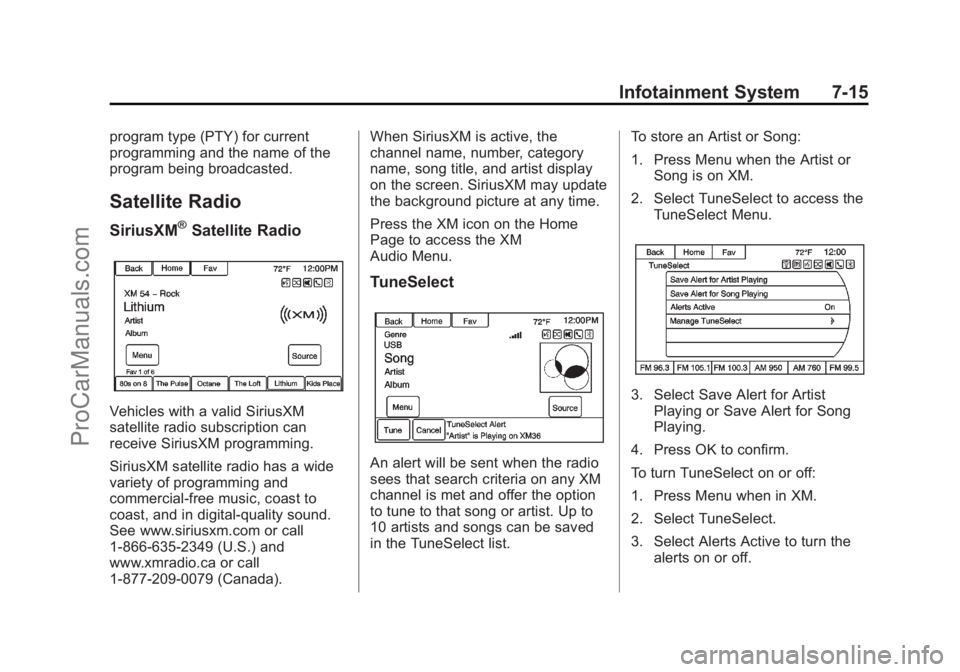
Satellite Radio
SiriusXM®Satellite Radio
Vehicles with a valid SiriusXM
satellite radio subscription can
receive SiriusXM programming.
SiriusXM satellite radio has a wide
variety of programming and
commercial-free music, coast to
coast, and in digital-quality sound.
See www.siriusxm.com or call
1-866-635-2349 (U.S.) and
www.xmradio.ca or call
1-877-209-0079 (Canada).When SiriusXM is active, the
channel name, number, category
name, song title, and artist display
on the screen. SiriusXM may update
the background picture at any time.
Press the XM icon on the Home
Page to access the XM
Audio Menu.
TuneSelect
An alert will be sent when the radio
sees that search criteria on any XM
channel is met and offer the option
to tune to that song or artist. Up to
10 artists and songs can be saved
in the TuneSelect list.
To store an Artist or Song:
1. Press Menu when the Artist or
Song is on XM.
2. Select TuneSelect to access the TuneSelect Menu.
3. Select Save Alert for ArtistPlaying or Save Alert for Song
Playing.
4. Press OK to confirm.
To turn TuneSelect on or off:
1. Press Menu when in XM.
2. Select TuneSelect.
3. Select Alerts Active to turn the alerts on or off.
ProCarManuals.com
Page 158 of 422

Black plate (22,1)Chevrolet SS Sedan Owner Manual (GMNA-Localizing-U.S.-6014851) - 2014 -
1st Edition - 8/22/13
7-22 Infotainment System
obstructions for clear reception.
If the vehicle has a sunroof, and it is
open, reception can also be
affected.
Quick Info
Quick Info gives access to quick
information on Audio playing,
OnStar Turn-by-Turn route (if
equipped), 5-day forecast, Nearby
Fuel Stations, and Movie Show
Times.
To access, press Quick Info on the
Home Page or the INFO button on
the faceplate. Depending on the
system and if the options are
available for that region, some
options may be grayed out.Audio Info:
Displays information
on the current item playing.
OnStar Turn by Turn: Displays
the next maneuver in a route. See
OnStar
®Destination Download on
page 7-59.
5-day Forecast: Displays the
5-day forecast for the weather
station closest to the current
location. See “SiriusXM Travel Link
Weather” inSatellite Radio on
page 7-15.
Nearby Fuel Stations: Displays
fuel prices and distances for close
fuel stations. See “SiriusXM Travel
Link Fuel Prices” under“SiriusXM
Travel Link (If Available)” inSatellite
Radio on page 7-15.
Movie Showtimes: Displays a list
of movies playing in the theaters
closest to the current location. See
“SiriusXM Travel Link Movie
Listings” under“SiriusXM Travel
Link (If Available)” inSatellite Radio
on page 7-15.
Pandora Internet Radio
Pandora (if equipped) is a free
Internet radio service that streams
personalized radio stations based
on artists, songs, genres, and
comedians. Create stations using
the Pandora website or smartphone
application, then use
-(thumbs up)
or
,(thumbs down) to personalize
stations. To set up an account, or for
more information, go to
www.pandora.com.
A phone or tablet with Internet
connection and the Pandora
application installed is required.
Personal cell phone data plans are
used. Make sure the latest version
is installed on the device and the
volume is turned up.
To install Pandora:
.On an Android™ phone or
Android Tablet, go to the Android
Play Store, and search for
Pandora. Install to the phone,
not to the SD card.
ProCarManuals.com
Page 159 of 422

Black plate (23,1)Chevrolet SS Sedan Owner Manual (GMNA-Localizing-U.S.-6014851) - 2014 -
1st Edition - 8/22/13
Infotainment System 7-23
.On a BlackBerry®phone, go to
the BlackBerry App World™ and
search for Pandora.
.On an iPhone®, iPad®, or iPod
touch®, go to the iTunes®Store
and search for Pandora.
Launching Pandora
Connect the iPhone, iPad, or iPod
touch to the USB port, or connect
an Android or BlackBerry through
Bluetooth. See Auxiliary Devices on
page 7-40 orBluetooth on
page 7-75. For first-time use, set up
stations before connecting to the
vehicle. The Pandora icon will be
available on the Home Page and
the source pop-up displays if the
latest application is installed on the
device.
Using the iPhone, iPod Touch,
or iPad
1. Plug the device into the USB
port. The phone screen must be
unlocked. 2. To launch, do one of the
following:
.Launch the application on
the device.
.Press Pandora on the
Home Page.
.Pressb/gand say
“Pandora” or“Tune
Pandora.”
.Accept any notification on
the screen of the device.
To relaunch Pandora, press SRCE
or SRC on the steering wheel
controls.
If nothing happens when the
available Pandora screen button is
pressed, download the latest
Pandora application and retry.
Pandora will always be highlighted
on the Home Page when an iPhone,
iPad, or iPod touch is connected
using the USB port. To use, log into
your account. If the
“Please See Device” message
is shown, the login screen may
display on the device.
If the “Please Unlock the Phone or
Restart the App and Try Again”
message is shown, then the phone
may be locked. Unlock the phone,
close the app, then restart the app
and make sure the Home Page is
visible on the phone/device.
If the vehicle is shut off while tuned
to Pandora and the iPhone, iPad,
or iPod touch is left connected to
the USB port before the next ignition
cycle, the radio will start playing
Pandora when the vehicle is started.
If Pandora is shut down on the
phone or another audio app is used,
Pandora may not start on the next
ignition cycle. If iPod source is
selected, it may show iPod and then
switch to Pandora.
Using an Android Phone
1. Pair the Android phone using Bluetooth.
ProCarManuals.com
Page 162 of 422

Black plate (26,1)Chevrolet SS Sedan Owner Manual (GMNA-Localizing-U.S.-6014851) - 2014 -
1st Edition - 8/22/13
7-26 Infotainment System
This is not required for Android
devices. SeeStitcher Internet Radio
on page 7-27.
Pandora Troubleshooting
Unable to Connect Device to
Vehicle
If the device is unable to connect to
the USB or Bluetooth:
1. Turn the vehicle off.
2. Remove the key from the ignition.
3. Open and close the driver door, wait about 30 seconds, and try
to connect the device again.
Unable to Start Pandora
If the device is unable to launch
Pandora:
.Check that the latest version of
Pandora is installed.
.Check that there is an active
account logged into Pandora.
.Have at least one station
created.
.For Android and BlackBerry
devices, check that the device is
paired with the vehicle, and the
Bluetooth icon on the display is
highlighted.
.For iPhone, iPod touch, or iPad
devices, check that the USB
cable is connected to the USB
port and the screen is unlocked.
.Close Pandora on the device
and launch again. Devices that
allow multitasking may require
an extra step to quit the Pandora
application. See the cell phone
manufacturer's user guide.
Thumbs Up or Thumbs Down
Error
If there is an error trying to rate a
track with the
,or-buttons, an
error message will display. Press
OK to retry.
Loss of Audio
Loss of Pandora audio can happen
in different ways:
.Weak or lost data connection.
.Device needs to be charged.
.Application needs to be
relaunched.
.Connection between phone and
radio lost.
.If any iPhone, iPod touch,
or iPad is connected to
Bluetooth and the dock
connector, go to the Airplay icon
on the device and select dock
connector or disconnect and
reconnect the dock connector on
the device.
.The volume is too low. Turn up
the volume on the device.
.The battery saver and task
manager applications on the
phone can cause Pandora to
function incorrectly. Remove
those apps from the phone or
remove Pandora and Bluetooth
from the task lists.
ProCarManuals.com
Page 163 of 422

Black plate (27,1)Chevrolet SS Sedan Owner Manual (GMNA-Localizing-U.S.-6014851) - 2014 -
1st Edition - 8/22/13
Infotainment System 7-27
If the connection is lost between the
application and device, a message
“Please unlock your phone or restart
the phone app and try again”will
display. Press OK to retry.
If pressing OK does not clear the
issue on the phone, see “Please
Unlock Your Phone or Restart
Phone App and Try Again” under
"Common Pandora Messages"
following.
Common Pandora Messages
Please See Device: When not
logged in or when authentication
failed, see the device. Press OK to
continue.
Paused or Audio Paused:
Playback is paused on the radio or
the device. Press
Jor play on the
device.
No Stations Found: Logged in but
no stations have been created.
Press OK to continue. Please Unlock Your Phone or
Restart Phone App and Try
Again:
Communication failure
between the radio and the phone
application, or the device is locked.
Devices that allow multitasking may
require an extra step to quit the
Pandora application. Close Pandora
on the device and launch again.
Unlock the phone and check that
Home Page is displayed on the
phone/device.
See the cell phone manufacturer's
user guide.
See www.pandora.com/help for
more information. If the service will
not work, see your dealer for
assistance.Stitcher Internet Radio
Stitcher SmartRadio™ is an Internet
radio service that streams news,
sports, and entertainment shows
through the audio system. Create
personalized, on-demand stations or
discover new shows through Stitcher's preset stations. To set up
an account, download the
application from the Android Market
or iTunes Store, or go to
www.stitcher.com.
A phone or tablet with Internet
connection is required for this
application. Personal cell phone
data plans are used. Make sure the
latest version is installed on the
device and the volume on the
device is turned up.
BlackBerry phones are not
supported for this application.
To install Stitcher:
.On an Android phone or Tablet
with Internet connection, go to
the Android Play Store, search
for Stitcher, and install to the
phone, not to the SD card.
.On an iPhone, iPad, or iPod
touch, go to the iTunes Store
and search for Stitcher.
ProCarManuals.com
Page 166 of 422

Black plate (30,1)Chevrolet SS Sedan Owner Manual (GMNA-Localizing-U.S.-6014851) - 2014 -
1st Edition - 8/22/13
7-30 Infotainment System
the show. This helps Stitcher
provide a personalized listening
experience.
l(Next Show):When pressed,
Stitcher changes to the next show.
J(Play/Pause): Press on the
radio to pause playback. Press
again to resume.
Stitcher Advertisement
Stitcher may display
advertisements. Artist name and title
may not display and the skip track
button is not available.
Stitcher Troubleshooting
Unable to Connect Device to
Vehicle
If the device is unable to connect to
the USB or Bluetooth:
1. Turn the vehicle off.
2. Remove the key from the ignition.
3. Open and close the driver door, wait about 30 seconds, and try
to connect the device again. The battery saver and task manager
applications on the phone can
cause Stitcher to function
incorrectly. Remove those apps
from the phone or remove Stitcher
and Bluetooth from the task lists.
Unable to Start Stitcher
If the device is unable to launch
Stitcher:
.Check that the latest version of
Stitcher is installed.
.Check that there is an active
account logged into Stitcher.
.For Android devices, check that
the device is paired with the
vehicle, and the Bluetooth icon
on the display is highlighted.
.For iPhone, iPod touch, or iPad
devices, check that the USB
cable is connected to the USB
port and the screen is unlocked
and the Home Page is showing.
.Close Stitcher on the device and
launch again. Devices that allow
multitasking may require an
extra step to quit the Stitcher
application. See the cell phone
manufacturer's user guide.
Loss of Audio
Loss of Stitcher audio can happen
due to:
.Weak or lost data connection.
.Device needs to be charged.
.Application needs to be
relaunched.
.Connection between phone and
radio is lost.
.If any iPhone, iPod touch,
or iPad is connected to
Bluetooth and the dock
connector, go to the Airplay icon
on the device and select dock
connector or disconnect and
reconnect the dock connector on
the device.
.The volume is too low. Turn up
the volume on the device.
ProCarManuals.com