2014 CHEVROLET SONIC lock
[x] Cancel search: lockPage 159 of 400
Black plate (17,1)Chevrolet Sonic Owner Manual (GMNA-Localizing-U.S./Canada-6081473) -
2014 - 2nd Edition - 8/19/13
Infotainment System 7-17
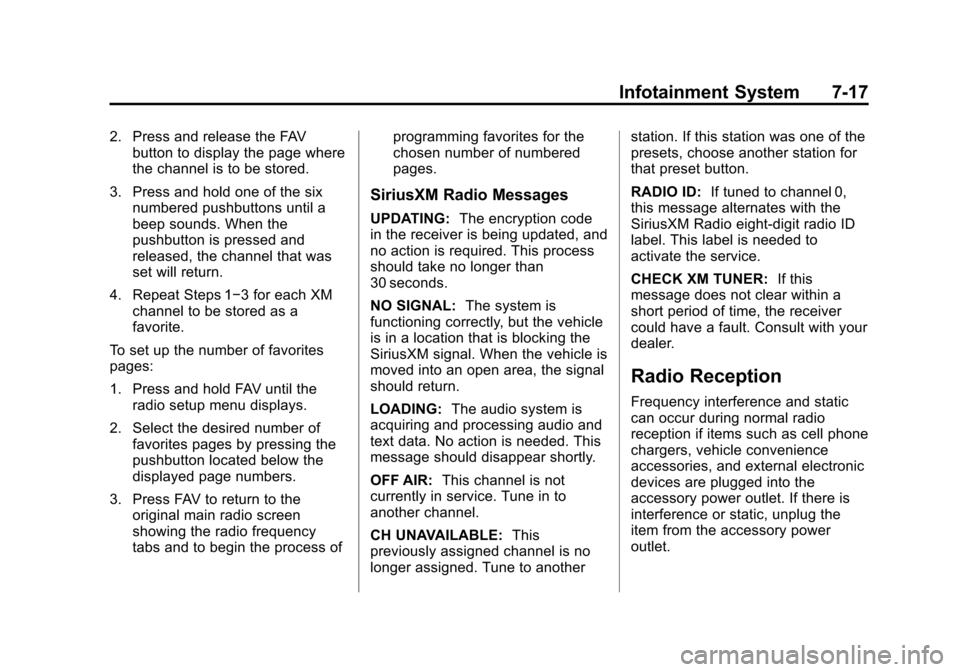
2. Press and release the FAVbutton to display the page where
the channel is to be stored.
3. Press and hold one of the six numbered pushbuttons until a
beep sounds. When the
pushbutton is pressed and
released, the channel that was
set will return.
4. Repeat Steps 1−3 for each XM channel to be stored as a
favorite.
To set up the number of favorites
pages:
1. Press and hold FAV until the radio setup menu displays.
2. Select the desired number of favorites pages by pressing the
pushbutton located below the
displayed page numbers.
3. Press FAV to return to the original main radio screen
showing the radio frequency
tabs and to begin the process of programming favorites for the
chosen number of numbered
pages.
SiriusXM Radio Messages
UPDATING:
The encryption code
in the receiver is being updated, and
no action is required. This process
should take no longer than
30 seconds.
NO SIGNAL: The system is
functioning correctly, but the vehicle
is in a location that is blocking the
SiriusXM signal. When the vehicle is
moved into an open area, the signal
should return.
LOADING: The audio system is
acquiring and processing audio and
text data. No action is needed. This
message should disappear shortly.
OFF AIR: This channel is not
currently in service. Tune in to
another channel.
CH UNAVAILABLE: This
previously assigned channel is no
longer assigned. Tune to another station. If this station was one of the
presets, choose another station for
that preset button.
RADIO ID:
If tuned to channel 0,
this message alternates with the
SiriusXM Radio eight-digit radio ID
label. This label is needed to
activate the service.
CHECK XM TUNER: If this
message does not clear within a
short period of time, the receiver
could have a fault. Consult with your
dealer.
Radio Reception
Frequency interference and static
can occur during normal radio
reception if items such as cell phone
chargers, vehicle convenience
accessories, and external electronic
devices are plugged into the
accessory power outlet. If there is
interference or static, unplug the
item from the accessory power
outlet.
Page 167 of 400
Black plate (25,1)Chevrolet Sonic Owner Manual (GMNA-Localizing-U.S./Canada-6081473) -
2014 - 2nd Edition - 8/19/13
Infotainment System 7-25
Playing Music
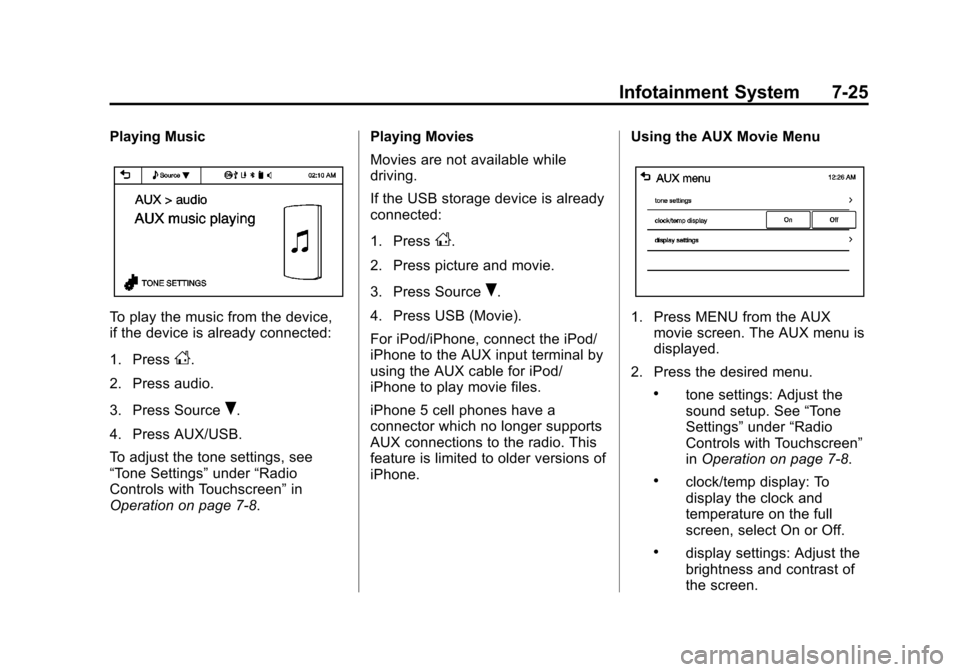
To play the music from the device,
if the device is already connected:
1. Press
D.
2. Press audio.
3. Press Source
R.
4. Press AUX/USB.
To adjust the tone settings, see
“Tone Settings” under“Radio
Controls with Touchscreen” in
Operation on page 7-8. Playing Movies
Movies are not available while
driving.
If the USB storage device is already
connected:
1. Press
D.
2. Press picture and movie.
3. Press Source
R.
4. Press USB (Movie).
For iPod/iPhone, connect the iPod/
iPhone to the AUX input terminal by
using the AUX cable for iPod/
iPhone to play movie files.
iPhone 5 cell phones have a
connector which no longer supports
AUX connections to the radio. This
feature is limited to older versions of
iPhone. Using the AUX Movie Menu
1. Press MENU from the AUX
movie screen. The AUX menu is
displayed.
2. Press the desired menu.
.tone settings: Adjust the
sound setup. See “Tone
Settings” under“Radio
Controls with Touchscreen”
in Operation on page 7-8.
.clock/temp display: To
display the clock and
temperature on the full
screen, select On or Off.
.display settings: Adjust the
brightness and contrast of
the screen.
Page 188 of 400
Black plate (46,1)Chevrolet Sonic Owner Manual (GMNA-Localizing-U.S./Canada-6081473) -
2014 - 2nd Edition - 8/19/13
7-46 Infotainment System
.Connect Andriod™phones
through Bluetooth.
iPod/iPhone Error Messages and
Solution
If the system fails to activate the
application on the iPod/iPhone
connected, an error message is
displayed as, “Unable to start
application, possible reasons.”
.Your iPhone is locked. To
resolve, unlock the iPhone.
.You have another active
application open. To resolve,
close the other active
application.
.You have not installed the
application on your iPhone. To
resolve, install the application on
the iPhone.
iOS Version Error
If the iOS version of the iPhone is
less than 4.0, the error message is
displayed as, “Your iPhone does not allow this application to be
opened on a USB connection.
Please refer to owner
’s manual.”
.Activate the application on your
iPhone, then press the desired
application menu on the
infotainment system.
Connecting Application Error
If the infotainment system fails to
activate the application on the
smartphone connected through
Bluetooth wireless technology, the
error message is displayed as,
“Connecting application error.”
.Reset all settings related to the
phone, then press the desired
application menu on the
infotainment system.
.Reconnect the smartphone and
infotainment system through
Bluetooth wireless technology,
then press the desired
application menu on the
infotainment system.
.When the application is stopped
on the smartphone, it usually
takes time to return to normal
operation. Try to activate the
application after 10–20 seconds.
To switch to another application
while playing an application and
connected through the USB port,
press the HOME button on the iPod/
iPhone, then press the application
icon on the infotainment system.
Switching Between a USB
Connected Device and a
Bluetooth Device
When the iPhone is connected to
the infotainment system through the
USB port, and the infotainment
system is connected to another
phone through Bluetooth wireless
technology, press iPhone or
bluetooth phone on the smartphone
list menu to switch between the two
applications.
Page 198 of 400
Black plate (56,1)Chevrolet Sonic Owner Manual (GMNA-Localizing-U.S./Canada-6081473) -
2014 - 2nd Edition - 8/19/13
7-56 Infotainment System
Some features are disabled while
the vehicle is in motion.
Viewing a Slide Show
1. From the picture screen, press
z. The slide show will start
to play.
2. Press the screen to cancel the slide show during the slide show
playback.
Viewing a Previous or Next
Picture
Press
torufrom the picture
screen.
Rotating a Picture
Press
yorwfrom the picture
screen.
Enlarging a Picture
Press
xfrom the picture screen.
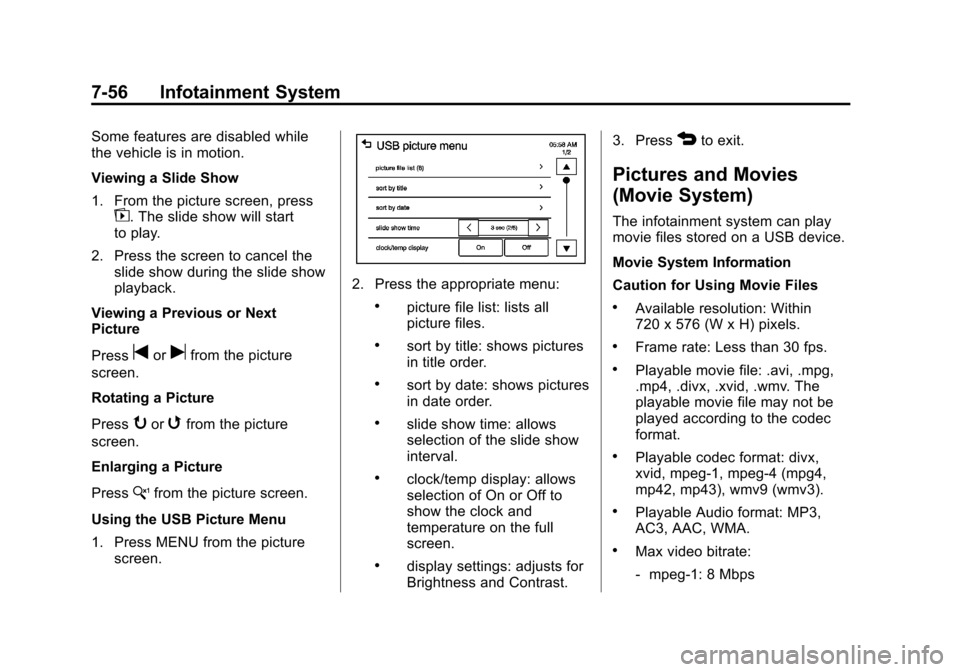
Using the USB Picture Menu
1. Press MENU from the picture screen.
2. Press the appropriate menu:
.picture file list: lists all
picture files.
.sort by title: shows pictures
in title order.
.sort by date: shows pictures
in date order.
.slide show time: allows
selection of the slide show
interval.
.clock/temp display: allows
selection of On or Off to
show the clock and
temperature on the full
screen.
.display settings: adjusts for
Brightness and Contrast. 3. Press
4to exit.
Pictures and Movies
(Movie System)
The infotainment system can play
movie files stored on a USB device.
Movie System Information
Caution for Using Movie Files
.Available resolution: Within
720 x 576 (W x H) pixels.
.Frame rate: Less than 30 fps.
.Playable movie file: .avi, .mpg,
.mp4, .divx, .xvid, .wmv. The
playable movie file may not be
played according to the codec
format.
.Playable codec format: divx,
xvid, mpeg-1, mpeg-4 (mpg4,
mp42, mp43), wmv9 (wmv3).
.Playable Audio format: MP3,
AC3, AAC, WMA.
.Max video bitrate:
‐
mpeg-1: 8 Mbps
Page 200 of 400
Black plate (58,1)Chevrolet Sonic Owner Manual (GMNA-Localizing-U.S./Canada-6081473) -
2014 - 2nd Edition - 8/19/13
7-58 Infotainment System
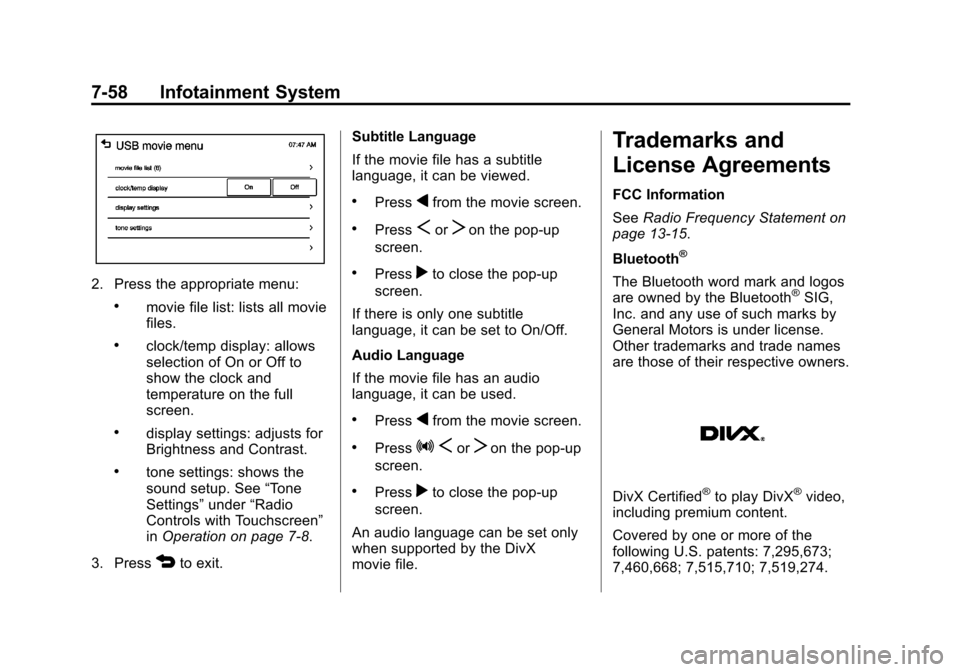
2. Press the appropriate menu:
.movie file list: lists all movie
files.
.clock/temp display: allows
selection of On or Off to
show the clock and
temperature on the full
screen.
.display settings: adjusts for
Brightness and Contrast.
.tone settings: shows the
sound setup. See“Tone
Settings” under“Radio
Controls with Touchscreen”
in Operation on page 7-8.
3. Press
4to exit. Subtitle Language
If the movie file has a subtitle
language, it can be viewed.
.Pressqfrom the movie screen.
.PressSorTon the pop-up
screen.
.Pressrto close the pop-up
screen.
If there is only one subtitle
language, it can be set to On/Off.
Audio Language
If the movie file has an audio
language, it can be used.
.Pressqfrom the movie screen.
.PressZ SorTon the pop-up
screen.
.Pressrto close the pop-up
screen.
An audio language can be set only
when supported by the DivX
movie file.
Trademarks and
License Agreements
FCC Information
See Radio Frequency Statement on
page 13-15.
Bluetooth
®
The Bluetooth word mark and logos
are owned by the Bluetooth®SIG,
Inc. and any use of such marks by
General Motors is under license.
Other trademarks and trade names
are those of their respective owners.
DivX Certified®to play DivX®video,
including premium content.
Covered by one or more of the
following U.S. patents: 7,295,673;
7,460,668; 7,515,710; 7,519,274.
Page 201 of 400
Black plate (59,1)Chevrolet Sonic Owner Manual (GMNA-Localizing-U.S./Canada-6081473) -
2014 - 2nd Edition - 8/19/13
Infotainment System 7-59
DivX®, DivX Certified®and
associated logos are trademarks of
Rovi Corporation or its subsidiaries
and are used under license.
“Made for iPod” and“Made for
iPhone” mean that an electronic
accessory has been designed to
connect specifically to iPod or
iPhone and has been certified by
the developer to meet Apple
performance standards.
iPod and iPhone are trademarks of
Apple Computer, Inc., registered in
the U.S. and other countries.
Fees and Taxes: Subscription fee,
taxes, one time activation fee, and
other fees may apply. Subscription
fee is consumer only. All fees and
programming subject to change.
Subscriptions subject to Customer
Agreement available at
www.siriusxm.com. SiriusXM
®
service only available in the
48 contiguous United States and
Canada.
In Canada: Some deterioration of
service may occur in extreme
northern latitudes. This is beyond
the control of SiriusXM
®Satellite
Radio. Explicit Language Notice: Channels
with frequent explicit language are
indicated with an
“XL”preceding the
channel name. Channel blocking is
available for SiriusXM Satellite
Radio receivers by notifying
SiriusXM:
.USA: 866-635-2349 or see
www.siriusxm.com.
.Canada: 877-209-0079 or see
www.xmradio.ca.
It is prohibited to copy, decompile,
disassemble, reverse engineer,
hack, manipulate, or otherwise
make available any technology or
software incorporated in receivers
compatible with the SiriusXM
Satellite Radio System or that
support the SiriusXM website, the
Online Service or any of its content.
Furthermore, the AMBER voice
compression software included in
this product is protected by
intellectual property rights including
patent rights, copyrights, and trade
secrets of Digital Voice
Systems, Inc.
Page 203 of 400
Black plate (1,1)Chevrolet Sonic Owner Manual (GMNA-Localizing-U.S./Canada-6081473) -
2014 - 2nd Edition - 8/19/13
Climate Controls 8-1
Climate Controls
Climate Control Systems
Climate Control Systems . . . . . . 8-1
Air Vents
Air Vents . . . . . . . . . . . . . . . . . . . . . . 8-4
Maintenance
Air Intake . . . . . . . . . . . . . . . . . . . . . 8-4
Passenger Compartment AirFilter . . . . . . . . . . . . . . . . . . . . . . . . . 8-4
Climate Control
Systems
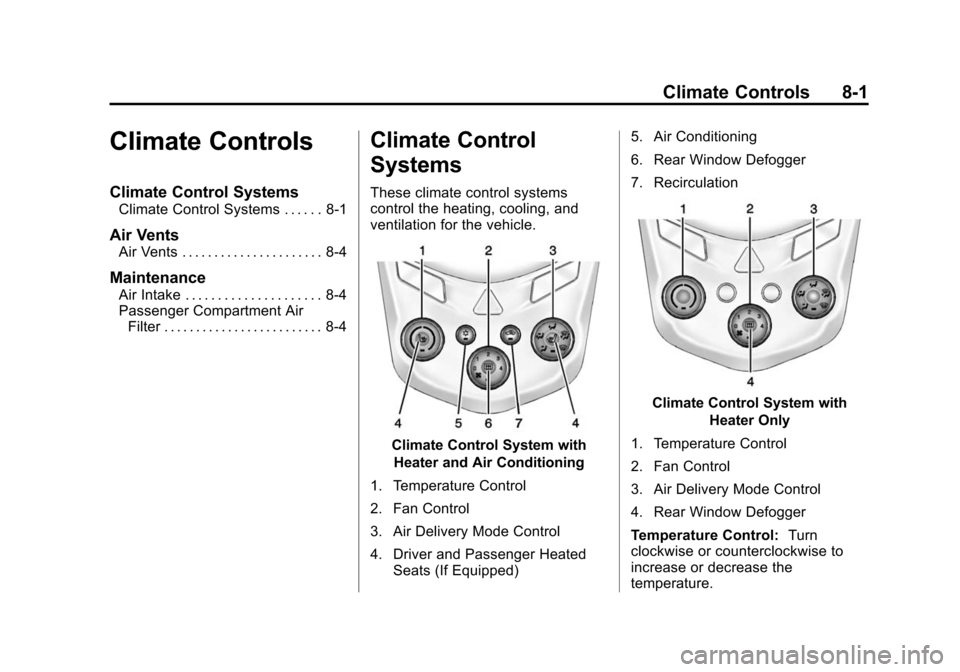
These climate control systems
control the heating, cooling, and
ventilation for the vehicle.
Climate Control System with
Heater and Air Conditioning
1. Temperature Control
2. Fan Control
3. Air Delivery Mode Control
4. Driver and Passenger Heated Seats (If Equipped) 5. Air Conditioning
6. Rear Window Defogger
7. Recirculation
Climate Control System with
Heater Only
1. Temperature Control
2. Fan Control
3. Air Delivery Mode Control
4. Rear Window Defogger
Temperature Control: Turn
clockwise or counterclockwise to
increase or decrease the
temperature.
Page 204 of 400
Black plate (2,1)Chevrolet Sonic Owner Manual (GMNA-Localizing-U.S./Canada-6081473) -
2014 - 2nd Edition - 8/19/13
8-2 Climate Controls
A(Fan Control):Turn clockwise
or counterclockwise to increase or
decrease the fan speed. Turning the
fan control to 0 turns the fan off. The
fan must be turned on to run the air
conditioning compressor.
Air Delivery Mode Control: Turn
clockwise or counterclockwise to
change the current airflow mode.
Select from the following air delivery
modes:
Y(Vent): Air is directed to the
instrument panel outlets.
\(Bi-Level): Air is divided
between the instrument panel and
floor outlets.
[(Floor): Air is directed to the
floor outlets, with some air directed
to the rear outlets.
W(Defog): This mode clears the
windows of fog or moisture. Air is
directed to the floor, windshield, and
side window outlets.
1(Defrost): This mode clears the
windshield of fog or frost more
quickly. Air is directed to the
windshield and side window outlets.
Do not drive the vehicle until all
windows are clear.
In defrost or defog mode, excessive
air conditioning use can cause the
windows to fog. If this happens,
change the air delivery mode to
Y
and reduce the fan speed.
#(Air Conditioning): If equipped
with air conditioning, follow these
steps to use the system. Turn
Ato
the desired speed. The air
conditioning does not operate when
the fan control knob is in the off
position. Press
#to turn the air
conditioning on and off. When
#is
pressed, an indicator light comes on
to show that the air conditioning
is on. For quick cool down on hot days, do
the following:
1. Open the windows to let hot air
escape.
2. Press
M.
3. Press
#.
4. Select the coolest temperature.
5. Select the highest
Aspeed.
Using these settings together for
long periods of time may cause the
air inside the vehicle to become too
dry. To prevent this from happening,
after the air in the vehicle has
cooled, turn the recirculation
mode off.
M(Recirculation): This mode
recirculates and helps to quickly
cool the air inside the vehicle. It can
be used to prevent outside air and
odors from entering the vehicle.