2014 CHEVROLET SONIC steering wheel
[x] Cancel search: steering wheelPage 139 of 400
Black plate (5,1)Chevrolet Sonic Owner Manual (GMNA-Localizing-U.S./Canada-6081473) -
2014 - 2nd Edition - 8/19/13
Lighting 6-5
If the high-beam headlamps are
turned on, the fog lamps will turn off.
If the high-beam headlamps are
turned off, the fog lamps will turn
back on again.
Some localities have laws that
require the headlamps to be on
along with the fog lamps.Interior Lighting
Instrument Panel
Illumination Control
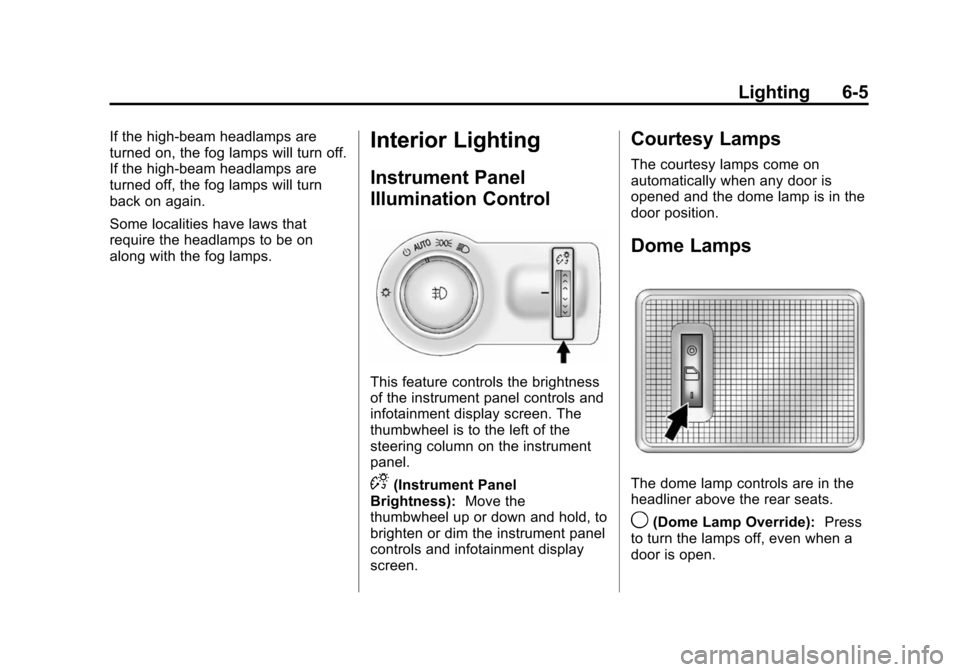
This feature controls the brightness
of the instrument panel controls and
infotainment display screen. The
thumbwheel is to the left of the
steering column on the instrument
panel.
D(Instrument Panel
Brightness): Move the
thumbwheel up or down and hold, to
brighten or dim the instrument panel
controls and infotainment display
screen.
Courtesy Lamps
The courtesy lamps come on
automatically when any door is
opened and the dome lamp is in the
door position.
Dome Lamps
The dome lamp controls are in the
headliner above the rear seats.
9(Dome Lamp Override): Press
to turn the lamps off, even when a
door is open.
Page 150 of 400
Black plate (8,1)Chevrolet Sonic Owner Manual (GMNA-Localizing-U.S./Canada-6081473) -
2014 - 2nd Edition - 8/19/13
7-8 Infotainment System
7telephone:Press to activate
the phone features (if equipped).
See Bluetooth (Voice Recognition)
on page 7-37 orBluetooth
(Overview) on page 7-26 or
Bluetooth (Infotainment Controls) on
page 7-28.
^smartphone link: Press to listen
to Pandora®(if equipped),
Stitcher™, or available application.
See Smartphone Link (Overview) on
page 7-45 orSmartphone Link
(Pandora) on page 7-47 or
Smartphone Link (Stitcher) on
page 7-49.
8settings: Press to access the
Personalization menu. See Vehicle
Personalization on page 5-27.
Operation
Radio Controls without
Touchscreen
The infotainment system is operated
by using the pushbuttons,
multifunction knobs, menus shown
on the display, and steering wheel
controls, if equipped.
Turning the System On or Off
O/VOL (Power/Volume): Press to
turn the system on and off.
Automatic Switch-Off
If the infotainment system is on after
the ignition is turned off, the system
will turn off automatically after
10 minutes.
Volume Control
O/VOL (Power/Volume): Turn to
adjust the volume.
5/>(Phone/Mute): For vehicles
with OnStar, press and hold
5/>
to mute the infotainment system.
Press and hold
5/>again, or turn
the
O/VOL knob to cancel mute.
For vehicles without OnStar, press
5/>to mute the infotainment
system. Press
5/>again, or turn
the
O/VOL knob to cancel mute.
Menu System
Controls
The Push/MENU/TUNE knob, Push/
MENU/TUNE button, and
/BACK
button are used to navigate the
menu system.
Push/MENU/TUNE Knob:
Turn to:
.Enter the menu system.
.Highlight a menu option.
.Select a value.
Page 153 of 400

Black plate (11,1)Chevrolet Sonic Owner Manual (GMNA-Localizing-U.S./Canada-6081473) -
2014 - 2nd Edition - 8/19/13
Infotainment System 7-11
3. Select Auto volume control.
4. Select the setting.
5. Press the
/BACK button to go
back to the System
Configuration menu.
Radio Controls with
Touchscreen
The infotainment system is operated
by using the pushbuttons, menus
shown on the display, and steering
wheel controls.
Turning the System On or Off
O(Power): Press and hold to turn
the radio on and off.
Automatic Switch-Off
If the infotainment system has been
turned on after the ignition is turned
off, the system will turn off
automatically after 10 minutes.
Volume Control
zVOLy(Volume): Press to
increase or decrease the volume or
press the volume bar.
>(Mute): PresszVOLy, then
press
>to mute and unmute the
system.
System Settings
Auto Volume
This feature automatically adjusts
the radio volume to compensate for
road and wind noise.
The level of volume compensation
can be selected, or the feature can
be turned off.
1. Press
D.
2. Select Settings.
3. Select Radio Settings.
4. Select the setting by pressing
S
orT.
5. Press
4. Auto Store (AS)
This feature automatically stores the
stations with the strongest
reception.
To store or update the stations,
press and hold the AS screen
button.
To listen to a auto stored station:
1. Select AM or FM.
2. Press the AS screen button.
3. Press
SorTrepeatedly to
select the desired AS page.
4. Press the desired preset station screen button.
If AS is pressed with no stored
stations, AS will update.
Audio Settings
The audio settings can be set for
each radio band and each audio
player source.
Page 158 of 400

Black plate (16,1)Chevrolet Sonic Owner Manual (GMNA-Localizing-U.S./Canada-6081473) -
2014 - 2nd Edition - 8/19/13
7-16 Infotainment System
Storing Stations
To store the station to a position in
the list, press the corresponding
button 1−5 until a beep is heard.
1. Select the desired station.
2. Press
SorTto select the
desired page of saved favorites.
3. Hold down any of the preset buttons to save the current radio
station to that button of the
selected favorites page.
To change a preset button, tune to
the new desired radio station and
hold the button.
Satellite Radio
SiriusXM®Satelite Radio
Service
SiriusXM is a satellite radio service
based in the 48 contiguous United
States and 10 Canadian provinces.
SiriusXM Satellite Radio has a wide
variety of programming and
commercial-free music, coast to
coast, and in digital-quality sound.
A service fee is required to receive
the SiriusXM service. For more
information, contact SiriusXM at
www.siriusxm.com or
1-866-635-2349 (U.S.), and
www.xmradio.ca or 1-877-209-0079
(Canada).
Finding a Channel
RADIO/BAND: Press to choose
XM. The display will show the
selection.
SEEK
¨: Press to seek the next
XM channel.
©SEEK: Press to seek the
previous XM channel. MENU/TUNE:
Turn to go to the
next XM channel.
Storing an SiriusXM Channel
Drivers are encouraged to set up
XM channel favorites while the
vehicle is not moving. Tune to
favorite stations using the
pushbuttons, favorites button, and
steering wheel controls. See
Defensive Driving on page 9-2.
A maximum of 36 stations can be
programmed as favorites using the
six pushbuttons positioned below
the radio station frequency labels
and by using the radio favorites
page button (FAV button). Press the
FAV button to go through up to six
pages of favorites, each having six
favorite stations available per page.
Each page of favorites can contain
any combination of AM, FM, or XM
channels. To store an XM channel
as a favorite:
1. Tune in the desired channel.
Page 169 of 400
Black plate (27,1)Chevrolet Sonic Owner Manual (GMNA-Localizing-U.S./Canada-6081473) -
2014 - 2nd Edition - 8/19/13
Infotainment System 7-27
.Pair cell phone(s) to the vehicle.
The system may not work with
all cell phones. See“Pairing”in
this section.
.If the cell phone has voice
dialing capability, learn to use
that feature to access the
address book or contact list. See
“Voice Pass-Thru” in this
section.
.See “Storing and Deleting Phone
Numbers” in this section.
{Warning
When using a cell phone, it can
be distracting to look too long or
too often at the screen of the
phone or the infotainment system.
Taking your eyes off the road too
long or too often could cause a
crash resulting in injury or death.
Focus your attention on driving.
Vehicles with a Bluetooth system
can use a Bluetooth-capable cell
phone with a Hands-Free Profile to make and receive phone calls. The
infotainment system and voice
recognition are used to control the
system. The system can be used
while in ON/RUN or ACC/
ACCESSORY. The range of the
Bluetooth system can be up to 9.1 m
(30 ft). Not all phones support all
functions and not all phones work
with the Bluetooth system. See
www.gm.com/bluetooth for more
information about compatible
phones.
Bluetooth Controls
Use the buttons located on the
infotainment system and the
steering wheel to operate the
Bluetooth system.
Steering Wheel Controls
b/g(Push to Talk):
Press to
answer incoming calls, confirm
system information, and start voice
recognition.
$/i(Mute/End Call): Press to
end a call, reject a call, or cancel an
operation. Infotainment System Controls
If equipped, the infotainment system
allows certain controls to be
selected on the infotainment display.
For information about how to
navigate the menu system using the
infotainment controls, see
Operation
on page 7-8.
5/>(Phone): Press to enter the
Phone main menu.
Voice Recognition
The voice recognition system uses
commands to control the system
and dial phone numbers.
Noise: The system may not
recognize voice commands if there
is too much background noise. Do
not point the center air vents directly
upward.
When to Speak: A tone sounds to
indicate that the system is ready for
a voice command. Wait for the tone
and then speak.
How to Speak: Speak clearly in a
calm and natural voice.
Page 179 of 400
Black plate (37,1)Chevrolet Sonic Owner Manual (GMNA-Localizing-U.S./Canada-6081473) -
2014 - 2nd Edition - 8/19/13
Infotainment System 7-37
.Sounds may be cut off during
the Bluetooth music playback.
.The infotainment system outputs
the audio from the cell phone or
Bluetooth device as it is
transmitted.
Bluetooth (Voice
Recognition)
Using Voice Recognition
To use voice recognition, press theb/gbutton located on the steering
wheel. Use the commands below for
the various voice features. For
additional information, say "Help"
while you are in a voice
recognition menu.
Pairing
A Bluetooth-enabled cell phone
must be paired to the Bluetooth
system and then connected to the
vehicle before it can be used. See
your cell phone manufacturer's user
guide for Bluetooth functions before
pairing the cell phone. If a Bluetooth
phone is not connected, calls will be made using OnStar Hands-Free
Calling, if available. See
OnStar
Overview on page 14-1.
Pairing Information
.A Bluetooth phone with MP3
capability can be paired to the
vehicle as a phone and an MP3
player at the same time.
.Up to five cell phones can be
paired to the Bluetooth system.
.The pairing process is disabled
when the vehicle is moving.
.Pairing only needs to be
completed once, unless the
pairing information on the cell
phone changes or the cell phone
is deleted from the system.
.Only one paired cell phone can
be connected to the Bluetooth
system at a time.
.If multiple paired cell phones are
within range of the system, the
system connects to the first
available paired cell phone in the
order that they were first paired to the system. To link to a
different paired phone, see
“Connecting to a Different
Phone”
later in this section.
Pairing a Phone
1. Press
b/g. The system
responds “Ready,”followed by
a tone.
2. Say “Bluetooth.” This command
can be skipped.
3. Say “Pair.”The system responds
with instructions and a four-digit
Personal Identification Number
(PIN). The PIN is used in Step 5.
4. Start the pairing process on the cell phone that you want to pair.
For help with this process, see
your cell phone manufacturer's
user guide.
5. Locate the device named “Your
Vehicle” in the list on the cell
phone. Follow the instructions
on the cell phone to enter the
PIN provided in Step 3. After the
PIN is successfully entered, the
system prompts you to provide a
Page 185 of 400
Black plate (43,1)Chevrolet Sonic Owner Manual (GMNA-Localizing-U.S./Canada-6081473) -
2014 - 2nd Edition - 8/19/13
Infotainment System 7-43
system. Not all phones support all
functions and not all phones work
with the Hands-Free Phone system.
Hands-Free Phone Controls
Use the buttons on the infotainment
system and the steering wheel to
operate the Hands-Free Phone
system.
Steering Wheel Controls
Steering wheel controls can be
used to:
.Answer incoming calls.
.Confirm system information.
.End a call.
.Decline a call.
.Cancel an operation.
.Make outgoing calls using the
call list.
b/g(Push to Talk):Press to
answer incoming calls and to
confirm system information. Press
and hold for two to three seconds to
access the call list.
$/i(Mute/End Call): Press to
end a call, decline a call, or cancel
an operation.
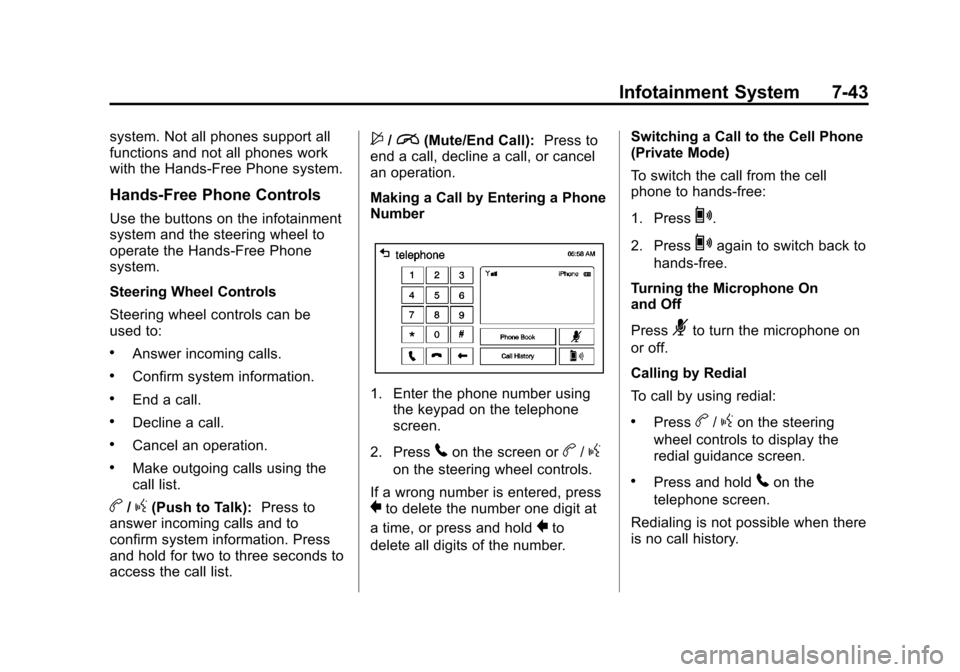
Making a Call by Entering a Phone
Number
1. Enter the phone number using the keypad on the telephone
screen.
2. Press
5on the screen orb/g
on the steering wheel controls.
If a wrong number is entered, press
}to delete the number one digit at
a time, or press and hold
}to
delete all digits of the number. Switching a Call to the Cell Phone
(Private Mode)
To switch the call from the cell
phone to hands-free:
1. Press
0.
2. Press
0again to switch back to
hands-free.
Turning the Microphone On
and Off
Press
3to turn the microphone on
or off.
Calling by Redial
To call by using redial:
.Pressb/gon the steering
wheel controls to display the
redial guidance screen.
.Press and hold5on the
telephone screen.
Redialing is not possible when there
is no call history.
Page 186 of 400
Black plate (44,1)Chevrolet Sonic Owner Manual (GMNA-Localizing-U.S./Canada-6081473) -
2014 - 2nd Edition - 8/19/13
7-44 Infotainment System
Taking calls
When a phone call comes through
the connected Bluetooth cell phone,
the playing track will be cut off and
the phone will ring with the relevant
information displayed.
Press
b/gon the steering wheel
controls or press Accept on the
screen.
To decline the call, press
$/ion
the steering wheel controls or press
Reject on the screen.
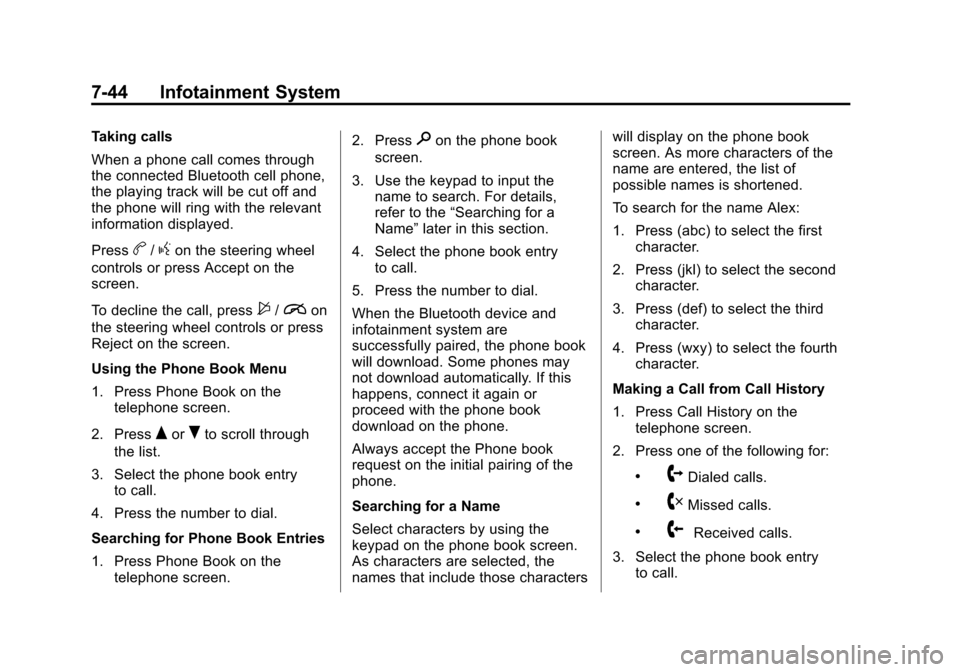
Using the Phone Book Menu
1. Press Phone Book on the telephone screen.
2. Press
QorRto scroll through
the list.
3. Select the phone book entry to call.
4. Press the number to dial.
Searching for Phone Book Entries
1. Press Phone Book on the telephone screen. 2. Press
9on the phone book
screen.
3. Use the keypad to input the name to search. For details,
refer to the “Searching for a
Name” later in this section.
4. Select the phone book entry to call.
5. Press the number to dial.
When the Bluetooth device and
infotainment system are
successfully paired, the phone book
will download. Some phones may
not download automatically. If this
happens, connect it again or
proceed with the phone book
download on the phone.
Always accept the Phone book
request on the initial pairing of the
phone.
Searching for a Name
Select characters by using the
keypad on the phone book screen.
As characters are selected, the
names that include those characters will display on the phone book
screen. As more characters of the
name are entered, the list of
possible names is shortened.
To search for the name Alex:
1. Press (abc) to select the first
character.
2. Press (jkl) to select the second character.
3. Press (def) to select the third character.
4. Press (wxy) to select the fourth character.
Making a Call from Call History
1. Press Call History on the telephone screen.
2. Press one of the following for:
.2Dialed calls.
.4Missed calls.
.9Received calls.
3. Select the phone book entry to call.