Page 188 of 653
Here are the settings activated with
the remote:Driving position memory
(see page ).
Audio system settings
(see page ).
Climate control settings
(see page ).
Navigation system pref erences
(see the navigation system
manual).
When you unlock the door with your
remote, each remote activates the
customized settings related to that
remote. The driver’s ID (Driver 1 or
Driver 2) is shown on the back of
each remote. Customized settings
(see page ).
Avoid dropping or throwing the
remote.
Protect the remote f rom extreme
temperatures.
Do not immerse the remote in any
liquid.
If you lose a remote, the
replacement needs to be
reprogrammed by your dealer.
285
170
94
228
K eyless A ccess System
Remot e CareRecalling a Memorized Driving
Position
182
DRIVER’S ID
12/08/03 20:58:11 31TK4640_187
Page 191 of 653
CONT INUED
K eyless A ccess System
Inst rument s and Cont rols
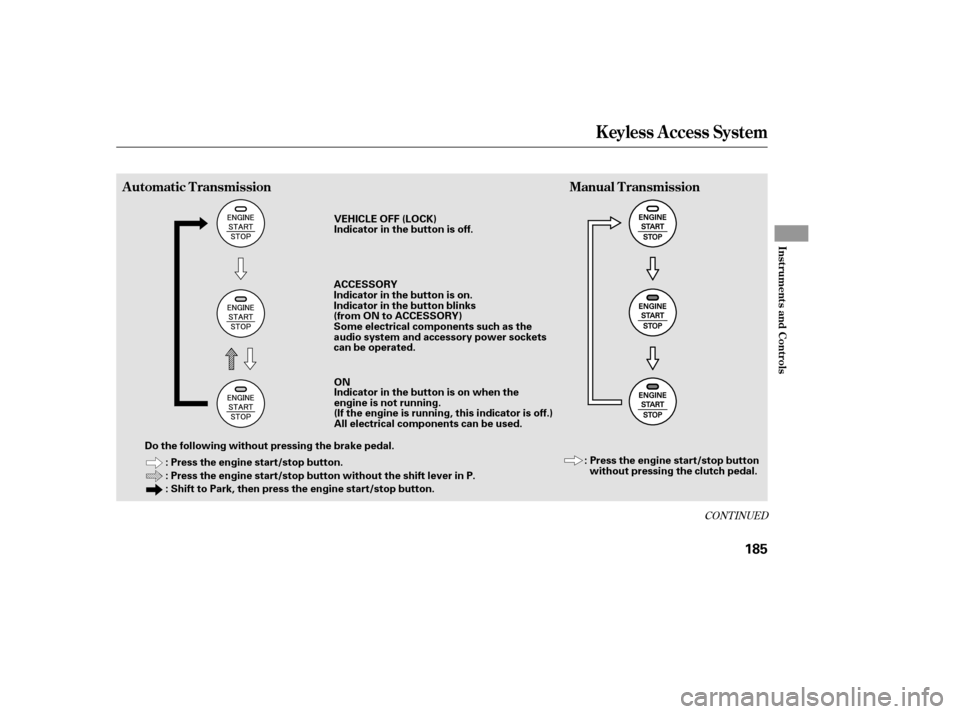
Automatic TransmissionManual Transmission
185
: Press the engine start/stop button.
: Press the engine start/stop button without the shift lever in P.
: Shift to Park, then press the engine start/stop button.
Do the following without pressing the brake pedal. VEHICLE OFF (LOCK)
Indicator in the button is off.
ACCESSORY
ON : Press the engine start/stop buttonwithout pressing the clutch pedal.
Indicator in the button is on.
Indicator in the button blinks
(from ON to ACCESSORY)
Some electrical components such as the
audio system and accessory power sockets
can be operated.
Indicator in the button is on when the
engine is not running.
(If the engine is running, this indicator is off.)
All electrical components can be used.
12/07/20 10:53:24 31TK4640_190
Page 193 of 653

Engine is turned of f and
power is shut down.
The steering wheel is
locked.
No electrical components
can be used.
Indicator-Of fEngine is turned of f
and power is shut
down.
The steering wheel is
locked.
No electrical
components can be
used. Use this position to start
the engine.
The ignition switch
returns to the ON (II)
position when you
release the key.
Engine is turned of f .
Some electrical components
such as the audio system
and accessory power
sockets can be operated.
Normal key position while
driving.
All electrical components
can be used.
Indicator-Of fThe mode
automatically returns
to ON after the
engine starts.
Indicator-On or blinking
Engine is turned of f .
Some electrical
components such as the
audio system and
accessory power sockets
can be operated. Indicator-
On (engine is turned off)
Of f (engine is running)
All electrical components
can be used.
VEHICLE OFF
(LOCK) ACCESSORY ST ART
Ignition Switch
Position
Power Mode LOCK (0) ON (II)
ACCESSORY (I)
Without Keyless
Access System
With Keyless
Access System and
Engine Start/Stop
Button ST ART (III)
Of f
Indicator is: ON
On
Ignition Switch and Power Mode Comparison
K eyless A ccess System
Inst rument s and Cont rols
187
12/07/20 10:53:42 31TK4640_192
Page 231 of 653

The standard audio system has
many f eatures. This section
describes those f eatures and how to
use them. The climate control system in your
vehicle provides a comfortable
driving environment in all weather
conditions.
Your vehicle has an anti-theft audio
system that requires a code number
to enable it.
The security system helps to dis-
courage vandalism and thef t of your
vehicle................
Climate Control System . 226
Using Automatic Climate ...................................
Control . 228 Dual Temperature and Mode
...................................
Control . 232
..........
Climate Control Sensors . 234
................................
Audio System . 235
................................
Audio System . 236
..........
Playing the AM/FM Radio . 237
................
Playing the XM
Radio . 246
.................................
Playing Discs . 253
...
Disc Changer Error Messages . 263
............................
PlayinganiPod
. 264
.................
iPod
Error Messages . 271
Playing a USB Flash Memory ........................................
Device . 272
USB Flash Memory Device ........................
Error Messages . 280
.............
Audio System . 281
................................
Audio System . 285
..........
Playing the AM/FM Radio . 286
................
Playing the XM
Radio . 299
................................
Playing a Disc . 307
.......
Disc Player Error Messages . 319
Playing Hard Disc Drive (HDD)
..........................................
Audio . 320
............................
PlayinganiPod
. 354 .................
iPod
Error Messages . 363
Playing a USB Flash Memory ........................................
Device . 364
USB Flash Memory Device ........................
Error Messages . 375
.............
Audio System . 376..................
Protecting Your Discs . 381
............
AM/FM Radio Reception . 385
................
Remote Audio Controls . 387
......................
Auxiliary Input Jack . 389
.................
Radio Thef t Protection . 390
..........................
Setting the Clock . 391
............................
Security System . 395
.........................................
Compass . 397
...............................
Cruise Control . 401
HomeLink
Universal
................................
Transceiver . 404
HandsFreeLink
(Models without navigation
..................................
system) . 407
HandsFreeLink
(Models with navigation
..................................
system) . 424
..
AcuraLink
(U.S. models only) . 449
...
Rearview Camera and Monitor . 465
Models without navigation system
BluetoothModels with navigation system Bluetooth
BluetoothBluetooth
Features
Features
225
12/07/20 10:58:23 31TK4640_230
Page 241 of 653
An audio system is standard on all
models. Read the appropriate pages
(as shown below) to use your
vehicle’s audio system.
For vehicles without navigation
system, see pages through .
For vehicles with navigation system,
see pages through .236 284
285 380
Audio System
Features
235
Models Without navigation system Models With navigation system
12/07/20 10:59:41 31TK4640_240
Page 242 of 653
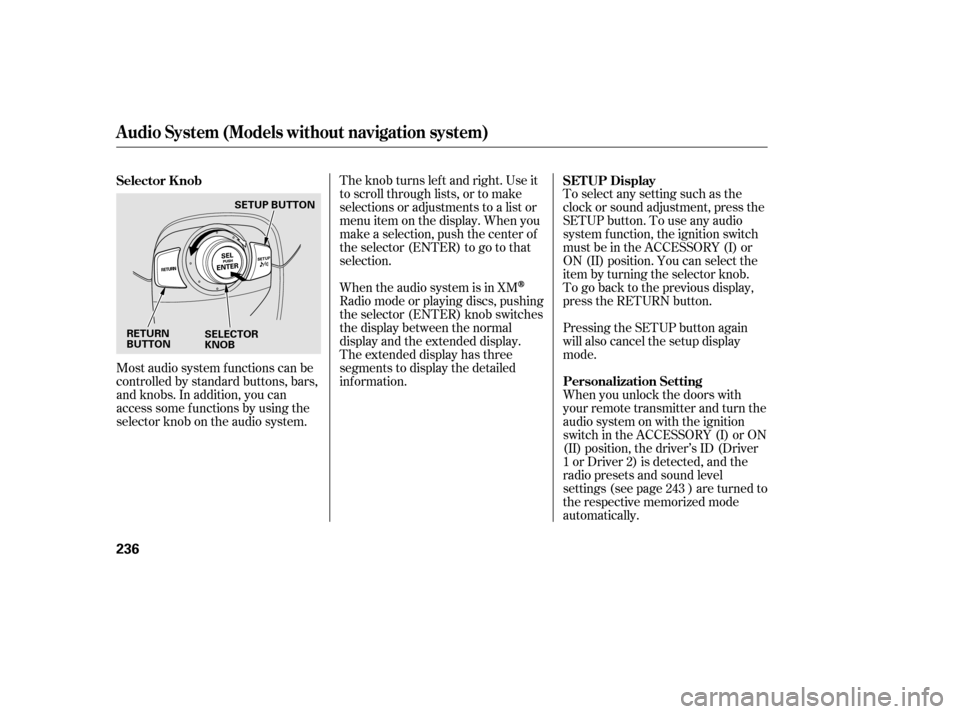
Most audio system f unctions can be
controlled by standard buttons, bars,
and knobs. In addition, you can
access some f unctions by using the
selector knob on the audio system.The knob turns lef t and right. Use it
to scroll through lists, or to make
selections or adjustments to a list or
menu item on the display. When you
make a selection, push the center of
the selector (ENTER) to go to that
selection.
When the audio system is in XM
Radio mode or playing discs, pushing
the selector (ENTER) knob switches
the display between the normal
display and the extended display.
The extended display has three
segments to display the detailed
inf ormation.
To select any setting such as the
clock or sound adjustment, press the
SETUP button. To use any audio
system f unction, the ignition switch
must be in the ACCESSORY (I) or
ON (II) position. You can select the
item by turning the selector knob.
To go back to the previous display,
press the RETURN button.
Pressing the SETUP button again
will also cancel the setup display
mode.
When you unlock the doors with
your remote transmitter and turn the
audio system on with the ignition
switch in the ACCESSORY (I) or ON
(II) position, the driver’s ID (Driver
1orDriver2)isdetected,andthe
radio presets and sound level
settings (see page ) are turned to
the respective memorized mode
automatically.
243
Selector K nob SET UP Display
Personalization Setting
Audio System (Models without navigation system)
236
RETURN
BUTTONSELECTOR
KNOBSETUP BUTTON
12/07/20 10:59:49 31TK4640_241
Page 246 of 653

You can also select the auto select
mode by using the SETUP button
and the selector knob. Push the
SETUP button to display the menu
items, then turn the selector knob to
select ‘‘AUTO SELECT.’’ Press the
selector knob (ENTER) to set the
selection.To start the auto select mode, press
the selector knob (ENTER) to select
‘‘PUSHTOSTART.’’
To cancel the auto select mode,
press the A. SEL (auto select) button,
or press the SETUP button to show
‘‘AUTO SELECT,’’ then press the
selector knob (ENTER). When you
see ‘‘PUSH TO CANCEL,’’ press
ENTER again.
On the FM band, you can select a
favorite station and display the
program service name provided by
the radio data system (RDS).
The RDS inf ormation display
f unction shows the name of the RDS
station you are listening to. With the
audio system on and the FM band
selected, you can turn this f unction
on or of f .
Playing the A M/FM Radio (Models without navigation system)
Radio Data System (RDS)
RDS INFO Display
240
AUTO SELECT
12/07/20 11:00:21 31TK4640_245
Page 250 of 653

�µ
�µ
�µ
�µ The SVC mode controls the volume
based on vehicle speed. The f aster
you go, the louder the audio volume
becomes. As you slow down, the
audio volume decreases.
The SVC has f our modes: SVC OFF,
SVC LOW, SVC MID, and SVC
HIGH. Turn the selector knob to
adjust the setting to your liking. If
you f eel the sound is too loud,
choose low. If you f eel the sound is
too quiet, choose high.
Adjusts the volume level
basedonthevehiclespeed.
Eachmodeisshowninthedisplayas
it changes. Turn the selector knob to
adjust the setting to your liking.
When the level reaches the center,
you will see ‘‘C’’ in the display.
Adjusts the strength of
sound f rom the center speaker.
Adjusts the strength of
sound f rom the subwoof er speaker.
If the fader adjustment is set to F9
(maximum f ront level), the
subwoof er is turned of f .
Dolby
PL (ProLogic) II signal processing
creates multi-channel surround
sound f rom 2 channel stereo audio
sources. Dolby ProLogic II can only
be activated when listening to DISC
(CD-DA, MP3/WMA), XM Radio,
andAUX.WhenProLogicIIisactive,
‘‘PL II’’ is shown in the audio display.
Manuf actured under license f rom
Dolby Laboratories. Dolby, Pro
Logic, MLP Lossless and the double-
D symbol are trademarks of Dolby
Laboratories. To return to normal play, push the
RETURN or SETUP button.
Except SVC adjustment
Playing the A M/FM Radio (Models without navigation system)
Speed-sensit ive Volume
Compensat ion (SVC)SVC
CENT ER
SUBW
Dolby PL (ProL ogic) II
244
12/07/20 11:01:00 31TK4640_249