Page 105 of 518
104
uuGauges and Multi-Information DisplayuMulti-Information Display
Instrument Panel
Exit
Door Setup
Maintenance Info.
Default AllLighting Setup
Key And Remote Unlock Mode
Auto Door LockAuto Door Unlock
Keyless Lock Answer BackSecurity Relock Timer
Interior Light Dimming TimeHeadlight Auto Off TimerAuto Light Sensitivity
Roll
PushPush
RollRollRoll
Auto Folding Door Mirror
*
Roll
Roll
RollWiper Setup
Push
Wiper Action
*
Front Wiper Action
*
Push
* Not available on all models
Page 110 of 518
109
uuGauges and Multi-Information DisplayuMulti-Information Display
Continued
Instrument Panel
*1: Default SettingSetup Group Customizable Features Description Selectable SettingsWiper Setup
Wiper Action
*
Changes the setting for the automatic intermittent
wipers in the AUTO position.
Rain Sensing
*1/Intermittent/
Speed Sensitive
Front Wiper Action
*
Changes the setting for the wipers in the INT
position.
Speed Sensitive
*1/
Intermittent
Maintenance
Info.
Maintenance Reset
Resets/Cancels the engine oil life display when you
have performed the maintenance service.
Cancel/Reset
Default All
—
Cancels/Resets all the customized settings as
default.
Cancel/Set
* Not available on all models
Page 259 of 518
258
uuAudio Error MessagesuPandora®
Features
Error Message
Solution
Unable to save rating.
Unable to save bookmark
or
Unable to skip
Appears when the commanded operation is failed. Try again later.
No data
Appears when no data is available with Pandora® activated.
Reboot the app and reconnect the device.
PANDORA Unsupported
Appears when Pandora® version is not supported. Update
Pandora® to the latest version.
PANDORA system maintenance
Appears when the Pandora® server is in maintenance. Try again
later.
Cannot connect to PANDORA. When stopped, make sure
PANDORA is running on the phone. For iPhone, set
connection priority to USB and reconnect.
Appears when Pandora® is unable to play music. Check your
device.
Page 269 of 518
268
uuCustomized Featuresu
Features
Default
Fixed GuidelineDynamic Guideline
Default
Sound
Source Select PopupHD Radio Mode
*
Cover Art
Connect Bluetooth Audio Device
Bluetooth Device ListRecording from CDRecording Quality
HDD Info
Update Gracenote Album Info
Delete all HDD Data
Audio
Settings
Maintenance Reset
Maintenance Info.
Wiper Action
*
Front Wiper Action
*
Wiper
Setup
Camera
Settings
* Not available on all models
Page 279 of 518
278
uuCustomized Featuresu
Features
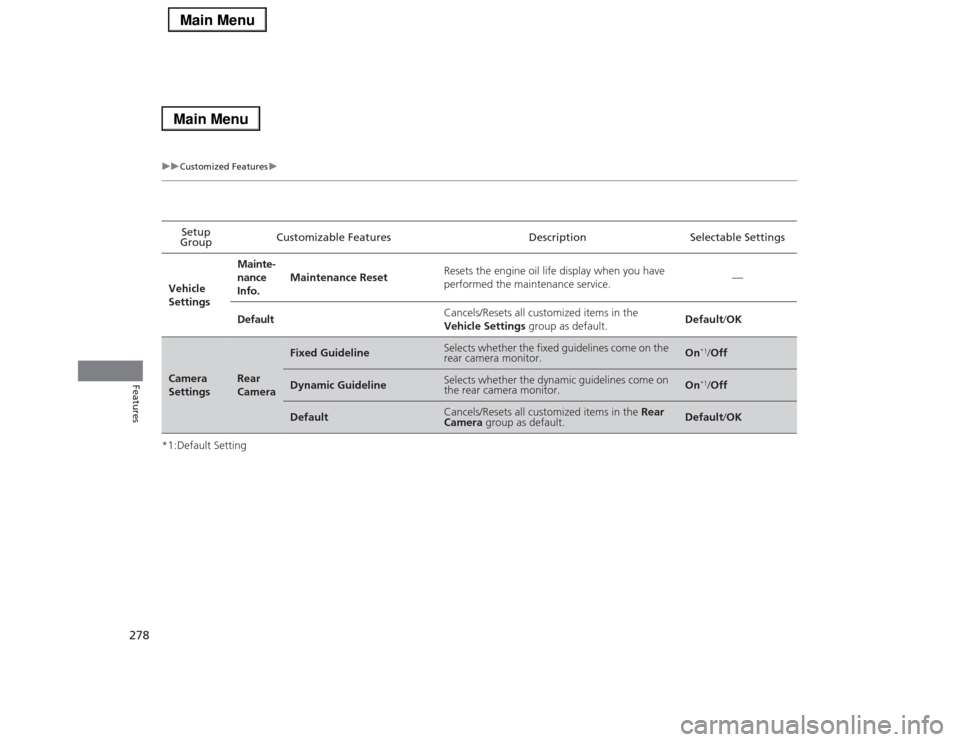
*1:Default SettingSetup
GroupCustomizable Features Description Selectable Settings
Vehicle
SettingsMainte-
nance
Info.Maintenance ResetResets the engine oil life display when you have
performed the maintenance service.—
DefaultCancels/Resets all customized items in the
Vehicle Settings group as default.Default/OKCamera
Settings
Rear
Camera
Fixed Guideline
Selects whether the fixed guidelines come on the
rear camera monitor.
On
*1/Off
Dynamic Guideline
Selects whether the dynamic guidelines come on
the rear camera monitor.
On
*1/Off
Default
Cancels/Resets all customized items in the Rear
Camera group as default.
Default/OK
Page 332 of 518

Continued
331
uuAcuraLink®
*u
Features
AcuraLink sends you messages on vehicle
features, safety and emissions recall
campaigns, maintenance reminders (U.S.
models only), and diagnostic information.
When you receive a new message, an icon
appears on the audio/information screen.
■Message category
There are six message categories.
•Feature Guide: Appears for the first 90 days of ownership, introducing vehicle
features each day.
•Quick Tips: Supplements your Owner’s Manual with updated vehicle
information.
•Diagnostic Info: Appears when a warning indicator or message comes on.
Rotate to select Check Later or Check Now.
uSelecting Check Now lets you know if you should see a dealer immediately or
later in accordance with the warning severity level.
•Scheduled Dealer Appointment (U.S. models only): An appointment made
through the Acura server or Acura Owners website can be rescheduled or
canceled from this option.
2 P. 333
•Maintenance Minder (U.S. models only): Lets you know which maintenance
item is due along with a reminder message.
•Recalls/Campaigns: Reminds you of a recall or important safety information.
You should also be notified by mail.■
AcuraLink Message
1AcuraLink Message
Messages may not appear immediately after your
vehicle purchase. It can take several days for your
dealer to register your vehicle’s ID.
If an icon includes an exclamation point, it indicates
that Acura gives high priority to this message
compared to the one without.•
: An unread message with high priority
•
: An unread message
Message Icon
1Message category
Message categories can be added, edited, or deleted
through broadcast messages from Acura.
You can call your dealer, find the nearest dealer, or
schedule appointments (U.S. models only) from the
message options in Maintenance Minder (U.S.
models only), Recalls/Campaigns, and Diagnostic
Info.
2Message Options P. 332
Page 334 of 518
333
uuAcuraLink®
*u
Features
•Schedule Dealer Appointment (U.S. models only): Automatically sets an
appointment date at your dealer.
•Phone number: Dials a number displayed in the message via HFL.
•Diagnostic Info: Updates the current diagnostic message by connecting to the
Acura server using HFL.■Dealer Appointments
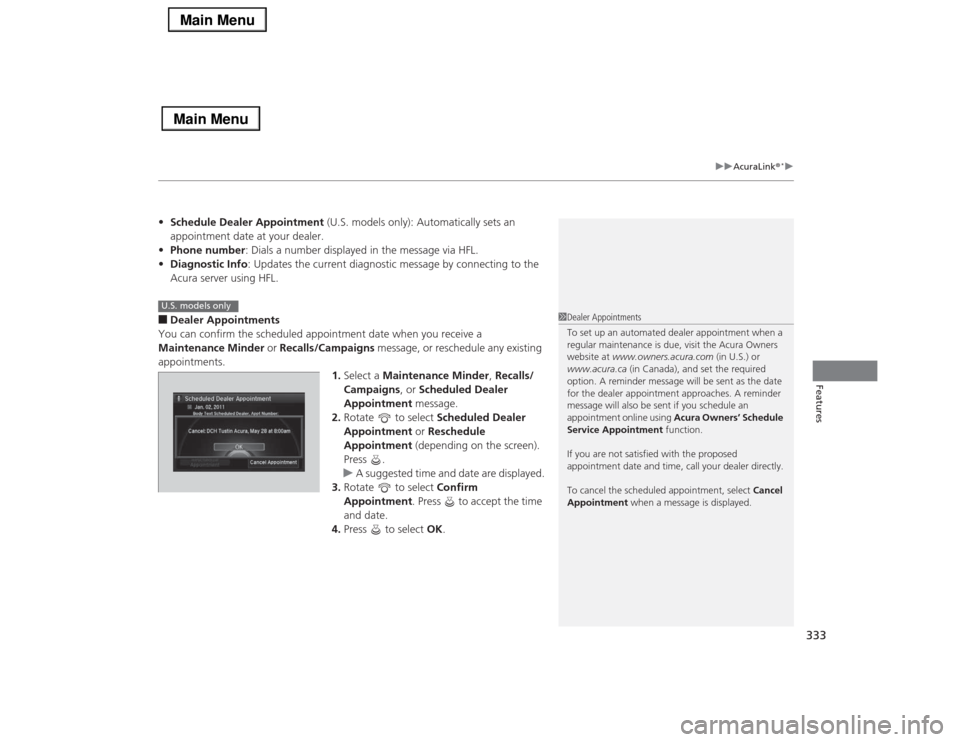
You can confirm the scheduled appointment date when you receive a
Maintenance Minder or Recalls/Campaigns message, or reschedule any existing
appointments.
1.Select a Maintenance Minder, Recalls/
Campaigns, or Scheduled Dealer
Appointment message.
2.Rotate to select Scheduled Dealer
Appointment or Reschedule
Appointment (depending on the screen).
Press .
uA suggested time and date are displayed.
3.Rotate to select Confirm
Appointment. Press to accept the time
and date.
4.Press to select OK.
1Dealer Appointments
To set up an automated dealer appointment when a
regular maintenance is due, visit the Acura Owners
website at www.owners.acura.com (in U.S.) or
www.acura.ca (in Canada), and set the required
option. A reminder message will be sent as the date
for the dealer appointment approaches. A reminder
message will also be sent if you schedule an
appointment online using Acura Owners’ Schedule
Service Appointment function.
If you are not satisfied with the proposed
appointment date and time, call your dealer directly.
To cancel the scheduled appointment, select Cancel
Appointment when a message is displayed.
U.S. models only
Page 337 of 518
336Driving
Before DrivingDriving PreparationCheck the following items before you start driving.
•Make sure there are no obstructions on the windows, door mirrors, exterior
lights, or other parts of the vehicle.
uRemove any frost, snow, or ice.
uRemove any snow on the roof, as this can slip down and obstruct your field of
vision while driving. If frozen solid, remove ice once it has softened.
uWhen removing ice from around the wheels, be sure not to damage the wheel
or wheel components.
•Make sure the hood is securely closed.
uIf the hood opens while driving, your front view will be blocked.
•Make sure the tires are in good condition.
uCheck air pressures, and check for damage and excessive wear.
2Checking and Maintaining Tires P. 437
•Make sure there are no people or objects behind or around the vehicle.
uThere are blind spots from the inside.■
Exterior Checks
1Exterior ChecksNOTICEWhen doors are frozen shut, use warm water around
the door edges to melt any ice. Do not try to force
them open, as this can damage the rubber trim
around the doors. When done, wipe dry to avoid
further freezing.
Do not pour warm water into the key cylinder.
You will be unable to insert key if the water freezes in
the hole.
Heat from the engine and exhaust can ignite
flammable materials left under the hood, causing a
fire. If you’ve parked your vehicle for an extended
period, inspect and remove any debris that may have
collected, such as dried grass and leaves that have
fallen or have been carried in for use as a nest by a
small animal.
Also check under the hood for leftover flammable
materials after you or someone else has performed
maintenance on your vehicle.