2013 VOLVO XC60 nav
[x] Cancel search: navPage 227 of 382

06 Infotainment
Radio
06
* Option/accessory, for more information, see Introduction.225 General functions
RADIO button for selecting the AM, FM1,
FM2, SAT1* or SAT2* wavebands.
Keypad (buttons 0-9)
Navigate among the menu alternatives in
the display by turning TUNE or the thumb
wheel on the steering wheel keypad.
Confirm your selection or access the radio
menus by pressing OK/MENU or the
thumb wheel on the steering wheel key-
pad.
Left/right arrow keys: Press and hold to go
to the next/previous strong station, press
briefly to tune to a preset station.
Menu navigationRADIO menu selections can be made from the
center console or the steering wheel keypad,
see page 216 for more information.
Selecting a station (in wavebands AM/
FM1/FM2)
Automatic tuning
1.
Press RADIO, turn TUNE to toggle to the
desired waveband (AM, FM1, etc.) and
press OK/MENU or the thumb wheel on
the steering wheel keypad.
2.
Press
/ keys on the center console
control panel or steering wheel keypad to
search for the next available station.
List of stations (in wavebands FM1/FM2
only)
The radio automatically compiles a list of the
strongest FM stations whose signals are cur-
rently being received. This enables you to find
stations when driving in areas where radio sta-
tions and their frequencies are unfamiliar.
To access this list:
1.
Select the desired waveband (
FM1 orFM2).
2.
Turn TUNE slightly in either direction. This
displays the list of stations in the area. Thecurrently tuned station will be indicated in
the list by magnified text.
3.
Turn TUNE again in either direction to
select a station on the list.
4.
Confirm by pressing OK/MENU or the
thumb wheel on the steering wheel key-
pad.
NOTE
•This list will only display the frequencies
of the stations currently being received,
not a complete list of all radio frequen-
cies on the currently selected wave-
band.
•If the signal from the currently tuned
station is weak, this may prevent the
radio from updating the list of stations.
If this occurs, press
while the list
of stations is displayed to switch to
manual tuning mode and select a sta-
tion. If the list of stations is no longer
displayed, turn TUNE in either direction
to display the list again and press
.
The list will disappear from the display after
several seconds.
If the station list is no longer displayed, turn
TUNE in either direction and press
on the
Page 236 of 382

06 Infotainment
Media player
06
234
CD/DVD1 functions
Center console control panel
Disc slot
MEDIA button, the most recently used
active source will start when MEDIA is
pressed. Pressing this key from Media
mode's main view will display a shortcut
menu.
Eject
Keypad
TUNE:Turn to navigate among menu
selections/folders/tracks (or turn the
thumb wheel on the steering wheel key-
pad).
OK/MENU: Press to confirm your selec-
tion or access the menus for the currently
selected source (e.g.,
Disc) or press the
thumb wheel on the steering wheel key-
pad.
Left/right arrow keys: Fast back/forward
and change track or chapter2.
The media player supports and can play the
following main types of discs and files:
•Purchased CDs (CD Audio)
•Home-burned CDs with audio and /or
video files
•Home-burned DVDs with audio and /or
video files
•Purchased DVDs
For a list of compatible formats, see
page 237.
Media menu selections can be made from the
center console or the steering wheel keypad.
For more information about the infotainment
menu system, see page 216.
For general information regarding menu navi-
gation, see page 218 and menu overview see
page 222.
Playing a disc
Press MEDIA ans scroll to Disc. Press OK/
MENU or the thumb wheel on the steering
wheel keypad. If there is a disc in the player, it
will begin playing automatically. Otherwise,
Insert disc will be displayed. Insert the disc
into the slot with the text side upward and it will
begin playing automatically.
If a disc with audio/video files is inserted, its
folder structure will be read by the system. It
may take several seconds until the disc begins
playing, depending on its quality and the
amount of information it contains.
Disc ejectFor reasons of traffic safety, an ejected disc
must be removed within 12 seconds or it will
be automatically drawn back into the slot.
PauseWhen the infotainment system volume is
turned off completely or the sound is muted,
the player will pause. It will resume playing
when the volume is turned up again or if the
sound is unmuted. Pause is also available via
the menu system, select
Play/Pause.
1The media player can only play DVDs in models equipped with the optional navigation system.2DVDs only
Page 237 of 382

06 Infotainment
Media player
06
* Option/accessory, for more information, see Introduction.235
Navigating a disc and playing tracks
CD audio discs
Turn TUNE to access the disc's playlist and to
navigate in this list. Press OK/MENU to con-
firm a choice and begin listening. Press EXIT
to cancel. Press and hold EXIT to return to the
playlist's root level.
The
/ buttons on the center console or
steering wheel keypad can also be used to
change tracks.
Home-burned CD/DVD audio/video filesTurn TUNE to access the disc's playlist and to
navigate in this list. Press OK/MENU to con-
firm a choice and begin listening. Use EXIT to
stop or to go back in the disc's folder structure.
Press and hold EXIT to return to the playlist's
root level.
The
/ buttons on the center console or
steering wheel keypad* can also be used to
change audio/video files.
The following symbols are used in the display:
•- audio files
•- video files
•- foldersWhen a file has been played, the player will
continue to play the rest of the files (of the same
type) in the current folder. When all of the files
in the folder have been played, the player will
automatically go to the next folder and play the
files in it (unless
Repeat folder is activated).
The system automatically detects and changes
settings if a disc containing only audio or only
video files is inserted in the player and will play
these files. However, the system will not
change settings if a disc containing both audio
and video files is inserted and the player will
continue to play the current type of file.
NOTE
Video images will only be visible when the
vehicle is not moving. When the vehicle is
traveling faster than approximately 4 mph
(6 km/h),
No visual media available while
driving will be displayed. Sound from the
film will still be audible and video images will
be shown again when the vehicle stops.
NOTE
Some copy protected audio files or home-
burned audio files may not be read by the
player.
DVD videosFor information, see page 234.
Fast forward/reverse
Press and hold the / buttons to fast
forward/reverse. This is done at one speed for
audio files but several speeds can be chosen
for video files. Press the
/ buttons sev-
eral times to increase the speed. Release the
button to return to normal viewing speed.
Scan3
This function plays the first ten seconds of
each track/audio file. To start scanning:
1.
Press OK/MENU.
2.
Scroll to
Scan.
> The first ten seconds of each track/
audio file will be played.
3.
Stop scanning by pressing EXIT. The cur-
rent track/audio file will continue playing.
Random3
This function plays the tracks in random order
(shuffle). The random tracks/sound files can be
scrolled through in the normal way. To listen to
tracks in random order:
1.
Press OK/MENU,
3Not video DVDs
Page 238 of 382

06 Infotainment
Media player
06
236
2.
Scroll to Random
3.
Press OK/MENU to activate/deactivate
the random play function.
Press the
/ buttons on the center con-
sole or steering wheel keypad to change
tracks/audio files.
Repeat folder4
This function makes it possible to play files in
a folder repeatedly. When the last file has been
played, the first file will begin again. To acti-
vate:
1.
Press OK/MENU.
2.
Turn TUNE to
Repeat folder.
3.
Press OK/MENU to activate/deactivate
the function.
Playing video DVDs
Play
When playing a video DVD, a disc menu may
appear on the display, giving you access to
extra functions and settings such as choice of
subtitle and language, scene selection, etc.
NOTE
Video images will only be visible when the
vehicle is not moving. When the vehicle is
traveling faster than approximately 4 mph
(6 km/h),
No visual media available while
driving will be displayed. Sound from the
film will still be audible and video images will
be shown again when the vehicle stops.
Navigating in a DVD's menus
Buttons in the center console control panel,
shown above, are used to navigate in a DVD's
menus.
Changing chapters or titleTurnTUNE to access the list of chapters and
navigate in this list (the film will pause if it iscurrently playing). Press OK/MENU to choose
a chapter and return to the normal view in the
display (if a film was playing, it will resume).
Press EXIT to access the list of titles.
In the list of titles, turn TUNE to make a selec-
tion and press OK/MENU to confirm. This also
returns you to the list of chapters. Press EXIT
to cancel and return to the normal view (without
having made a selection).
It is also possible to change chapters by press-
ing
/ on the center console control
panel or on the steering wheel keypad.
Advanced settings
Angle
If the DVD supports this function, it is possible
to select a camera angle for a certain scene.
This can be done in DVD mode under DVD disc
menu
Advanced settingsAngle.
DivXŸ Video On DemandThe media player can be registered to play
DivX VOD files from home-burned discs or
USB. The registration code can be found by
pressing the MY CAR button, and going to
Settings
InformationDivX® VOD
code. See page 191 for more information
about the menu system.
4Applies to audio/video files on home-burned discs/USB only.
Page 240 of 382

06 Infotainment
AUX/USB sockets
06
238
Connecting external devices
Sockets for auxiliary devices in the storage com-
partment between the front seats
An auxiliary device, such as an iPodŸ or MP3
player can be connected to the infotainment
system via one of the sockets in the center
console storage compartment. A device con-
nected to the USB socket can be operated
using the vehicle's infotainment system con-
trols.
An iPod
Ÿ or an MP3 player with rechargeable
batteries will also be charged if the device is
connected to the USB socket (if the vehicle's
ignition is on or if the engine is running).
To connect a device:1.
Press MEDIA and turn TUNE to select the
desired source (
iPod, USB or AUX). Press
OK/MENU.
> For example, if a USB device has been
selected, the text
Connect USB will be
displayed.
2. Connect the device to one of the sockets
in the center console storage compartment
(see the illustration).
The text
Reading USB will be displayed while
the system reads the device's folders. This may
take a short time, depending on the folder
structure and the number of files.
When this information has been loaded, track
information will be displayed and a track can
be selected.
NOTE
•The system supports a number of
iPodŸ models produced in 2005 or later.
•In order to help avoid damage to the
USB socket, it will be switched off if
there is a short circuit or if the con-
nected device uses too much current
(which can happen if the device does
not comply with the USB standard). The
USB socket will reactivate the next time
the ignition is switched on if the problem
no longer exists. If the problem persists,
contact a trained and authorized Volvo
service technician.
Media menu selections can be made from the
center console or the steering wheel keypad,
see page 216 for more information.
Navigating and playing tracks1
Turn TUNE to access the device's playlist and
to navigate in this list. Press OK/MENU to
either select a sub-folder or confirm a choice
and begin playback. Press EXIT to cancel and
exit the playlist or to go back in the folder struc-
ture. Press and hold EXIT to go to the highest
level in the playlist.
1USB and iPodŸ only
Page 243 of 382

06 Infotainment
BluetoothŸŸ media
06
241 Introduction
The vehicle's media player is equipped with
BluetoothŸ and can play streaming audio files
from a BluetoothŸ device such as a cell phone
or mp3 player. Navigation and control of the
device can be done through the vehicle's cen-
ter console control panel or the steering wheel
keypad. On certain external devices, it is also
possible to change tracks from the device.
NOTE
Any Bluetooth cell phones used must sup-
port Audio/Video Remote Control Profile
(AVRCP) and Advanced Audio Distribution
Profile (A2DP). The phone must use AVRCP
version 1.3 and A2DP 1.2. If older versions
of these standards are used, certain fea-
tures (e.g., scan or random) may not func-
tion.
Not all cell phones are fully compatible with
the vehicle's Bluetooth system. A list of
compatible phones is available at you Volvo
retailer or at www.volvocars.us.
Menu navigation
Choices can be made in the Bluetooth menus
from the center console control panel or the
steering wheel keypad. For additional informa-
tion about navigating the various menus, see
page 216.The vehicle's media player can only play audio
files through the Bluetooth
Ÿ function.
Overview
Center console control panel
VOL: Volume control
MEDIA button, the most recently used
active source will start when MEDIA is
pressed. Pressing this key from Media
mode's main view will display a shortcut
menu.
TUNE: Turn to navigate among menu alter-
natives and folders shown in the display.
OK/MENU: Press to confirm your selec-
tion or access the menus.
EXIT: Press to go back in the menu struc-
ture or cancel a function.
Left/right arrow keys: Short press: change
tracks. Long press: fast forward/reverse
within a track. The arrow keys on the steer-
ing wheel keypad can be used in the same
way.
Pairing and connecting an external
device
Before an external device can be connected, it
must be paired to the infotainment system. The
procedure for connecting an external device
varies, depending whether or not the device
has previously been paired to the infotainment
system. A maximum of 10 external devices can
be paired and each device only needs to be
paired once. To pair a device, see page 244.
Automatic connection
When the BluetoothŸ function is active and the
most recently used device is within range, it is
automatically connected. When the infotain-
ment system searches for the most recently
used device, its name is shown in the display.
To connect another paired device, press EXIT.
See the following section for information about
switching to another device.
Page 245 of 382
06 Infotainment
Bluetooth® hands-free connection
06
243 Introduction
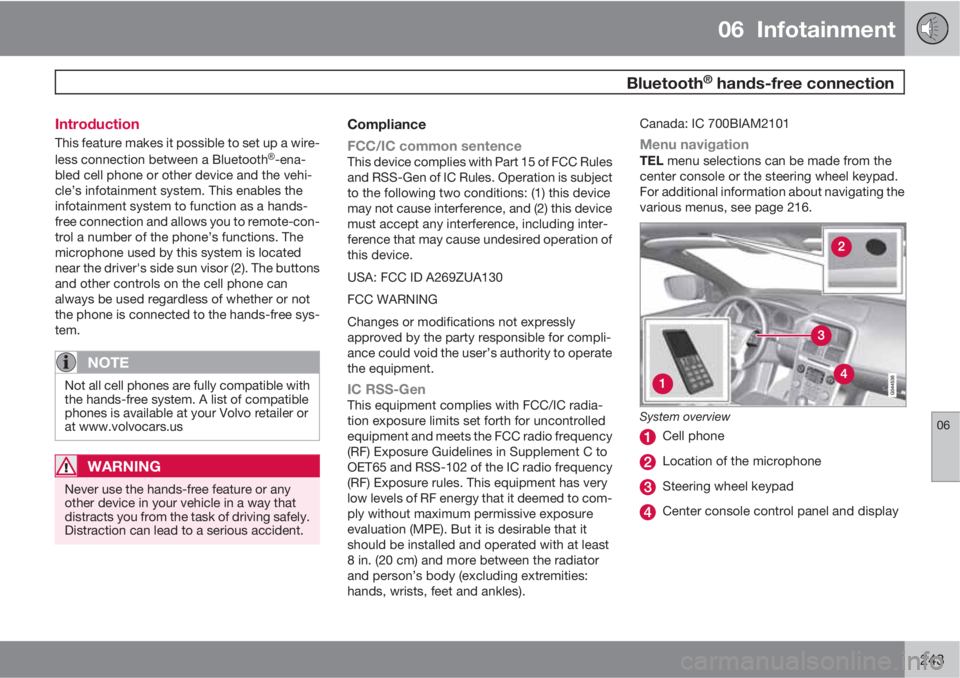
This feature makes it possible to set up a wire-
less connection between a BluetoothŸ-ena-
bled cell phone or other device and the vehi-
cle’s infotainment system. This enables the
infotainment system to function as a hands-
free connection and allows you to remote-con-
trol a number of the phone’s functions. The
microphone used by this system is located
near the driver's side sun visor (2). The buttons
and other controls on the cell phone can
always be used regardless of whether or not
the phone is connected to the hands-free sys-
tem.
NOTE
Not all cell phones are fully compatible with
the hands-free system. A list of compatible
phones is available at your Volvo retailer or
at www.volvocars.us
WARNING
Never use the hands-free feature or any
other device in your vehicle in a way that
distracts you from the task of driving safely.
Distraction can lead to a serious accident.
Compliance
FCC/IC common sentence
This device complies with Part 15 of FCC Rules
and RSS-Gen of IC Rules. Operation is subject
to the following two conditions: (1) this device
may not cause interference, and (2) this device
must accept any interference, including inter-
ference that may cause undesired operation of
this device.
USA: FCC ID A269ZUA130
FCC WARNING
Changes or modifications not expressly
approved by the party responsible for compli-
ance could void the user’s authority to operate
the equipment.
IC RSS-GenThis equipment complies with FCC/IC radia-
tion exposure limits set forth for uncontrolled
equipment and meets the FCC radio frequency
(RF) Exposure Guidelines in Supplement C to
OET65 and RSS-102 of the IC radio frequency
(RF) Exposure rules. This equipment has very
low levels of RF energy that it deemed to com-
ply without maximum permissive exposure
evaluation (MPE). But it is desirable that it
should be installed and operated with at least
8 in. (20 cm) and more between the radiator
and person’s body (excluding extremities:
hands, wrists, feet and ankles).Canada: IC 700BIAM2101
Menu navigationTEL menu selections can be made from the
center console or the steering wheel keypad.
For additional information about navigating the
various menus, see page 216.
System overview
Cell phone
Location of the microphone
Steering wheel keypad
Center console control panel and display
Page 246 of 382

06 Infotainment
Bluetooth® hands-free connection
06
244
Bluetooth® functions in the center
console control panel
Control panel in the center console.
Keypad containing letters and numbers for
dialing numbers, adding phone book
entries, etc.
TEL: Press this button to activate/deacti-
vate the BluetoothŸ function. If TEL is
already active, pressing this button again
will display a shortcut menu with com-
monly used functions.
TUNE: From TEL mode's normal view, turn
clockwise to display the phone book or
counterclockwise for the phone list. It can
also be used for navigating in displayed
menus. The thumb wheel in the steeringwheel keypad can be used in the same
way.
OK/MENU: Press to answer an incoming
call, confirm your selection or access the
phone menus. Incoming calls can also be
answered by pressing the thumb wheel on
the steering wheel keypad.
EXIT: Press to end or reject calls, erase
characters that have been entered, end an
ongoing function and goes back in the
menus. This button on the steering wheel
keypad can also be used in the same way.
Getting started
Use the controls on the steering wheel keypad
and in the center console to access, navigate
and make selections in the hands-free sys-
tem’s menus.
ActivationA short press on the TEL button in the center
console activates the Bluetooth® hands-free
system. If the system is already activated when
the button is pressed, a shortcut menu will be
displayed. The
symbol at the upper right
of the display indicates that the hands-free
system is active.
Pairing (connecting) external
Bluetooth® devicesA maximum of 10 cell phones or other devices
can be paired with the hands-free system. Pair-
ing only needs to be done once for each phone.
After pairing, the cell phone no longer needs to
be in sight or discoverable.
Two Bluetooth
® devices (e.g., a phone and an
iPod®) can be active at the same. However, two
phones cannot be used at the same time to
make calls.
There are two ways of pairing a cell phone to
the hands-free system for the first time:
Method 1: Search for the external device using
the infotainment menus
1.
Activate the cell phone’s Bluetooth
Ÿ func-
tion to make it discoverable (refer to the
phone’s user manual if necessary) or go to
www.volvocars.com
2.
Press TEL.
> The infotainment system will search for
previously paired devices.
3. Press the thumb wheel on the steering
wheel keypad or OK/MENU and select
Add phone.1
1Select Change phone if the cell phone or device has already been paired with the infotainment system. If several phones or devices have already been paired, their names will also be displayed.
Scroll to the device to be connected and press the thumb wheel on the steering wheel keypad or OK/MENU.