Page 266 of 532
266 3-2. Using the audio system
■USB memory functions
●Depending on the USB memory that is connected to the system, the
device itself may not be operable and certain functions may not be avail-
able. If the device is inoperable or a function is unavailable due to a mal-
function (as opposed to a system specification), disconnecting the device
and reconnecting it once again may resolve the problem.
● If the USB memory still does not begin operation after being discon-
nected and reconnected, format the memory.
■ Display
P. 240
■ Error messages
“ERROR”: This indicates a problem in the USB memory or its connection.
“NO MUSIC”: This indicates that no MP3/WMA files are included in the USB memory.
■ USB memory
●Compatible devices
USB memory that can be used for MP3 and WMA playback
● Compatible device formats
The following device formats can be used:
• USB communication formats: USB2.0 FS (12 Mbps)
• File formats: FAT12/16/32 (Windows)
• Correspondence class: Mass storage class
MP3 and WMA files written in any format other than those listed above
may not play correctly, and their file names and folder names may not be
displayed correctly.
Items related to standards and limitations are as follows:
• Maximum directory hierarchy: 8 levels
• Maximum number of folders in a device: 999 (including the root)
• Maximum number of files in a device: 9999
• Maximum number of files per folder: 255
Page 268 of 532
268 3-2. Using the audio system
●ID3 and WMA tags
ID3 tags can be added to MP3 files, making it possible to record the track
title, artist name, etc.
The system is compatible with ID3 Ver. 1.0, 1.1, and Ver. 2.2, 2.3, 2.4 ID3
tags. (The number of characters is based on ID3 Ver. 1.0 and 1.1.)
WMA tags can be added to WMA files, making it possible to record the
track title and artist name in the same way as with ID3 tags.
● MP3 and WMA playback
• When a device containing MP3 or WMA files is connected, all files in
the USB memory are checked. Once the file check is finished, the first
MP3 or WMA file is played. To make the file check finish more quickly,
we recommend that you do not include any files other than MP3 or
WMA files or create any unnecessary folders.
• When the USB memory is connected and the audio source is changed to USB memory mode, the USB memory will start playing the first file in
the first folder. If the same device is removed and reinserted (and the
contents have not been changed), the USB memory will resume play
from the same point in which it was last used.
● Extensions
If the file extensions .mp3 and .wma are used for files other than MP3 and
WMA files, they will be skipped (not played).
● Playback
• To play MP3 files with steady sound quality, we recommend a fixed bit
rate of at least 128 kbps and a sampling frequency of 44.1 kHz.
• There is a wide variety of freeware and other encoding software for MP3 and WMA files on the market, and depending on the status of the
encoding and the file format, poor sound quality or noise at the start of
playback may result. In some cases, playback may not be possible at
all.
• Microsoft, Windows, and Windows Media are registered trademarks of Microsoft Corporation in the U.S.A. and other countries.
CAUTION
■ Caution while driving
Do not connect USB memory or operate the controls.
Page 283 of 532
283
3-3. Using the Bluetooth® audio system
3
Interior features
Using the Bluetooth® audio/phone
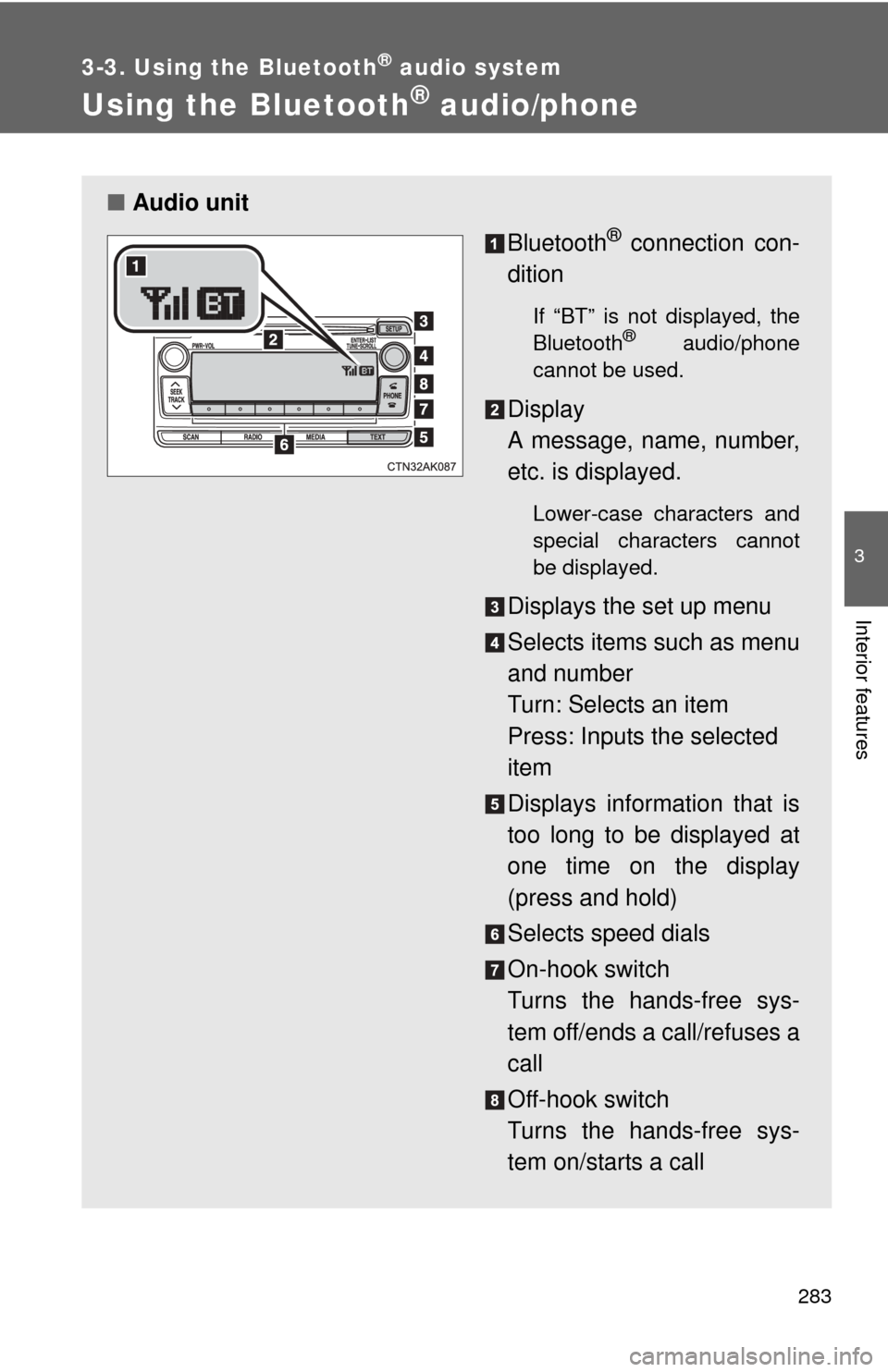
■Audio unit
Bluetooth
® connection con-
dition
If “BT” is not displayed, the
Bluetooth® audio/phone
cannot be used.
Display
A message, name, number,
etc. is displayed.
Lower-case characters and
special characters cannot
be displayed.
Displays the set up menu
Selects items such as menu
and number
Turn: Selects an item
Press: Inputs the selected
item
Displays information that is
too long to be displayed at
one time on the display
(press and hold)
Selects speed dials
On-hook switch
Turns the hands-free sys-
tem off/ends a call/refuses a
call
Off-hook switch
Turns the hands-free sys-
tem on/starts a call
Page 287 of 532
287
3-3. Using the Bluetooth
® audio system
3
Interior features
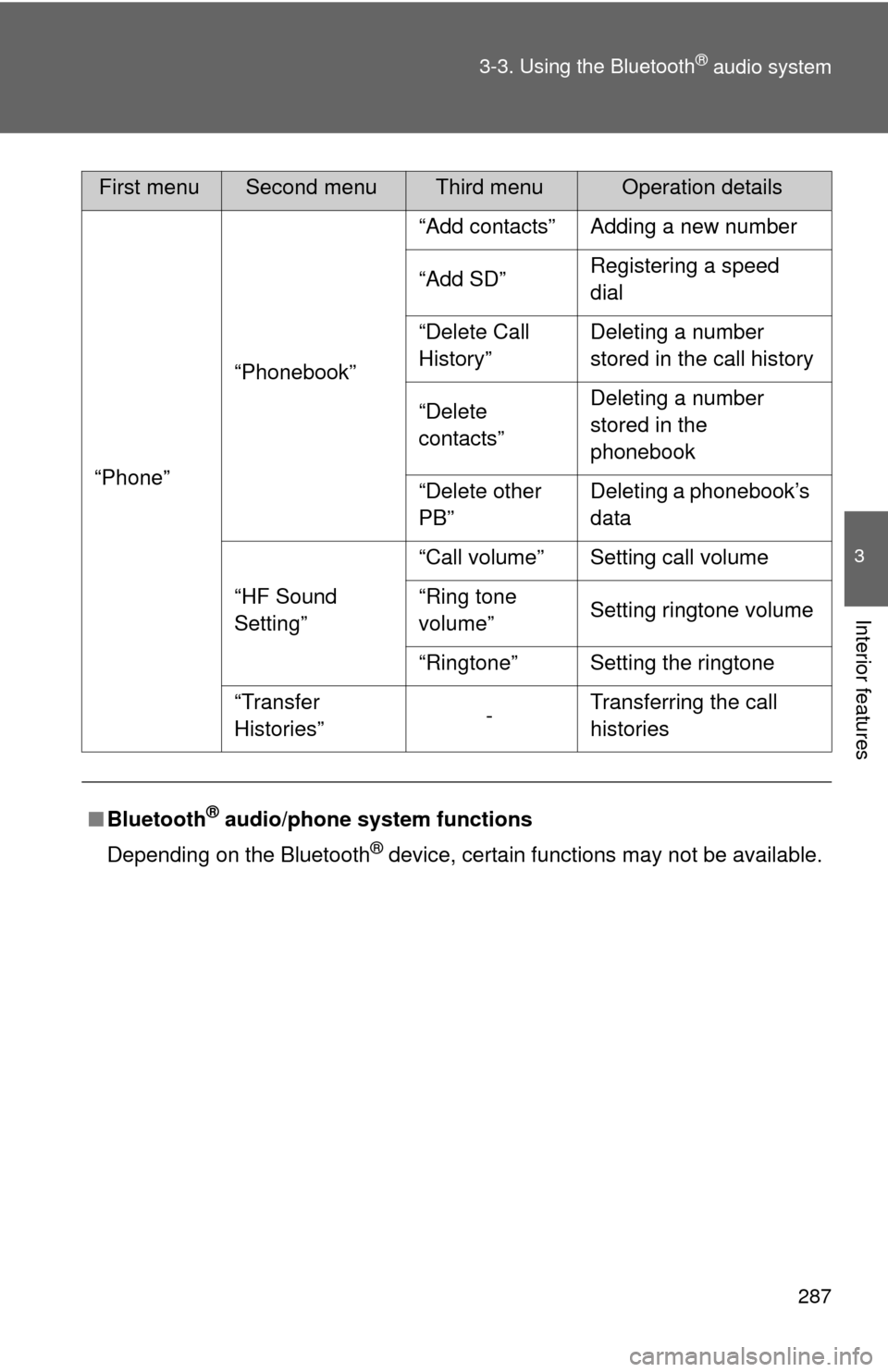
“Phone”
“Phonebook” “Add contacts” Adding a new number
“Add SD”
Registering a speed
dial
“Delete Call
History” Deleting a number
stored in the call history
“Delete
contacts” Deleting a number
stored in the
phonebook
“Delete other
PB” Deleting a phonebook’s
data
“HF Sound
Setting” “Call volume” Setting call volume
“Ring tone
volume”
Setting ringtone volume
“Ringtone” Setting the ringtone
“Transfer
Histories” -Transferring the call
histories
■ Bluetooth
® audio/phone system functions
Depending on the Bluetooth
® device, certain functions may not be available.
First menuSecond menuThird menuOperation details
Page 291 of 532
291
3
Interior features
3-4. Using the hands-free phone system (for cellular phone)
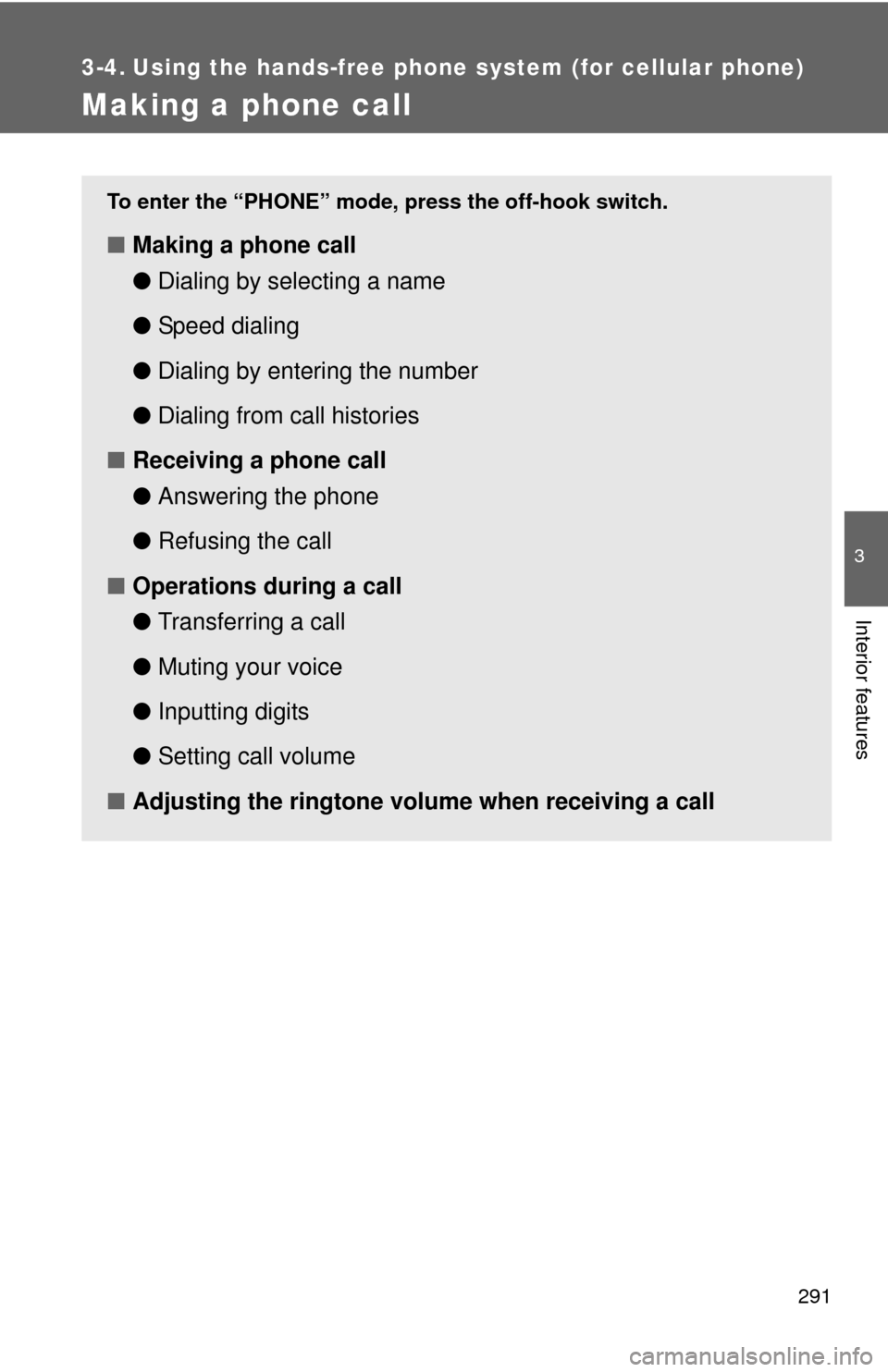
Making a phone call
To enter the “PHONE” mode, press the off-hook switch.
■Making a phone call
●Dialing by selecting a name
● Speed dialing
● Dialing by entering the number
● Dialing from call histories
■ Receiving a phone call
●Answering the phone
● Refusing the call
■ Operations during a call
●Transferring a call
● Muting your voice
● Inputting digits
● Setting call volume
■ Adjusting the ringtone volume when receiving a call
Page 292 of 532
292 3-4. Using the hands-free phone system (for cellular phone)
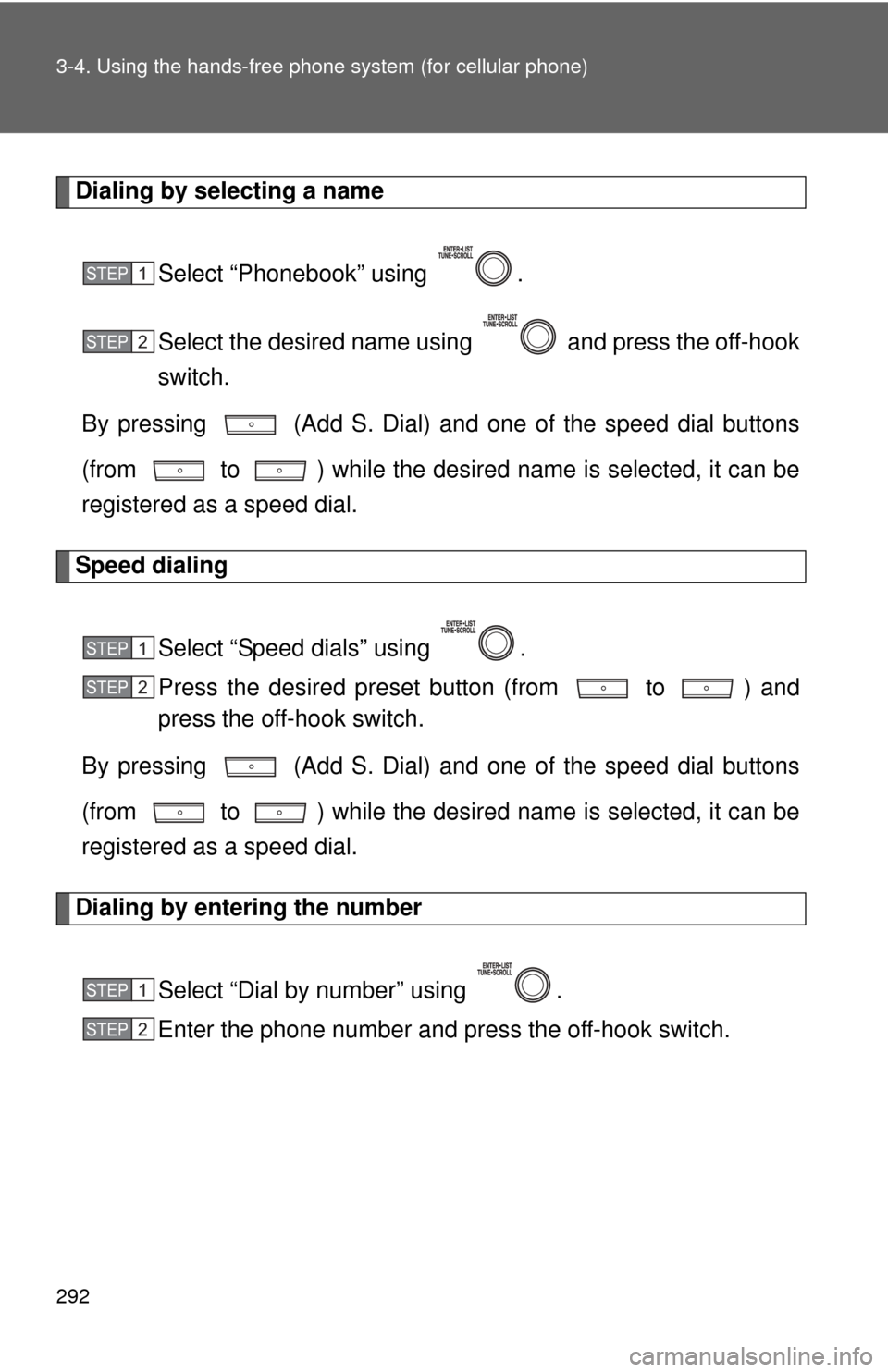
Dialing by selecting a name
Select “Phonebook” using .
Select the desired name using and press the off-hook
switch.
By pressing (Add S. Dial) and one of the speed dial buttons
(from to ) while the desired name is selected, it can be
registered as a speed dial.
Speed dialing
Select “Speed dials” using .
Press the desired preset button (from to ) and
press the off-hook switch.
By pressing (Add S. Dial) and one of the speed dial buttons
(from to ) while the desired name is selected, it can be
registered as a speed dial.
Dialing by entering the number
Select “Dial by number” using .
Enter the phone number and press the off-hook switch.
STEP 1
STEP 2
STEP 1
STEP 2
STEP 1
STEP 2
Page 293 of 532
293
3-4. Using the hand
s-free phone system (for cellular phone)
3
Interior features
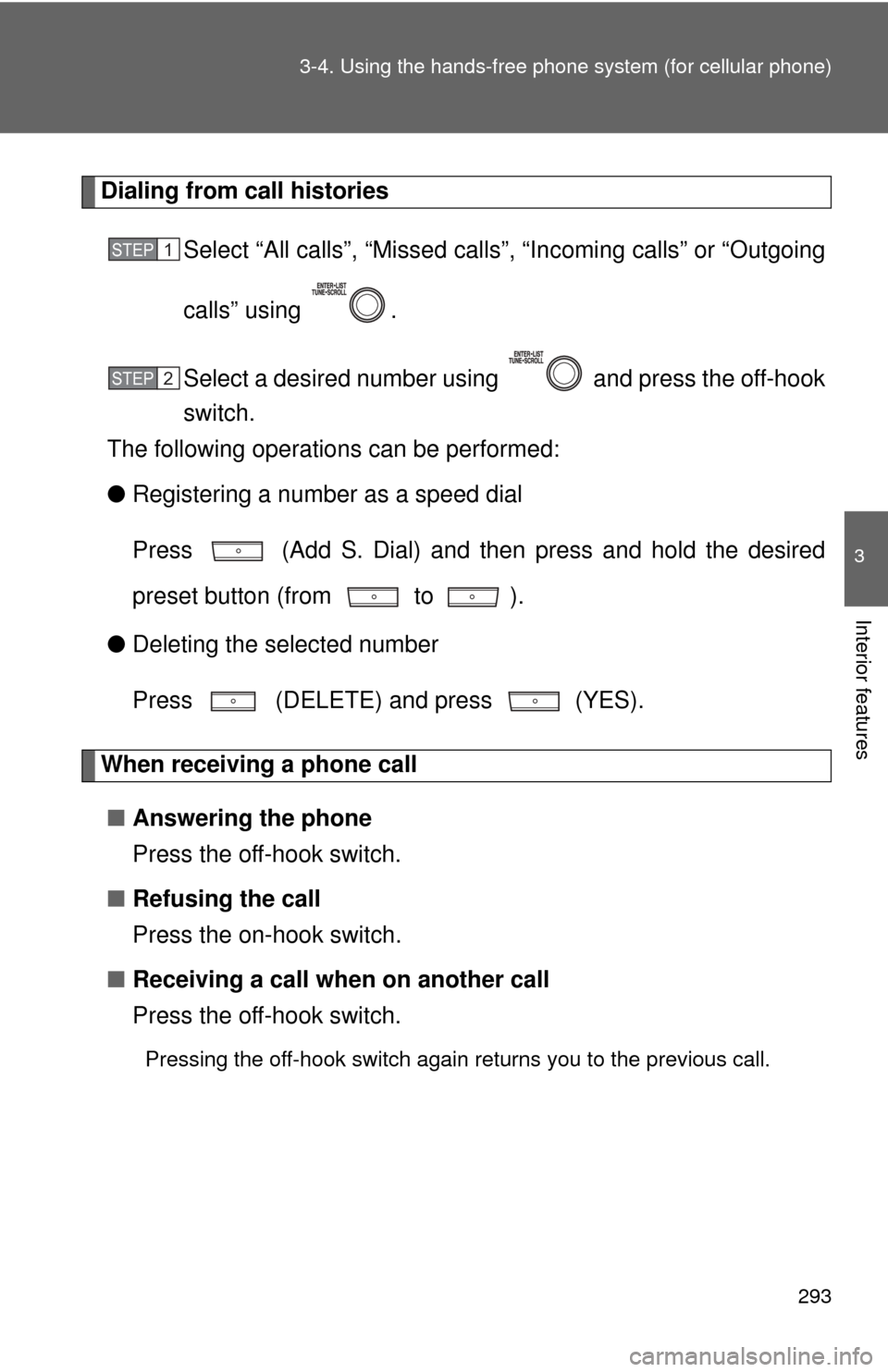
Dialing from call histories
Select “All calls”, “M issed calls”, “Incoming calls” or “Outgoing
calls” using .
Select a desired number using and press the off-hook
switch.
The following operations can be performed:
● Registering a number as a speed dial
Press (Add S. Dial) and then press and hold the desired
preset button (from to ).
● Deleting the selected number
Press (DELETE) and press (YES).
When receiving a phone call
■ Answering the phone
Press the off-hook switch.
■ Refusing the call
Press the on-hook switch.
■ Receiving a call when on another call
Press the off-hook switch.
Pressing the off-hook switch again returns you to the previous call.
STEP 1
STEP 2
Page 299 of 532
299
3-4. Using the hand
s-free phone system (for cellular phone)
3
Interior features
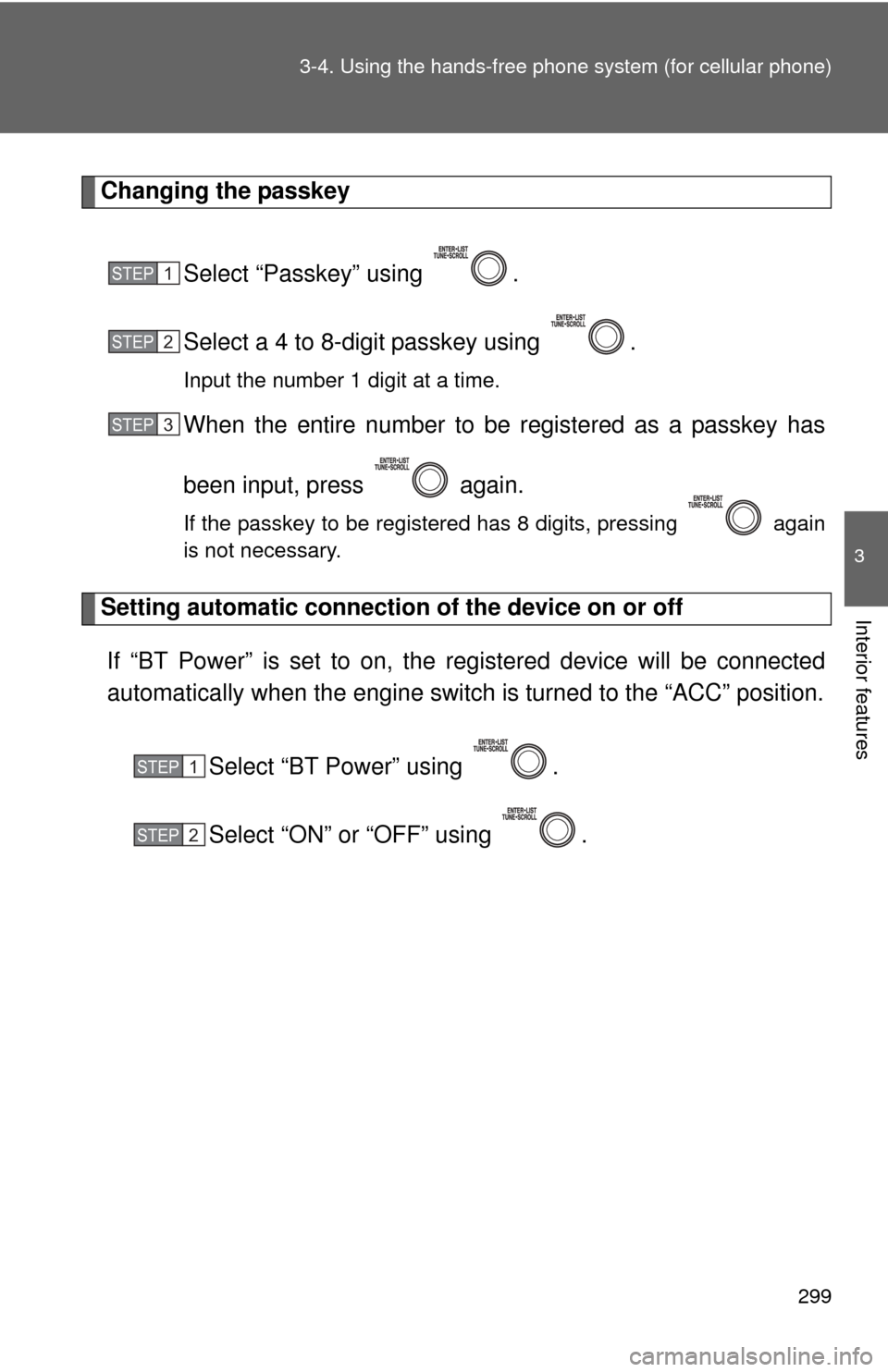
Changing the passkey
Select “Passkey” using .
Select a 4 to 8-digit passkey using .
Input the number 1 digit at a time.
When the entire number to be registered as a passkey has
been input, press again.
If the passkey to be registered has 8 digits, pressing again
is not necessary.
Setting automatic connection of the device on or offIf “BT Power” is set to on, the r egistered device will be connected
automatically when the engine switch is turned to the “ACC” position.
Select “BT Power” using .
Select “ON” or “OFF” using .
STEP 1
STEP 2
STEP 3
STEP 1
STEP 2