Page 312 of 704
312 2-5. Driving information
4RUNNER_U
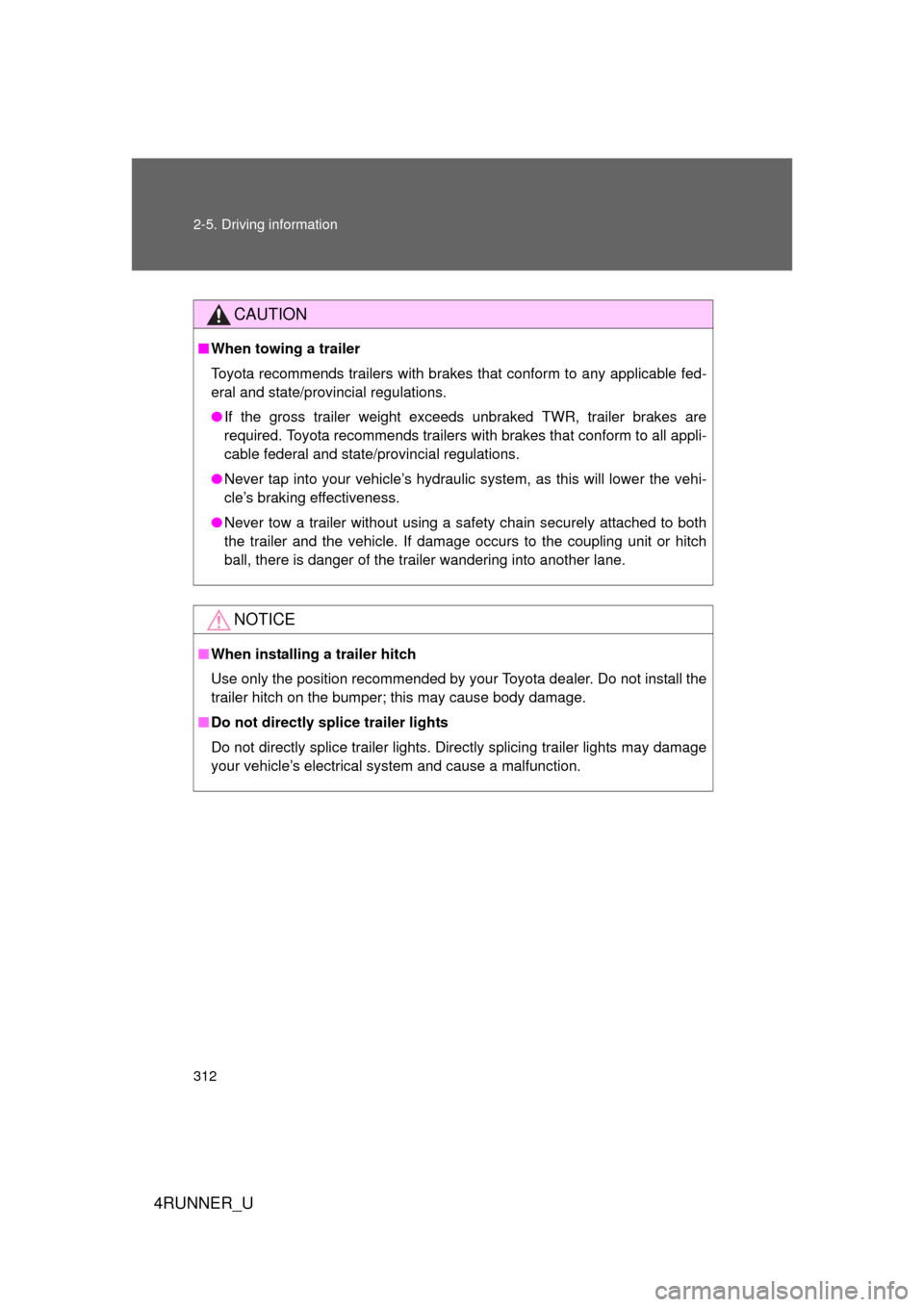
CAUTION
■When towing a trailer
Toyota recommends trailers with brakes that conform to any applicable fed-
eral and state/provincial regulations.
● If the gross trailer weight exceeds unbraked TWR, trailer brakes are
required. Toyota recommends trailers with brakes that conform to all appli-
cable federal and state/provincial regulations.
● Never tap into your vehicle’s hydraulic system, as this will lower the vehi-
cle’s braking effectiveness.
● Never tow a trailer without using a safety chain securely attached to both
the trailer and the vehicle. If damage occurs to the coupling unit or hitch
ball, there is danger of the trailer wandering into another lane.
NOTICE
■When installing a trailer hitch
Use only the position recommended by your Toyota dealer. Do not install the
trailer hitch on the bumper; this may cause body damage.
■ Do not directly splice trailer lights
Do not directly splice trailer lights. Directly splicing trailer lights may damage
your vehicle’s electrical system and cause a malfunction.
Page 315 of 704
Interior features3
315
4RUNNER_U
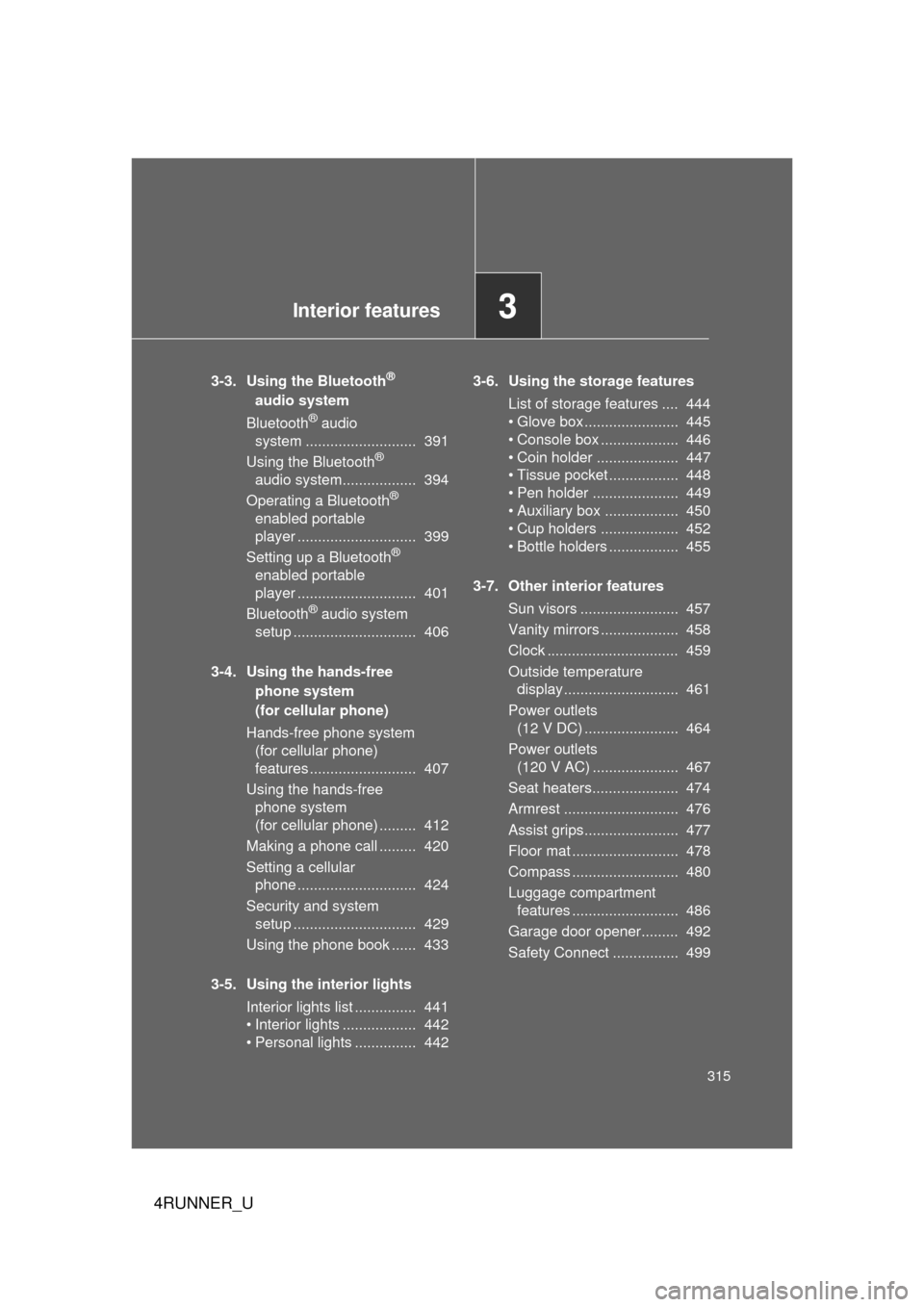
3-3. Using the Bluetooth®
audio system
Bluetooth
® audio
system ........................... 391
Using the Bluetooth
®
audio system.................. 394
Operating a Bluetooth
®
enabled portable
player ............................. 399
Setting up a Bluetooth
®
enabled portable
player ............................. 401
Bluetooth
® audio system
setup .............................. 406
3-4. Using the hands-free phone system
(for cellular phone)
Hands-free phone system (for cellular phone)
features .......................... 407
Using the hands-free phone system
(for cellular phone) ......... 412
Making a phone call ......... 420
Setting a cellular phone ............................. 424
Security and system setup .............................. 429
Using the phone book ...... 433
3-5. Using the interior lights Interior lights list ............... 441
• Interior lights .................. 442
• Personal lights ............... 442 3-6. Using the storage features
List of storage features .... 444
• Glove box....................... 445
• Console box ................... 446
• Coin holder .................... 447
• Tissue pocket ................. 448
• Pen holder ..................... 449
• Auxiliary box .................. 450
• Cup holders ................... 452
• Bottle holders ................. 455
3-7. Other interior features Sun visors ........................ 457
Vanity mirrors ................... 458
Clock ................................ 459
Outside temperature display............................ 461
Power outlets (12 V DC) ....................... 464
Power outlets (120 V AC) ..................... 467
Seat heaters..................... 474
Armrest ............................ 476
Assist grips....................... 477
Floor mat .......................... 478
Compass .......................... 480
Luggage compartment features .......................... 486
Garage door opener......... 492
Safety Connect ................ 499
Page 346 of 704
346 3-2. Using the audio system
4RUNNER_U
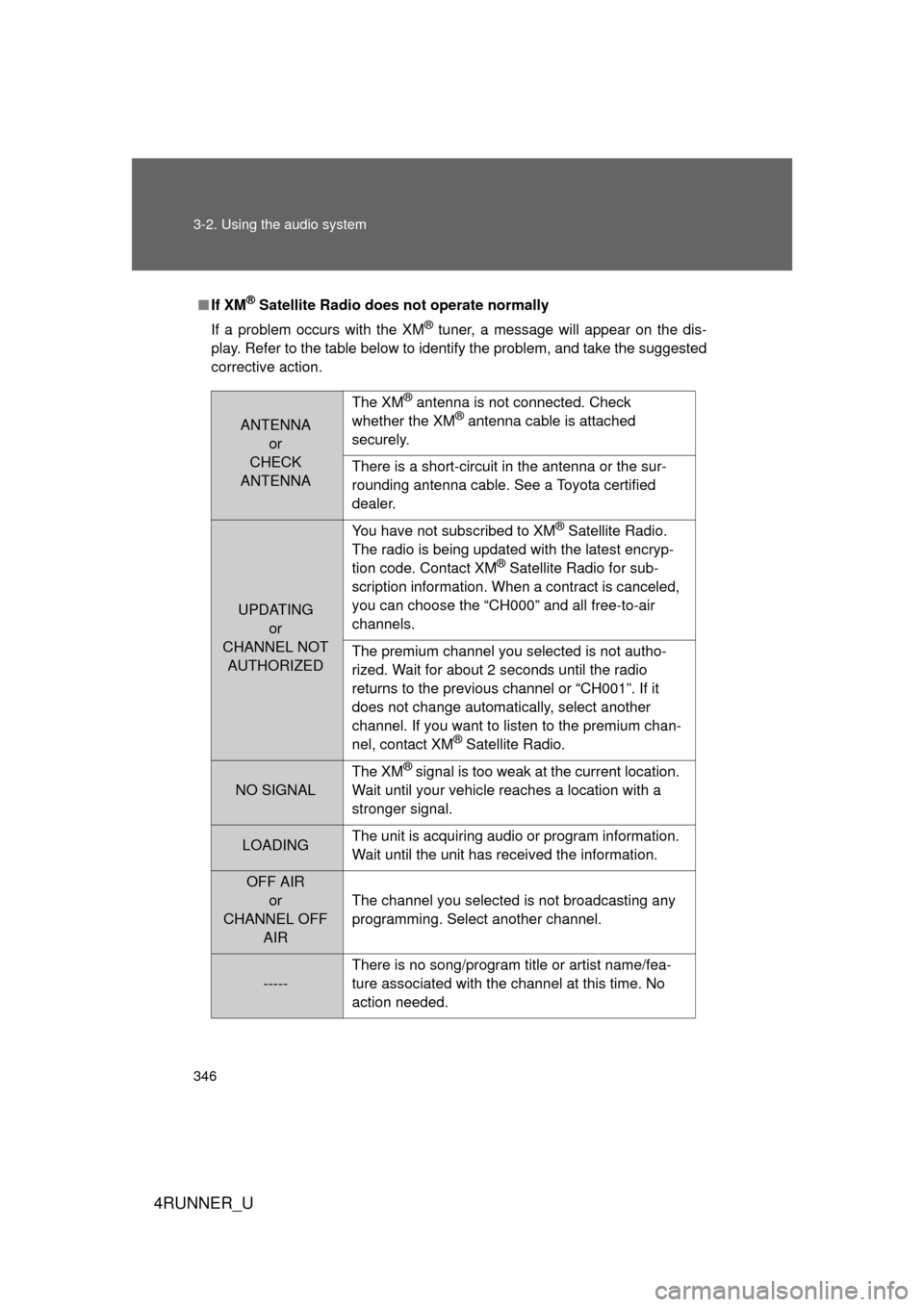
■If XM® Satellite Radio does not operate normally
If a problem occurs with the XM
® tuner, a message will appear on the dis-
play. Refer to the table below to identify the problem, and take the suggested
corrective action.
ANTENNA or
CHECK
ANTENNA The XM
® antenna is not connected. Check
whether the XM® antenna cable is attached
securely.
There is a short-circuit in the antenna or the sur-
rounding antenna cable. See a Toyota certified
dealer.
UPDATING or
CHANNEL NOT AUTHORIZED You have not subscribed to XM
® Satellite Radio.
The radio is being updated with the latest encryp-
tion code. Contact XM
® Satellite Radio for sub-
scription information. When a contract is canceled,
you can choose the “CH000” and all free-to-air
channels.
The premium channel you selected is not autho-
rized. Wait for about 2 seconds until the radio
returns to the previous channel or “CH001”. If it
does not change automatically, select another
channel. If you want to listen to the premium chan-
nel, contact XM
® Satellite Radio.
NO SIGNAL The XM
® signal is too weak at the current location.
Wait until your vehicle reaches a location with a
stronger signal.
LOADING The unit is acquiring audio or program information.
Wait until the unit has received the information.
OFF AIR
or
CHANNEL OFF AIR The channel you selected is not broadcasting any
programming. Select another channel.
-----
There is no song/program title or artist name/fea-
ture associated with the channel at this time. No
action needed.
Page 389 of 704
389
3-2. Using the audio system
3
Interior features
4RUNNER_U
■
About the wrench
After using the included wrench, store it in the glove box for safekeeping\
.
■ Installing the antenna
Tighten the antenna by one
hand until it will not turn any
more.
Using the wrench, tighten the
antenna an additional 1/8th
turn (20 to 45 degrees) to
secure it in place.
After tightening the antenna,
remove the wrench.
CTH32AS079
STEP 1
CTH32AS080
STEP 2
Page 408 of 704

408 3-4. Using the hands-free phone system (for cellular phone)
4RUNNER_U
TitlePage
Using the hands-free phone system ■ Operating the system using a voice
command
■ Using the hands-free phone system for
the first time
■ Menu list of the hands-free phone
system P. 412
Making a phone call ■ Dialing by inputting a number
■ Dialing by inputting a name
■ Speed dialing
■ When receiving a phone call
■ Transferring a call
■ Using the call history memory P. 420
Setting a cellular phone ■ Registering a cellular phone
■ Selecting the cellular phone to be used
■ Changing a registered name
■ Listing the registered cellular phone
■ Deleting a cellular phone
■ Changing the passkey
■ Turning the hands-free phone
automatic connection on/off P. 424
Security and system setup ■ Setting or changing the PIN
■ Locking or unlocking the phone book
■ Setting voice guidance volume
■ Initialization P. 429
Using the phone book ■ Adding a new phone number
■ Setting speed dials
■ Changing a registered name
■ Deleting registered data
■ Deleting speed dials
■ Listing the registered data P. 433
Page 417 of 704
417
3-4. Using the hand
s-free phone system (for cellular phone)
3
Interior features
4RUNNER_U
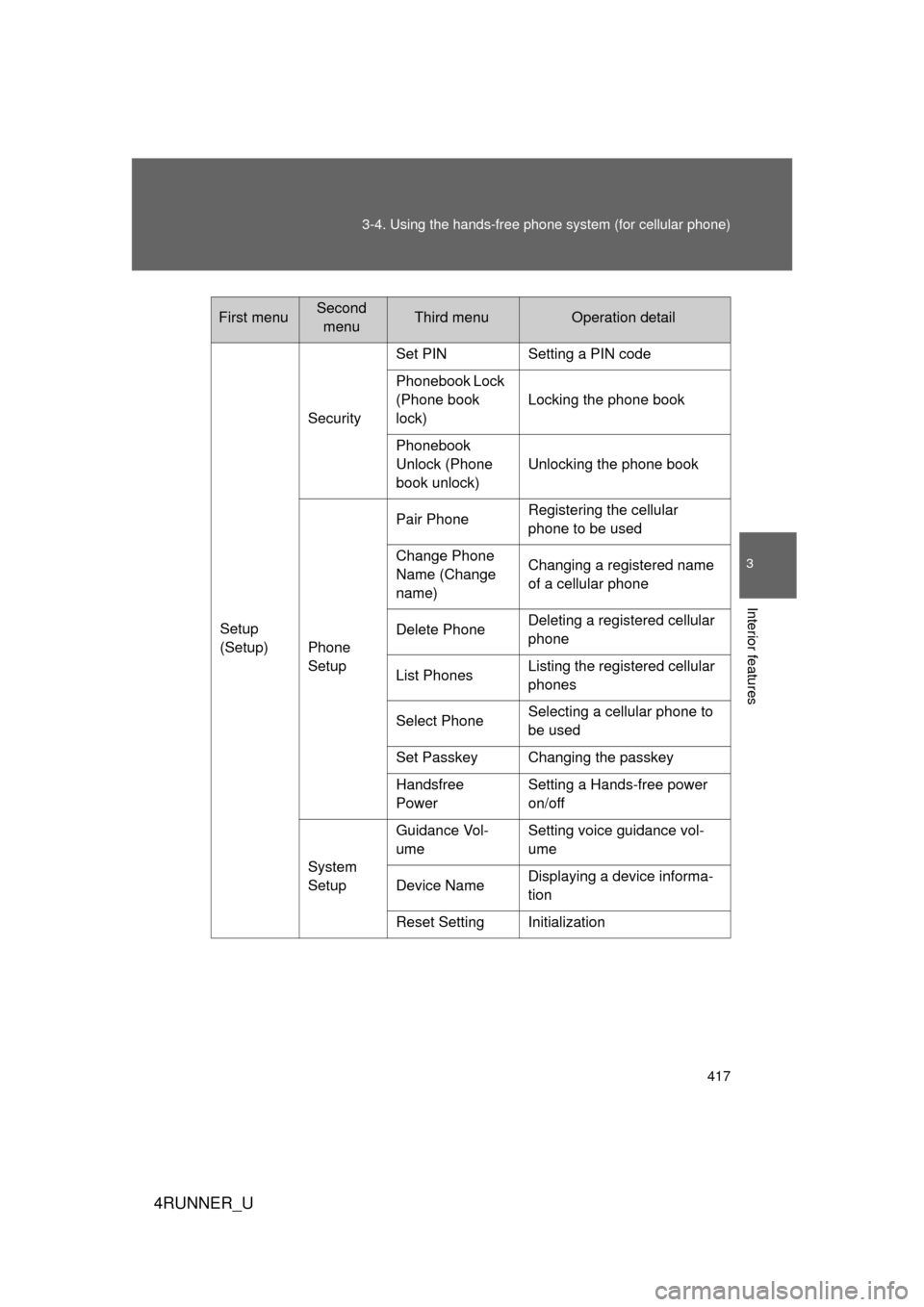
Setup
(Setup)Security
Set PIN Setting a PIN code
Phonebook Lock
(Phone book
lock)
Locking the phone book
Phonebook
Unlock (Phone
book unlock) Unlocking the phone book
Phone
Setup Pair Phone
Registering the cellular
phone to be used
Change Phone
Name (Change
name) Changing a registered name
of a cellular phone
Delete Phone Deleting a registered cellular
phone
List Phones Listing the registered cellular
phones
Select Phone Selecting a cellular phone to
be used
Set Passkey Changing the passkey
Handsfree
Power Setting a Hands-free power
on/off
System
Setup Guidance Vol-
ume
Setting voice guidance vol-
ume
Device Name Displaying a device informa-
tion
Reset Setting Initialization
First menuSecond menuThird menuOperation detail
Page 429 of 704
429
3-4. Using the hands-free phone system (for cellular phone)
3
Interior features
4RUNNER_U
Security and system setup
Setting or changing the PIN■ Setting a PIN
Select “Set PIN” using a voice command or .
To enter the menu of each setting, follow the steps below:
■Security setting items and operation procedure
● Setting or changing t he PIN (Personal Identification Number)
1. “Setup (Setup)” 2. “Security” 3. “Set PIN”
● Locking the phone book
1. “Setup (Setup)” 2. “Security” 3. “Phonebook Lock
(Phone book lock)”
● Unlocking the phone book
1. “Setup (Setup)” 2. “Security” 3. “Phonebook Unlock
(Phone book unlock)”
■ System setup items and operation procedure
●Setting voice guidance volume
1. “Setup (Setup)” 2. “System Setup” 3. “Guidance Vol-
ume”
● Initialization
1. “Setup (Setup)” 2. “System Setup” 3. “Reset Settings”
can only be used for system setup operation.
STEP 1
Page 432 of 704
432 3-4. Using the hands-free phone system (for cellular phone)
4RUNNER_U
■Initialization
● The following data in the system can be initialized:
• Phone book
• Outgoing and incoming call history
• Speed dials
• Registered cellular phone data
• Security code
● Once the initialization has been completed, the data cannot be restored
to its original state.
■ When the phone book is locked
The following functions cannot be used:
● Dialing by inputting a name
● Speed dialing
● Dialing a number stored in the call history memory
● Using the phone book