Page 213 of 458
●Operating procedure of the Bluetooth� au-
dio will vary depending on the devices. Make
sure how to operate your audio device be-
fore using it with this system.
● The Bluetooth� audio may be stopped under
the following conditions:
● Receiving a call on the Hands-Free
Phone System.
● Checking the connection to the hands-
free phone.
● Do not place the Bluetooth� audio device in
an area surrounded by metal or far away from
the in-vehicle Bluetooth� module to prevent
tone quality degradation and wireless con-
nection disruption.
● While an audio device is connected through
the Bluetooth� wireless connection, the bat-
tery power of the device may discharge
quicker than usual.
● This system supports the Bluetooth� Audio
Distribution Profile (A2DP, AVRCP) .BLUETOOTH� is a
trademark owned by
Bluetooth SIG, Inc.
and licensed to
Visteon and Bosch.
4-42
Monitor, climate, audio, phone and voice recognition systems
Page 223 of 458

When thebutton is pressed twice with a
compact disc loaded, the compact disc will be
ejected further for easier CD removal. If the disc
is not removed within 20 seconds, the disc will
reload.
Additional features
For more information about the iPod� player
available with this system, see “iPod� player op-
eration without Navigation System” in this sec-
tion.
For more information about the USB interface
available with this system, see “USB interface
(models without Navigation System)” in this sec-
tion.
For more information about the Bluetooth� audio
interface available with this system, see
“Bluetooth� streaming audio without Navigation
System” in this section.
For more information about the Pandora� audio
feature available with this system, see “Pandora �
audio” in this section.
1.CD eject button
2. FM-AM button
3. AUX button
4. CD insert slot
5. BACK button 6. TUNE knob / AUDIO button
7. Display screen
8. ON-OFF button / VOL (volume)
9.
Backward seek button and
Forward seek button
Type B
LHA2500
4-52Monitor, climate, audio, phone and voice recognition systems
Page 224 of 458
10. CD button
11. XM button**No satellite radio reception is available
when the XM button is pressed to access
satellite radio stations unless optional
satellite receiver and antenna are installed
and an SiriusXM Satellite Radio service
subscription is active. Satellite radio is
not available in Alaska, Hawaii and Guam.
FM/AM/SAT RADIO WITH
COMPACT DISC (CD) PLAYER (Type
B) (if so equipped)
For all operation precautions, see “Audio opera-
tion precautions” in this section.
Audio main operation
VOL (volume) / ON-OFF button:
Place the ignition switch in the ACC or ON
position and press the ON-OFF button while the
system is off to call up the mode (radio, CD, AUX,
Bluetooth� audio USB or iPod�) that was playing
immediately before the system was turned off. To turn the system off, press the ON-OFF button.
Turn the VOL (volume) control knob to adjust the
volume.
This vehicle may be equipped with Speed Sen-
sitive Volume. When this feature is active, the
audio volume changes as the driving speed
changes.
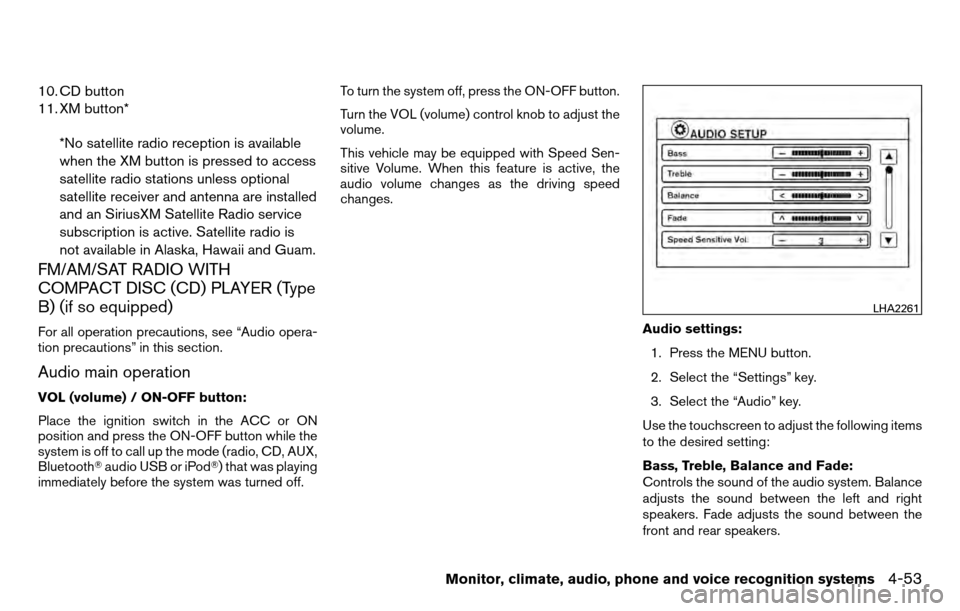
Audio settings:1. Press the MENU button.
2. Select the “Settings” key.
3. Select the “Audio” key.
Use the touchscreen to adjust the following items
to the desired setting:
Bass, Treble, Balance and Fade:
Controls the sound of the audio system. Balance
adjusts the sound between the left and right
speakers. Fade adjusts the sound between the
front and rear speakers.
LHA2261
Monitor, climate, audio, phone and voice recognition systems4-53
Page 230 of 458
Additional features
For more information about the iPod�player
available with this system, see “iPod� player op-
eration with Navigation System” in this section.
For more information about the USB interface
available with this system, see “USB interface
(models with Navigation System)” in this section.
For more information about the Bluetooth� audio
interface available with this system, see
“Bluetooth� streaming audio with Navigation
System” in this section.
For more information about the Pandora� audio
feature available with this system, see “Pandora �
audio” in this section.
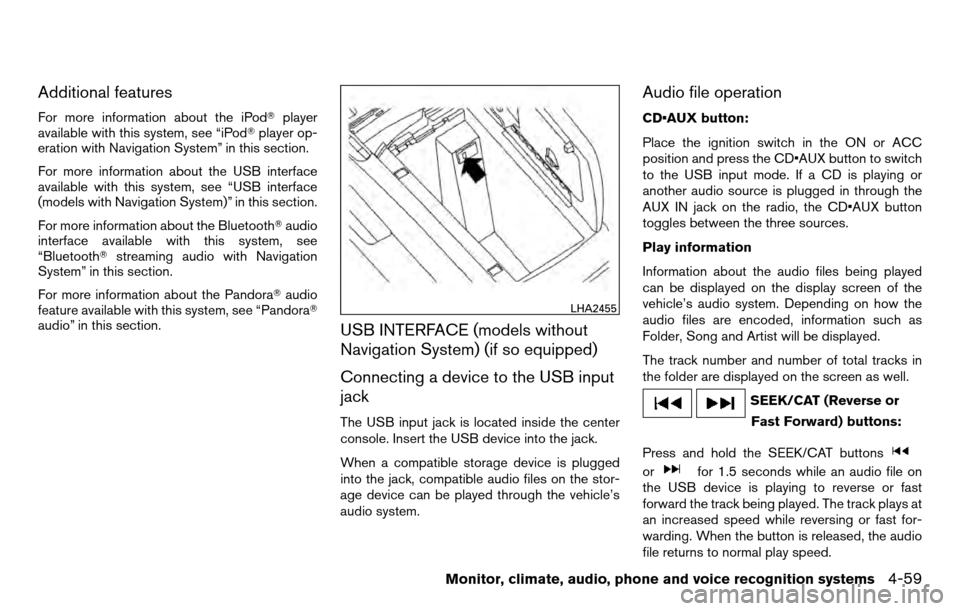
USB INTERFACE (models without
Navigation System) (if so equipped)
Connecting a device to the USB input
jack
The USB input jack is located inside the center
console. Insert the USB device into the jack.
When a compatible storage device is plugged
into the jack, compatible audio files on the stor-
age device can be played through the vehicle’s
audio system.
Audio file operation
CD•AUX button:
Place the ignition switch in the ON or ACC
position and press the CD•AUX button to switch
to the USB input mode. If a CD is playing or
another audio source is plugged in through the
AUX IN jack on the radio, the CD•AUX button
toggles between the three sources.
Play information
Information about the audio files being played
can be displayed on the display screen of the
vehicle’s audio system. Depending on how the
audio files are encoded, information such as
Folder, Song and Artist will be displayed.
The track number and number of total tracks in
the folder are displayed on the screen as well.
SEEK/CAT (Reverse or
Fast Forward) buttons:
Press and hold the SEEK/CAT buttons
orfor 1.5 seconds while an audio file on
the USB device is playing to reverse or fast
forward the track being played. The track plays at
an increased speed while reversing or fast for-
warding. When the button is released, the audio
file returns to normal play speed.
LHA2455
Monitor, climate, audio, phone and voice recognition systems4-59
Page 237 of 458
Repeat:
Touch the “Repeat” key to apply a repeat play
pattern to the iPod�. When the repeat mode is
active, the
icon is displayed to the left of
the song title or album name to denote which
repeat pattern is applied. To cancel Repeat
mode, touch the “Repeat” key until no
icon
is displayed.
Seek buttons:
Press the seek button
orto skip
backward or forward one track.
Press and hold the seek button
orfor 1.5 seconds while a track is playing to reverse
or fast forward the track being played. The track
plays at an increased speed while reversing or
fast forwarding. When the button is released, the
track returns to normal play speed. Scrolling menus:
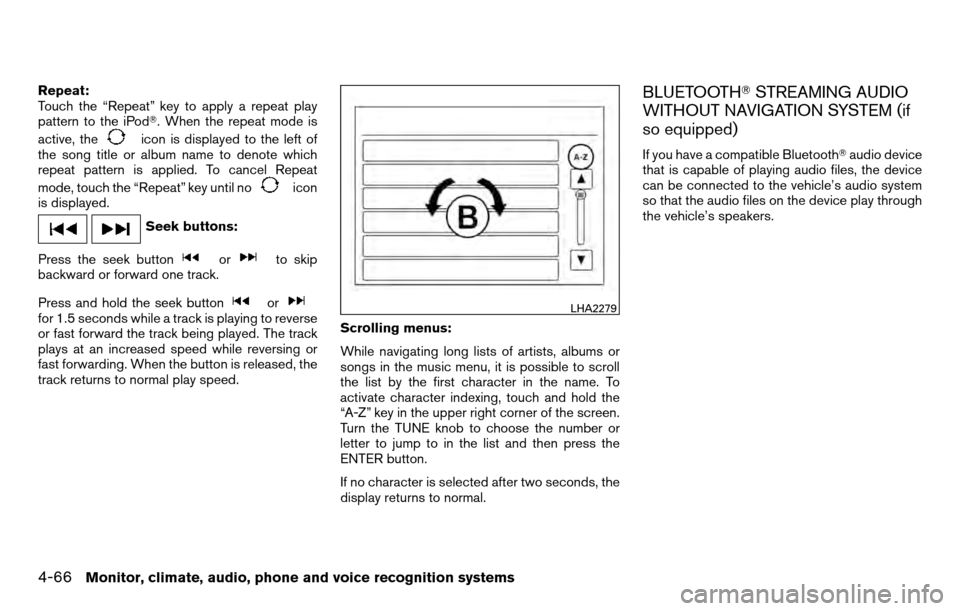
While navigating long lists of artists, albums or
songs in the music menu, it is possible to scroll
the list by the first character in the name. To
activate character indexing, touch and hold the
“A-Z” key in the upper right corner of the screen.
Turn the TUNE knob to choose the number or
letter to jump to in the list and then press the
ENTER button.
If no character is selected after two seconds, the
display returns to normal.
BLUETOOTH�
STREAMING AUDIO
WITHOUT NAVIGATION SYSTEM (if
so equipped)
If you have a compatible Bluetooth� audio device
that is capable of playing audio files, the device
can be connected to the vehicle’s audio system
so that the audio files on the device play through
the vehicle’s speakers.
LHA2279
4-66Monitor, climate, audio, phone and voice recognition systems
Page 238 of 458
Connecting Bluetooth�audio
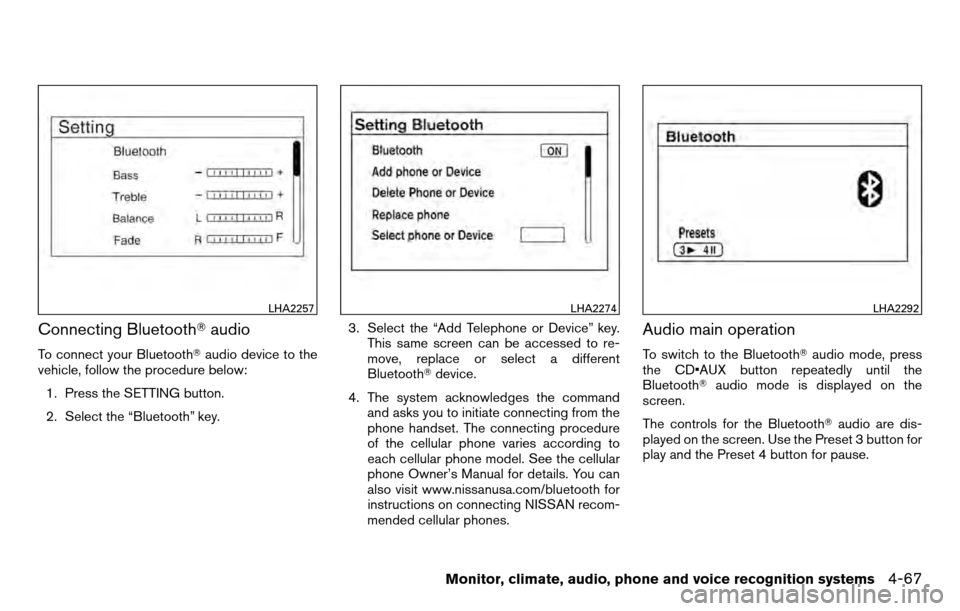
To connect your Bluetooth� audio device to the
vehicle, follow the procedure below:
1. Press the SETTING button.
2. Select the “Bluetooth” key. 3. Select the “Add Telephone or Device” key.
This same screen can be accessed to re-
move, replace or select a different
Bluetooth� device.
4. The system acknowledges the command and asks you to initiate connecting from the
phone handset. The connecting procedure
of the cellular phone varies according to
each cellular phone model. See the cellular
phone Owner’s Manual for details. You can
also visit www.nissanusa.com/bluetooth for
instructions on connecting NISSAN recom-
mended cellular phones.
Audio main operation
To switch to the Bluetooth� audio mode, press
the CD•AUX button repeatedly until the
Bluetooth� audio mode is displayed on the
screen.
The controls for the Bluetooth� audio are dis-
played on the screen. Use the Preset 3 button for
play and the Preset 4 button for pause.
LHA2257LHA2274LHA2292
Monitor, climate, audio, phone and voice recognition systems4-67
Page 239 of 458
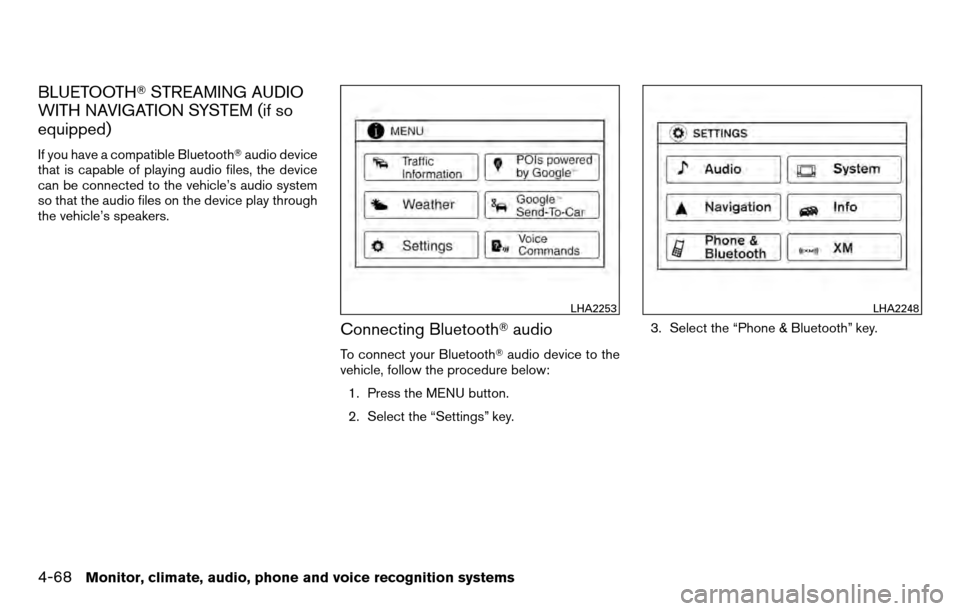
BLUETOOTH�STREAMING AUDIO
WITH NAVIGATION SYSTEM (if so
equipped)
If you have a compatible Bluetooth� audio device
that is capable of playing audio files, the device
can be connected to the vehicle’s audio system
so that the audio files on the device play through
the vehicle’s speakers.
Connecting Bluetooth� audio
To connect your Bluetooth� audio device to the
vehicle, follow the procedure below:
1. Press the MENU button.
2. Select the “Settings” key. 3. Select the “Phone & Bluetooth” key.
LHA2253LHA2248
4-68Monitor, climate, audio, phone and voice recognition systems
Page 240 of 458
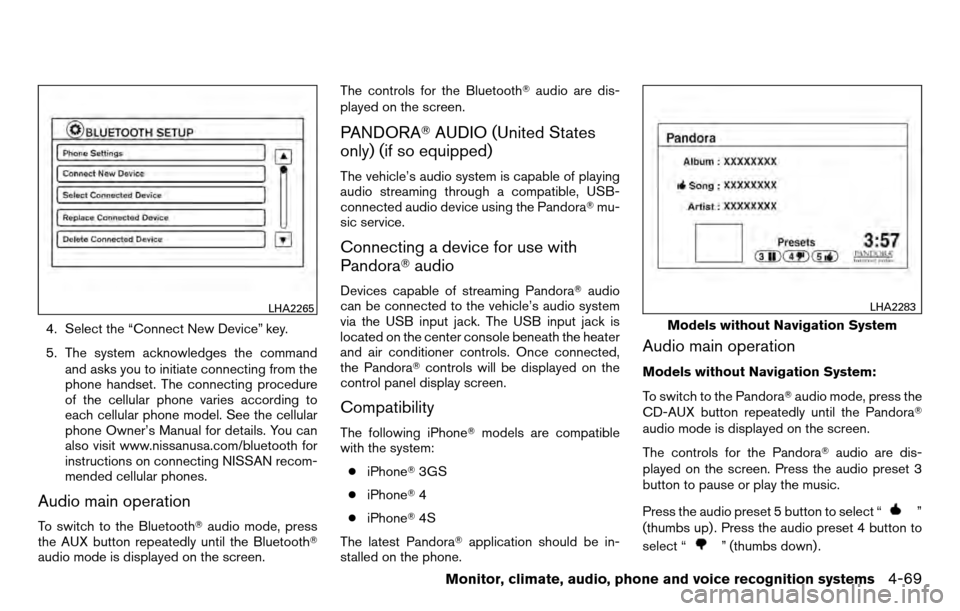
4. Select the “Connect New Device” key.
5. The system acknowledges the commandand asks you to initiate connecting from the
phone handset. The connecting procedure
of the cellular phone varies according to
each cellular phone model. See the cellular
phone Owner’s Manual for details. You can
also visit www.nissanusa.com/bluetooth for
instructions on connecting NISSAN recom-
mended cellular phones.
Audio main operation
To switch to the Bluetooth� audio mode, press
the AUX button repeatedly until the Bluetooth�
audio mode is displayed on the screen. The controls for the Bluetooth�
audio are dis-
played on the screen.
PANDORA� AUDIO (United States
only) (if so equipped)
The vehicle’s audio system is capable of playing
audio streaming through a compatible, USB-
connected audio device using the Pandora� mu-
sic service.
Connecting a device for use with
Pandora� audio
Devices capable of streaming Pandora� audio
can be connected to the vehicle’s audio system
via the USB input jack. The USB input jack is
located on the center console beneath the heater
and air conditioner controls. Once connected,
the Pandora� controls will be displayed on the
control panel display screen.
Compatibility
The following iPhone� models are compatible
with the system:
● iPhone� 3GS
● iPhone� 4
● iPhone� 4S
The latest Pandora� application should be in-
stalled on the phone.
Audio main operation
Models without Navigation System:
To switch to the Pandora� audio mode, press the
CD-AUX button repeatedly until the Pandora�
audio mode is displayed on the screen.
The controls for the Pandora� audio are dis-
played on the screen. Press the audio preset 3
button to pause or play the music.
Press the audio preset 5 button to select “
”
(thumbs up) . Press the audio preset 4 button to
select “
” (thumbs down) .
LHA2265
Models without Navigation System
LHA2283
Monitor, climate, audio, phone and voice recognition systems4-69