Page 218 of 506
●Newfoundland
● Hawaii
● Alaska
After selection/settings, press the BACK button
or any other mode button to accept the changes.
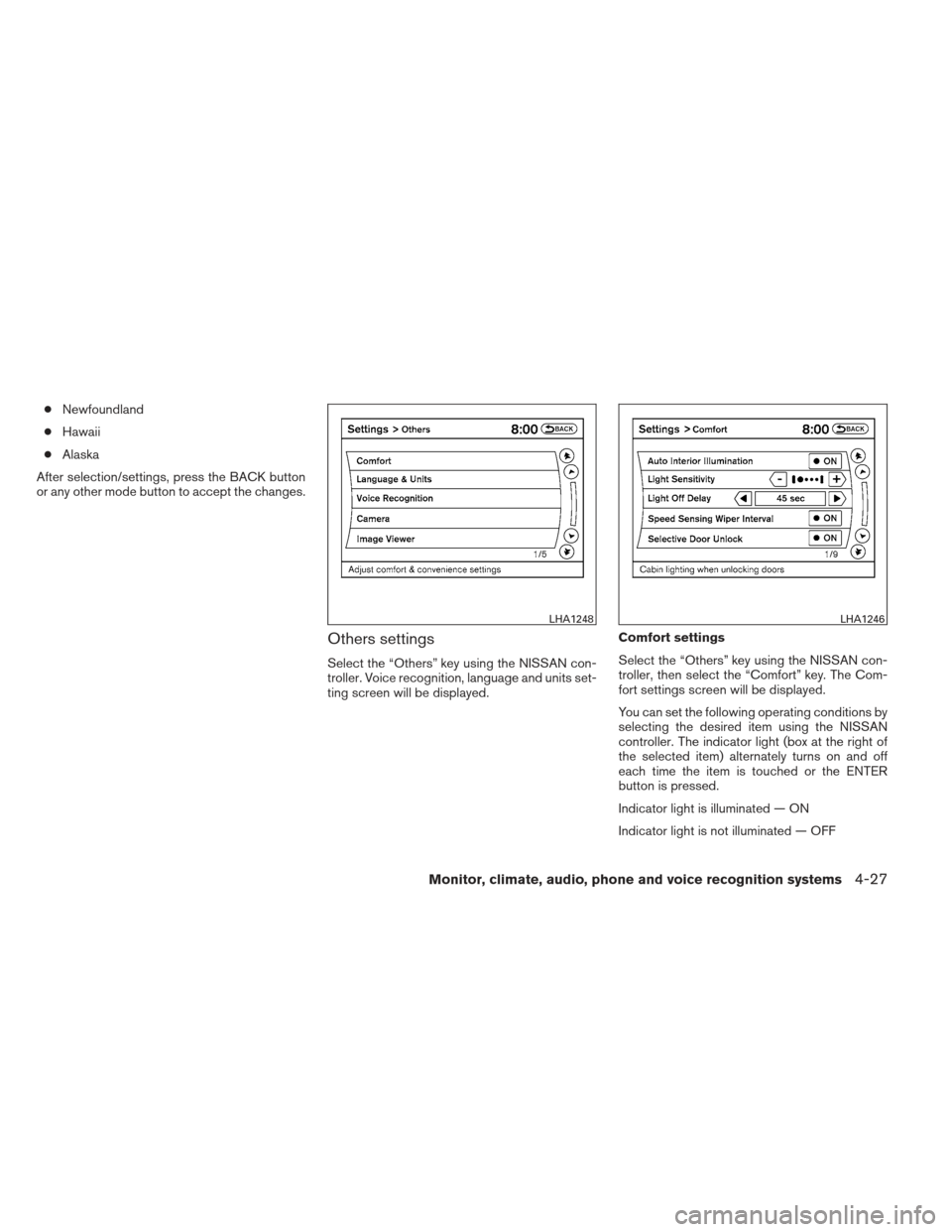
Others settings
Select the “Others” key using the NISSAN con-
troller. Voice recognition, language and units set-
ting screen will be displayed. Comfort settings
Select the “Others” key using the NISSAN con-
troller, then select the “Comfort” key. The Com-
fort settings screen will be displayed.
You can set the following operating conditions by
selecting the desired item using the NISSAN
controller. The indicator light (box at the right of
the selected item) alternately turns on and off
each time the item is touched or the ENTER
button is pressed.
Indicator light is illuminated — ON
Indicator light is not illuminated — OFF
LHA1248LHA1246
Monitor, climate, audio, phone and voice recognition systems4-27
Page 219 of 506
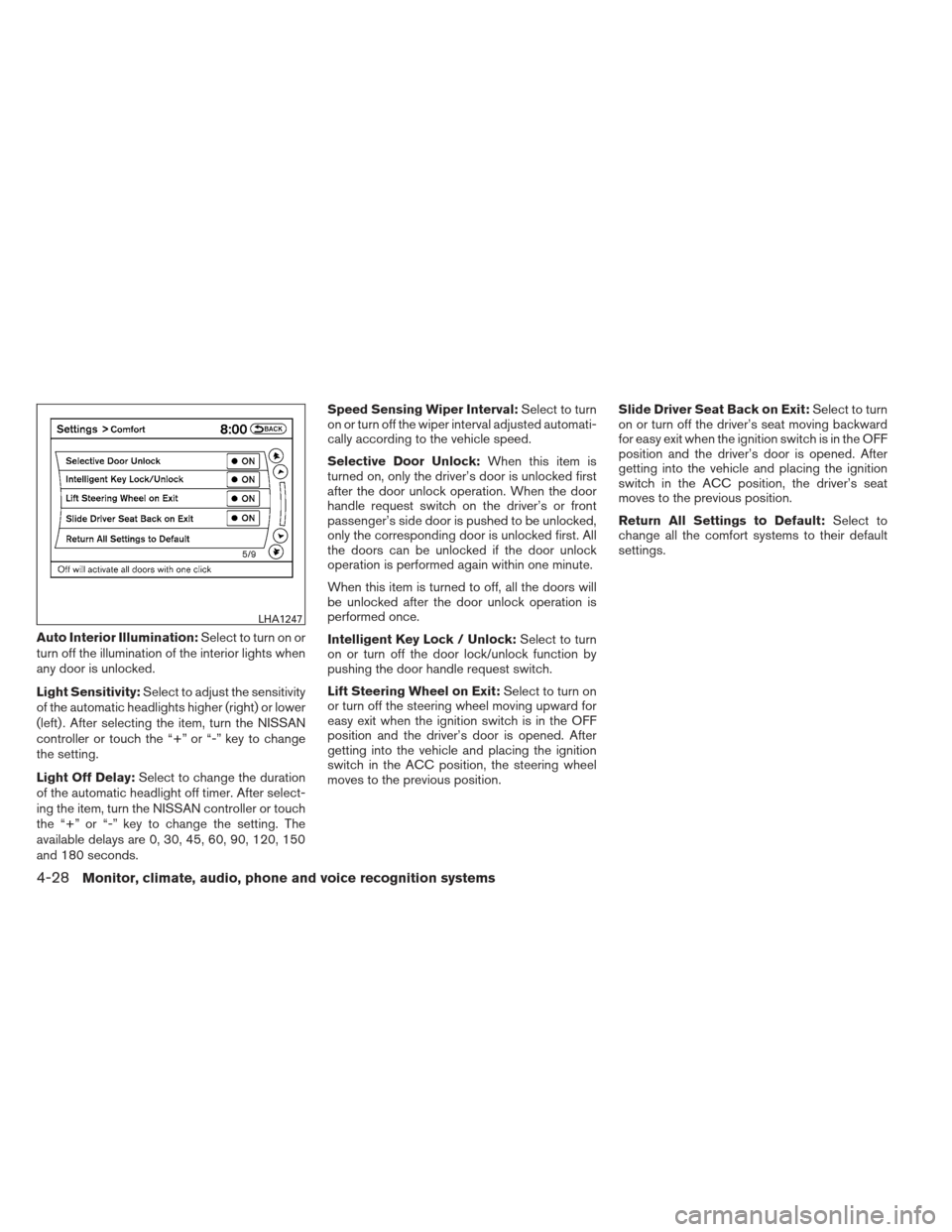
Auto Interior Illumination:Select to turn on or
turn off the illumination of the interior lights when
any door is unlocked.
Light Sensitivity: Select to adjust the sensitivity
of the automatic headlights higher (right) or lower
(left) . After selecting the item, turn the NISSAN
controller or touch the “+” or “-” key to change
the setting.
Light Off Delay: Select to change the duration
of the automatic headlight off timer. After select-
ing the item, turn the NISSAN controller or touch
the “+” or “-” key to change the setting. The
available delays are 0, 30, 45, 60, 90, 120, 150
and 180 seconds. Speed Sensing Wiper Interval:
Select to turn
on or turn off the wiper interval adjusted automati-
cally according to the vehicle speed.
Selective Door Unlock: When this item is
turned on, only the driver’s door is unlocked first
after the door unlock operation. When the door
handle request switch on the driver’s or front
passenger’s side door is pushed to be unlocked,
only the corresponding door is unlocked first. All
the doors can be unlocked if the door unlock
operation is performed again within one minute.
When this item is turned to off, all the doors will
be unlocked after the door unlock operation is
performed once.
Intelligent Key Lock / Unlock: Select to turn
on or turn off the door lock/unlock function by
pushing the door handle request switch.
Lift Steering Wheel on Exit: Select to turn on
or turn off the steering wheel moving upward for
easy exit when the ignition switch is in the OFF
position and the driver’s door is opened. After
getting into the vehicle and placing the ignition
switch in the ACC position, the steering wheel
moves to the previous position. Slide Driver Seat Back on Exit:
Select to turn
on or turn off the driver’s seat moving backward
for easy exit when the ignition switch is in the OFF
position and the driver’s door is opened. After
getting into the vehicle and placing the ignition
switch in the ACC position, the driver’s seat
moves to the previous position.
Return All Settings to Default: Select to
change all the comfort systems to their default
settings.
LHA1247
4-28Monitor, climate, audio, phone and voice recognition systems
Page 220 of 506
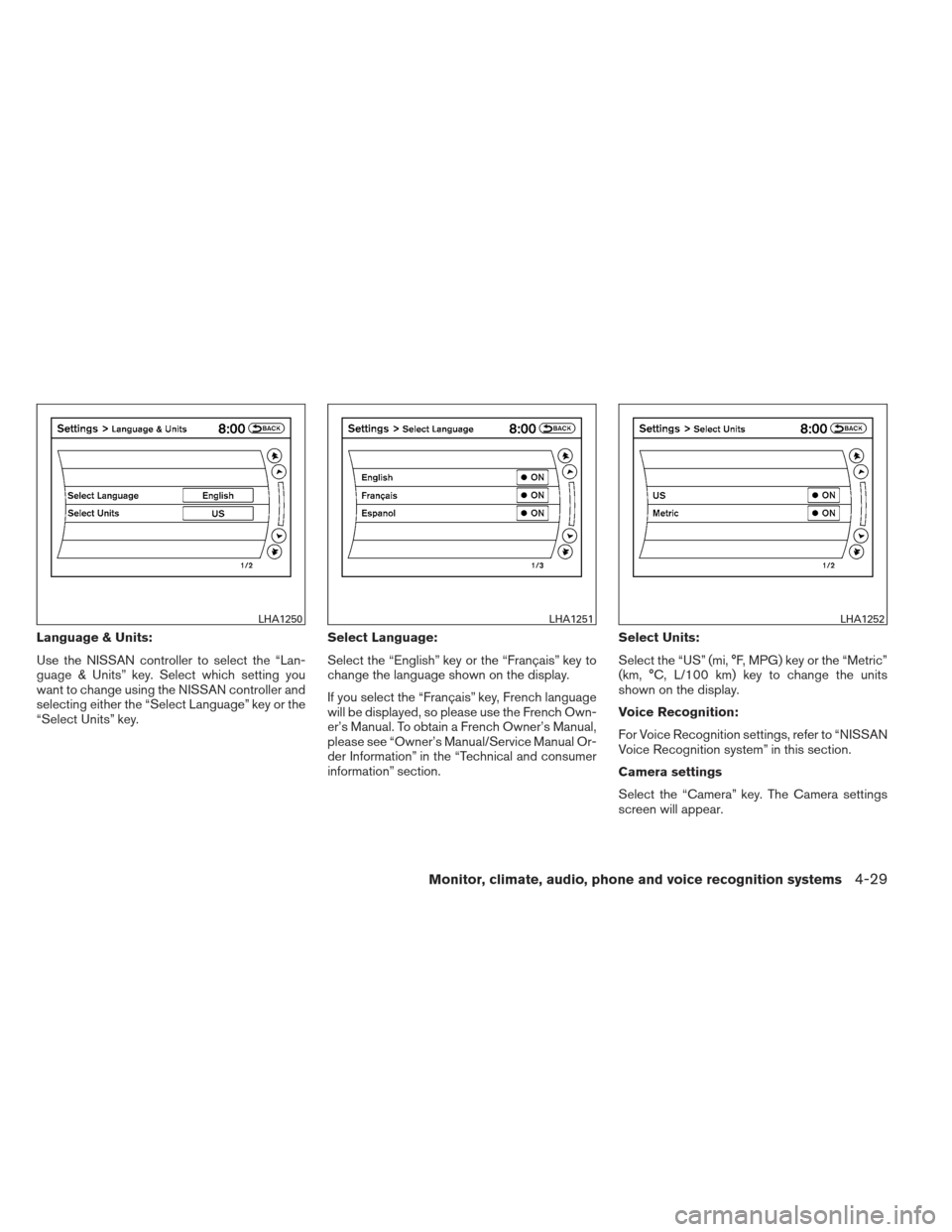
Language & Units:
Use the NISSAN controller to select the “Lan-
guage & Units” key. Select which setting you
want to change using the NISSAN controller and
selecting either the “Select Language” key or the
“Select Units” key.Select Language:
Select the “English” key or the “Français” key to
change the language shown on the display.
If you select the “Français” key, French language
will be displayed, so please use the French Own-
er’s Manual. To obtain a French Owner’s Manual,
please see “Owner’s Manual/Service Manual Or-
der Information” in the “Technical and consumer
information” section.Select Units:
Select the “US” (mi, °F, MPG) key or the “Metric”
(km, °C, L/100 km) key to change the units
shown on the display.
Voice Recognition:
For Voice Recognition settings, refer to “NISSAN
Voice Recognition system” in this section.
Camera settings
Select the “Camera” key. The Camera settings
screen will appear.
LHA1250LHA1251LHA1252
Monitor, climate, audio, phone and voice recognition systems4-29
Page 221 of 506
When this option is on (indicator light illumi-
nated) , predictive course lines will be displayed
when the Around View® Monitor is displayed on
the screen. See “Around View® Monitor” in this
section for more information.
Image viewer settings
For information about these settings, refer to
“Image viewer” in this section.
Navigation settings
Refer to the separate Navigation System Own-
er’s Manual for information regarding these set-
tings.
Audio settings
For audio settings, refer to “Audio System” in this
section.
Phone settings
For phone settings refer to “Bluetooth® Hands-
Free Phone System with Navigation System” in
this section.
Bluetooth® settings
For Bluetooth® phone settings, refer to
“Bluetooth® Hands-Free Phone System with
Navigation System” in this section.For Bluetooth® audio settings, refer to
“Bluetooth® streaming audio” in this section.
Volume & beeps settings
Navigation volume
For navigation volume settings, refer to the sepa-
rate Navigation System Owner’s Manual for infor-
mation regarding these settings.
Phone volume
For phone volume settings refer to “Bluetooth®
Hands-Free Phone System with Navigation Sys-
tem” in this section.
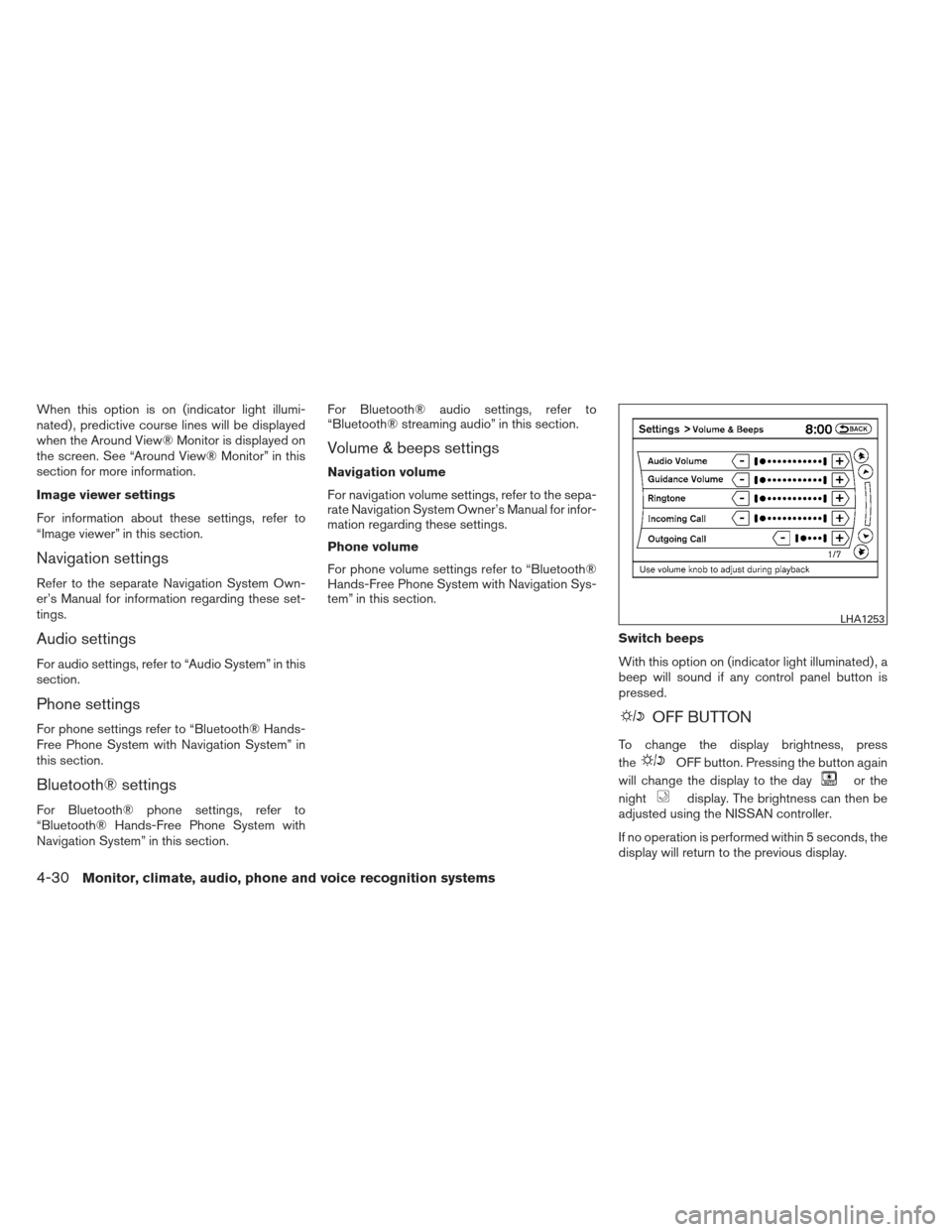
Switch beeps
With this option on (indicator light illuminated) , a
beep will sound if any control panel button is
pressed.
OFF BUTTON
To change the display brightness, press
the
OFF button. Pressing the button again
will change the display to the day
or the
night
display. The brightness can then be
adjusted using the NISSAN controller.
If no operation is performed within 5 seconds, the
display will return to the previous display.
LHA1253
4-30Monitor, climate, audio, phone and voice recognition systems
Page 222 of 506
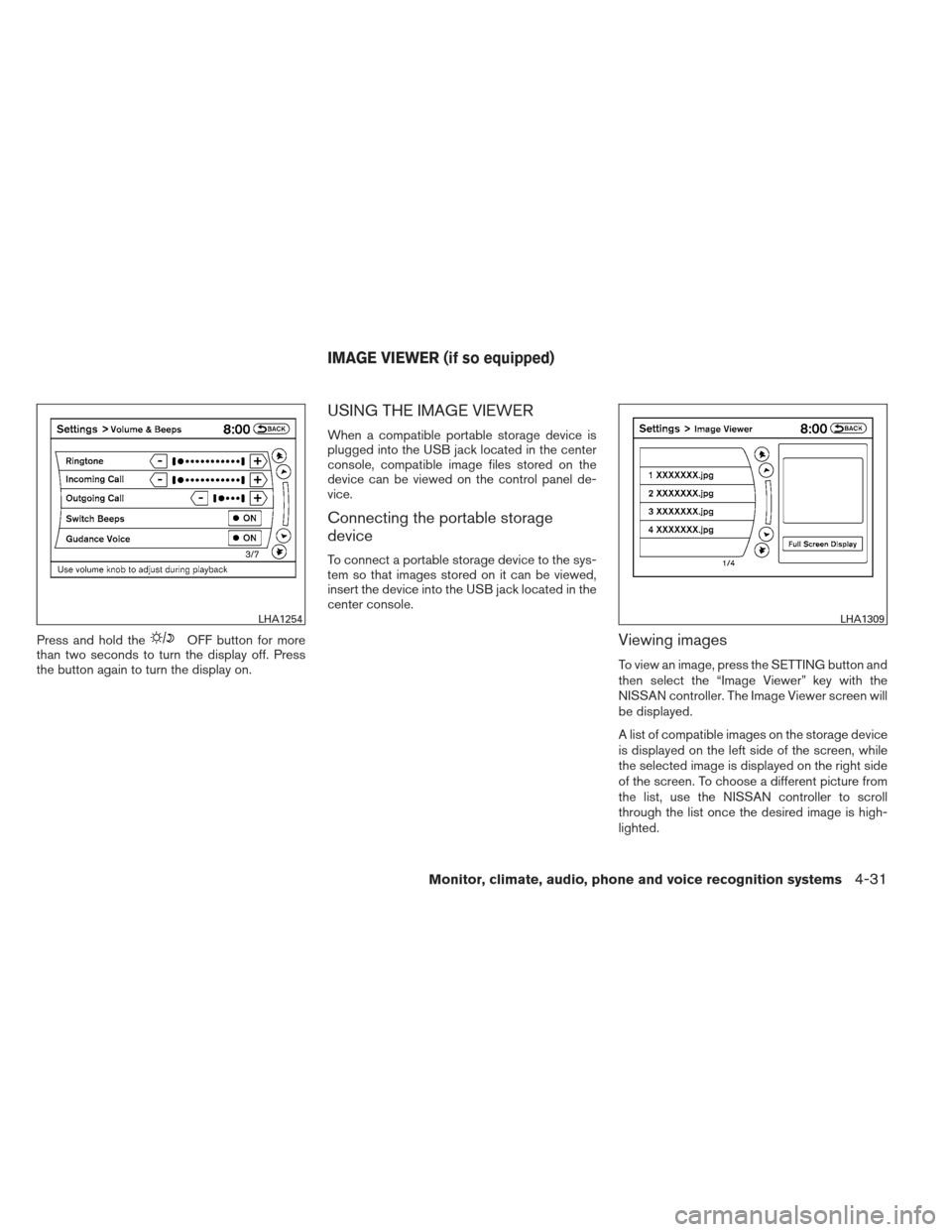
Press and hold theOFF button for more
than two seconds to turn the display off. Press
the button again to turn the display on.
USING THE IMAGE VIEWER
When a compatible portable storage device is
plugged into the USB jack located in the center
console, compatible image files stored on the
device can be viewed on the control panel de-
vice.
Connecting the portable storage
device
To connect a portable storage device to the sys-
tem so that images stored on it can be viewed,
insert the device into the USB jack located in the
center console.
Viewing images
To view an image, press the SETTING button and
then select the “Image Viewer” key with the
NISSAN controller. The Image Viewer screen will
be displayed.
A list of compatible images on the storage device
is displayed on the left side of the screen, while
the selected image is displayed on the right side
of the screen. To choose a different picture from
the list, use the NISSAN controller to scroll
through the list once the desired image is high-
lighted.
LHA1254LHA1309
IMAGE VIEWER (if so equipped)
Monitor, climate, audio, phone and voice recognition systems4-31
Page 223 of 506
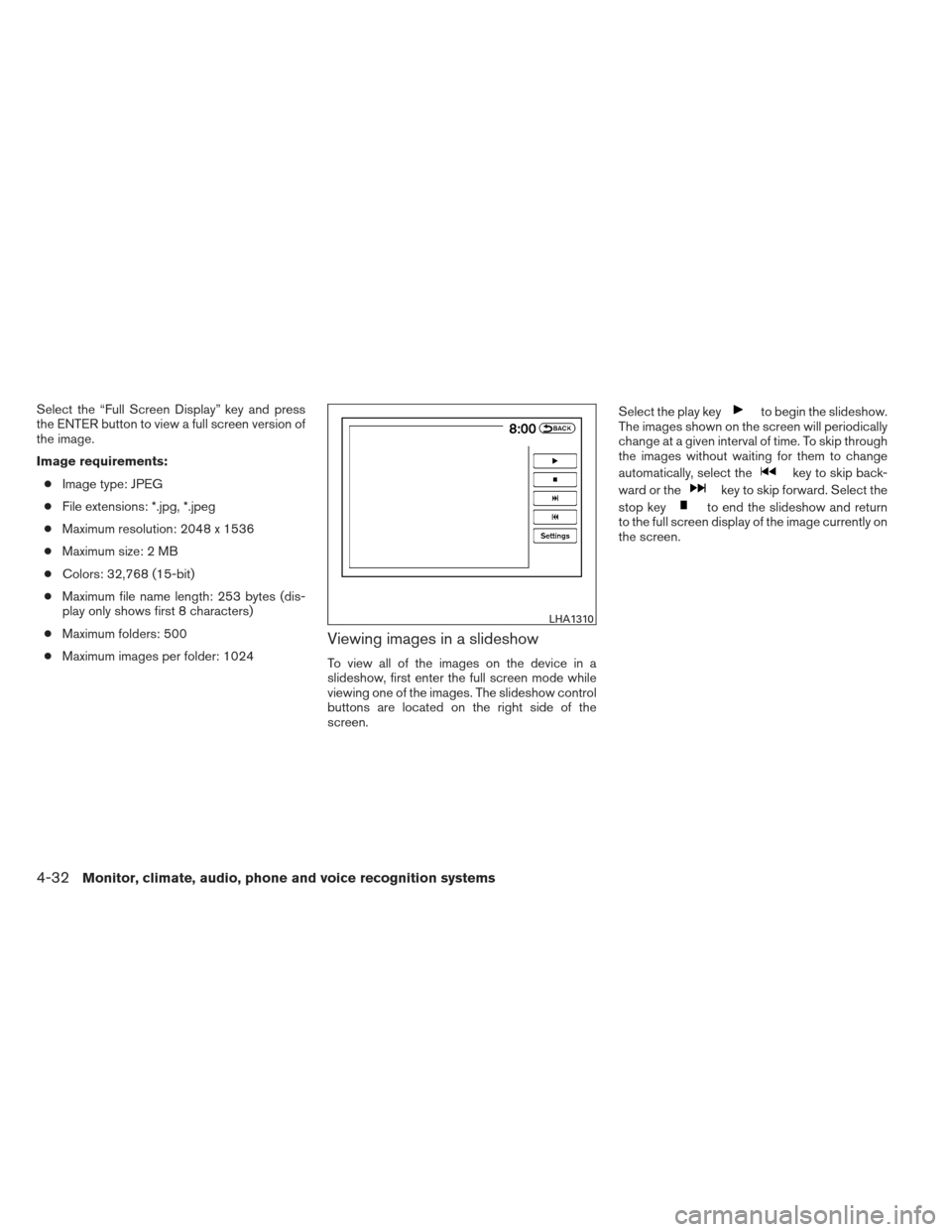
Select the “Full Screen Display” key and press
the ENTER button to view a full screen version of
the image.
Image requirements:● Image type: JPEG
● File extensions: *.jpg, *.jpeg
● Maximum resolution: 2048 x 1536
● Maximum size: 2 MB
● Colors: 32,768 (15-bit)
● Maximum file name length: 253 bytes (dis-
play only shows first 8 characters)
● Maximum folders: 500
● Maximum images per folder: 1024
Viewing images in a slideshow
To view all of the images on the device in a
slideshow, first enter the full screen mode while
viewing one of the images. The slideshow control
buttons are located on the right side of the
screen. Select the play key
to begin the slideshow.
The images shown on the screen will periodically
change at a given interval of time. To skip through
the images without waiting for them to change
automatically, select the
key to skip back-
ward or the
key to skip forward. Select the
stop key
to end the slideshow and return
to the full screen display of the image currently on
the screen.
LHA1310
4-32Monitor, climate, audio, phone and voice recognition systems
Page 224 of 506
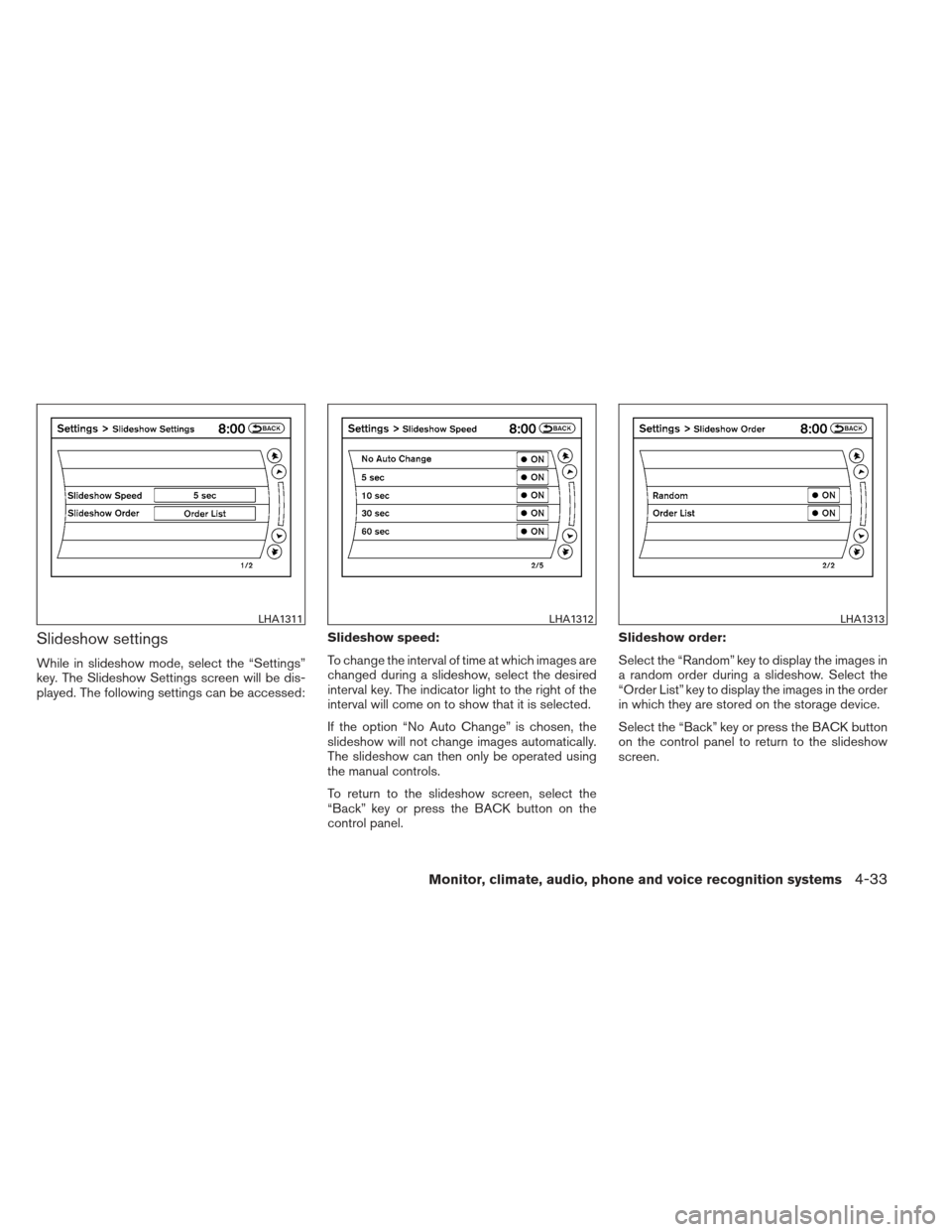
Slideshow settings
While in slideshow mode, select the “Settings”
key. The Slideshow Settings screen will be dis-
played. The following settings can be accessed:Slideshow speed:
To change the interval of time at which images are
changed during a slideshow, select the desired
interval key. The indicator light to the right of the
interval will come on to show that it is selected.
If the option “No Auto Change” is chosen, the
slideshow will not change images automatically.
The slideshow can then only be operated using
the manual controls.
To return to the slideshow screen, select the
“Back” key or press the BACK button on the
control panel.Slideshow order:
Select the “Random” key to display the images in
a random order during a slideshow. Select the
“Order List” key to display the images in the order
in which they are stored on the storage device.
Select the “Back” key or press the BACK button
on the control panel to return to the slideshow
screen.
LHA1311LHA1312LHA1313
Monitor, climate, audio, phone and voice recognition systems4-33
Page 229 of 506
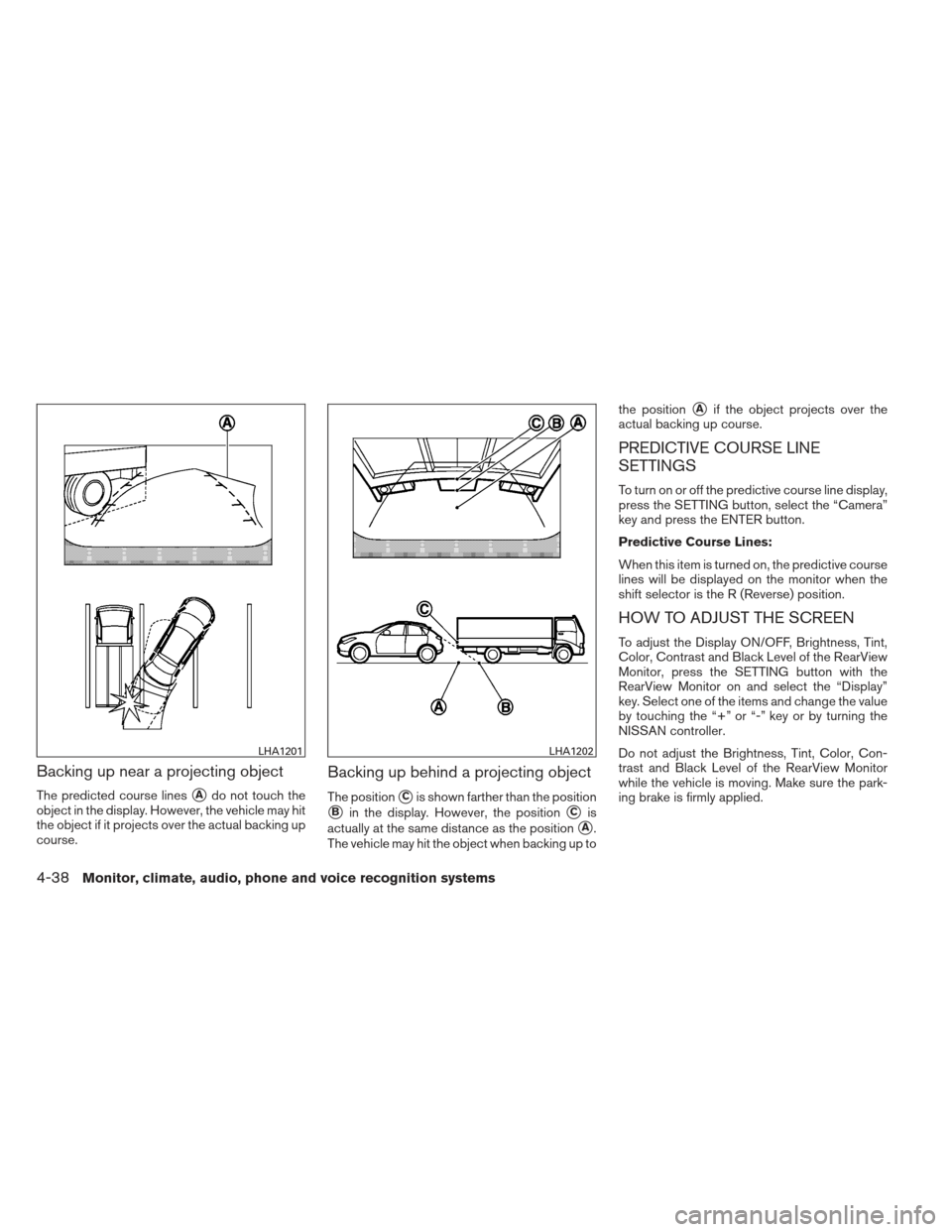
Backing up near a projecting object
The predicted course lines�Ado not touch the
object in the display. However, the vehicle may hit
the object if it projects over the actual backing up
course.
Backing up behind a projecting object
The position�Cis shown farther than the position
�Bin the display. However, the position�Cis
actually at the same distance as the position
�A.
The vehicle may hit the object when backing up to the position
�Aif the object projects over the
actual backing up course.
PREDICTIVE COURSE LINE
SETTINGS
To turn on or off the predictive course line display,
press the SETTING button, select the “Camera”
key and press the ENTER button.
Predictive Course Lines:
When this item is turned on, the predictive course
lines will be displayed on the monitor when the
shift selector is the R (Reverse) position.
HOW TO ADJUST THE SCREEN
To adjust the Display ON/OFF, Brightness, Tint,
Color, Contrast and Black Level of the RearView
Monitor, press the SETTING button with the
RearView Monitor on and select the “Display”
key. Select one of the items and change the value
by touching the “+” or “-” key or by turning the
NISSAN controller.
Do not adjust the Brightness, Tint, Color, Con-
trast and Black Level of the RearView Monitor
while the vehicle is moving. Make sure the park-
ing brake is firmly applied.
LHA1201LHA1202
4-38Monitor, climate, audio, phone and voice recognition systems