Page 187 of 444
3. Select the desired item.
Audio
For audio setup, refer to “Audio system” in this
section.
Navigation
Refer to the separate Navigation System Own-
er’s Manual for information regarding this item.
Phone & Bluetooth
For information regarding the Bluetooth®
Hands-Free Phone System, see “Bluetooth®
Hands-Free Phone System” in this section.For information regarding Bluetooth® audio, see
“Bluetooth® streaming audio with Navigation
System” in this section.
System
Select the “System” key to select and/or adjust
various functions of the system. A screen with
additional options will appear.
LHA2248LHA2249
4-8Monitor, climate, audio, phone and voice recognition systems
Page 222 of 444
●During cold weather or rainy days, the
player may malfunction due to humid-
ity. If this occurs, remove the USB de-
vice and dehumidify or ventilate the
USB player completely.
● Do not connect a USB device if a con-
nector, cable or USB port is wet. Allow
the connector, cable, and USB port to
dry completely before connecting the
USB device. (Wait for 24 hours or more
until it is dry.) If the connector and USB
port are exposed to fluids other than
water, evaporative residue may cause a
short circuit between the connector
pins and USB port. In this case, replace
the cable and USB port. Otherwise
damage to the USB device and a loss of
function may occur.
● If the cable is damaged (insulation cut,
connectors cracked, contamination
such as liquids, dust, dirt, etc. in the
connectors) , do not use the cable. Re-
place the cable with a new one.
● Do not put a USB device in a location
where static electricity occurs, electri-
cal noise is generated or hot air from
the air conditioner blows directly on it.
Doing so may cause the data stored on
the USB device to be corrupted. Notes for iPod® use:
iPod® is a trademark of Apple Inc., regis-
tered in the U.S. and other countries.
●
Improperly plugging in the iPod may
cause a checkmark to be displayed on
and off (flickering) . Always make sure
that the iPod is connected properly.
● An iPod® nano (1st Generation) may
remain in fast forward or rewind mode if
it is connected during a seek operation.
In this case, please manually reset the
iPod.
● An iPod® nano (2nd Generation) will
continue to fast-forward or rewind if it
is disconnected during a seek
operation.
● An incorrect song title may appear
when the Play Mode is changed while
using an iPod® nano (2nd Generation) .
● Audiobooks may not play in the same
order as they appear on an iPod®.
● Large video files cause slow responses
in an iPod®. The vehicle center display
may momentarily black out, but will
soon recover. ●
If an iPod® automatically selects large
video files while in the shuffle mode,
the vehicle center display may momen-
tarily black out, but will soon recover.
Bluetooth® streaming audio (if so
equipped)
● Some Bluetooth® audio devices may not be
recognized by the in-vehicle audio system.
● It is necessary to set up the wireless con-
nection between a compatible Bluetooth®
audio device and the in-vehicle Bluetooth®
module before using the Bluetooth® audio.
● Operating procedure of the Bluetooth® au-
dio will vary depending on the devices. Make
sure how to operate your audio device be-
fore using it with this system.
● The Bluetooth® audio may be stopped un-
der the following conditions:
● Receiving a call on the Hands-Free
Phone System.
● Checking the connection to the hands-
free phone.
Monitor, climate, audio, phone and voice recognition systems4-43
Page 223 of 444
●Do not place the Bluetooth® audio device in
an area surrounded by metal or far away from
the in-vehicle Bluetooth® module to prevent
tone quality degradation and wireless con-
nection disruption.
● While an audio device is connected through
the Bluetooth® wireless connection, the
battery power of the device may discharge
quicker than usual.
● This system supports the Bluetooth® Audio
Distribution Profile (A2DP, AVRCP) .
BLUETOOTH® is a
trademark owned by
Bluetooth SIG, Inc.
and licensed to
Visteon and Bosch.
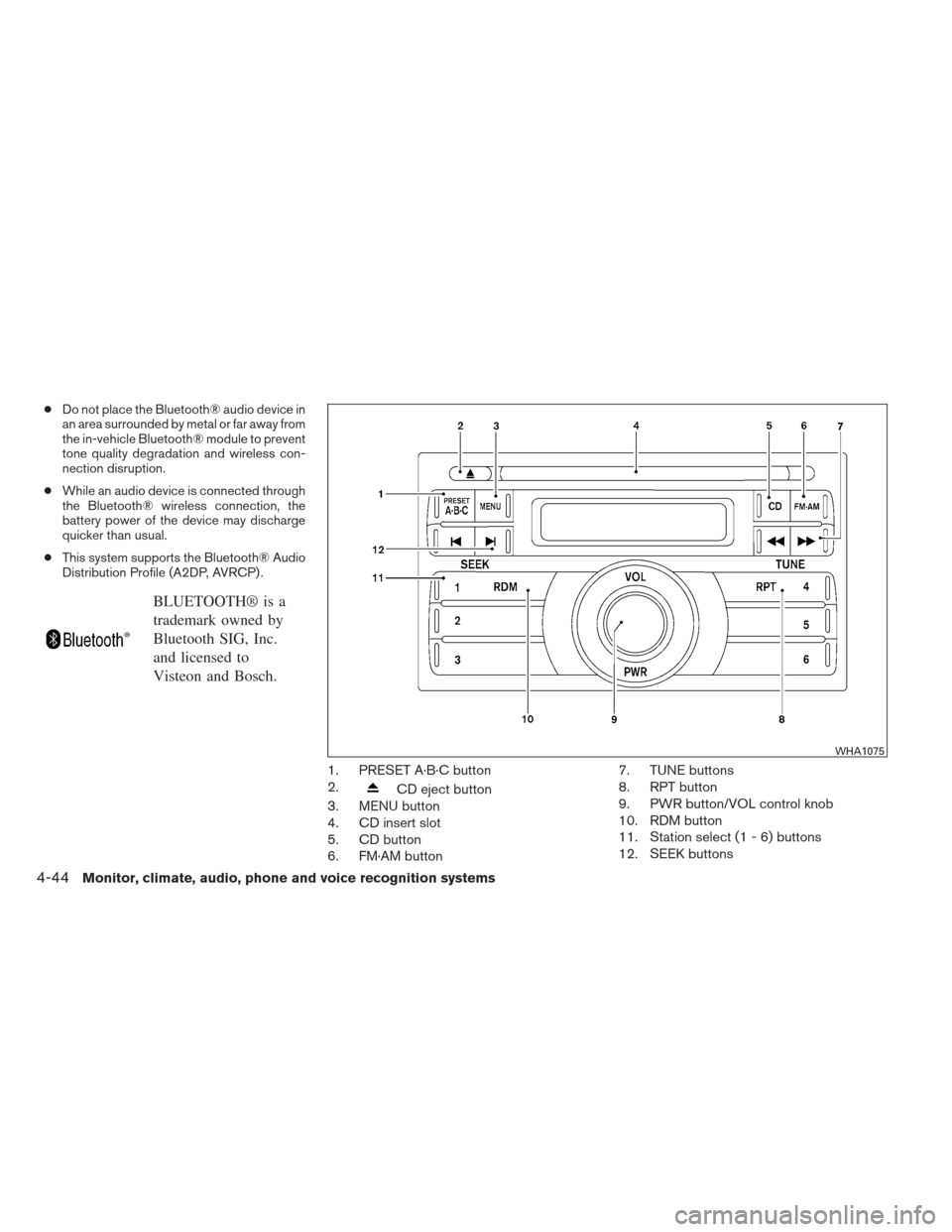
1. PRESET A·B·C button
2.
CD eject button
3. MENU button
4. CD insert slot
5. CD button
6. FM·AM button 7. TUNE buttons
8. RPT button
9. PWR button/VOL control knob
10. RDM button
11. Station select (1 - 6) buttons
12. SEEK buttons
WHA1075
4-44Monitor, climate, audio, phone and voice recognition systems
Page 232 of 444
Press the CD button to play a compatible
device plugged into the AUX IN jack. The
CD button is also used to switch the audio
system to a source plugged into the USB input
jack in the center console. When a device is
plugged into the AUX IN jack while another de-
vice is plugged into the USB input jack, the
CD button is used to toggle between the
two functions.
For more information about the USB input jack,
see “USB interface (models without Navigation
System)” in this section.
EJECT button:
When the
button is pressed with a com-
pact disc loaded, the compact disc will eject and
the last source will be played.
When the
button is pressed twice with a
compact disc loaded, the compact disc will be
ejected further for easier CD removal. If the disc
is not removed within 20 seconds, the disc will
reload.
Additional features
For more information about the iPod® player
available with this system, see “iPod® player
operation without Navigation System” in this sec-
tion. For more information about the USB interface
available with this system, see “USB interface
(models without Navigation System)” in this sec-
tion.
For more information about the Bluetooth® audio
interface available with this system, see
“Bluetooth® streaming audio without Navigation
System” in this section.
For more information about the Pandora® audio
feature available with this system, see “Pan-
dora® audio” in this section.
Monitor, climate, audio, phone and voice recognition systems4-53
Page 233 of 444
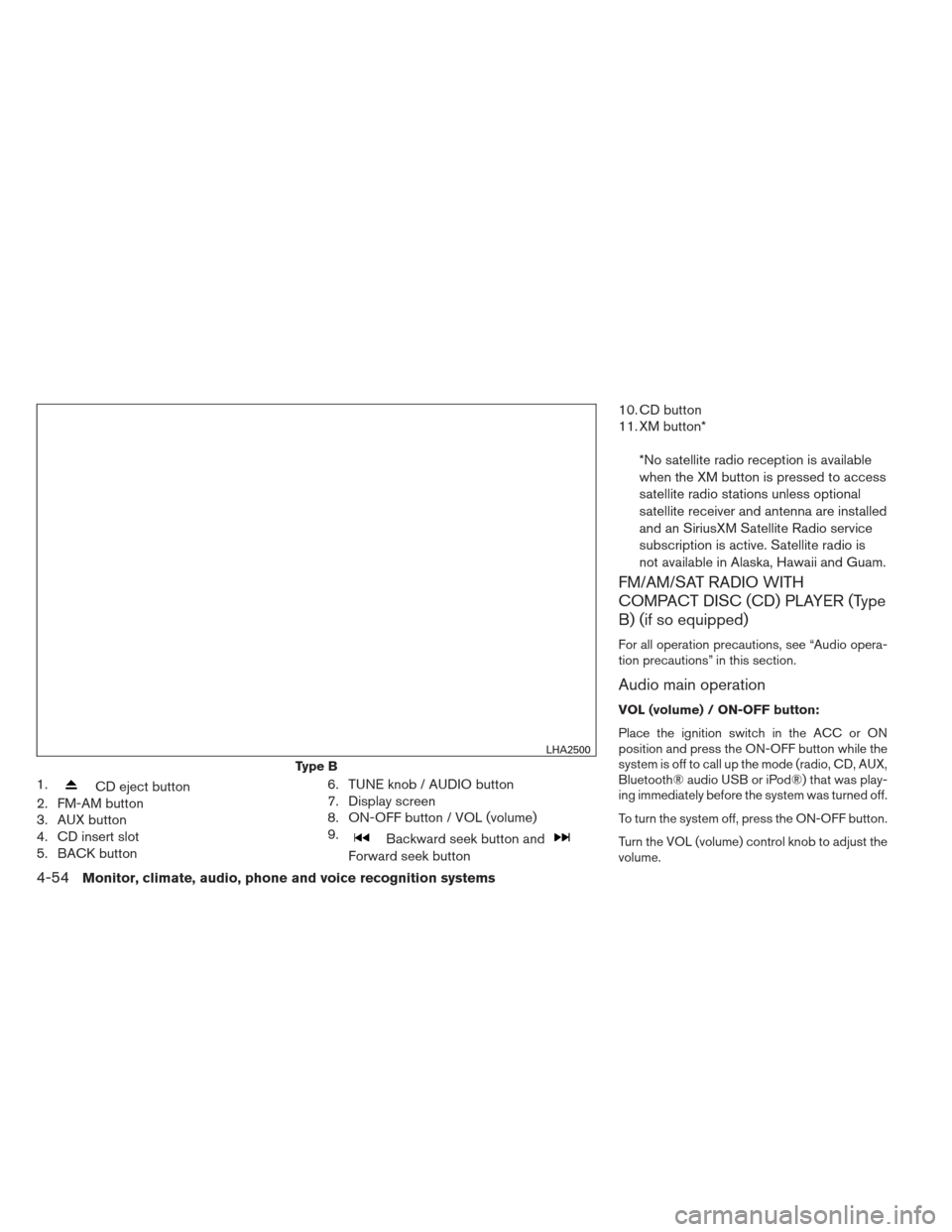
1.CD eject button
2. FM-AM button
3. AUX button
4. CD insert slot
5. BACK button 6. TUNE knob / AUDIO button
7. Display screen
8. ON-OFF button / VOL (volume)
9.
Backward seek button and
Forward seek button10. CD button
11. XM button*
*No satellite radio reception is available
when the XM button is pressed to access
satellite radio stations unless optional
satellite receiver and antenna are installed
and an SiriusXM Satellite Radio service
subscription is active. Satellite radio is
not available in Alaska, Hawaii and Guam.
FM/AM/SAT RADIO WITH
COMPACT DISC (CD) PLAYER (Type
B) (if so equipped)
For all operation precautions, see “Audio opera-
tion precautions” in this section.
Audio main operation
VOL (volume) / ON-OFF button:
Place the ignition switch in the ACC or ON
position and press the ON-OFF button while the
system is off to call up the mode (radio, CD, AUX,
Bluetooth® audio USB or iPod®) that was play-
ing immediately before the system was turned off.
To turn the system off, press the ON-OFF button.
Turn the VOL (volume) control knob to adjust the
volume.
Type B
LHA2500
4-54Monitor, climate, audio, phone and voice recognition systems
Page 239 of 444
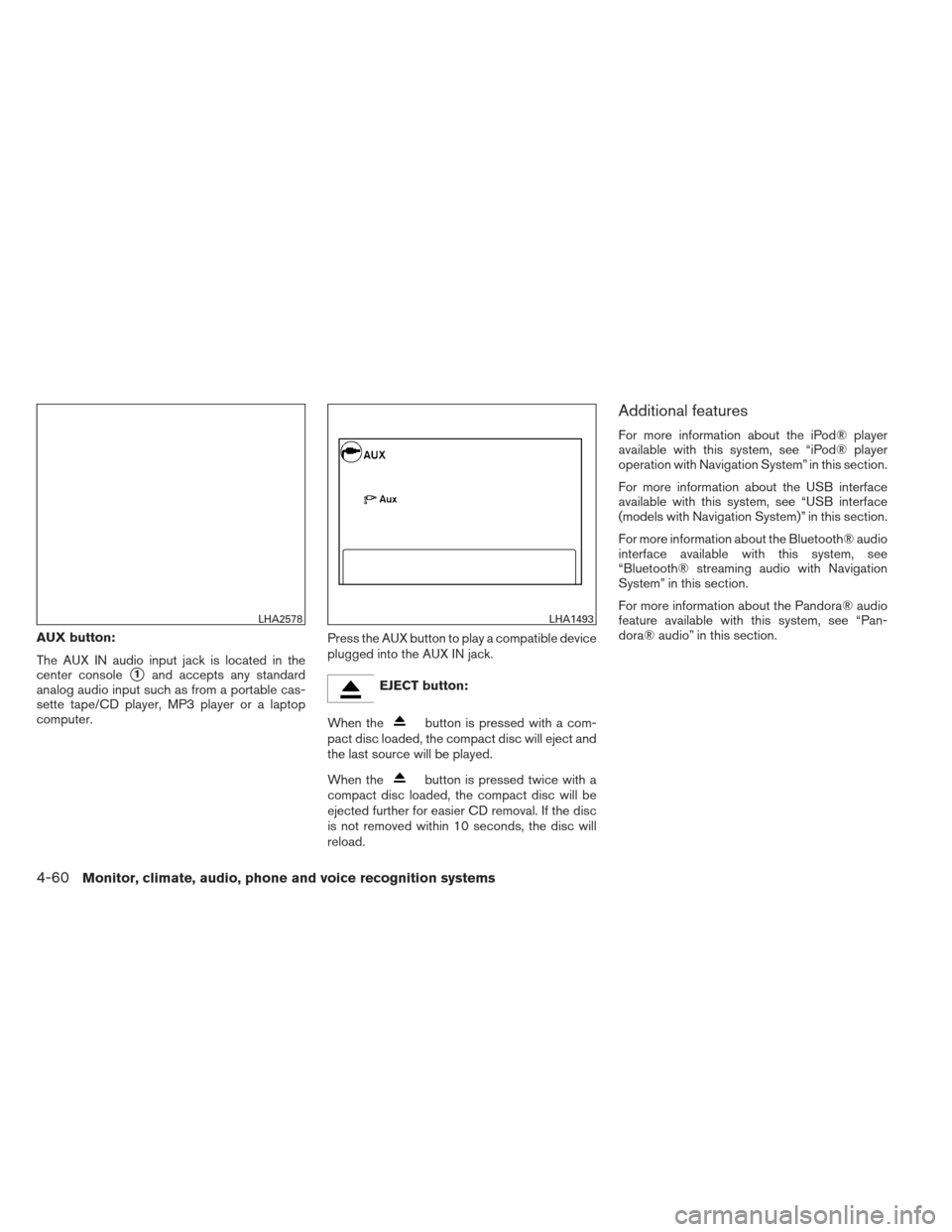
AUX button:
The AUX IN audio input jack is located in the
center console
�1and accepts any standard
analog audio input such as from a portable cas-
sette tape/CD player, MP3 player or a laptop
computer. Press the AUX button to play a compatible device
plugged into the AUX IN jack.EJECT button:
When the
button is pressed with a com-
pact disc loaded, the compact disc will eject and
the last source will be played.
When the
button is pressed twice with a
compact disc loaded, the compact disc will be
ejected further for easier CD removal. If the disc
is not removed within 10 seconds, the disc will
reload.
Additional features
For more information about the iPod® player
available with this system, see “iPod® player
operation with Navigation System” in this section.
For more information about the USB interface
available with this system, see “USB interface
(models with Navigation System)” in this section.
For more information about the Bluetooth® audio
interface available with this system, see
“Bluetooth® streaming audio with Navigation
System” in this section.
For more information about the Pandora® audio
feature available with this system, see “Pan-
dora® audio” in this section.
LHA2578LHA1493
4-60Monitor, climate, audio, phone and voice recognition systems
Page 249 of 444
BLUETOOTH® STREAMING AUDIO
WITHOUT NAVIGATION SYSTEM (if
so equipped)
If you have a compatible Bluetooth® audio de-
vice that is capable of playing audio files, the
device can be connected to the vehicle’s audio
system so that the audio files on the device play
through the vehicle’s speakers.
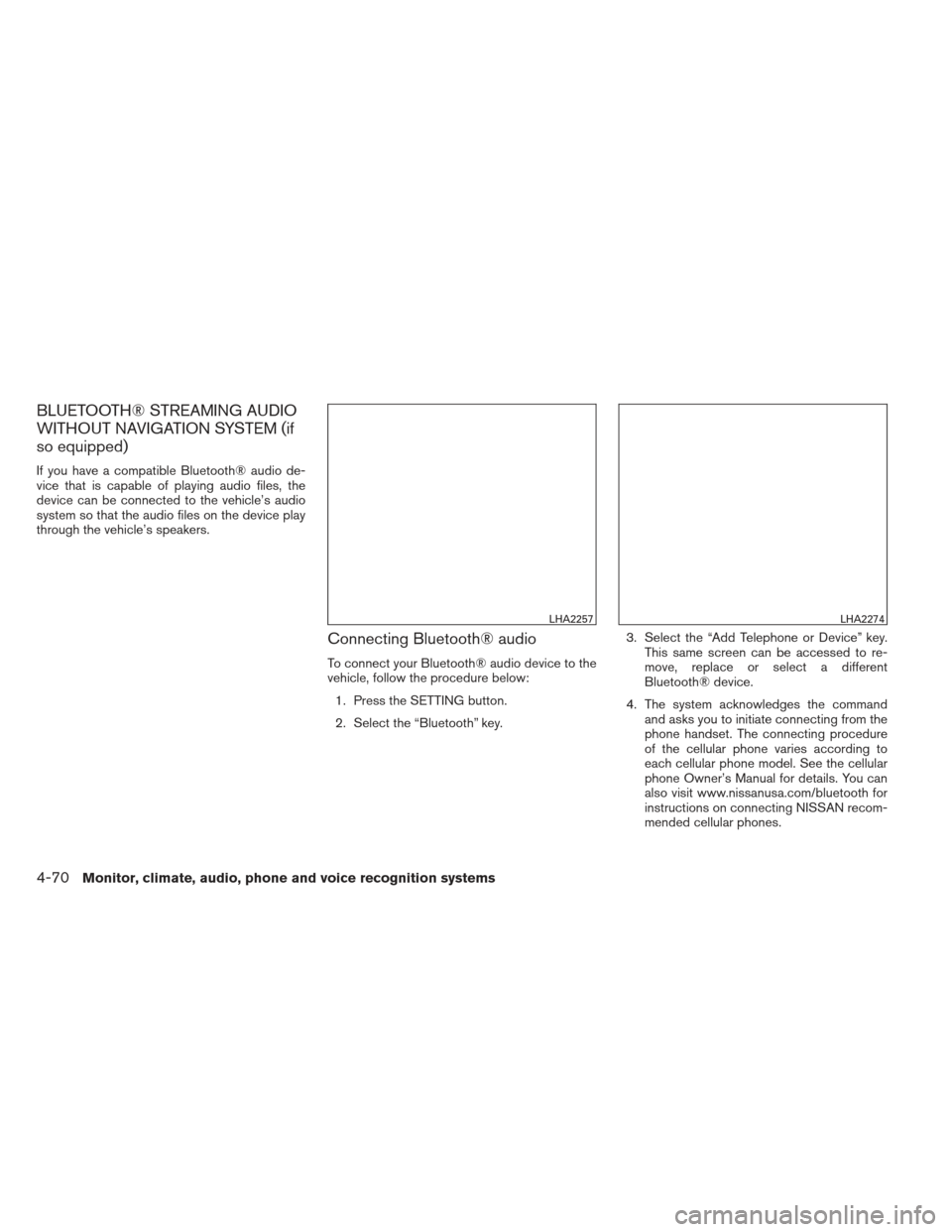
Connecting Bluetooth® audio
To connect your Bluetooth® audio device to the
vehicle, follow the procedure below:1. Press the SETTING button.
2. Select the “Bluetooth” key. 3. Select the “Add Telephone or Device” key.
This same screen can be accessed to re-
move, replace or select a different
Bluetooth® device.
4. The system acknowledges the command and asks you to initiate connecting from the
phone handset. The connecting procedure
of the cellular phone varies according to
each cellular phone model. See the cellular
phone Owner’s Manual for details. You can
also visit www.nissanusa.com/bluetooth for
instructions on connecting NISSAN recom-
mended cellular phones.
LHA2257LHA2274
4-70Monitor, climate, audio, phone and voice recognition systems
Page 250 of 444
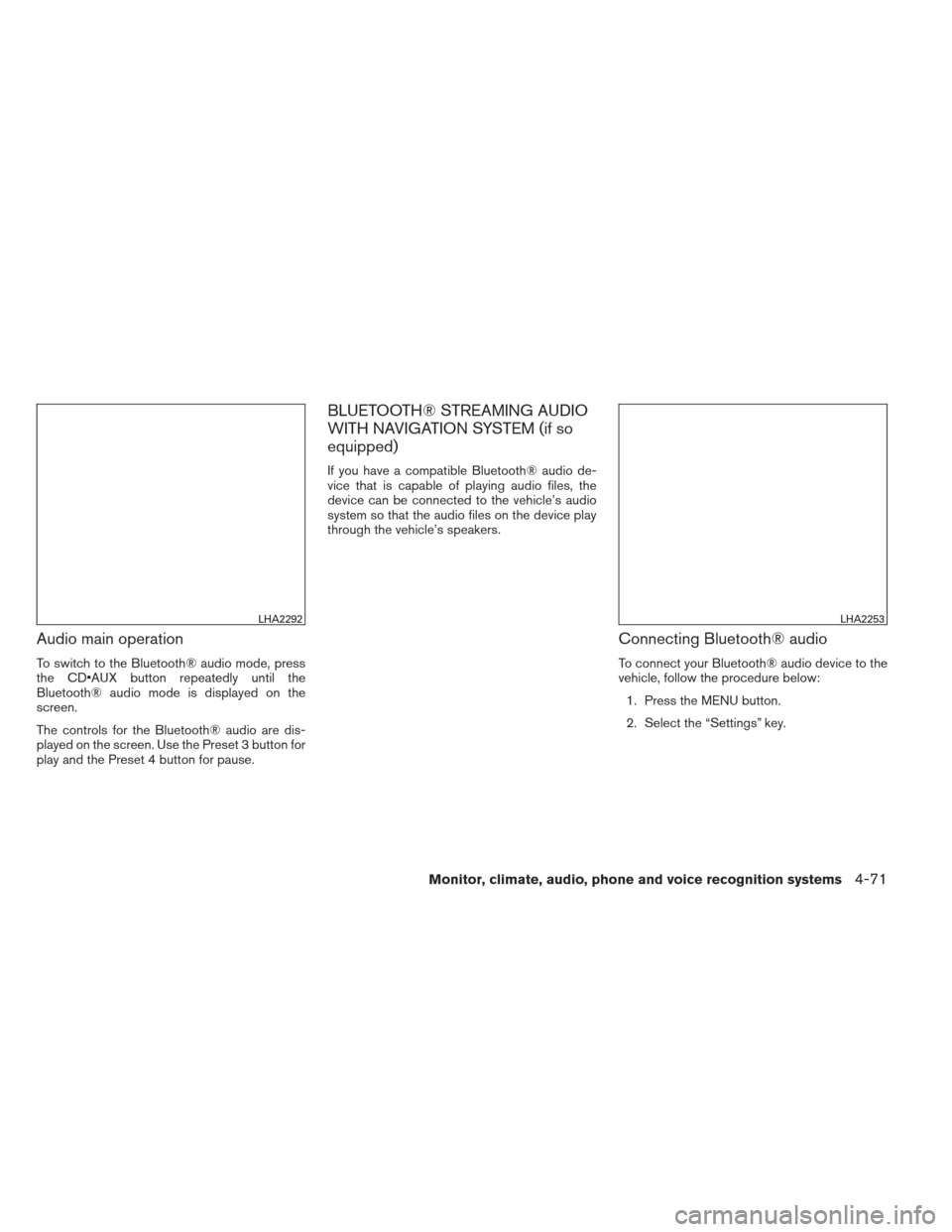
Audio main operation
To switch to the Bluetooth® audio mode, press
the CD button repeatedly until the
Bluetooth® audio mode is displayed on the
screen.
The controls for the Bluetooth® audio are dis-
played on the screen. Use the Preset 3 button for
play and the Preset 4 button for pause.
BLUETOOTH® STREAMING AUDIO
WITH NAVIGATION SYSTEM (if so
equipped)
If you have a compatible Bluetooth® audio de-
vice that is capable of playing audio files, the
device can be connected to the vehicle’s audio
system so that the audio files on the device play
through the vehicle’s speakers.
Connecting Bluetooth® audio
To connect your Bluetooth® audio device to the
vehicle, follow the procedure below:1. Press the MENU button.
2. Select the “Settings” key.
LHA2292LHA2253
Monitor, climate, audio, phone and voice recognition systems4-71