2013 NISSAN ALTIMA ignition
[x] Cancel search: ignitionPage 210 of 413
10.Forward seek button
11.
Backward seek button
12. CD button
13. FM-AM button
14. XM button
*No satellite radio reception is available
when the XM button is pressed to access
satellite radio stations unless optional
satellite receiver and antenna are installed
and an SiriusXM Satellite Radio service
subscription is active. Satellite radio is
not available in Alaska, Hawaii and Guam.
FM/AM/SAT RADIO WITH
COMPACT DISC (CD) PLAYER (Type
B) (if so equipped)
For all operation precautions, see “Audio opera-
tion precautions” in this section.
Audio main operation
VOL (volume) / PWR (power) button:
Place the ignition switch in the ACC or ON
position and press the PWR (power) button
while the system is off to call up the mode (radio,
CD, AUX, Bluetooth® audio USB or iPod®) that
was playing immediately before the system was
turned off. To turn the system off, press the PWR (power)
button.
Turn the VOL (volume) control knob to adjust the
volume.
This vehicle may be equipped with Speed Sen-
sitive Volume. When this feature is active, the
audio volume changes as the driving speed
changes.
Audio settings:1. Press the MENU button.
2. Select the “Settings” key.
3. Select the “Audio” key.
Use the touchscreen to adjust the following items
to the desired setting:
Bass, Treble, Balance and Fade:
Controls the sound of the audio system. Balance
adjusts the sound between the left and right
speakers. Fade adjusts the sound between the
front and rear speakers.
LHA2261
Monitor, climate, audio, phone and voice recognition systems4-51
Page 211 of 413
Speed Sensitive Vol.:
Controls the level to which the volume is adjusted
as the vehicle’s driving speed changes. Choose a
setting or choose “0” to disable the feature en-
tirely.
AUX Volume Level:
Controls the volume level of incoming sound
when an auxiliary device is connected to the
system. Available options are Low, Medium and
High.XM settings:
To view the XM settings:
1. Press the MENU button.
2. Select the “Settings” key.
3. Select the “XM” key.
The signal strength, activation status and other
information are displayed on the screen.
FM/AM/SAT radio operation
FM·AM button:
Press the FM·AM button to change the band as
follows: AM
→FM1 →FM2 →AM
If another audio source is playing when the
FM·AM button is pressed, the audio source play-
ing will automatically be turned off and the last
radio station played will begin playing.
The FM stereo indicator (ST) is shown on the
screen during FM stereo reception. When the
stereo broadcast signal is weak, the radio auto-
matically changes from stereo to monaural re-
ception.
XM band select:
Pressing the XM button will change the band as
follows:
XM1* →XM2* →XM3* →XM1* (satellite, if so
equipped)
When the XM button is pressed while the ignition
switch is in the ACC or ON position, the radio will
come on at the last station played.
The last station played will also come on when
the VOL/ON-OFF control knob is pressed to turn
the radio on.
*When the XM button is pressed, the satellite
radio mode will be skipped unless an optional
satellite receiver and antenna are installed and a
SiriusXM Satellite Radio service subscription is
active. Satellite radio is not available in Alaska,
Hawaii and Guam.
LHA2262LHA2303
4-52Monitor, climate, audio, phone and voice recognition systems
Page 216 of 413
USB INTERFACE (models without
Navigation System) (if so equipped)Connecting a device to the USB input
jack
CAUTION
●
Do not force the USB device into the
USB port. Inserting the USB device
tilted or up-side-down into the port may
damage the USB device and the port.
Make sure that the USB device is con-
nected correctly into the USB port.
(Some USB devices come with a
mark as a guide. Make sure that the
mark is facing the correct direction be-
fore inserting the device.)
● Do not locate objects near the USB de-
vice to prevent the objects from leaning
on the USB device and the port. Pres-
sure from the objects may damage the
USB device and the port.
The USB input jack is located on the center
console beneath the heater and air conditioner
controls. Insert the USB device into the jack.
When a compatible storage device is plugged
into the jack, compatible audio files on the stor-
age device can be played through the vehicle’s
audio system.
Audio file operation
CD button:
Place the ignition switch in the ON or ACC
position and press the CD button to switch
to the USB input mode. If a CD is playing or
another audio source is plugged in through the
AUX IN jack on the radio, the CD button
toggles between the three sources.
Play information
Information about the audio files being played
can be displayed on the display screen of the
vehicle’s audio system. Depending on how the
audio files are encoded, information such as
Folder, Song and Artist will be displayed.
The track number and number of total tracks in
the folder are displayed on the screen as well.
SEEK/CAT (Reverse or Fast Forward) buttons:
Press and hold the SEEK/CAT buttons
orfor 1.5 seconds while an audio file on
the USB device is playing to reverse or fast
forward the track being played. The track plays at
an increased speed while reversing or fast for-
warding. When the button is released, the audio
file returns to normal play speed.
LHA2264
Monitor, climate, audio, phone and voice recognition systems4-57
Page 218 of 413

Connecting a device to the USB input
jack
CAUTION
●Do not force the USB device into the
USB port. Inserting the USB device
tilted or up-side-down into the port may
damage the USB device and the port.
Make sure that the USB device is con-
nected correctly into the USB port.
(Some USB devices come with a
mark as a guide. Make sure that the
mark is facing the correct direction be-
fore inserting the device.)
● Do not locate objects near the USB de-
vice to prevent the objects from leaning
on the USB device and the port. Pres-
sure from the objects may damage the
USB device and the port.
The USB input jack is located on the center
console beneath the heater and air conditioner
controls. Insert the USB device into the jack.
When a compatible storage device is plugged
into the jack, compatible audio files on the stor-
age device can be played through the vehicle’s
audio system.
Audio file operation
AUX button:
Place the ignition switch in the ON or ACC
position and press the AUX button to switch to
the USB input mode. If another audio source is
playing and a USB memory device is inserted,
press the AUX button repeatedly until the center
display changes to the USB memory mode.
If the system has been turned off while the USB
memory was playing, push the ON-OFF/VOL
control knob to restart the USB memory.
Play information:
Information about the audio files being played is
shown on the display screen of the vehicle’s
audio system. Touch “Browse” to display the list
of folders and files on the USB device. Touch the
name of a song on the screen to begin playing
that song.
Seeking buttons:
Press the
button while an audio file on the
USB device is playing to return to the beginning
of the current track. Press the
button sev-
eral times to skip backward several tracks.
LHA1496
Monitor, climate, audio, phone and voice recognition systems4-59
Page 219 of 413
Press thebutton while an audio file on the
USB device is playing to advance one track.
Press the
button several times to skip for-
ward several tracks. If the last track in a folder on
the USB device is skipped, the first track of the
next folder is played.
Random and repeat play mode:
While files on a USB device are playing, the play
pattern can be altered so that songs are repeated
or played randomly.
Random:
Touch the “Random” key to apply a random play
pattern to the USB device. When the random
mode is active, the
icon is displayed to the
left of the song title or album name to denote
which random pattern is applied. To cancel Ran-
dom mode, touch the “Random” key until
no
icon is displayed.
Repeat:
Touch the “Repeat” key to apply a repeat play
pattern to the USB device. When the repeat
mode is active, the
icon is displayed to the
left of the song title or album name to denote
which repeat pattern is applied. To cancel Repeat
mode, touch the “Repeat” key until no
icon
is displayed.
iPod®* PLAYER OPERATION
WITHOUT NAVIGATION SYSTEM (if
so equipped) Connecting iPod®
CAUTION
●
Do not force the iPod® cable into the
USB port. Inserting the USB device
tilted or up-side-down into the port may
damage the iPod® cable and the port.
Make sure that the iPod® cable is con-
nected correctly into the USB port.
(Some iPod® cables come with a
mark as a guide. Make sure that the
mark is facing the correct direction be-
fore inserting the iPod® cable.)
● Do not locate objects near the iPod®
cable to prevent the objects from lean-
ing on the iPod® cable and the port.
Pressure from the objects may damage
the iPod® cable and the port.
To connect an iPod® to the vehicle so that the
iPod® can be controlled with the audio system
controls and display screen, use the USB jack
located on the center console below the heater
and air conditioner controls. Connect the iPod®-
specific end of the cable to the iPod® and the
USB end of the cable to the USB jack on the
vehicle. If your iPod® supports charging via a
USB connection, its battery will be charged while
connected to the vehicle with the ignition switch
in the ACC or ON position.
LHA2264
4-60Monitor, climate, audio, phone and voice recognition systems
Page 220 of 413
While connected to the vehicle, the iPod® can
only be operated by the vehicle audio controls.
To disconnect the iPod® from the vehicle, re-
move the USB end of the cable from the USB
jack on the vehicle, then remove the cable from
the iPod®.
* iPod® is a trademark of Apple Inc., registered in
the U.S. and other countries.
Compatibility
The following models are compatible:● iPod® 5th Generation (firmware version 1.3
or later)
● iPod® Classic (80GB) (firmware version
1.1.2PC or later)
● iPod® Classic (120GB) (firmware version
2.0.1PC or later)
● iPod® Nano - 1st generation (firmware ver-
sion 1.3.1 or later)
● iPod® Nano - 2nd generation (firmware ver-
sion 1.1.3 or later)
● iPod® Nano - 3rd generation (firmware ver-
sion 1.1.3PC or later)
● iPod® Nano - 4th generation (firmware ver-
sion 1.0PC or later) ●
iPod® Nano - 5th generation (8GB) (firm-
ware version 1.0.2PC or later)
● iPod® Nano - 5th generation (16GB) (firm-
ware version 1.0.1PC or later)
● iPod® Nano - 6th generation (8GB) (firm-
ware version 1.2PC or later)
● iPod® Nano - 6th generation (8GB) (firm-
ware version 1.1PC or later)
● iPod® Touch - 1st generation (firmware ver-
sion 2.2.1 or later)
● iPod® Touch - 2nd generation (firmware
version 2.2.1 or later)
● iPod® Touch - 3rd generation (firmware ver-
sion 3.1.3 or later)
● iPod® Touch - 4th generation (firmware ver-
sion 4.3.5 or later)
● iPhone® 3G (firmware version 4.1 or later)
● iPhone® 3GS (firmware version 4.3 or later)
● iPhone® 4 (firmware version 5.0 or later)
● iPhone® 4S (firmware version 5.1 or later)
● iPad® (firmware version 4.3.2 or later)
● iPad® 2 (firmware version 4.3.3 or later)
Make sure that your iPod® firmware is updated to
the version indicated above.
Audio main operation
Place the ignition switch to the ACC or ON
position. Then, press the CD·AUX or iPod®
MENU button repeatedly to switch to the iPod®
mode.
If the audio system is turned off while the iPod® is
playing, the iPod® plays when the audio system
is turned back on.
If the audio system is off, pressing the CD·AUX or
iPod® MENU button turns the audio system on
and plays the iPod®.
If the audio system is on, the audio system auto-
matically begins playing tracks from the iPod®
when it is plugged into the jack.
iPod® MENU button:
Press the iPod® MENU button while the iPod®
is connected to show the iPod® operation menu
on the audio display. Scroll through the menu list
using the TUNE·SCROLL control dial. Press EN-
TER to select a menu item. Items in the iPod®
menu appear on the display in the following or-
der: ● Now playing
● Playlists
● Artists
● Albums
Monitor, climate, audio, phone and voice recognition systems4-61
Page 222 of 413
Connecting iPod®
CAUTION
●Do not force the iPod® cable into the
USB port. Inserting the USB device
tilted or up-side-down into the port may
damage the iPod® cable and the port.
Make sure that the iPod® cable is con-
nected correctly into the USB port.
(Some iPod® cables come with a
mark as a guide. Make sure that the
mark is facing the correct direction be-
fore inserting the iPod® cable.)
● Do not locate objects near the iPod®
cable to prevent the objects from lean-
ing on the iPod® cable and the port.
Pressure from the objects may damage
the iPod® cable and the port.
To connect an iPod® to the vehicle so that the
iPod® can be controlled with the audio system
controls and display screen, use the USB jack
located on the center console below the heater
and air conditioner controls. Connect the iPod®-
specific end of the cable to the iPod® and the
USB end of the cable to the USB jack on the
vehicle. If your iPod® supports charging via a
USB connection, its battery will be charged while
connected to the vehicle with the ignition switch
in the ACC or ON position. While connected to the vehicle, the iPod® can
only be operated by the vehicle audio controls.
To disconnect the iPod® from the vehicle, re-
move the USB end of the cable from the USB
jack on the vehicle, then remove the cable from
the iPod®.
* iPod® is a trademark of Apple Inc., registered in
the U.S. and other countries.Compatibility
The following models are compatible:
● iPod® 5th Generation (firmware version
1.2.3 or later)
● iPod® Classic (firmware version 1.1.1 or
later)
● iPod® Touch (firmware version 2.0.0 or
later)*
● iPod® Nano - 1st generation (firmware ver-
sion 1.3.1 or later)
● iPod® Nano - 2nd generation (firmware ver-
sion 1.1.3 or later)
● iPod® Nano - 3rd generation (firmware ver-
sion 1.1.3 or later)
● iPod® Nano - 4th generation (firmware ver-
sion 1.0.4 or later) ●
iPod® Nano - 5th generation (firmware ver-
sion 1.0.1 or later)
* Some features of this iPod® may not be fully
functional.
Make sure that your iPod® firmware is updated to
the version indicated above.
Monitor, climate, audio, phone and voice recognition systems4-63
Page 223 of 413
Audio main operation
Place the ignition switch in the ACC or ON
position. Press the AUX button repeatedly to
switch to the iPod® mode.
If the system has been turned off while the iPod®
was playing, pressing the VOL/ON·OFF control
knob will start the iPod®.
AUX button:
When the AUX button is pressed with the system
off and the iPod® connected, the system will turn
on. If another audio source is playing and the
iPod® is connected, press the AUX button re-
peatedly until the center display changes to the
iPod® mode.Interface:
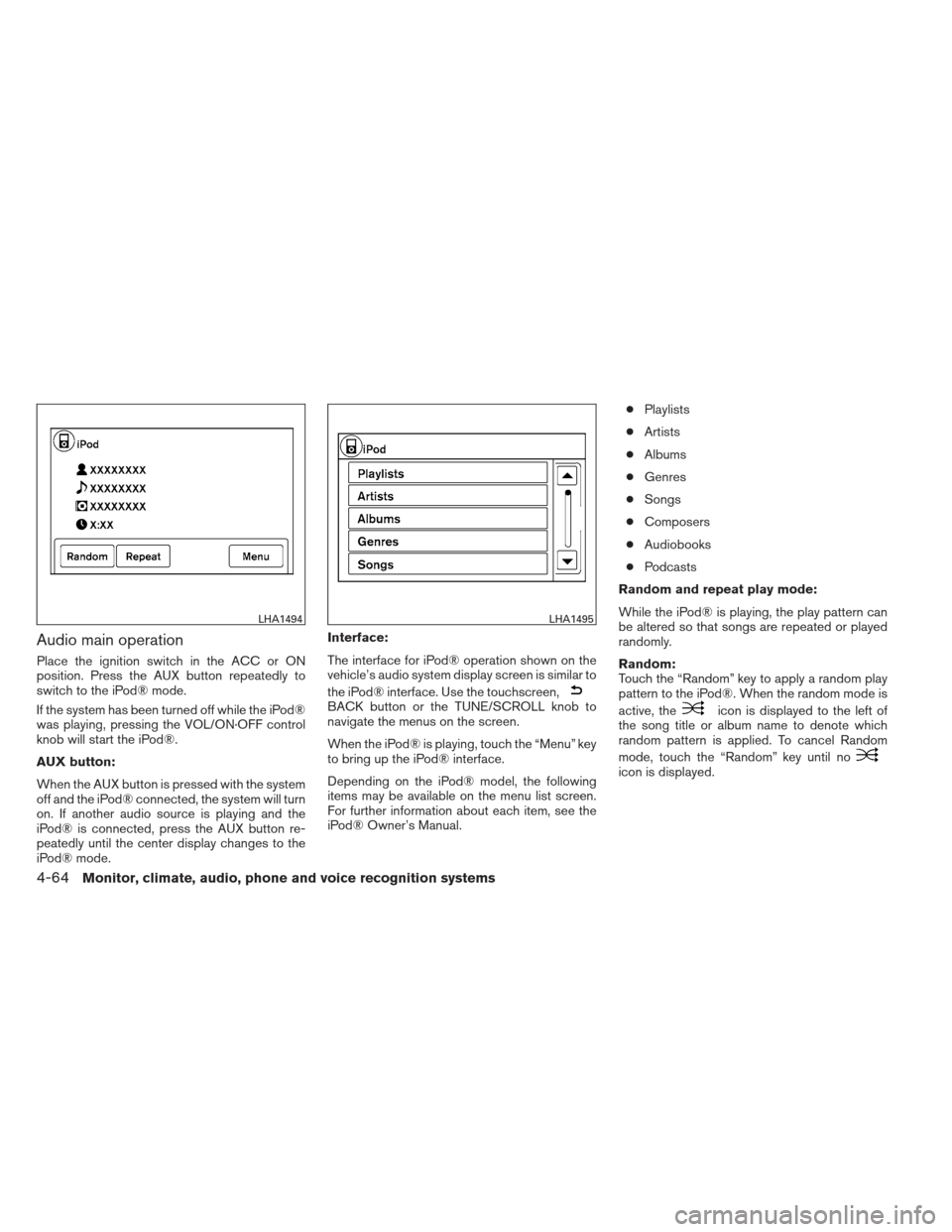
The interface for iPod® operation shown on the
vehicle’s audio system display screen is similar to
the iPod® interface. Use the touchscreen,
BACK button or the TUNE/SCROLL knob to
navigate the menus on the screen.
When the iPod® is playing, touch the “Menu” key
to bring up the iPod® interface.
Depending on the iPod® model, the following
items may be available on the menu list screen.
For further information about each item, see the
iPod® Owner’s Manual. ●
Playlists
● Artists
● Albums
● Genres
● Songs
● Composers
● Audiobooks
● Podcasts
Random and repeat play mode:
While the iPod® is playing, the play pattern can
be altered so that songs are repeated or played
randomly.
Random:
Touch the “Random” key to apply a random play
pattern to the iPod®. When the random mode is
active, theicon is displayed to the left of
the song title or album name to denote which
random pattern is applied. To cancel Random
mode, touch the “Random” key until no
icon is displayed.
LHA1494LHA1495
4-64Monitor, climate, audio, phone and voice recognition systems