2013 NISSAN ALTIMA navigation system
[x] Cancel search: navigation systemPage 215 of 413
playing, touching the “Browse” key will also list
the folders on the disc. Follow the procedure for
selecting a song with the touchscreen to choose
a folder.
SEEK (Reverse or FastForward) buttons:
Press and hold the seek buttons
orfor 1.5 seconds while the compact disc is playing
to reverse or fast forward the track being played.
The compact disc plays at an increased speed
while reversing or fast forwarding. When the but-
ton is released, the compact disc returns to nor-
mal play speed.
SEEK buttons:
Press the seek button
while a CD or
MP3/WMA CD is playing to return to the begin-
ning of the current track. Press the seek
button
several times to skip backward sev-
eral tracks.
Press the seek button
while a CD or
MP3/WMA CD is playing to advance one track.
Press the seek button
several times to skip
forward several tracks. If the last track on a CD is
skipped, the first track on the disc is played. If the
last track in a folder of an MP3/WMA CD is
skipped, the first track of the next folder is played. AUX button:
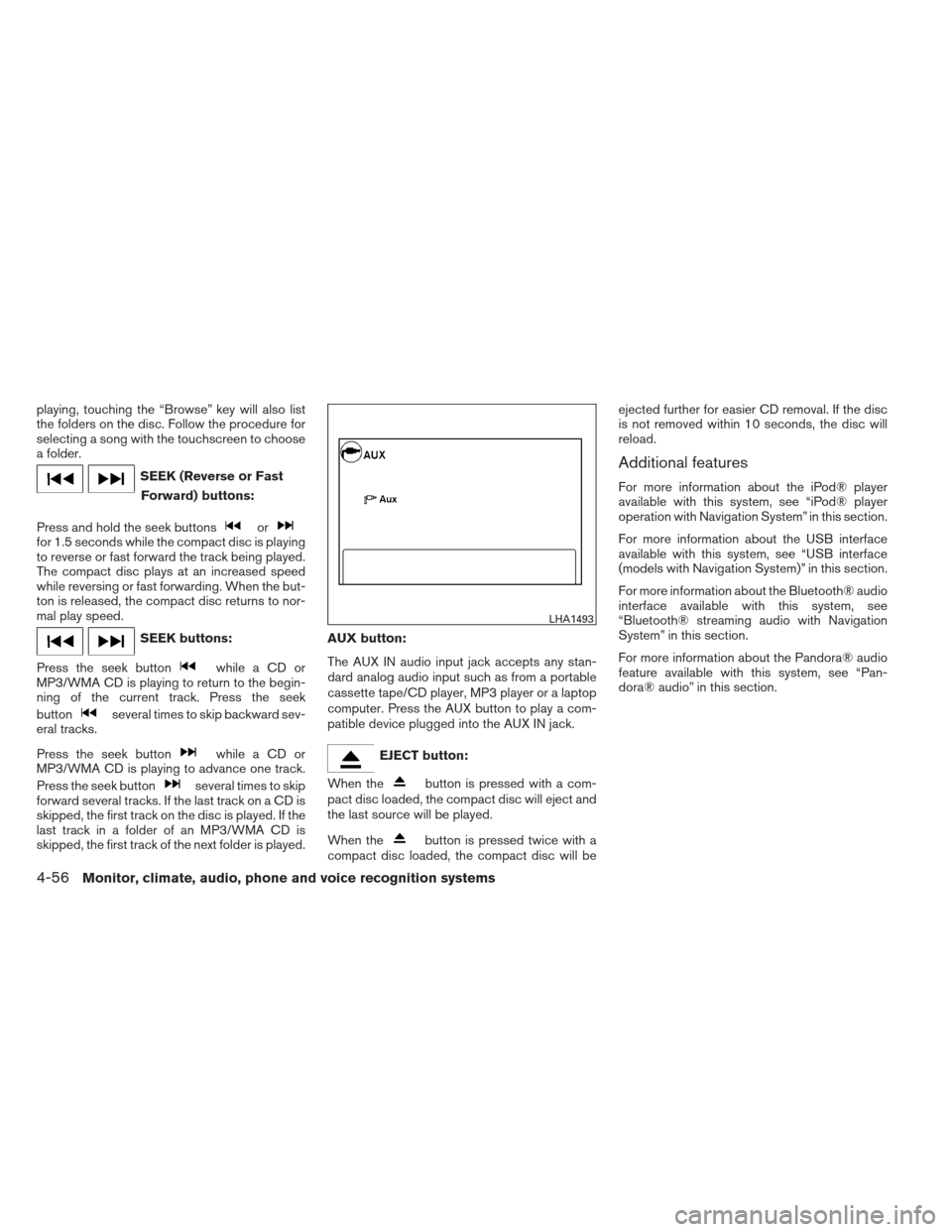
The AUX IN audio input jack accepts any stan-
dard analog audio input such as from a portable
cassette tape/CD player, MP3 player or a laptop
computer. Press the AUX button to play a com-
patible device plugged into the AUX IN jack.
EJECT button:
When the
button is pressed with a com-
pact disc loaded, the compact disc will eject and
the last source will be played.
When the
button is pressed twice with a
compact disc loaded, the compact disc will be ejected further for easier CD removal. If the disc
is not removed within 10 seconds, the disc will
reload.
Additional features
For more information about the iPod® player
available with this system, see “iPod® player
operation with Navigation System” in this section.
For more information about the USB interface
available with this system, see “USB interface
(models with Navigation System)” in this section.
For more information about the Bluetooth® audio
interface available with this system, see
“Bluetooth® streaming audio with Navigation
System” in this section.
For more information about the Pandora® audio
feature available with this system, see “Pan-
dora® audio” in this section.
LHA1493
4-56Monitor, climate, audio, phone and voice recognition systems
Page 216 of 413
USB INTERFACE (models without
Navigation System) (if so equipped)Connecting a device to the USB input
jack
CAUTION
●
Do not force the USB device into the
USB port. Inserting the USB device
tilted or up-side-down into the port may
damage the USB device and the port.
Make sure that the USB device is con-
nected correctly into the USB port.
(Some USB devices come with a
mark as a guide. Make sure that the
mark is facing the correct direction be-
fore inserting the device.)
● Do not locate objects near the USB de-
vice to prevent the objects from leaning
on the USB device and the port. Pres-
sure from the objects may damage the
USB device and the port.
The USB input jack is located on the center
console beneath the heater and air conditioner
controls. Insert the USB device into the jack.
When a compatible storage device is plugged
into the jack, compatible audio files on the stor-
age device can be played through the vehicle’s
audio system.
Audio file operation
CD button:
Place the ignition switch in the ON or ACC
position and press the CD button to switch
to the USB input mode. If a CD is playing or
another audio source is plugged in through the
AUX IN jack on the radio, the CD button
toggles between the three sources.
Play information
Information about the audio files being played
can be displayed on the display screen of the
vehicle’s audio system. Depending on how the
audio files are encoded, information such as
Folder, Song and Artist will be displayed.
The track number and number of total tracks in
the folder are displayed on the screen as well.
SEEK/CAT (Reverse or Fast Forward) buttons:
Press and hold the SEEK/CAT buttons
orfor 1.5 seconds while an audio file on
the USB device is playing to reverse or fast
forward the track being played. The track plays at
an increased speed while reversing or fast for-
warding. When the button is released, the audio
file returns to normal play speed.
LHA2264
Monitor, climate, audio, phone and voice recognition systems4-57
Page 217 of 413
SEEK/CAT buttons:
Press the SEEK/CAT button
while an au-
dio file on the USB device is playing to return to
the beginning of the current track. Press the
SEEK/CAT button
several times to skip
backward several tracks.
Press the SEEK/CAT button
while an au-
dio file on the USB device is playing to advance
one track. Press the SEEK/CAT button
several times to skip forward several tracks. If the
last track in a folder on the USB device is
skipped, the first track of the next folder is played.
RDM button:
When the RDM button is pressed while an audio
file on the USB device is playing, the play pattern
can be changed as follows:
All Random →1 Folder Random →OFF
All Random: all tracks on the USB device will be
played randomly.
1 Folder Random: all tracks in the current folder
will be played randomly.
OFF: No random play pattern is applied. The
indicator on the display will turn off. The current play pattern of the USB device is
displayed on the screen unless no pattern is
applied.
RPT button:
When the RPT button is pressed while an audio
file on the USB device is playing, the play pattern
can be changed as follows:
1 Folder Repeat
→1 Track Repeat →OFF
1 Track Repeat: the current track will be re-
peated.
1 Folder Repeat: the current folder will be re-
peated.
OFF: No repeat play pattern is applied. The indi-
cator on the display will turn off.
The current play pattern of the USB device is
displayed on the screen unless no pattern is
applied.
TUNE/SCROLL knob:
If there are multiple folders with audio files on the
USB device, turn the TUNE/SCROLL knob to
change folders. Turn the knob to the left to skip
back a folder. Turn the knob to the right to skip
ahead a folder. If there is only one folder of audio
files on the USB device, turning the
TUNE/SCROLL knob in either direction will re-
turn to the first track on the USB device.
USB INTERFACE (models with
Navigation System)
LHA2264
4-58Monitor, climate, audio, phone and voice recognition systems
Page 219 of 413
Press thebutton while an audio file on the
USB device is playing to advance one track.
Press the
button several times to skip for-
ward several tracks. If the last track in a folder on
the USB device is skipped, the first track of the
next folder is played.
Random and repeat play mode:
While files on a USB device are playing, the play
pattern can be altered so that songs are repeated
or played randomly.
Random:
Touch the “Random” key to apply a random play
pattern to the USB device. When the random
mode is active, the
icon is displayed to the
left of the song title or album name to denote
which random pattern is applied. To cancel Ran-
dom mode, touch the “Random” key until
no
icon is displayed.
Repeat:
Touch the “Repeat” key to apply a repeat play
pattern to the USB device. When the repeat
mode is active, the
icon is displayed to the
left of the song title or album name to denote
which repeat pattern is applied. To cancel Repeat
mode, touch the “Repeat” key until no
icon
is displayed.
iPod®* PLAYER OPERATION
WITHOUT NAVIGATION SYSTEM (if
so equipped) Connecting iPod®
CAUTION
●
Do not force the iPod® cable into the
USB port. Inserting the USB device
tilted or up-side-down into the port may
damage the iPod® cable and the port.
Make sure that the iPod® cable is con-
nected correctly into the USB port.
(Some iPod® cables come with a
mark as a guide. Make sure that the
mark is facing the correct direction be-
fore inserting the iPod® cable.)
● Do not locate objects near the iPod®
cable to prevent the objects from lean-
ing on the iPod® cable and the port.
Pressure from the objects may damage
the iPod® cable and the port.
To connect an iPod® to the vehicle so that the
iPod® can be controlled with the audio system
controls and display screen, use the USB jack
located on the center console below the heater
and air conditioner controls. Connect the iPod®-
specific end of the cable to the iPod® and the
USB end of the cable to the USB jack on the
vehicle. If your iPod® supports charging via a
USB connection, its battery will be charged while
connected to the vehicle with the ignition switch
in the ACC or ON position.
LHA2264
4-60Monitor, climate, audio, phone and voice recognition systems
Page 221 of 413
●Songs
● Podcasts
● Genres
● Composers
● Audiobooks
● Shuffle songs
For more information about each item, see the
iPod® Owner’s Manual.
SEEK/CAT buttons:
Press the SEEK/CAT buttons
orto
skip backward or forward one track.
Press and hold the SEEK/CAT buttons
orfor 1.5 seconds while a track is playing
to reverse or fast forward the track being played.
The track plays at an increased speed while
reversing or fast forwarding. When the button is
released, the track returns to normal play speed.
REPEAT (RPT):
When the RPT button is pressed while a track is
being played, the play pattern can be changed as
follows:
Repeat Off →1 Track Repeat →All Repeat →
Repeat Off 1 Track Repeat: the current track will be re-
peated.
All Repeat: all songs in the current list are re-
peated.
Repeat Off: no repeat play pattern is applied.
RANDOM (RDM):
When the RDM button is pressed while a track is
being played, the play pattern can be changed as
follows:
Shuffle Off
→Track Shuffle →Album Shuffle →
Shuffle Off
Track Shuffle: the tracks in the current list will be
played randomly.
Album Shuffle: the albums in the current list will
be played randomly.
Shuffle Off: no random play pattern is applied.
BACK button:
When the BACK button is pressed, it returns to
the previous menu.
iPod®* PLAYER OPERATION WITH
NAVIGATION SYSTEM (if so
equipped)
LHA2264
4-62Monitor, climate, audio, phone and voice recognition systems
Page 224 of 413
Repeat:
Touch the “Repeat” key to apply a repeat play
pattern to the iPod®. When the repeat mode is
active, the
icon is displayed to the left of
the song title or album name to denote which
repeat pattern is applied. To cancel Repeat
mode, touch the “Repeat” key until no
icon
is displayed.
Seek buttons:
Press the seek button
orto skip
backward or forward one track.
Press and hold the seek button
orfor 1.5 seconds while a track is playing to reverse
or fast forward the track being played. The track
plays at an increased speed while reversing or
fast forwarding. When the button is released, the
track returns to normal play speed. Scrolling menus:
While navigating long lists of artists, albums or
songs in the music menu, it is possible to scroll
the list by the first character in the name. To
activate character indexing, touch and hold the
“A-Z” key in the upper right corner of the screen.
Turn the TUNE/SCROLL knob to choose the
number or letter to jump to in the list and then
press the ENTER button.
If no character is selected after two seconds, the
display returns to normal.
BLUETOOTH® STREAMING AUDIO
WITHOUT NAVIGATION SYSTEM
(Type A) (if so equipped)
If you have a compatible Bluetooth® audio de-
vice that is capable of playing audio files, the
device can be connected to the vehicle’s audio
system so that the audio files on the device play
through the vehicle’s speakers.
Connecting Bluetooth® audio
To connect your Bluetooth® audio device to the
vehicle, follow the procedure below:
1. Press the
button. The system an-
nounces the available commands.
2. Say “Connect Phone”. The system acknowl- edges the command and announces the
next set of available commands.
3. Say “Add Phone”. The system acknowl- edges the command and asks you to initiate
connecting from the phone handset. The
connecting procedure of the cellular phone
varies according to each cellular phone
model. See the cellular phone Owner’s
Manual for details. You can also visit
www.nissanusa.com/bluetooth for instruc-
tions on connecting NISSAN recommended
cellular phones.LHA2279
Monitor, climate, audio, phone and voice recognition systems4-65
Page 225 of 413
4. When prompted for a Passkey code, enter“1234” from the handset. The Passkey code
“1234” has been assigned by NISSAN and
cannot be changed.
Audio main operation
To switch to the Bluetooth® audio mode, press
the AUX button repeatedly until the Bluetooth®
audio mode is displayed on the screen.
Use the vehicle audio controls or the Bluetooth®
device’s controls to play, pause, skip or reverse
tracks.
BLUETOOTH® STREAMING AUDIO
WITHOUT NAVIGATION SYSTEM
(Type B) (if so equipped)
If you have a compatible Bluetooth® audio de-
vice that is capable of playing audio files, the
device can be connected to the vehicle’s audio
system so that the audio files on the device play
through the vehicle’s speakers.
Connecting Bluetooth® audio
To connect your Bluetooth® audio device to the
vehicle, follow the procedure below:
1. Press the SETTING button.
2. Select the “Bluetooth” key. 3. Select the “Add Telephone or Device” key.
This same screen can be accessed to re-
move, replace or select a different
Bluetooth® device.
4. The system acknowledges the command and asks you to initiate connecting from the
phone handset. The connecting procedure
of the cellular phone varies according to
each cellular phone model. See the cellular
phone Owner’s Manual for details. You can
also visit www.nissanusa.com/bluetooth for
instructions on connecting NISSAN recom-
mended cellular phones.
LHA2257LHA2274
4-66Monitor, climate, audio, phone and voice recognition systems
Page 226 of 413
Audio main operation
To switch to the Bluetooth® audio mode, press
the CD button repeatedly until the
Bluetooth® audio mode is displayed on the
screen.
The controls for the Bluetooth® audio are dis-
played on the screen. Use the Preset 3 button for
play and the Preset 4 button for pause.
BLUETOOTH® STREAMING AUDIO
WITH NAVIGATION SYSTEM (if so
equipped)
If you have a compatible Bluetooth® audio de-
vice that is capable of playing audio files, the
device can be connected to the vehicle’s audio
system so that the audio files on the device play
through the vehicle’s speakers.
Connecting Bluetooth® audio
To connect your Bluetooth® audio device to the
vehicle, follow the procedure below:1. Press the MENU button.
2. Select the “Settings” key.
LHA2292LHA2253
Monitor, climate, audio, phone and voice recognition systems4-67