Page 220 of 414
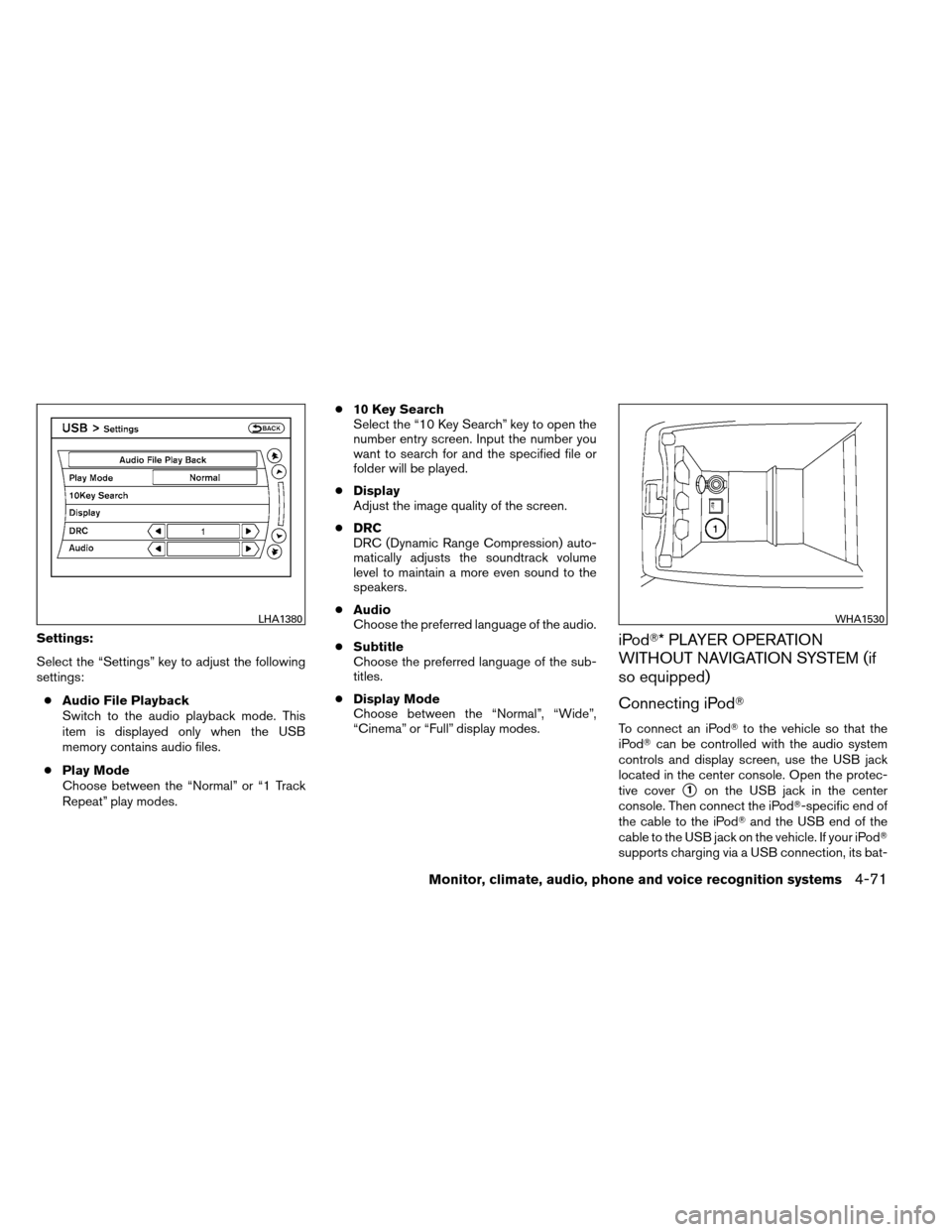
Settings:
Select the “Settings” key to adjust the following
settings:● Audio File Playback
Switch to the audio playback mode. This
item is displayed only when the USB
memory contains audio files.
● Play Mode
Choose between the “Normal” or “1 Track
Repeat” play modes. ●
10 Key Search
Select the “10 Key Search” key to open the
number entry screen. Input the number you
want to search for and the specified file or
folder will be played.
● Display
Adjust the image quality of the screen.
● DRC
DRC (Dynamic Range Compression) auto-
matically adjusts the soundtrack volume
level to maintain a more even sound to the
speakers.
● Audio
Choose the preferred language of the audio.
● Subtitle
Choose the preferred language of the sub-
titles.
● Display Mode
Choose between the “Normal”, “Wide”,
“Cinema” or “Full” display modes.iPod�* PLAYER OPERATION
WITHOUT NAVIGATION SYSTEM (if
so equipped)
Connecting iPod�
To connect an iPod� to the vehicle so that the
iPod� can be controlled with the audio system
controls and display screen, use the USB jack
located in the center console. Open the protec-
tive cover
�1on the USB jack in the center
console. Then connect the iPod�-specific end of
the cable to the iPod� and the USB end of the
cable to the USB jack on the vehicle. If your iPod�
supports charging via a USB connection, its bat-
LHA1380WHA1530
Monitor, climate, audio, phone and voice recognition systems4-71
Page 221 of 414
tery will be charged while connected to the ve-
hicle with the ignition switch in the ACC or ON
position.
While connected to the vehicle, the iPod�can
only be operated by the vehicle audio controls.
To disconnect the iPod� from the vehicle, remove
the USB end of the cable from the USB jack on
the vehicle, then remove the cable from the
iPod�.
*iPod �is a trademark of Apple Inc., registered in
the U.S. and other countries.
Compatibility
The following models are compatible:
● iPod� 5th Generation version 1.2.3
● iPod� Classic - version 1.1
● iPod� Touch - version 2.1*
● iPod� Nano - 1st generation version 1.3.1
● iPod� Nano - 2nd generation version 1.1.3
● iPod� Nano - 3rd generation version 1.0.2
● iPod� Nano - 4th generation version 1.0.4
● iPod� Nano - 5th generation version 1.0.1
* Some features of this iPod� may not be fully
functional. Make sure that your iPod�
firmware is updated to
the version indicated above.
Audio main operation
AUX button:
Place the ignition switch in the ACC or ON
position and press the AUX button repeatedly
until the iPod� mode is displayed on the screen.
If another audio source is playing and the iPod� is
connected, press the AUX button repeatedly to
switch to the iPod� mode.
If the vehicle audio system is turned off while the
iPod� is playing, the iPod� will start when the
VOL/ON-OFF control knob is pressed.
Interface:
The interface for iPod� operation shown on the
vehicle’s audio system display screen is similar to
the iPod� interface. Use the TUNE/SCROLL
knob and ENTER button to navigate the menus
on the screen. The iPod� MENU button on the
vehicle audio system is used to move up one level
in the iPod� menus.
Depending on the iPod� model, the following
items may be available on the menu list screen.
For further information about each item, see the
iPod� Owner’s Manual.
● Playlists ●
Artists
● Albums
● Songs
● Podcasts
● Genres
● Composers
● Audiobooks
● ShuffleSongs
SEEK/CAT buttons:
Press the SEEK/CAT buttons
orto
skip backward or forward one track.
Press and hold the SEEK/CAT buttons
orfor 1.5 seconds while a track is playing
to reverse or fast forward the track being played.
The track plays at an increased speed while
reversing or fast forwarding. When the button is
released, the track returns to normal play speed.
RPT button:
Press the RPT button while a track is playing to
change the play pattern as follows:
1 TRK RPT →ALL RPT →RPT OFF
1 TRK RPT: the current track will be repeated.
4-72Monitor, climate, audio, phone and voice recognition systems
Page 222 of 414
ALL RPT: all songs in the current list are re-
peated.
RPT OFF: no repeat play pattern is applied.
RDM button:
Press the RDM button while a track is playing to
change the play pattern as follows:
TRK SHUFFLE→ALBUM SHUFFLE →
SHUFFLE OFF
TRK SHUFFLE: the tracks in the current list will
be played randomly.
ALBUM SHUFFLE: the albums in the current list
will be played randomly.
SHUFFLE OFF: no random play pattern is ap-
plied.
iPod�* PLAYER OPERATION WITH
NAVIGATION SYSTEM (if so
equipped)
Connecting iPod�
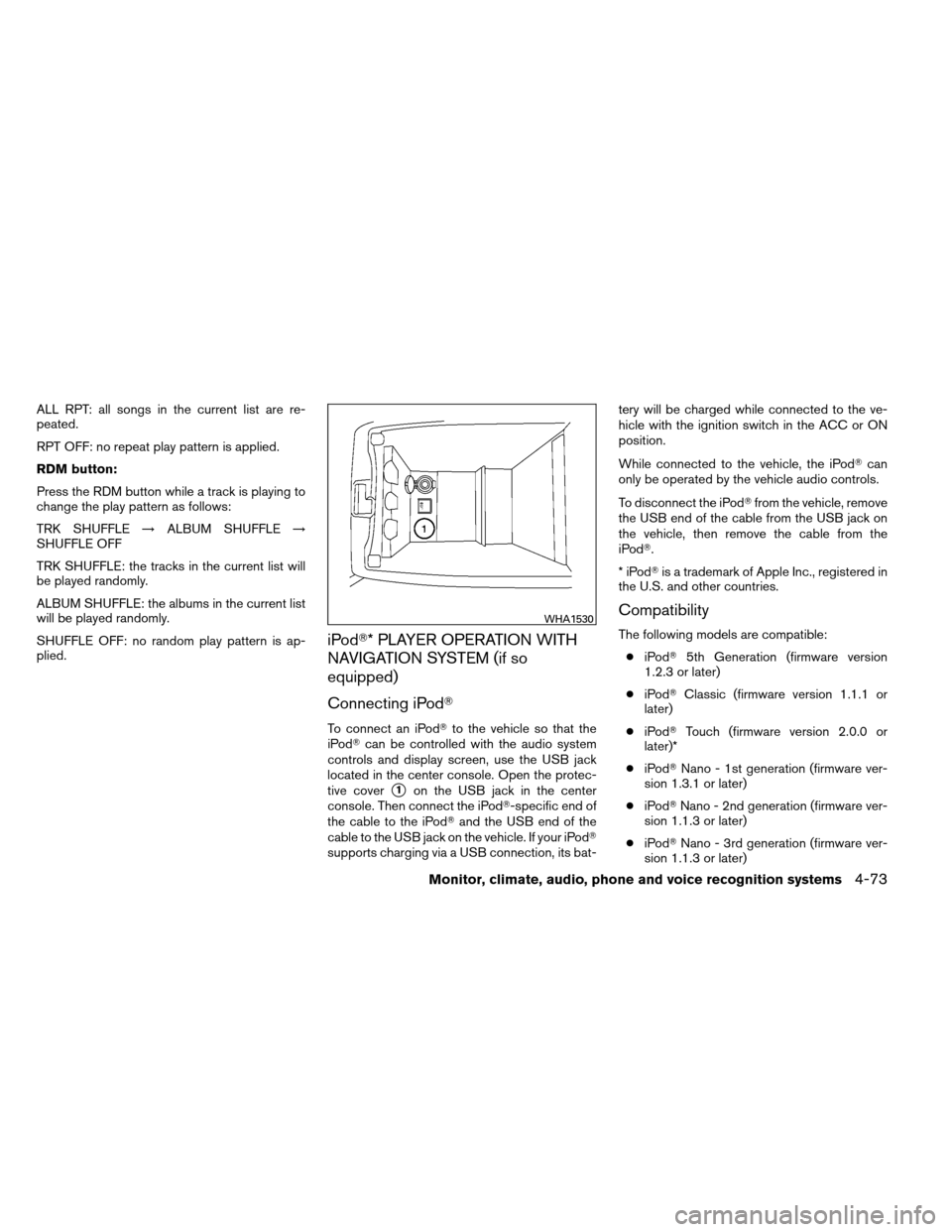
To connect an iPod� to the vehicle so that the
iPod� can be controlled with the audio system
controls and display screen, use the USB jack
located in the center console. Open the protec-
tive cover
�1on the USB jack in the center
console. Then connect the iPod�-specific end of
the cable to the iPod� and the USB end of the
cable to the USB jack on the vehicle. If your iPod�
supports charging via a USB connection, its bat- tery will be charged while connected to the ve-
hicle with the ignition switch in the ACC or ON
position.
While connected to the vehicle, the iPod�
can
only be operated by the vehicle audio controls.
To disconnect the iPod� from the vehicle, remove
the USB end of the cable from the USB jack on
the vehicle, then remove the cable from the
iPod�.
*iPod �is a trademark of Apple Inc., registered in
the U.S. and other countries.
Compatibility
The following models are compatible:
● iPod� 5th Generation (firmware version
1.2.3 or later)
● iPod� Classic (firmware version 1.1.1 or
later)
● iPod� Touch (firmware version 2.0.0 or
later)*
● iPod� Nano - 1st generation (firmware ver-
sion 1.3.1 or later)
● iPod� Nano - 2nd generation (firmware ver-
sion 1.1.3 or later)
● iPod� Nano - 3rd generation (firmware ver-
sion 1.1.3 or later)
WHA1530
Monitor, climate, audio, phone and voice recognition systems4-73
Page 223 of 414
●iPod� Nano - 4th generation (firmware ver-
sion 1.0.4 or later)
● iPod� Nano - 5th generation (firmware ver-
sion 1.0.1 or later)
* Some features of this iPod� may not be fully
functional.
Make sure that your iPod� firmware is updated to
the version indicated above.
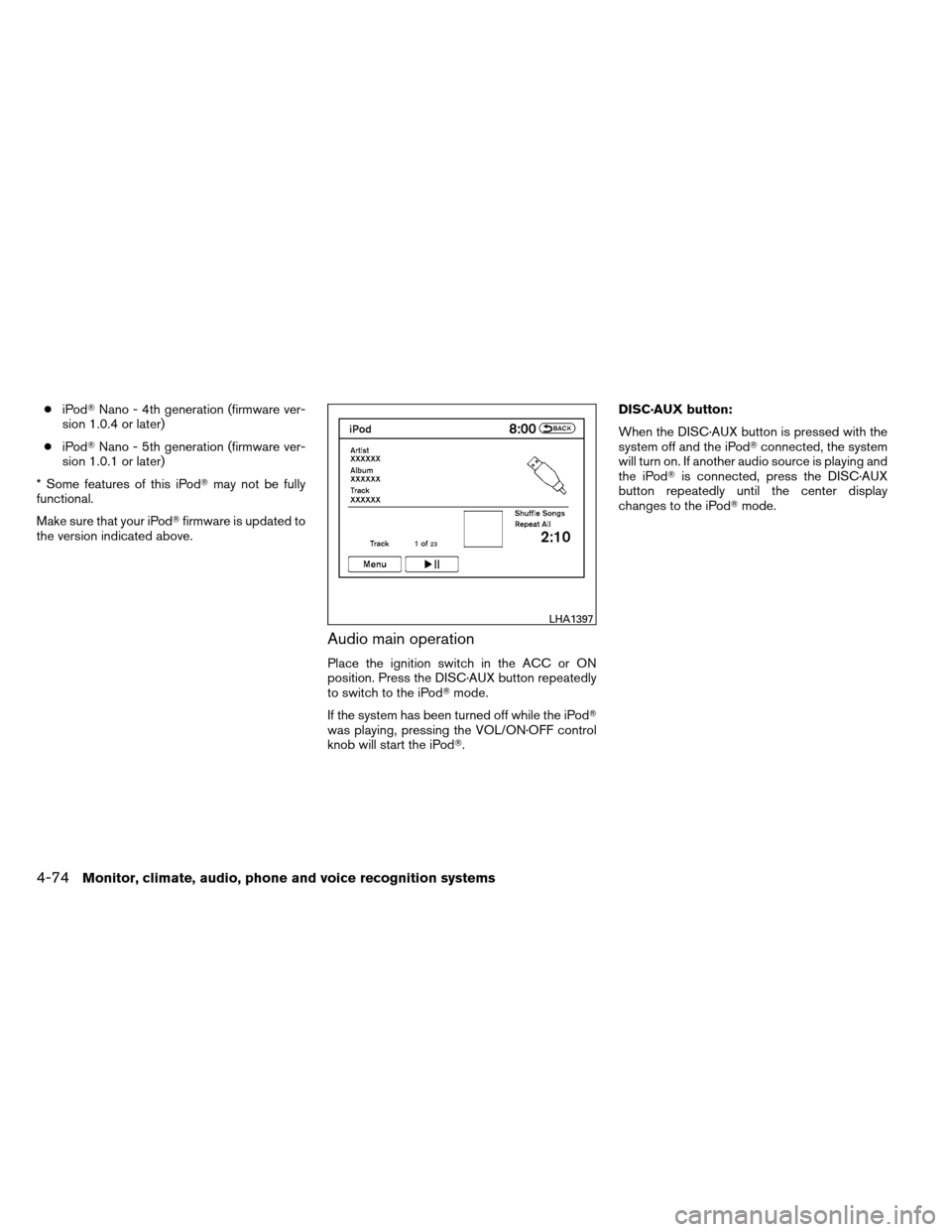
Audio main operation
Place the ignition switch in the ACC or ON
position. Press the DISC·AUX button repeatedly
to switch to the iPod� mode.
If the system has been turned off while the iPod�
was playing, pressing the VOL/ON·OFF control
knob will start the iPod�. DISC·AUX button:
When the DISC·AUX button is pressed with the
system off and the iPod�
connected, the system
will turn on. If another audio source is playing and
the iPod� is connected, press the DISC·AUX
button repeatedly until the center display
changes to the iPod� mode.
LHA1397
4-74Monitor, climate, audio, phone and voice recognition systems
Page 224 of 414
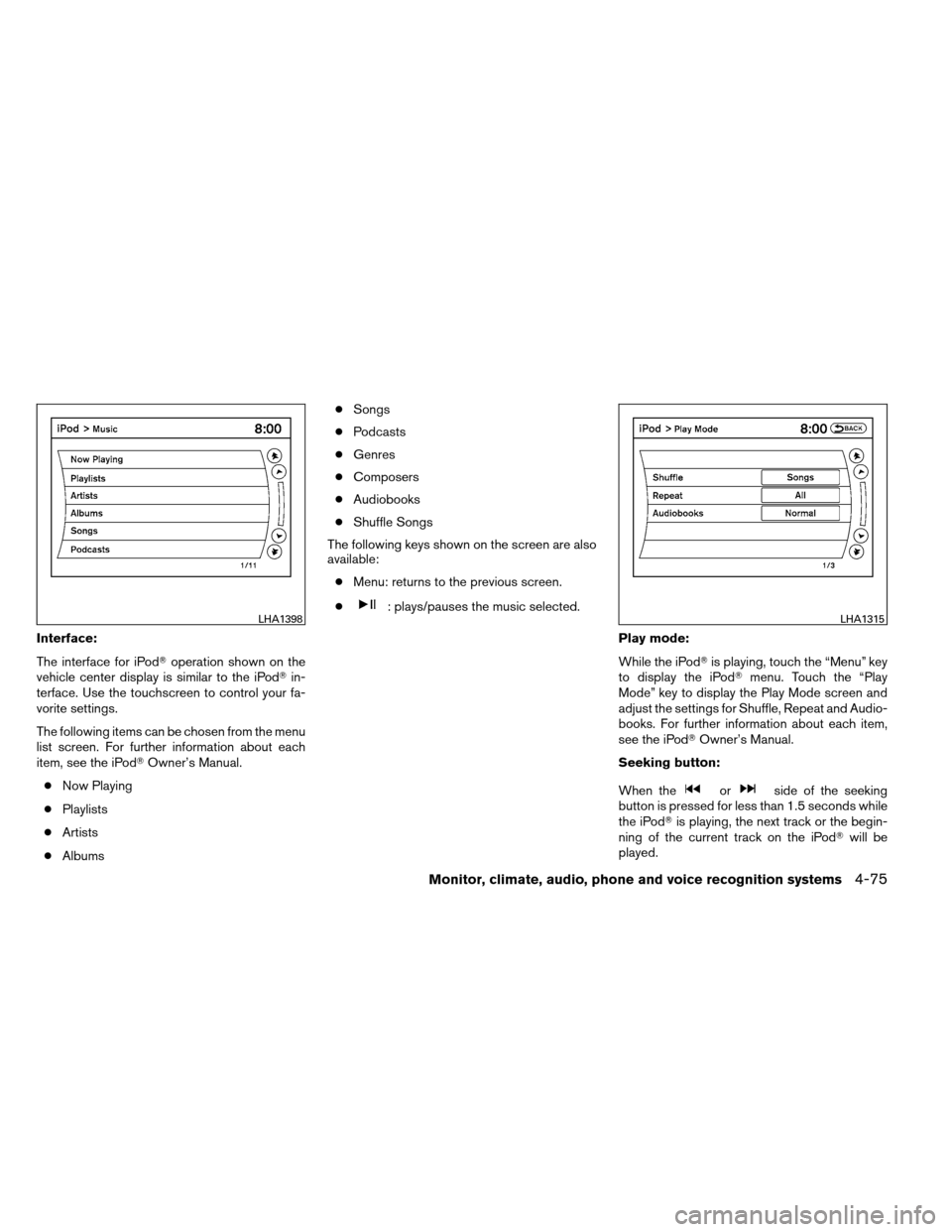
Interface:
The interface for iPod�operation shown on the
vehicle center display is similar to the iPod� in-
terface. Use the touchscreen to control your fa-
vorite settings.
The following items can be chosen from the menu
list screen. For further information about each
item, see the iPod� Owner’s Manual.
● Now Playing
● Playlists
● Artists
● Albums ●
Songs
● Podcasts
● Genres
● Composers
● Audiobooks
● Shuffle Songs
The following keys shown on the screen are also
available: ● Menu: returns to the previous screen.
●
: plays/pauses the music selected.
Play mode:
While the iPod�is playing, touch the “Menu” key
to display the iPod� menu. Touch the “Play
Mode” key to display the Play Mode screen and
adjust the settings for Shuffle, Repeat and Audio-
books. For further information about each item,
see the iPod� Owner’s Manual.
Seeking button:
When the
orside of the seeking
button is pressed for less than 1.5 seconds while
the iPod� is playing, the next track or the begin-
ning of the current track on the iPod� will be
played.
LHA1398LHA1315
Monitor, climate, audio, phone and voice recognition systems4-75
Page 225 of 414
When theorside of the seeking
button is pressed for more than 1.5 seconds
while the iPod� is playing, the iPod� will play
while fast forwarding or rewinding. When the
button is released, the iPod� will return to the
normal play speed.
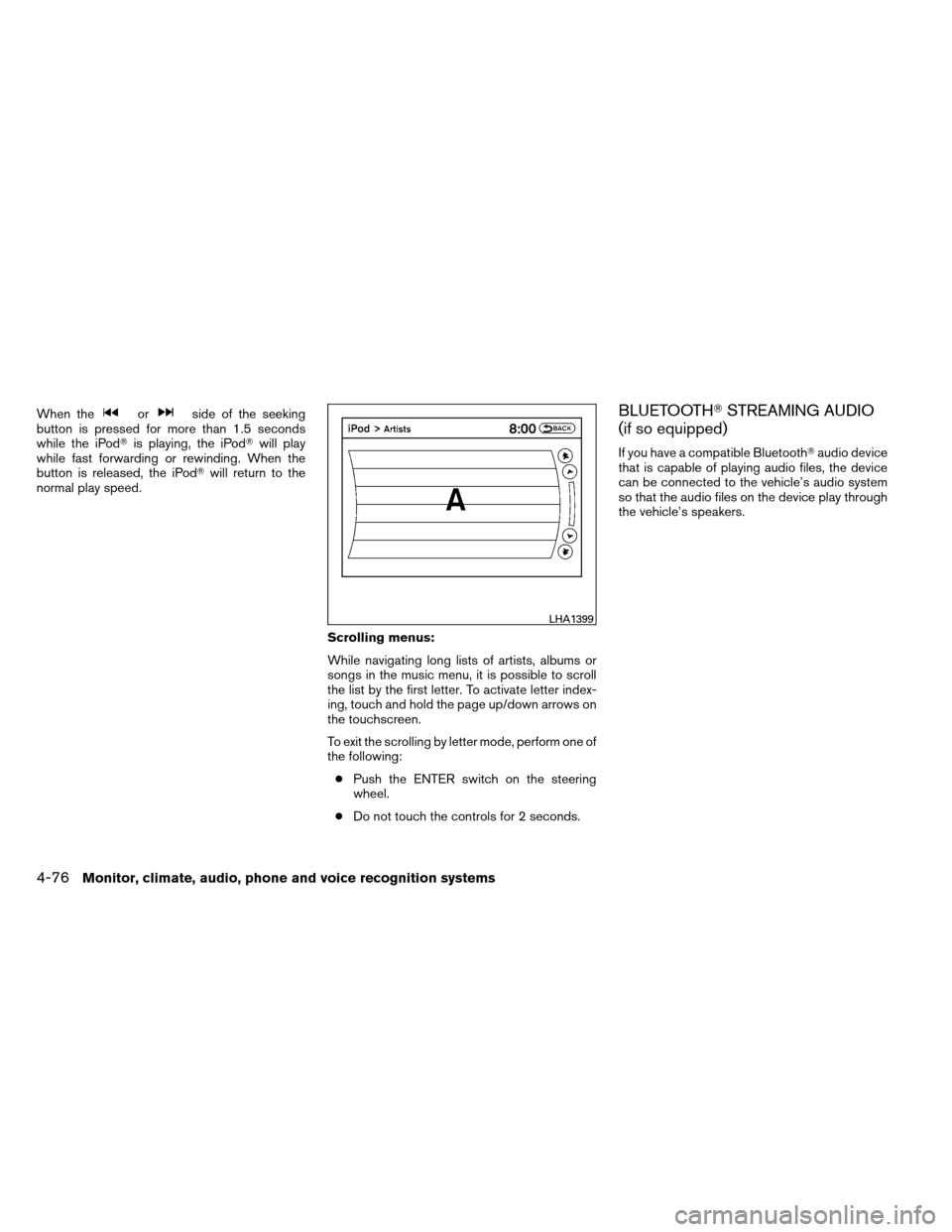
Scrolling menus:
While navigating long lists of artists, albums or
songs in the music menu, it is possible to scroll
the list by the first letter. To activate letter index-
ing, touch and hold the page up/down arrows on
the touchscreen.
To exit the scrolling by letter mode, perform one of
the following:● Push the ENTER switch on the steering
wheel.
● Do not touch the controls for 2 seconds.BLUETOOTH� STREAMING AUDIO
(if so equipped)
If you have a compatible Bluetooth� audio device
that is capable of playing audio files, the device
can be connected to the vehicle’s audio system
so that the audio files on the device play through
the vehicle’s speakers.
LHA1399
4-76Monitor, climate, audio, phone and voice recognition systems
Page 227 of 414
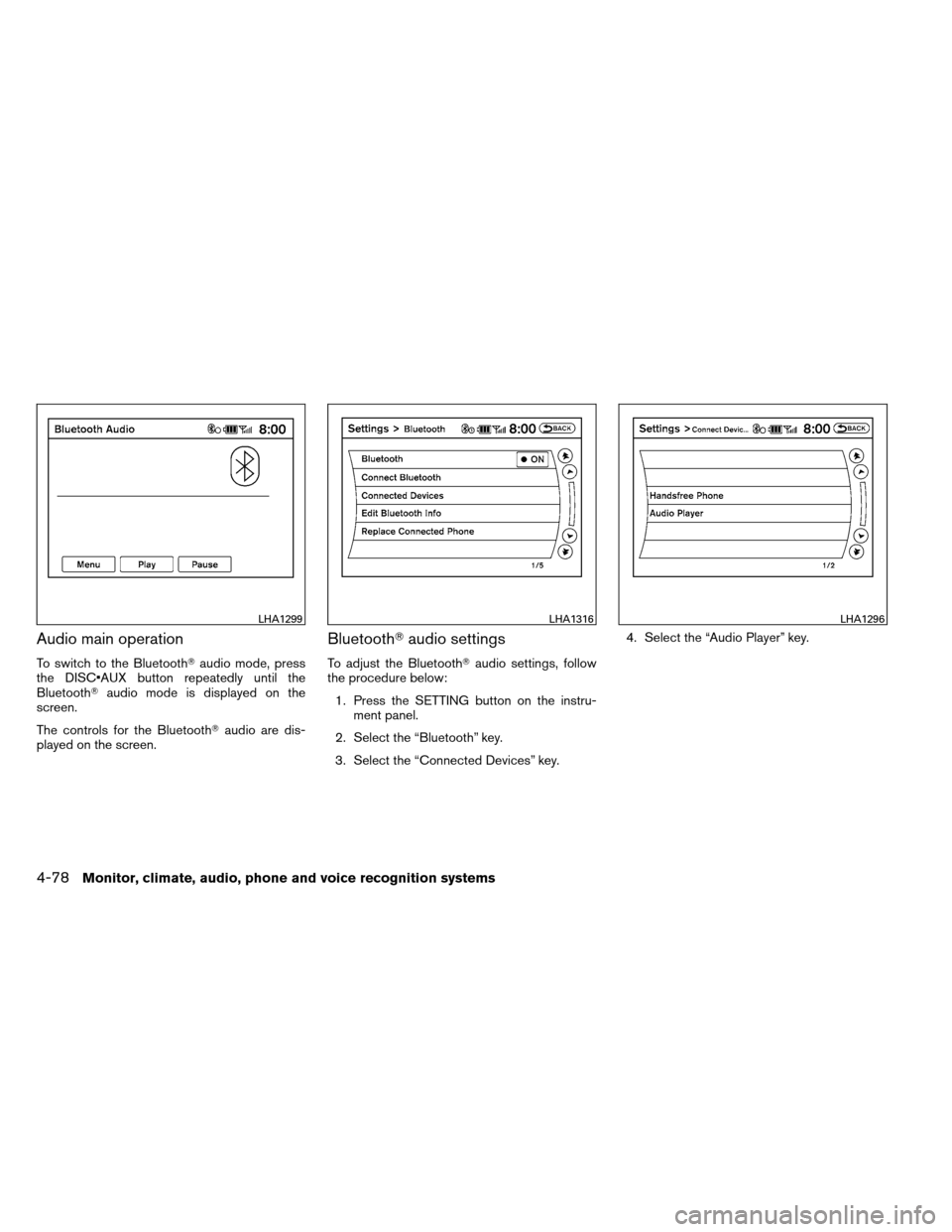
Audio main operation
To switch to the Bluetooth�audio mode, press
the DISC button repeatedly until the
Bluetooth� audio mode is displayed on the
screen.
The controls for the Bluetooth� audio are dis-
played on the screen.
Bluetooth� audio settings
To adjust the Bluetooth� audio settings, follow
the procedure below:
1. Press the SETTING button on the instru- ment panel.
2. Select the “Bluetooth” key.
3. Select the “Connected Devices” key. 4. Select the “Audio Player” key.
LHA1299LHA1316LHA1296
4-78Monitor, climate, audio, phone and voice recognition systems
Page 229 of 414
●A new disc may be rough on the inner and
outer edges. Remove the rough edges by
rubbing the inner and outer edges with the
side of a pen or pencil as illustrated.
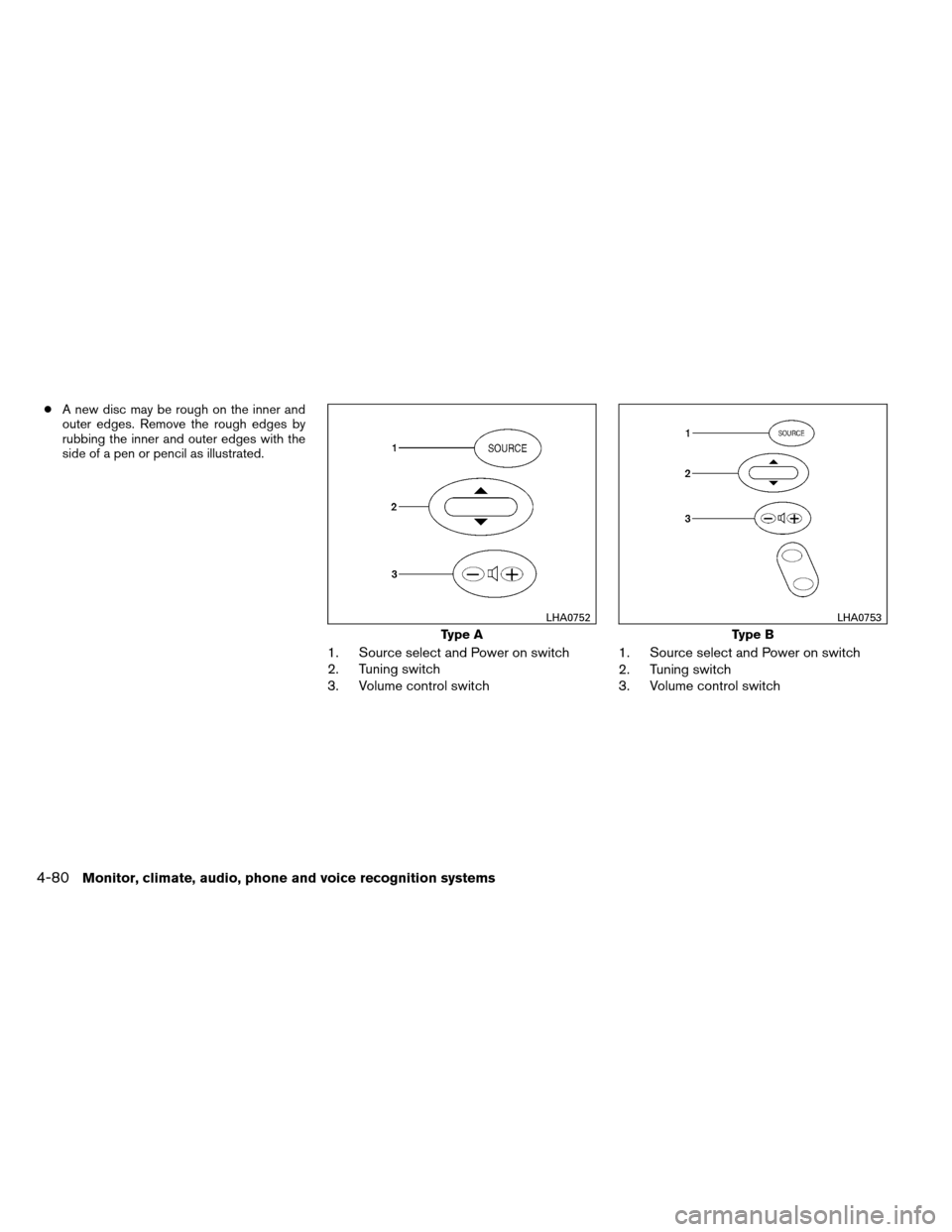
1. Source select and Power on switch
2. Tuning switch
3. Volume control switch 1. Source select and Power on switch
2. Tuning switch
3. Volume control switch
Type A
LHA0752
Type B
LHA0753
4-80Monitor, climate, audio, phone and voice recognition systems