2013 MINI COOPER radio
[x] Cancel search: radioPage 159 of 267

COMMUNICATIONSHands-free device Bluetooth
158
If pairing was successful, the mobile phone
appears at the top of the list of mobile phones.
If the pairing was not successful: What to do if…,
refer to page158.
Following the initial pairing
>The mobile phone is detected/connected in
the vehicle within a short period of time
when the engine is running or radio readi-
ness is switched on.
> After identification, phone book entries are
imported from the mobile phone and/or SIM
card of the telephone, depending on the
telephone.
> Four mobile phones can be paired.
> Specific settings may be necessary in some
mobile phones, e.g. authorization or a
secure connection, re fer to the Owner's
Manual for the mobile phone.
Connecting a particular mobile phone
1. "Telephone"
2. "Bluetooth® (phone)"
All paired mobile phones are listed.
3. Select the mobile phone to be connected.
Unpairing mobile phone
1."Telephone"
2. "Bluetooth® (phone)"
All paired mobile phones are listed.
3. Highlight the mobile phone to be unpaired.
4. Open "Options". 5.
"Remove phone from list"
What to do if…
For information on suitab le mobile phones, refer
to page 156.
The mobile phone could not be paired or con-
nected.
> Is Bluetooth activated in the vehicle and in
the mobile phone? Activate Bluetooth in the
vehicle and in the mobile phone.
> Do the Bluetooth passkeys on the mobile
phone and the vehicle match? Enter the
same passkey on the mobile phone and via
the onboard computer.
> A multi-digit passkey may be required.
> Is the passkey input taking longer than
30 seconds? Repeat th e pairing procedure.
> Are too many Bluetoot h devices connected
to the mobile phone? If so, delete the con-
nections with other devices on the mobile
phone.
> Is the mobile phone in power economy
m o d e o r d o e s i t o n l y have a small amount of
battery charge remaining? Charge the
mobile phone using a charging cable.
> Depending on the mobile phone, it may only
be possible to connect one device to the
vehicle. Unpair the connected device from
the vehicle and only pair and connect one
device.
> Is the mobile phone no longer responding?
Switch the mobile phone off and back on
again. Repeat the pairing procedure.
00320051004F004C00510048000300280047004C0057004C005200510003
Page 170 of 267

Mobile phone preparation BluetoothCOMMUNICATIONS
169
7.Select the functions that are to be used for
the mobile phone.
8. "OK"
9. Move the MINI joystick to the left.
If pairing was successful, the mobile phone
appears at the top of the list of mobile phones.
If the pairing was not succe ssful: What to do if…,
refer to page 170.
Following the initial pairing
>The mobile phone is detected/connected in
the vehicle within a short period of time
when the engine is running or radio readi-
ness is switched on.
> After identification, phone book entries are
imported from the mobile phone and/or SIM
card of the telephone, depending on the
telephone.
> Specific settings may be necessary in some
mobile phones, e.g. authorization or a
secure connection, re fer to the Owner's
Manual for the mobile phone.
Connecting a particular mobile phone
1. "Telephone"
2. "Bluetooth® (phone)"
All paired mobile phones are listed. 3.
Select the mobile phone to be connected.
The assigned functions be fore the unpairing of
the mobile phone are assigned to the mobile
phone when it is reconnected. If a mobile phone
is already connected, then these functions are
deactivated if necessary.
Device options
Device options in device s that are paired and
connected can be activated or deactivated.
Configuring device
1. "Telephone"
2. "Bluetooth® (phone)"
3. Highlight the device to be configured.
4. Open "Options".
5. "Configure phone"
6. Activate/deactivate func tions. At least one
function must be selected.
> "Telephone"
> "Additional telephone"
> "Audio"
7. "OK"
00320051004F004C00510048000300280047004C0057004C005200510003
Page 180 of 267

OfficeCOMMUNICATIONS
179
Office
Vehicle equipment
In this chapter, all production, country, and
optional equipment that is offered in the model
range is described. Equipment is also described
that is not available because of, for example,
selected options or count ry version. This also
applies to safety related functions and systems.
Overview
General information
Contacts, appointments, tasks, notes, text mes-
sages and mobile phone e-mails can be dis-
played using the Control Display if the mobile
phone compatibly supports these functions and
the required Bluetooth radio standards.
For information about which mobile phones and
functions are available, go to www.mini.com/
connectivity.
A limited number of compatible mobile phones
are available for Office.
Contents are only displayed completely when
the vehicle is stopped.
Only read access to the mobile phone is possi-
ble.
Do not use Office while driving. Make
entries only when traffic and road condi-
tions permit; otherwise, you may endanger
vehicle occupants and other road users by being
distracted. <
Requirements
>A suitable mobile phon e is paired with the
vehicle and connected . In some mobile
phones, the data access to the mobile
phone must be confirmed.
> Time zones, time, and date, refer to
page 62, are correctly adju sted on the Con-
trol Display and on the mobile phone in order, for example, to correctly display
appointments.
Updating
Every time that the mobile phone is connected
to the vehicle, data ar
e updated. Appointments,
tasks, notes and reminders can be updated sep-
arately.
1. "Office"
2. "Current office", "C alendar", "Tasks",
"Notes" or "Reminders"
3. Open "Options".
4. "Update data"
Data from the mobile phone are again trans-
ferred to the vehicle.
Current office
The number of unread messages and active
tasks as well as upcoming appointments are dis-
played.
1. "Office"
2. "Current office"
3. Select the desired entry to display details.
00320051004F004C00510048000300280047004C0057004C005200510003
Page 189 of 267

COMMUNICATIONSMINI Connected
188
Connecting via the snap-in adapter
The mobile phone can also be connected using
the snap-in adapter, refer to page177.
Using MINI Connected
After successful connection of the mobile phone
to the vehicle and activation of MINI Connected,
the applications are di splayed on the Control
Display and can be operated using the MINI joy-
stick.
Volume adjustments can be made using the
buttons on the steering wheel, refer to page 10,
or using the volume control knob on the radio,
refer to page 133.
1. Press the button.
This opens the main menu.
2. "MINI Connected"
3. Select the desired so ftware application.
The extent of MINI Connected that is shown on
the Control Display depends on the range of
installed software applic ations on the mobile
phone.
The data transfer of the software applica-
tion from the telephone to the vehicle can
take a few minutes. Some software applications
depend on the speed of the available Internet
connection for the mobile phone. <
Certain versions of mobile phones used and
their software can make it impossible to use
MINI Connected and the Bluetooth hands-free
system at the same time.
After a phone call, it may be necessary to restart
the software application on the mobile phone.
PlugIn
Selected functions for a compatible Apple device
are shown on the Control Display via a video link.
Operation is via the MINI joystick and an
onboard monitor.
1. Connecting an Apple device.
>via a USB audio interface, refer to
page 187.
> via the snap-in-Adapter, refer to
page 177.
2. "MINI Connected"
3. "PlugIn"
4. Select the type of connection: "Activate via
AUX connection" or "Activate via Snap-In
adapter"
5. "Activate PlugIn"
6. Navigate among the functions shown via a
MINI joystick and, e.g., select a desired cate-
gory or track.
Press the button to return back or to change
to a level higher within the functions of the
Apple device.
Press the button twice to return back to the
main menu.
Additional information can be found in the
MINI Connected Owner's Manual at
www.mini.com/c onnectivity.
Note
Audio and video playba ck from a snap-in
adapter may only be possible if there is no cable
connected to the AV-In port.
00320051004F004C00510048000300280047004C0057004C005200510003
Page 217 of 267

MOBILITYCare
216
tened again after they have been removed, e.g.
for cleaning. <
Floor mats can be removed to be cleaned.
If the carpets are very di rty, clean with a microfi-
ber cloth and water or an interior cleaner. When
doing so, rub forward and back in the driving
direction; otherwise, the carpet may become
matted.
Interior plastic parts
These include:
> Plastic surfaces
> Lamp glass
> Display panes
> Mat parts
Only clean with water an d, if necessary, solvent-
free plastic cleaners.
Do not use solvents such as alcohol, lac-
quer thinner, cold cleaners, fuel, or similar,
as these will damage the surfaces. <
Decorative strips
Only clean decorative strips and fine wood parts
with damp cloths. Wipe dry with a soft cloth.
Safety belts
Dirty belt straps impede the reeling action and
thus have a negative impact on safety.
Do not clean chemically, as this may
destroy the webbing.<
Displays
To clean displays, such as the radio or display
elements, use an anti-static microfiber cloth.
Avoid pressing too hard when cleaning
the display as this can cause damage. <
Do not use chemical or abrasive house-
hold cleaning agents. Keep fluids of any
kind away from th e device. Surfaces or electrical
components may otherw ise become corroded
or damaged. <
CD/DVD drives
Do not use cleaning CDs as this could
damage parts of the drive. <
Vehicle storage
If you park your vehicle longer than three
months, ask your MINI dealer to advise you.
00320051004F004C00510048000300280047004C0057004C005200510003
Page 248 of 267
Short commands for the voice activation systemREFERENCE
247
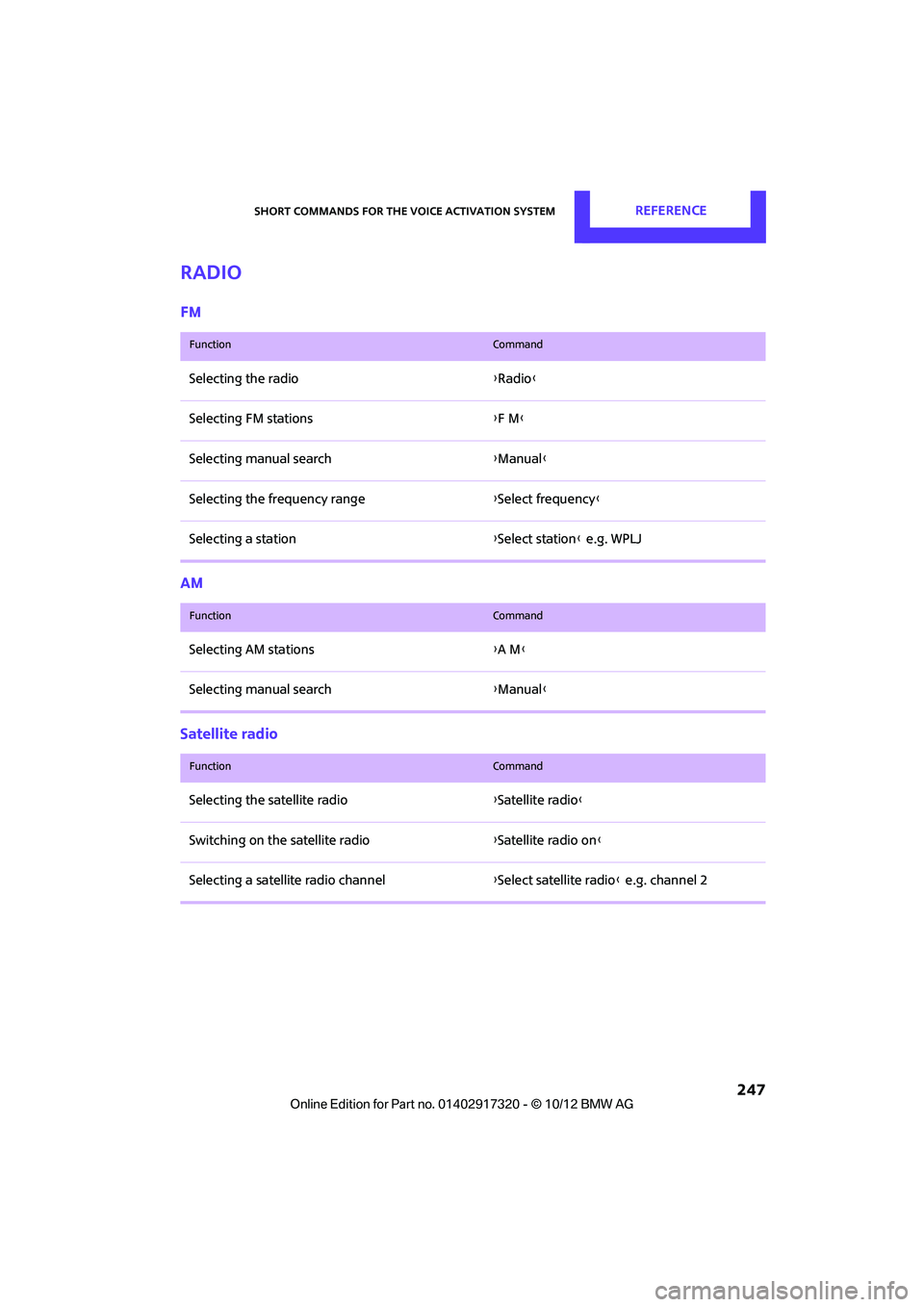
Radio
FM
AM
Satellite radio
FunctionCommand
Selecting the radio{Radio }
Selecting FM stations {F M }
Selecting manual search {Manual }
Selecting the frequency range {Select frequency }
Selecting a station {Select station } e.g. WPLJ
FunctionCommand
Selecting AM stations {A M }
Selecting manual search {Manual }
FunctionCommand
Selecting the satellite radio {Satellite radio}
Switching on the satellite radio {Satellite radio on }
Selecting a satellite radio channel {Select satellite radio } e.g. channel 2
00320051004F004C00510048000300280047004C0057004C005200510003
Page 254 of 267

Everything from A to ZREFERENCE
253
B
Background lighting, refer to
Ambient lighting 84
Backrests, refer to Seats 39
Backup lamps
– replacing bulb 222,223
Band-aids, refer to First aid pouch 231
Bar, refer to Tow-starting,
towing away 234
Base plate for telephone or mobile phone
– refer to Snap-in adapter 177
Bass sounds, refer to Tone control 133
Battery 229
– disposal 35,230
– jump-starting 232
– temporary power failure 230
Battery renewal
– remote control 35
Being towed 234
Belts, refer to Safety belts 41
Belt tensioner, refer to Safety
belts 41
Beverage holders, refer to Cupholders 96
Black ice, refer to External temperature warning 58
Blower, refer to Air flow rate 86,88
Bluetooth, activating/
deactivating 157,167
Bluetooth audio 149
– device pairing 150
– disconnecting an audio connection 152
– playback 151
– unpairing device 152
– What to do if... 152
Bottle holders, refer to
Cupholders 96
Brake Assist 69
Brake fluid, refer to Service
requirements 61 Brake lamps
– replacing bulbs
222,223
Brake pads, breaking in 100
Brake rotors 102
– brakes 100
– breaking in 100
Brakes
– ABS 69
– breaking in 100
– MINI Maintenance
System 211
– parking brake 49
– service requirem ents
61
Brakes, refer to Braking sa fely 101
Br
ake system 100
– breaking in 100
– disc brakes 102
– MINI Maintenance
System 211
Breakdown service, refer to Roadside Assistance 231
Breaking in the clutch 100
Break-in period 100
Bulb changing, refer to Lamps
and bulbs 219
Button for starting the engine 47
Buttons on the steering wheel 11
C
Calendar 183
– displaying appointment 183
– selecting calendar day 183
California Proposition 65 warning 5
Call
– ending 160,172
– muting the microphone 173
Calling, refer to Phone
numbers, dialing 160,172
Calling, refer to Telephone 95
Can holders, refer to
Cupholders 96
Capacities 244 Car battery, refer to Vehicle
battery 229
Car care 213
Care 213
– car-care products 213
– car washes 213
– CD/DVD drives 216
– high-pressure washers 214
– leather 215
– manual washing 214
– upholstery and fabrics 215
– windows 214
– wiper blades 214
Cargo, securing 105
Cargo area 102
– capacity 242
– Comfort Access 34
– cover 102
– doors, refer to Split Rear Barn
Doors 31
– lamp 84
– opening from outside 31
– trunk lid, refer to Split Rear Barn Doors 31
Cargo area, expanding 103
Cargo area doors, refer to Split Rear Barn Doors 31
Cargo area lamp 84
Cargo area lid, refer to Tailgate 31
Cargo area partition net, refer to Cargo net 104
Cargo loading 104
– securing cargo 105
– stowing cargo 105
– vehicle 102
Cargo net 104
Car key, refer to Keys/remote controls 26
Carpets, care 215
Car phone
– installation location, refer to
Ce
nter armrest 95
– refer to Telephone 95
Car phone, refer to
Telephone 156,166
Car radio, refer to Radio 135
00320051004F004C00510048000300280047004C0057004C005200510003
Page 256 of 267

Everything from A to ZREFERENCE
255
Deactivating front passenger airbags 78
Deadlocking, refer to Locking 28
Defect
– door lock 29
Defective
– fuel filler flap 192
Defining a home address 181
Defogging windows 87,89
Defrosting windows 87,89
Defrosting windows and removing condensation
– air conditioner 87
– automatic climate control 89
Defrosting windshield, refer to
Defrosting windows 87,89
Defrost position, refer to Defrosting windows 87,89
Deleting contacts 165,182
Destination address
– entering 112,118
Destination for navigation
– entering 112
– entering via map 117
Differential, breaking in 100
Digital compass 92
Digital radio, refer to HD
Radio 136
Dimensions 239
Dipstick, engine oil 208
Directional indicators, refer to Turn signals 52
Direction announcements, refer to Voice
instructions 125
Direction instructions, refer to Voice instructions 125
Directory for navigation, refer
to Address book 114
Displacement, refer to Engine data 238
Display, refer to Onboard computer controls 16
Displaying contact
pictures 182
Displaying contacts 164Displaying special
destinations 117
Display lighting, refer to Instrument lighting 83
Displays 12
– instrument panel 12
– on the Control Display 16
Displays, care 216
Displays and controls 10
Disposal
– of coolan
t210
–
remote control battery 35
– vehicle battery 230
Distance remaining to service, refer to Service
requirements 61
Distance warning, refer to Park Distance Control PDC 68
Door
– rear, refer to Club Door 30
Door key, refer to Integrated key/remote control 26
Door lock 29
Door lock, confirmation signals 28
Doors, manual operation 29
DOT Quality Grades 203
Double doors, refer to Split
Rear Barn Doors 31
Drinks holders, refer to
Cupholders 96
Drive-off assistant, refer to Hill
Assist 71
Driving dynamics control, refer to Sport button 71
Driving lamps, refer to Parking
lamps/low beams 81
Driving notes 100
Driving off on inclines, refer to
Hill Assist 71
Driving stability control systems 69
Driving through water 101
Driving tips, refer to Driving notes 100
Dry air, refer to Cooling function 89 DSC Dynamic Stability
Control 69
DTC Dynamic Traction Control 70
Dynamic Brake Control DBC, refer to Brake Assist 69
Dynamic route guidance 128
Dynamic Stability Control DSC 69
Dynamic Traction Control
DTC 70
E
Eject button, refer to Buttons
on the CD player 132
Electrical malfunction
– door lock 29
– fuel filler flap 192
Electric power windows
– initializing 37
Electronic brake-force
distribution 69
Electronic Stability Program ESP, refer to Dynamic
Stability Control DSC 69
E-mail 183
Emergency operation, refer to
Manual operation
– door lock 29
– fuel filler flap 192
– transmission lock, automatic transmission 51
Emergency services, refer to Roadside Assistance 231
Ending a call 160,172
Engine
– breaking in 100
– data 238
– overheated, refer to Coolant temperature 210
– speed 238
– starting, Comfort Access 33
Engine compartment 207
Engine coolant, refer to
Coolant 210
00320051004F004C00510048000300280047004C0057004C005200510003