2013 MERCEDES-BENZ CL CLASS change time
[x] Cancel search: change timePage 161 of 496
Avoiding a section of the route blocked
by a traffic jam
This function blocks a section of the route
ahead of you. You can set the length of the
blocked route section. If possible, COMAND
calculates a detour around the blocked
section of the route.
XTo activate navigation mode: press the
S function button once or twice.XTo show the menu: press W the COMAND
controller.XSelect Route in the navigation system
menu bar by turning cVd the COMAND
controller and press W to confirm.XSelect Detour and press W to confirm.XTo block a section of the route: select
More or Less repeatedly and confirm using
W until the desired section has been
selected.
i The total length of the section that can be
blocked is defined by the digital map. The
menu items are available accordingly.
XTo start route calculation: select Start
and press W to confirm.XTo delete the blocked section: select
Delete while the message is shown and
press W to confirm.
COMAND calculates the route without the
block.
Selecting an alternative route
With the "Alternative route" function, routes
other than the original one can be calculated.
XTo activate navigation mode: press the
S function button once or twice.XTo show the menu: press W the COMAND
controller.XSelect Route in the navigation system
menu bar by turning cVd the COMAND
controller and press W to confirm.XSelect Alternative Route and press W
to confirm.
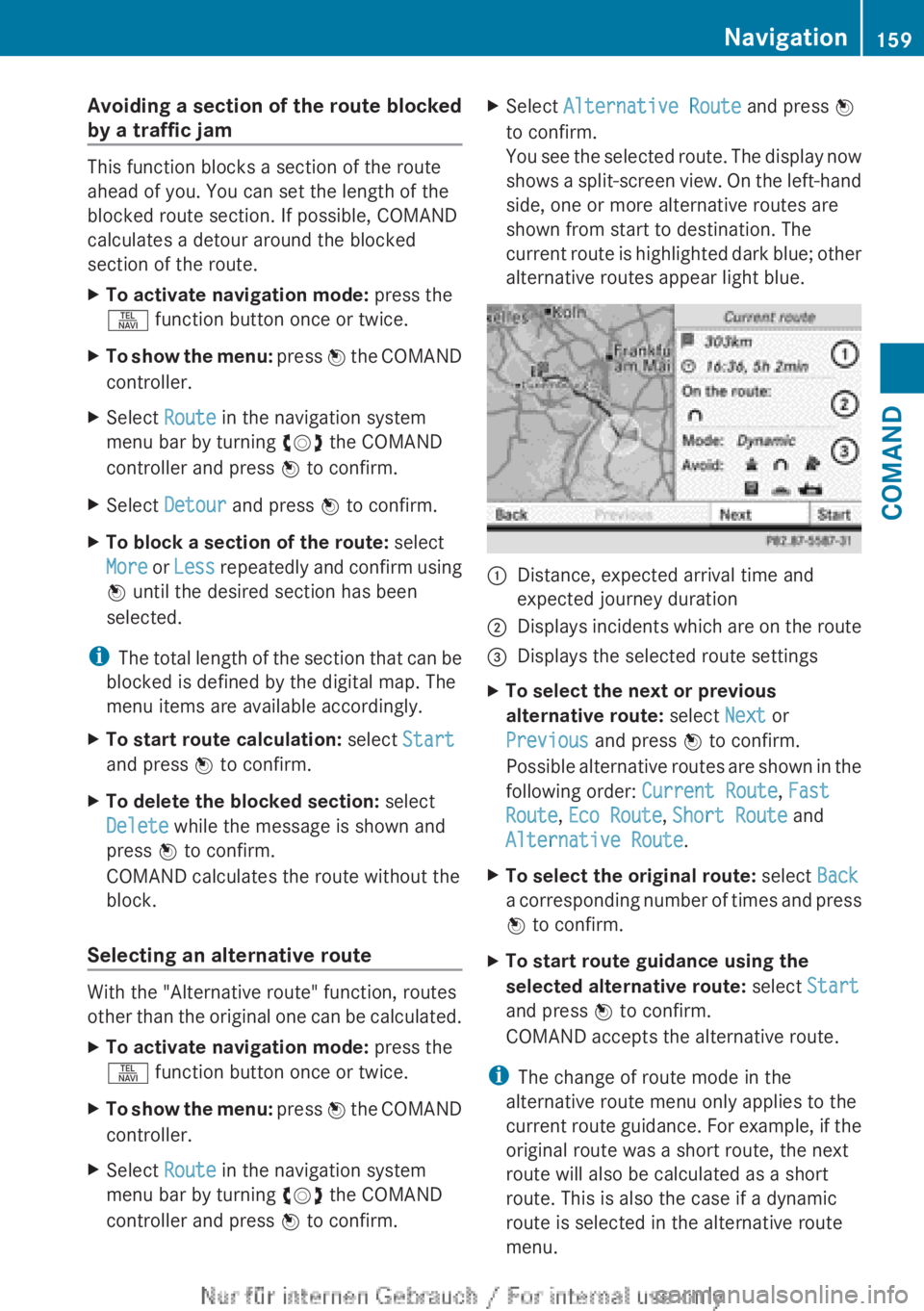
You see the selected route. The display now
shows a split-screen view. On the left-hand
side, one or more alternative routes are
shown from start to destination. The
current route is highlighted dark blue; other
alternative routes appear light blue.:Distance, expected arrival time and
expected journey duration;Displays incidents which are on the route=Displays the selected route settingsXTo select the next or previous
alternative route: select Next or
Previous and press W to confirm.
Possible alternative routes are shown in the
following order: Current Route, Fast
Route , Eco Route , Short Route and
Alternative Route .XTo select the original route: select Back
a corresponding number of times and press
W to confirm.XTo start route guidance using the
selected alternative route: select Start
and press W to confirm.
COMAND accepts the alternative route.
i The change of route mode in the
alternative route menu only applies to the
current route guidance. For example, if the
original route was a short route, the next
route will also be calculated as a short
route. This is also the case if a dynamic
route is selected in the alternative route
menu.
Navigation159COMANDZ
Page 169 of 496

save the home address without starting
route guidance.XTo enter the home address for the first
time: select Assign Address Book
Entry and press W to confirm.XSelect Home or Work and press W to
confirm.XTo change the home address: select
Change and press W to confirm.XSelect Assign Address Book Entry and
press W to confirm.
i
If you select New Entry, you are also
offered the option of changing the home
address by entering an address. You can
then save the home address without
starting route guidance.
XSelect Home or Work and press W to
confirm.
In both cases, you will see the address book
either with the character bar or as a
selection list.XTo select an address book entry:
proceed as described in the "Searching for
an address book entry" section
( Y page 193).XTo confirm the selection: press W the
COMAND controller.
If no home address has been stored,
COMAND saves the entry. You will see a
message and then the address menu with
the selected address. Start is highlighted
automatically.
If a home address has already been stored,
you will see a prompt asking you whether
the My Address entry should be
overwritten.XSelect Yes or No and press W to confirm.
If you select Yes, COMAND overwrites the
destination. You will see a message and
then the address menu with the selected
address. Start is highlighted
automatically.
If you select No, the list will reappear.Selecting the home address for route
guidanceXProceed as described in the "Selecting a
destination from the destination memory"
section ( Y page 146).
Storing a destination in the destination
memory
Note
This function also stores the destination in
the address book.
After destination entry
XThe destination has been entered and is
shown in the address entry menu
( Y page 143).XSelect Save by sliding VÆ and turning
cVd the COMAND controller and press
W to confirm.
You can now select storage options.
During route guidance
XTo show the menu: press W the COMAND
controller.XSelect Destination in the navigation
system menu bar by turning cVd the
COMAND controller and press W to
confirm.XSelect Save Destination and press W to
confirm.
You can now select storage options.
From the list of previous destinations
XTo show the menu: press W the COMAND
controller.XSelect Destination in the navigation
system menu bar by turning cVd the
COMAND controller and press W to
confirm.XSelect From Last Destinations and
press W to confirm.
The list of last destinations appears.Navigation167COMANDZ
Page 185 of 496

Ra valid and operational SIM card must be
inserted in the mobile phone.
R the mobile phone is connected to COMAND
via Bluetooth ®
.
If you cannot make an emergency call, you
must arrange rescue measures yourself.XEnter numbers using the number keypad
( Y page 188).XPress the 6 button.
The telephone makes the connection.XWait for the emergency call center to
respond and then describe the emergency.
i If no SIM card has been inserted in a GSM
phone or if there is no service available for
a CDMA phone, the NO SERVICE message
appears in COMAND. In this case, an
emergency call can only be transmitted via
the mobile phone itself and not via
COMAND.
Telephony via the Bluetooth ®
interface
Conditions
On the mobile phone
For telephony via COMAND's Bluetooth ®
interface, a Bluetooth ®
-capable mobile
phone is required.
i Not all mobile phones available on the
market are equally suitable. More detailed
information on suitable mobile phones and
on connecting Bluetooth ®
-capable mobile
phones with COMAND can be found on the
Internet at
http://www.mbusa-mobile.com . Or call
the Mercedes-Benz Customer Assistance
Center on
1-800-FOR-MERCedes(1-800-367-6372)
(for the USA) or Customer Relations on
1-800-387-0100 (for Canada).
The battery of the mobile phone should
always be kept sufficiently charged in order
to prevent malfunctions.
In preparation for telephoning via the
Bluetooth ®
interface, you should check the
following items on your mobile phone (see the
mobile phone operating instructions):XHands-Free Profile
The mobile phone must support Hands-
Free Profile 1.0 or above.
i Certain displays and functions (e.g. signal
strength display, conference connection)
are available, depending on the supported
version of the Hands-Free Profile.
XBluetooth ®
visibility
On certain mobile phones, the device itself
must be made "visible" for other devices,
as well as activating the Bluetooth ®
function (see the mobile phone operating
instructions).XBluetooth ®
device name
Every Bluetooth ®
device has its own
Bluetooth ®
device name. This device name
is freely definable, but can be identical for
all devices from the same manufacturer. It
is therefore recommended that you change
this name so that you can easily recognize
your mobile phone (see the mobile phone
operating instructions).XSwitch on the mobile phone and enter the
PIN when prompted to do so (see the
mobile phone operating instructions).XActivate Bluetooth ®
functions and, where
necessary, Bluetooth ®
visibility on the
mobile phone (see the mobile phone
operating instructions).
In COMAND
XActivate the Bluetooth ®
function in
COMAND ( Y page 135).
Connecting a mobile phone
General information
Before using your mobile phone with
COMAND for the first time, you will need to
connect it.
Telephone183COMANDZ
Page 212 of 496

XRemove the CD/DVD from slot :.
The DVD changer switches to the next
loaded magazine tray and ejects the CD/
DVD.XRepeat the last step until the magazine is
empty.
Loading and removing SD cards
i Not all SD memory cards are designed for
the temperatures which may be reached in
the vehicle.
Due to the wide range of SD cards available
on the market, Mercedes-Benz cannot
guarantee playback for all brands of SD
memory card.
XTo load an SD card: press the SD card into
slot :. The tapered side must point
towards the right.
If the SD card contains MP3 tracks,
COMAND will play them back.XTo remove the SD card: press the SD card
into slot : as far as it will go and then
release it again.XPull out the card.
Activating audio CD/DVD or MP3 mode
Option 1
XInsert a CD/DVD ( Y page 209) or an SD
card (Y page 210) or connect a USB device
( Y page 222).
COMAND loads the medium inserted and
starts to play it.Option 2XPress the R function button once or
twice.XSelect an audio medium from the media list
( Y page 212).
Option 3
XSelect Audio in the main function bar by
sliding ZV and turning cVd the COMAND
controller and press W to confirm.
The last active audio source is now
activated.
If another audio source is switched on, you
can now switch to disc mode in the audio
menu.XSelect Audio by sliding ZV and turning
cVd the COMAND controller and press
W to confirm.
The audio menu appears.XSelect Disc, Memory Card , MUSIC
REGISTER , Media Interface or USB and
press W to confirm.
This switches to the desired audio source.XSelect an audio medium from the media list
( Y page 212).
Example display: audio CD mode
:Disc type;Track number=Disc number?Disc name (only if stored on the disc)ATrack name (only if stored on the disc)BTrack time210AudioCOMAND
Page 221 of 496

Example display: MUSIC REGISTER
:Type of data carrier: MUSIC REGISTER;Track number=Track name?Track timeAGraphic time and track displayBCurrent playback settings (no symbol for
"Normal track sequence")CSound settingsDMedia selectionECurrent folderFSearch functionsGData carrier position in the media listHTo call up the MUSIC REGISTER menu
Copying music data to the MUSIC
REGISTER
Introduction
You can copy music files from discs in the
DVD changer, the single DVD drive, the
memory card or the COMAND USB, as long
as they are in MP3 and/or WMA formats.
i While copying, several functions will not
be available. If this is the case, you will see
a message to this effect.
1. Selecting a data medium
XSelect Audio by sliding ZV and turning
cVd the COMAND controller and press
W to confirm.
The audio menu appears.XSelect Music Register and press W to
confirm.XSelect Copy Music Files and press W to
confirm.:Data medium selectedXTo select a disc: slide ZVÆ or turn cVd
and press W to confirm.
The data medium is loaded.
2. Selecting music files
XSelect All Music Files .
This function copies all music files on the
selected data carrier. The symbol in front
of All Music Files is filled in.XSelect Continue .
The copying menu appears.
Folders can also be selected individually.
XTo select individual folders: select the
corresponding folder by sliding ZVÆ or
turning cVd and press W to confirm.
A tick in front of the entry highlights the
selection.Audio219COMANDZ
Page 224 of 496

iThe Normal Track Sequence option is
automatically selected when you change
the disc you are currently listening to or
when you select a different medium. If an
option is selected, it remains selected after
COMAND is switched on or off.
Media Interface mode
Connection options
Overview
You will find the connection sockets in the
glove box.
Device-specific adapter cables are required
to connect external devices to the Media
Interface. These cables are included in the
Media Interface scope of delivery.
i Store individual parts in a safe place.
Only use genuine Mercedes-Benz
connection cables.
You can connect the following data carriers
to COMAND via the Media Interface:
R iPod ®
R USB devices (USB sticks, USB hard drives,
MP3 players)
i iPod ®
is a registered trademark of Apple
Inc., Cupertino, California, USA.
Supported iPod ®
variants
The following are examples of supported
iPod ®
variants:
R iPod ®
nano
R iPod ®
classic
R iPod ®
touch
R iPhone ®
Supported USB devices
The following USB devices are supported:
R USB sticks (flash memory)
R USB hard drives requiring a startup/
permanent current of a maximum of
800 mA (it may be necessary to connect a
separate power supply)
R certain MP3 players
i The Media Interface supports USB
storage media of "USB Device Subclass 6".
Information concerning USB Device
Subclass 6 is available from the equipment
manufacturer.
For details and a list of supported devices,
visit http://www.mbusa-mobile.com . Or
call the Mercedes-Benz Customer Assistance
Center at
1-800-FOR-MERCedes(1-800-367-6372) (for
the USA) or Customer Relations at
1-800-387-0100 (for Canada).
Connecting an external device
i Do not leave external devices in the
vehicle as extreme temperatures (e.g.
direct sunlight or extremely low outside
temperatures) could cause them to
malfunction (see the operating instructions
for the respective device). Mercedes-Benz
USA, LLC accepts no liability for damage to
external devices.
Never connect more than one device at a
time. You will otherwise not be able to
operate the external device.
:4-pin jack for 1/8 inch jack plug, e.g. for
MP3 player (audio and video);iPod ®
plug=USB socket?Example of device, iPod ®222AudioCOMAND
Page 232 of 496

authorized Mercedes-Benz Center. This will
allow you to play video DVDs with a
different region code, provided that they
are produced in accordance with the PAL
or NTSC standard. The region code can be
changed up to five times.
Function restrictions
Depending on the DVD, it is possible that
certain functions or actions will be
temporarily blocked or may not function at all.
As soon as you try to activate these functions
or actions, you will see the K symbol in the
display.
Inserting and removing DVDs
XProceed as described in the "Inserting and
ejecting CDs and DVDs" section
( Y page 209).
Activating video DVD mode
Option 1
XInsert a video DVD.
COMAND loads the medium inserted and
starts to play it.
Option 2
XSelect Video in the main function bar by
sliding ZV and turning cVd the COMAND
controller and press W to confirm.
Video DVD mode is switched on.
Hiding/showing the navigation menu
XTo show: turn cVd or slide ZVÆ the
COMAND controller.
i This function is not available while the
DVD's own menu ( Y page 232) is being
displayed.
XTo hide: slide ZVÆ the COMAND
controller.
or
XWait for approximately eight seconds.
Navigation menu displayed
:Data medium type;Current track=Current scene?Track timeATo show the menu
Showing/hiding the menu
This function is not available while the DVD's
own menu ( Y page 232) is being displayed.
XTo show: press W the COMAND
controller.
or
XSelect Menu while the navigation menu is
shown and press W to confirm.XTo hide: slide ZV the COMAND controller
and confirm Full Screen by pressing W.
Menu shown
:Video DVD options;Pause function=Stop function?Full-screen function230VideoCOMAND
Page 256 of 496

Cornering light function
The cornering light function improves the
illumination of the road over a wide angle in
the direction you are turning, enabling better
visibility in tight bends, for example. The
cornering light function can only be activated
when the low-beam headlamps are switched
on.
Active:
R if you are driving at speeds below 25 mph
(40 km/h) and switch on the turn signals
or turn the steering wheel
R if you are driving at speeds between
25 mph (40 km/h) and 45 mph (70 km/h)
and turn the steering wheel
Not active: if you are driving at speeds above
25 mph (40 km/h) or switch off the turn
signals or turn the steering wheel to the
straight-ahead position.
The cornering light function may remain lit for
a short time, but is automatically switched off
after no more than three minutes.
Adaptive Highbeam Assist
You can use this function to set the
headlamps to change between low beam and
high beam automatically. The system
recognizes vehicles with their lights on, either
approaching from the opposite direction or
traveling in front of your vehicle, and
consequently switches the headlamps from
high beam to low beam.
The system automatically adapts the low-
beam headlamp range depending on the
distance to the other vehicle. Once the
system no longer detects any other vehicles,
it reactivates the high-beam headlamps.
The system's optical sensor is located behind
the windshield near the overhead control
panel.XTo activate: activate the Adaptive
Highbeam Assist function using the on-
board computer ( Y page 350).XTurn the light switch to c.XPress the combination switch beyond the
pressure point in the direction of arrow :
( Y page 252).
If it is dark and the light sensor activates
the low-beam headlamps, the _
indicator lamp in the instrument cluster
lights up.
If you drive at speeds above approximately
28 mph (45 km/h):
the headlamp range is set automatically
depending on the distance between the
vehicle and other road users.
If you are driving at speeds above
approximately 35 mph (55 km/h) and no
other road users have been detected:254Exterior lightingLights and windshield wipers