2013 MAZDA MODEL 3 5-DOOR service
[x] Cancel search: servicePage 404 of 610

Black plate (404,1)
Gracenote®End User License Agreement
This application or device contains software from Gracenote, Inc. of Emeryville, California
( “ Gracenote ”). The software from Gracenote (the “Gracenote Software ”) enables this
application to perform disc and/or file identification and obtain music-related information,
including name, artist, track, and title information ( “Gracenote Data ”) from online servers
or embedded databases (collectively, “Gracenote Servers ”) and to perform other functions.
You may use Gracenote Data only by means of the intended End-User functions of this
application or device.
You agree that you will use Gracenote Data, the Gracenote Software, and Gracenote
Servers for your own personal non-commercial use only. You agree not to assign, copy,
transfer or transmit the Gracenote Software or any Gracenote Data to any third party. YOU
AGREE NOT TO USE OR EXPLOIT GRACENOTE DATA, THE GRACENOTE
SOFTWARE, OR GRACENOTE SERVERS, EXCEPT AS EXPRESSLY PERMITTED
HEREIN.
You agree that your non-exclusive license to use the Gracenote Data, the Gracenote
Software, and Gracenote Servers will terminate if you violate these restrictions. If your
license terminates, you agree to cease any and all use of the Gracenote Data, the Gracenote
Software, and Gracenote Servers. Gracenote reserves all rights in Gracenote Data, the
Gracenote Software, and the Gracenote Servers, including all ownership rights. Under no
circumstances will Gracenote become liable for any payment to you for any information
that you provide. You agree that Gracenote, Inc. may enforce its rights under this
Agreement against you directly in its own name.
The Gracenote service uses a unique identifier to track queries for statistical purposes. The
purpose of a randomly assigned numeric identifier is to allow the Gracenote service to
count queries without knowing anything about who you are. For more information, see the
web page for the Gracenote Privacy Policy for the Gracenote service.
The Gracenote Software and each item of Gracenote Data are licensed to you “AS IS. ”
Gracenote makes no representations or warranties, express or implied, regarding the
accuracy of any Gracenote Data from in the Gracenote Servers. Gracenote reserves the
right to delete data from the Gracenote Servers or to change data categories for any cause
that Gracenote deems sufficient. No warranty is made that the Gracenote Software or
Gracenote Servers are error-free or that functioning of Gracenote Software or Gracenote
Servers will be uninterrupted. Gracenote is not obligated to provide you with new
enhanced or additional data types or categories that Gracenote may provide in the future
and is free to discontinue its services at any time.
GRACENOTE DISCLAIMS ALL WARRANTIES EXPRESS OR IMPLIED,
INCLUDING, BUT NOT LIMITED TO, IMPLIED WARRANTIES OF
MERCHANTABILITY, FITNESS FOR A PARTICULAR PURPOSE, TITLE, AND
NON-INFRINGEMENT. GRACENOTE DOES NOT WARRANT THE RESULTS THAT
WILL BE OBTAINED BY YOUR USE OF THE GRACENOTE SOFTWARE OR ANY
GRACENOTE SERVER. IN NO CASE WILL GRACENOTE BE LIABLE FOR ANY
CONSEQUENTIAL OR INCIDENTAL DAMAGES OR FOR ANY LOST PROFITS OR
LOST REVENUES.
© 2000 to present. Gracenote, Inc.
6-164
Interior Comfort
Bluetooth® (Type B)
Mazda3_8CV6-EA-12H_Edition3 Page404
Thursday, February 28 2013 11:30 AM
Form No.8CV6-EA-12H
Page 410 of 610

Black plate (410,1)
Troubleshooting
Bluetooth®does not operate under the following conditions. Check whether the following
conditions apply to your Bluetooth®device:lThe device is not being operated correctly.lThe device is not connected to the Bluetooth®unit equipped on the vehicle.lThe device's battery is weak.lA device which interferes with radio wave reception has been placed in the vehicle.lThe ignition switch has been turned off.
If none of the above conditions apply, refer to the following to see if any of the problem
symptoms correspond to your device.
If the problem cannot be resolved, consult an Authorized Mazda Dealer or Mazda
Bluetooth
®Hands-Free Customer Service.
Mazda Bluetooth®Hands-Free Customer Service
If you have any problems with Bluetooth
®, contact with our toll-free customer service
center.
lU.S.A.
Phone: 800-430-0153 (Toll-free)
Web: www.MazdaUSA.com/bluetooth
lCanada
Phone: 800-430-0153 (Toll-free)
Web: www.mazdahandsfree.ca
6-170
Interior Comfort
Bluetooth® (Type B)
Mazda3_8CV6-EA-12H_Edition3 Page410
Thursday, February 28 2013 11:30 AM
Form No.8CV6-EA-12H
Page 411 of 610

Black plate (411,1)
Device pairing, connection problemsSymptom Cause Solution method
Unable to perform pairing
―First make sure the device is
compatible with the Bluetooth
®unit,
and then check whether the
Bluetooth
®function and the Find
Mode/Visible setting*1on the device
are turned on. If pairing is still not
possible after this, contact an
Authorized Mazda Dealer or Mazda
Bluetooth
®Hands-Free Customer
Service.
Unable to perform pairing The Bluetooth
®function and the
Find Mode/Visible setting*1on the
device may turn off automatically
after a period of time has elapsed
depending on the device. Check whether the Bluetooth
®
function and the Find Mode/Visible
setting*1on the device are turned on
and pairing or reconnect.
Does not connect automatically
when starting the engine
Automatically connects, but then
disconnects suddenly
Disconnects intermittently The device is in a location in which
radio wave interference can occur
easily.
(Inside a bag in a rear seat, in the rear
pocket of a pair of pants) Move the device to a location in
which radio wave interference is less
likely to occur.
*1 Setting which detects the existence of a device external to the Bluetooth
®unit
Interior Comfort
Bluetooth® (Type B)
6-171
Mazda3_8CV6-EA-12H_Edition3 Page411
Thursday, February 28 2013 11:30 AM
Form No.8CV6-EA-12H
Page 424 of 610

Black plate (424,1)
Initial setting method
1. Press the INFO switch until theSETTINGS screen is displayed.
2. Select MAINTENANCE by pressing the Enter (up/down) switch up or
down, and then press the Enter (up/
down) switch.
3. Select the item you want to turn on (TIRE ROTATION or SERVICE DUE)
by pressing the Enter (up/down) switch
up or down, and then press the Enter
(up/down) switch.
4. Press the Enter (up/down) switch.
5. Select SET and press the Enter (up/down) switch.
NOTElFor the service due notification, either the
number of days or distance can be set.
When selecting one of the two settings, the
setting not selected is set to the initial value
automatically.
lBecause tire rotation can only be set
according to distance, the screen for setting
distance is displayed when SET is selected.
6. Select DISTANCE or DAYS and pressthe Enter (up/down) switch. The screen
for setting the distance or days to the
next maintenance period is displayed.
7. Select a digit using the Right switch/Left switch, and press the Enter (up/
down) switch up or down to change the
value of the digit. If there is no need to
change a digit, leave it as it is and press
the Enter (up/down) switch.
6-184
Interior Comfort
Interior Equipment
Mazda3_8CV6-EA-12H_Edition3 Page424
Thursday, February 28 2013 11:30 AM
Form No.8CV6-EA-12H
Page 425 of 610
Black plate (425,1)
NOTE
The initial setting values are displayed
corresponding to the maintenance schedule
(except Puerto Rico). For each regional
maintenance schedule, Refer to Scheduled
Maintenance on page 8-4.
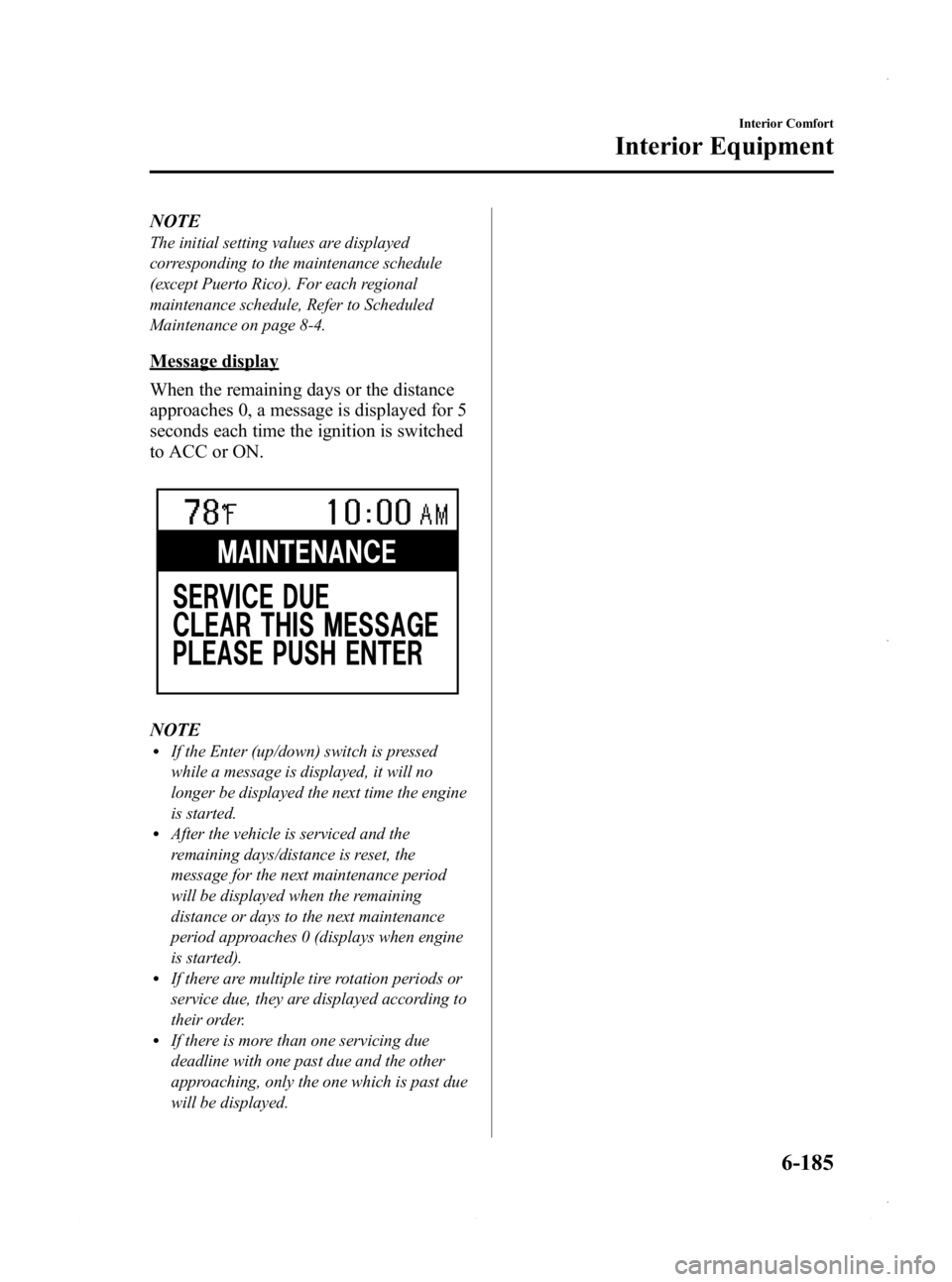
Message display
When the remaining days or the distance
approaches 0, a message is displayed for 5
seconds each time the ignition is switched
to ACC or ON.
NOTElIf the Enter (up/down) switch is pressed
while a message is displayed, it will no
longer be displayed the next time the engine
is started.
lAfter the vehicle is serviced and the
remaining days/distance is reset, the
message for the next maintenance period
will be displayed when the remaining
distance or days to the next maintenance
period approaches 0 (displays when engine
is started).
lIf there are multiple tire rotation periods or
service due, they are displayed according to
their order.
lIf there is more than one servicing due
deadline with one past due and the other
approaching, only the one which is past due
will be displayed.
Interior Comfort
Interior Equipment
6-185
Mazda3_8CV6-EA-12H_Edition3 Page425
Thursday, February 28 2013 11:30 AM
Form No.8CV6-EA-12H
Page 426 of 610

Black plate (426,1)
Display periodItem Start of message display End of message display
TIRE ROTATION When remaining distance is less than 500 km (300 mile) Distance exceeds 500 km (300 mile) from
remaining distance of 0 km
SERVICE DUE When remaining distance is less than 500 km (300 mile), or
remaining days are less than 15
(which ever comes first) Distance exceeds 500 km (300 mile) from
remaining distance of 0 km, or 15 days have
elapsed since remaining days reached
“0 ” days
(which ever comes first)
Message display Item Timing Displayed message
TIRE ROTATION Remaining distance: 500 km (300 mile) to -500 km (-300 mile) TIRE ROTATION DUE
SERVICE DUE Remaining distance: 500 km (300 mile) to 0 km (0 mile) SERVICE DUE
Remaining days: 15 to 0 days
Remaining distance:
0 km (0 mile) to -500 km (-300 mile) SERVICE OVERDUE
Remaining days:0 to 15 days
Reset method
If resetting is performed after a tire
rotation or periodic inspection has been
done, a notification of the next
maintenance period will be displayed
when the period approaches.
1. Press the INFO switch until the SETTINGS screen is displayed.
2. Select MAINTENANCE by pressing the Enter (up/down) switch up or
down, and then press the Enter (up/
down) switch. 3. Select the item you would like to reset
(TIRE ROTATION or SERVICE DUE)
by pressing the Enter (up/down) switch
up or down, and then press the Enter
(up/down) switch.
NOTElThe current remaining distance and days is
displayed.
lEven if the remaining distance or days have
surpassed 0, the display does not display a
minus (― ) and leaves the value at 0.
4. Press the Enter (up/down) switch.
6-186
Interior Comfort
Interior Equipment
Mazda3_8CV6-EA-12H_Edition3 Page426
Thursday, February 28 2013 11:30 AM
Form No.8CV6-EA-12H
Page 427 of 610

Black plate (427,1)
5. Select SET and press the Enter (up/down) switch.
NOTE
If the SERVICE DUE item has been set, both
the days and distance can be selected. Because
the tire rotation item can only be set according
to distance, the screen for setting distance is
displayed when SET is selected.
6. The DISTANCE or DAYS screen isdisplayed, and the remaining distance
and days values return to the values
previously set. If no changes are
necessary, press the Enter (up/down)
switch.
NOTElIf the settings are changed from the initial
values, the values which you set are
displayed, not the initial values.
lEven if the battery is disconnected, the
remaining distance and days information is
not erased.
lIf the multi information display is replaced
or repaired, there is the possibility that the
remaining distance and days information
may be erased.
Method for turning the system off
The maintenance monitor can be turned
off even after it has been turned on. If you
want to turn it off, the remaining distance
and days calculation to the next
maintenance period is stopped, and a
message does not display to indicate an
approaching maintenance period.
1. Press the INFO switch until the
SETTINGS screen is displayed.
2. Select MAINTENANCE by pressing the Enter (up/down) switch up or
down, and then press the Enter (up/
down) switch.
Interior Comfort
Interior Equipment
6-187
Mazda3_8CV6-EA-12H_Edition3 Page427
Thursday, February 28 2013 11:30 AM
Form No.8CV6-EA-12H
Page 428 of 610

Black plate (428,1)
3. Select the item you want to turn off(TIRE ROTATION or SERVICE DUE)
by pressing the Enter (up/down) switch
up or down, and then press the Enter
(up/down) switch.
4. Select OFF and press the Enter (up/
down) switch.
qWarning Indicator
The following warning indicators are
displayed according to necessity. Warning
indicators are displayed regardless of the
multi information display operation.
lDOOR OPENlTRUNK OPEN (including the liftgate)lTIGHTEN FUEL CAP (Displayed
when the check fuel cap warning light
illuminates in the instrument cluster.)
lCHECK TIRE PRESSURE
lRELEASE PARKING BRAKElAdvanced Keyless Entry System
related
lKEY BATTERY IS LOWlADVANCED KEY NOT FOUNDlMOVE SHIFT LEVER TO PlDEPRESS BRAKE PEDAL TO
START ENGINE
lDEPRESS CLUTCH PEDAL TO
START ENGINE
lUSE AUXILIARY KEY
NOTE
When more than two warnings occur at the
same time, indicators are switched at each
specified time.
q Settings
The following settings can be changed:lScreen adjustment (Brightness/contrast,
screen-off)í
lBuzzer volume (Ignition key reminder,
lights-on reminder, Blind Spot
Monitoring (BSM) warning beep)
lTurn indicator soundlDistance unitlTemperature unitlDisplay language
The data for the trip computer average
fuel economy and the average vehicle
speed can also be reset.
To change settings
1. Press the INFO switch until the SETTINGS screen is displayed.
2. Select PREFERENCES by pressing the Enter (up/down) switch up or down,
and then press the Enter (up/down)
switch.
3. Select the setting item you want to change by pressing the Enter (up/
down) switch up or down, and then
press the Enter (up/down) switch.
6-188
Interior Comfort
íSome models.
Interior Equipment
Mazda3_8CV6-EA-12H_Edition3 Page428
Thursday, February 28 2013 11:30 AM
Form No.8CV6-EA-12H