Page 133 of 494
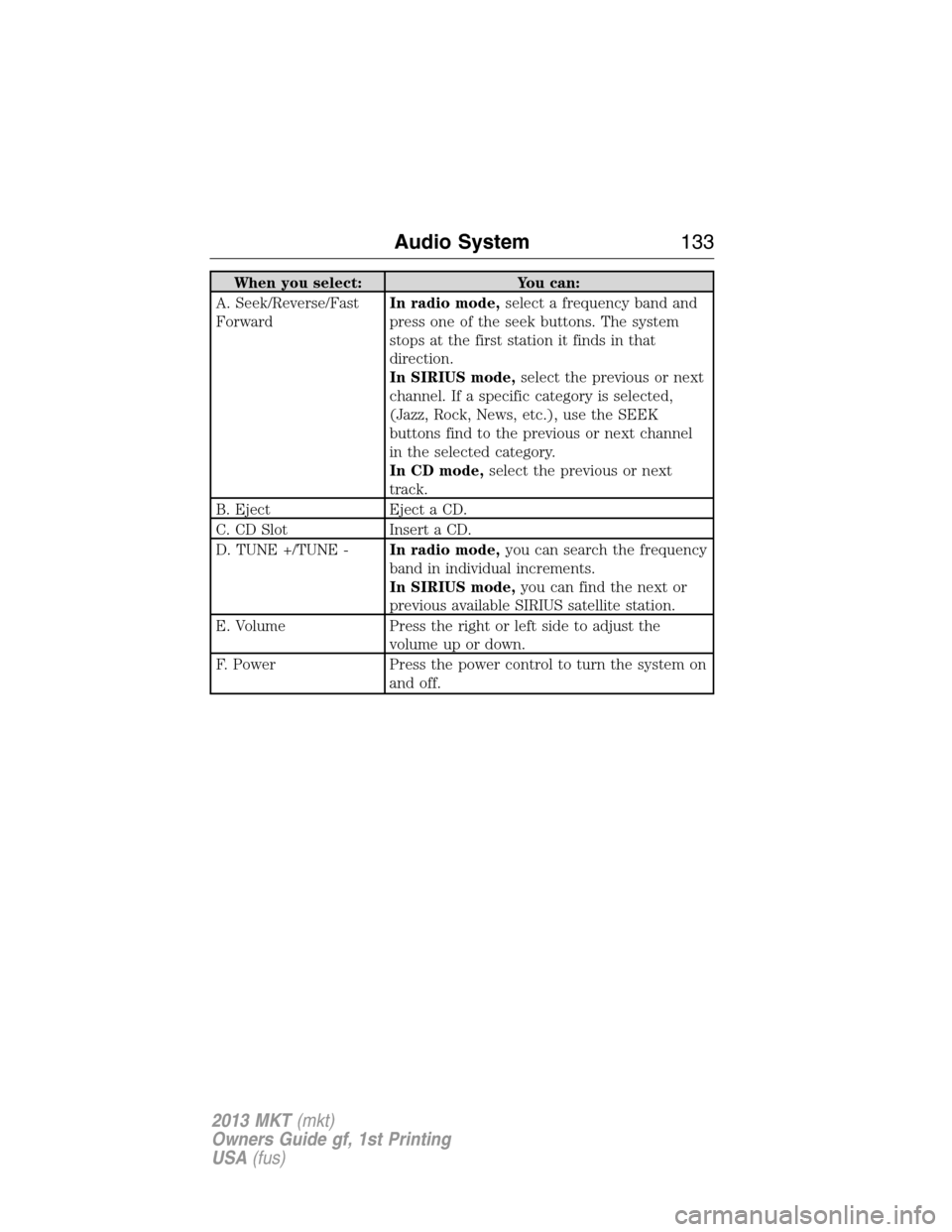
When you select: You can:
A. Seek/Reverse/Fast
ForwardIn radio mode,select a frequency band and
press one of the seek buttons. The system
stops at the first station it finds in that
direction.
In SIRIUS mode,select the previous or next
channel. If a specific category is selected,
(Jazz, Rock, News, etc.), use the SEEK
buttons find to the previous or next channel
in the selected category.
In CD mode,select the previous or next
track.
B. Eject Eject a CD.
C. CD Slot Insert a CD.
D. TUNE +/TUNE -In radio mode,you can search the frequency
band in individual increments.
In SIRIUS mode,you can find the next or
previous available SIRIUS satellite station.
E. Volume Press the right or left side to adjust the
volume up or down.
F. Power Press the power control to turn the system on
and off.
Audio System133
2013 MKT(mkt)
Owners Guide gf, 1st Printing
USA(fus)
Page 134 of 494
REAR AUDIO CONTROLS (IF EQUIPPED)
When you select: You can:
A. VOL Adjust radio volume.
B. MEDIA Scroll through available Audio System modes
C. Rear audio display See displayed time, radio frequency, SIRIUS�
radio channel or CD track
D. CLOCK See the time in the display. The time is shown
in a 24–hour format. The displayed time
disappears after five seconds, the display
returns to latest media mode selected
E. SEEK Select the next or previous stored radio
frequency station, SIRIUS�radio channel or
CD track.
Press and hold to select the next or previous
radio frequency station. The system stops at
the first station found in that direction.
Press and hold to seek at triple speed through
a CD track.
ABCDE
134Audio System
2013 MKT(mkt)
Owners Guide gf, 1st Printing
USA(fus)
Page 135 of 494
MEDIA HUB
The media hub is located behind a small access door in the instrument
panel and has the following features:
A. A/V inputs
B. SD card slot
C. USB ports
For more information, refer to the MyLincoln Touch™ material.
C
BA
Audio System135
2013 MKT(mkt)
Owners Guide gf, 1st Printing
USA(fus)
Page 398 of 494
ACCESSING AND ADJUSTING MODES THROUGH YOUR
INFOTAINMENT DISPLAY
The infotainment display is located on the right side of your instrument
cluster. It allows you to view and make minor adjustments to active
modes without taking your hands off the wheel. For example:
•In entertainment mode, you can view what is now playing, change the
audio source, select presets and make some adjustments.
•In phone mode, you can accept or reject an incoming call.
•In navigation mode (if equipped), you can view the current route or
activate a route.
•In climate mode, the driver side temperature can bet set as well as fan
speed.
Use the OK and arrow buttons on
the right side of your steering wheel
to scroll through the available
modes:
Entertainment
Phone
km/h
80
60
40
20
0
20
0 40 60 80
100120140160180
200
220
100120140
MPH
398MyLincoln Touch™
2013 MKT(mkt)
Owners Guide gf, 1st Printing
USA(fus)
Page 400 of 494

How to Use Voice Commands with Your System
Press the voice icon; after the tone, speak your command
clearly.
These commands can be said at any time
“Cancel”
“Exit”
“Go back”
“List of commands”
“Main menu”
“Next page”
“Previous page”
“What can I say?”
“Help”
What Can I Say?
To access the available voice commands for the current session, do one
of the following:
•During a voice session, press the lower left status bar of the screen,
OR
•Say “What can I say?” for an on-screen listing of the possible voice
commands associated with your current voice session, OR
•Press the voice icon; after the tone, say “Help” for an audible list of
possible voice commands.
To Access a List of Available Commands
•Press Menu > Help > Voice Command List, OR
•Press the voice icon; after the tone, speak your command clearly:
Voice command list
“Audio list of commands”
“Bluetooth audio list of commands”
“Browse list of commands”
“CD list of commands”
“Climate control list of commands”
“List of commands”
400MyLincoln Touch™
2013 MKT(mkt)
Owners Guide gf, 1st Printing
USA(fus)
Page 406 of 494
ENTERTAINMENT
Your system offers many media options. You can access these options
using the touchscreen or voice commands.
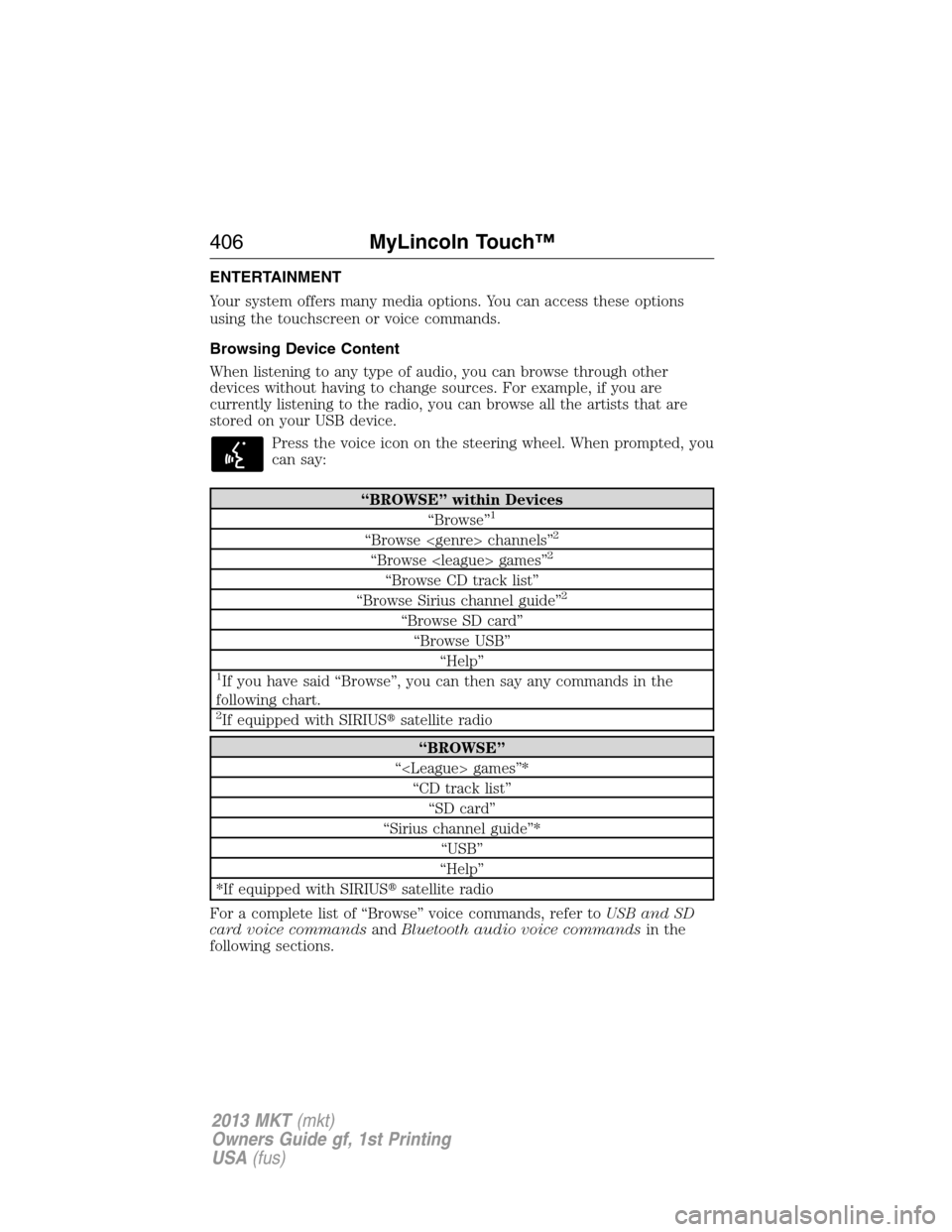
Browsing Device Content
When listening to any type of audio, you can browse through other
devices without having to change sources. For example, if you are
currently listening to the radio, you can browse all the artists that are
stored on your USB device.
Press the voice icon on the steering wheel. When prompted, you
can say:
“BROWSE” within Devices
“Browse”1
“Browse channels”2
“Browse games”2
“Browse CD track list”
“Browse Sirius channel guide”2
“Browse SD card”
“Browse USB”
“Help”
1If you have said “Browse”, you can then say any commands in the
following chart.
2If equipped with SIRIUS�satellite radio
“BROWSE”
“ games”*
“CD track list”
“SD card”
“Sirius channel guide”*
“USB”
“Help”
*If equipped with SIRIUS�satellite radio
For a complete list of “Browse” voice commands, refer toUSB and SD
card voice commandsandBluetooth audio voice commandsin the
following sections.
406MyLincoln Touch™
2013 MKT(mkt)
Owners Guide gf, 1st Printing
USA(fus)
Page 408 of 494

When you select: You can:
Options Adjust more audio system settings:
Sound Settingsallows you to adjust Bass,
Treble, Midrange, Balance and Fade, THX
Deep Note Demo (if equipped), DSP (if
equipped), Occupancy Mode (if equipped), and
Speed Compensated Volume settings.
Set PTY for Seek/Scanallows you to select a
category of music you would like to search for
and then choose to either seek or scan for the
stations.
RDS Text Display On/Offallows you to
always view the information broadcast by FM
stations by selecting On.
Auto Presets (AST) - Autostoreallows you
to have the system automatically store the six
strongest stations in your current location.
These do not override any presets stored in
any of the AM or FM frequency bands.
TAG Button On/Off (if available)allows
you to tag a song to download later.
When you select On, the TAG icon appears
on-screen when HD radio is active. You can
press TAG to save the information of the song
that is playing. When you plug in your portable
music player, the information is transferred (if
supported by your device). When you are
connected to iTunes�, the tags appear to
remind you of the songs you’d like to
download. Refer to theHD Radio information
later in this chapter.
408MyLincoln Touch™
2013 MKT(mkt)
Owners Guide gf, 1st Printing
USA(fus)
Page 409 of 494
HD Radio�Information (If Available)
Note:HD Radio broadcasts are not available in all markets.
HD Radio technology is the digital evolution of analog AM/FM radio. Your
system has a special receiver which allows it to receive digital broadcasts
(where available) in addition to the analog broadcasts it already receives.
Digital broadcasts provide a better sound quality than analog broadcasts
with free, crystal clear audio and no static or distortion. For more
information, and a guide to available stations and programming, please
visit www.hdradio.com.
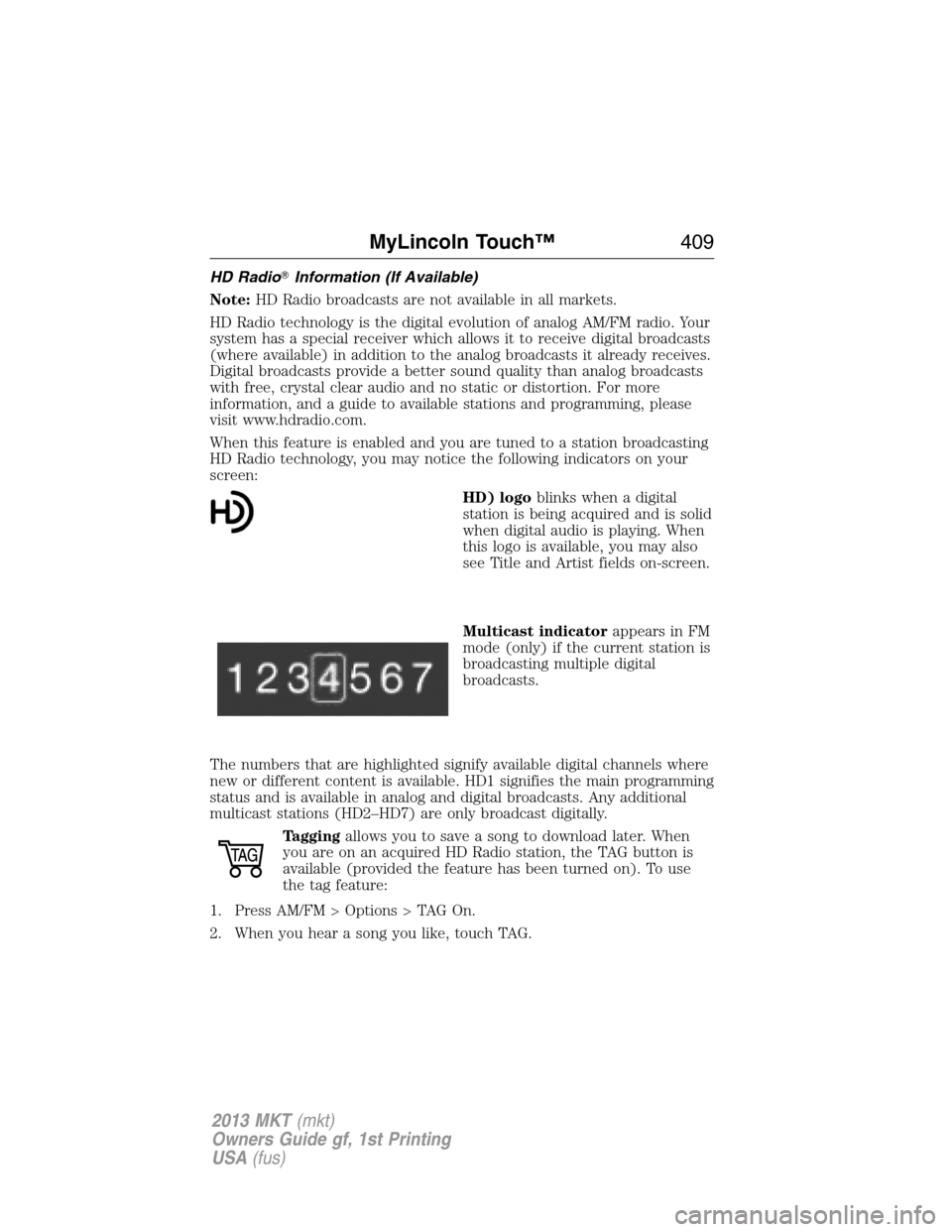
When this feature is enabled and you are tuned to a station broadcasting
HD Radio technology, you may notice the following indicators on your
screen:
HD) logoblinks when a digital
station is being acquired and is solid
when digital audio is playing. When
this logo is available, you may also
see Title and Artist fields on-screen.
Multicast indicatorappears in FM
mode (only) if the current station is
broadcasting multiple digital
broadcasts.
The numbers that are highlighted signify available digital channels where
new or different content is available. HD1 signifies the main programming
status and is available in analog and digital broadcasts. Any additional
multicast stations (HD2–HD7) are only broadcast digitally.
Taggingallows you to save a song to download later. When
you are on an acquired HD Radio station, the TAG button is
available (provided the feature has been turned on). To use
the tag feature:
1. Press AM/FM > Options > TAG On.
2. When you hear a song you like, touch TAG.
MyLincoln Touch™409
2013 MKT(mkt)
Owners Guide gf, 1st Printing
USA(fus)